

Working time
Customers write at night, at the weekend and on Christmas Day, while your team works set hours. Working time tells Replyco when your team is at work: the working days, one daily span and your holidays, set once in AdminCompany Settings. Response deadlines, out-of-hours auto-responses, the live chat widget and the dashboards then follow it, so a promise made on Friday evening does not run out over the weekend and a customer who writes at midnight gets the right answer.
What it does
Section titled “What it does”Without working time, every clock in a helpdesk runs around the clock. A four-hour response target on a message that arrives at 17:00 on Friday is overdue before anyone is back on Monday, an automatic “we are closed” reply goes out in the middle of the working day, and the dashboards count the weekend against your first response time.
Working time is one schedule for the whole company: the days you work, one start and end time for those days (or one continuous stretch of the week) and the dates you are closed every year. Four features read it:
- Response deadlines. A priority counted in working hours stops its clock outside your working time. Working time in response deadlines.
- Auto-responses. A rule set to send outside working hours answers only when your team is not at work, on days off and on holidays. Working time in auto-responses.
- The live chat widget. A widget that uses your company working time shows its open or closed line, and can hide its chat button, by your hours. Working time in the live chat widget.
- The dashboards. With Working Hours chosen, the average times count only the time between your start and end time. Working time on the dashboards.
Each feature reads the working time you saved at the moment it uses it, so the Working Time card is the one place to check when a deadline, an automatic reply or the widget’s status line surprises you.
Before you start
Section titled “Before you start”| Requirement | Details |
|---|---|
| Permission | The Admin permission with Edit rights. It shows Company Settings in the Admin menu, where the Working Time card is. See User permissions and roles. Other users see the effects, not the card. |
| Plan | The Working Time card is part of every plan. So are the features that follow it: priorities, ticket and chat auto-responses, the live chat widget and the dashboards’ hours option. During a trial every feature is on. See What each plan includes. |
| A feature that follows it | At least one of: a priority with Operational Hrs set to Working Hours, an auto-response rule with Send Outside Working hours of Company, a live chat widget with Use Working time from Company Settings, or Working Hours on a dashboard. |
| Cost | None. Working time uses no AI and no quota. |
Understanding working time
Section titled “Understanding working time”Working time is a weekly pattern with exceptions. In the standard form, a moment counts as working time when it falls on one of your working days, between the start and the end time under Active between, and the date is not one of your holidays. Northwind Electronics works Monday to Friday, 09:00–18:00, and closes on 25 December, 26 December and 1 January:
| Moment | Working time? | Why |
|---|---|---|
| Tuesday 11:00 | Yes | A working day, between the start and the end |
| Tuesday 07:30 | No | Before the start of the working day |
| Tuesday 20:00 | No | After the end of the working day |
| Saturday 11:00 | No | Saturday is not a working day |
| Friday 25 December 2026, 11:00 | No | A holiday, every year on that date |
| Monday 28 December 2026, 11:00 | Yes | An ordinary working day again |
With Use Working Time Range switched on, working time is instead one continuous stretch from a start day and time to an end day and time, repeated every week. A shift from Monday 07:30 to Friday 15:50 counts like this:
| Moment | Working time? | Why |
|---|---|---|
| Monday 07:00 | No | Before the start on the first day |
| Monday 12:00 | Yes | After the start on the first day |
| Wednesday 03:00 | Yes | The days between the first and the last count whole |
| Friday 15:00 | Yes | Before the end on the last day |
| Friday 17:00 | No | After the end on the last day |
| Sunday 11:00 | No | Outside the stretch |
How Replyco decides
Section titled “How Replyco decides”- One pattern for every week. The working days and the daily span, or the stretch, repeat every week. There is no calendar of individual weeks.
- One span for every working day. Active between has one start and one end time, so Friday cannot end earlier than Monday. A live chat widget and an auto-response rule can have their own schedules instead; see How the settings combine.
- Holidays are days off all day. A date under Holidays counts as outside working time from morning to night, whatever weekday it falls on. Replyco compares only the day and the month, so the date counts every year.
- Minutes, not seconds. Deadlines in working hours start from the minute the customer’s message arrived and ignore the seconds.
- Read when it is used. An auto-response rule checks working time when a message arrives, a widget when it is shown to a visitor, a dashboard when it calculates its figures, and a priority when it sets a ticket’s deadlines. A saved change reaches each of them without editing the rules, widgets or priorities.
What does not follow your working time
Section titled “What does not follow your working time”- Priorities counted in Calendar Hours. Their deadlines count every minute of every day, which is the default for a new priority.
- Auto-response rules with Send Outside Working hours of Company off. They use their own days and hours, or their own Use Working Time Range, and ignore the company’s working time.
- Live chat widgets with Use Working time from Company Settings off. They use the working days, hours and holidays set on the widget itself.
- Counts on the dashboards. Tickets and messages are counted the same in both hours options; only the average times change. While Calendar Hours is chosen, nothing on a dashboard follows working time.
Setting it up in four steps
Section titled “Setting it up in four steps”-
Open the card. Go to AdminCompany Settings. The General tab opens; the Working Time card is below the General card.
-
Set your days and hours. Under Working days, select each day to switch it on (blue) or off (grey). Under Active between, pick the start and the end time. For one continuous shift across several days, turn on Use Working Time Range and set Active From and Active To instead.
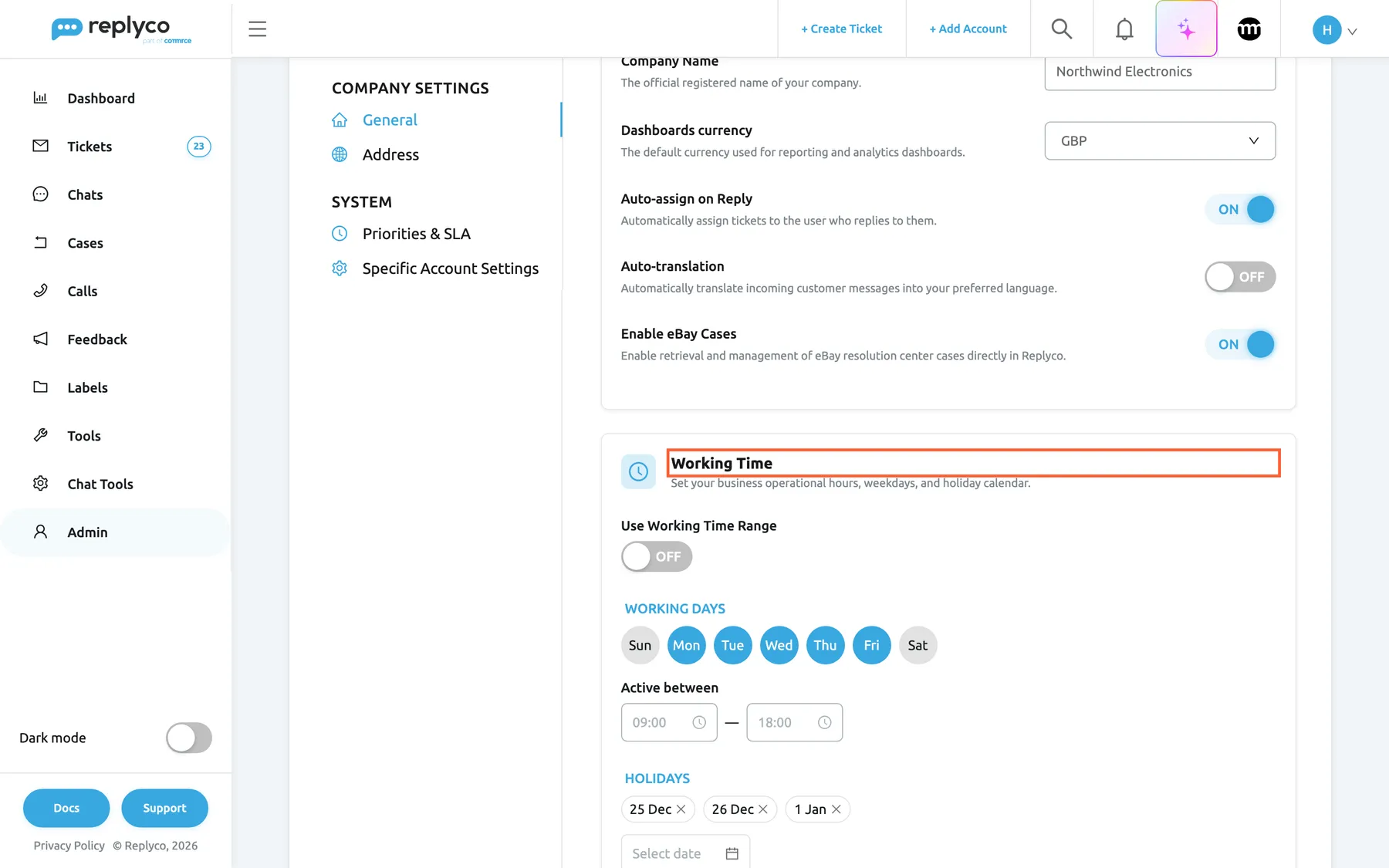
The Working Time card holds the working days, one daily span and the holidays for the whole company. What this screenshot shows
- Screen
- General (/company?tab=companyGeneral)
- Highlighted
- heading “Working Time”, working-time-card, shown. holds the company's working days
- Also visible
- Use Working Time Range OFF; Working days Mon to Fri selected; Active between 09:00 and 18:00; Holidays 25 Dec, 26 Dec, 1 Jan
- Purpose
- where working time is set
-
Add your holidays (optional). Under Holidays, open the date field and pick a date. It appears as a chip with its day and month; select the chip to remove it again.
-
Save. Select Save in the header of the General tab and wait for Success in the top right corner. Then connect the features that should follow it: a priority, an auto-response rule, a widget or a dashboard, each described below.
Every setting, explained
Section titled “Every setting, explained”The Working Time card on the General tab of AdminCompany Settings holds four settings, described here in the order the card shows them. Everything on the card is saved with the tab’s Save button.
Use Working Time Range, daily hours or one stretch
Section titled “Use Working Time Range, daily hours or one stretch”The switch at the top of the Working Time card. Saved with Save.
Off by default. Off: working time is the selected Working days with the daily span under Active between. On: those two give way to Active From and Active To, each a day and a time, and the whole stretch between them counts as working time every week. When you switch it on, Active From starts on the first of your working days and Active To on the last, with your start and end time; check both before you save. When you switch it off again, the days of the stretch stay selected under Working days.
A team that works in shifts across days, or covers the weekend, cannot describe its hours as one span per day. The stretch covers the nights in between as well.
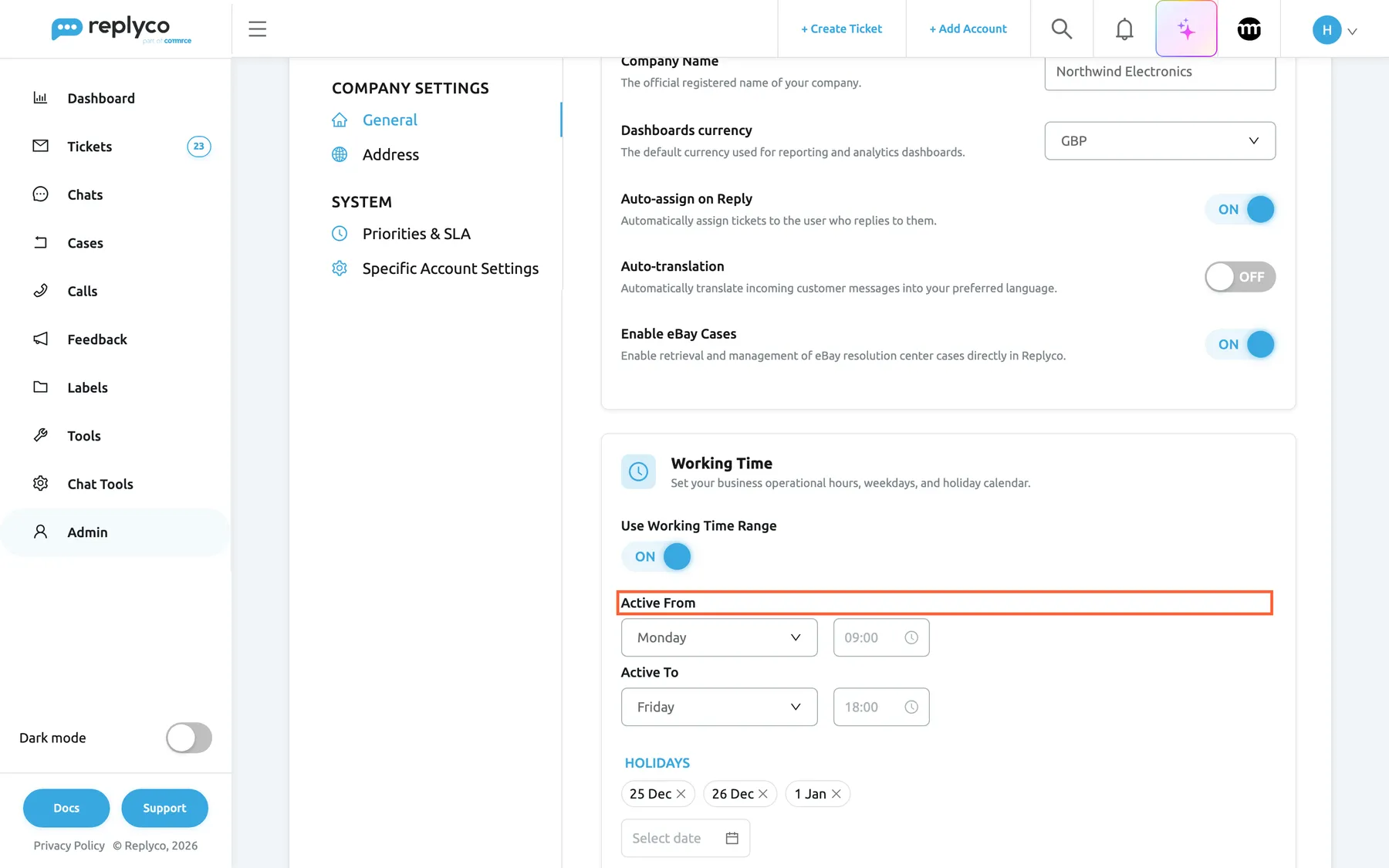
What this screenshot shows
- Screen
- General (/company?tab=companyGeneral)
- Highlighted
- combobox “Active From”, working-time-card, Monday 09:00. sets the day and time where the working stretch starts
- Also visible
- Use Working Time Range ON; Active From Monday 09:00; Active To Friday 18:00; Holidays 25 Dec, 26 Dec, 1 Jan
- Purpose
- one continuous working stretch instead of daily hours
Working days, the days you work
Section titled “Working days, the days you work”Round buttons from Sunday to Saturday on the Working Time card, shown while Use Working Time Range is off. Select a button to switch the day on or off. Saved with Save.
A selected day is blue, a day off is grey. A new company works Monday to Friday. A day off counts as outside working time all day: deadlines in working hours skip it, out-of-hours auto-responses answer all day, and a widget that uses company working time shows its closed line.
Your weekend is when marketplace buyers write most; marking it as a day off stops deadlines from running out while nobody is there to answer.
Active between, the daily span
Section titled “Active between, the daily span”Two time fields below Working days, the start on the left and the end on the right, shown while Use Working Time Range is off. Pick hours and minutes on a 24-hour clock. Saved with Save.
The start and end of the working day, the same for every working day. A new company works 09:00–18:00. Before the start and after the end, the day counts as outside working time. When you save a new start or end time, Replyco recalculates the deadlines of tickets that have a priority and are waiting for your reply.
One span keeps deadlines, automatic replies and the widget in step: all three change at the same minute of the day.
| Your hours | Set it like this |
|---|---|
| Monday to Friday, 08:30–17:00 | Working days Mon to Fri, Active between 08:30 and 17:00 |
| Monday to Saturday, 09:00–18:00 | Working days Mon to Sat, Active between 09:00 and 18:00 |
| Monday 07:30 to Friday 15:50 without a break | Use Working Time Range on, Active From Monday 07:30, Active To Friday 15:50 |
| Weekdays 09:00–18:00, Friday until 15:00 | Not possible in one working time; keep 09:00–18:00 and give an auto-response rule or a widget its own Friday hours |
Active From and Active To, where the stretch starts and ends
Section titled “Active From and Active To, where the stretch starts and ends”Two rows on the Working Time card, shown while Use Working Time Range is on. Each has a day list and a time field. Saved with Save.
The stretch begins on the Active From day at its time and ends on the Active To day at its time; the days between count whole, nights included. An end day earlier in the week than the start day carries the stretch over the weekend: Friday 18:00 to Monday 08:00 covers Friday evening, Saturday, Sunday and Monday morning. The stretch repeats every week.
A weekend team or a round-the-clock shift from Monday morning to Friday afternoon is one block of time, not a span repeated per day.
Holidays, days off every year
Section titled “Holidays, days off every year”The list under Holidays at the bottom of the Working Time card. Pick a date in the date field below the list to add it; select a date’s chip, the one with the cross, to remove it. Saved with Save.
Each holiday is a day off all day. Replyco compares only the day and the month, so a holiday counts every year, and the chip shows the day and the month without a year. A date whose day and month are already listed is not added again. A new company has no holidays.
Christmas, New Year and your own closing days come round every year; entering them once keeps deadlines, replies and the widget right each time.
| Do | Don’t |
|---|---|
| Add the fixed dates you close every year, such as 25 December and 1 January | Add a date only for this year and expect it to be removed afterwards; it counts every year |
| Replace moving holidays such as Easter Monday with the new date each year | Leave last year’s Easter Monday in the list; it keeps counting on that day and month |
| Remove a holiday with the cross on its chip when you decide to open | Mark a day off by switching off its weekday; that closes the day every week |
How the settings combine
Section titled “How the settings combine”The switch decides which shape your working time has; holidays and the features’ own switches decide the rest:
| Use Working Time Range | What counts as working time |
|---|---|
| Off | Every selected working day, from the start to the end time under Active between, except the dates under Holidays |
| On | Every week, from Active From to Active To, with the days between counted whole |
Each feature follows working time through its own setting:
| Feature | Follows working time when | Otherwise |
|---|---|---|
| Response deadlines | The priority’s Operational Hrs is Working Hours | Calendar Hours: every minute counts |
| Auto-responses for tickets and chats | The rule’s Send Outside Working hours of Company is on | The rule’s own days and hours, or its own stretch |
| Live chat widget | Use Working time from Company Settings is on, the default for new widgets | The widget’s own working days, hours and holidays |
| Dashboards | Working Hours is chosen in the dashboard header | Calendar Hours: the average times run around the clock |
Working time in response deadlines
Section titled “Working time in response deadlines”AdminCompany Settings › Priorities & SLA, a priority’s form: Operational Hrs set to Working Hours. See Priorities & SLA.
Both targets of the priority, Respond Within and Resolve Within, count only working time. Outside it the clock stops: after the end of the day it waits for the next working day’s start, and days off and holidays are skipped. One day in a target means 24 working hours, not one working day. Replyco sets the deadlines when a ticket gets the priority and when the customer writes again, and recalculates the deadlines of tickets waiting for your reply when you save a new start or end time. The deadlines show in the Respond Till and Resolve Till columns of the ticket list. Every plan includes priorities.
A four-hour promise made on Friday at 17:00 should mean one hour on Friday and three on Monday, not an overdue ticket on Saturday morning.
With Northwind’s working time, Monday to Friday 09:00–18:00 with 25 and 26 December as holidays, and the priority VIP customers set to respond within 4 hours in working hours:
| Customer writes | Respond Till shows | Why |
|---|---|---|
| Monday 10:00 | Monday 14:00 | Four hours inside the working day |
| Monday 16:30 | Tuesday 11:30 | 1.5 hours on Monday, 2.5 hours on Tuesday |
| Friday 17:00 | Monday 12:00 | One hour on Friday; the weekend does not count |
| Saturday 11:00 | Monday 13:00 | The clock starts on Monday at 09:00 |
| Thursday 24 December 2026, 16:00 | Monday 28 December, 11:00 | Two hours on Thursday; Friday 25 December is a holiday and the weekend follows |
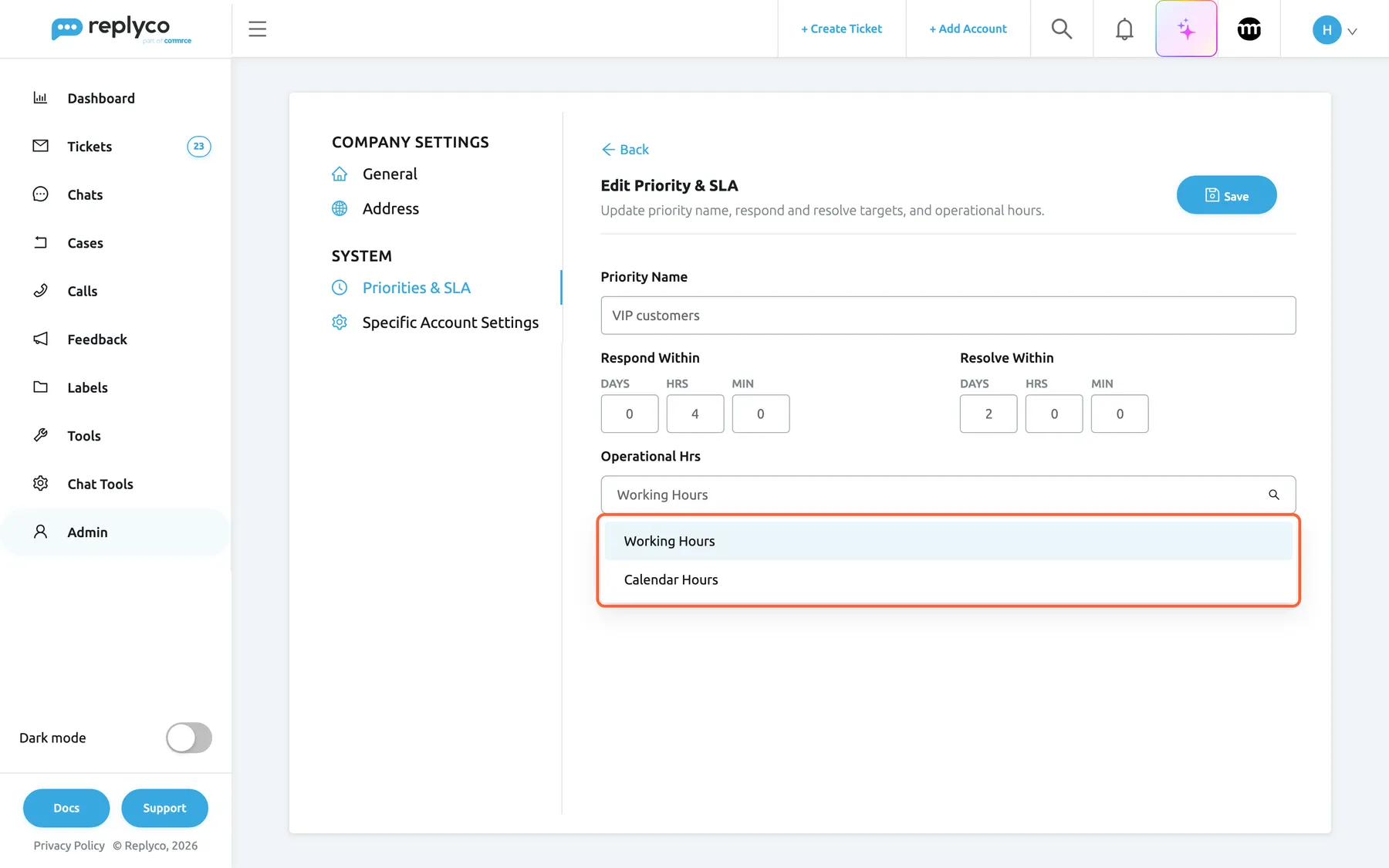
What this screenshot shows
- Screen
- Edit Priority & SLA (/company?tab=priorities)
- Highlighted
- listbox “Operational Hrs”, priority-form, open, Working Hours selected. chooses whether the priority's deadlines count calendar or working hours
- Also visible
- Priority Name VIP customers; Respond Within 0 days 4 hrs 0 mins; Resolve Within 2 days 0 hrs 0 mins; options Working Hours and Calendar Hours
- Purpose
- deadlines in working hours
Three ways teams use it:
- Urgent counts in Calendar Hours, because a marketplace’s response clock runs at weekends too, while VIP customers from your own shop counts in Working Hours.
- A message rule gives tickets whose subject contains “refund” the priority VIP customers; their deadlines skip the night.
- Tone analysis gives angry customers a priority counted in working hours, so an angry message on Sunday is due early on Monday; see Message tone analysis.
For everything priorities do, see Ticket priorities and SLA.
Working time in auto-responses
Section titled “Working time in auto-responses”ToolsAutomation › Auto-response Rules, a rule’s form, section Schedule: the switch Send Outside Working hours of Company. Chat rules have the same switch under Chat ToolsAutomation.
On: the rule may answer only outside your working time, on days off, before the start or after the end of the working day, and on the dates under Holidays. The rule’s own days, hours and Use Working Time Range disappear from the form and are ignored. The rule reads your working time when each message arrives, so a saved change applies to the next message without editing the rule. The rule’s Date Range, if switched on, and its conditions still apply. Every plan includes ticket and chat rules.
Your hours are kept in one place: when they change, every out-of-hours rule follows without being edited one by one.
With Northwind’s working time and an out-of-hours rule that sends the template Out of hours reply:
- A customer asks “Where is my order?” on Tuesday at 20:00 → the rule answers.
- A customer writes on Saturday at 11:00 → the rule answers, because Saturday is a day off.
- A customer writes on 25 December at 10:00 → the rule answers, because the date is a holiday.
A message on Tuesday at 11:00 gets no out-of-hours reply.
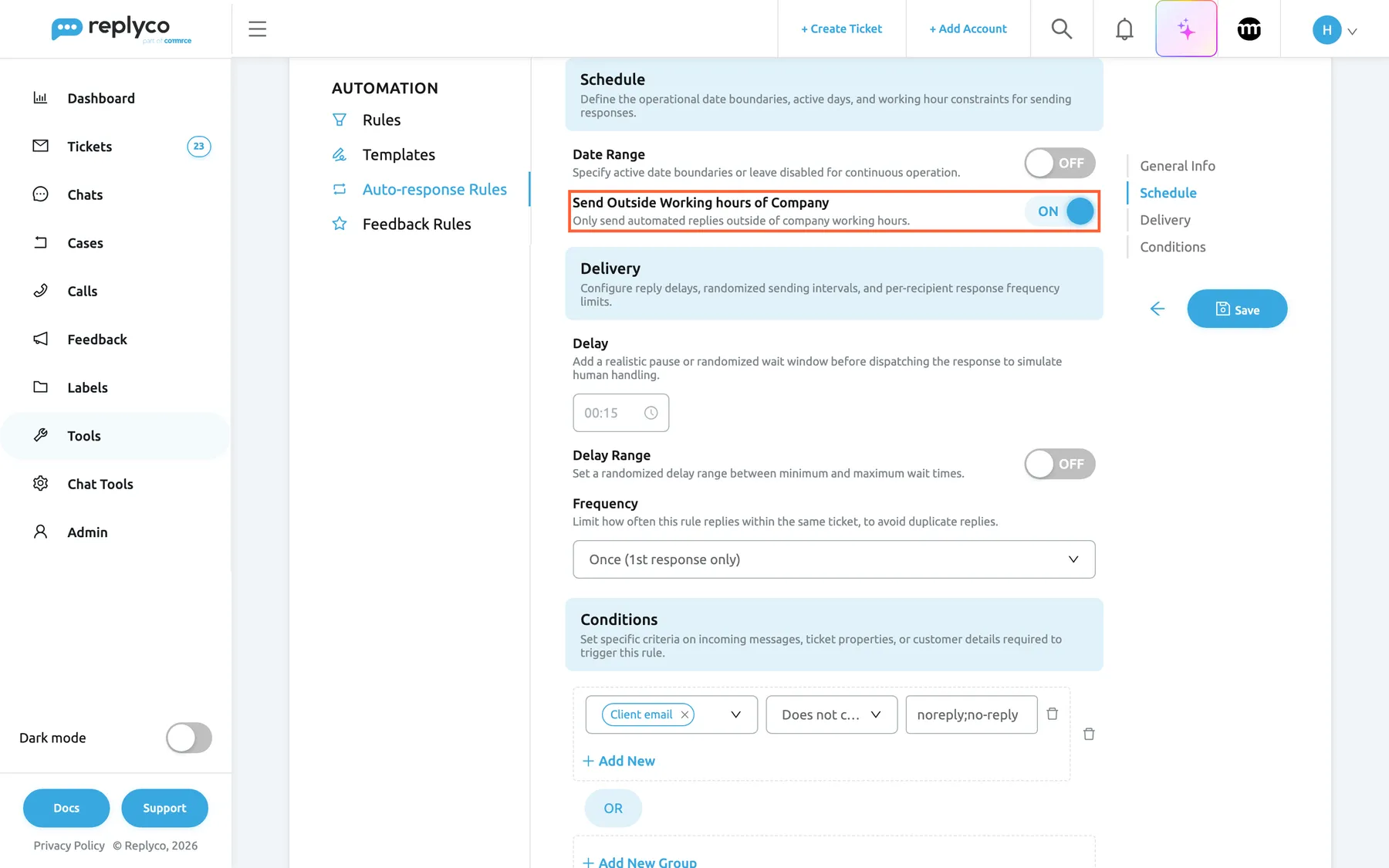
What this screenshot shows
- Screen
- Edit Auto-response Rule (/tickets-automation?tab=autoresponseRules)
- Highlighted
- switch “Send Outside Working hours of Company”, form-schedule, on. sends only outside the company's working time and hides the rule's own days and hours
- Also visible
- Date Range off; no own days, hours or range while the switch is on
- Purpose
- out-of-hours auto-responses follow working time
For every setting of a rule, see Auto-responses for tickets and Auto-responses for chats.
Working time in the live chat widget
Section titled “Working time in the live chat widget”Chat ToolsLive Chat, a widget’s Appearance tab: the switch Use Working time from Company Settings. On for new widgets. See Live chat widget.
On: the widget uses your company’s working days, hours or stretch, and holidays, including later changes. While your company is at work, the chat window shows During business hours message under the greeting; outside working time it shows Outside business hours message. With Widget visibility outside working hours off, the chat button is hidden outside working time. Visitors who see the window can write in both states. Off: the controls of the Working Time card appear on the tab for the widget’s own working time; saving then needs at least one day and both times, otherwise Replyco shows All fields must be completed.. The widget’s own hours are kept when you switch back.
A visitor who writes at night should read that the answer comes in the morning, and should not wait for a reply in a chat that looks staffed.
With the Northwind Live Chat widget on company working time:
- Tuesday 11:00 → the window shows We usually reply within a few minutes.
- Tuesday 20:00 → the window shows We are offline now and will reply in the morning.
- 25 December → the offline line all day; with Widget visibility outside working hours off, no chat button at all.
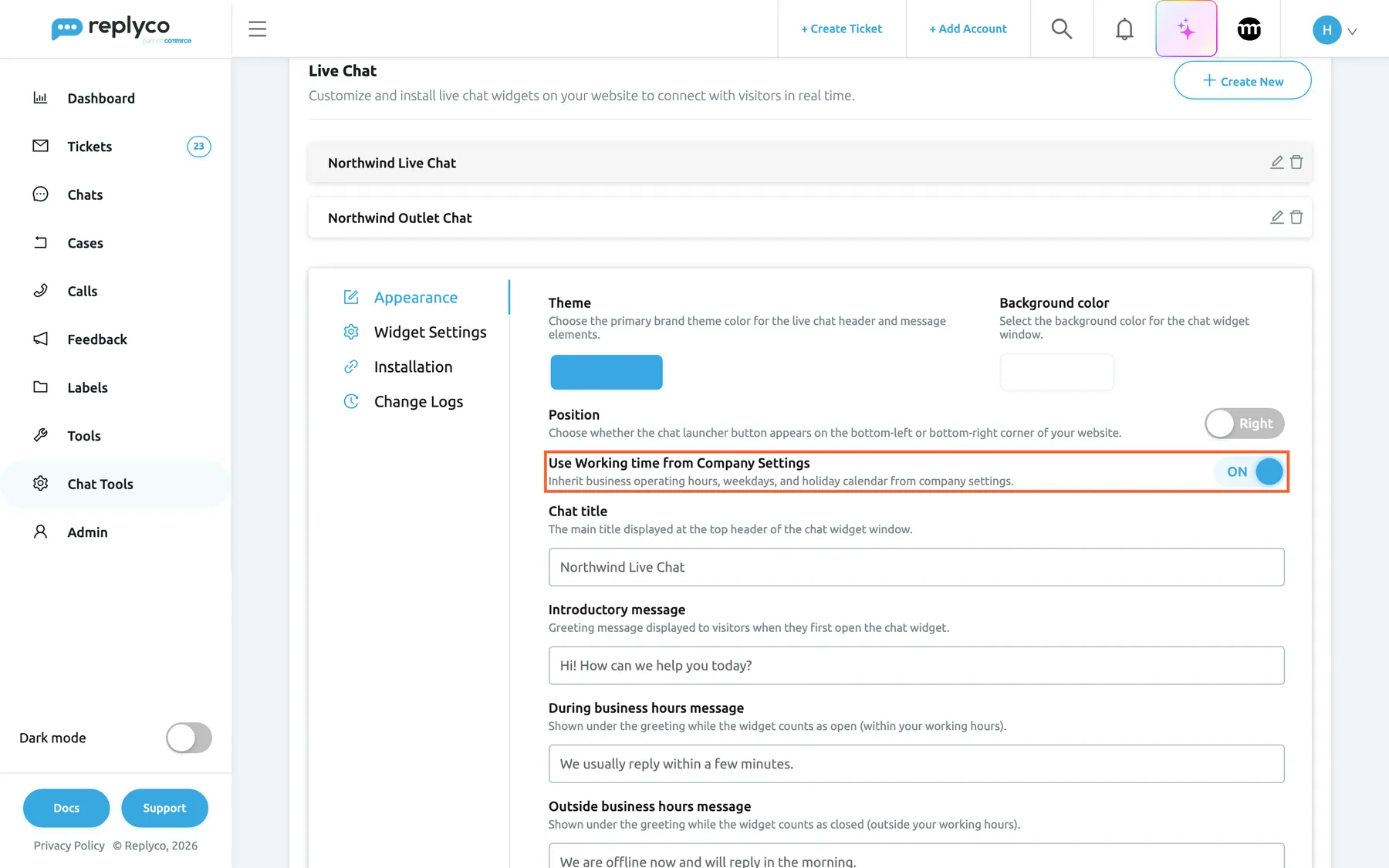
What this screenshot shows
- Screen
- Live Chat (/live-chat-settings)
- Highlighted
- switch “Use Working time from Company Settings”, widget-appearance-tab, on. makes the widget follow the company's working days
- Also visible
- widget Northwind Live Chat, Appearance tab; Chat title Northwind Live Chat; During business hours message
- Purpose
- the live chat widget follows working time
Working time on the dashboards
Section titled “Working time on the dashboards”Dashboard: the Overview, Users, Cases and Chats dashboards, the first control of the header, which reads Calendar Hours or Working Hours. Your default is the switch Use Working Hours in Dashboards on the Settings tab of Account Settings.
Working Hours makes the average times count only the minutes between your company’s daily start and end time; on the Overview dashboard these are Average Resolution Time, Average First Response Time and Average Response Time. Counts of tickets and messages stay the same. A choice in the header lasts until you leave the dashboard. With Use Working Hours in Dashboards switched on and saved, every dashboard opens with Working Hours for you; it changes nothing for your colleagues.
A reply on Monday morning to a message from Friday evening is fast for a team that does not work weekends; working hours show it that way.
Northwind works 09:00–18:00. A customer writes on Friday at 17:00, and Laura Graf answers on Monday at 10:00:
| Hours option | First response for this ticket |
|---|---|
| Calendar Hours | Friday 17:00 to Monday 10:00: 2 d. 17 h. 0 m. |
| Working Hours | Friday 17:00–18:00 plus Monday 09:00–10:00: 2 h. 0 m. |
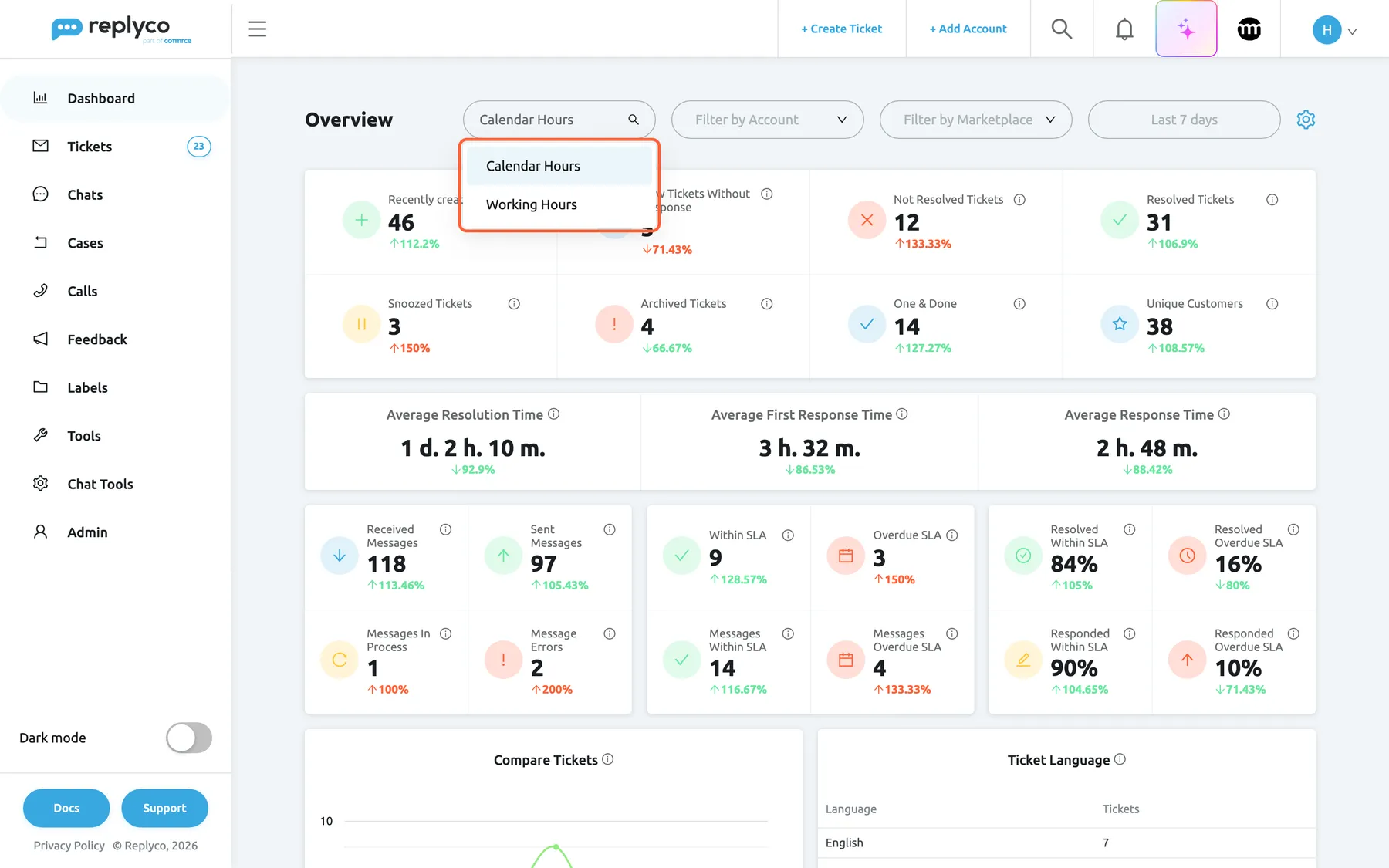
What this screenshot shows
- Screen
- Overview (/dashboard/overview)
- Highlighted
- listbox “”, dashboard-header, open, Calendar Hours selected. switches the average times between calendar and working hours
- Also visible
- options Calendar Hours and Working Hours; Average Resolution Time 1 d. 2 h. 10 m.; Average First Response Time 3 h. 32 m.; Average Response Time 2 h. 48 m.
- Purpose
- dashboards counted in working hours
Three ways teams use it:
- A team lead compares the Average First Response Time of two weeks in Working Hours, so a long weekend does not make one week look slow.
- An agent who reviews the Users dashboard every morning switches on Use Working Hours in Dashboards and no longer changes the option by hand.
- An owner reports response times to a marketplace in Calendar Hours, because the marketplace counts around the clock.
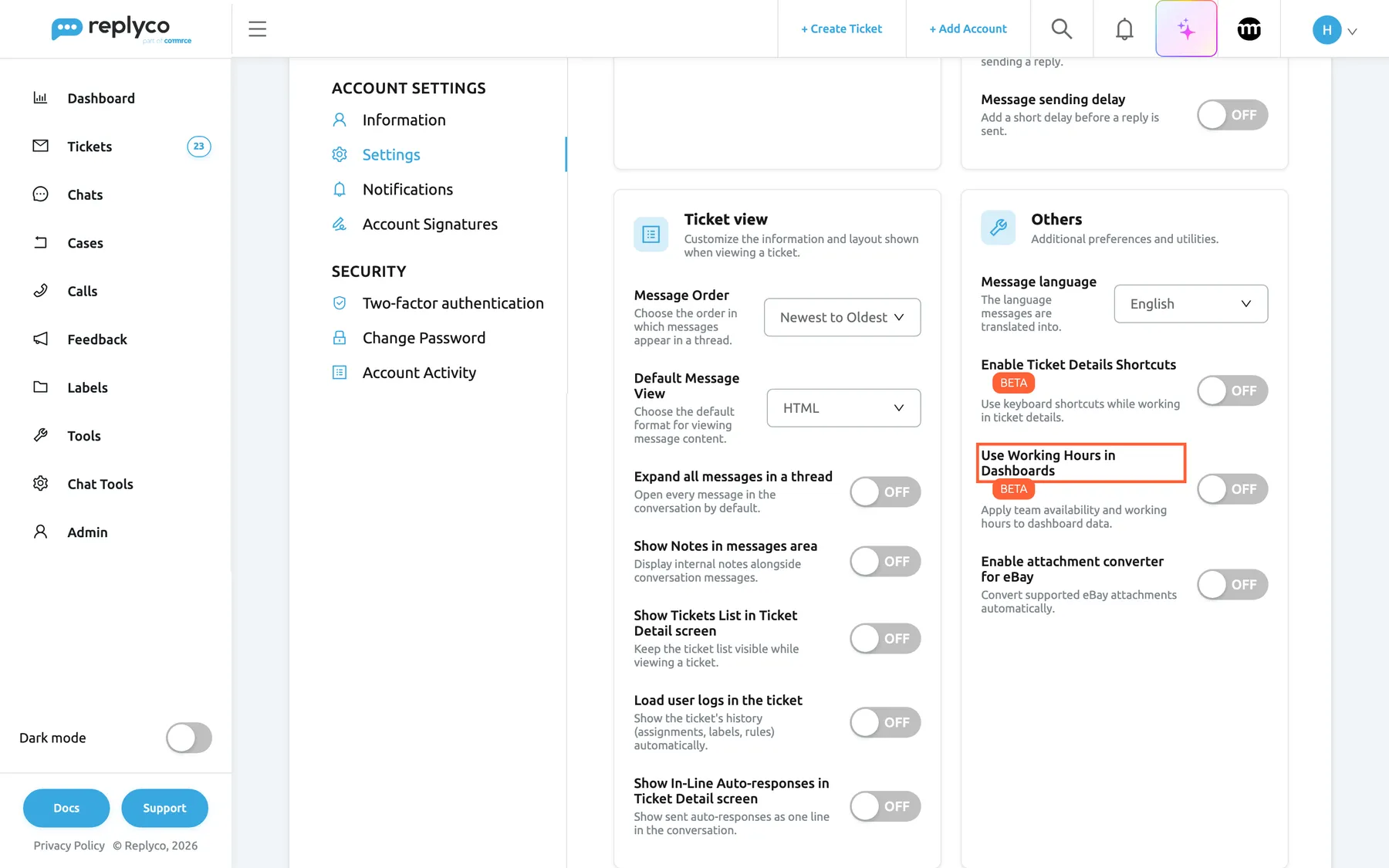
What this screenshot shows
- Screen
- Settings (/user-settings?tab=settings)
- Highlighted
- switch “Use Working Hours in Dashboards”, others-card, off. makes the dashboards start in working hours for this user
- Also visible
- BETA label; Message language; Enable Ticket Details Shortcuts; Enable attachment converter for eBay
- Purpose
- a personal default for the dashboards' hours option
For everything the dashboards count, see How the dashboards count.
What you need to know
Section titled “What you need to know”| Topic | Fact |
|---|---|
| One working time per company | It applies to every user and every feature that follows it. Widgets and auto-response rules can have their own schedules instead. |
| Who can change it | Users with the Admin permission with Edit rights, in AdminCompany Settings. |
| Defaults | Monday to Friday, 09:00–18:00, no holidays, Use Working Time Range off. |
| Saving | Nothing applies until you select Save on the General tab and see Success. Leaving the screen before that discards the change. |
| When a change applies | Auto-responses from the next message; widgets on company working time without editing the widget; dashboards the next time they calculate; deadlines whenever a ticket gets a priority or the customer writes again. |
| Existing deadlines | Saving a new start or end time recalculates the deadlines of tickets with a priority that are waiting for your reply. |
| Holidays | Each date counts every year on the same day and month. Moving holidays need a new date each year. |
| Days in targets | A day in a priority’s target is 24 working hours, not one working day. |
| Precision | Deadlines count to the minute; seconds are ignored. |
| Plans | Every plan includes the card and every feature that follows it; companies on an older plan may lack some of those features. |
| Cost | None. |
Frequently asked questions
Section titled “Frequently asked questions”General
Section titled “General”What does working time change in Replyco?
Section titled “What does working time change in Replyco?”Working time, set on the Working Time card in AdminCompany Settings, is read by four features: deadlines of priorities counted in Working Hours, auto-response rules with Send Outside Working hours of Company, live chat widgets with Use Working time from Company Settings, and the dashboards’ Working Hours option.
Does saving working time change anything on its own?
Section titled “Does saving working time change anything on its own?”Not until a feature follows it. Priorities count Calendar Hours, auto-response rules use their own schedules and dashboards show Calendar Hours until you choose otherwise. Only new live chat widgets start with Use Working time from Company Settings switched on, so they follow your working time straight away.
Who can change our working time?
Section titled “Who can change our working time?”Users with the Admin permission with Edit rights. That permission shows Company Settings in the Admin menu, where the Working Time card is on the General tab. To give a colleague the permission, see User permissions and roles.
Is working time part of every plan?
Section titled “Is working time part of every plan?”Yes. The Working Time card in AdminCompany Settings is part of every plan. So are the features that follow it: priorities, ticket and chat auto-responses, the live chat widget and the dashboards’ hours option. Companies on an older plan may not have all of them; see What each plan includes.
Where do I set our working hours?
Section titled “Where do I set our working hours?”In AdminCompany Settings, on the General tab, in the Working Time card. Select your Working days, pick the start and end time under Active between, add holidays if you like, and select Save in the tab’s header.
Can each weekday have different working hours?
Section titled “Can each weekday have different working hours?”No. The Working Time card in AdminCompany Settings has one start and one end time for all working days. When one day differs, keep the common hours there and give the live chat widget and your auto-response rules their own schedules for that day.
How do I set up a team that works over the weekend?
Section titled “How do I set up a team that works over the weekend?”In AdminCompany Settings, on the Working Time card, turn on Use Working Time Range, set Active From to Friday 18:00 and Active To to Monday 08:00, and save. The stretch then covers Friday evening, the whole weekend and Monday morning, every week.
What happens to our working days when I turn on the range?
Section titled “What happens to our working days when I turn on the range?”When you turn on Use Working Time Range on the Working Time card, Active From starts on the first of your working days and Active To on the last, with your start and end time. Check both before you save. If you switch the range off again, the days of the stretch stay selected.
I changed the hours, but nothing is different. Why?
Section titled “I changed the hours, but nothing is different. Why?”The change is probably not saved. On the General tab of AdminCompany Settings, select Save in the header and wait for Success in the top right corner. Also check that the feature you are watching follows working time, for example a priority set to Working Hours.
Holidays
Section titled “Holidays”Do I have to add holidays again every year?
Section titled “Do I have to add holidays again every year?”No. A date under Holidays on the Working Time card counts every year on the same day and month, which is why the chip shows no year. 25 December added once stays a holiday every Christmas until you remove it.
How do I handle holidays that move, such as Easter Monday?
Section titled “How do I handle holidays that move, such as Easter Monday?”Add this year’s date under Holidays on the Working Time card in AdminCompany Settings, and replace it with the new date the following year. A holiday counts on its day and month every year, so last year’s Easter Monday would otherwise keep counting.
How do I remove a holiday?
Section titled “How do I remove a holiday?”Select the date’s chip, the one with the cross, under Holidays on the Working Time card, then select Save in the header of the General tab. From then on the day counts as an ordinary working day again when its weekday is a working day.
Why can I not add the same date twice?
Section titled “Why can I not add the same date twice?”Holidays under Holidays in AdminCompany Settings count by day and month only, so a second 25 December, even from another year, would mean the same day. Replyco keeps the list to one chip per day and month.
Deadlines
Section titled “Deadlines”Do deadlines stop at night and at the weekend?
Section titled “Do deadlines stop at night and at the weekend?”For priorities whose Operational Hrs is Working Hours, yes: the clock stops outside your working time, on days off and on holidays. Priorities in Calendar Hours keep counting every minute. Set the option in each priority’s form on the Priorities & SLA tab.
I set 1 day in working hours and the deadline is almost three days away. Why?
Section titled “I set 1 day in working hours and the deadline is almost three days away. Why?”In Working Hours, a day in a priority’s target means 24 working hours, not one working day. With a working day of 09:00–18:00, a message on Monday at 10:00 is due on Wednesday at 16:00. For one working day, enter the length of your working day, such as 9 hours.
What happens to existing deadlines when I change our hours?
Section titled “What happens to existing deadlines when I change our hours?”When you save a new start or end time on the Working Time card, Replyco recalculates the deadlines of tickets that have a priority and are waiting for your reply. Every deadline set afterwards, when a ticket gets a priority or a customer writes again, uses the working time saved at that moment.
Does an out-of-hours auto-response stop the deadline?
Section titled “Does an out-of-hours auto-response stop the deadline?”No. An automatic reply is not your team’s reply, so Respond Till keeps counting. For a priority in Working Hours, the clock starts at the beginning of your next working day, and the ticket is due soon after your team is back.
Should marketplace priorities count in working hours?
Section titled “Should marketplace priorities count in working hours?”Usually not. Marketplaces measure your response time around the clock, so a priority for marketplace messages in Calendar Hours shows the deadline the marketplace applies. Use Working Hours for customers whose expectations follow your opening hours, such as your own shop’s customers.
Auto-responses
Section titled “Auto-responses”How do I send an automatic reply only outside working hours?
Section titled “How do I send an automatic reply only outside working hours?”Open the rule under ToolsAutomation › Auto-response Rules, go to Schedule and turn on Send Outside Working hours of Company. The rule then answers only outside your company’s working time, on days off and on holidays. Chat rules have the same switch.
Does the out-of-hours reply go out on holidays?
Section titled “Does the out-of-hours reply go out on holidays?”Yes, when the date is listed under Holidays on the Working Time card in AdminCompany Settings and the rule has Send Outside Working hours of Company switched on. A holiday counts every year on the same day and month.
Can an out-of-hours rule keep its own hours?
Section titled “Can an out-of-hours rule keep its own hours?”No. While Send Outside Working hours of Company is on, the rule’s own days, hours and Use Working Time Range are hidden and ignored. For a rule with its own schedule, switch it off and set the days and hours in the rule’s Schedule section.
Live chat
Section titled “Live chat”Can a live chat widget have different hours from the company?
Section titled “Can a live chat widget have different hours from the company?”Yes. On the widget’s Appearance tab under Chat ToolsLive Chat, turn off Use Working time from Company Settings and set the widget’s own working days, hours and holidays. Chat auto-responses set to send outside working hours still follow the company’s working time.
What do visitors see outside working hours?
Section titled “What do visitors see outside working hours?”A widget on company working time shows Outside business hours message under the greeting outside your working time, and visitors can still write. With Widget visibility outside working hours switched off on the widget’s Appearance tab, the chat button is hidden until you are back.
Dashboards
Section titled “Dashboards”Which dashboards can count in working hours?
Section titled “Which dashboards can count in working hours?”The Overview, Users, Cases and Chats dashboards under Dashboard. Their first header control switches between Calendar Hours and Working Hours; with Working Hours the average times count only the time between your company’s daily start and end time.
Why do the ticket counts not change with Working Hours?
Section titled “Why do the ticket counts not change with Working Hours?”The hours option on the dashboards under Dashboard changes only the average times, such as Average First Response Time. How many tickets and messages a dashboard counts does not depend on the time of day, so those numbers stay the same in both options.
How do I make the dashboards always open in working hours?
Section titled “How do I make the dashboards always open in working hours?”Turn on Use Working Hours in Dashboards on the Settings tab of Account Settings and select Save. Every dashboard then opens with Working Hours for you. It is a personal setting and changes nothing for your colleagues.
Data and privacy
Section titled “Data and privacy”Do customers see our working hours?
Section titled “Do customers see our working hours?”No. Customers see only what the features send or show them: the text of an out-of-hours auto-response, and the live chat widget’s During business hours message or Outside business hours message. To tell customers your hours, write them into those texts.
Is working time set per user?
Section titled “Is working time set per user?”No. The Working Time card in AdminCompany Settings is one working time for the whole company. The only personal choice is Use Working Hours in Dashboards in your Account Settings, which decides how your own dashboards open.
Troubleshooting
Section titled “Troubleshooting”| Symptom | What to check |
|---|---|
| Company Settings is missing from the Admin menu | You need the Admin permission with Edit rights. Ask an administrator; see User permissions and roles. |
| Save stays pale after a change | Nothing differs from what is saved, for example the same time was picked again. Change a value, then select Save. |
| The working time is back to the old values | The change was not saved. Select Save on the General tab and wait for Success before you leave the screen. |
| A deadline ends later than expected | In order: is the priority’s Operational Hrs Working Hours? A day in its target means 24 working hours. Are the working days and the span right? Does a holiday fall in between? |
| A deadline runs through the night or the weekend | The priority counts Calendar Hours. Change Operational Hrs in its form on the Priorities & SLA tab. |
| The Priorities & SLA tab is missing | The tab needs the Admin permission with Edit rights; on an older plan, the plan must include priorities. See What each plan includes. |
| An out-of-hours reply was not sent | In order: is the rule switched on and does it include the account? Is Send Outside Working hours of Company on? Did the message arrive inside working time: check the working days, the span and the holidays? Does the rule’s date range include the message’s date? Do the rule’s conditions and frequency match? |
| An out-of-hours reply went out while the team was at work | Is the day selected under Working days? Is the span under Active between right? Is the date listed under Holidays? Does another rule with its own schedule answer at that time? |
| The widget shows the closed line during opening hours | Is Use Working time from Company Settings on for the widget? Are the company’s working days and span right, and is today listed under Holidays? |
| The chat button disappears in the evening | Widget visibility outside working hours is off, so the button is hidden outside working time. Turn it on to let visitors write at any hour. |
| A widget with its own hours will not save and shows All fields must be completed. | With Use Working time from Company Settings off, select at least one working day and both times, and fill in the widget’s texts. |
| The average times are the same in both hours options | Replies sent within the working day take the same time in both options. Check the start and end time under Active between, and choose a period with replies across nights or weekends. |
| The dashboards always open in Calendar Hours | Use Working Hours in Dashboards is off in your Account Settings. Turn it on and select Save. |