

Accounts
AdminAccounts lists every marketplace, webstore, mailbox, order management system, messenger and phone account your company has connected to Replyco, one row each, with how its sync is going. Administrators open it to check that every channel still brings in messages, to rename an account, to sign in to a marketplace again when its access expired, to unblock an account and to delete one. To connect a new account, see Add Account.
Availability: needs the Admin permission, which also shows the Admin menu; see User permissions and roles. Every plan includes the screen, and order sync with its Last Orders Sync column. Companies on an older plan may not have order sync and then see no such column; see What each plan includes.
What you can do here
Section titled “What you can do here”- See every account and its last sync. One row per connected account, 10 rows per page, with the time Replyco last fetched messages and orders for it. Read the account list.
- Tell at a glance what is wrong with an account. Syncing, Blocked and Deleting in the list, and red locks for a blocked account or blocked order data. Understand an account’s status · Fix a blocked or silent account.
- Rename an account and choose its options. The name labels every ticket from the account; the account’s details also hold the blocking notifications, the synced mail folders and the forwarding address. Rename an account and change its options · Notifications.
- Sign in to a marketplace again. When a marketplace no longer accepts Replyco’s access, Re-login repeats the sign-in for the same account, so its tickets stay where they are. Sign in to a marketplace again.
- Unblock an account after fixing the cause. Unblock lets Replyco try again at once. Unblock an account.
- Change keys, addresses and mail servers. Edit opens the connection details of the account, such as API keys or the address customers see. Change an account’s connection details · Mailbox with IMAP and SMTP.
- Delete an account you no longer use. Deleting takes the account’s tickets, orders and customers with it. Delete an account.
- Stay within your plan’s number of accounts. An account over the number is marked and does not sync. Stay within your plan’s number of accounts · Billing.
- Set ticket merging and an order link per account. These per-account settings live on their own tab of the company settings. Specific Account Settings · Ticket merging.
- Connect a mailbox, marketplace or channel with its own settings. Some channels have a guide for what they add: eBay · Gmail · Outlook and Microsoft 365 · Mailbox by forwarding · Mailbox with IMAP and SMTP.
The screen at a glance
Section titled “The screen at a glance”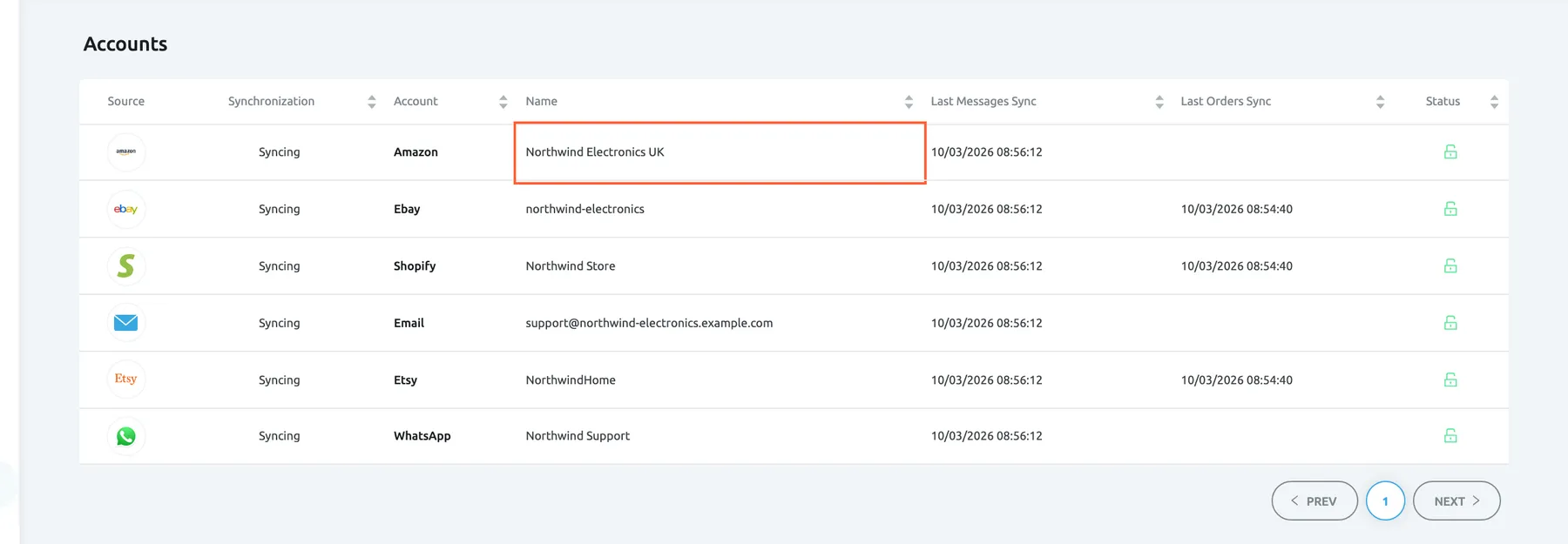
What this screenshot shows
- Screen
- Accounts (/integrations)
- Highlighted
- cell “”, table-first-row, enabled. opens the account's details
- Also visible
- 6 accounts, all Syncing, green open locks; columns Source, Synchronization, Account, Name, Last Messages Sync, Last Orders Sync, Status; PREV / 1 / NEXT pagination
- Purpose
- the Accounts list as it opens
| Region | What it shows | What you do there |
|---|---|---|
| Top bar, right | + Add Account | Connect another account; see Add Account |
| The list | One row per account: Source, Synchronization, Account, Name, Last Messages Sync, Last Orders Sync and Status | Sort by a column heading; select a row to open its details |
| Below the list | PREV, the page numbers and NEXT | Move through the list, 10 accounts per page |
| Account Details dialog | The account’s name, channel, sync times, options, and on the right its Email settings when it has any | Rename, change options, sign in again, unblock, edit or delete |
Read the account list
Section titled “Read the account list”The list shows every account your company has connected, including one that is being deleted, sorted as Replyco returns them until you choose a column.
-
Open AdminAccounts.
-
Read a row from left to right: the channel’s icon, whether the account syncs, the channel, the name you gave the account, and when Replyco last fetched its messages and orders.
-
To sort, select a column heading; select it again to reverse the order. Every column except Source sorts.
-
Select a row to open the Account Details dialog of that account.
Times are shown in the time zone of your computer, with seconds, so you can tell whether the last fetch was minutes or days ago. For example, Last Messages Sync at 08:56:12 and a current time of 09:03 means the account synced a few minutes ago.
To see the messages of all accounts in one place, see Ticket lists.
Understand an account’s status
Section titled “Understand an account’s status”Replyco shows an account’s state in three places in the row, and in more detail in the account’s dialog.
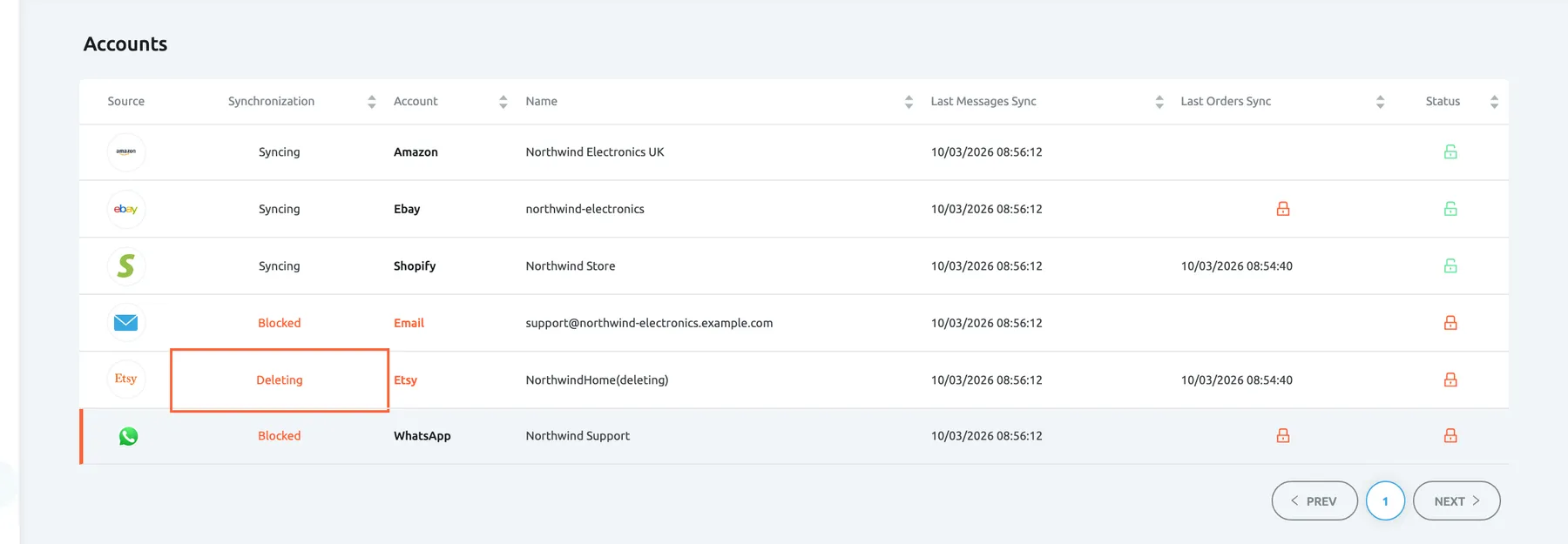
What this screenshot shows
- Screen
- Accounts (/integrations)
- Highlighted
- cell “Deleting”, synchronization-column, shown. none; the account is being deleted
- Also visible
- Syncing, Blocked and Deleting in the Synchronization column; red lock under Last Orders Sync for eBay; red left border on the WhatsApp row (over the account limit)
- Purpose
- every status the list shows
| Indicator | Where | What it means | What to do |
|---|---|---|---|
| Syncing | Synchronization | The account is connected and Replyco fetches its messages | Nothing |
| Blocked, in red | Synchronization | Replyco stopped syncing the account: its sign-in expired, its connection failed repeatedly, or it is over your plan’s number of accounts | Open the account and read the reason; see Fix a blocked or silent account |
| Deleting, in red | Synchronization | You deleted the account and Replyco is removing it; the name ends in “(deleting)” | Wait; the row disappears when the deletion is complete |
| Green open lock | Status | Tooltip: Account operating without any problems. | Nothing |
| Red lock | Status | Tooltip: Account is Temporarily Blocked. | Open the account |
| Red lock | Last Orders Sync | Tooltip: Marketplace data sync is Temporarily Blocked. Messages still arrive; orders, feedback and eBay returns and cases stopped | Open the account and select Re-login, or for stores without it, such as BigCommerce and Magento, update the connection details with Edit |
| Red left border, grey row | The whole row | The account is over your plan’s number of accounts and does not sync | See Stay within your plan’s number of accounts |
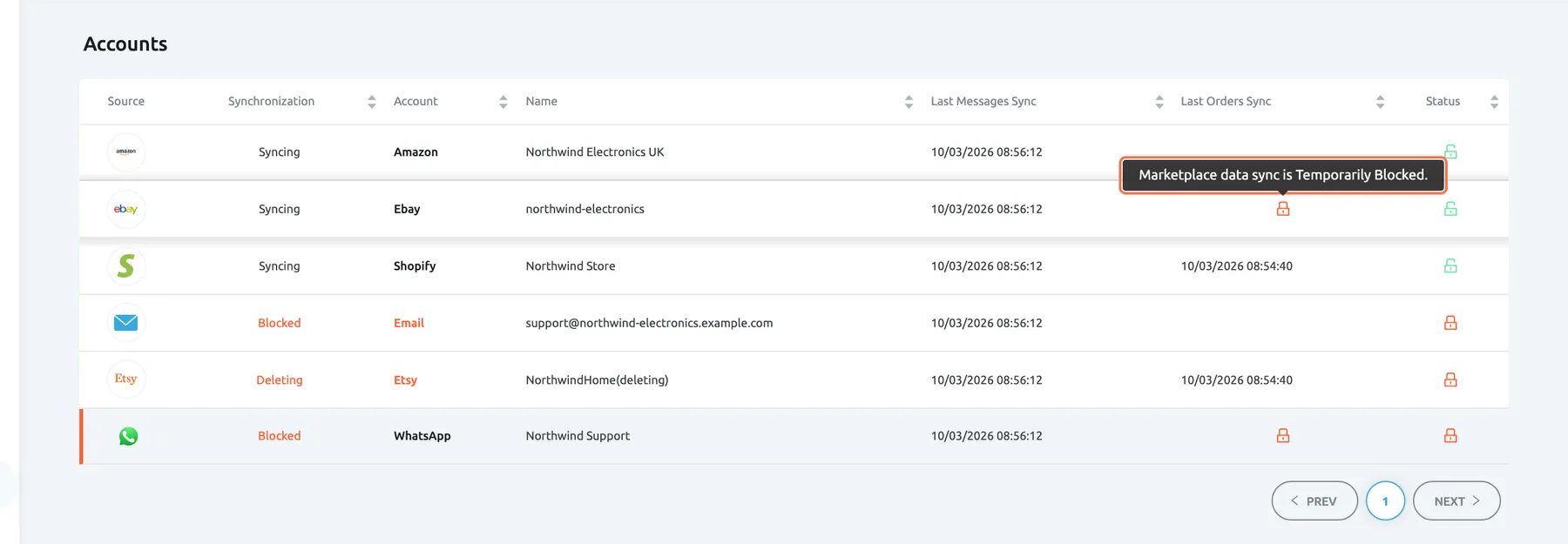
What this screenshot shows
- Screen
- Accounts (/integrations)
- Highlighted
- tooltip “Marketplace data sync is Temporarily Blocked.”, last-orders-sync-cell, shown on hover. none
- Also visible
- eBay row: Syncing, red lock under Last Orders Sync, green lock under Status
- Purpose
- tell a marketplace-data block from a full block
In the account’s dialog, a line under the description says Account Sync is in progress. while Replyco is fetching the account’s data and Account sync is queued. while it waits for its next turn. A sync time that shows Sync is queued. has no sync yet, or none in the last year. A blocked account also shows Blocking reason: with the reason, in the words the marketplace or mail server gave.
How Replyco decides to block. Replyco blocks an account after more than five failed attempts to reach the marketplace or mail server, for example because its sign-in expired. Order data is blocked separately, after more than five failed attempts to fetch orders, feedback or returns, while messages keep arriving. A blocked account is left out of every sync until you fix it; afterwards it continues from its last sync.
Rename an account and change its options
Section titled “Rename an account and change its options”The Account Details dialog holds the settings that belong to one account.
-
Open AdminAccounts and select the account’s row.
-
Change what you need: type a new name in Account Name:, tick or clear Receive Notifications about Blocking, or choose folders in Sync Messages from Folders: when the account shows it.
Save Changes turns from pale to blue as soon as something differs from what is saved.
-
Select Save Changes and wait for Success in the top right corner.
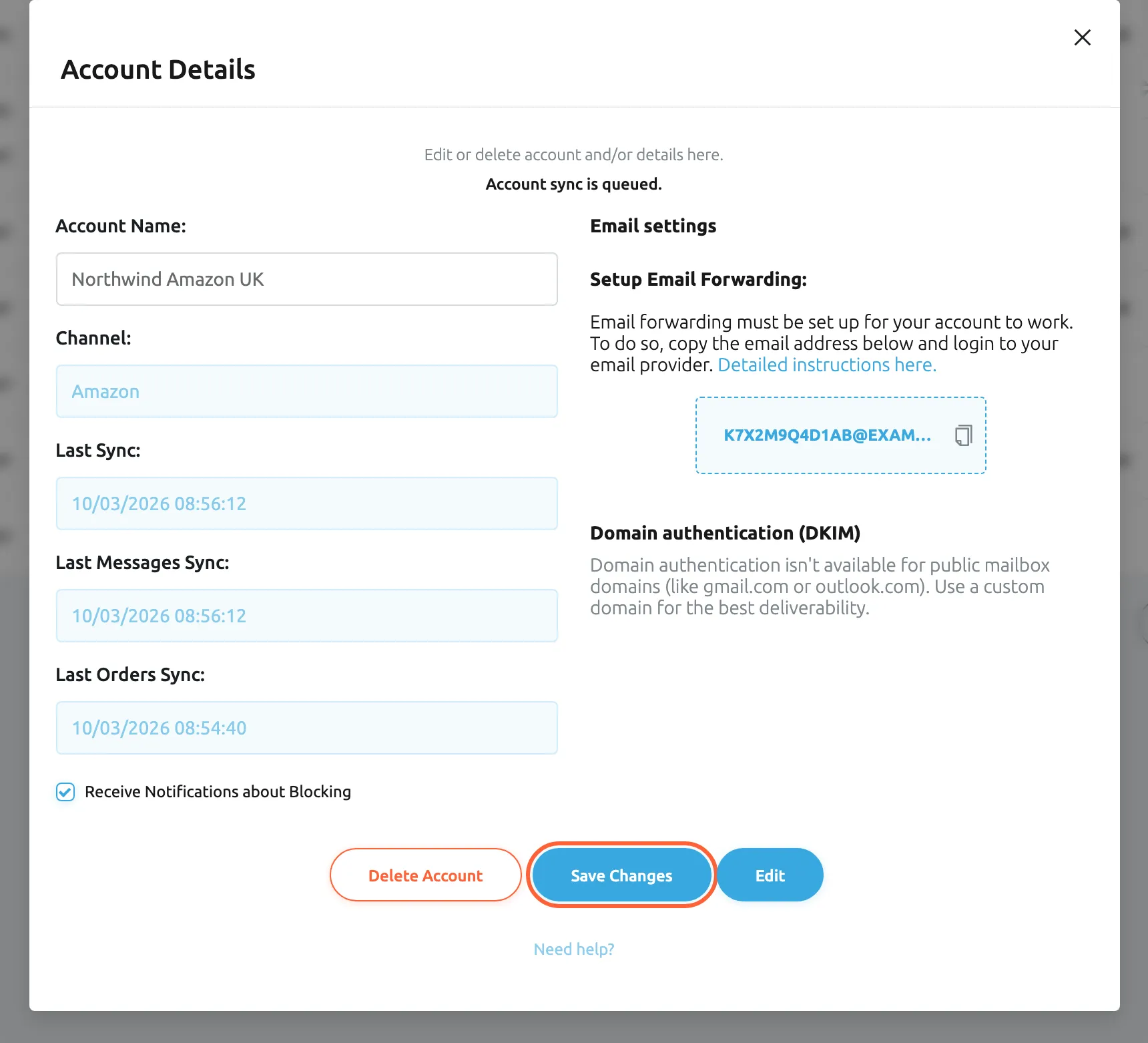
What this screenshot shows
- Screen
- Account Details (/integrations)
- Highlighted
- button “Save Changes”, dialog-bottom, enabled after a change. saves the name
- Also visible
- Account Name: Northwind Amazon UK; Receive Notifications about Blocking ticked; Email settings: forwarding address, DKIM; Delete Account, Edit
- Purpose
- rename an account and change its options
The name you give an account labels its tickets, and a new name replaces the old one on the account’s existing tickets too. For example, rename “Northwind Electronics UK” to “Northwind Amazon UK” and every ticket from that Amazon account shows the new name. Two accounts of the same channel cannot share a name: Replyco refuses the second one with “Integration with this name already exists”.
Receive Notifications about Blocking is ticked for a new account. While it is ticked, a block of the account sends every user of your company an in-app notification and sends an email to your company’s address with every administrator in copy; to choose how you receive notifications, see Notifications.
The right-hand column, Email settings, appears for accounts that receive mail through Replyco or through your own mail server. It shows Setup Email Forwarding: with the Replyco address to forward mail to; select the box to copy it. Below it, Domain authentication (DKIM) lets you authenticate your own domain so replies are delivered; see Mailbox by forwarding. Gmail, Outlook and mailboxes on your own IMAP server can limit syncing to chosen folders; see Gmail, Outlook and Microsoft 365 and Mailbox with IMAP and SMTP.
To merge tickets from the same customer or add an order link for one account, use the tab Specific Account Settings instead; see Specific Account Settings.
Sign in to a marketplace again
Section titled “Sign in to a marketplace again”Re-login appears in the dialog of an account whose sign-in expired or whose order data is blocked, for the channels that support signing in again: Amazon, eBay and eBay v2, Etsy, OTTO, Wish, Shopify, WooCommerce, Fruugo, Shopline, Gmail, Outlook, mailboxes, ChannelAdvisor, Katana, Billbee, Brightpearl and Aircall.
-
Open AdminAccounts and select the blocked account.
-
Read the text after Blocking reason:.
-
Select Re-login. Depending on the channel, the marketplace’s sign-in opens in a new browser tab, or the connection dialog of the channel opens with the account’s details filled in; a mailbox opens Edit Account for its password.
-
Sign in with a login that has admin rights for the store, approve every permission Replyco asks for, and return to Replyco.
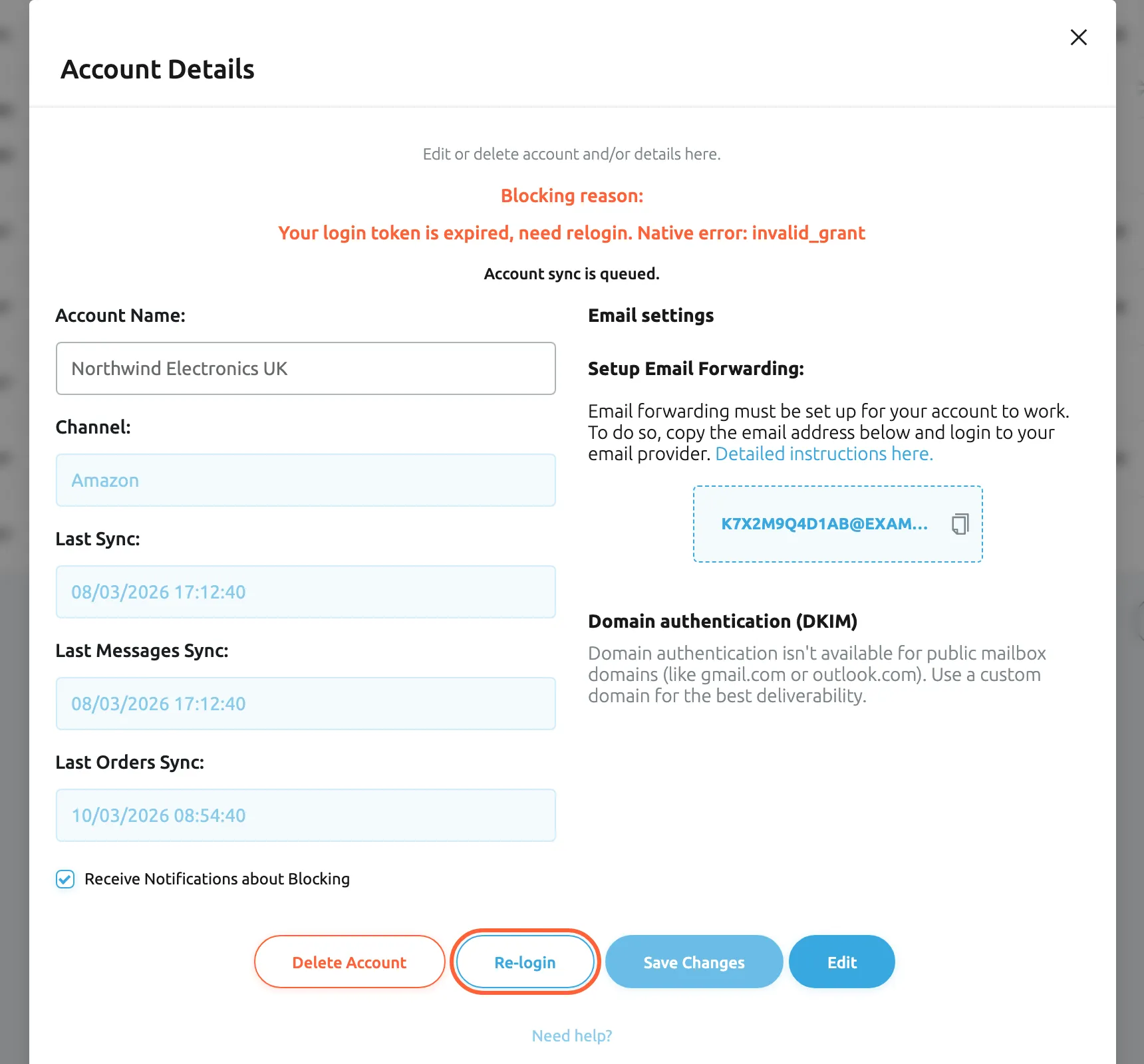
What this screenshot shows
- Screen
- Account Details (/integrations)
- Highlighted
- button “Re-login”, dialog-bottom, enabled. opens the marketplace sign-in for this account
- Also visible
- Blocking reason: login token expired (English server text); Delete Account; Save Changes disabled
- Purpose
- reconnect an account blocked by an expired login
Signing in again updates the existing account, so its name, its tickets and its settings stay as they were, and the block and its reason are cleared. For an Amazon account, Replyco opens Seller Central for the account’s country. For the full list of causes and fixes, see Fix a blocked or silent account; for Amazon, see Connect Amazon.
Unblock an account
Section titled “Unblock an account”Unblock appears for a blocked account that does not need a new sign-in, for example a mailbox whose server refused the login.
-
Fix the cause the blocking reason names, for example the mailbox password with Edit.
-
Select Unblock.
-
Wait for Account successfully unblocked.; the dialog closes and the account shows Syncing again.
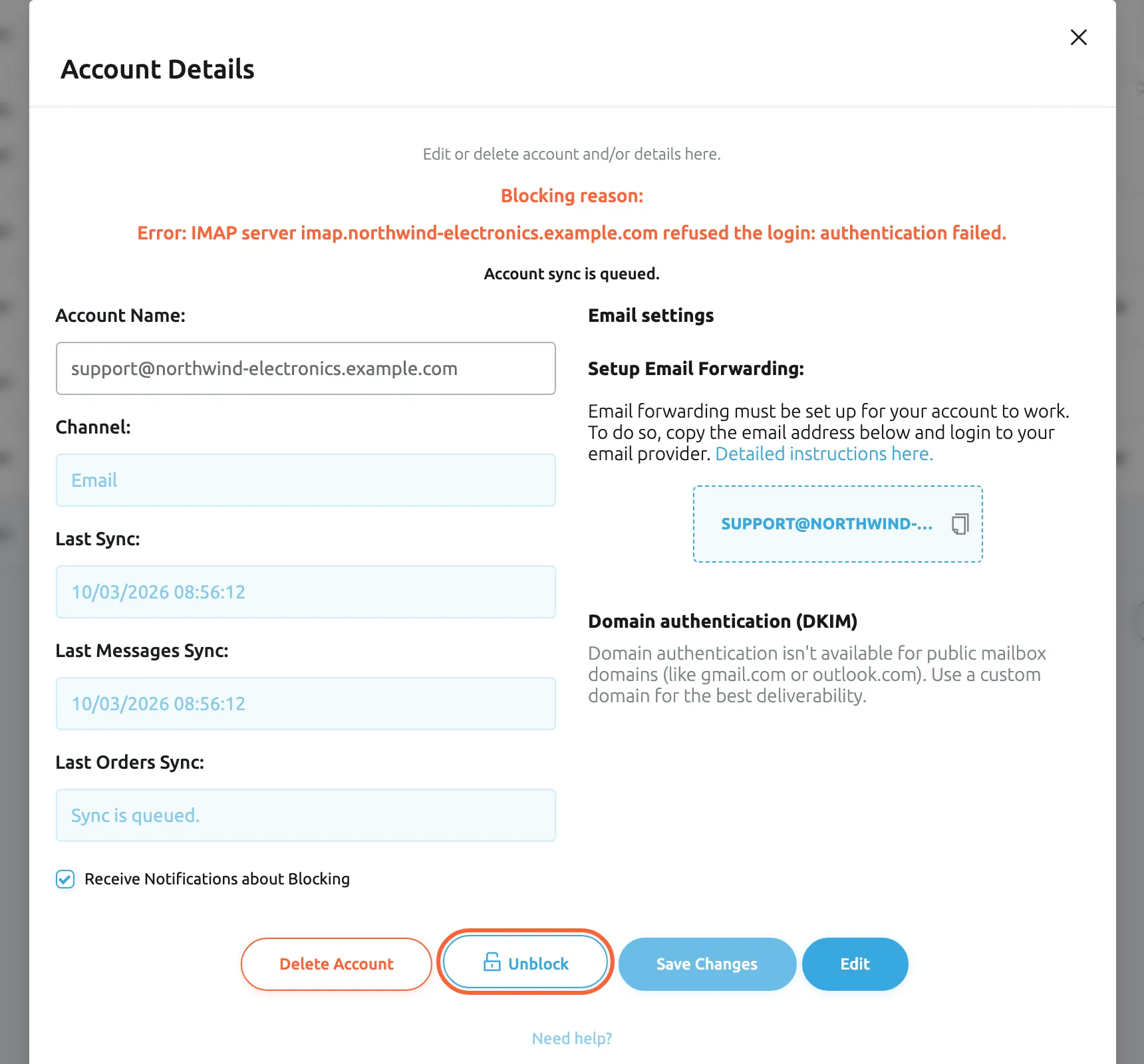
What this screenshot shows
- Screen
- Account Details (/integrations)
- Highlighted
- button “Unblock”, dialog-bottom, enabled. clears the block so syncing resumes
- Also visible
- Blocking reason starting with Error: (English server text); Delete Account, Save Changes, Edit
- Purpose
- unblock an account after fixing the cause
Unblocking clears the block and the count of failed attempts, so Replyco includes the account in its next sync. If the cause is still there, Replyco blocks the account again after more than five failed attempts. Example: the mailbox support@northwind-electronics.example.com is blocked with “Error: IMAP server … refused the login”. Hannah enters the new mailbox password with Edit, then selects Unblock, and new customer emails arrive with the next sync.
Change an account’s connection details
Section titled “Change an account’s connection details”Edit appears for channels whose connection has details you typed in: Amazon, Shopify, WooCommerce, BigCommerce, Magento, Etsy, OTTO, Fruugo, Kaufland, Shopline, Gmail, mailboxes, Linnworks, Billbee and Brightpearl.
-
Open the account on AdminAccounts and select Edit.
-
In Edit Account, change the fields, such as API keys, the store address, the address customers see, or the mail server settings.
-
Save the dialog.
The fields are the ones the channel asked for when you connected it; see the channel’s guide, for example Connect Kaufland. For stores without Re-login, such as BigCommerce and Magento, this is also how you fix blocked order data: enter the new credentials here. Accounts that receive mail through Replyco can move to your own mail server with Custom SMTP Configuration; Replyco first warns: You are currently using the Replyco email server. If you continue, the configuration will be removed. For the server settings, see Mailbox with IMAP and SMTP.
Delete an account
Section titled “Delete an account”Delete an account when you stop selling on a channel or no longer use a mailbox.
-
Open the account on AdminAccounts and select Delete Account.
-
Read the question Are you sure you want to delete this account? ALL TICKETS, ORDERS & CUSTOMERS WILL BE DELETED AS WELL.
-
Select Yes to delete, or No to keep the account.
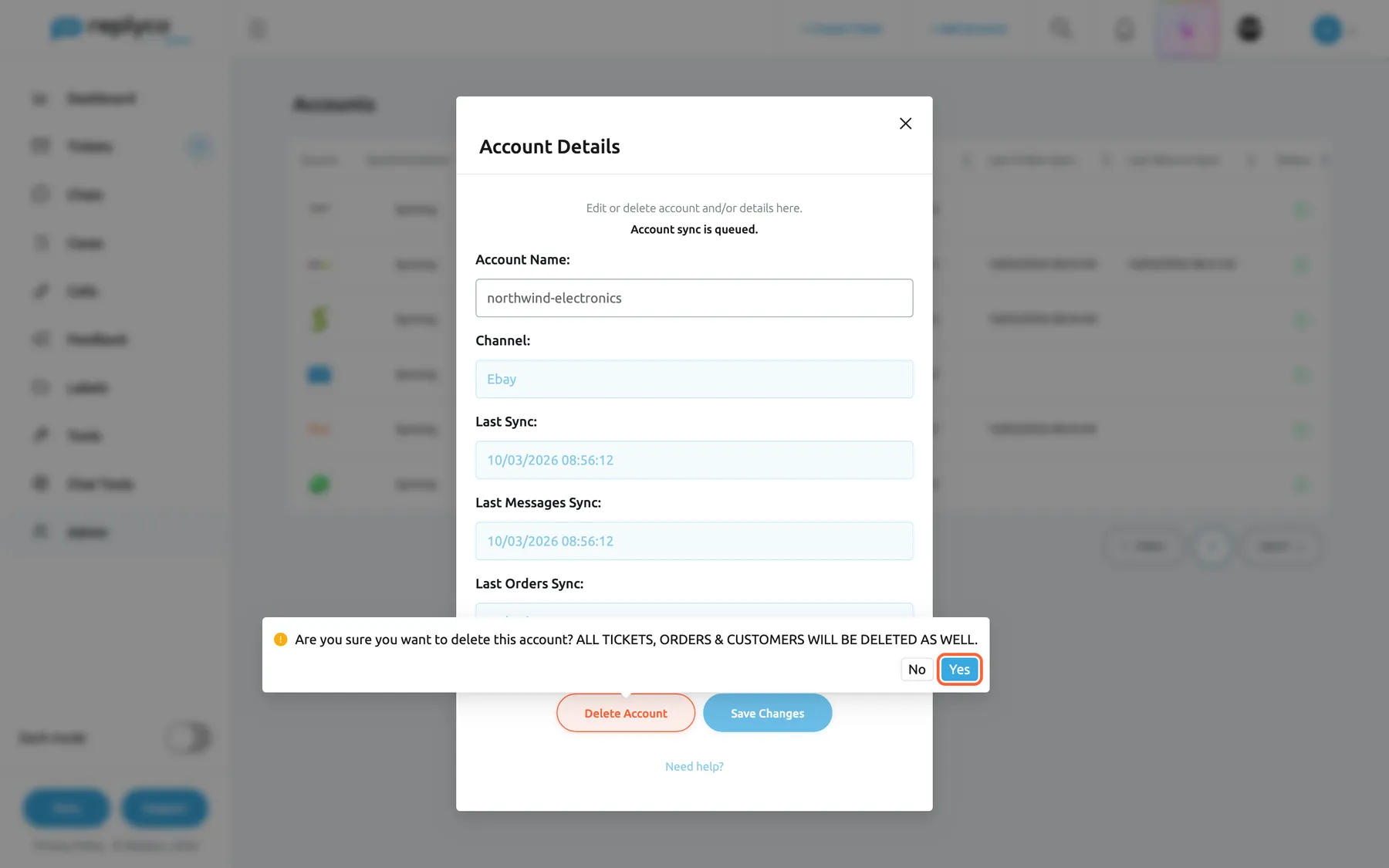
What this screenshot shows
- Screen
- Account Details (/integrations)
- Highlighted
- button “Yes”, delete-confirmation, enabled. deletes the account with its tickets
- Also visible
- confirmation text in capitals: tickets, orders and customers will be deleted; No button
- Purpose
- delete an account
Replyco shows Account will be deleted soon., marks the account Deleting, adds “(deleting)” to its name and removes it in the background, together with its tickets, messages, notes, orders, customers and feedback, and the Replyco address it received mail on. When your subscription is billed through Shopify, the account is deleted at once. Deleting the Shopify store your subscription is billed through adds a note to the question: NOTE: Application will be removed from your Shopify Store and Active Subscription will be canceled.
Stay within your plan’s number of accounts
Section titled “Stay within your plan’s number of accounts”When your company has a set number of accounts, Replyco keeps you within it in three ways:
- + Add Account disappears from the top bar once the number is reached.
- Saving a new account beyond it is refused with “You reached your current plan maximum integrations count. Contact support for more info.”
- After a change to a plan with fewer accounts, the accounts over the number are marked with a red left border and Blocked, and they do not sync.
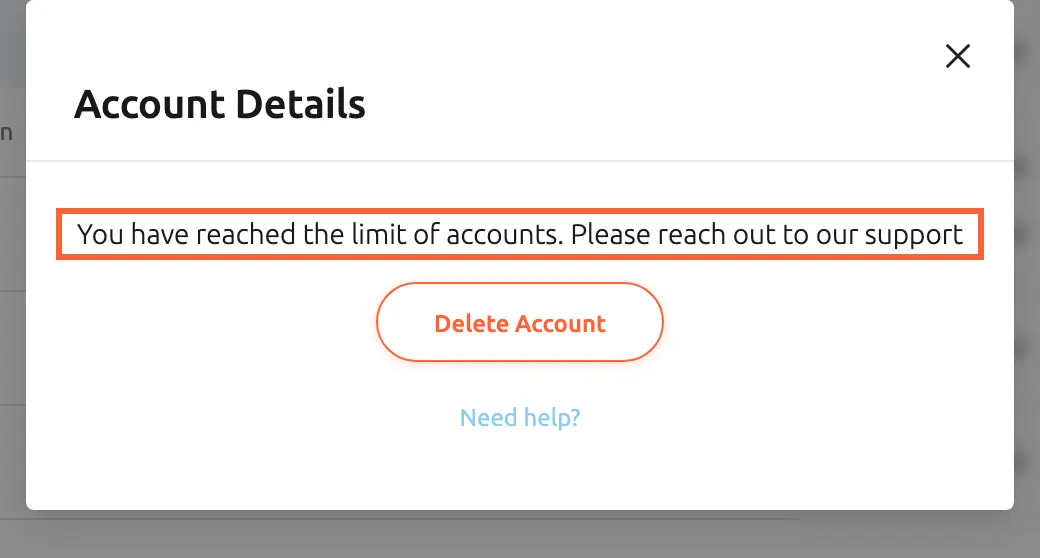
What this screenshot shows
- Screen
- Account Details (/integrations)
- Highlighted
- “”, dialog, shown. none
- Also visible
- Delete Account; Need help? link; no fields, no Save Changes
- Purpose
- an account blocked by the plan's account limit
The dialog of such an account shows only You have reached the limit of accounts. Please reach out to our support, Delete Account and Need help?. Contact support to lift the block, as the dialog says; see Help and support. Adding a new account once the number is reached is a different case: delete an account you no longer use, or change your plan; see Add Account. During a trial there is no limit on accounts. For what your plan includes, see What each plan includes and Billing.
Every control, explained
Section titled “Every control, explained”The list and the Account Details dialog, in the order the screen shows them.
Columns
Section titled “Columns”| Column | What it shows | Why |
|---|---|---|
| Source | The channel’s icon; does not sort | Find a channel at a glance |
| Synchronization | Syncing, Blocked or Deleting | See which accounts need attention |
| Account | The channel, such as Amazon or Shopify; in red when the account is blocked | Tell accounts of different channels apart |
| Name | The name you gave the account, as it appears on its tickets | Tell accounts of the same channel apart |
| Last Messages Sync | Date and time Replyco last fetched the account’s messages, in your time zone | See whether messages still arrive |
| Last Orders Sync | Date and time of the last order sync, or a red lock when order data is blocked; empty for accounts without orders, such as mailboxes and messengers; shown when your company has order sync | See whether orders beside your tickets are current; see Orders |
| Status | A green open lock or a red lock, with a tooltip | See at once whether the account is blocked |
+ Add Account
Section titled “+ Add Account”Top bar, right, on every screen. Shown to users with the Admin permission while your company has accounts left on its plan.
Opens the page where you pick a channel to connect. During a trial it is always shown.
Connect a new marketplace, mailbox or messenger; see Add Account.
Account Name:
Section titled “Account Name:”Account Details dialog, first field. Saved with Save Changes.
The account’s name. It labels the account’s tickets, and a new name replaces the old one on existing tickets. Two accounts of the same channel cannot have the same name; Replyco refuses it with “Integration with this name already exists”.
Your team recognises where a ticket came from, for example the store and its country.
Sync details
Section titled “Sync details”| Field | What it shows | Why |
|---|---|---|
| Channel: | The channel; read-only | Confirms which channel the account belongs to |
| Last Sync: | The last time Replyco synced the account | See whether the account is being synced |
| Last Messages Sync: | The last time messages were fetched | See whether customer messages still arrive |
| Last Orders Sync: | The last time orders were fetched; shown when your company has order sync | See whether order data beside tickets is current |
A time that reads Sync is queued. has no sync yet, or none in the last year.
Receive Notifications about Blocking
Section titled “Receive Notifications about Blocking”Account Details dialog, a check box below the sync times. Ticked for a new account. Saved with Save Changes.
Ticked: when Replyco blocks the account, every user of your company gets an in-app notification, and your company’s email address receives an email with every administrator in copy. Cleared: no notices about this account.
Someone learns about a block the day it happens, before customers wait for answers; see Notifications.
Sync Messages from Folders:
Section titled “Sync Messages from Folders:”Account Details dialog, shown for Gmail, Outlook and mailboxes on your own IMAP server. Saved with Save Changes.
The mail folders Replyco fetches messages from; choose one or more from the list your mailbox offers.
Keep folders such as newsletters out of your tickets; see Gmail, Outlook and Microsoft 365 and Mailbox with IMAP and SMTP.
Email settings
Section titled “Email settings”Account Details dialog, right-hand column, for accounts that receive mail through Replyco or through your own mail server. Not shown for Gmail, Outlook, eBay and Wish.
Setup Email Forwarding: with the account’s Replyco address; select the box to copy it. Below it, Domain authentication (DKIM) for accounts that send from your own domain.
You need the address to forward mail or to enter it in a marketplace; see Mailbox by forwarding and Connect Amazon.
Delete Account
Section titled “Delete Account”Account Details dialog, first button. Not shown while the account is being deleted.
Asks Are you sure you want to delete this account? ALL TICKETS, ORDERS & CUSTOMERS WILL BE DELETED AS WELL. Yes deletes the account with its tickets, orders and customers; No keeps it.
Remove a channel you no longer sell on.
Re-login
Section titled “Re-login”Account Details dialog, next to Delete Account, when the sign-in expired or order data is blocked, for channels that support signing in again.
Repeats the channel’s sign-in for this account, in a new tab or in the channel’s connection dialog, and clears the block when you return.
Restore syncing without losing the account’s tickets.
Unblock
Section titled “Unblock”Account Details dialog, when the account is blocked and needs no new sign-in.
Clears the block and the count of failed attempts, and shows Account successfully unblocked..
Resume syncing once you fixed the cause, such as a changed mailbox password.
Save Changes
Section titled “Save Changes”Account Details dialog, bottom. Pale until something changed.
Saves the name, Receive Notifications about Blocking and the synced folders, and shows Success.
Nothing in the dialog changes the account until you save.
Account Details dialog, bottom, for channels whose connection has details you typed in.
Opens Edit Account with the connection’s fields, such as API keys, store address, displayed email address or mail server settings.
Update a key or password after you changed it at the channel.
Need help?
Section titled “Need help?”Account Details dialog, below the buttons.
Opens the Replyco help in a new tab.
Look up the steps for your channel.
Who sees what
Section titled “Who sees what”| Part | Shown when |
|---|---|
| The Admin menu with Accounts | The user has the Admin permission; see User permissions and roles |
| + Add Account | The user has the Admin permission and the company has accounts left on its plan, or is on a trial |
| Last Orders Sync column and field | Your company has order sync, which every plan includes; companies on an older plan may not have it; see What each plan includes |
| Email settings | The account receives mail through Replyco or your own mail server |
| Sync Messages from Folders: | Gmail, Outlook, or a mailbox on your own IMAP server |
| Re-login | The sign-in expired or order data is blocked, on a channel that supports signing in again |
| Unblock | The account is blocked and needs no new sign-in |
| Edit | The channel’s connection has details you typed in |
What you need to know
Section titled “What you need to know”| Topic | Fact |
|---|---|
| Company-wide | Every account and every setting on this screen applies to the whole company. Which users see an account’s tickets is set per user; see User permissions and roles. |
| Paging and sorting | 10 accounts per page; sorting by a column sorts all accounts, not only the page you see. |
| Times | Shown in your computer’s time zone, with seconds. |
| Names | Unique per channel; a new name replaces the old one on the account’s tickets. |
| Blocking | After more than five failed attempts; a blocked account is not synced and continues from its last sync once fixed. |
| Order data | Blocked separately from messages; messages keep arriving. |
| Notifications | On for every new account; in-app for every user, email to the company address with administrators in copy. |
| Deleting | Cannot be undone; deletes the account’s tickets, orders, customers and feedback in the background. |
| Plan limit | No limit during a trial; accounts over the number do not sync, and only support lifts their block. |
| No pause | An account cannot be paused; it syncs until it is blocked or deleted. |
Frequently asked questions
Section titled “Frequently asked questions”General
Section titled “General”Who can see and change the Accounts screen?
Section titled “Who can see and change the Accounts screen?”Users with the Admin permission see the Admin menu and its item Accounts, and can rename, reconnect, unblock and delete accounts there. Every change applies to the whole company. To give a colleague the Admin permission, see User permissions and roles.
Why is there no + Add Account in my top bar?
Section titled “Why is there no + Add Account in my top bar?”+ Add Account is shown only to users with the Admin permission, and only while your company has accounts left on its plan; during a trial it is always shown. Ask an administrator. When the number is reached, delete an account you no longer use, or change your plan in Billing.
How many accounts can I connect?
Section titled “How many accounts can I connect?”The plan comparison lists sales channels as Unlimited, and there is no limit during a trial. When your company has a set number of accounts, + Add Account disappears once it is reached and Replyco refuses to save another account. See What each plan includes.
Status and syncing
Section titled “Status and syncing”What does Blocked mean on the Accounts screen?
Section titled “What does Blocked mean on the Accounts screen?”Blocked in the Synchronization column means Replyco stopped syncing the account: its sign-in expired, its connection failed more than five times, or it is over your plan’s number of accounts. Open the account on AdminAccounts and read the reason; for every fix, see Fix a blocked or silent account.
What is the difference between the two red locks?
Section titled “What is the difference between the two red locks?”A red lock under Status means the whole account is blocked and nothing syncs. A red lock under Last Orders Sync means only order data is blocked: messages still arrive, but orders, feedback and eBay returns and cases stopped. Fix the second one with Re-login in the account’s dialog, or for stores without it, such as BigCommerce and Magento, update the connection details with Edit.
Can I sort the accounts, for example by their last sync?
Section titled “Can I sort the accounts, for example by their last sync?”Yes. Select a column heading on AdminAccounts to sort by it, and select it again to reverse the order. Every column except Source sorts, and sorting covers all your company’s accounts, not only the 10 on the page you see. Sort by Last Messages Sync to find the account that has gone longest without a sync.
What does Account sync is queued. mean?
Section titled “What does Account sync is queued. mean?”Account sync is queued. in an account’s dialog means the account waits for its next turn; Account Sync is in progress. means Replyco is fetching its data now. Both are normal. Check the time under Last Messages Sync on AdminAccounts to see when messages last arrived.
Will anyone be told when an account is blocked?
Section titled “Will anyone be told when an account is blocked?”Yes, while Receive Notifications about Blocking is ticked in the account’s dialog, which it is for every new account. Every user of your company gets an in-app notification, and the company’s email address receives an email with every administrator in copy. See Notifications.
Changing an account
Section titled “Changing an account”How do I rename an account, and do existing tickets change?
Section titled “How do I rename an account, and do existing tickets change?”Open AdminAccounts, select the account, type the new name in Account Name: and select Save Changes. The new name replaces the old one on the account’s existing tickets as well as on new ones. Two accounts of the same channel cannot share a name.
Why does Replyco refuse the new name of my account?
Section titled “Why does Replyco refuse the new name of my account?”Replyco shows “Integration with this name already exists” when another account of the same channel already has that name. Names only have to be unique within a channel, so an eBay and an Amazon account can both be called “Northwind Electronics UK”. Choose another name in Account Name: and select Save Changes.
How do I change an account’s API key or password?
Section titled “How do I change an account’s API key or password?”Open the account on AdminAccounts and select Edit. Edit Account shows the fields the channel asked for when you connected it, such as API keys, the store address or the mail server password. Change them and save. For a marketplace you signed in to, use Re-login instead.
Can I pause an account instead of deleting it?
Section titled “Can I pause an account instead of deleting it?”No. An account has no pause switch: it syncs until Replyco blocks it or you delete it, and deleting removes its tickets. To keep an account but hide its tickets from some colleagues, limit their access to accounts; see User permissions and roles.
Where do I set ticket merging or an order link for one account?
Section titled “Where do I set ticket merging or an order link for one account?”On the tab Specific Account Settings of the company settings, not in the account’s dialog. There you set, per account, whether tickets from the same customer are merged and which order link opens from a ticket. See Specific Account Settings and Ticket merging.
Deleting and limits
Section titled “Deleting and limits”What happens when I delete an account?
Section titled “What happens when I delete an account?”After you confirm with Yes, Replyco shows Account will be deleted soon., marks the account Deleting and removes it in the background with its tickets, messages, notes, orders, customers and feedback, and the Replyco address it received mail on. A deleted account cannot be restored.
Can I get a deleted account back?
Section titled “Can I get a deleted account back?”No. Deleting an account on AdminAccounts removes its tickets, orders and customers for good. You can connect the same store or mailbox again with + Add Account, but it starts with new data; see Add Account.
Why does an account have a red border and only a Delete Account button?
Section titled “Why does an account have a red border and only a Delete Account button?”The account is over your plan’s number of accounts. Its row has a red left border and Blocked, it does not sync, and its dialog shows only You have reached the limit of accounts. Please reach out to our support, Delete Account and Need help?. Contact support to lift the block; see Help and support.
Troubleshooting
Section titled “Troubleshooting”| Symptom | What to check |
|---|---|
| Blocked and a reason that the login token expired | Select Re-login and sign in with admin rights; see Fix a blocked or silent account |
| Blocked and a reason starting with “Error:” | Fix the cause it names, for example the password with Edit, then select Unblock |
| A red lock under Last Orders Sync | Select Re-login and approve every permission the marketplace asks for; for stores without it, such as BigCommerce and Magento, update the connection details with Edit |
| A red left border and You have reached the limit of accounts. Please reach out to our support | The account is over your plan’s number of accounts; contact support; see Help and support |
| + Add Account is missing | You have the Admin permission, and your company has accounts left on its plan |
| “Integration with this name already exists” | Another account of the same channel has that name; choose another |
| Save Changes stays pale | Nothing in the dialog differs from what is saved yet |
| An account stays Deleting | Replyco is still removing its tickets and orders in the background; the row disappears when it is done |
| The Last Orders Sync column is missing | Your company has no order sync; companies on an older plan may not have it; see What each plan includes |
| No account is blocked, but nothing new arrives | See Fix a blocked or silent account |