

User permissions and roles
A new agent does not need your billing, your company settings or the tickets of a sales channel they never answer, and a team lead should not be able to delete a colleague by accident. User permissions and roles let an administrator decide, person by person, which menus, screens, ticket lists and dashboards each colleague sees in Replyco, whether they may only look or also change things, and which labels and accounts their tickets come from.
What it does
Section titled “What it does”In a shared helpdesk, everyone sees everything by default: the full ticket queue of every marketplace, every tool, every setting. That is a lot of noise for an agent who answers one channel, and a risk when anyone can change an automation rule, a priority or the plan the company pays for.
Replyco keeps nineteen permissions per user in three groups, each with two modes, View and Edit, and a ready-made role that sets them in one step. On top of the permissions, each user has their own ticket lists, dashboards, labels, Smart Filters, live chat widgets and accounts. From there:
- A role gives a colleague sensible access at once: Admin, Moderator or User. See Every setting, explained.
- Each permission opens one area of Replyco, and Edit adds the right to change things there. See Understanding permissions and access.
- The ticket lists, labels and accounts you tick decide which tickets a user sees at all. See Every setting, explained.
- Menus, top-bar links and even single controls inside a ticket follow the permissions. See Permissions across Replyco.
- Plan features and permissions work together: every current plan includes every feature, so the permissions decide; on an older plan a permission never unlocks a feature the plan lacks. See Permissions and your plan.
You can check any colleague’s access at any time on the Access Rights tab of AdminUsers, and the list of users marks every administrator with a red A.
Before you start
Section titled “Before you start”| Requirement | Details |
|---|---|
| Plan | Every current plan includes user permissions and user roles, and every feature is on during a trial. They bring the Users item into the Admin menu, the User Role drop-down and the Access Rights tab. Companies on an older plan may not have them; see What each plan includes. |
| Who can change access | Users with the Admin permission with Edit rights. The Admin role gives it. |
| Where you set it | AdminUsers, per user, on the tabs Information (the role) and Access Rights (everything else). The screen is described in Users. |
| Your colleagues | Each person needs their own user. To invite them, see Invite users and set what they can do. |
| Cost | None. Permissions and roles do not change the price of your plan. |
Understanding permissions and access
Section titled “Understanding permissions and access”A user’s access has four parts. Each is set on the Access Rights tab, and each answers a different question.
| Part | The question it answers | Example for Joseph Walker, an agent at Northwind Electronics |
|---|---|---|
| Permissions in Main, Tools and Chat Tools | Which areas may they open, and may they change things there? | Customers and Orders with Edit; no Admin |
| Tickets | Which ticket lists appear in their sidebar? | My Tickets, Not Resolved and Unassigned |
| Dashboard | Which dashboards appear? | Overview only |
| Labels, Smart Filters, Live Chat, Tickets Accounts and Chat Accounts | Which tickets, filters, widgets and chats are theirs? | The eBay labels and the eBay account, and No Label |
Every permission has two modes:
| Mode | What the user can do | Example with Automation |
|---|---|---|
| Nothing ticked | The area is not in their menu | No Automation under Tools |
| View | Open the area and read what is there | See the templates, rules and auto-responses |
| Edit | Everything View allows, plus create, change, switch on or off and delete | Write a template, change a rule, delete an auto-response |
How Replyco decides
Section titled “How Replyco decides”- A menu item appears with either mode. Replyco shows an area as soon as the user has its permission in View or Edit. The difference is what they may change once they are there.
- Edit always includes View. Ticking Edit ticks View too and locks it. To take a permission away, clear Edit first, then View.
- Two places need Edit to appear at all. Company Settings in the Admin menu and AI Settings under Tools are shown only with the Admin permission in Edit mode, because everything on them changes the whole company. Saving anything there needs that mode too.
- Plan and permission must both allow it. Where an area belongs to a plan feature, such as calls, chats or custom fields, the user needs the permission and the company needs the feature. Every current plan includes every feature; a company on an older plan may lack some.
- A ticket must pass every filter. A user sees a ticket only if it came in through one of their Tickets Accounts, carries one of their labels (or no label, when No Label is ticked), and sits in a ticket list they may open. The search in the top bar looks through every ticket list, so it also finds tickets of their accounts and labels that sit in a list they do not have.
- An address is no way round. Opening a page by its address checks the same rules. Without the rights for AdminCompany Settings or ToolsAI Settings, Replyco opens the start page instead; a ticket list the user may not use opens My Tickets.
- Changes apply the next time Replyco loads. A colleague sees their new menus after they reload the page or sign in again.
What does not need a permission
Section titled “What does not need a permission”- Answering the tickets you can see. Opening a ticket, replying, adding a note, assigning, labelling and resolving need no permission of their own; the ticket lists, labels and accounts decide which tickets a user has.
- Your own settings. Every user changes their own Account Settings, signatures, notifications and two-factor authentication.
- Snippets. The Snippets tool under Tools comes with the Snippets feature of your plan, which every current plan includes, not with a permission.
- Creating a ticket. + Create Ticket in the top bar depends on whether ticket creation is on for your company; see Create a ticket.
Setting it up in five steps
Section titled “Setting it up in five steps”-
Open the user. Go to AdminUsers and select the colleague in the list. Their details open on the Information tab.
-
Give them a role. Under User Role, choose Admin, Moderator or User and select Save. The role sets their permissions, ticket lists and dashboards in one go; Replyco confirms and closes the details.
-
Adjust the permissions (optional). Select the colleague again and open Access Rights. In Main, Tools and Chat Tools, tick View for areas they should only read and Edit for areas they should change.
-
Choose their lists and dashboards (optional). In Tickets and Dashboard, tick what should appear in their sidebar. My Tickets is always included.
-
Narrow their tickets (optional). In Labels, Tickets Accounts and Chat Accounts, clear what they should not see, then select Save at the bottom. Replyco shows Permissions have been updated. Ask the colleague to reload Replyco.
Every setting, explained
Section titled “Every setting, explained”The settings below appear in AdminUsers in the order the screen shows them: the role on the Information tab, then the ten sections of Access Rights.
User Role, the starting point
Section titled “User Role, the starting point”AdminUsers, a user’s Information tab, the drop-down User Role with an information icon; also in the invitation form. Saved with Save. Shown with user roles, which every current plan includes.
Three roles, each a set of permissions, ticket lists and dashboards. Choosing a role and saving replaces the user’s permissions, ticket lists and dashboards with the role’s set; their labels, Smart Filters, widgets and accounts stay as they are. A new user starts with User. When a user’s access matches none of the three, the drop-down shows Custom; you cannot choose Custom, it only tells you someone changed the access by hand.
| Admin | Moderator | User | |
|---|---|---|---|
| Main | Admin, Billing, Cases, Feedback, Chats, Global Search, Calls | Cases, Feedback, Chats, Global Search, Calls | Global Search |
| Tools | Customers, Orders, Automation, Labels, Shipping Labels, Custom Fields, Smart Filters, Fallbacks | The same as Admin | Customers, Orders |
| Chat Tools | Widgets | Widgets | None |
| Mode | Edit for every ticked permission | Edit | Edit |
| Tickets | Not Resolved, My Tickets, Unassigned, Resolved, All Tickets, Blocked, Snoozed, Delayed, Archive | The same | The same |
| Dashboard | Overview, Performance, Channels, Labels, Users, Cases, Reports | The same as Admin | Overview |
The Admin and Moderator roles leave out the Chats dashboard by design. To give someone the chat figures, tick it for them under Dashboard on Access Rights; see Chats dashboard.
The information icon beside the drop-down sums the roles up in the product’s own words: User - has full access to Tickets, Labels and limited to Tools (only Customers, Orders, and Products), Dashboard (Overview), Main (Global Search) Moderator - has a limitation only in Main (available Cases, Feedback, Chats, Global Search) Admin - full access rights
Most people fit one of three jobs: owning the account, leading the team, answering customers. A role gives each of them working access in one step, and you adjust only the exceptions.
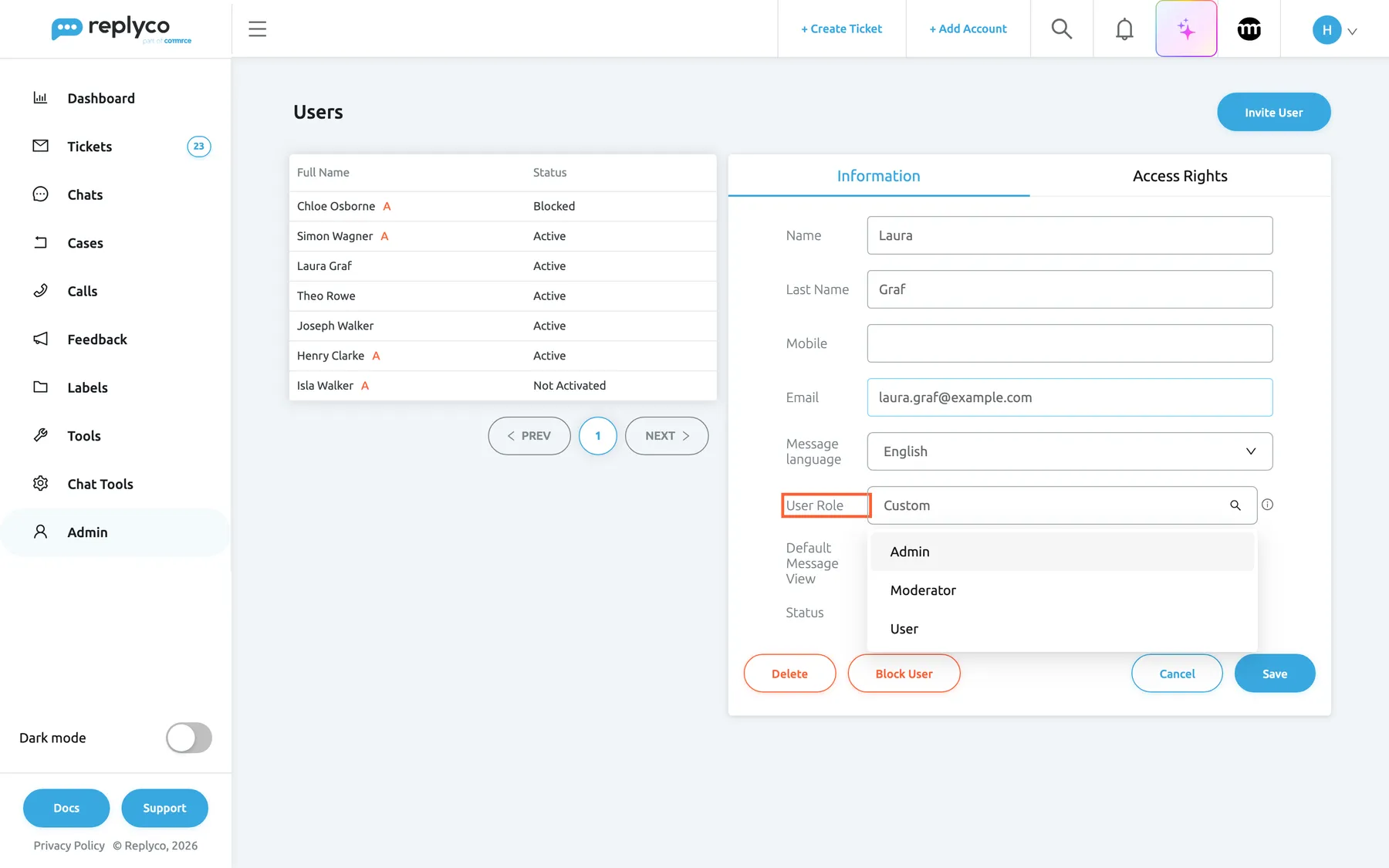
What this screenshot shows
- Screen
- Information (/users)
- Highlighted
- “”, details-panel, showing Custom, drop-down open. offers Admin, Moderator and User
- Also visible
- Laura Graf selected, no red A; User Role: Custom; options Admin, Moderator, User
- Purpose
- choose a role
Admin, the Admin menu and company-wide settings
Section titled “Admin, the Admin menu and company-wide settings”Access Rights › Main, the first row. Only the Admin role ticks it.
With View, the user sees the Admin menu with Accounts, Users (on every current plan) and, when those are connected, Linnworks settings and Billbee Configuration. They also get + Add Account in the top bar while your plan has accounts left, and Apply for all users when they arrange the order fields in a ticket. They can read the accounts and the users with their access.
With Edit, they also get Company Settings in the Admin menu, with the tabs Priorities & SLA and Specific Account Settings, and AI Settings under Tools when your company has Replyco AI. Saving on those screens needs this mode: in Company Settings the company details and working hours, the priorities on Priorities & SLA and the eBay case import; in AI Settings the AI settings, the Categories, the tone rules on Tone and the AI Customers Blacklist. They may also connect, reconnect and delete accounts, invite, change, block and delete users, and set everyone’s access. The list in AdminUsers marks these users with a red A.
Replyco keeps at least one administrator: when you are the only user with Admin in Edit mode, it refuses to remove it from your own user with “You’re the only administrator of this account. You cannot remove administrative rights.”
View suits a team lead who needs to see which accounts are connected and who has which access, without changing anything. Edit is for the people who own the setup.
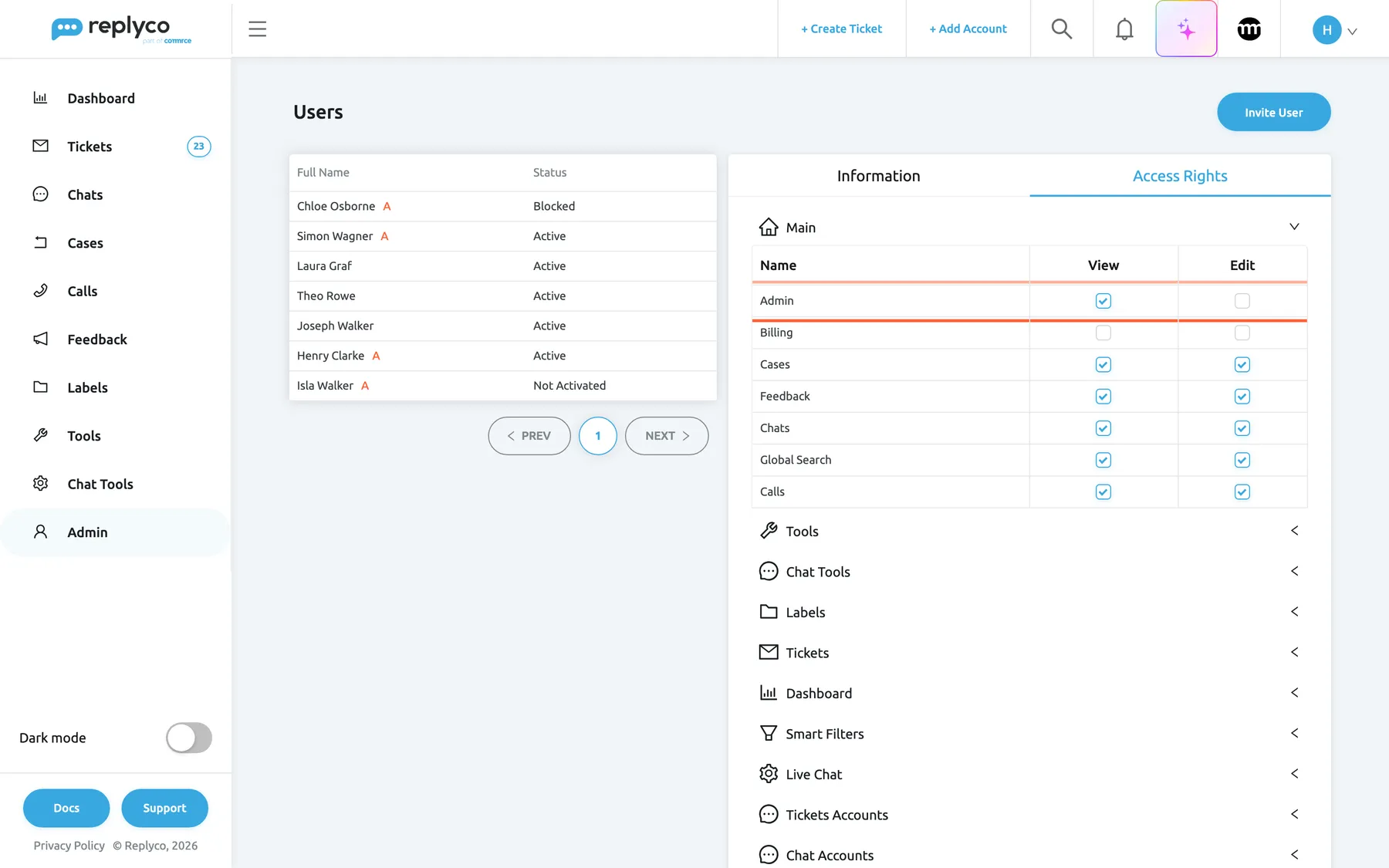
What this screenshot shows
- Screen
- Access Rights (/users)
- Highlighted
- row “Admin”, access-rights-main, View ticked, Edit clear. Admin menu without Company Settings, AI Settings or changes to users
- Also visible
- Billing clear; Cases, Feedback, Chats, Global Search, Calls with Edit; View locked where Edit is ticked; nine collapsed sections
- Purpose
- the two modes of a permission
Billing, the plan and invoices
Section titled “Billing, the plan and invoices”Access Rights › Main. Only the Admin role ticks it.
Adds Billing to the Admin menu, so it works together with the Admin permission. Billing appears once your company pays for a plan through Replyco; during the trial and for companies billed through Shopify it is not in the menu. With View, the user sees the plan, the upcoming invoice and past payments; with Edit, they may change or cancel the plan and the payment method. See Billing.
Who may change what your company pays is often a smaller circle than who administers Replyco.
Cases, eBay cases
Section titled “Cases, eBay cases”Access Rights › Main. Admin and Moderator tick it.
Shows the Cases menu once your company imports eBay cases, which an administrator switches on with Enable eBay Cases in Company Settings. It also makes the case shown inside a ticket a link to the case, the Cases dashboard available, and it is needed for Shipping Labels. With Edit, the user may act on cases, such as refunding or accepting a return, and mark cases read or unread. See Case list.
Refunds and returns move money; many teams keep them with a few experienced colleagues.
Feedback, marketplace feedback
Section titled “Feedback, marketplace feedback”Access Rights › Main. Admin and Moderator tick it.
Shows the Feedback menu with Feedback Requests and Feedback List, and the Related Feedback block in a ticket’s right panel. With Edit, the user may mark feedback read or unread and fetch the latest from the marketplace. See Feedback List.
Feedback is a seller-rating matter; it belongs to the people who follow up on it.
Chats, the chat inbox
Section titled “Chats, the chat inbox”Access Rights › Main. Admin and Moderator tick it.
Shows the Chats menu with My Chats, Open and Closed, for WhatsApp, live chat and the messengers. With Edit, the user may also close and reopen chats, assign them and link a customer to a chat. Which chats they find under Open follows their Chat Accounts and Live Chat widgets. See Chat list and conversations.
Chats need someone who answers within minutes; give the inbox to the colleagues who sit on it.
Global Search, search in the top bar
Section titled “Global Search, search in the top bar”Access Rights › Main. All three roles tick it.
Shows the search in the top bar, which finds tickets, orders, products and cases. The ticket results come from every ticket list, including lists that are not ticked for the user, but only from the user’s own accounts and labels. See Search.
Search is how agents find a customer who writes about an older order; clear it only for colleagues who should stay in their own lists.
Calls, Aircall calls
Section titled “Calls, Aircall calls”Access Rights › Main. Admin and Moderator tick it.
Shows the Calls menu with your Aircall calls. With Edit, the user may link a customer or an order to a call. See Call list.
Phone support is often a separate team from written support.
Tools, the everyday tools
Section titled “Tools, the everyday tools”Access Rights › Tools, nine permissions with View and Edit.
Each permission shows one item under Tools in the sidebar; Edit adds the changes listed.
| Permission | Shows | Edit adds |
|---|---|---|
| Customers | ToolsCustomers | Changing, merging, starring and unsubscribing customers; Block Customer and editing a customer’s details in a ticket |
| Orders | ToolsOrders | Creating, changing and deleting orders; linking an order to a chat |
| Automation | ToolsAutomation: templates, rules, auto-responses and feedback rules | Creating, changing, switching on or off and deleting them |
| Labels | ToolsLabels, the list of labels | Creating, renaming and deleting labels |
| Shipping Labels | ToolsShipping Labels, with the Cases permission | Adding, changing and deleting return labels |
| Custom Fields | ToolsCustom Fields, with custom fields in your plan | Creating, changing and deleting fields |
| Smart Filters | ToolsSmart Filters, with the Smart Filter feature in your plan | Creating, changing, ordering and deleting filters |
| Fallbacks | ToolsFallbacks | Changing the fallback values |
| Custom Shipping Links | ToolsCustom Shipping Links | Creating, changing and deleting links |
The Labels permission is about managing labels. Which labelled tickets a user sees is the separate Labels section, described below.
Templates, rules and fallbacks shape every reply your company sends; View lets agents look up a template, Edit lets the right people change it.
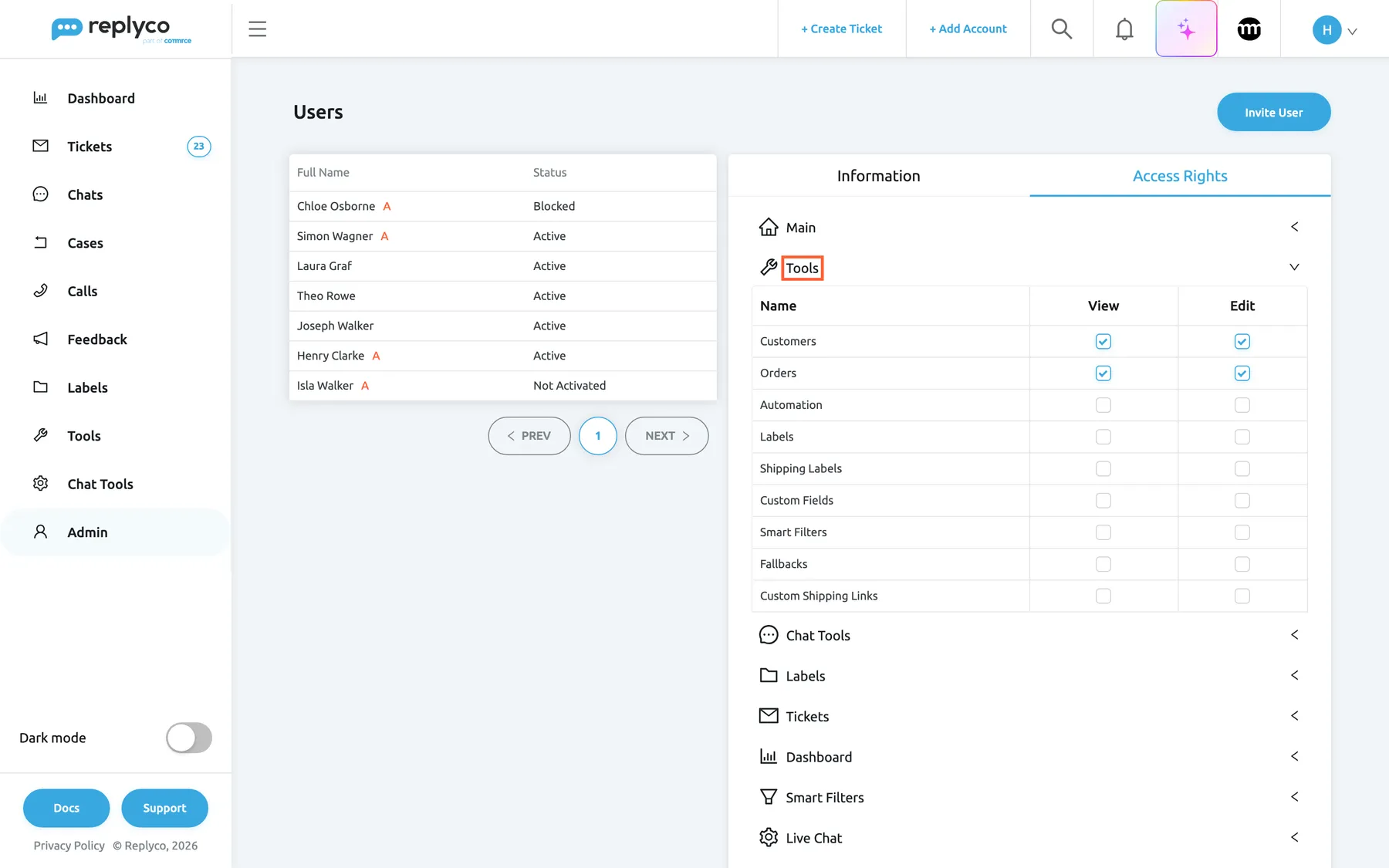
What this screenshot shows
- Screen
- Access Rights (/users)
- Highlighted
- “”, access-rights-tools, expanded. shows the tool permissions with View and Edit
- Also visible
- Customers and Orders with Edit; seven other tools clear; User role
- Purpose
- tool permissions of the User role
Chat Tools, the chat tools
Section titled “Chat Tools, the chat tools”Access Rights › Chat Tools, three permissions with View and Edit.
| Permission | Shows | Edit adds |
|---|---|---|
| Automation | Chat ToolsAutomation: chat templates and chat auto-responses | Creating, changing, switching on or off and deleting them |
| Widgets | Chat ToolsLive Chat, the live chat widget settings | Changing the widgets |
| Transcripts | Chat ToolsTranscripts | Creating, changing, switching on or off and deleting transcript e-mails |
The Chat Tools menu appears when at least one of the three is shown.
Chat automation answers customers without anyone reading first; keep changes to it with the people responsible for chat.
Labels, which labelled tickets a user sees
Section titled “Labels, which labelled tickets a user sees”Access Rights › Labels: No Label and one row per label, each with a View box, and the links Select all and Deselect all.
A user sees a ticket when it carries at least one ticked label. No Label adds the tickets that carry no label at all. Under Labels in the sidebar, the user finds only the ticked labels. A new user starts with every label and No Label, and a label created later is given to every existing user; clear it for the colleagues who should not see it. To create labels, see Labels.
Labels are how many teams split work by topic or channel: pre-sale for sales, eBay questions for the eBay team.
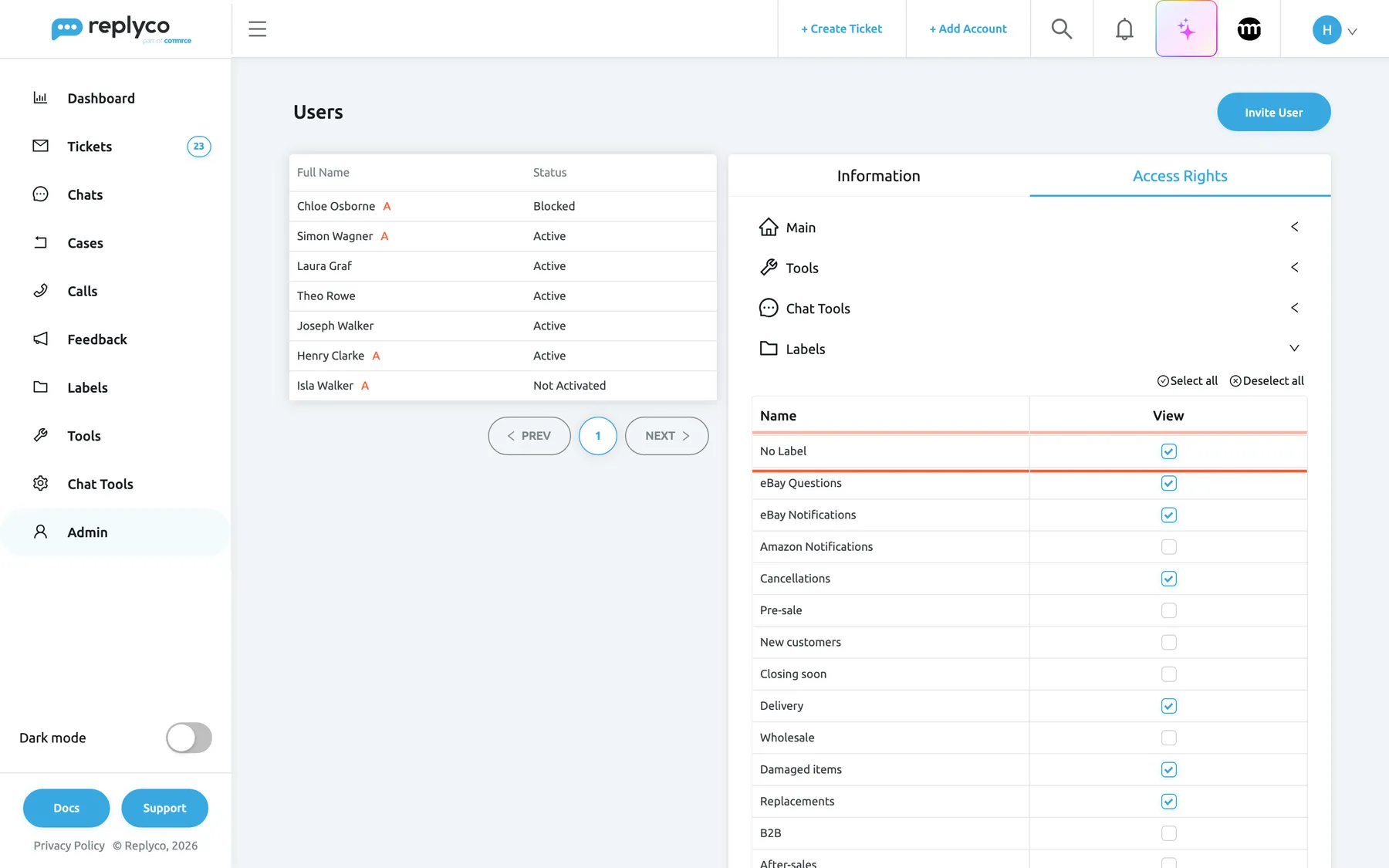
What this screenshot shows
- Screen
- Access Rights (/users)
- Highlighted
- row “No Label”, access-rights-labels, ticked. shows tickets without a label to the user
- Also visible
- eBay labels ticked; Amazon Notifications, Pre-sale, Wholesale clear; Select all, Deselect all
- Purpose
- label access and No Label
Tickets, the ticket lists
Section titled “Tickets, the ticket lists”Access Rights › Tickets: Not Resolved, Unassigned, Resolved, All Tickets, Blocked, Snoozed, Archive, Delayed and Starred, each with a View box.
Each ticked list appears under Tickets in the user’s sidebar. My Tickets is not in the section because every user always has it. When the user opens the address of a list they may not use, Replyco shows My Tickets instead. The roles tick every list except Starred. The lists shape the sidebar, not the search: the search in the top bar still finds tickets of the user’s accounts and labels in a list they do not have. See Ticket lists.
An agent who should work only their own and unassigned tickets gets a short sidebar and cannot pick up a colleague’s ticket from All Tickets by accident.
Dashboard, the dashboards
Section titled “Dashboard, the dashboards”Access Rights › Dashboard, one View box per dashboard.
Each ticked dashboard appears under Dashboard in the sidebar. With none ticked, the Dashboard menu disappears. The Cases dashboard also needs the Cases permission; without it, it shows with a lock. The roles never tick the Chats dashboard, so tick it here for anyone who should see it. See How the dashboards count.
Team figures such as the Users dashboard compare colleagues with each other; many teams keep them with team leads.
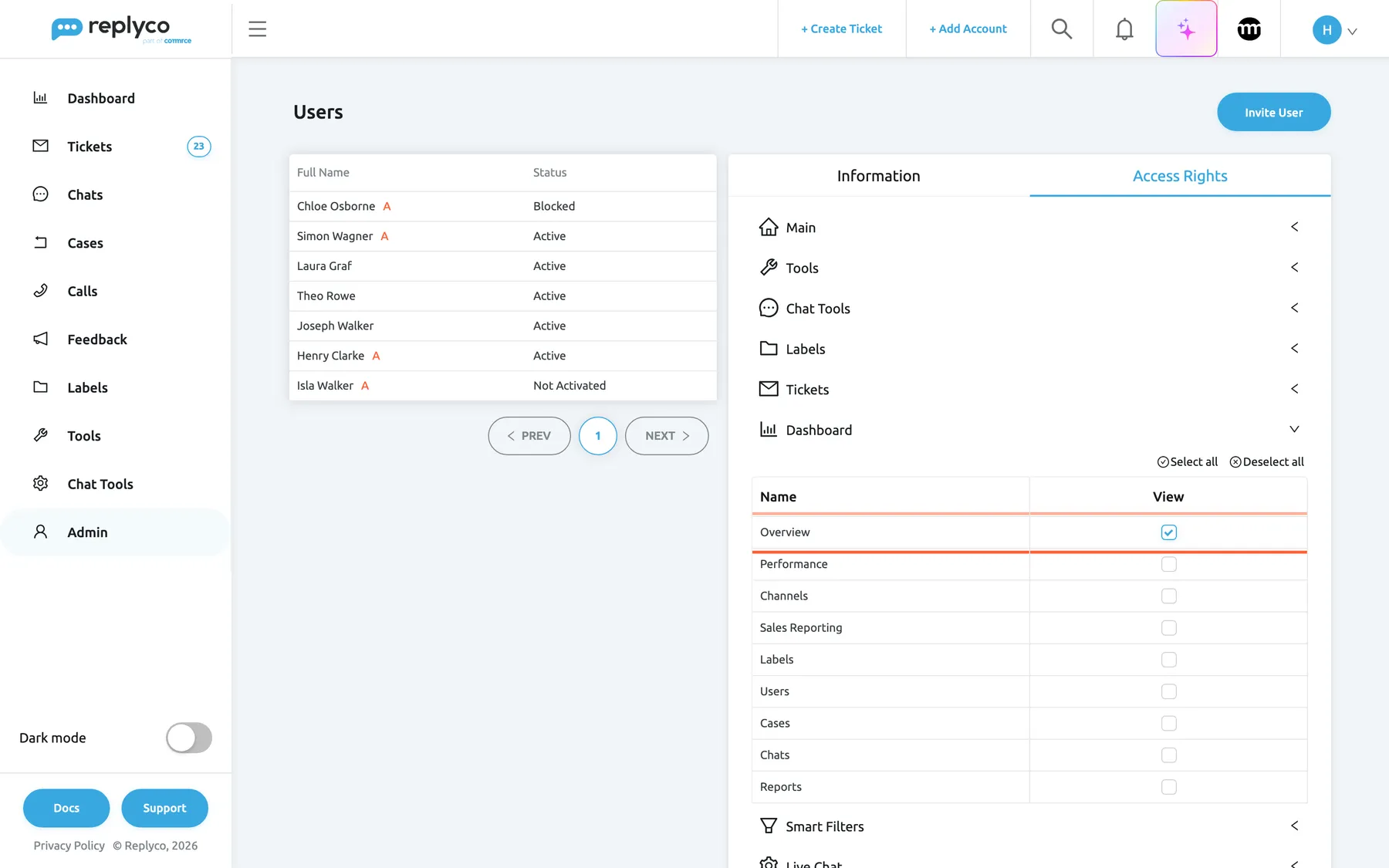
What this screenshot shows
- Screen
- Access Rights (/users)
- Highlighted
- row “Overview”, access-rights-dashboard, ticked. shows Overview under Dashboard for the user
- Also visible
- only Overview ticked; Select all, Deselect all
- Purpose
- choose the dashboards a user sees
Smart Filters, the saved searches a user sees
Section titled “Smart Filters, the saved searches a user sees”Access Rights › Smart Filters, one View box per Smart Filter.
Decides which of the saved filters appear for the user under TicketsSmart Filters. A new user starts with Replyco’s default filters, and a Smart Filter created later is given to every existing user. Managing the filters themselves is the Smart Filters permission in Tools. See Smart Filters.
A Smart Filter such as Waiting for reply is a queue; give each person the queues they work.
Live Chat, the live chat widgets
Section titled “Live Chat, the live chat widgets”Access Rights › Live Chat, one View box per live chat widget.
Makes the user responsible for the chats of the ticked widgets: the existing ones as soon as you save, and every new chat that comes in through them. Those chats appear for them under Open. Clearing a widget takes the user off its chats again; chats assigned to them still appear for them. See Live chat widget.
With several shops or languages, each widget can have its own team.
Tickets Accounts and Chat Accounts, the accounts
Section titled “Tickets Accounts and Chat Accounts, the accounts”Access Rights › Tickets Accounts (accounts that bring in tickets) and Chat Accounts (WhatsApp and the messengers), one View box per account.
The user sees only the tickets of the ticked Tickets Accounts, in every ticket list and in Smart Filters. For each ticked chat account, the user becomes responsible for its chats, the existing ones as soon as you save and every new one, which then appear for them under Open. Clearing the account takes them off those chats again; chats assigned to them still appear for them. A new user starts with every account, and an account connected later is given to every existing user. See Accounts.
Accounts are the simplest way to split work by marketplace or shop, for example one colleague for eBay and one for your own webstore.
How the settings combine
Section titled “How the settings combine”| The user has | Result |
|---|---|
| A ticket list, but not the ticket’s account | The ticket is not in the list |
| The ticket’s account, but none of its labels | The ticket is not in the list, unless it has no label and No Label is ticked |
| The ticket’s account and one of its labels, but not the list | The list is not in the sidebar; the ticket appears in the lists they do have and in the search |
| Calls, but your plan has no calls | No Calls menu |
| Admin with View | The Admin menu without Company Settings, and no AI Settings |
| Billing without Admin | No Billing, because it sits in the Admin menu |
| Shipping Labels without Cases | No Shipping Labels under Tools |
| A role, then one box changed | The role shows Custom; the changed access stays until you choose a role again |
Permissions across Replyco
Section titled “Permissions across Replyco”| Where | Shown when |
|---|---|
| Each sidebar menu and each item in it | The user has its permission, list or dashboard, and your plan has the feature |
| Company Settings and AI Settings | Admin with Edit |
| + Add Account in the top bar | Admin, and your plan has accounts left or you are on a trial |
| The search in the top bar | Global Search |
| Related Feedback in a ticket | Feedback |
| The case in a ticket as a link | Cases |
| Editing customer details and Block Customer | Customers with Edit |
| Apply for all users | Admin |
| The red A in the list of users | Admin with Edit |
The sidebar
Section titled “The sidebar”The sidebar is built for each user from their permissions, ticket lists and dashboards. An agent with the User role, such as Joseph Walker, sees Dashboard with only Overview, Tickets, Labels and Tools with Customers and Orders, and no Admin menu. The Dashboard and Chat Tools menus disappear when none of their items is left.
Why: a short sidebar is a focused sidebar. Agents see what they work with, and nobody opens a setting by curiosity.
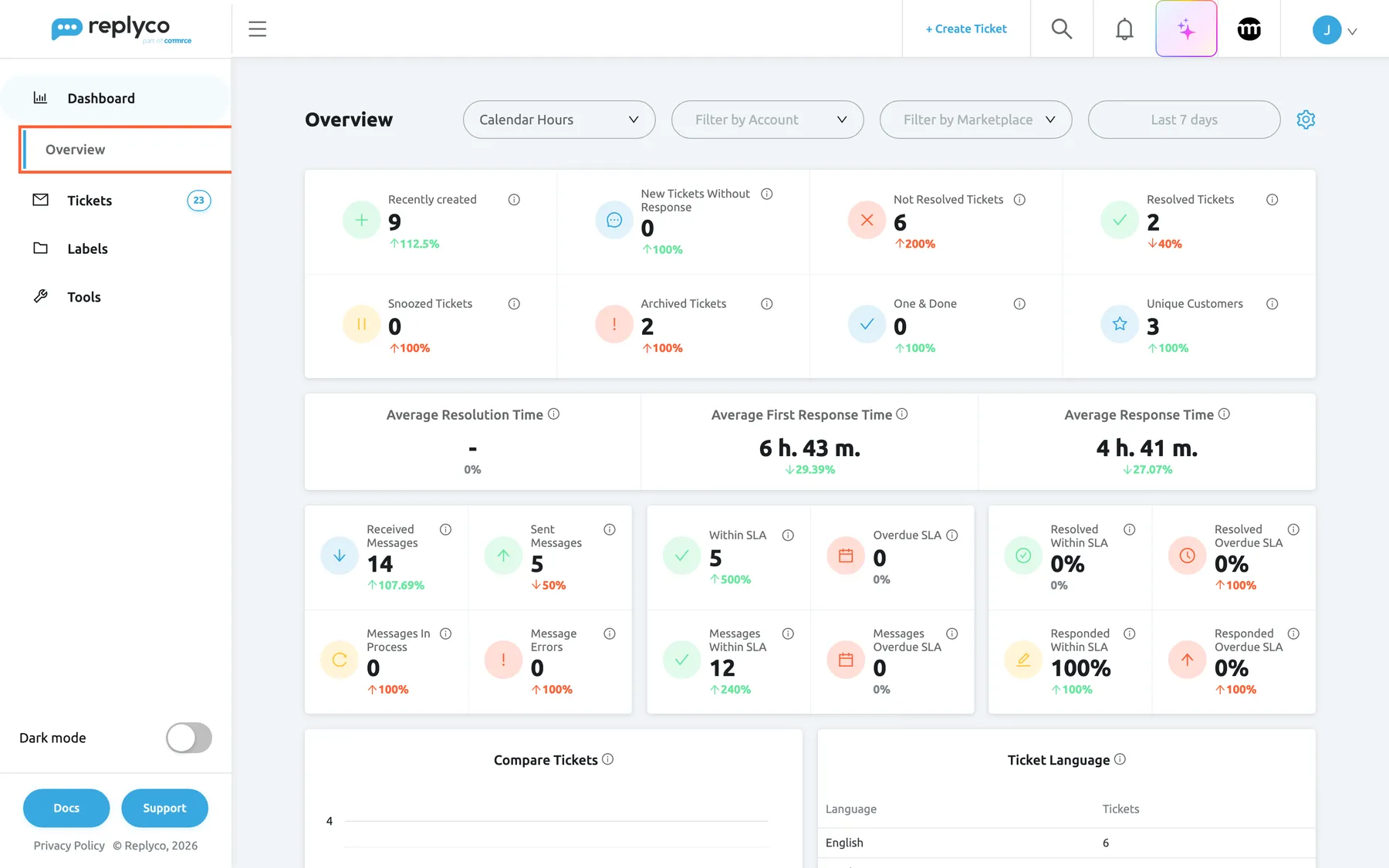
What this screenshot shows
- Screen
- Overview (/dashboard/overview)
- Highlighted
- menuitem “Overview”, sidebar, the only dashboard in the expanded Dashboard menu. opens the Overview dashboard
- Also visible
- Sidebar: Dashboard, Tickets, Labels, Tools only; no Chats, Cases, Calls, Feedback, Chat Tools or Admin menu; top bar without Add Account; signed in as Joseph Walker (User role)
- Purpose
- what the User role shows an agent
The ticket lists in the sidebar
Section titled “The ticket lists in the sidebar”Under Tickets, the user finds Smart Filters and the lists ticked for them. After an admin gave Joseph Walker only Not Resolved and Unassigned, his menu shows those two and My Tickets.
Why: the lists in the sidebar are the user’s working day; each one is a queue.
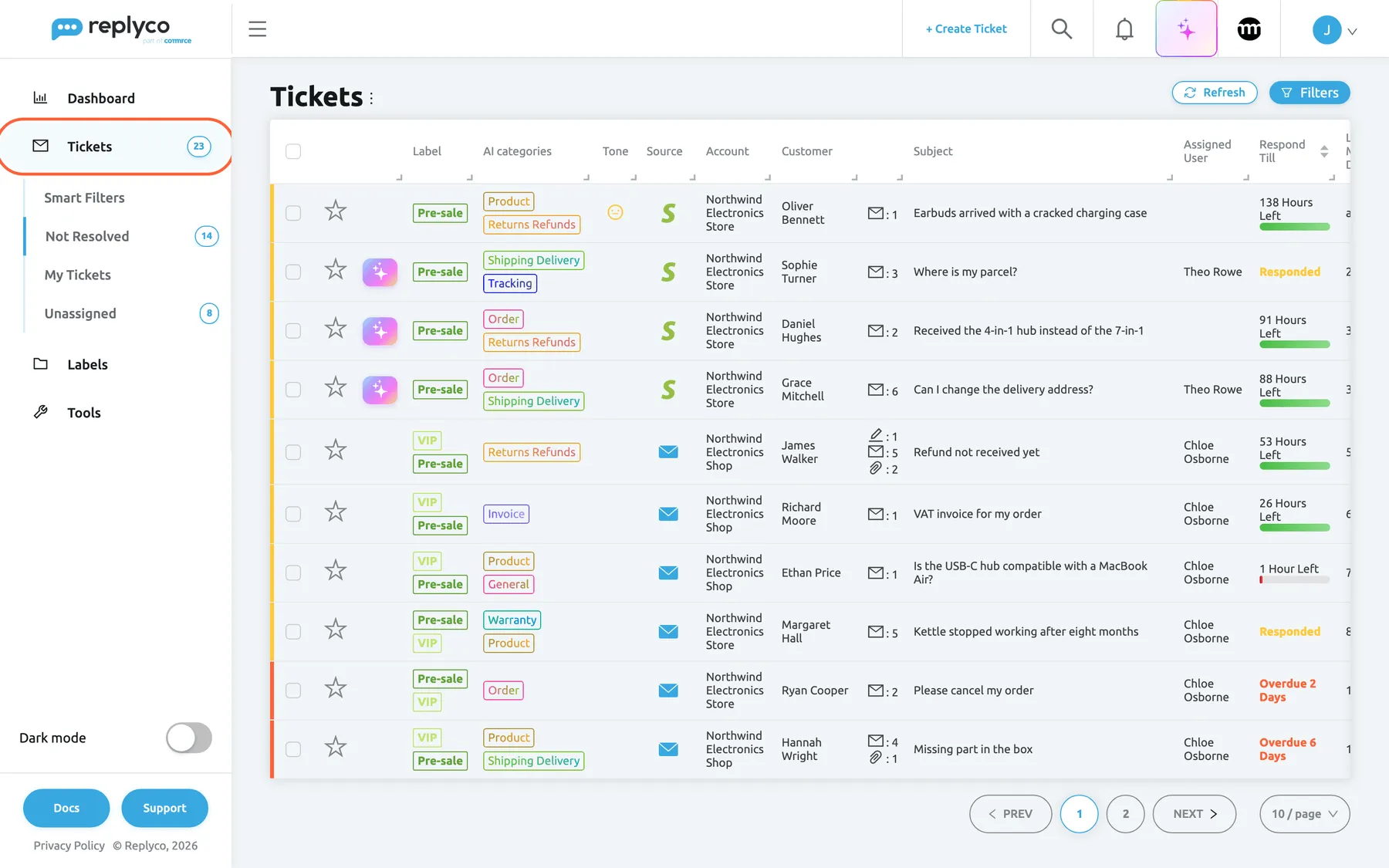
What this screenshot shows
- Screen
- Not Resolved (/tickets/notresolved)
- Highlighted
- menuitem “Tickets”, sidebar, expanded. shows the ticket lists the user may open
- Also visible
- Tickets menu: Smart Filters, Not Resolved 14, My Tickets, Unassigned 8; no Resolved, All Tickets, Blocked, Snoozed, Delayed, Archive or Starred; Not Resolved tickets in the list
- Purpose
- effect of the ticket list permissions
The top bar
Section titled “The top bar”+ Add Account appears for users with the Admin permission while your company still has accounts left on its plan, and always during a trial; see Add Account. The search appears with the Global Search permission.
Why: a new account changes what every colleague sees, so connecting one is an administrator’s job.
Pages opened by their address
Section titled “Pages opened by their address”A bookmark or a shared link does not get around permissions. Opening AdminCompany Settings without Admin in Edit mode, or ToolsAI Settings without it or without Replyco AI, takes the user to the start page. Opening a ticket list they may not use shows My Tickets.
Why: a link sent in a team chat reaches people with different rights; each of them lands where their access allows.
Inside a ticket
Section titled “Inside a ticket”Some parts of the ticket screen follow permissions too: the Related Feedback block needs Feedback, the case block links to the case with Cases, and editing a customer’s details or Block Customer needs Customers with Edit. In Manage Properties, opened from the gear beside Order Details, users with the Admin permission see Apply for all users, which saves the order fields they arranged for every colleague. See The ticket screen.
Why: everyone arranges the order panel for themselves; an administrator can set a common layout for the whole team.
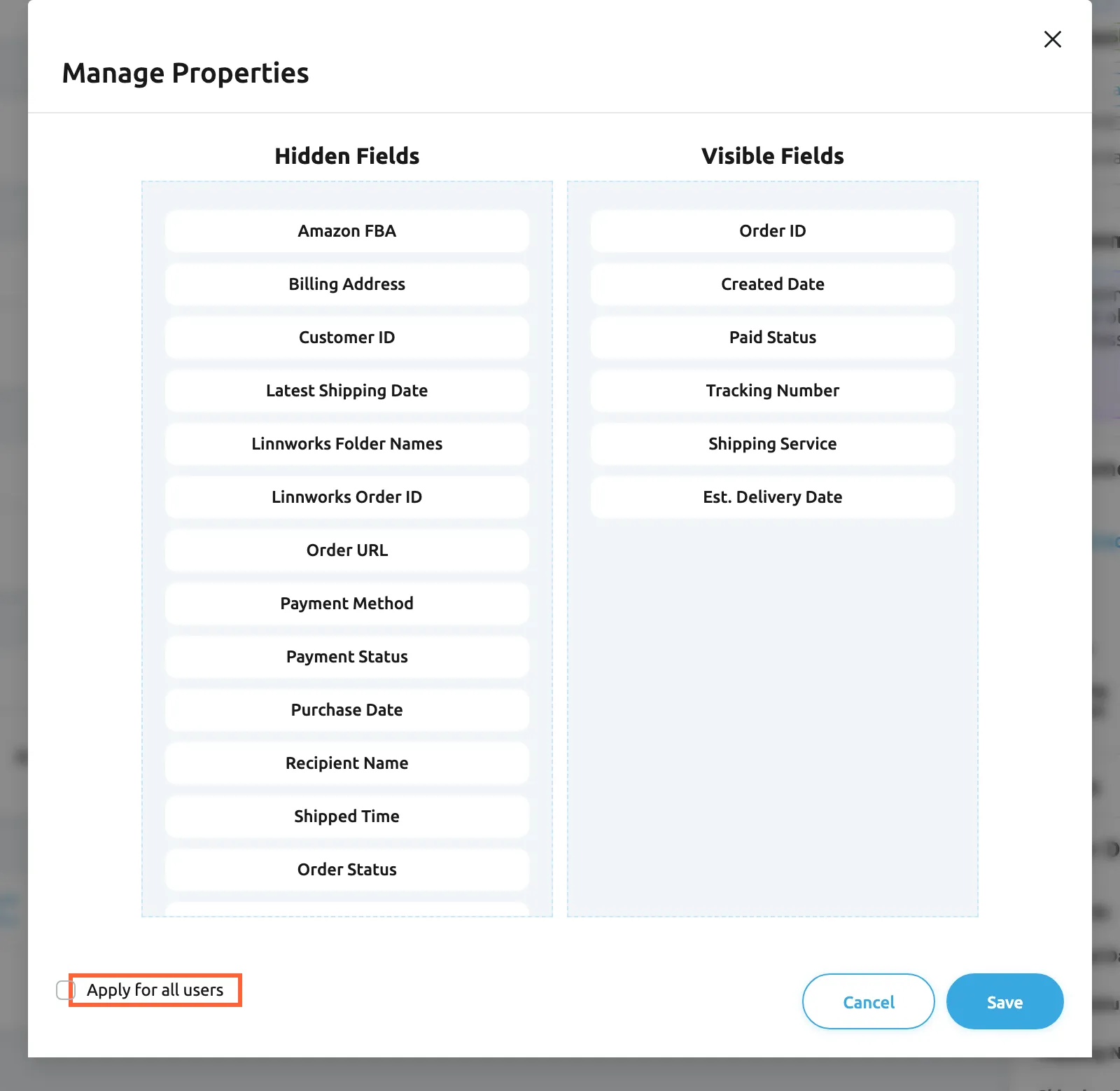
What this screenshot shows
- Screen
- Manage Properties (/ticket/:threadId)
- Highlighted
- checkbox “Apply for all users”, dialog-footer, clear. saves the visible order fields for every user
- Also visible
- Hidden Fields and Visible Fields lists; Cancel, Save
- Purpose
- an Admin-only control outside the Admin menu
Permissions and your plan
Section titled “Permissions and your plan”Plan features are set by your subscription, in AdminBilling; permissions per user in AdminUsers.
Where an area belongs to a plan feature, Replyco shows it only when both allow it:
| Area | Plan feature | Permission |
|---|---|---|
| Chats | Chat, WhatsApp or live chat, in every plan | Chats |
| Calls | Calls, in every plan | Calls |
| Cases | Cases, in every plan, and the eBay case import switched on | Cases |
| ToolsCustom Fields | Custom fields, in every plan | Custom Fields |
| ToolsSmart Filters | Smart filters, in every plan | Smart Filters |
| ToolsAI Settings | Replyco AI, in every plan | Admin with Edit |
| AdminUsers | User permissions or user roles, in every plan | Admin |
| Chat Tools items | Chat or live chat, in every plan | Automation, Widgets, Transcripts |
Every current plan includes all of these features, and during a trial every feature is on, so only the permissions decide. Companies on an older plan may not have some of them; see What each plan includes.
Your plan decides what your company has; permissions decide who in your company uses it.
Three examples from Northwind Electronics:
- Theo Rowe leads the team as Moderator: he has Custom Fields, and your plan includes custom fields, so Custom Fields is under his Tools.
- Joseph Walker has the User role and no Calls: the Calls menu stays hidden for him, although the company takes calls.
- Laura Graf has Admin with View only: she sees Accounts and Users, but no Company Settings and no AI Settings.
What you need to know
Section titled “What you need to know”| Topic | Fact |
|---|---|
| Number of permissions | Nineteen, in Main (7), Tools (9) and Chat Tools (3). |
| Modes | View reads, Edit reads and changes; Edit always includes View. |
| Roles | Admin, Moderator and User set permissions, ticket lists and dashboards; labels, Smart Filters, widgets and accounts stay. |
| Custom | Shown when access matches no role; it is not a role you can choose. |
| My Tickets | Always part of every user’s ticket lists. |
| Tickets | A ticket must match the user’s accounts, labels and list; the search in the top bar looks through every list. |
| New users | Start with the User role (unless you choose another), every label with No Label, the default Smart Filters and every account. |
| New labels, filters and accounts | Are given to every existing user. |
| When changes apply | The next time Replyco loads for the colleague, after a reload or a new sign-in. |
| Last administrator | The only user with Admin in Edit mode cannot remove it from themselves. |
| Plan | Every current plan includes user permissions and roles; every feature is on during a trial. |
| History | Permission changes are not written to a ticket’s history; check the current access on Access Rights. |
Frequently asked questions
Section titled “Frequently asked questions”General
Section titled “General”What is the difference between a role and a permission?
Section titled “What is the difference between a role and a permission?”A permission opens one area of Replyco, such as Calls or ToolsOrders, in View or Edit mode. A role, Admin, Moderator or User, is a ready-made set of permissions, ticket lists and dashboards that you apply in one step under User Role in AdminUsers.
What does View allow, and what does Edit add?
Section titled “What does View allow, and what does Edit add?”View lets a user open an area and read what is there, for example the rules in ToolsAutomation. Edit adds creating, changing, switching on or off and deleting, and it always includes View. Set both per permission on the user’s Access Rights tab.
Which plan do I need for user permissions and roles?
Section titled “Which plan do I need for user permissions and roles?”Any current plan: every current plan includes user permissions and user roles, and every feature is on during a trial. They bring Users into the Admin menu, the User Role drop-down and the Access Rights tab. A company on an older plan may not have them, and an older plan without user permissions keeps working as it always has; see What each plan includes.
Do permissions cost anything?
Section titled “Do permissions cost anything?”No. Permissions and roles do not change what you pay. On a plan priced per user, each user you add changes the price, whatever access you give them; see Users and Billing.
How do I give a colleague access?
Section titled “How do I give a colleague access?”Open AdminUsers, select the colleague, choose a role under User Role and select Save. For anything in between, open their Access Rights tab, tick or clear boxes and select Save at the bottom; they see the change after they reload Replyco.
Which role should a new agent get?
Section titled “Which role should a new agent get?”User, which Replyco preselects: Customers, Orders and Global Search with Edit, every ticket list and the Overview dashboard. Give Moderator to team leads and Admin only to people who manage settings, users and billing in AdminUsers.
I changed a colleague’s access. When does it apply?
Section titled “I changed a colleague’s access. When does it apply?”The next time Replyco loads for them. Ask them to reload the page or sign in again; their sidebar then shows the lists, dashboards and areas you saved on the Access Rights tab in AdminUsers.
Why does the role now say Custom?
Section titled “Why does the role now say Custom?”Someone changed a box on the user’s Access Rights tab, so their permissions, ticket lists or dashboards no longer match Admin, Moderator or User exactly. Custom is a description, not a choice. To go back to a role, choose it under User Role in AdminUsers and select Save.
Does choosing a role reset a colleague’s labels and accounts?
Section titled “Does choosing a role reset a colleague’s labels and accounts?”No. A role replaces permissions, ticket lists and dashboards only. Labels, Smart Filters, live chat widgets and accounts stay as they are; change them in their own sections of the Access Rights tab in AdminUsers.
What exactly does the Admin role include?
Section titled “What exactly does the Admin role include?”Every permission in Main, including Admin and Billing; in Tools Customers, Orders, Automation, Labels, Shipping Labels, Custom Fields, Smart Filters and Fallbacks; Widgets in Chat Tools; all with Edit. It ticks every dashboard except Chats, which both Admin and Moderator leave out by design. Add other boxes by hand on Access Rights in AdminUsers.
What is the difference between Admin and Moderator?
Section titled “What is the difference between Admin and Moderator?”Moderator has everything the Admin role has except the Admin and Billing permissions. A Moderator works with every tool, list and dashboard of the role, but has no Admin menu, so they cannot change accounts, company settings, users or the plan.
Can I remove my own administrator rights?
Section titled “Can I remove my own administrator rights?”Only if another user keeps the Admin permission with Edit rights. When you are the only one, Replyco refuses with “You’re the only administrator of this account. You cannot remove administrative rights.” Give a colleague the Admin role in AdminUsers first.
How do I give a team lead read-only access to the Admin menu?
Section titled “How do I give a team lead read-only access to the Admin menu?”Open their Access Rights tab in AdminUsers, open Main and tick only View for Admin, then select Save. They see Accounts and Users, but not Company Settings or AI Settings, and they cannot change anything there.
Ticket lists, labels and accounts
Section titled “Ticket lists, labels and accounts”Why can’t a colleague see a ticket that I see?
Section titled “Why can’t a colleague see a ticket that I see?”A ticket must pass three filters on the colleague’s Access Rights tab in AdminUsers: its account in Tickets Accounts, one of its labels in Labels (or No Label for an unlabelled ticket), and a ticket list in Tickets. Check them in that order.
How do I limit an agent to one marketplace?
Section titled “How do I limit an agent to one marketplace?”On the agent’s Access Rights tab in AdminUsers, open Tickets Accounts, tick only that marketplace’s account and select Save. Every ticket list and Smart Filter then shows only that account’s tickets. Chat accounts are in Chat Accounts, a separate section.
Does the search find tickets from lists a colleague does not have?
Section titled “Does the search find tickets from lists a colleague does not have?”Yes. The search in the top bar, which needs the Global Search permission, looks through every ticket list, including lists not ticked in the colleague’s Tickets section of Access Rights. It still shows only tickets of their Tickets Accounts and of their labels in Labels. To keep a colleague to their own lists, clear Global Search for them in AdminUsers.
What does No Label do?
Section titled “What does No Label do?”No Label in the Labels section of Access Rights shows a user the tickets that carry no label at all. Clear it for colleagues who should see only the tickets of their labels, for example a sales team that works only tickets labelled Pre-sale.
Is the Labels permission the same as the Labels section?
Section titled “Is the Labels permission the same as the Labels section?”No. The Labels permission in Tools opens ToolsLabels, where labels are created and renamed. The Labels section of Access Rights decides which labelled tickets the user sees. A user can see tickets of a label without being allowed to rename it.
Can I hide My Tickets from someone?
Section titled “Can I hide My Tickets from someone?”No. My Tickets is part of every user’s ticket lists, so everyone always sees the tickets assigned to them. The other lists are ticked per user in the Tickets section of Access Rights in AdminUsers.
Why doesn’t a new label show up for a colleague who should not have it?
Section titled “Why doesn’t a new label show up for a colleague who should not have it?”It does: a label, Smart Filter or account created later is given to every existing user. If a colleague should not see it, clear it on their Access Rights tab in AdminUsers right after you create it, and select Save.
Admin and billing
Section titled “Admin and billing”Why can’t I find Company Settings in the Admin menu?
Section titled “Why can’t I find Company Settings in the Admin menu?”AdminCompany Settings appears only with the Admin permission in Edit mode. With View, the Admin menu shows Accounts and Users but not Company Settings. Ask an administrator to tick Edit for you.
Why don’t I see AI Settings under Tools?
Section titled “Why don’t I see AI Settings under Tools?”ToolsAI Settings needs the Admin permission in Edit mode and Replyco AI for your company, which every plan includes. Without both, the item is not in the menu and its address opens the start page. See AI Settings.
I have the Billing permission. Why is there no Billing menu?
Section titled “I have the Billing permission. Why is there no Billing menu?”Billing sits in the Admin menu, so it also needs the Admin permission. It appears once your company pays for a plan through Replyco; during the trial and for companies billed through Shopify there is no Billing item. See Billing.
Who can connect a new account?
Section titled “Who can connect a new account?”Users with the Admin permission see + Add Account in the top bar while your plan has accounts left, and always during a trial. Connecting, reconnecting and deleting accounts needs Edit mode. See Add Account.
Where it is shown
Section titled “Where it is shown”What does the red A in the Users list mean?
Section titled “What does the red A in the Users list mean?”It marks a user with the Admin permission in Edit mode, which the Admin role gives. Users with Admin in View mode have no A in AdminUsers, because they cannot change anything in the Admin menu.
A colleague opens a link to a settings page and lands on the start page. Why?
Section titled “A colleague opens a link to a settings page and lands on the start page. Why?”Replyco checks the colleague’s permissions when a page opens, also from a link or bookmark. Without the Admin permission in Edit mode, AdminCompany Settings and ToolsAI Settings open the start page instead, and a ticket list they may not use opens My Tickets.
Who can set the order fields in a ticket for everyone?
Section titled “Who can set the order fields in a ticket for everyone?”Every user arranges the order fields for themselves in Manage Properties, opened from the gear beside Order Details in a ticket. Users with the Admin permission also see Apply for all users, which saves the layout for every colleague.
Why can’t an agent block a customer?
Section titled “Why can’t an agent block a customer?”Block Customer and editing a customer’s details in a ticket need the Customers permission with Edit rights. The User role gives it; check the agent’s Tools section on Access Rights in AdminUsers. See Blocked tickets.
Data and privacy
Section titled “Data and privacy”Who can see which permissions a colleague has?
Section titled “Who can see which permissions a colleague has?”Users with the Admin permission can open AdminUsers and read every colleague’s role and Access Rights. Only users with Admin in Edit mode can change them.
Does Copilot see tickets that my permissions hide?
Section titled “Does Copilot see tickets that my permissions hide?”No. Copilot, the AI assistant in the top bar, works with your own access in Replyco, so it sees only what your permissions, ticket lists, labels and accounts let you see. See The Replyco screen.
Is a change of permissions recorded anywhere?
Section titled “Is a change of permissions recorded anywhere?”No history row is written for a permission change. The current access of each colleague is always visible on their Access Rights tab in AdminUsers, and the role drop-down shows Custom when it was changed by hand.
Troubleshooting
Section titled “Troubleshooting”| Symptom | What to check |
|---|---|
| A colleague still sees a menu you removed | You selected Save on Access Rights; the colleague reloaded Replyco or signed in again |
| A menu is missing although the permission is ticked | The colleague reloaded Replyco; on an older plan, the plan includes the feature (What each plan includes); for Cases, the eBay case import is switched on in Company Settings |
| Company Settings is missing from the Admin menu | Admin is ticked with Edit, not only View |
| AI Settings is missing under Tools | Admin with Edit; Replyco AI for your company |
| Billing is missing | Billing and Admin are both ticked; your company pays through Replyco and is past the trial |
| The whole Admin menu is missing | Admin is ticked in either mode |
| Users is missing from the Admin menu | Admin is ticked; companies on an older plan may not have user permissions and roles (What each plan includes) |
| + Add Account is missing | Admin; your plan’s number of accounts is not used up |
| A colleague does not see a ticket | In order: Tickets Accounts, the ticket’s labels or No Label in Labels, the list in Tickets |
| A ticket list’s address opens My Tickets | The list is ticked in the colleague’s Tickets section |
| The Dashboard menu is missing | At least one dashboard is ticked in Dashboard |
| The Cases dashboard shows a lock | Cases is ticked |
| The search is missing from the top bar | Global Search is ticked |
| You cannot remove your own Admin rights | Another user has Admin with Edit first |
| The role shows Custom | Access was changed by hand; choose a role and select Save to reset it |