

Connect Kaufland
Connect your Kaufland seller account and every Kaufland ticket, the conversation a buyer opens about an order, arrives in Replyco with its messages, files and the order; the replies you send from Replyco go back to the buyer through Kaufland. Kaufland needs no forwarding and no address: Replyco talks to Kaufland’s Seller API directly with two keys from your seller account. It takes one form in Replyco.
Before you start
Section titled “Before you start”| You need | Where it lives |
|---|---|
| The Admin permission in Replyco | AdminUsers; see Invite users and set what they can do |
| The two keys of your Kaufland Seller API access, for Client Key and Secret Key | Kaufland Seller Portal |
| A free account on your plan | AdminBilling; see Billing |
Availability: every plan includes Kaufland, and Replyco checks Kaufland for new orders. Companies on an older plan may not have order sync; see What each plan includes.
-
Select + Add Account in the top bar.
The Add Account page opens with one tile per marketplace. To connect another channel instead, see Add Account.
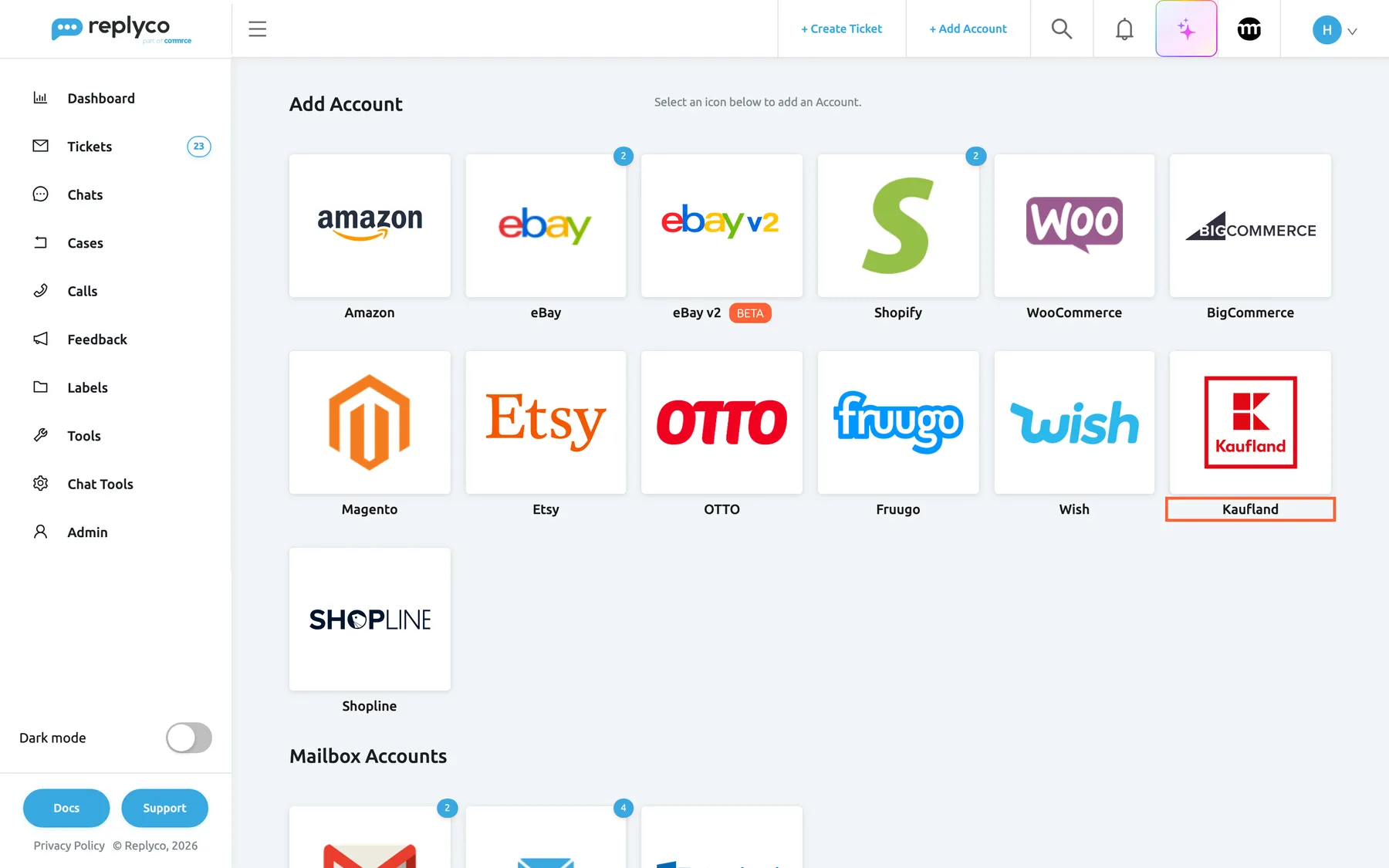
Kaufland has its own tile among the marketplaces on the Add Account page. What this screenshot shows
- Screen
- Add Account (/integrations/add)
- Highlighted
- button “”, marketplace-tiles, enabled. opens the Kaufland connect dialog
- Also visible
- marketplace and webstore tiles; Mailbox Accounts heading below
- Purpose
- start connecting Kaufland
-
Select the Kaufland tile. The dialog Authorize Replyco to sync with Kaufland opens at AUTHORIZE. Select Authorize to go on to the form.
-
At INFO, enter an Account Name your team recognises; it labels every ticket from Kaufland. Paste the Client Key and the Secret Key from the Kaufland Seller Portal, then select Authorize.
Replyco checks the keys with Kaufland before it saves anything. Copy each key completely, without spaces before or after it.
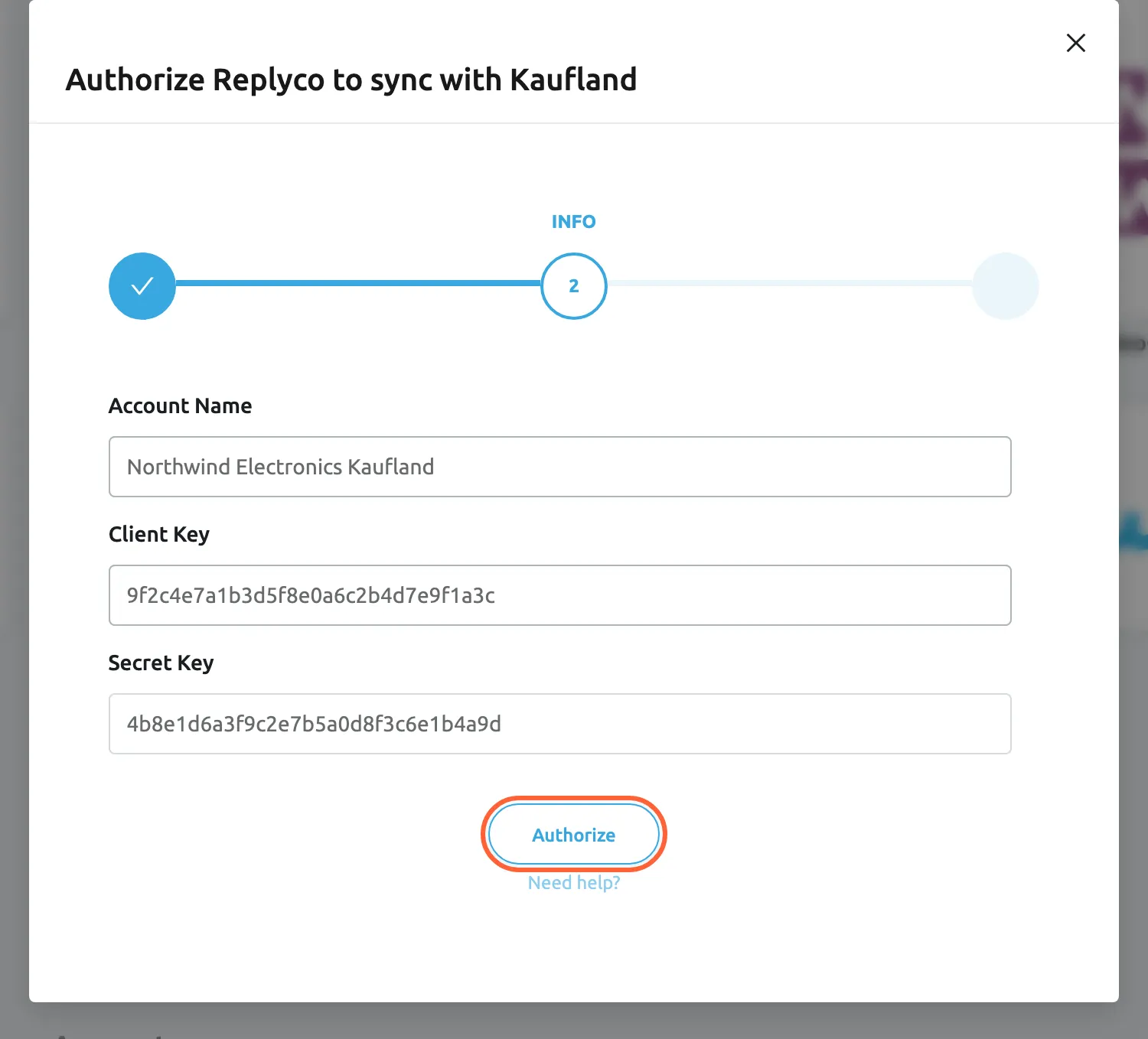
Paste the Client Key and Secret Key of your Kaufland seller account; Replyco checks them when you select Authorize. What this screenshot shows
- Screen
- Authorize Replyco to sync with {{name}} (/integrations/add)
- Highlighted
- button “Authorize”, dialog-bottom, enabled. validates the keys with Kaufland and saves the account
- Also visible
- Account Name: Northwind Electronics Kaufland; Client Key filled; Secret Key filled; step INFO
- Purpose
- enter the Kaufland API keys
-
When Kaufland accepts the keys, Replyco saves the account, confirms with Account successfully saved. and shows Your account was saved successfully.. Select Finish.
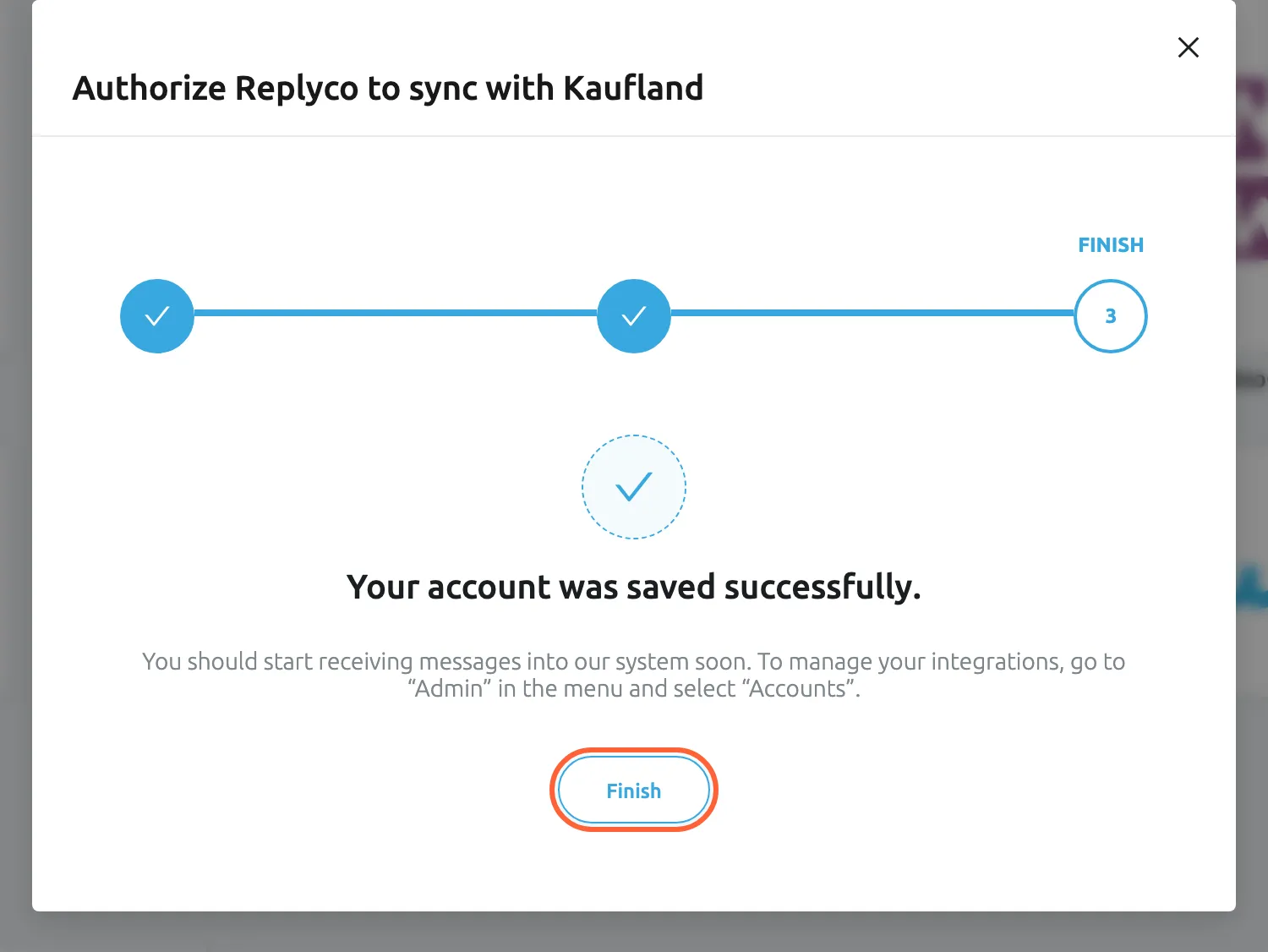
Kaufland accepted the keys; the account is saved and starts to sync. What this screenshot shows
- Screen
- Authorize Replyco to sync with {{name}} (/integrations/add)
- Highlighted
- button “Finish”, dialog-bottom, enabled. closes the dialog
- Also visible
- step FINISH; Your account was saved successfully.
- Purpose
- the Kaufland account is saved
What happens next
Section titled “What happens next”The account appears on AdminAccounts and starts to sync at once; to check how its sync is going, see Accounts. Replyco imports the Kaufland tickets of the last two days, then checks Kaufland for new ticket messages every five minutes. It also imports the orders of the last two days, checks for new orders every few minutes and keeps each order’s invoices with it. Each Kaufland ticket becomes one Replyco ticket with the ticket’s topic as its subject and the ordered item’s order beside it. When the next buyer writes, check that a ticket appears in TicketsNot Resolved.
Replying to Kaufland buyers
Section titled “Replying to Kaufland buyers”- Kaufland decides which messages can be answered. A message has a Respond button only while Kaufland holds you, the seller, responsible for the ticket and the ticket is open.
- Your reply goes back through Kaufland as plain text, with its attachments; see Answer a ticket.
- A reply to a ticket that Kaufland has closed in the meantime is not delivered. It shows Error Sending, and the reason contains “Ticket is closed, try to create the new one if you want”. To reach the buyer again, open a new Kaufland ticket from Replyco.
- Resolving or archiving a ticket in Replyco changes nothing on Kaufland. The ticket stays open there until Kaufland or the buyer closes it.
- To open a new Kaufland ticket, use Create Ticket with the buyer as recipient and their Kaufland account as sender, then choose the order in Select Order, the item in Select Order Unit and the reason in Select Message Type: Product not as described, Product defect, Product not delivered, Product return or Other/Contact.
If something goes wrong
Section titled “If something goes wrong”| Symptom | Check | Fix |
|---|---|---|
| You must complete ALL FIELDS in order to save this account! | One of the three fields is empty. | Fill in Account Name, Client Key and Secret Key. |
| An error with Kaufland’s own text after you select Authorize | Kaufland did not accept the keys: a key is incomplete, has a space, or belongs to another seller account. | Copy both keys again from the Kaufland Seller Portal and select Authorize again. |
| “Integration with this name already exists” | Another Kaufland account in Replyco has the same Account Name. | Enter a different name. |
| “You reached your current plan maximum integrations count. Contact support for more info.” | Your plan has no free account; + Add Account is then also missing from the top bar. | Delete an account you no longer use, or change your plan on AdminBilling. |
| A Kaufland ticket has no Respond button | Kaufland closed the ticket or does not hold you responsible for it. | Answer on Kaufland, or open a new ticket with Create Ticket. |
| A reply shows Error Sending | Hover the badge and read the reason; “Ticket is closed” means Kaufland closed the ticket. | Open a new Kaufland ticket for the buyer. For other reasons, see Troubleshooting tickets. |
| The account shows Blocked on AdminAccounts | Kaufland no longer accepts the keys, for example because they were deleted or replaced in the Kaufland Seller Portal. Kaufland accounts have no Re-login button. | Contact support to restore the account with your current keys; see Help and support. |