

Account Settings
Account Settings is where you set Replyco up the way you work: your name and photo, what happens when you reply to or resolve a ticket, how a ticket looks when you open it, which counters the menu shows, the language you translate customer messages into, your notifications and your password. Every user has it, and everything you set here applies to you alone; colleagues keep their own settings. Open it from the user menu: select your avatar at the right end of the top bar, then Account Settings. This page covers the Information, Settings, Notifications and Change Password tabs; the other tabs have their own pages.
Availability: every user, on every plan. Start screen appears with the Smart Filters feature, and translating messages into your Message language is part of the Translations feature; every plan includes both. Companies on an older plan may not have them; see What each plan includes.
What you can do here
Section titled “What you can do here”- Keep your profile current. Your name appears on your replies, notes and assignments, and your photo on your avatar. Update your name, mobile number and photo.
- Sign in with comrce Hub. Link your comrce Hub account once and use it to sign in to Replyco. Link your comrce Hub account.
- Decide what a reply does to the ticket. Resolve, archive or unassign it, return to the list, or hold every reply for a few minutes, with seven switches and one delay. Decide what happens after you reply or resolve · Delayed sending.
- Start where you work and count what matters. Choose your first screen and the numbers the sidebar shows beside your ticket lists, chats and feedback, one or two per counter. Choose your start screen and menu counters · Smart Filters.
- Shape the ticket screen. Message order, HTML or text, notes and ticket history between the messages, the ticket list beside the ticket. Set up how a ticket looks · The ticket screen.
- Read customers in your language. Message language is the language, one of 55, that a customer’s message is translated into when you translate it in a ticket. Choose your message language and other preferences · Translations.
- Be told what needs you. Eight events, each by email, on the mobile app or in the browser. Choose your notifications · Notifications.
- Change your password, and end every session at the same time if you want to. Change your password.
- Protect and check your account. Signatures, two-factor authentication and your sign-in history have their own tabs and pages: Account Signatures · Two-factor authentication · Account Activity.
The screen at a glance
Section titled “The screen at a glance”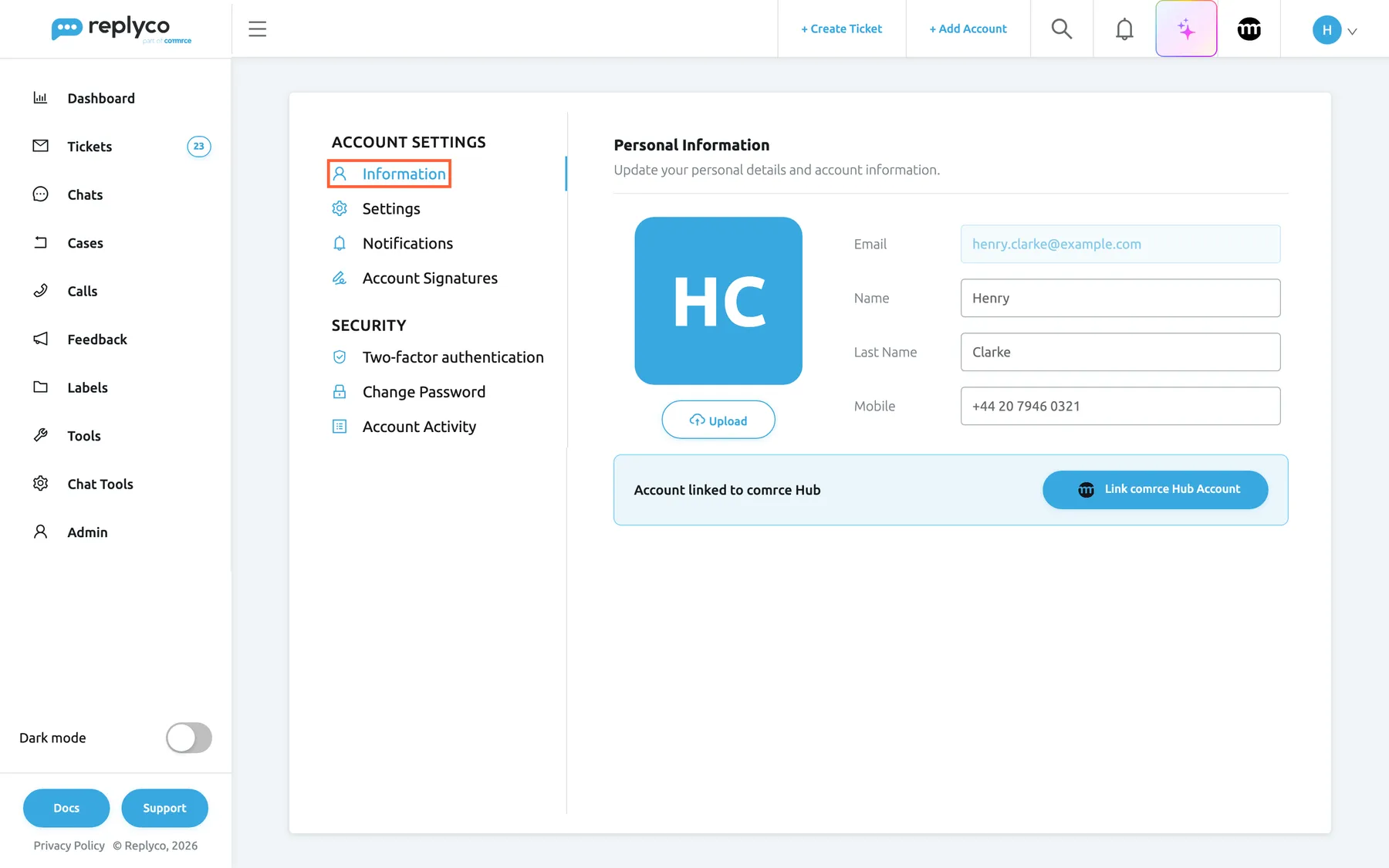
What this screenshot shows
- Screen
- Account Settings (/user-settings?tab=information)
- Highlighted
- tab “Information”, left-tab-list, selected. shows your name
- Also visible
- tab groups Account Settings and Security; initials HC and Upload; Email henry.clarke@example.com (locked); Name Henry, Last Name Clarke, Mobile +44 20 7946 0321; Account linked to comrce Hub with Link comrce Hub Account
- Purpose
- the screen at a glance
| Region | What it shows | What you do there |
|---|---|---|
| Tab list, left | Under Account Settings: Information, Settings, Notifications, Account Signatures. Under Security: Two-factor authentication, Change Password, Account Activity | Switch tabs; each tab also opens from its own web address, so you can bookmark it |
| Tab header, top | The tab’s name and a one-line description | Nothing; it tells you where you are |
| Information | Your photo or initials with Upload, then Email, Name, Last Name and Mobile | Update your profile |
| Account linked to comrce Hub box | The comrce Hub address linked to you, or Link comrce Hub Account | Link comrce Hub for sign-in |
| Settings | Four cards: General, Reply & Resolving workflow, Ticket view, Others | Set your preferences |
| Save, bottom | A blue button that appears while something differs from what is saved | Save the tab |
Update your name, mobile number and photo
Section titled “Update your name, mobile number and photo”-
Open Account Settings. The Information tab opens first.
-
Change Name, Last Name or Mobile.
A blue Save button appears at the bottom of the screen as soon as something differs from what is saved.
-
Select Save and wait for Success in the top right corner.
Your name travels. Replyco shows your first and last name wherever it names you: on your replies and notes, in the assignee of tickets you handle, and in the #username# placeholder of signatures and templates. When you save a new name, Replyco also updates it on the tickets already assigned to you. Names take up to 500 characters each, the mobile number up to 50.
Your email address is locked. It is the address you sign in with and the one Replyco sends your notifications and security emails to, so you cannot change it on this tab. To change it, ask an administrator; see Users.
The photo saves at once. Select Upload under your initials and choose an image file. A window titled Upload lets you drag a square over the part you want; select Continue. Replyco turns the square into a 512 × 512 pixel image and saves it straight away; there is no need to select Save. The photo then replaces your initials on your avatar in the top bar and wherever Replyco shows your avatar, for example next to your chat messages. To remove it, select the bin icon on the photo and confirm Are you sure?; your initials come back.
Example: Henry Clarke of Northwind Electronics adds his mobile number, +44 20 7946 0321, so the team lead can reach him during the Monday stock check, and uploads a photo so colleagues recognise his avatar next to the tickets he is reading.
Link your comrce Hub account
Section titled “Link your comrce Hub account”The Account linked to comrce Hub box on the Information tab connects your Replyco user with your comrce Hub account, so you can sign in to Replyco through comrce Hub instead of with your password.
-
On the Information tab, select Link comrce Hub Account.
-
comrce Hub opens. Sign in there and approve the link.
-
comrce Hub returns you to Account Settings, where Replyco confirms with Comrce Hub account linked successfully!. The box now shows the comrce Hub address linked to you.
From then on, the sign-in screen offers comrce Hub as a way in; see Sign in. comrce Hub sign-in is a beta feature: the box appears only when it is switched on for your company. Until your company is linked to comrce Hub, only users with the Admin permission see the button; after that, every user does.
Save your changes
Section titled “Save your changes”The Information, Settings and Notifications tabs keep your changes on screen until you save them. Nothing takes effect until you select Save, which appears at the bottom of the screen only while something differs from what is saved.
-
Change what you need, for example turn on Resolve Tickets After Reply.
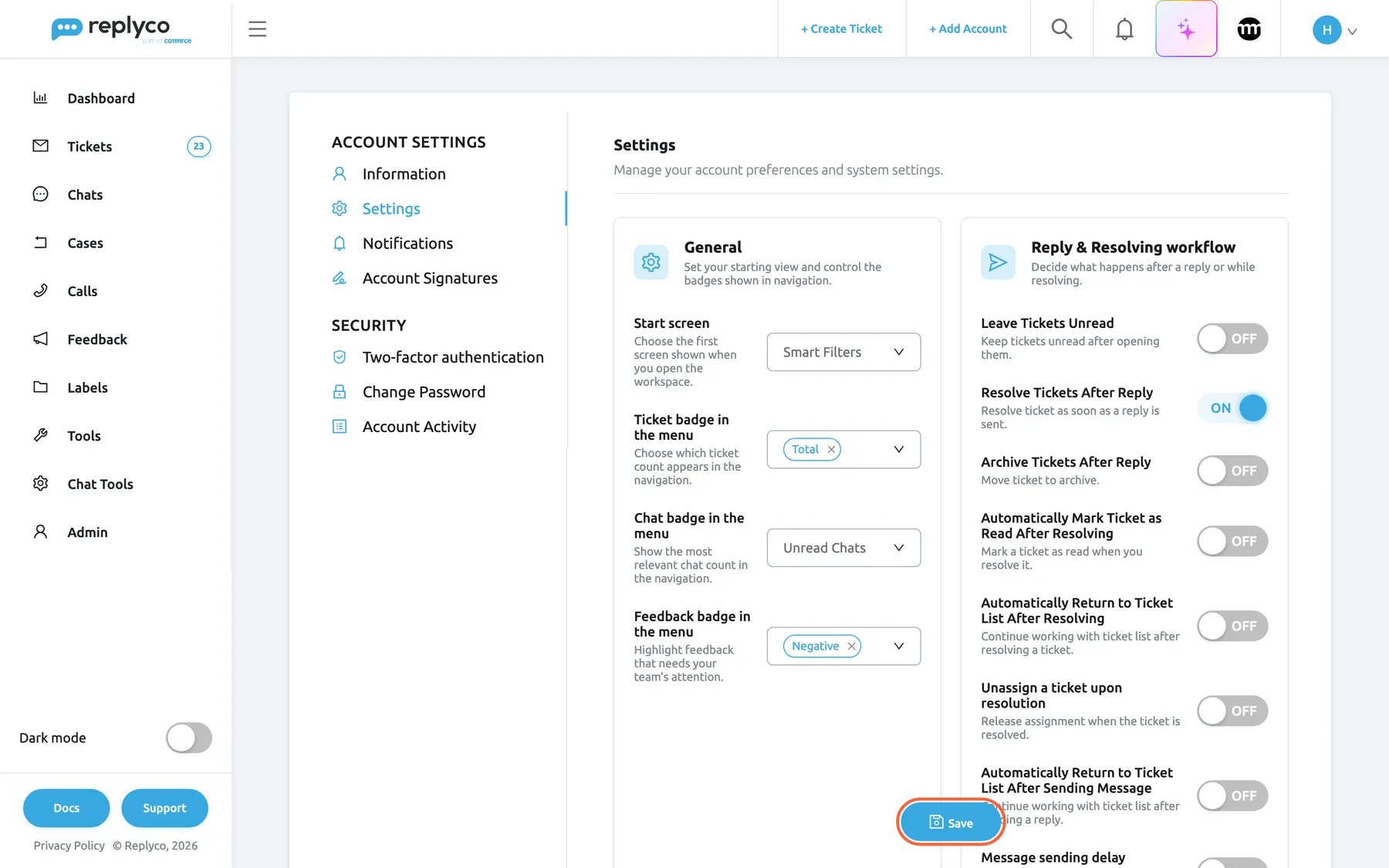
Change anything and Save appears at the bottom; nothing applies until you select it. What this screenshot shows
- Screen
- Settings (/user-settings?tab=settings)
- Highlighted
- button “Save”, bottom-centre, shown. saves the changed settings
- Also visible
- Resolve Tickets After Reply ON; other workflow switches OFF
- Purpose
- save your changes
-
Select Save.
-
Replyco shows Success in the top right corner, and Save disappears.
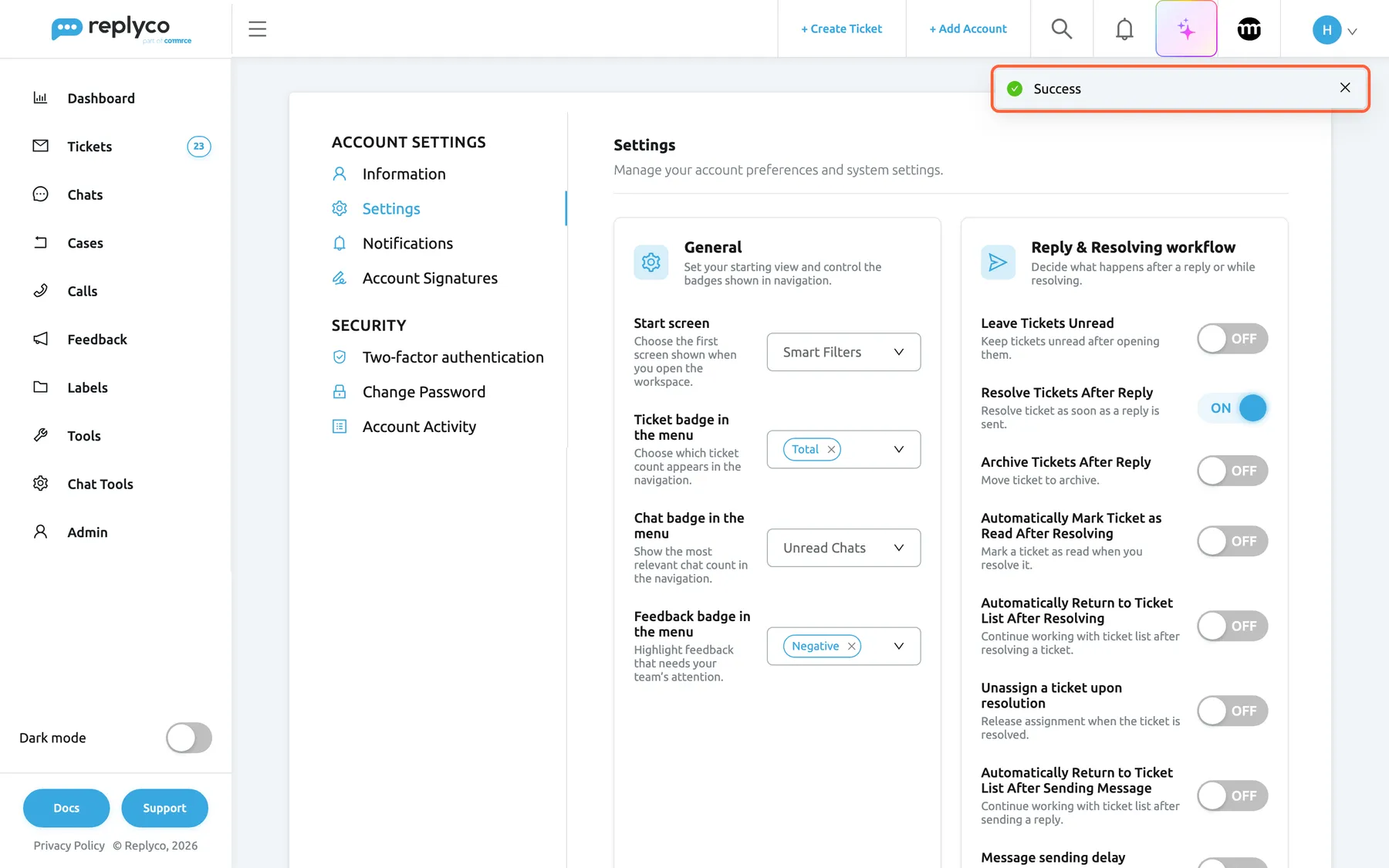
Success confirms the save, and the Save button disappears. What this screenshot shows
- Screen
- Settings (/user-settings?tab=settings)
- Highlighted
- alert “Success”, top-right, shown. confirms the settings were saved
- Also visible
- Resolve Tickets After Reply ON; no Save button
- Purpose
- the result of saving
Each tab saves only its own changes. If you leave the screen before you save, the changes are gone; Replyco does not warn you. The photo, the comrce Hub link and the password are the exceptions: they take effect with their own buttons.
Choose your start screen and menu counters
Section titled “Choose your start screen and menu counters”The General card on the Settings tab decides where Replyco opens and which numbers the sidebar shows.
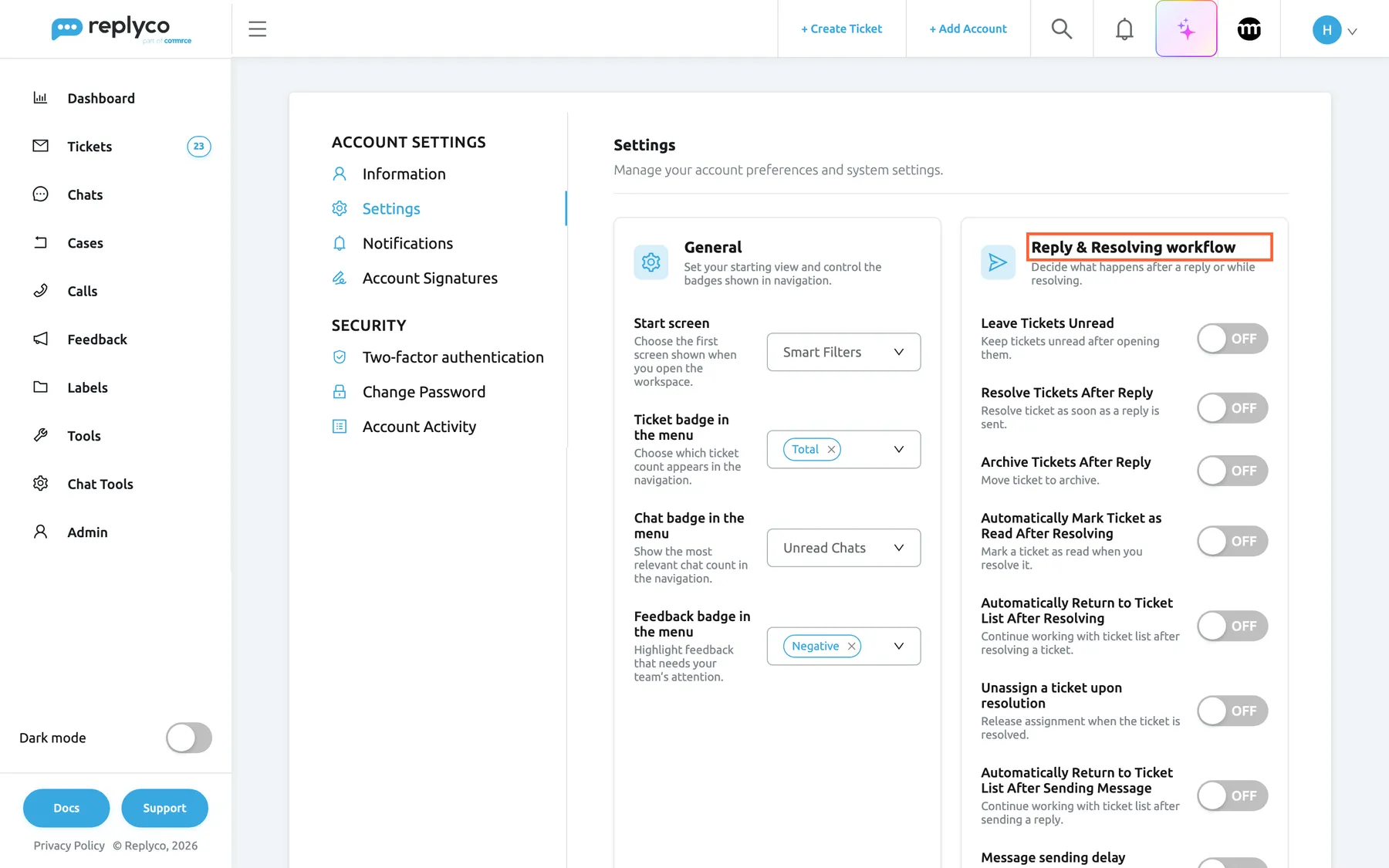
What this screenshot shows
- Screen
- Settings (/user-settings?tab=settings)
- Highlighted
- heading “Reply & Resolving workflow”, right-card-header, shown. groups the switches for replying and resolving
- Also visible
- General card: Start screen Smart Filters, Ticket badge Total, Chat badge Unread Chats, Feedback badge Negative; Reply & Resolving workflow card: seven switches OFF
- Purpose
- the Settings tab and its first two cards
- Start screen chooses what opens after you sign in and when you select the Replyco logo or Tickets in the sidebar: List of tickets, which opens Not Resolved, or Smart Filters, the overview of your saved searches. A new user starts on List of tickets. The row appears with the Smart Filters feature; see Smart Filters.
- Ticket badge in the menu chooses the number beside each ticket list in the sidebar: Total, the number of tickets in the list (the default), Unread or Unresolved. Pick one or two; two show side by side. For what each list holds, see Ticket lists.
- Chat badge in the menu counts Unread Chats (the default) or Unread Chat Messages beside the chat menu.
- Feedback badge in the menu counts unread marketplace feedback of the types you choose, Negative by default. Pick one or two of Positive, Neutral and Negative; see Feedback List.
At least one type each. Saving with an empty Ticket badge in the menu gives Please select "Ticket badge in the menu", and an empty Feedback badge in the menu gives Please select "Feedback badge in the menu"; nothing is saved until you pick one. A third choice in either list is ignored.
Example: Laura works the returns queue and wants to see at a glance what is new. She sets Ticket badge in the menu to the unread and the unresolved tickets, so Not Resolved shows two numbers, and keeps Start screen on List of tickets.
Decide what happens after you reply or resolve
Section titled “Decide what happens after you reply or resolve”The Reply & Resolving workflow card holds seven switches and your default send delay. They decide what Replyco does with a ticket when you answer or resolve it.
| Switch | When it is on | Why you would turn it on |
|---|---|---|
| Leave Tickets Unread | Opening an unread ticket leaves it unread until you do something in it: reply, add a note, assign, resolve, reopen, archive or restore it | You skim tickets and want the unread ones to stay marked for whoever handles them |
| Resolve Tickets After Reply | Resolve after Reply next to the send button starts ticked | Most of your replies finish the conversation |
| Archive Tickets After Reply | Archive after Reply next to the send button starts ticked | You archive what you have answered |
| Automatically Mark Ticket as Read After Resolving | A ticket you resolve is marked read | Resolved tickets should not count as unread |
| Automatically Return to Ticket List After Resolving | Resolving from inside a ticket takes you back to the list | You work through a list one ticket at a time |
| Unassign a ticket upon resolution | A ticket you resolve loses its assignee | The next message from the customer should go to whoever is free |
| Automatically Return to Ticket List After Sending Message | Sending a reply takes you back to the page you came from | You answer and move on |
The two check boxes next to the send button, Resolve after Reply and Archive after Reply, only start in the state these switches give them: you can tick or clear them for any reply. To see them in use, see Answer a ticket; for what resolving and archiving do, see Resolve, snooze or archive a ticket.
Message sending delay is your personal default delay. Switch it on and enter the minutes; it starts at 1. From then on the send button reads Send with Delay, and every reply waits that long before it goes out, so you can still cancel it. For every rule of delayed replies, see Delayed sending.
Set up how a ticket looks
Section titled “Set up how a ticket looks”The Ticket view card changes only your own ticket screen.
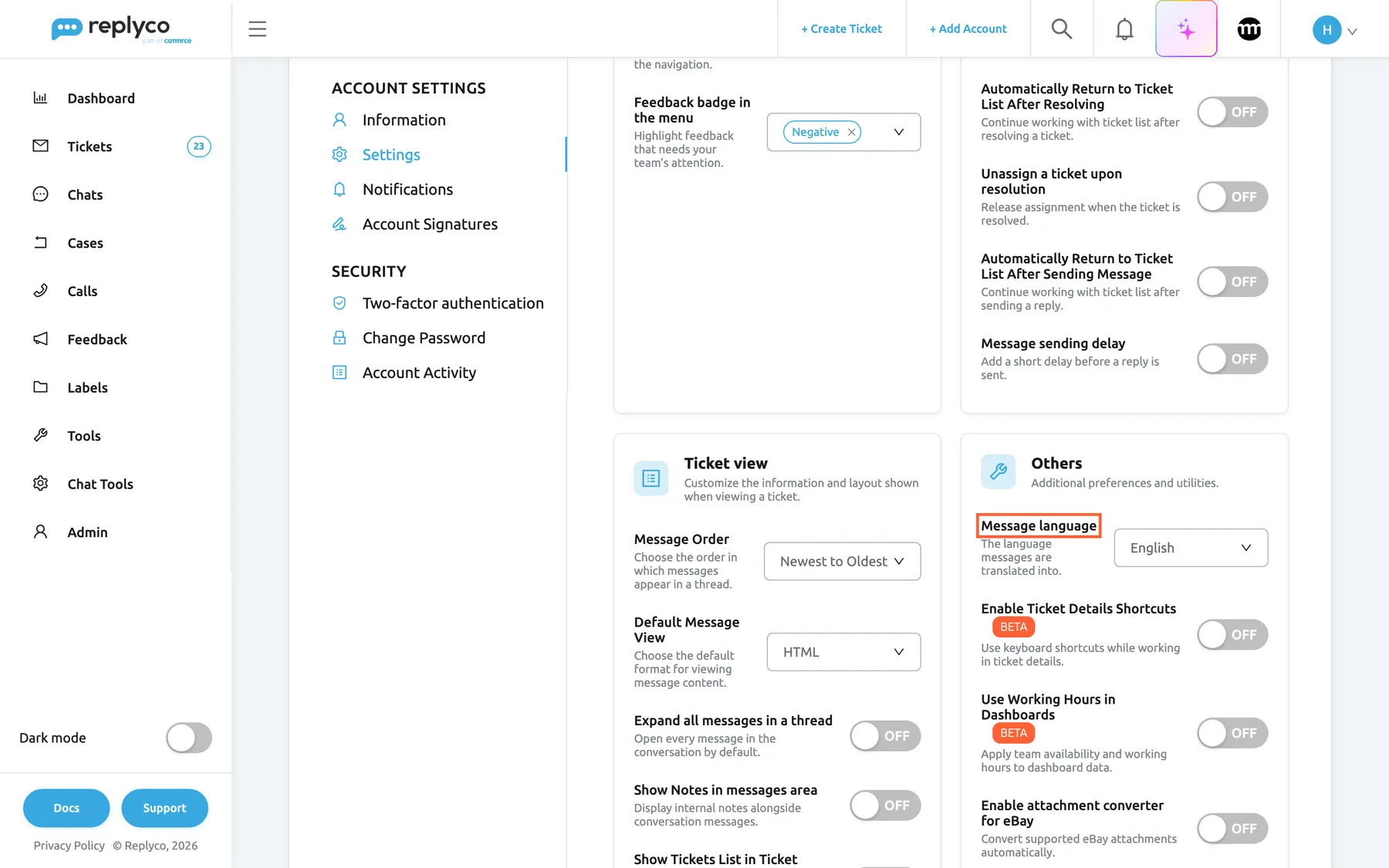
What this screenshot shows
- Screen
- Settings (/user-settings?tab=settings)
- Highlighted
- combobox “Message language”, others-card, English. sets the language a message is translated into when you translate it
- Also visible
- Ticket view card: Message Order, Default Message View HTML, five switches OFF; Others card: Message language English, two BETA switches, eBay attachment converter OFF
- Purpose
- the Ticket view and Others cards
- Message Order: Newest to Oldest, the default, shows the conversation with the oldest message at the top and the newest, opened, at the bottom; Oldest to Newest puts the newest message at the top. The sort arrows in a ticket reverse the order for that visit only.
- Default Message View: HTML, the default, shows an email as it was formatted; Text shows plain text. The HTML switch on each message changes it for that message.
- Expand all messages in a thread opens every message of a ticket instead of only the newest.
- Show Notes in messages area shows the ticket’s notes between the messages.
- Show Tickets List in Ticket Detail screen keeps the ticket list next to the open ticket, so you can move to the next ticket without going back.
- Load user logs in the ticket shows the ticket’s history between the messages: who assigned, labelled, prioritised, resolved or snoozed it, and which rule acted on it. It is on for a new user.
- Show In-Line Auto-responses in Ticket Detail screen shows each sent auto-response as one short line that you can open. It is on for a new user.
What each of these looks like inside a ticket is shown in The ticket screen.
Choose your message language and other preferences
Section titled “Choose your message language and other preferences”The Others card holds four preferences.
- Message language is the language a customer’s message is translated into when you select the translate icon on it in a ticket. 55 languages are listed, from Albanian to Vietnamese, named in the language of your screen. It does not change the language of Replyco’s screens or of your replies. The account owner starts with the company’s language, and users an administrator adds start with English. Translating messages is part of the Translations feature; see Translations.
- Enable Ticket Details Shortcuts, marked BETA, lets you work in an open ticket with the keyboard; the keys are listed in The ticket screen.
- Use Working Hours in Dashboards, marked BETA, makes the dashboards open with your company’s working hours instead of calendar hours; see How the dashboards count. The working hours themselves are set by an administrator; see Working time.
- Enable attachment converter for eBay lets you attach PDF files to eBay messages, which otherwise take only images, and Replyco converts them for eBay. See eBay.
Example: Simon reads Polish best. He sets Message language to Polish, and the translate icon on a German customer’s message now shows it in Polish for him, while his colleagues keep their own languages.
Choose your notifications
Section titled “Choose your notifications”The Notifications tab is a table of events, with one switch each for Email, Mobile and Browser. The events are Ticket Assigned to Me (manually), Ticket Assigned to Me (by rule), New Ticket, New Ticket Message, New Chat Message (All), New Chat Message (Personal), Ticket Snoozed and New Neutral/Negative Feedback; the chat rows and Pop-up Chat Sounds appear when your company uses chats. A new user gets mobile and browser notifications for manual assignments, new messages in tickets and new personal chat messages, and no email. Select Save after changing a switch.
Browser notifications also need your browser’s permission. When the browser has not been asked yet, the tab shows The browser notification is turned off in the current browser and a button to ask again; when it was refused, the tab says so, and you allow notifications for Replyco in the browser’s own settings.
For what each event means, who receives it and where notifications appear, see Notifications.
Change your password
Section titled “Change your password”-
Open Account Settings and select Change Password under Security.
-
Enter your current password in Old Password.
-
Enter the new password in Password and again in Repeat Password. The list under the field ticks off the five rules as you type: at least 12 characters, an uppercase letter, a lowercase letter, a number and a special character.
-
Tick Terminate All Sessions if you want every browser and device signed out, this one included.
-
Select the Change Password button.
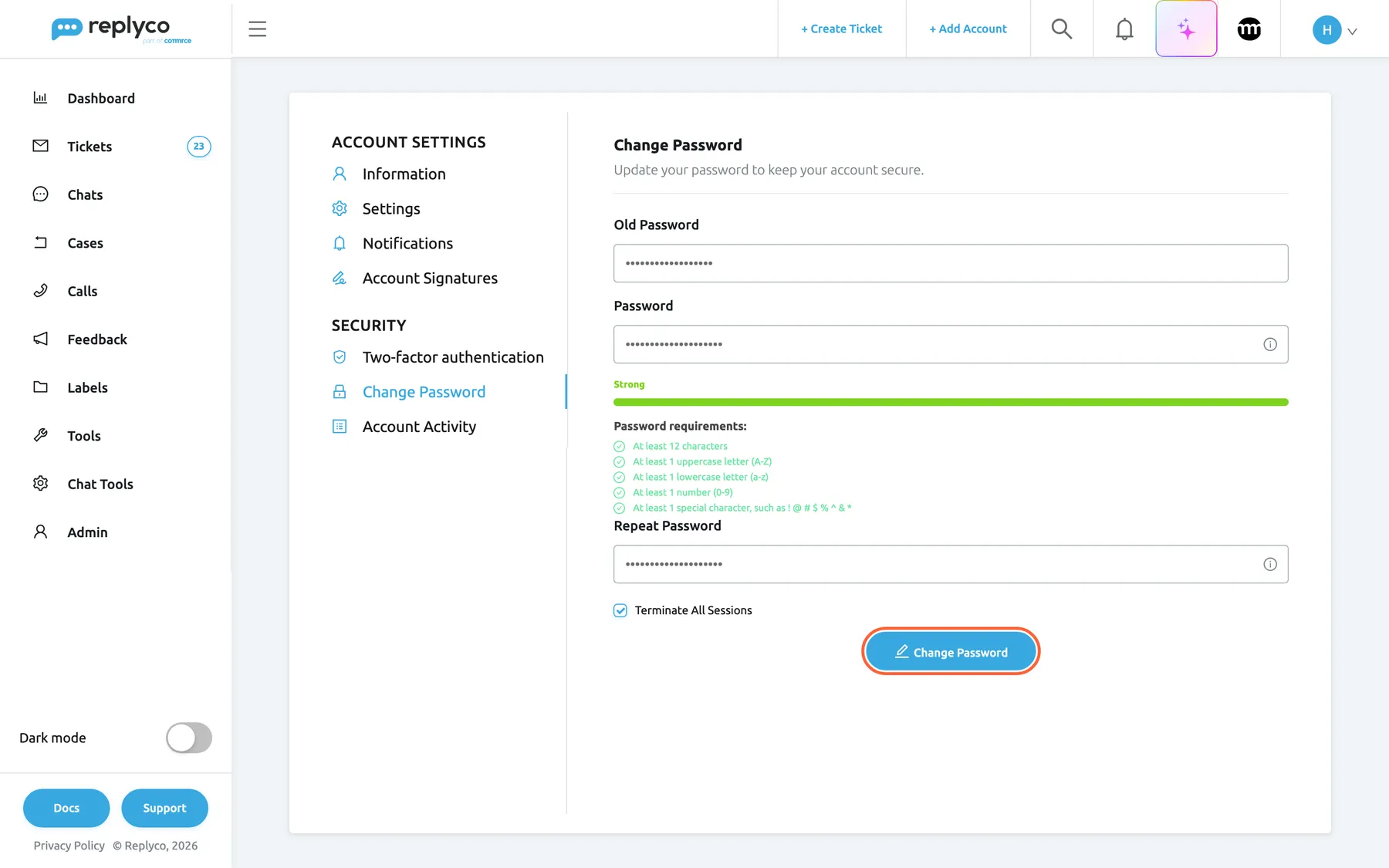
Enter your old password, a new one twice, and decide whether every session should end. What this screenshot shows
- Screen
- Change Password (/user-settings?tab=changePassword)
- Highlighted
- button “Change Password”, form-bottom, enabled. changes the password
- Also visible
- Old Password, Password, Repeat Password filled (masked); five password requirements met; Terminate All Sessions ticked
- Purpose
- change your password
Replyco confirms with Your password has been changed., clears the form and emails you that your password was changed. With Terminate All Sessions ticked, it signs you out everywhere at once, so you sign in again with the new password and your authenticator code. Without it, this browser stays signed in, and other browsers and devices are signed out within 72 hours, when their sign-in would next be renewed. Your two-factor authentication does not change.
Replyco refuses the change with:
| Message | Reason |
|---|---|
| Please complete all fields | One of the three fields is empty |
| Confirm Password is not correct! | Password and Repeat Password differ |
| Password does not meet the requirements | The new password breaks one of the five rules |
| “Incorrect old password.” | Old Password is not your current password |
If you have forgotten your password, you cannot change it here; reset it from the sign-in screen instead. See Sign in.
Every control, explained
Section titled “Every control, explained”The four tabs this page covers, in the order the screen shows them.
| Tab | What it holds | Why |
|---|---|---|
| Information | Photo, email address, name, mobile number, comrce Hub link | How colleagues and customers see you |
| Settings | The General, Reply & Resolving workflow, Ticket view and Others cards | How Replyco behaves when you work |
| Notifications | Which events notify you, and how | See Notifications |
| Account Signatures | Your signatures per account | See Account Signatures |
| Two-factor authentication | Your authenticator app | See Two-factor authentication |
| Change Password | A new password | Keep your user safe |
| Account Activity | Your sign-ins | See Account Activity |
Bottom of the Information, Settings and Notifications tabs, floating over the content while something is unsaved.
Saves the changes on the current tab and shows Success; then it disappears. On the Settings tab it first checks that Ticket badge in the menu and Feedback badge in the menu each have a type. If the save fails, an error message appears and your changes stay on screen.
You can change several settings and check them before they apply.
Photo, Upload and the bin icon
Section titled “Photo, Upload and the bin icon”Information tab, left. The bin icon appears on the photo once you have one.
Upload opens a file picker for images, then a square crop window with Cancel and Continue. The photo is saved as a 512 × 512 pixel image as soon as you select Continue. The bin icon removes it after Are you sure?. Without a photo, the square shows the initials of your first and last name.
Colleagues recognise you on your avatar in the top bar, in avatar lists and next to your chat messages.
Email, Name, Last Name and Mobile
Section titled “Email, Name, Last Name and Mobile”Information tab, right. Saved with Save.
Email is shown but locked: it is your sign-in address. Name and Last Name take up to 500 characters each and appear wherever Replyco names you, including tickets already assigned to you. Mobile takes up to 50 characters.
Your name is what colleagues see on assignments and what #username# puts into your signature.
Account linked to comrce Hub and Link comrce Hub Account
Section titled “Account linked to comrce Hub and Link comrce Hub Account”Information tab, a box under the fields, shown when comrce Hub sign-in is available for your company.
The button opens comrce Hub to approve the link; afterwards the box shows the linked comrce Hub address instead of the button.
Merchants who work in comrce Hub use one sign-in for both; see Sign in.
Start screen
Section titled “Start screen”Settings tab, General card, a drop-down shown with the Smart Filters feature. Saved with Save.
List of tickets (the default for a new user) opens Not Resolved after sign-in, from the logo and from Tickets; Smart Filters opens the Smart Filters overview instead.
Start on the list if you answer tickets in order, on Smart Filters if you work by topic; see Smart Filters.
Menu counters: Ticket badge in the menu, Chat badge in the menu and Feedback badge in the menu
Section titled “Menu counters: Ticket badge in the menu, Chat badge in the menu and Feedback badge in the menu”Settings tab, General card. Saved with Save.
| Setting | Choices | Default | Limits |
|---|---|---|---|
| Ticket badge in the menu | Total, Unread, Unresolved | Total | One or two; at least one to save |
| Chat badge in the menu | Unread Chats, Unread Chat Messages | Unread Chats | Exactly one |
| Feedback badge in the menu | Positive, Neutral, Negative | Negative | One or two; at least one to save |
The sidebar shows the number you act on, not one you have to work out.
The Reply & Resolving workflow switches
Section titled “The Reply & Resolving workflow switches”Settings tab, Reply & Resolving workflow card: seven switches, all off for a new user except Resolve Tickets After Reply and Archive Tickets After Reply, which start on. Saved with Save.
Leave Tickets Unread, Resolve Tickets After Reply, Archive Tickets After Reply, Automatically Mark Ticket as Read After Resolving, Automatically Return to Ticket List After Resolving, Unassign a ticket upon resolution and Automatically Return to Ticket List After Sending Message; what each does when on is in the table under Decide what happens after you reply or resolve. They act only on tickets you reply to or resolve yourself.
Each switch saves a click you would otherwise make on every ticket.
Message sending delay
Section titled “Message sending delay”Settings tab, bottom of the Reply & Resolving workflow card: a switch, and a minutes field while it is on. Saved with Save.
Off by default. On, it starts at 1 minute; every reply you send then waits that many minutes and the send button reads Send with Delay. Switching it off sends replies at once again. The full rules are in Delayed sending.
A few minutes to catch a mistake before the customer sees it.
Message Order and Default Message View
Section titled “Message Order and Default Message View”Settings tab, Ticket view card, two drop-downs. Saved with Save.
Message Order: Newest to Oldest (default, oldest message at the top) or Oldest to Newest (newest at the top). Default Message View: HTML (default) or Text.
Read a long conversation the way you are used to, and plain text when HTML emails are hard to read.
The Ticket view switches
Section titled “The Ticket view switches”Settings tab, Ticket view card. Saved with Save.
| Switch | On | Default |
|---|---|---|
| Expand all messages in a thread | Every message of a ticket opens in full | Off |
| Show Notes in messages area | Notes appear between the messages | Off |
| Show Tickets List in Ticket Detail screen | The ticket list stays next to the open ticket | Off |
| Load user logs in the ticket | The ticket’s history appears between the messages | On |
| Show In-Line Auto-responses in Ticket Detail screen | Sent auto-responses appear as one short line | On |
Put the context you need next to the messages; see The ticket screen.
Message language
Section titled “Message language”Settings tab, Others card, a drop-down of 55 languages. Saved with Save. An administrator can also set it for you in Users.
The language the translate icon on a message translates into. It changes neither Replyco’s screens nor your replies. Part of the Translations feature.
Every agent reads customers in the language they read best; see Translations.
Enable Ticket Details Shortcuts, Use Working Hours in Dashboards and Enable attachment converter for eBay
Section titled “Enable Ticket Details Shortcuts, Use Working Hours in Dashboards and Enable attachment converter for eBay”Settings tab, Others card, three switches, off by default; the first two are marked BETA. Saved with Save.
Enable Ticket Details Shortcuts adds keyboard shortcuts in an open ticket. Use Working Hours in Dashboards makes the dashboards start in working hours. Enable attachment converter for eBay accepts PDF files as attachments for eBay and converts them.
Faster work in tickets, response times measured against the hours you are open, and invoices that reach eBay buyers; see How the dashboards count.
The Notifications table
Section titled “The Notifications table”Notifications tab: one row per event, switches under Email, Mobile and Browser, and Pop-up Chat Sounds beside the chat rows. Saved with Save.
Eight events; the two chat rows and the chat sound appear when your company uses chats. Browser notifications also need the browser’s permission.
Hear about what needs you without watching the screen; see Notifications.
Old Password, Password, Repeat Password, Terminate All Sessions and the Change Password button
Section titled “Old Password, Password, Repeat Password, Terminate All Sessions and the Change Password button”Change Password tab under Security.
The button changes the password when all three fields are filled, the two new ones match and the new password meets the five rules, which the list under Password ticks off as you type. Terminate All Sessions signs you out everywhere at once, this browser included.
A regular change keeps an old, leaked password useless.
Who sees what
Section titled “Who sees what”| Part | Shown when |
|---|---|
| Account Settings and every tab | Always, for every signed-in user |
| Start screen | The Smart Filter feature, which every current plan includes |
| Account linked to comrce Hub box | comrce Hub sign-in (beta) is on for your company; the button shows for users with the Admin permission until the company is linked to comrce Hub, then for everyone. A linked address always shows |
| The minutes field of Message sending delay | The switch is on |
| The chat rows and Pop-up Chat Sounds on Notifications | Your company has chats or live chat |
| Save | Something on the tab differs from what is saved |
What you need to know
Section titled “What you need to know”| Topic | Fact |
|---|---|
| Personal | Every setting on these tabs applies to you only. Company-wide defaults are in Company Settings. |
| Saving | Nothing applies until you select Save; leaving the screen discards unsaved changes. The photo, the comrce Hub link and the password apply with their own buttons. |
| New user defaults | Resolve Tickets After Reply, Archive Tickets After Reply, Load user logs in the ticket and Show In-Line Auto-responses in Ticket Detail screen on; HTML; start screen List of tickets; counters: Total tickets, Unread Chats, Negative feedback. |
| Limits | Name and last name up to 500 characters, mobile number up to 50; one or two types per ticket and feedback counter. |
| Name changes | A new name also appears on tickets already assigned to you. |
| Password | At least 12 characters with an uppercase and a lowercase letter, a number and a special character; changing it emails you. |
| Sessions | Terminate All Sessions signs you out everywhere at once; without it, other sessions end within 72 hours. |
| Language | Message language is only the target of message translation, not the language of Replyco’s screens. |
Frequently asked questions
Section titled “Frequently asked questions”General
Section titled “General”Do my settings change anything for my colleagues?
Section titled “Do my settings change anything for my colleagues?”No. Everything under Account Settings applies to your user only: your profile, your reply workflow, your ticket view, your counters, your notifications and your password. Company-wide defaults, such as working time or automatic assignment on reply, are set by an administrator in Company Settings.
I changed a setting, but it went back. Why?
Section titled “I changed a setting, but it went back. Why?”The change was not saved. On Account Settings, a blue Save button appears at the bottom of the screen while something is unsaved, and nothing applies until you select it and see Success. Leaving the screen before that discards the change without a warning.
How do I open my account settings?
Section titled “How do I open my account settings?”Select your avatar at the right end of the top bar and choose Account Settings in the menu that opens. The Information tab opens first; the other tabs are in the list on the left. Each tab has its own web address, so you can bookmark the one you use most.
Can an administrator change my settings for me?
Section titled “Can an administrator change my settings for me?”An administrator can set your Message language and what you may see in Users, and can change your email address there. Your reply workflow, ticket view, counters, notifications and password are set by you, on Account Settings.
Profile
Section titled “Profile”How do I change my email address?
Section titled “How do I change my email address?”You cannot change it yourself: the Email field on the Information tab of Account Settings is locked, because it is the address you sign in with. Ask an administrator of your company to change it in Users.
Why do I not have to save my photo?
Section titled “Why do I not have to save my photo?”The photo is saved as soon as you select Continue in the crop window that opens after Upload on the Information tab. Replyco turns the square you chose into a 512 × 512 pixel image. To remove it, select the bin icon on the photo and confirm Are you sure?.
Where does my name appear?
Section titled “Where does my name appear?”On your replies and notes, as the assignee of tickets you handle, and wherever a signature or template uses #username#. When you save a new Name or Last Name on the Information tab of Account Settings, the tickets already assigned to you show the new name too.
Replying and resolving
Section titled “Replying and resolving”How do I make Replyco resolve tickets when I reply?
Section titled “How do I make Replyco resolve tickets when I reply?”Open Account Settings, go to Settings, turn on Resolve Tickets After Reply in the Reply & Resolving workflow card and select Save. From then on Resolve after Reply starts ticked next to the send button; clear it for a reply that should keep the ticket open.
Why does the ticket lose its assignee when I resolve it?
Section titled “Why does the ticket lose its assignee when I resolve it?”Unassign a ticket upon resolution is on in the Reply & Resolving workflow card of Account Settings › Settings. It removes the assignee of every ticket you resolve, including by Resolve after Reply. Turn it off and select Save to keep assignees.
Why does my send button say Send with Delay?
Section titled “Why does my send button say Send with Delay?”Your personal default delay is on: Message sending delay in the Reply & Resolving workflow card of Account Settings › Settings. Every reply then waits that many minutes and the button reads Send with Delay. Switch it off and select Save to send at once; see Delayed sending.
Tickets stay unread after I open them. Why?
Section titled “Tickets stay unread after I open them. Why?”Leave Tickets Unread is on in Account Settings › Settings. An unread ticket then stays unread when you only open it, and is marked read once you reply, add a note, assign, resolve, reopen, archive or restore it. Turn the switch off and select Save to mark tickets read on opening.
Ticket screen and counters
Section titled “Ticket screen and counters”How do I see the newest message at the top of a ticket?
Section titled “How do I see the newest message at the top of a ticket?”Open Account Settings › Settings, set Message Order in the Ticket view card to Oldest to Newest and select Save. For a single visit, the sort arrows at the top right of the conversation reverse the order without changing the setting.
How do I change the number beside the ticket lists?
Section titled “How do I change the number beside the ticket lists?”Choose it in Ticket badge in the menu in the General card of Account Settings › Settings: the total number of tickets, the unread ones or the unresolved ones, one or two of them, then select Save. Two choices show as two numbers side by side. At least one must stay selected.
Why can I not choose a start screen?
Section titled “Why can I not choose a start screen?”Start screen in the General card appears when your company has the Smart Filters feature, which every current plan includes; a company on an older plan may not have it. Without it, Replyco opens Not Resolved. See What each plan includes.
Language and notifications
Section titled “Language and notifications”Does Message language change the language of Replyco?
Section titled “Does Message language change the language of Replyco?”No. Message language in the Others card of Account Settings › Settings only sets the language a customer’s message is translated into when you select the translate icon on it. Replyco’s screens follow your company’s language, and your replies stay as you write them; see Translations.
Why do I get no browser notifications?
Section titled “Why do I get no browser notifications?”The switch under Browser on the Notifications tab of Account Settings must be on and saved, and your browser must allow notifications from Replyco. If the tab says browser notifications are refused, allow them in the browser’s site settings. For every rule, see Notifications.
Password and security
Section titled “Password and security”How do I sign out everywhere after changing my password?
Section titled “How do I sign out everywhere after changing my password?”Tick Terminate All Sessions on the Change Password tab of Account Settings before you select the Change Password button. Replyco then ends every session of your user at once, this browser included, and you sign in again with the new password and your authenticator code.
I forgot my password. Can I change it here?
Section titled “I forgot my password. Can I change it here?”No. The Change Password tab asks for your current password in Old Password. Sign out and use the password reset on the sign-in screen, which emails you a link; see Sign in.
Does changing my password turn off two-factor authentication?
Section titled “Does changing my password turn off two-factor authentication?”No. A new password leaves your authenticator app as it is; you still enter its code when you sign in. To set up a new authenticator, use the Two-factor authentication tab; see Two-factor authentication.
Troubleshooting
Section titled “Troubleshooting”| Symptom | What to check |
|---|---|
| A change is back to the old value | You selected Save and saw Success; leaving the screen before saving discards changes |
| Please select "Ticket badge in the menu" or Please select "Feedback badge in the menu" when saving | Pick at least one type in Ticket badge in the menu or Feedback badge in the menu |
| There is no Start screen row | On an older plan, the plan includes the Smart Filters feature; see What each plan includes |
| There is no Link comrce Hub Account button | comrce Hub sign-in is on for your company, and you have the Admin permission or your company is already linked to comrce Hub |
| The send button reads Send with Delay | Message sending delay is on; switch it off and save |
| “Incorrect old password.” | Old Password holds your current password; if you do not know it, reset it from the sign-in screen |
| Password does not meet the requirements | Every rule in the list under Password is ticked |
| The translate icon translates into the wrong language | Message language in the Others card |
Related
Section titled “Related”- Notifications · Delayed sending · Translations · Working time
- Account Signatures · Two-factor authentication · Account Activity
- Smart Filters · Manage Smart Filters · Ticket lists · The ticket screen
- Answer a ticket · Resolve, snooze or archive a ticket
- Sign in · Company Settings · Your user account