

Snippets
A snippet is a short text with a shortcut name, such as /return-label. Type / in the reply editor, pick the name, and Replyco puts the snippet’s text where your cursor is. The Snippets screen is where you and your team keep those texts: create them, decide who may use them, change and delete them. Open it from ToolsSnippets.
Availability: every plan includes snippets, and every feature is on during a trial; companies on an older plan may not have them. No permission is needed: every user of a company with snippets can open the screen. See What each plan includes.
What you can do here
Section titled “What you can do here”- See every snippet you can use. The list shows your team’s shared snippets, marked Available for everyone, and your own personal ones; select one to read its text. Find a snippet and read its text.
- Create a snippet. A snippet needs a name without spaces and a text; Replyco puts the
/in front of the name. Create a snippet. - Share a snippet or keep it to yourself. One switch decides whether the whole team sees a snippet or only you. Share a snippet with your team or keep it to yourself.
- Insert a snippet while you write. Type
/in the reply editor, on Create Ticket, when forwarding, in the template editor or in your signature. Snippets and placeholders work together; the full behaviour is in their feature guide. Insert a snippet while you write · Snippets and placeholders. - Change, copy or delete a snippet. Correct a text once and every later insertion uses the new version. Change a snippet · Copy a snippet · Delete a snippet.
The screen at a glance
Section titled “The screen at a glance”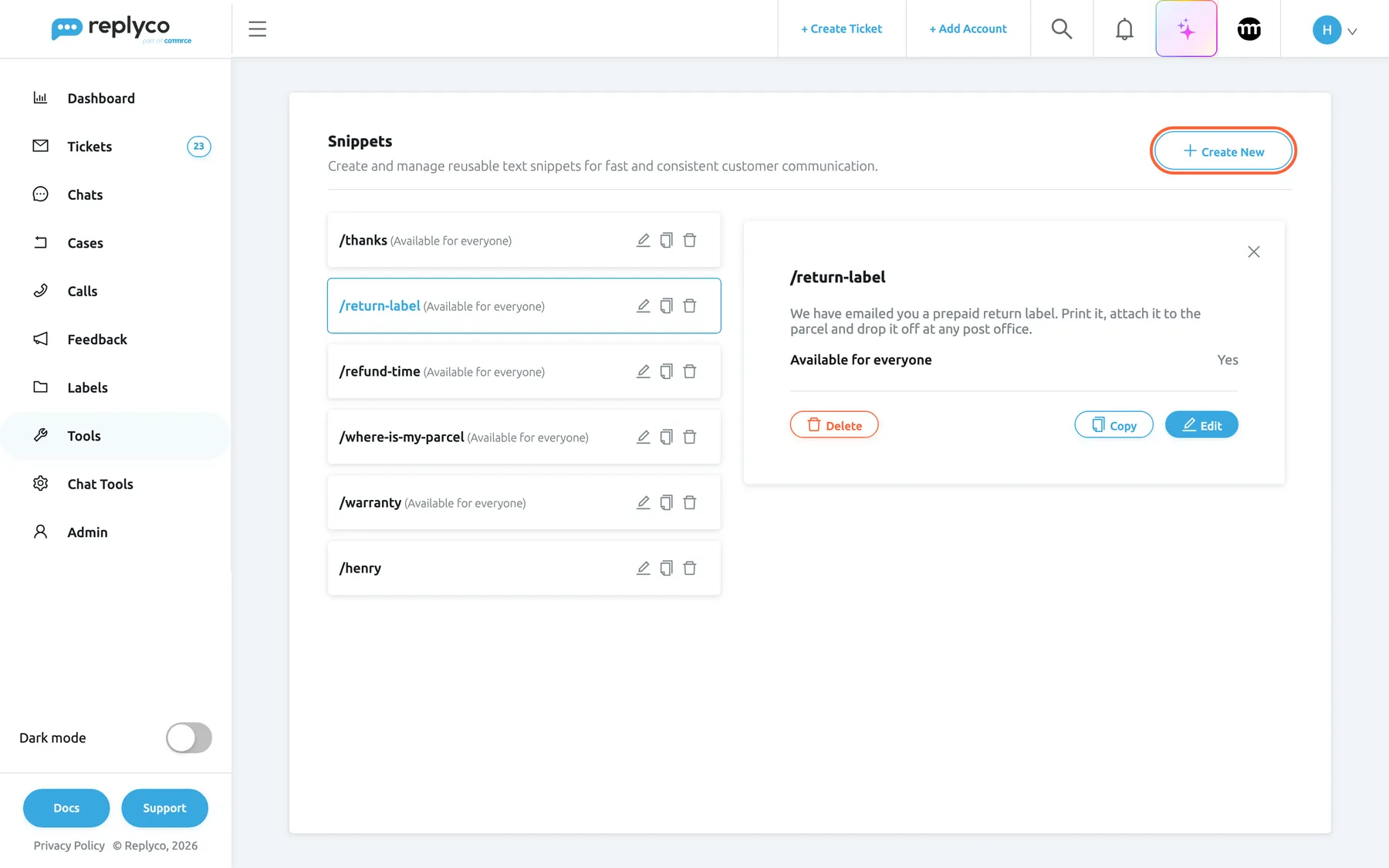
What this screenshot shows
- Screen
- Snippets (/snippets)
- Highlighted
- button “Create New”, header-right, enabled. opens the Create Snippet form
- Also visible
- six snippet cards with edit, copy and delete icons; five marked Available for everyone, one personal; details panel of the selected snippet with its text, Available for everyone: Yes, Delete, Copy, Edit
- Purpose
- the Snippets screen as it opens, with one snippet selected
| Region | What it shows | What you do there |
|---|---|---|
| Header, top | The heading Snippets, a one-line description and Create New | Start a new snippet |
| The list, left | One card per snippet: its / name, Available for everyone after shared ones, and edit, copy and delete icons | Select, change, copy or delete a snippet |
| Details panel, right (after a click) | The name, the text, Available for everyone with Yes or No, and Delete, Copy, Edit | Read a snippet, then act on it |
With no snippets yet, the list says No snippets found.
Find a snippet and read its text
Section titled “Find a snippet and read its text”The Snippets list has no search and no sorting: it shows the snippets in the order Replyco returns them, and a new snippet joins the end. Each card shows the name only.
- Open ToolsSnippets.
- Select a card. The details panel opens on the right with the snippet’s text and whether it is available for everyone.
- Close the panel with the cross in its corner, or select another card.
Which snippets you see: every snippet shared with the team, and the personal snippets you created yourself. A colleague’s personal snippets never appear in your list or in your / list.
Example: Henry at Northwind Electronics sees the shared /thanks, /return-label, /refund-time, /where-is-my-parcel and /warranty, and his own /henry with his name and job title. His colleague Theo sees the five shared snippets and his own, but not /henry.
Create a snippet
Section titled “Create a snippet”- Select Create New. The form Create Snippet opens.
- Under Name, type the shortcut name after the fixed
/, for exampledamaged-parcel. Use letters, digits and hyphens; a space is refused. - Under Text, write the text that
/damaged-parcelshould insert. - Switch Available for everyone to Yes if your whole team should use it; leave No to keep it personal.
- Select Save. The form closes, Success appears, and the snippet joins the end of the list.
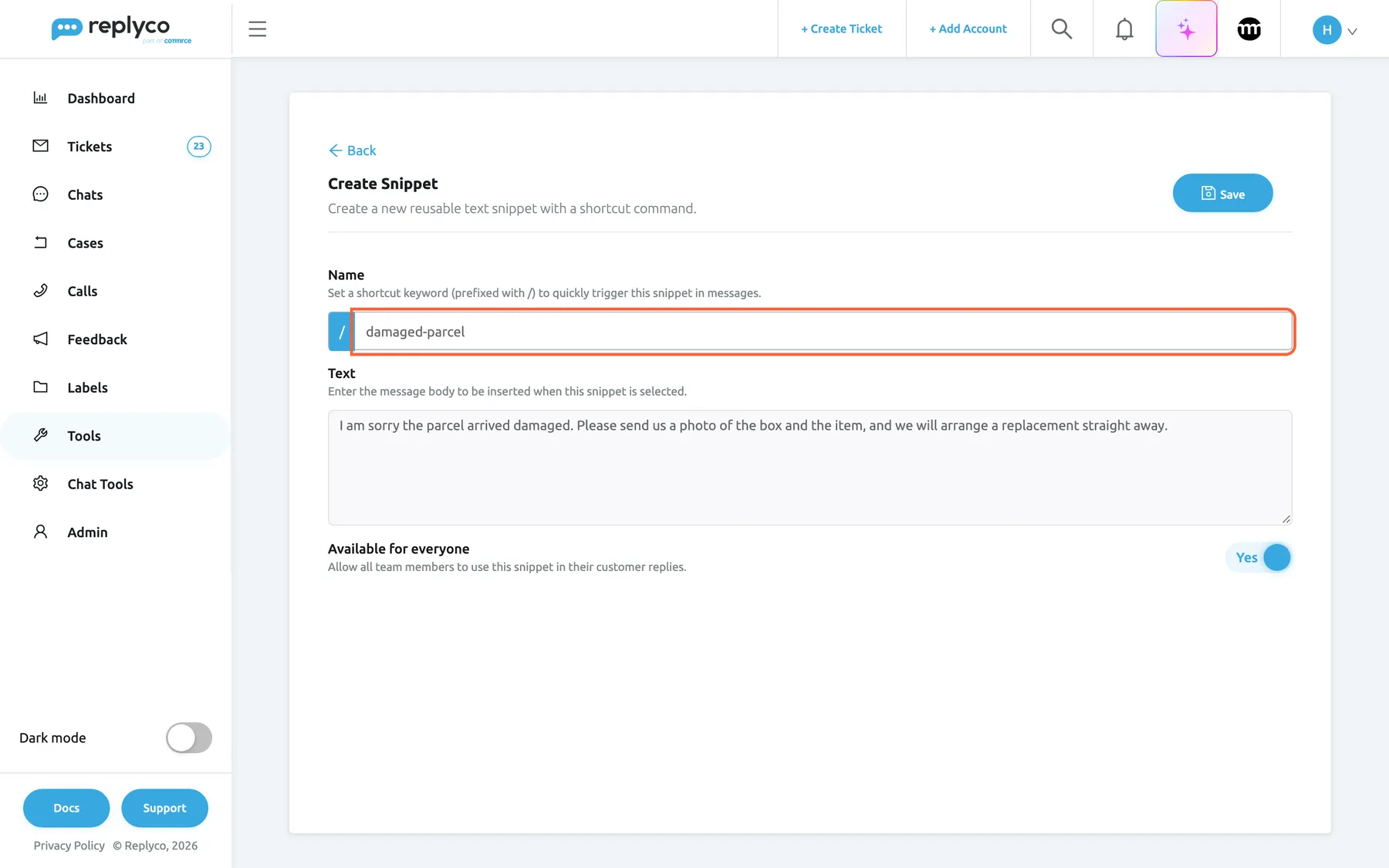
What this screenshot shows
- Screen
- Create Snippet (/snippets)
- Highlighted
- textbox “Template Name”, form-top, damaged-parcel (de: paket-beschaedigt) after a fixed /. sets the shortcut name typed after / in editors
- Also visible
- Back, Create Snippet heading, Save; Text box with the snippet text; Available for everyone switch on
- Purpose
- create a snippet
Replyco refuses to save, with a message at the top right, when:
- the name or the text is empty: All fields must be completed.
- the name contains a space: The name must not contain spaces.
- you can already see a snippet with the same name, shared or your own: “You have a snippet with such name”
Names can be up to 150 characters including the /.
Example: Northwind’s team writes the same apology for crushed boxes several times a day. Theo creates /damaged-parcel with I am sorry the parcel arrived damaged. Please send us a photo of the box and the item, and we will arrange a replacement straight away. and makes it available for everyone.
Share a snippet with your team or keep it to yourself
Section titled “Share a snippet with your team or keep it to yourself”The Available for everyone switch decides who can see and insert a snippet:
| Switch | Who sees and inserts it | In the list |
|---|---|---|
| Yes | Every user of your company | The card shows Available for everyone after the name |
| No (the default for a new snippet) | Only the person who last saved it | The name alone |
The switch belongs to whoever saves. Turning it off on a shared snippet makes it the personal snippet of the person who saves the change, and it disappears from everyone else’s list and / list. Anyone who sees a shared snippet can change, copy or delete it.
Insert a snippet while you write
Section titled “Insert a snippet while you write”- In the reply editor, place the cursor at the start of a line or after a space and type
/. A list of snippet names opens under the cursor. - Type part of the name to narrow the list:
/rekeeps every name that contains re, such as/return-label,/refund-timeand/where-is-my-parcel. - Press Enter for the highlighted name, or select another. The snippet’s text replaces what you typed, followed by a space. Escape closes the list and leaves what you typed as it is.
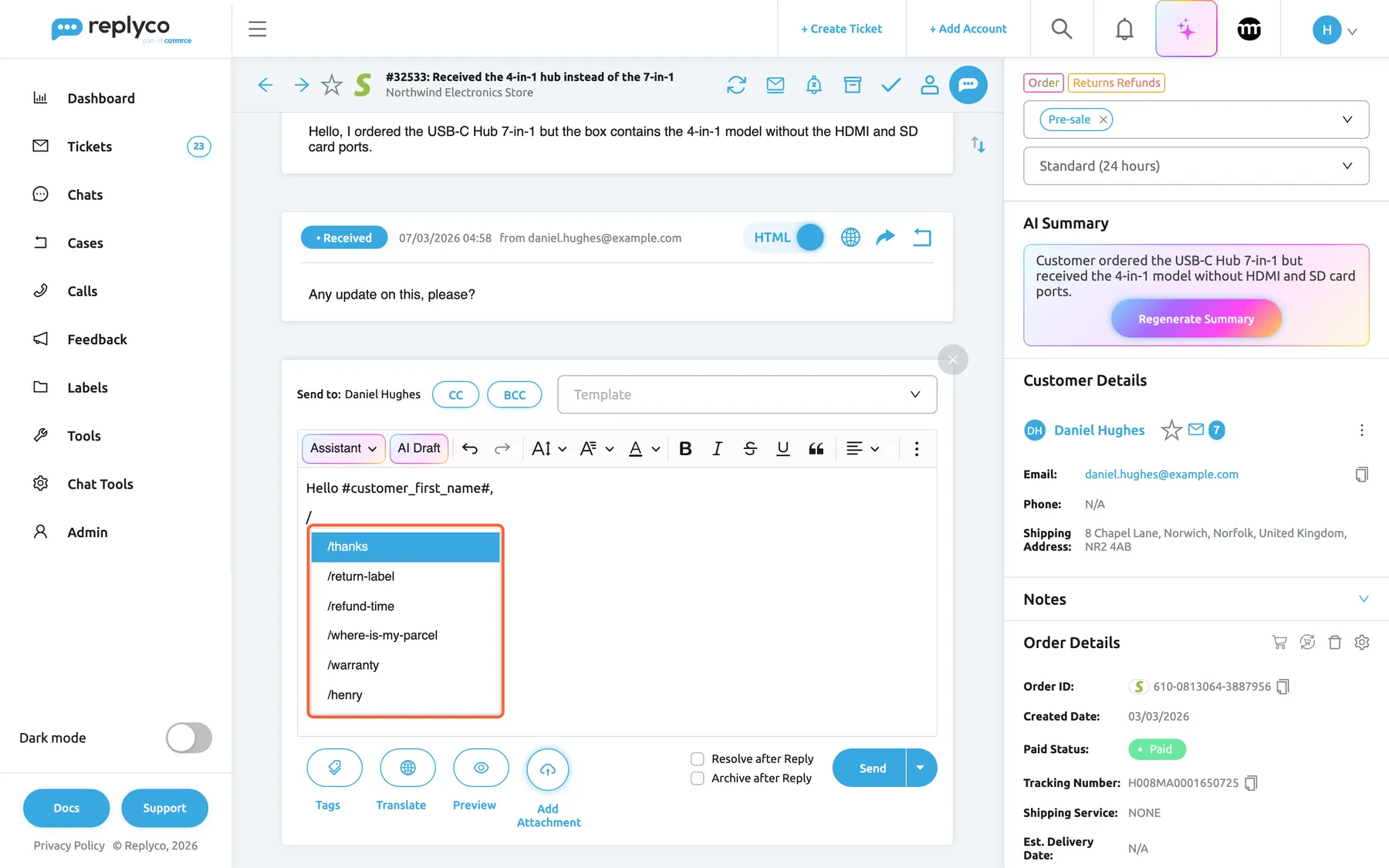
What this screenshot shows
- Screen
- Respond (/ticket/:threadId)
- Highlighted
- list “Snippets”, editor-body, open under the cursor, first entry selected. inserts the chosen snippet's text
- Also visible
- Hello #customer_first_name#, on the first line; six snippet names; Tags, Translate, Preview, Add Attachment, Send
- Purpose
- use a snippet while answering a ticket
Where / works: the reply editor of a ticket, Create Ticket, forwarding, the text editor of a template under ToolsAutomation › Templates, and the signature editor in your account settings. It does not work in the chat reply box, in the text boxes of eBay case actions or in the window for reviewing AI drafts. To answer a ticket step by step, see Answer a ticket.
What gets inserted is plain text. Formatting is not possible in a snippet. A / inside a word or a web address does not open the list, and the list shows at most 40 names at a time, so give snippets distinct names.
Snippets can contain placeholders. /where-is-my-parcel holds You can follow your parcel with the tracking number #tracking_number#. The placeholder stays as written in the editor and Replyco fills it in from the ticket when the reply is sent, like any other placeholder. For every placeholder and what happens when a ticket has no value, see Snippets and placeholders.
A snippet is copied, not linked. Inserting a snippet into a template or a signature copies its text there; changing the snippet later does not change templates, signatures, drafts or sent replies that already contain it.
Change a snippet
Section titled “Change a snippet”- Select the pencil icon on the snippet’s card, or select the card and then Edit in the details panel. The form Edit Snippet opens with the name shown without its
/. - Change the name, the text or Available for everyone. The Save button pulses while you have unsaved changes.
- Select Save, or Back to leave without saving.
The same rules as for a new snippet apply: no empty fields, no space in the name, no duplicate name. The change applies to the next time anyone inserts the snippet. Renaming a snippet changes what your team types, so tell them.
Copy a snippet
Section titled “Copy a snippet”Select the copy icon on a card, or Copy in the details panel. A form opens with the snippet’s text and switch, and the name with (copy) added; select Save to create the copy as a new snippet.
Give the copy a name of its own, for example thanks-short. A copy is the quick way to make a personal variant of a shared snippet: copy it, rename it, set Available for everyone to No and save.
Delete a snippet
Section titled “Delete a snippet”Select the bin icon on a card and confirm with Yes, or select the card and Delete in the details panel. Both ask you to confirm first, and both delete the snippet.
Deleting is permanent and affects everyone who could use the snippet. Text that was already inserted into replies, templates or signatures stays where it is.
Every control, explained
Section titled “Every control, explained”Create New
Section titled “Create New”In the header of ToolsSnippets, top right.
Opens the empty form Create Snippet in place of the list. The button shows a spinner while a new snippet is being saved.
Start a snippet from scratch. To start from an existing one, copy it instead.
Snippet card
Section titled “Snippet card”The list under the header, one card per snippet.
Shows the name with its /, followed by Available for everyone for shared snippets. Selecting the card opens the details panel and outlines the card in blue. The pencil icon opens Edit Snippet, the copy icon opens a copy, and the bin icon asks Are you sure you want to delete this item? with No and Yes. A card shows a spinner while it is being saved or deleted.
Act on a snippet without opening it first.
Details panel
Section titled “Details panel”On the right, after you select a card; the cross in its corner closes it.
The name as title, the full text, and Available for everyone with Yes or No. At the bottom: Delete, which asks Are you sure you want to delete this item?, Copy and Edit.
The list shows names only; the panel shows what /name will insert.
The first field of the snippet form, with the hint Set a shortcut keyword (prefixed with /) to quickly trigger this snippet in messages. and a fixed / in front.
The shortcut name, typed without the /. Required. A space is refused with The name must not contain spaces., and a name you can already see is refused with “You have a snippet with such name”. Up to 150 characters including the /. When you edit a snippet, the name appears without its /, and Replyco adds it again on save. The field title says template, but it names the snippet.
The name is what your team types after /, and the list filters on any part of it, so short, distinct names such as refund-time are fastest.
| Do | Don’t |
|---|---|
return-label, refund-time, warranty | return label (a space is refused) |
One topic per name: refund-time | Numbered names: snippet1, snippet2 |
| Distinct beginnings, so a few letters are enough | Many names that share a long start: reply-refund-1, reply-refund-2 |
The box under the name, with the hint Enter the message body to be inserted when this snippet is selected. and the placeholder Enter text here....
The text that /name inserts. Required; a text of only spaces counts as empty. Plain text without formatting, with no length limit. Placeholders such as #tracking_number# may be part of the text and are filled in when the message is sent.
Write the sentence your team types most often, once, correctly.
Available for everyone
Section titled “Available for everyone”The switch at the bottom of the form, with the hint Allow all team members to use this snippet in their customer replies.
Yes shares the snippet with every user of your company. No, the default for a new snippet, makes it personal to whoever saves the form. Takes effect on Save.
Share the answers your whole team gives; keep personal sign-offs and drafts to yourself.
Save and Back
Section titled “Save and Back”At the top of the snippet form: Back on the left, Save on the right.
Save checks the name and text and saves the snippet; the form closes and Success confirms it. A refusal from Replyco appears as a message at the top right. While you edit an existing snippet, Save pulses as long as there are unsaved changes. Back returns to the list without saving.
Save when the text is final; leave with Back to discard a change.
Who sees what
Section titled “Who sees what”| Part | What shows it |
|---|---|
Snippets under Tools, and the / list in editors | Snippets, part of every plan and every trial |
| A shared snippet | Every user of the company |
| A personal snippet | Only the user who saved it |
| Creating, changing, copying and deleting | Every user who can open the screen; there is no separate permission |
What you need to know
Section titled “What you need to know”| Topic | Fact |
|---|---|
| Required | A name without spaces and a text. |
| Name | Replyco adds the /. Up to 150 characters including it. Must be unique among the snippets you can see. |
| Order | As Replyco returns them; new snippets at the end. No search, no sorting. |
| Text | Plain text, no length limit. |
| Placeholders | Allowed in the text; filled in when the reply is sent. |
| Sharing | Personal by default; the switch belongs to whoever saves. |
| Copy, not link | Inserted text does not change when the snippet changes. |
| Delete | Permanent; inserted text stays. |
Where / works | Reply editor, Create Ticket, forwarding, template editor, signature editor. Not in chats, eBay case actions or the AI draft review. |
| History | Snippets keep no change history. |
Frequently asked questions
Section titled “Frequently asked questions”General
Section titled “General”What is the difference between a snippet and a template?
Section titled “What is the difference between a snippet and a template?”A template under ToolsAutomation › Templates replaces the whole reply and can carry formatting, files and accounts. A snippet under ToolsSnippets inserts one plain-text passage where your cursor is, when you type / and its name. Use templates for complete answers and snippets for sentences you add to any reply.
Why is Snippets missing from my Tools menu?
Section titled “Why is Snippets missing from my Tools menu?”Snippets appears under Tools for every company with snippets, which every plan and every trial includes, and it needs no permission. Companies on an older plan may not have snippets; then the screen is hidden and typing / in the reply editor opens no list. See What each plan includes.
Do I need a permission to create snippets?
Section titled “Do I need a permission to create snippets?”No. Every user of a company with snippets can open ToolsSnippets, create personal or shared snippets, and change, copy or delete every snippet they can see. There is no snippet setting under user permissions.
Creating and sharing
Section titled “Creating and sharing”Why does Replyco say the name should not contain empty spaces?
Section titled “Why does Replyco say the name should not contain empty spaces?”The name of a snippet is what your team types after /, so it cannot contain a space. Replace spaces with hyphens, such as return-label.
Why is my snippet name refused as a duplicate?
Section titled “Why is my snippet name refused as a duplicate?”Replyco refuses a snippet whose name is already used by a snippet you can see under ToolsSnippets, with the message “You have a snippet with such name”. Choose another name and select Save again.
Who can see my snippet?
Section titled “Who can see my snippet?”With Available for everyone set to No, only you see it, in the list and when you type /. With Yes, every user of your company sees it and can change, copy or delete it. The switch is at the bottom of the snippet form.
A shared snippet disappeared for my whole team. Why?
Section titled “A shared snippet disappeared for my whole team. Why?”Someone opened it and saved it with Available for everyone set to No, which makes it that person’s personal snippet, or someone deleted it. Ask that person to open it under ToolsSnippets, switch it to Yes and select Save. A deleted snippet cannot be restored.
Using snippets
Section titled “Using snippets”How do I insert a snippet into a reply?
Section titled “How do I insert a snippet into a reply?”In the reply editor, type / at the start of a line or after a space. A list of snippet names opens; type a few letters of the name to narrow it and press Enter, or select a name. The snippet’s text replaces what you typed. The same works on Create Ticket, when forwarding, in the template editor and in the signature editor.
Why does typing / not open the list?
Section titled “Why does typing / not open the list?”The list opens only when / is at the start of a line or follows a space or an opening bracket, so a slash inside a word or web address never opens it. It also needs at least one snippet whose name contains what you typed. Chats, eBay case actions and the AI draft review have no snippet list.
Can a snippet contain the customer’s name or order number?
Section titled “Can a snippet contain the customer’s name or order number?”Yes. Write placeholders such as #customer_first_name# or #tracking_number# into the snippet’s text under ToolsSnippets. They stay as written in the editor and are filled in from the ticket when the reply is sent; Preview under the reply editor shows the result.
If I change a snippet, do my templates change too?
Section titled “If I change a snippet, do my templates change too?”No. Inserting a snippet copies its text into the reply, template or signature. Changing or deleting the snippet under ToolsSnippets affects only later insertions; templates, signatures, drafts and sent replies keep the text they already have.
Can I use snippets in chats?
Section titled “Can I use snippets in chats?”No. The chat reply box has chat templates, files and the AI assistant, but no snippet list and no placeholders. Snippets work in the ticket editors: replies, Create Ticket, forwarding, templates and signatures.
Troubleshooting
Section titled “Troubleshooting”| Symptom | What to check |
|---|---|
| Snippets is not under Tools | Your company is on an older plan without snippets; see What each plan includes. No permission is involved. |
| The name must not contain spaces. | The name contains a space. Replace spaces with hyphens. |
| All fields must be completed. | The name or the text is empty, or contains only spaces. |
| “You have a snippet with such name”, and the snippet is missing | A shared snippet or one of your own already has that name. Pick another name and write the text again; the form closed without saving it. |
Typing / opens nothing | Is the / at the start of a line or after a space? Does any snippet name contain what you typed after it? Is it a chat, an eBay case action or the AI draft review, which have no snippet list? |
| A colleague cannot find my snippet | It is personal. Set Available for everyone to Yes and save. |
| A shared snippet vanished | Someone saved it as personal or deleted it. Ask the team; a deleted snippet must be created again. |
Related
Section titled “Related”- Snippets and placeholders: how
/,#and fallbacks work in every editor - Fallbacks
- Templates · Reply templates
- Answer a ticket · Create Ticket
- Account Signatures
- What each plan includes