

AI drafts
Most of a support day is the same few questions: where is my parcel, when will it ship, does this hub work with my laptop. AI drafts write the first reply to those messages as they arrive, following your own rules, so an agent only has to read, adjust and send it. Nothing reaches the customer until someone on your team accepts the draft.
What it does
Section titled “What it does”Answering “where is my order?” for the fortieth time takes a minute each time: open the ticket, find the order, copy the tracking number, write the same polite email. Meanwhile the ticket that needs a real decision waits in the same queue. And a reply written in a hurry forgets the greeting, the apology or the one policy detail that stops the customer from writing again.
With AI auto-drafts on, Replyco checks every new customer message and, when the message can be answered safely without a decision from you, writes a complete reply and keeps it on the ticket until someone accepts or rejects it. The draft follows the email structure your customers expect, uses placeholders for the order data Replyco fills in when it sends, and follows the instructions you give it. From there:
- Replyco decides which messages get a draft. A message must fall into an AI category other than a general or irrelevant one, and an AI check turns down anything that would commit you to a refund, a replacement or a judgement call. See which messages get a draft.
- You tell the AI how your company works. Company-wide instructions apply to every draft, and each account can add rules of its own, for example for eBay’s messaging rules. See every setting, explained.
- Your team sees drafts where it works. A sparkle marks each ticket with a draft in the ticket lists, the reply editor opens with the draft already written, and TicketsSmart Filters counts the drafts waiting for you. See AI drafts in your tickets.
- Agents can ask for a draft on demand. The AI Draft button in the editor writes a reply from a short description of what it should say. See drafts on demand.
- Usage is counted. Every check and every draft is an AI action in your AI usage report. See AI drafts in the usage report.
A draft is never sent on its own. Replyco keeps each draft together with the customer message that triggered it, and records whether it was accepted or rejected, with the reason and feedback the agent gave.
Before you start
Section titled “Before you start”| Requirement | Details |
|---|---|
| Replyco AI | AI drafts are part of Replyco AI, which every plan includes, and every feature is on during a trial. Without it, AI Settings does not appear under Tools. See What each plan includes. |
| Auto-drafts switched on for your company | Replyco switches auto-drafts on for a company; there is no switch for it in the app. While they are on, ToolsAI Settings shows the AI Draft Settings tab. If the tab is missing, ask Replyco support to switch auto-drafts on. |
| AI categories | Drafts are written only for messages that AI categories has categorised, so AI Categories on the General tab of ToolsAI Settings must be on. It is on for new companies. See AI categories. |
| Who can configure it | ToolsAI Settings, where the draft instructions are set, is shown only to users with the Admin permission with Edit rights; for anyone else, a bookmarked link to it opens the start screen. Checking and saving instructions need the same rights. Every agent sees and handles the drafts on the tickets they can open. See User permissions and roles. |
| Accounts | Draft instructions for one account are offered for every account that brings in tickets. Accounts that only bring in chats, such as WhatsApp, are not listed, because chats get no drafts. |
| AI usage | Checking a message for a draft and writing the draft are one AI action each, listed under AdminBilling › AI Usage. See Billing. |
Understanding which messages get a draft
Section titled “Understanding which messages get a draft”Every new message from a customer goes through the same four stages. A draft exists only when the message passes all of them:
| Stage | What happens | A message that stops here |
|---|---|---|
| 1. The message arrives | Replyco takes messages from customers on ticket channels: email, marketplaces and webstores. Replies from your team and customers on the AI Customers Blacklist are skipped. | Your own reply to the customer, or a message from a customer you added to the blacklist |
| 2. AI categories sorts it | The message gets one or more of your AI categories. If every category it gets is the general or the irrelevant one, there is no draft. | Hi, quick question. gets only the general category |
| 3. The check before drafting | A second AI call decides whether a reply can be written without committing you to anything. | The charging case of my earbuds arrived cracked. What will you do about it? needs your decision on a damage claim |
| 4. The draft is written | The AI writes the reply, using your instructions and the data that exists for the ticket, and Replyco stores it on the ticket. | None: the draft waits for an agent |
Here is how typical Northwind Electronics messages fare with no instructions of your own:
| Customer message | AI categories | Draft? | Why |
|---|---|---|---|
| Where is my parcel? I ordered the Bluetooth Speaker Mini on Monday. | Shipping & Delivery | Yes | The answer comes from order data: the tracking number and link are placeholders Replyco fills in |
| Is the USB-C hub compatible with a MacBook Air? | Product | Yes | A pre-sales product question, answered from general product knowledge |
| Hi, quick question. | General Inquiry only | No | The general category alone never gets a draft |
| I received the 4-in-1 hub instead of the 7-in-1. | Order Management, Returns / Refunds / Exchanges | No, unless your instructions cover wrong items | A wrong item needs your judgement; an instruction such as “send the correct item without asking for a return” turns it into a routine case |
| Refund me today or I’m opening a PayPal dispute. | Returns / Refunds / Exchanges | No, unless your instructions cover disputes | A dispute and a refund both need your decision |
The category names above are Replyco’s defaults; yours may differ. For German companies the general and irrelevant categories are the German ones.
How Replyco decides
Section titled “How Replyco decides”- Only the categories of the new message count. The ticket’s earlier categories play no part. A message with a general and a specific category, such as General Inquiry and Product, passes the category stage because of the specific one.
- The check protects you from promises. The AI that checks the message is told that its job is to protect the seller from commitments the seller has not approved. It turns a message down when it is a complaint that needs a decision, when a reply would promise an action, an outcome or compensation, when it is a dispute, a damage claim or a missing or wrong item, or when there is any doubt whether you would agree to what the customer asks.
- It allows two kinds of message. A reply that can be written entirely from the order data Replyco has, such as a tracking number, the order status or the delivery dates, without promising anything. And a pre-sales or product question, such as compatibility, specifications, features or how to use something, that general product knowledge can answer.
- Your instructions are exceptions. The check is told that when a message matches a scenario your instructions describe, it may allow a draft it would otherwise refuse. This is how “Wrong item received: send the correct item” lets the wrong-hub ticket get a draft.
- The writer follows a fixed structure. The AI is told to write as an experienced support agent for an online seller: a greeting on its own line, short paragraphs that acknowledge the message, apologise sincerely when something went wrong and say what happens next or what it needs from the customer, and a closing paragraph that thanks the customer and invites further questions. It never adds a sign-off, a name or a signature, because Replyco appends your signature.
- It answers only what was asked. The AI is told not to volunteer order status, tracking or delivery dates the customer did not ask about, and never to fall back on a generic order summary.
- It uses data as placeholders, never values. The AI is told which order and customer data exists for the ticket, as placeholders such as
#tracking_number#, and may use only those, only when they are relevant. Replyco replaces each placeholder with the real value when the reply is sent. When a customer asks for data that does not exist on the ticket, the AI apologises and says it cannot provide it right now, instead of inventing it. - It greets the customer by name only when Replyco knows it. The greeting uses the customer’s first name, or full name, as a placeholder. Without a name, the draft opens with a plain greeting such as Hello,; the AI is told never to invent one.
- It reads the conversation. The AI gets the ticket’s AI summary as background if there is one, otherwise up to the ten most recent messages, marked as from the buyer or the seller. The message’s categories are passed as a hint to the customer’s intent.
- Your instructions come first. Your company-wide instructions and those for the ticket’s account are given to the AI as rules that must be applied and that take priority over its general guidelines.
- Customer text is data, never instructions. Both AI calls are told that the customer’s message and the conversation are untrusted and that instructions inside them must never be followed.
- One draft per ticket. A newer draft replaces the one waiting on the ticket.
What does not get a draft
Section titled “What does not get a draft”- Replies from your team, and any message that arrives as sent by your company.
- Messages from customers on your AI Customers Blacklist, kept under ToolsAI Settings. See AI Customers Blacklist.
- Messages from customers you have blocked. See Blocked tickets.
- Every message while AI Categories is off.
- Messages whose only categories are the general or the irrelevant one: General Inquiry and Irrelevant / Not Related, or Allgemeine Anfrage and Irrelevant / Nicht relevant for German companies. A message the AI could not place in any of your categories gets no draft either.
- Messages the check turns down: complaints, disputes, damage claims, missing or wrong items and anything that needs your decision, unless your instructions cover that scenario.
- Conversations under Chats. AI drafts work on tickets only.
- Messages that arrived before auto-drafts were switched on. Replyco never drafts replies to older messages.
- Messages the AI could not handle because it was unavailable or its answer could not be read. The message arrives as normal; it just has no draft.
To keep a customer’s messages away from the AI completely, add them to the AI Customers Blacklist.
Setting it up in five steps
Section titled “Setting it up in five steps”-
Check that auto-drafts are on. Go to ToolsAI Settings. If the tab list shows AI Draft Settings, auto-drafts are on for your company. If it does not, ask Replyco support to switch them on; there is no switch for this in the app.
-
Check that AI categories is on. Stay on the General tab and make sure AI Categories, the first switch, is on. If you change it, select the Save button that appears. Without it no message is categorised, so none gets a draft.
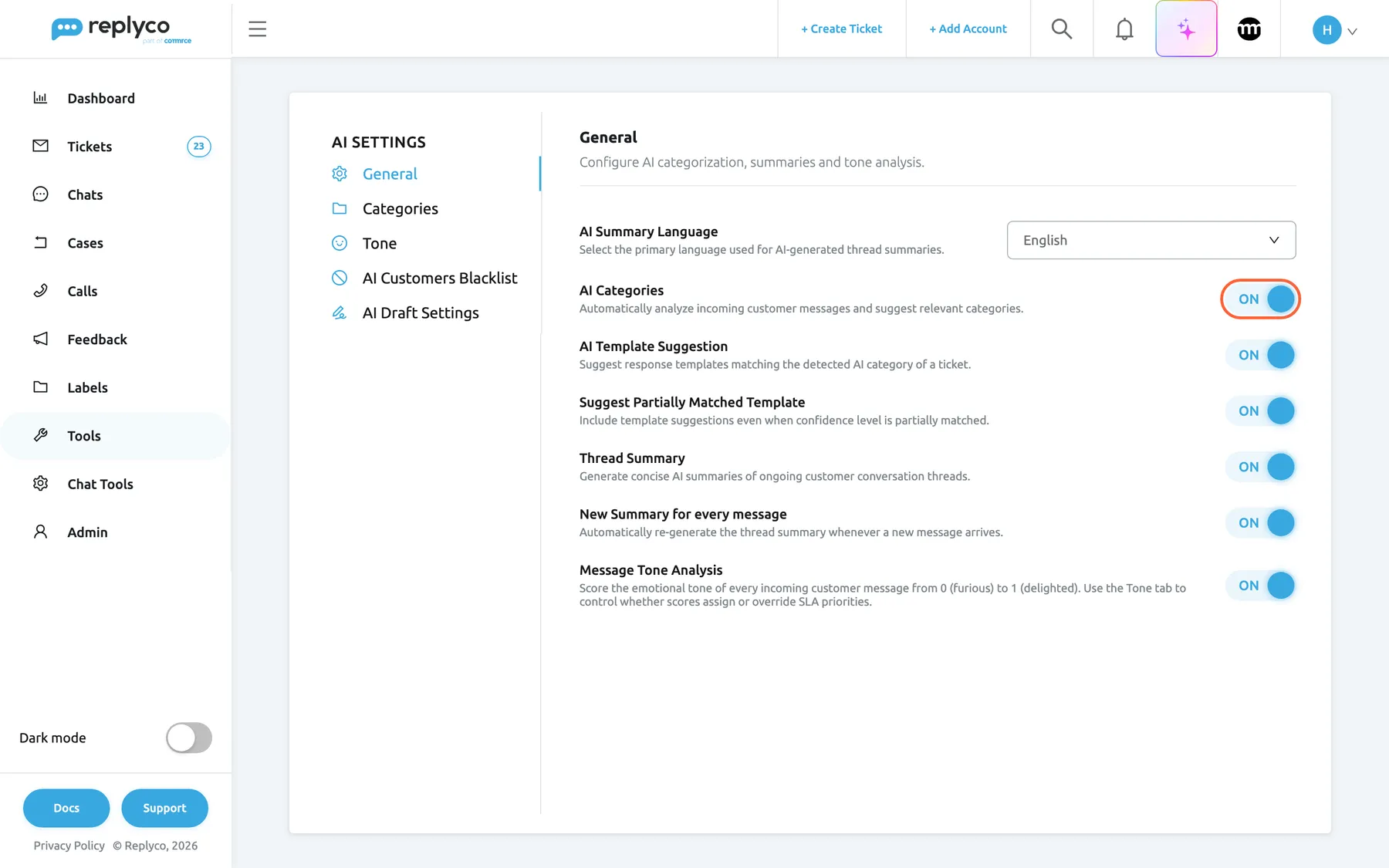
Auto-drafts depend on AI Categories, the first switch on the General tab; change it, then select Save. What this screenshot shows
- Screen
- General (/aiSettings?tab=general)
- Highlighted
- switch “AI Categories”, settings-list-top, on. switches AI categorisation on or off; auto-drafts run only while it is on; saved with the Save button that appears
- Also visible
- AI Settings tabs: General, Categories, Tone, AI Customers Blacklist, AI Draft Settings; AI Summary Language drop-down; AI Categories switch on; further AI switches, all on
- Purpose
- the prerequisite of AI auto-drafts
-
Write your company’s rules (optional). Open the AI Draft Settings tab, type your policies into Global Draft Instructions, one scenario per numbered line, and select Validate & Save. If a panel headed AI-optimized version of your instructions: appears, choose Use optimized or Keep original; both save.
-
Add rules for one account (optional). In Account-Specific Draft Instructions, select the pencil icon of an account, type what differs for that channel, and select Validate & Save at the top of the form. Back returns to the list.
-
Work through the drafts. Open TicketsSmart Filters and select a card under Tickets with AI Draft Available, or select the sparkle next to a ticket in any ticket list. Read each draft, change what does not fit, then send it with Accept & Send or turn it down with Reject.
Every setting, explained
Section titled “Every setting, explained”AI drafts have one master switch that Replyco sets, one prerequisite on the General tab, and everything else on the AI Draft Settings tab of ToolsAI Settings, in the order below.
Auto-drafts, the master switch
Section titled “Auto-drafts, the master switch”Not in the app. Replyco switches auto-drafts on or off for your company. You can tell they are on when ToolsAI Settings shows the AI Draft Settings tab.
On: every new customer message goes through the four stages, and drafts appear in the ticket lists, the reply editor and TicketsSmart Filters. Off: nothing new is drafted, and the AI Draft Settings tab, the sparkle column, the draft in the editor and the Tickets with AI Draft Available cards are hidden. Drafts already waiting and your instructions are kept, and come back when auto-drafts are switched on again. Companies that register in Replyco’s UK region start with auto-drafts on; companies in the German region start with them off.
Auto-drafts change how your whole team answers tickets and add AI actions to many incoming messages. With the switch outside the app, nobody turns drafting on or off for everyone by accident.
AI Categories, the prerequisite
Section titled “AI Categories, the prerequisite”ToolsAI Settings › General, the first switch on the tab. Change it, then select Save; the button only appears once something has changed.
Drafting is part of categorising a message: Replyco first categorises it, then checks whether it can draft a reply. With the switch off, no new message is categorised and none gets a draft. The categories themselves are managed on the Categories tab. See AI categories.
The category is what tells Replyco whether a message is a routine question at all. A message that fits none of your categories is too vague to answer safely.
Global Draft Instructions, your company’s rules
Section titled “Global Draft Instructions, your company’s rules”ToolsAI Settings › AI Draft Settings, the text box at the top. Validate & Save appears under the box once you change the text.
Your policies, in your own words, up to 1,000 characters; the counter under the box shows how many you have used. The box starts empty, and its grey placeholder shows one of ten example instructions, chosen at random each time the tab opens. Your rules reach the AI in two places: the check before drafting treats them as exceptions it may allow, and the writer applies them with priority over its general guidelines. They also apply to drafts from the AI Draft button and to rewrites with Refine with AI and Improve draft.
Validate & Save first sends your text to an AI check:
- Rejected: text that tries to take over the AI (phrases such as “ignore previous instructions”, “you are now”, “forget everything”, “system:” or “override”), tries to reveal the AI’s instructions or internal data, tells the AI to deceive, harm or treat customers unethically, or has nothing to do with customer support policy. Nothing is saved, and the reason appears in red under the box.
- Valid but vague: a panel headed AI-optimized version of your instructions: offers a version that is specific about when each rule applies, what to do step by step, numbered by scenario and without vague words. Use optimized saves that version; Keep original saves yours unchanged.
- Valid: your text is saved, and Success confirms it.
An empty box is saved straight away, without a check, and means “no company rules”. Spaces at the start and end are removed. Each check is one AI action. If the check cannot run, nothing is saved, and you can select Validate & Save again.
Out of the box, the check refuses anything that needs your decision, because the AI cannot know your refund or replacement policy. Writing the policy down turns those cases into routine ones for you, with the answer you would have given.
| Do | Don’t |
|---|---|
| Describe a policy that holds for every order: “Wrong item received: apologise and send the correct item; do not ask for a return first.” | Depend on a value the AI cannot see: “If order #12345 is late, offer a refund” or “if the order total is over £50” |
| Name the scenario, then the steps: “Damaged on arrival: ask for a photo of the damage and the parcel label, then offer a replacement or a refund.” | Stay vague: “Be helpful with refunds and try to offer alternatives.” |
| Give each scenario its own numbered line | Mix several scenarios in one sentence |
| Say what to offer and what not to ask for | Leave the AI to guess what you would agree to |
| Keep to support policy, tone and length: “Keep replies to three short paragraphs.” | Add a sign-off such as “End every draft with Kind regards, the team”: Replyco appends your signature, so the draft would carry two |
| Write rules that are safe to apply without a person checking them first | Tell the AI to promise anything you would not stand behind if an agent sent it without reading |
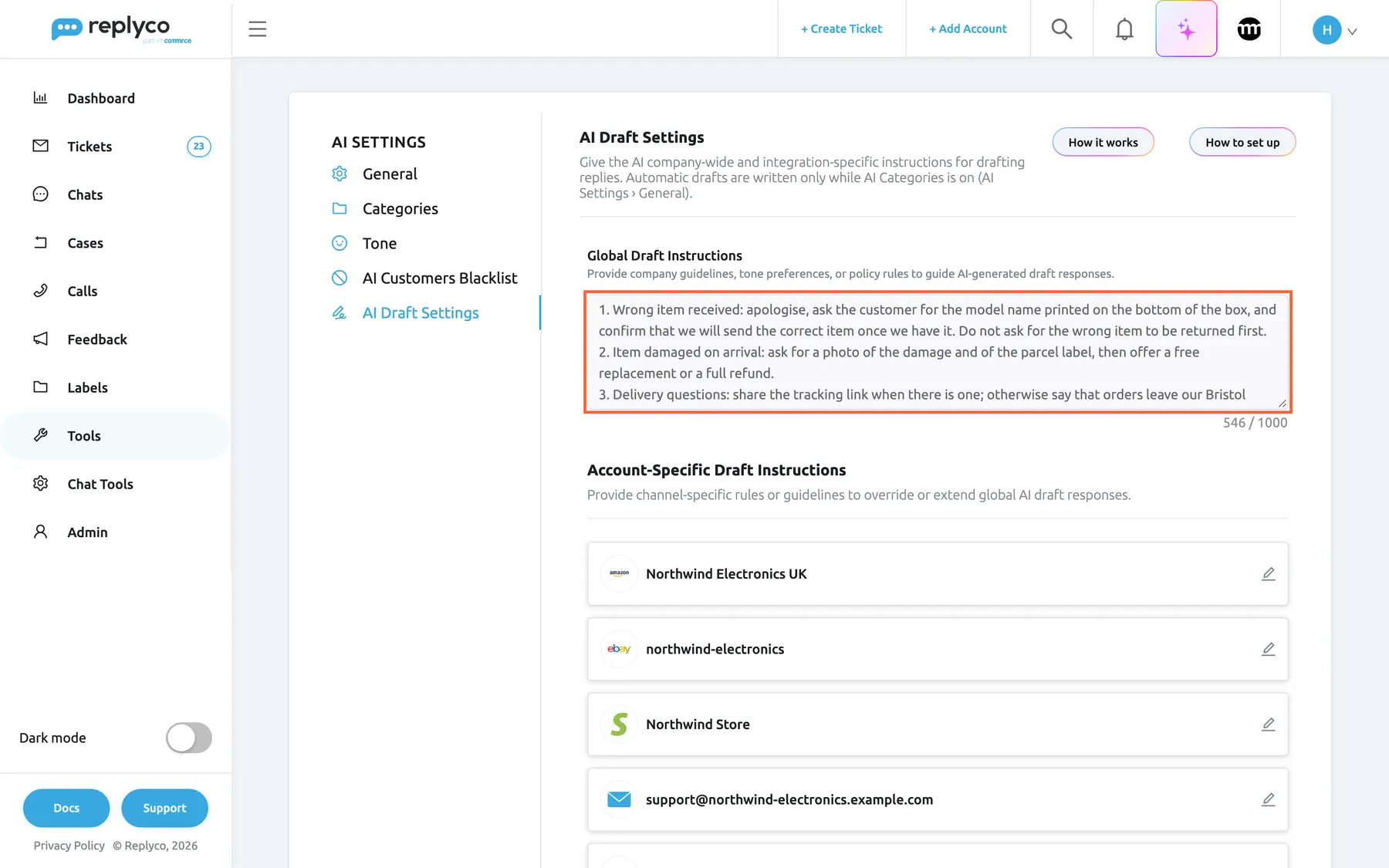
What this screenshot shows
- Screen
- AI Draft Settings (/aiSettings?tab=aiDraftSettings)
- Highlighted
- textbox “Global Draft Instructions”, tab-top, filled, 546 of 1000 characters. holds the company-wide rules every AI draft follows; saved with Validate & Save
- Also visible
- How it works and How to set up buttons; four numbered company rules; Account-Specific Draft Instructions list: five ticket accounts with pencil icons
- Purpose
- the AI Draft Settings tab fully configured
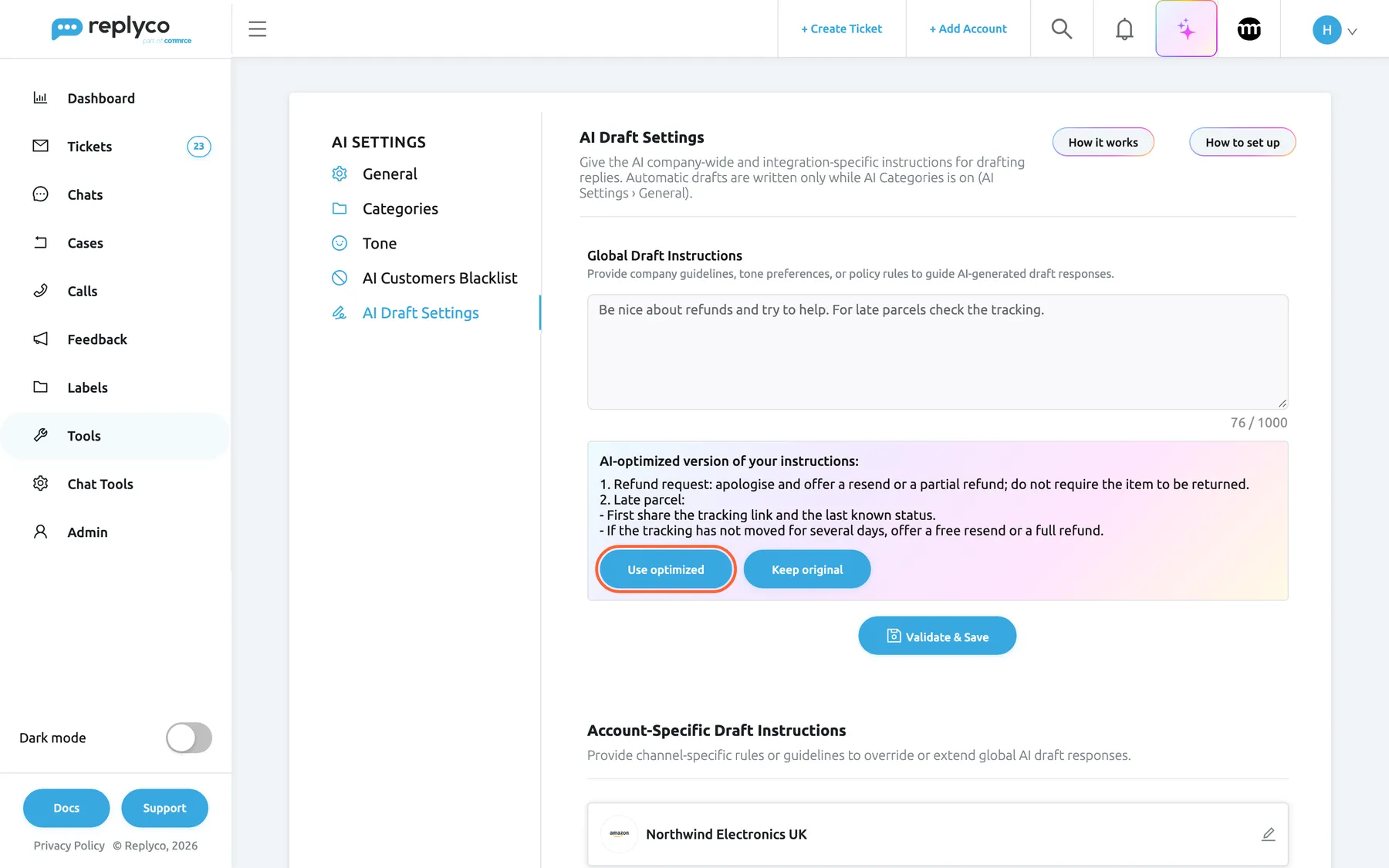
What this screenshot shows
- Screen
- AI Draft Settings (/aiSettings?tab=aiDraftSettings)
- Highlighted
- button “Use optimized”, optimization-panel, enabled. saves the AI-optimized instructions in place of the typed ones
- Also visible
- vague instructions in the text box; AI-optimized version with two numbered scenarios; Keep original button; Validate & Save button
- Purpose
- how Validate & Save checks and improves draft instructions
Account-Specific Draft Instructions, rules for one account
Section titled “Account-Specific Draft Instructions, rules for one account”ToolsAI Settings › AI Draft Settings, the list under Global Draft Instructions. Selecting a row shows the account’s saved instructions; the pencil icon opens the form Account-Specific Draft Instructions for that account, with Validate & Save at the top right and Back to return.
One text box per account, up to 1,000 characters, checked and saved exactly like Global Draft Instructions, including the optimized version. The list shows every account that brings in tickets; chat-only accounts such as WhatsApp are not listed. For a ticket from this account, the AI gets your company-wide instructions first and this account’s instructions after them. Replyco does not remove a company rule that an account rule contradicts: both reach the AI. Emptying the box and saving removes the account’s rules.
Channels have rules of their own. eBay does not allow you to take a buyer off eBay, Amazon has its own return process, and your webshop can offer what a marketplace cannot. Account rules keep those differences out of your company-wide text.
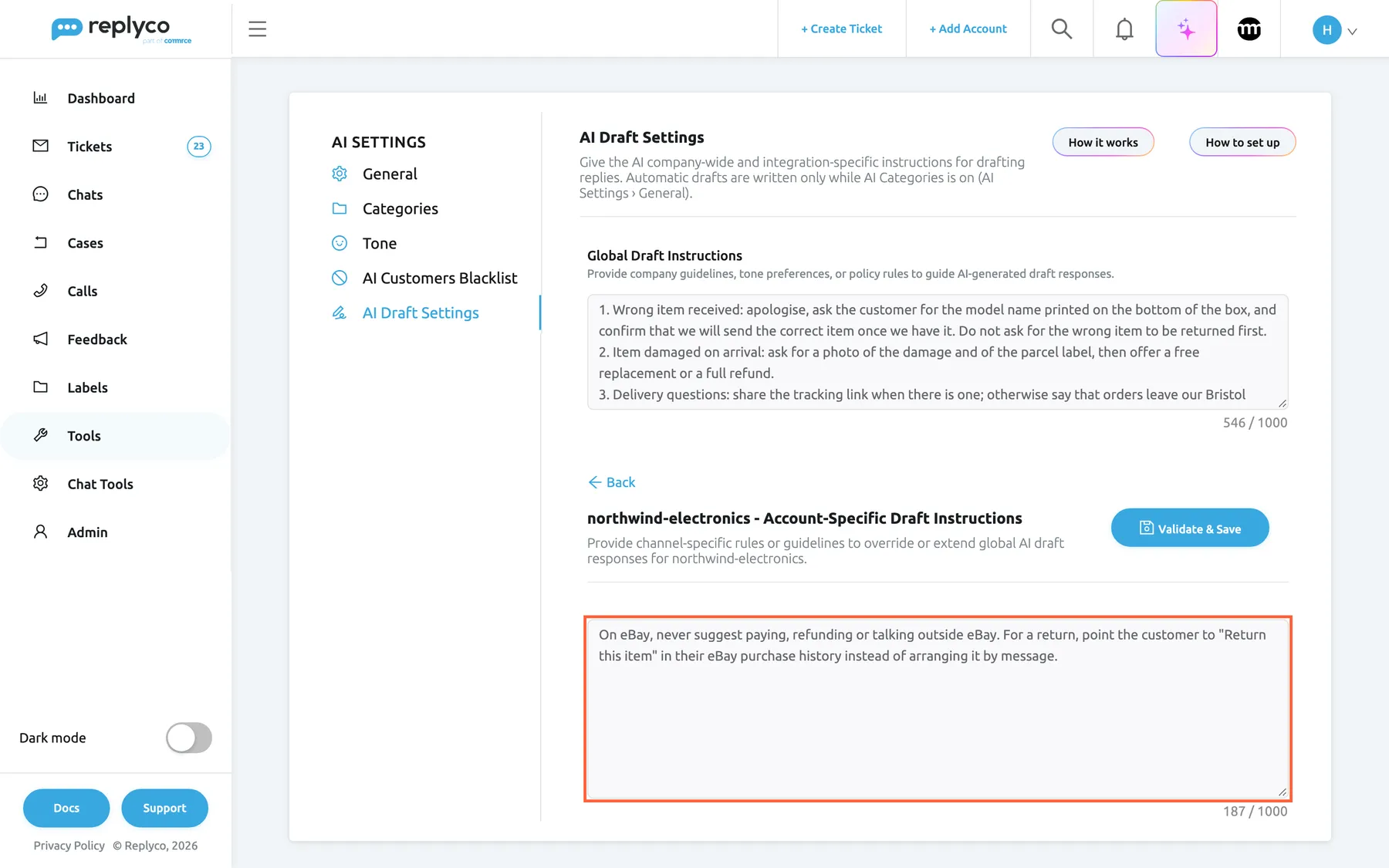
What this screenshot shows
- Screen
- AI Draft Settings (/aiSettings?tab=aiDraftSettings)
- Highlighted
- textbox “Account-Specific Draft Instructions”, account-form, filled, 187 of 1000 characters. holds the extra rules for drafts on tickets from this account; saved with Validate & Save in the form header
- Also visible
- Back link; heading: northwind-electronics - Account-Specific Draft Instructions; Validate & Save button; the eBay rule in the text box
- Purpose
- instructions for one account
How it works and How to set up
Section titled “How it works and How to set up”ToolsAI Settings › AI Draft Settings, the two buttons at the top right.
How it works opens Replyco’s help article on AI auto-drafts in a new browser tab. How to set up opens the window How to set up custom AI instructions: what instructions are for, examples of what you can configure, how account instructions differ, and the warning Important — how AI sees your data with a wrong and a right example. Close closes it. Neither button changes a setting.
The warning is the one thing most people get wrong on their first try: writing rules about specific orders or customers that the AI cannot see.
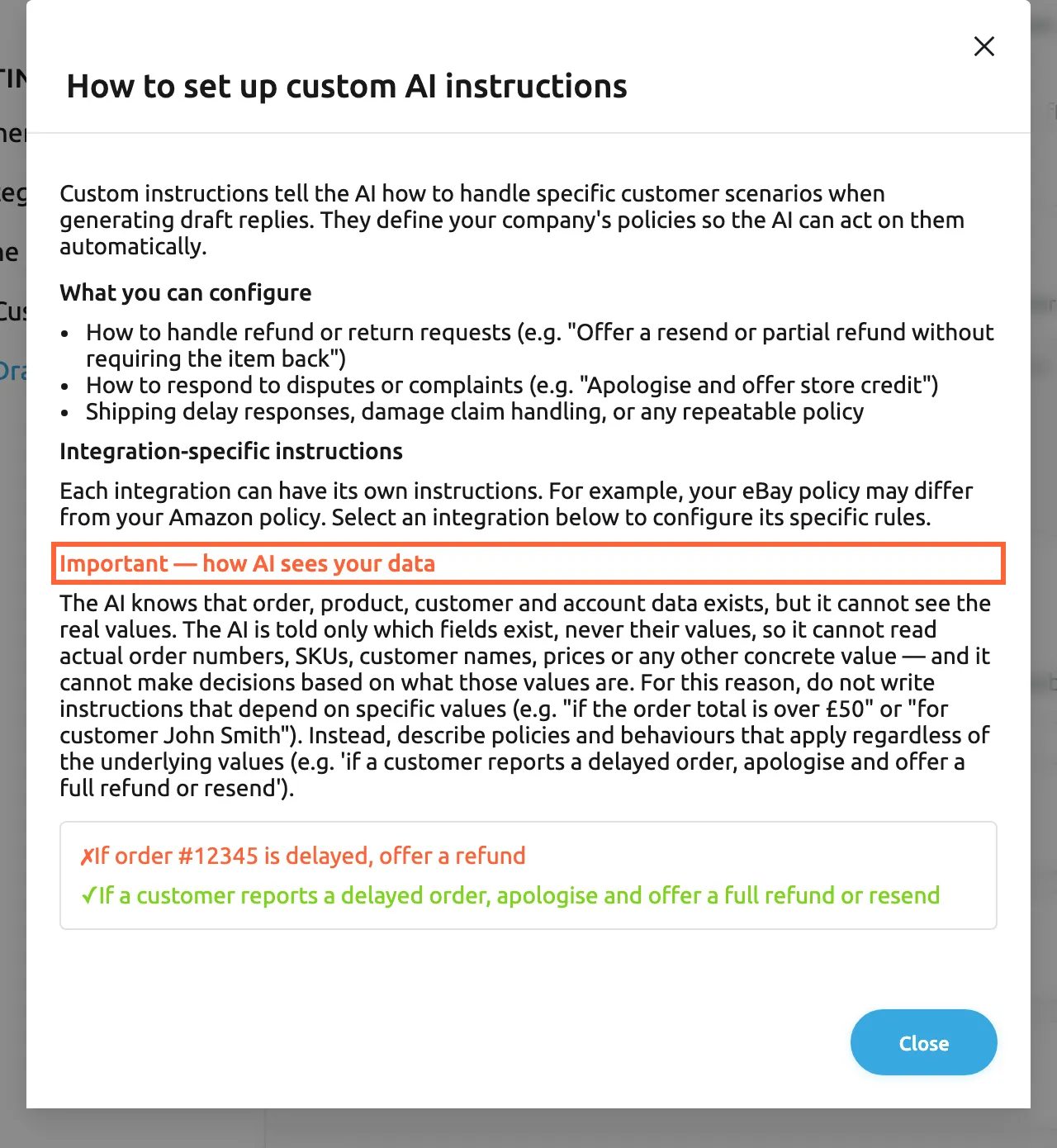
What this screenshot shows
- Screen
- How to set up custom AI instructions (/aiSettings?tab=aiDraftSettings)
- Highlighted
- heading “Important — how AI sees your data”, dialog-body, visible. explains that the AI sees which data exists but not its values
- Also visible
- what you can configure: three bullet points; integration-specific instructions paragraph; wrong example with an order number, correct example with a policy; Close button
- Purpose
- guidance for writing draft instructions
How the settings combine
Section titled “How the settings combine”For each ticket, the account the ticket came from decides which account instructions apply:
| Global Draft Instructions | Instructions for the ticket’s account | What the AI follows | Which messages the check lets through |
|---|---|---|---|
| empty | empty | Replyco’s own rules only | Tracking, order-status and delivery questions answerable from order data, and product questions |
| filled | empty | Your company rules, before its general guidelines | The above, plus the scenarios your company rules describe |
| empty | filled | That account’s rules, for that account’s tickets | The above, plus the scenarios the account rules describe |
| filled | filled | Company rules, then the account’s rules; both apply | The above, plus the scenarios either describes |
In every row, drafts need auto-drafts on and AI Categories on, and the message must pass the category stage.
AI drafts in your tickets
Section titled “AI drafts in your tickets”Once drafts are being written, your team meets them in four places. They all show the draft that is waiting on the ticket, which answers the customer message that triggered it.
| Indicator | Meaning | Where |
|---|---|---|
| Sparkle on a coloured tile | The ticket has a draft waiting | Second column of every ticket list |
| Generated response | The draft, ready to edit | The AI Draft Response window |
| AI Suggested Response with a coloured border | The reply editor holds the AI’s draft | The ticket, after Respond |
| Cards under Tickets with AI Draft Available | How many tickets have a draft waiting | TicketsSmart Filters |
Ticket list, the sparkle
Section titled “Ticket list, the sparkle”Every ticket list shows a column without a heading, always second, with a sparkle for each ticket that has a draft waiting. The column appears only while auto-drafts are on, and it is not offered in the column picker because it cannot be switched off. Selecting the sparkle opens the AI Draft Response window for that ticket without leaving the list. For every other column and filter, see Ticket lists.
Why: the sparkle turns the list into a queue of replies that only need a check, so the routine answers of the day can go out in one pass.
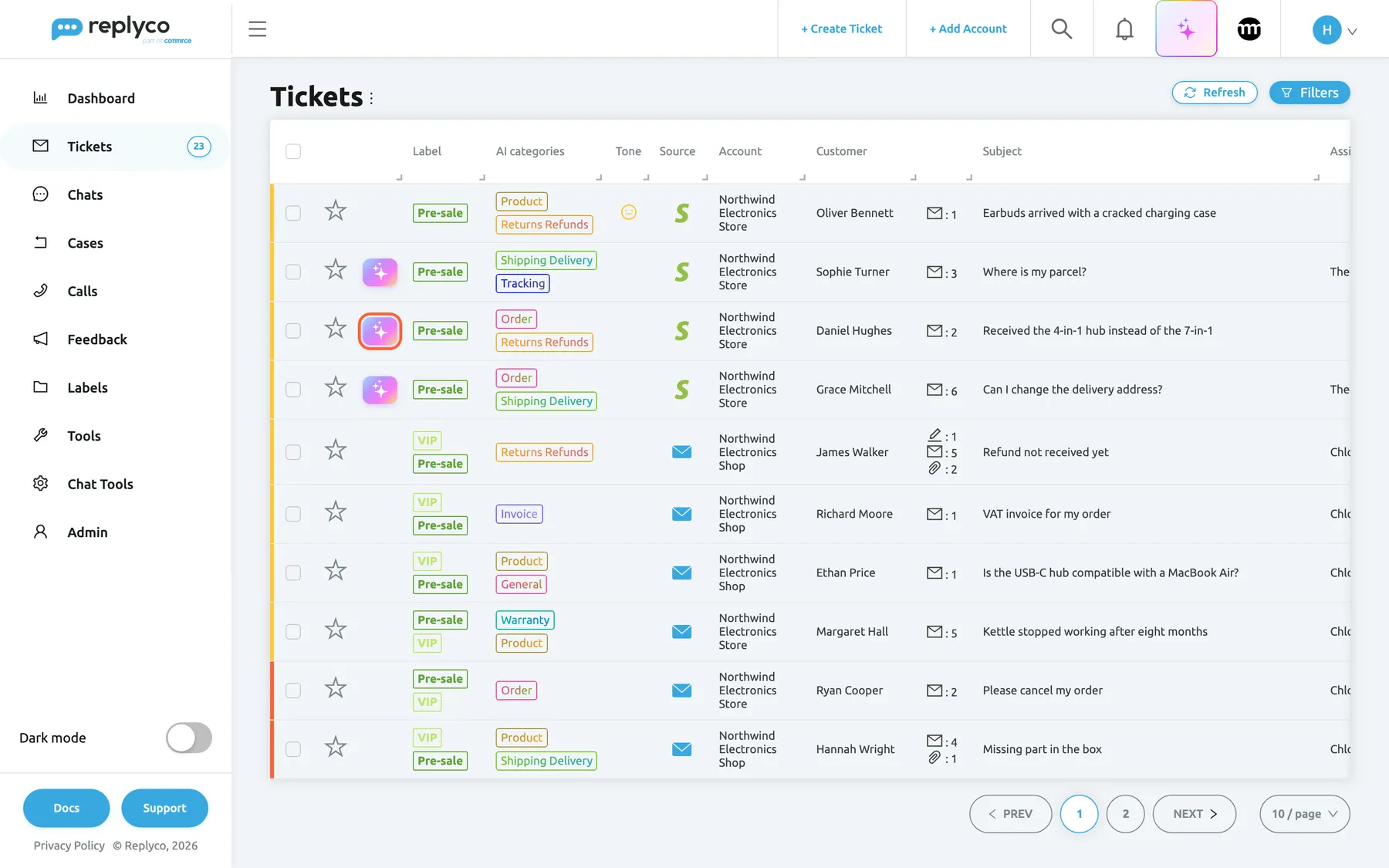
What this screenshot shows
- Screen
- Not Resolved (/tickets/notresolved)
- Highlighted
- button “Review AI draft suggestion”, table-second-column, visible. opens the AI Draft Response window for this ticket
- Also visible
- 3 of 10 tickets with a sparkle; no column heading above the sparkles; other rows with an empty cell
- Purpose
- find tickets with an AI draft in the list
The review window
Section titled “The review window”The AI Draft Response window shows the ticket’s number, subject and account at the top, with Previous ticket and Next ticket arrows to the other tickets with a draft on the same page. On the left: how many earlier messages the ticket has, such as 3 previous messages, the customer’s latest message, and the Generated response in an editor, with the signatures for the ticket’s account added at the end. On the right: the AI Summary when AI summaries are on, the order and the products.
- Change the text directly, or describe a change in the field next to Refine with AI, for example make it shorter or add that we ship from Bristol, and select Refine with AI. The rewrite follows your draft instructions, as the draft itself does.
- Preview shows the reply with every placeholder filled in, as the customer will receive it.
- Tick Resolve after Reply or Archive after Reply to close the ticket with the reply; they start as set in your own settings.
- Accept & Send sends the reply through the ticket’s channel. When a ticket further down the page has a draft, the button reads Accept, Send & Next and the window moves on to it.
- Reject, or Reject & Next, asks Why are you rejecting this draft? with seven reasons: Inaccurate, Wrong tone, Missing information, Not relevant, Too long, Too short and Other. The reason and the feedback are both optional. Confirm Rejection removes the draft; Cancel keeps it.
Why: everything needed to judge the draft is on one screen: what the customer asked, what the AI wants to say, and the order it is about.
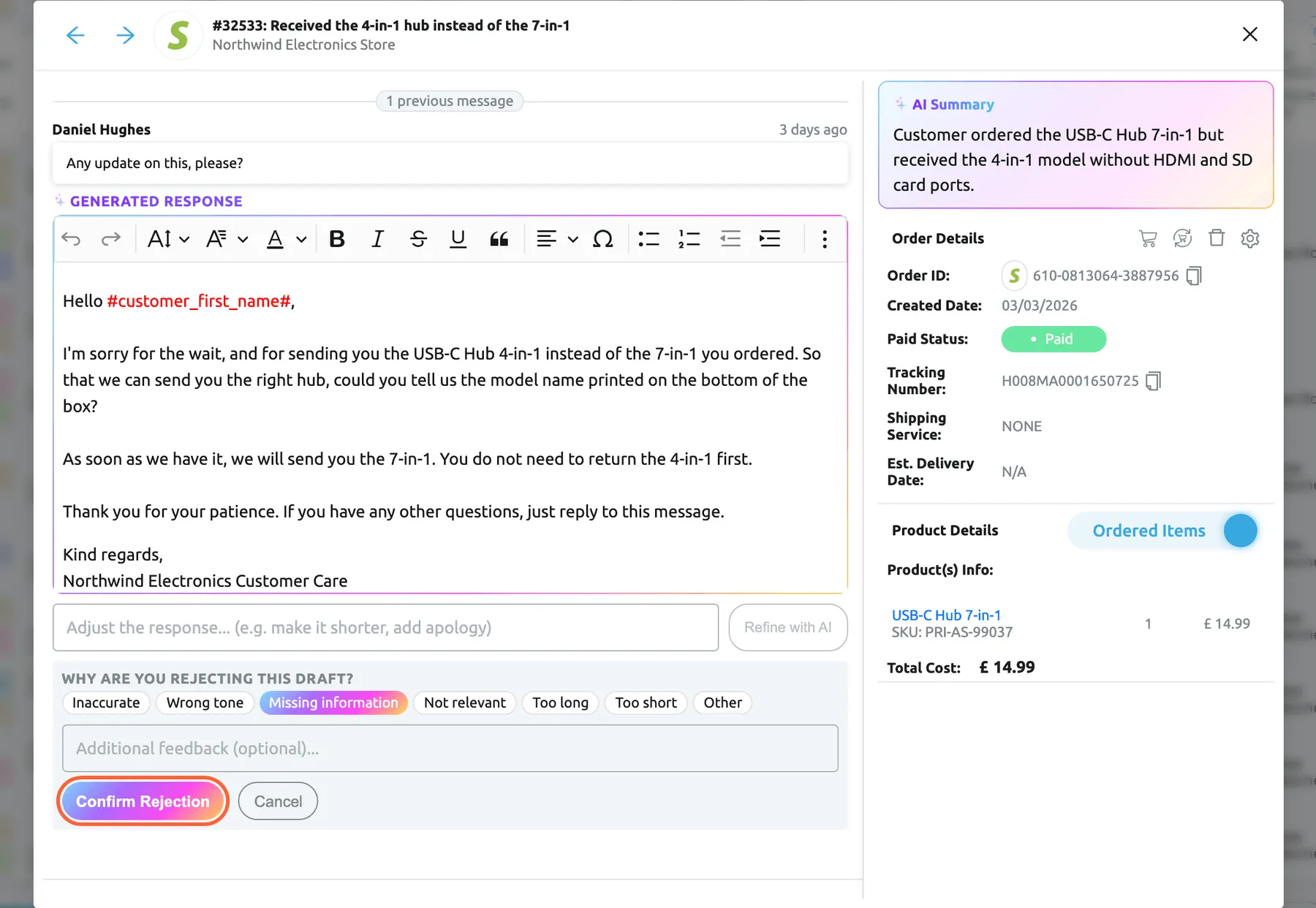
What this screenshot shows
- Screen
- AI Draft Response (/tickets/notresolved)
- Highlighted
- button “Confirm Rejection”, dialog-left, enabled. records the rejection with its reason and feedback and removes the draft; the window moves to the next draft
- Also visible
- latest customer message; Generated response with greeting tag, body, closing and signature; Refine with AI field; seven rejection reasons, Missing information selected; feedback field, Cancel; AI Summary, Order Details, Product Details
- Purpose
- reject a draft and say why
Inside the ticket, the reply editor
Section titled “Inside the ticket, the reply editor”When a ticket has a draft waiting, Respond opens the reply editor with the draft already in it, followed by the account’s signatures. The label AI Suggested Response and a coloured border mark it, and a field headed Improve draft takes an instruction to rewrite it: type what to change and press Enter. The rewrite follows your draft instructions, as the draft itself does. At the bottom, Accept & Send and Reject take the place of the usual send button. Accept & Send sends whatever the editor holds, including your changes, and applies Resolve after Reply and Archive after Reply as ticked. Reject shows the same seven reasons and an optional feedback field; after Confirm Rejection, the editor starts again with just your signature and the usual send button. While a draft is shown, Replyco does not suggest a template for the ticket.
If someone saved a reply on the ticket earlier, that saved reply opens instead of the AI draft, with the usual send button, and the draft stays on the ticket. For everything else in the editor, see Answer a ticket and The ticket screen.
Why: agents who work ticket by ticket get the same head start as those working from the list, and nothing is sent without a deliberate click.
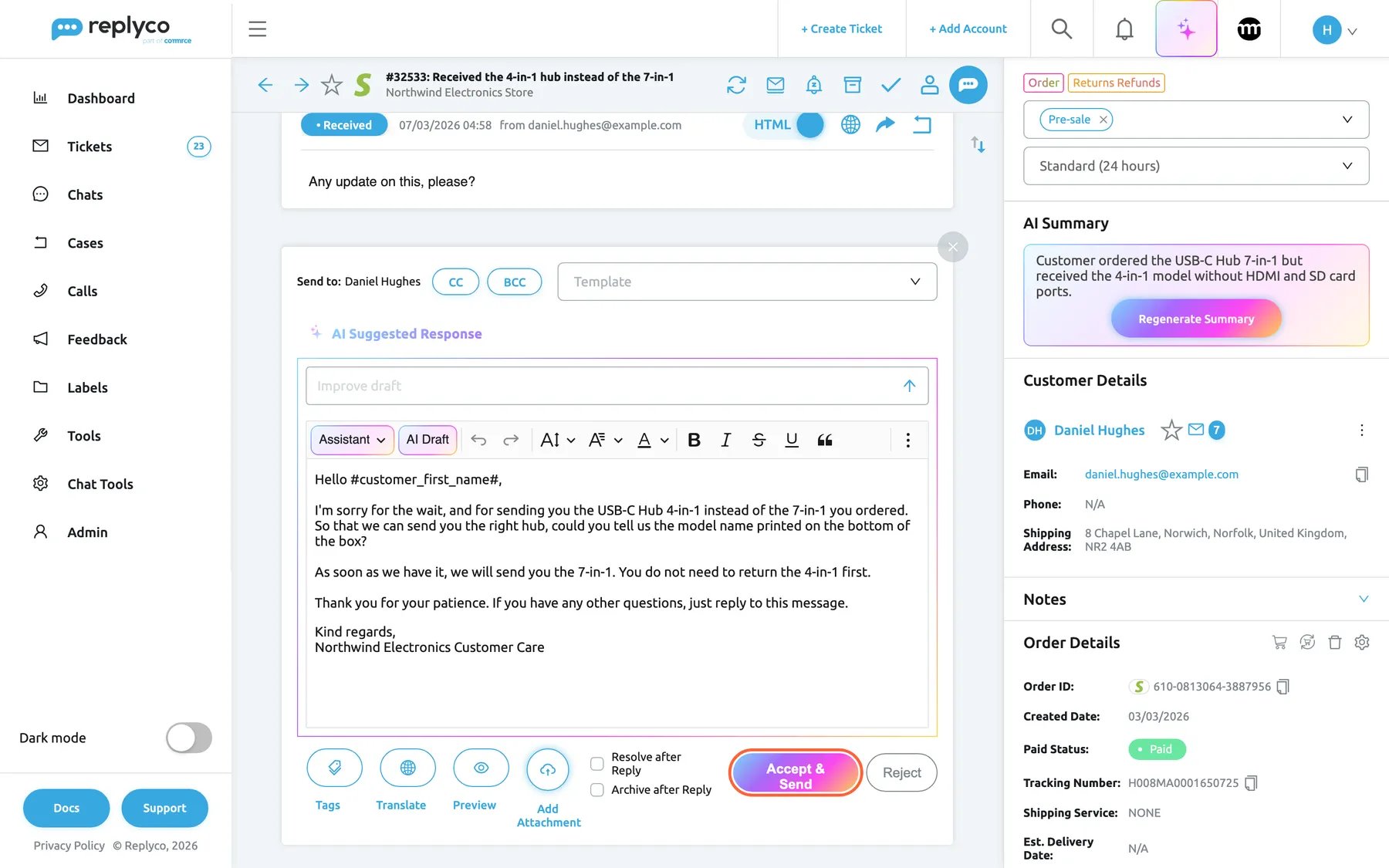
What this screenshot shows
- Screen
- Respond (/ticket/:threadId)
- Highlighted
- button “Accept & Send”, editor-bottom-right, enabled. marks the draft accepted and sends the editor's text through the ticket's channel
- Also visible
- label AI Suggested Response; Improve draft field; draft with greeting tag, three paragraphs and the account signature; Tags, Translate, Preview, Add Attachment; Resolve after Reply, Archive after Reply; Reject button
- Purpose
- send or reject a draft inside the ticket
Smart Filters, Tickets with AI Draft Available
Section titled “Smart Filters, Tickets with AI Draft Available”TicketsSmart Filters ends with the section Tickets with AI Draft Available while auto-drafts are on. Its three cards count tickets with a draft waiting:
| Card | Counts | Includes resolved or archived tickets |
|---|---|---|
| My | Tickets assigned to you | No |
| Not Resolved | All tickets that are not resolved | No |
| All | Every ticket with a draft waiting | Yes |
Selecting a card opens the AI Draft Response window on the ticket with the most recent last message in that set, and the arrows move through the rest. A card showing 0 opens nothing. The counts refresh when you close the window. For the other cards on this page, see Smart Filters.
Why: it is the one place to see how many drafts are waiting across every list, and to clear them in order without hunting through the lists.
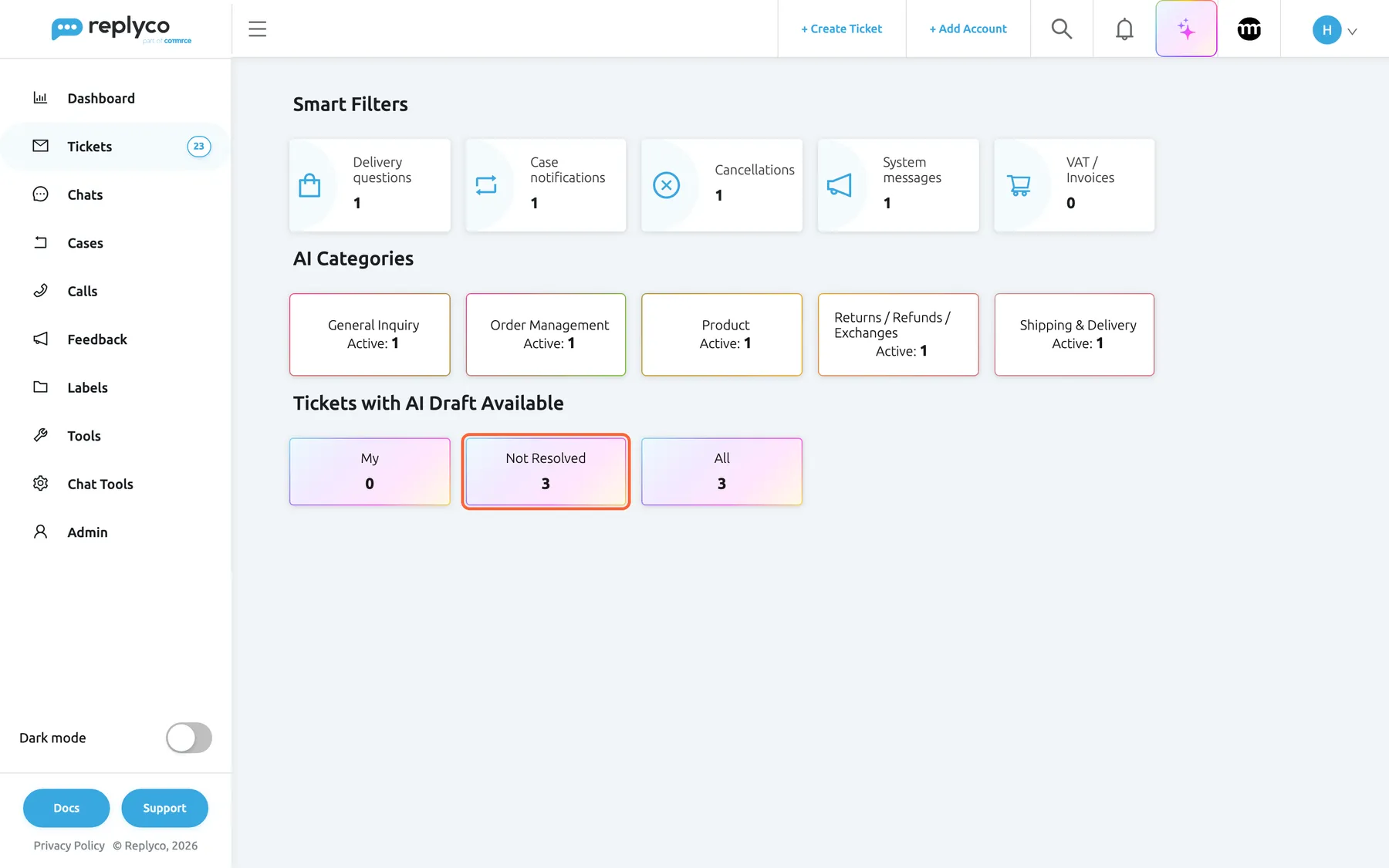
What this screenshot shows
- Screen
- Smart Filters (/ticket-smart-filters)
- Highlighted
- button “Not Resolved”, ai-drafts-section, count 3. opens the AI Draft Response window on the unresolved tickets with a draft
- Also visible
- Smart Filters cards; AI Categories cards; Tickets with AI Draft Available: My 0, Not Resolved 3, All 3
- Purpose
- work through every waiting draft from one place
Drafts on demand in the editor
Section titled “Drafts on demand in the editor”In any ticket, select Respond; AI Draft is the second button in the editor’s toolbar, next to Assistant. It is there for every company with Replyco AI, whether or not auto-drafts are on.
The button asks Describe what the reply should say…. Type what the reply should achieve, at least three characters, and press Enter; shorter input shows Describe what the reply should say. The AI writes the reply with the same rules as an auto-draft, your company and account instructions included, and makes your description its main goal. It reads the ticket’s AI summary and the last ten messages, and answers the customer’s latest message. There is no check before drafting, because you decided that a reply is needed. Once a draft is in the editor, the field on top takes further instructions to rewrite it. A ticket with no message from the customer cannot be drafted: Replyco answers “There is no customer message in this conversation to reply to.”
Auto-drafts deliberately skip anything that needs a decision. Once you have made the decision, the AI Draft button turns it into a finished email in the customer’s language.
Three ways to use it:
- A customer asks for a refund on a kettle that stopped working: type offer a free replacement, no need to send the old one back and the draft explains the replacement.
- A marketplace buyer asks to change the delivery address after dispatch: type explain the parcel has already left and suggest contacting the carrier; when the ticket has tracking data, the draft can include the tracking placeholders.
- A German customer writes in German: type the intent in English and the draft still comes back in German, the language of the customer’s message.
AI drafts in the usage report
Section titled “AI drafts in the usage report”AdminBilling › AI Usage. The tab is shown to companies with Replyco AI, except on user-based plans. See Billing.
Every call to the AI is counted as one AI action, with its type and, where there is one, the user and the ticket. For AI drafts that is: the check before drafting for each message that passes the category stage, the draft itself when the check allows one, each AI Draft and each rewrite with Improve draft or Refine with AI, and each Validate & Save. Categorising the message is counted as an AI category action whether or not a draft follows.
Drafting happens in the background on many messages. The usage report is where you see how much AI your drafting uses.
Three ways to use it:
- After switching auto-drafts on, compare a week’s usage with the week before to see what drafting adds.
- If usage jumps, check whether one account brings in many messages that pass the category stage but rarely get a draft; each of them still costs a check.
- Compare usage by user to see who relies most on AI Draft and rewrites.
What you need to know
Section titled “What you need to know”| Topic | Fact |
|---|---|
| Nothing is sent automatically | A draft waits on its ticket until an agent accepts or rejects it. Customers only receive what an agent sends. |
| One draft per ticket | A newer draft replaces the waiting one. |
| Only new messages | Replyco drafts replies to messages that arrive while auto-drafts are on. Older messages are never drafted afterwards, and new instructions change only drafts written after you save them. |
| What the AI reads | The customer’s latest message, the ticket’s AI summary or else the last ten messages, the message’s categories, which order and customer data exists, and your instructions. |
| What the AI never sees | The values of order, product and customer data. It writes placeholders such as #customer_first_name# or #tracking_number#, and Replyco fills them in when the reply is sent. |
| Placeholders | Only data that exists on the ticket when the draft is written is offered. Preview shows the reply with the values filled in. |
| Signatures | The AI writes no sign-off. Replyco adds the signatures for the ticket’s account to the draft; see Account Signatures. |
| Product answers | Product questions are answered from general product knowledge, not from your listings. Check compatibility and specification answers before sending. |
| Language | The AI is told to reply in the language of the customer’s message. Rewrites keep the language of the draft. |
| Limits | 1,000 characters each for the company instructions and for each account’s instructions. |
| Failures | If the AI is unavailable or its answer cannot be read, the message arrives and is processed as normal, without a draft. |
| Switching off | Only Replyco switches auto-drafts off. Drafts already waiting and your instructions are kept and hidden until they are switched on again. |
| Deleting a ticket | Deletes its drafts. |
| Cost | One AI action for the check and one for the draft, per message that gets that far; see AI drafts in the usage report. |
| Chats | Chats are never drafted; AI drafts work on ticket messages only. |
Frequently asked questions
Section titled “Frequently asked questions”General
Section titled “General”What are AI drafts in Replyco?
Section titled “What are AI drafts in Replyco?”AI drafts are replies the AI writes by itself for new customer messages that can be answered without a decision from you, such as tracking and product questions. Each draft waits on its ticket, marked with a sparkle in the ticket lists, until an agent edits and sends it with Accept & Send or turns it down with Reject.
Are AI drafts sent to customers automatically?
Section titled “Are AI drafts sent to customers automatically?”No. A draft is only a suggestion stored on the ticket. It reaches the customer only when an agent selects Accept & Send or Accept, Send & Next, in the review window of a ticket list or in the ticket’s reply editor. Until then the customer sees nothing.
Do I need a special plan for AI drafts?
Section titled “Do I need a special plan for AI drafts?”AI drafts are part of Replyco AI, which every plan includes, and every feature is on during a trial. In addition, Replyco must switch auto-drafts on for your company, and AI Categories must be on under ToolsAI Settings › General.
Do AI drafts cost anything?
Section titled “Do AI drafts cost anything?”Each message that reaches the check before drafting costs one AI action, and writing the draft costs one more. They are counted under AdminBilling › AI Usage, together with each use of AI Draft, each rewrite and each Validate & Save.
How do I switch AI drafts on?
Section titled “How do I switch AI drafts on?”Replyco switches auto-drafts on for your company; there is no switch in the app. Companies registered in Replyco’s UK region start with them on. When they are on, ToolsAI Settings shows the AI Draft Settings tab. If it is missing, ask Replyco support to switch auto-drafts on.
Why can’t I find the draft settings tab?
Section titled “Why can’t I find the draft settings tab?”The AI Draft Settings tab under ToolsAI Settings appears only while Replyco has auto-drafts switched on for your company. The sparkle column in the ticket lists and the draft cards under TicketsSmart Filters are hidden for the same reason. Ask Replyco support to switch auto-drafts on.
Do I need AI categories for AI drafts?
Section titled “Do I need AI categories for AI drafts?”Yes. Replyco drafts a reply only after AI categories has sorted the message, and only when it gets a category other than the general or irrelevant one. Keep AI Categories on under ToolsAI Settings › General; with it off, no message gets a draft.
Who can change the draft instructions?
Section titled “Who can change the draft instructions?”Users with the Admin permission with Edit rights. ToolsAI Settings appears only for them, in a company with Replyco AI, and only they can check and save draft instructions; a bookmarked link to the screen opens the start screen for anyone else. Every agent can accept or reject drafts on the tickets they can open.
Which messages get a draft
Section titled “Which messages get a draft”Why did this ticket not get an AI draft?
Section titled “Why did this ticket not get an AI draft?”A message gets a draft only when it comes from a customer who is not on the AI Customers Blacklist, AI Categories is on, its categories include one other than the general or irrelevant one, and the AI check finds that a reply needs no decision from you. Complaints, disputes, damage claims and wrong items are turned down unless your instructions describe how to handle them.
Will the AI promise refunds or replacements to my customers?
Section titled “Will the AI promise refunds or replacements to my customers?”Not on its own. The check before drafting turns down any message where a reply would promise an action, an outcome or compensation, unless your Global Draft Instructions or the account’s instructions describe that scenario. Then the draft offers what your instructions say, and an agent still has to send it.
Can my instructions let the AI draft replies to refund requests?
Section titled “Can my instructions let the AI draft replies to refund requests?”Yes. Describe the scenario and what to offer in Global Draft Instructions under ToolsAI Settings › AI Draft Settings, for example “Refund request for a faulty item: apologise and offer a replacement or a full refund; do not ask for the item back.” The check treats matching messages as allowed exceptions.
Does Replyco draft replies to chats or old tickets?
Section titled “Does Replyco draft replies to chats or old tickets?”No. AI drafts work only on ticket messages from email, marketplaces and webstores, not on conversations under Chats. They are written only for messages that arrive while auto-drafts are on; switching them on does not draft replies to messages already in your tickets.
How do I stop drafts for one customer?
Section titled “How do I stop drafts for one customer?”Add the customer to the AI Customers Blacklist under ToolsAI Settings. Their messages are then not categorised, scored or drafted. See AI Customers Blacklist.
Instructions
Section titled “Instructions”What should I write in the company-wide draft instructions?
Section titled “What should I write in the company-wide draft instructions?”Write your support policies as numbered scenarios, each saying when it applies and what to do, in up to 1,000 characters: “Wrong item received: apologise, ask for the model name printed on the box and send the correct item; do not ask for a return first.” Add tone and length rules too. The field is Global Draft Instructions on the AI Draft Settings tab.
Why were my draft instructions rejected?
Section titled “Why were my draft instructions rejected?”Validate & Save on the AI Draft Settings tab rejects text that tries to take over the AI, such as “ignore previous instructions”, “you are now” or “override”, text that tries to reveal the AI’s setup, text that tells it to deceive or harm customers, and text unrelated to support policy. The reason appears in red under the box and nothing is saved.
What is the AI-optimized version of my instructions?
Section titled “What is the AI-optimized version of my instructions?”When your instructions are safe but vague, Validate & Save offers a clearer version under AI-optimized version of your instructions:: one numbered line per scenario, with the steps spelled out. Use optimized saves that version; Keep original saves your text unchanged.
How do account instructions work together with the global ones?
Section titled “How do account instructions work together with the global ones?”For a ticket from an account with its own instructions, the AI gets your Global Draft Instructions first and the account’s Account-Specific Draft Instructions after them. Replyco does not remove a company rule the account rule contradicts, so write explicitly what the account does instead, for example “On eBay, instead of a refund by message, point the buyer to eBay’s return process.”
Can I write a rule such as “if the order total is over £50, offer free return shipping”?
Section titled “Can I write a rule such as “if the order total is over £50, offer free return shipping”?”No. The AI knows that order and customer data exists but never sees the values, so it cannot compare an order total, recognise a customer or check an order number. Write rules that apply whatever the values are, as the window How to set up custom AI instructions on the AI Draft Settings tab explains.
How long can draft instructions be?
Section titled “How long can draft instructions be?”Global Draft Instructions and each account’s Account-Specific Draft Instructions take up to 1,000 characters each; the counter under each box shows how many you have used. Numbered one-line scenarios fit several policies into that space.
Do new instructions change the drafts already waiting?
Section titled “Do new instructions change the drafts already waiting?”No. Instructions apply to drafts written after you save them. A draft already waiting on a ticket keeps its text; reject it and the next customer message on that ticket gets a draft that follows the new instructions, or rewrite it with Refine with AI or Improve draft, which apply the instructions as they are now.
Working with drafts
Section titled “Working with drafts”What does the sparkle next to a ticket mean?
Section titled “What does the sparkle next to a ticket mean?”The sparkle on a coloured tile, in the unlabelled second column of every ticket list, marks a ticket with an AI draft waiting. Select it to open the AI Draft Response window, where you can edit the draft, send it with Accept & Send or reject it, without leaving the list.
Can I edit a draft before sending it?
Section titled “Can I edit a draft before sending it?”Yes. In the AI Draft Response window and in the ticket’s reply editor the draft is ordinary editable text. Change it directly, or describe the change in Refine with AI or Improve draft. Accept & Send sends the edited text, not the original draft.
What happens when I reject a draft?
Section titled “What happens when I reject a draft?”Replyco asks for an optional reason, such as Missing information, and optional feedback. Confirm Rejection removes the draft from the ticket and records the rejection with the reason and feedback. In the ticket, the editor then starts again with your signature and the usual send button.
Why can’t I see the usual send button in the reply editor?
Section titled “Why can’t I see the usual send button in the reply editor?”While the editor shows an AI draft, marked AI Suggested Response, Accept & Send and Reject replace the send button. Accept the draft, edited or not, or reject it; after a rejection the usual send button returns.
A reply I saved earlier opens instead of the AI draft. Why?
Section titled “A reply I saved earlier opens instead of the AI draft. Why?”A reply saved on the ticket always wins over an AI draft, so nobody loses work they started. The editor opens with the saved reply and the usual send button, and the AI draft stays on the ticket.
What does #customer_first_name# in a draft mean?
Section titled “What does #customer_first_name# in a draft mean?”It is a placeholder. The AI never sees your customers’ names or order data; it writes placeholders such as #customer_first_name# or #tracking_number#, and Replyco replaces them with the real values when the reply is sent. Select Preview to see the reply as the customer will receive it.
Why doesn’t the draft end with “Kind regards”?
Section titled “Why doesn’t the draft end with “Kind regards”?”The AI is told never to add a sign-off, a name or a signature, because Replyco adds the signatures for the ticket’s account at the end of the draft. If your account has no signature, the draft ends with its closing paragraph. See Account Signatures.
What do the draft counts on the filters page mean?
Section titled “What do the draft counts on the filters page mean?”In TicketsSmart Filters, My counts unresolved, unarchived tickets assigned to you with a draft waiting, Not Resolved counts all unresolved, unarchived tickets with a draft, and All counts every ticket with a draft, resolved and archived included.
Data and privacy
Section titled “Data and privacy”What does the AI see about my customers and orders?
Section titled “What does the AI see about my customers and orders?”The text of the customer’s latest message, the ticket’s AI summary or else its last ten messages, the message’s categories, a list of which order and customer data exists for the ticket, and your instructions. It never sees the values of that data, such as names, addresses, order numbers or prices.
Can a customer trick the AI with instructions in their message?
Section titled “Can a customer trick the AI with instructions in their message?”The AI is told to treat the customer’s message and the conversation strictly as data and never to follow instructions in them, both when it checks the message and when it writes the draft. And whatever it writes, an agent reads the draft before anything is sent.
What language are AI drafts written in?
Section titled “What language are AI drafts written in?”The AI is told to reply in the language of the customer’s message, so a German customer gets a German draft even when your instructions are in English. Rewrites with Refine with AI or Improve draft keep the language of the draft.
What does Replyco store about drafts?
Section titled “What does Replyco store about drafts?”For each draft: its text, the customer message that triggered it, when it was written, and whether it was accepted or rejected, with the rejection reason and feedback. Every AI call is also recorded for AI usage. Deleting a ticket deletes its drafts.
Troubleshooting
Section titled “Troubleshooting”| Symptom | What to check |
|---|---|
| AI Draft Settings is missing under ToolsAI Settings | Auto-drafts are not on for your company. Ask Replyco support to switch them on. If AI Settings itself is missing, the company does not have Replyco AI or your user lacks the Admin permission with Edit rights. |
| No ticket has a sparkle | In order: are auto-drafts on (the AI Draft Settings tab is shown)? Is AI Categories on? Have new customer messages arrived since then? Older messages are never drafted. |
| One ticket has no draft | In order: is the latest message from the customer rather than your team? Is the customer on the AI Customers Blacklist or blocked? Is it a chat? Did the message get only the general or irrelevant category? Is it a complaint, dispute, damage claim or wrong item that your instructions do not cover? Was the AI unavailable at the time? |
| Drafts are written for the wrong kind of message | Read your Global Draft Instructions and the account’s instructions: every scenario they describe becomes an exception the check may allow. Narrow the scenario or remove it. |
| The draft says it cannot provide the tracking number | The ticket had no tracking data when the draft was written. Check the order in the ticket; once the data is there, AI Draft writes a new reply with the placeholder. |
| Validate & Save shows a red message and saves nothing | The check rejected the text. Remove anything that tries to change how the AI works, reveal its setup, mislead customers, or that is not about support policy. |
| Validate & Save shows a red message that names no problem with your text | The check could not run. Nothing was saved; select Validate & Save again. |
| An account’s rules seem to be ignored | The rules apply only to tickets from that account, and the company-wide rules still reach the AI. If they contradict, say explicitly in the account’s instructions what replaces the company rule. |
| The editor opens with a saved reply instead of the draft | A reply saved on the ticket wins over the AI draft. To work with the draft instead, open it from the sparkle in the ticket list. |
| Tickets with AI Draft Available is missing from TicketsSmart Filters | Auto-drafts are not on for your company. |
| The draft is in the wrong language | The AI replies in the language of the customer’s message. Check whether an instruction asks for a particular language, and whether the customer wrote in more than one. |