

Account Activity
The Account Activity tab lists the sign-ins to your Replyco user: when each one happened, from which IP address and in which browser. Use it to check that every sign-in was you, for example after you have used a shared computer or received an unexpected security email. Open it from the user menu at the right end of the top bar: Account Settings, then Account Activity under Security.
Availability: every user, on every plan. The tab shows your own sign-ins only; nobody else’s appear, and colleagues cannot see yours here.
What you can do here
Section titled “What you can do here”- Check your recent sign-ins. One row per sign-in, newest first, ten per page. Check your recent sign-ins.
- Sort and page through the history. Reverse the order by date and go back to older pages. Sort and page through the list.
- Hand the details to support. Copy the full browser details of one sign-in with a single click. Copy the browser details of a sign-in.
- Shut out a sign-in that was not you. Change your password with every session ended, and reset your authenticator if needed. Act on a sign-in you do not recognise · Account Settings.
The screen at a glance
Section titled “The screen at a glance”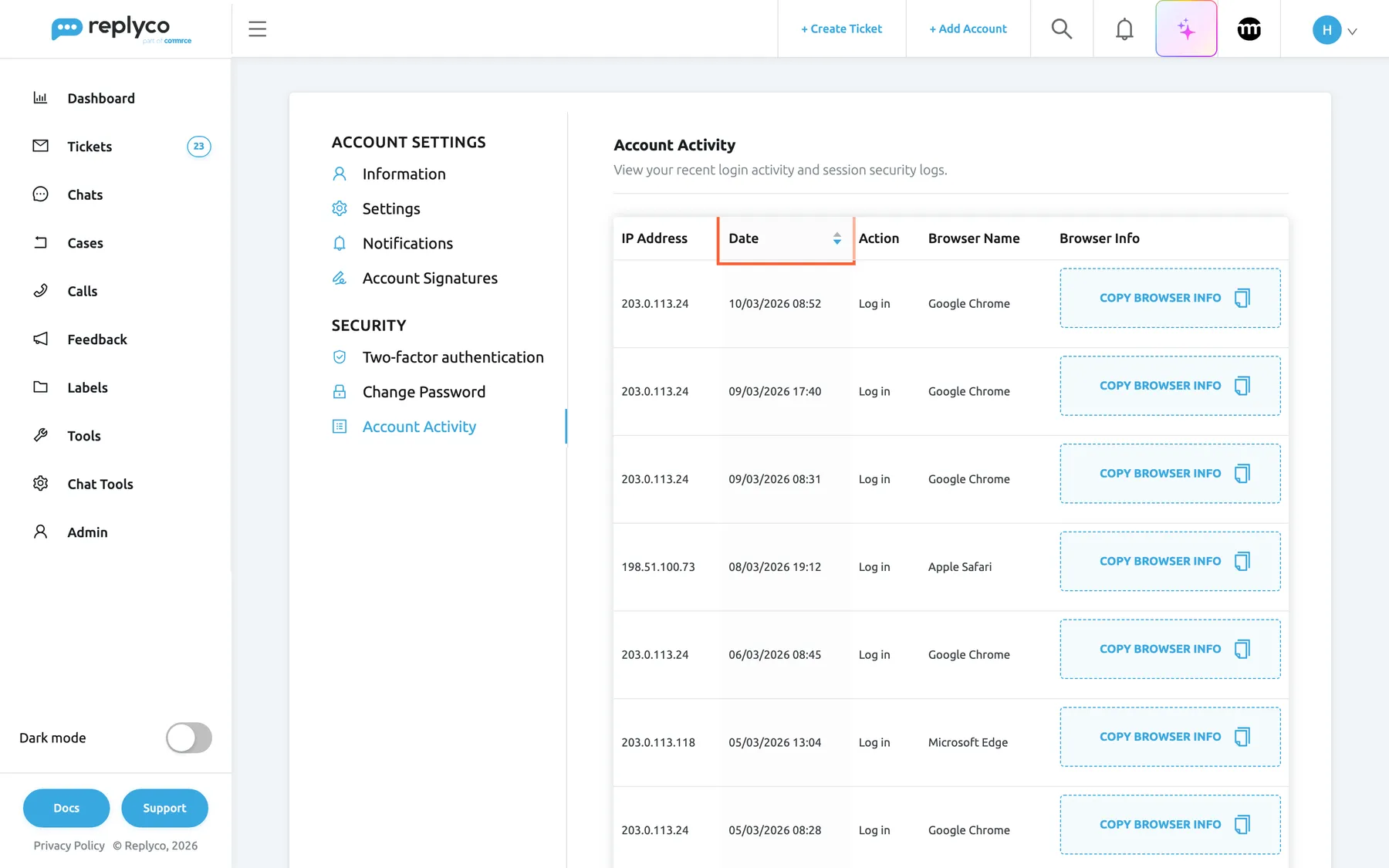
What this screenshot shows
- Screen
- Account Activity (/user-settings?tab=userActivities)
- Highlighted
- columnheader “Date”, table-header, sorted newest first. reverses the order of the list
- Also visible
- columns IP Address, Date, Action, Browser Name, Browser Info; sign-ins from 203.0.113.24 (Chrome), 198.51.100.73 (Safari), 203.0.113.118 (Edge); Copy Browser Info on every row
- Purpose
- the screen at a glance
| Region | What it shows | What you do there |
|---|---|---|
| Tab header, top | Account Activity and View your recent login activity and session security logs. | Nothing; it tells you where you are |
| Column headers | IP Address, Date with sort arrows, Action, Browser Name, Browser Info | Sort by date |
| Rows | One sign-in each, newest first | Read who signed in, when and how |
| Copy Browser Info, at the end of each row | A button | Copy that sign-in’s browser details |
| Page buttons, under the table | The pages of the history with previous and next | Go to older sign-ins |
Check your recent sign-ins
Section titled “Check your recent sign-ins”Each completed sign-in to your user adds a row: signing in with your password and code, and signing in through comrce Hub. The row shows:
- IP Address: the internet address the sign-in came from, as the network you were on presents itself to the outside world. At the office it is usually the same address every day; at home or on a mobile connection it is another one.
- Date: the date and time of the sign-in, in your computer’s time zone.
- Action: what happened, in the language of your screen; see The actions.
- Browser Name: the browser, recognised from the browser’s own description: Google Chrome, Microsoft Edge, Mozilla Firefox, Apple Safari, Opera, Internet Explorer, or Unknown Browser for anything else.
Example: Henry Clarke of Northwind Electronics signs in every weekday at about 08:30 from the office, 203.0.113.24, in Google Chrome. His list also shows 198.51.100.73 in Apple Safari on Sunday evening, from home, and 203.0.113.118 in Microsoft Edge on Thursday afternoon, when he used the meeting room computer. Every row is his, so there is nothing to do.
Signing out adds no row; the list is about getting in. For how long a session lasts and what ends it, see Sign in.
The actions
Section titled “The actions”| Action | Meaning |
|---|---|
| Log in | You, or someone with your password and code, signed in to your user; sign-ins recorded by earlier versions of Replyco show the same action |
| Terminated Sessions | On a plan billed per user, a sign-in on another computer ended your other sessions; the other browser showed Your session has been ended as your account was used to log in on another device. If this wasn’t you, please contact Replyco Support immediately for further assistance. |
Sort and page through the list
Section titled “Sort and page through the list”The list opens with the newest sign-in at the top. Select the Date header to show the oldest first; select it again to go back. The other columns cannot be sorted.
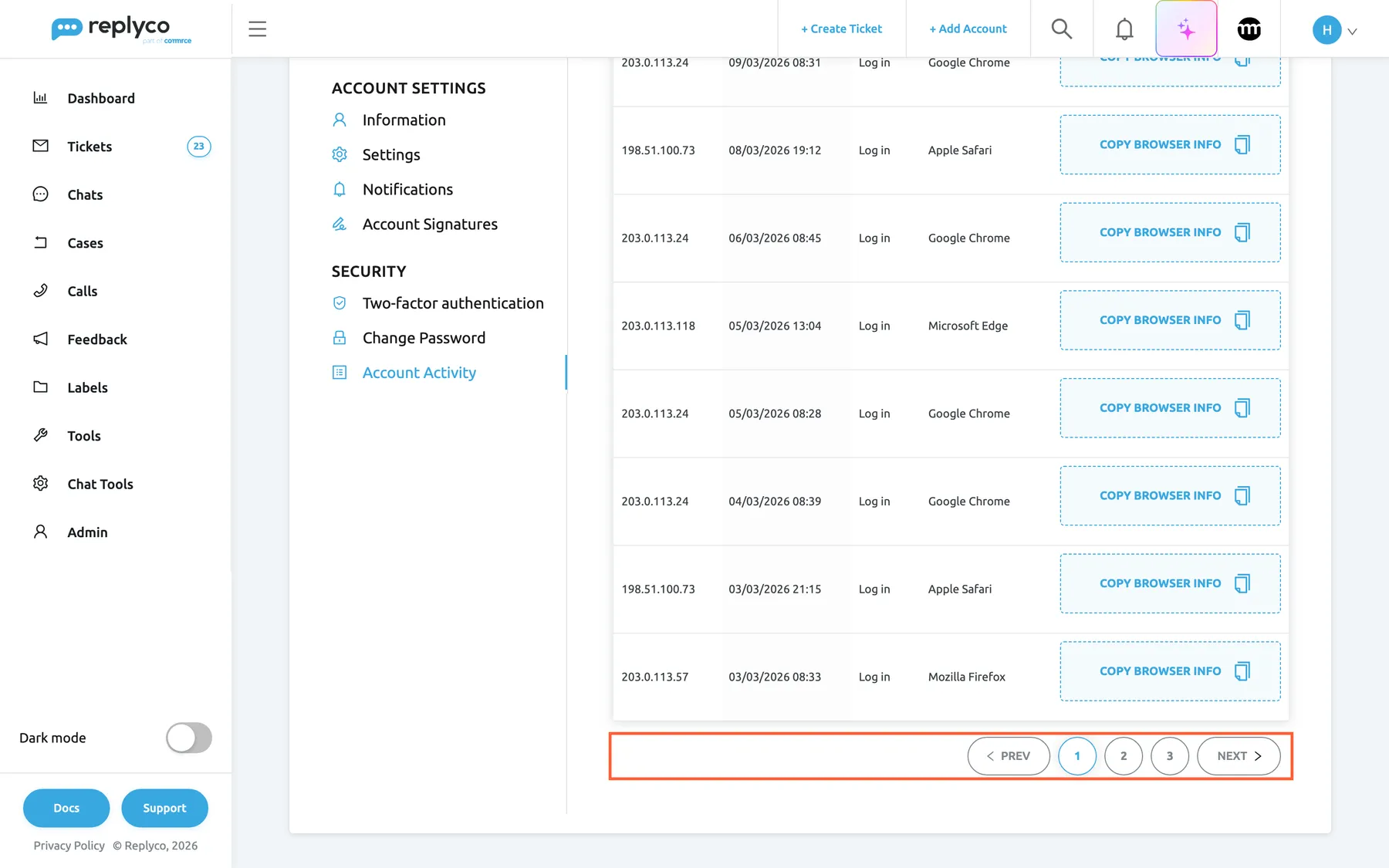
What this screenshot shows
- Screen
- Account Activity (/user-settings?tab=userActivities)
- Highlighted
- navigation “”, below-table, page 1 of 3. shows older sign-ins
- Also visible
- rows from 203.0.113.24, 198.51.100.73 and 203.0.113.57; Mozilla Firefox row; page numbers 1 2 3
- Purpose
- page through the history
Ten sign-ins fit on a page. The buttons under the table go to older pages; there is no choice of page size. Replyco keeps the whole history of your user, so the first page shows the last ten sign-ins and older ones are a few pages back.
Copy the browser details of a sign-in
Section titled “Copy the browser details of a sign-in”Copy Browser Info at the end of a row copies the full details the browser gave when it signed in: its name and version, the complete browser description, the operating system, the browser’s language, whether cookies were on, and the type of connection. For a moment the button reads Copied to Clipboard. Paste the details into your message when you ask support about a sign-in; they are more exact than the name in Browser Name.
Act on a sign-in you do not recognise
Section titled “Act on a sign-in you do not recognise”A row with an IP address, a time or a browser you cannot explain may mean someone else knows your password and has your codes. Act at once:
-
Open Account Settings, select Change Password and choose a new password.
-
Tick Terminate All Sessions before you select the button. Replyco signs out every browser and device using your user, including this one.
-
If the codes could come from someone else’s phone, open Two-factor authentication after signing in again and select Reset 2FA Access; see Two-factor authentication.
-
Tell an administrator of your company, who can block your user in Users while you sort it out.
Afterwards, check this tab for a few days: every new row should be yours. For the password change, see Account Settings.
Every control, explained
Section titled “Every control, explained”Columns
Section titled “Columns”| Column | What it shows | Why |
|---|---|---|
| IP Address | The internet address the sign-in came from | Tell your office, home and unknown places apart |
| Date | Date and time of the sign-in, in your time zone; sortable | See when it happened |
| Action | Log in or Terminated Sessions | Know what the row records |
| Browser Name | The browser recognised from its description | Spot a browser you never use |
| Browser Info | The Copy Browser Info button | Copy the full details for support |
Sorting by Date
Section titled “Sorting by Date”The arrows in the Date column header.
Newest first when the tab opens; selecting the header switches between oldest first and newest first.
Find the first sign-in of a period, for example the one after a password change.
Copy Browser Info
Section titled “Copy Browser Info”The last cell of every row.
Copies the browser details recorded at that sign-in to your clipboard and shows Copied to Clipboard for a moment.
Support can compare the exact browser and system with yours.
Page buttons
Section titled “Page buttons”Under the table.
Ten sign-ins per page; the numbers and the previous and next buttons move through the history. The page size is fixed.
Reach older sign-ins without a long page.
Who sees what
Section titled “Who sees what”| Part | Shown when |
|---|---|
| The Account Activity tab | Always, for every user, on every plan |
| The rows | Only the sign-ins of the user who is signed in |
| Terminated Sessions rows | Plans billed per user, when a sign-in on another computer ended your sessions |
What you need to know
Section titled “What you need to know”| Topic | Fact |
|---|---|
| Whose sign-ins | Only your own; each user sees their own history |
| What counts | Completed sign-ins; signing out adds no row |
| Order and size | Newest first, ten per page, sortable by date only |
| Time zone | Dates and times follow your computer’s time zone |
| Location | Not shown; the IP address is the only network detail |
| Language | The action is shown in the language of your screen, like the rest of the tab |
| Keeping | The history is kept; you cannot delete rows |
| Browser names | Google Chrome, Microsoft Edge, Mozilla Firefox, Apple Safari, Opera, Internet Explorer, Unknown Browser |
Frequently asked questions
Section titled “Frequently asked questions”Reading the list
Section titled “Reading the list”Where can I see when and where my account was used?
Section titled “Where can I see when and where my account was used?”Open Account Settings from the user menu and select Account Activity under Security. The table lists every sign-in to your user with the date and time, the IP address and the browser, the newest first and ten per page.
What does Terminated Sessions mean?
Section titled “What does Terminated Sessions mean?”On plans billed per user, one user can be signed in on one computer at a time. When your user signs in on another computer, Replyco ends the earlier session and records a Terminated Sessions row on the Account Activity tab; the earlier browser shows Your session has been ended as your account was used to log in on another device. If this wasn’t you, please contact Replyco Support immediately for further assistance.. See Sign in.
Is the action shown in my language?
Section titled “Is the action shown in my language?”Yes. The Action column of the Account Activity tab shows Log in and Terminated Sessions in the language of your screen, like its column headers and buttons, including sign-ins that were recorded before you changed language.
Does the list show where I was?
Section titled “Does the list show where I was?”No. The Account Activity tab shows the IP address, the date and time and the browser of each sign-in, but no town or country. To place an unknown IP address, compare it with the addresses of your office and home in earlier rows.
Why does the browser read Unknown Browser?
Section titled “Why does the browser read Unknown Browser?”Replyco recognises Google Chrome, Microsoft Edge, Mozilla Firefox, Apple Safari, Opera and Internet Explorer from the browser’s own description; anything else reads Unknown Browser in Browser Name. Select Copy Browser Info on the row to see the full description the browser gave.
Why do I see sign-ins from two IP addresses on the same day?
Section titled “Why do I see sign-ins from two IP addresses on the same day?”The IP address is the address of the network you were on. Moving from the office to a mobile connection, or using a VPN, changes it. Check the time and the browser of both rows on the Account Activity tab; if both match your day, both are yours.
Security
Section titled “Security”I see a sign-in that was not me. What do I do?
Section titled “I see a sign-in that was not me. What do I do?”Change your password at once on the Change Password tab of Account Settings and tick Terminate All Sessions, which signs out every browser and device using your user. If your authenticator codes may be known to someone else, reset two-factor authentication, and tell an administrator of your company.
Can my administrator see my sign-ins?
Section titled “Can my administrator see my sign-ins?”Not on this tab: Account Activity shows each user only their own sign-ins. Administrators manage users, and can block one, in Users. Replyco support can look up the sign-ins of your user when you ask about a specific one.
Does signing out appear in the list?
Section titled “Does signing out appear in the list?”No. The Account Activity tab lists sign-ins, not sign-outs, so a row tells you when someone got in, not when they left. To end sessions you do not trust, change your password with Terminate All Sessions ticked; see Account Settings.
Can I delete entries from my activity?
Section titled “Can I delete entries from my activity?”No. The history of your user is kept, and the Account Activity tab has no control to remove rows. That is what makes it useful as a record: a sign-in by someone else cannot be hidden from it.
Details for support
Section titled “Details for support”What do I send support about a strange sign-in?
Section titled “What do I send support about a strange sign-in?”Send the date and time and the IP address from the row, and paste the details you get with Copy Browser Info on that row. Say whether you recognise the network and the browser. See Help and support.
What does Copy Browser Info copy?
Section titled “What does Copy Browser Info copy?”The details the browser gave at that sign-in: its name and version, its full description, the operating system, the browser’s language, whether cookies were on and the type of connection. The button on the Account Activity tab reads Copied to Clipboard for a moment once they are on your clipboard.
Troubleshooting
Section titled “Troubleshooting”| Symptom | What to check |
|---|---|
| A sign-in you do not recognise | Time and browser against your own day; then change the password with Terminate All Sessions and tell an administrator |
| A Terminated Sessions row you did not expect | Whether you or a colleague sharing your user signed in on another computer; give every colleague their own user |
| An unfamiliar IP address at a time you were working | Mobile connection, VPN or a different network; the browser matches yours |
| Unknown Browser | Copy the row’s browser details with Copy Browser Info to see the full description |
| A sign-in is older than the first page | Use the page buttons under the table, or sort by Date with the oldest first |