

AI Customers Blacklist
The AI Customers Blacklist tab lists the senders whose messages Replyco’s AI leaves alone: marketplace notification addresses, a supplier who writes to your support mailbox, a customer whose messages you want handled without AI. Messages from a listed sender get no AI category, and therefore no automatic AI draft, no tone score and no auto-response. They are still summarised, and your message rules still run for them. Open the tab from ToolsAI Settings and select AI Customers Blacklist.
Availability: the tab is part of Replyco AI, which every plan includes, and every feature is on during a trial. ToolsAI Settings appears for users with the Admin permission with edit rights, and the list applies to the whole company. See What each plan includes and User permissions and roles.
What you can do here
Section titled “What you can do here”- See which senders the AI leaves alone. The list shows every entry sorted alphabetically: full addresses, the beginnings of addresses and marketplace customer IDs. Check who the AI leaves alone.
- Know what a listed sender still gets. The list stops AI categories, automatic AI drafts, tone scores and auto-responses, not summaries or rules. Understand what the list stops · AI categories · AI drafts · Message tone analysis · Auto-responses for tickets.
- Add a sender. The form takes an address, the start of one or a marketplace customer ID. Add a customer.
- Change, copy or delete an entry. The pencil, copy and bin icons on each entry open the same form or ask before deleting. Change, copy or delete an entry.
The screen at a glance
Section titled “The screen at a glance”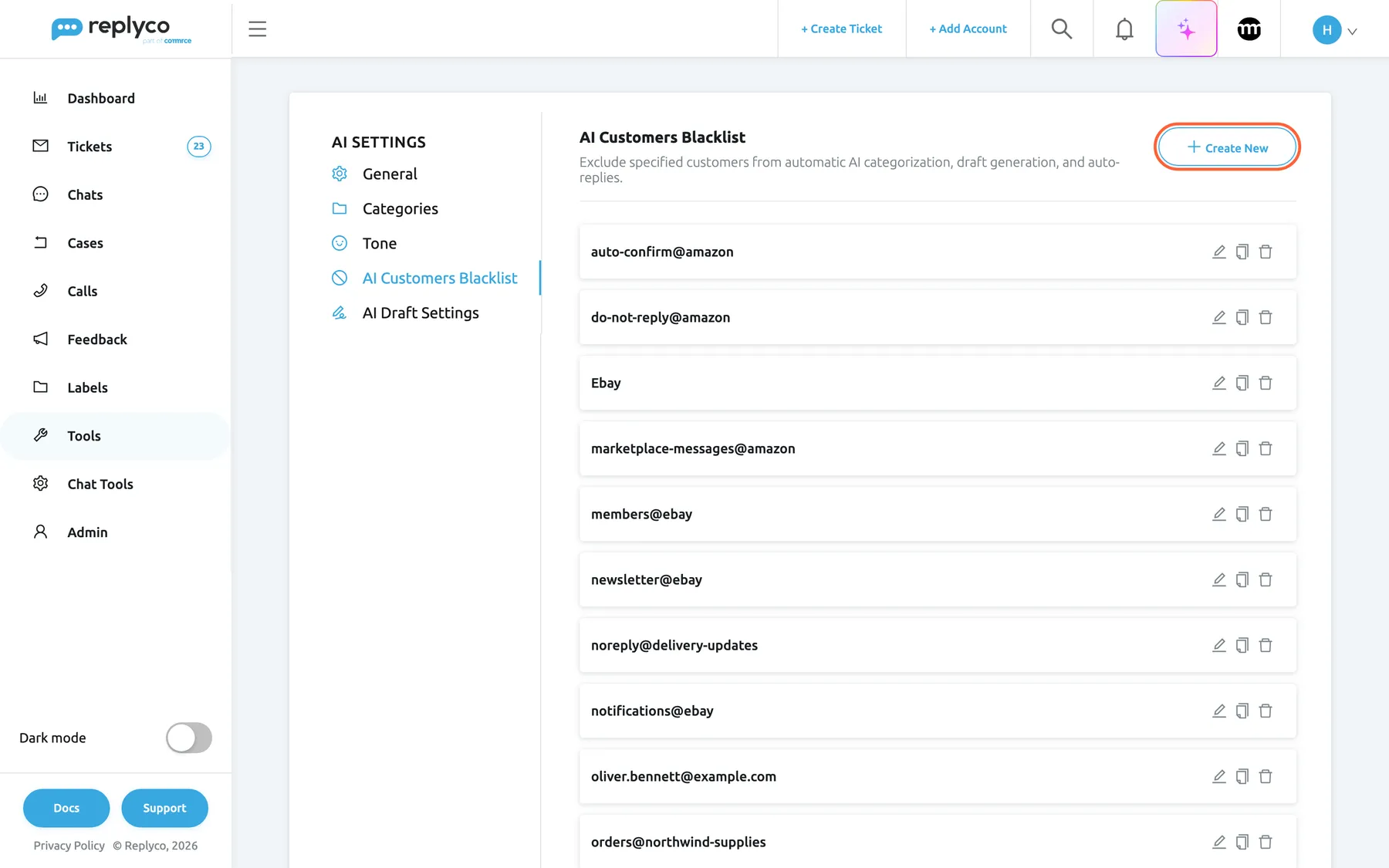
What this screenshot shows
- Screen
- AI Customers Blacklist (/aiSettings?tab=customersBlackList)
- Highlighted
- button “Create New”, header-right, enabled. opens the Add Customer form
- Also visible
- tab description mentioning categorisation, drafts and auto-replies; entries sorted alphabetically: Amazon notification senders, Ebay, a supplier address, a courier prefix; pencil, copy and bin icons on each card
- Purpose
- the blacklist as it opens
| Region | What it shows | What you do there |
|---|---|---|
| Tab strip, left | The tabs of AI Settings, with AI Customers Blacklist selected | Switch to another AI tab |
| Header, top | The heading AI Customers Blacklist, the description Exclude specified customers from automatic AI categorization, draft generation, and auto-replies. and Create New | Start a new entry |
| The list | One card per entry, sorted alphabetically, with pencil, copy and bin icons | Open, copy or delete an entry |
| Form, right (after a click) | Add Customer or Edit Customer with Customer Email (Full or Partial), Cancel and Save | Enter or change the entry |
What the list stops, and what it does not, is described in Understand what the list stops.
Check who the AI leaves alone
Section titled “Check who the AI leaves alone”- Open ToolsAI Settings and select the AI Customers Blacklist tab.
- Read the list. Each card is one entry, and the list is sorted alphabetically.
- Select a card to see its entry in the form on the right; select the cross in the form’s corner or Cancel to close it.
Replyco compares every new incoming message with the list in two ways:
- The sender’s email address starts with the entry. A full address matches itself; the beginning of an address matches every address that starts with it, on any domain.
- The sender’s marketplace customer ID is exactly the entry, such as an eBay buyer’s user ID.
| Entry | Leaves alone | Does not leave alone |
|---|---|---|
seller-notification@amazon | Messages from seller-notification@amazon.co.uk and seller-notification@amazon.de | Messages from newsletter@ebay.co.uk |
oliver.bennett@example.com | Messages from that address | Messages from olivia.bennett@example.com |
tracking-updates@ | Messages from tracking-updates@ on any domain, such as a courier’s notifications | Messages from updates@ addresses |
Ebay | Messages from a marketplace customer whose ID is exactly Ebay, and from addresses that start with Ebay | Messages from eBay buyers, whose IDs are their own user IDs |
Example: Northwind Electronics’ list holds Amazon’s automated senders such as auto-confirm@amazon and seller-notification@amazon, the entry Ebay, eBay’s notification senders such as members@ebay, its supplier’s address beginning orders@northwind-supplies and contact oliver.bennett@example.com, and its courier’s prefix tracking-updates@. None of their messages is categorised, drafted automatically, scored or answered by an auto-response.
Your list may already hold entries nobody on your team added: Replyco put Amazon’s automated senders and Ebay on the lists of existing companies, so that marketplace notifications do not use AI. Leave them there.
Understand what the list stops
Section titled “Understand what the list stops”| For a message from a listed sender | Happens? | Where it is set |
|---|---|---|
| AI categories | No | AI categories |
| Automatic AI draft | No, because drafts are written only for categorised messages | AI drafts |
| Tone score, and a priority set by tone | No | Message tone analysis |
| Auto-responses | No | Auto-responses for tickets |
| Automatic AI summary | Yes | AI summaries |
| Message rules | Yes | Rules |
| AI Draft, the AI assistant and summaries someone asks for | Yes; they are actions of your team, not automatic | The ticket screen |
The list acts on messages that arrive after an entry is on it. Categories and scores a sender’s tickets already have stay; nothing is removed.
Example: Northwind’s supplier oliver.bennett@example.com writes The next pallet of USB-C hubs arrives on Thursday. to the support mailbox. The ticket gets no category, no tone face and no draft suggestion, so it stays out of the category cards and the AI draft queue. An auto-response rule that acknowledges every new email sends him no acknowledgement, while a rule that labels mailbox tickets still labels it.
Add a customer
Section titled “Add a customer”- Select Create New in the top right corner. The form Add Customer opens on the right.
- Under Customer Email (Full or Partial), type a full address, the beginning of an address or a marketplace customer ID, for example
amelia.hughes@example.com. - Select Save, or Cancel to close the form without saving.
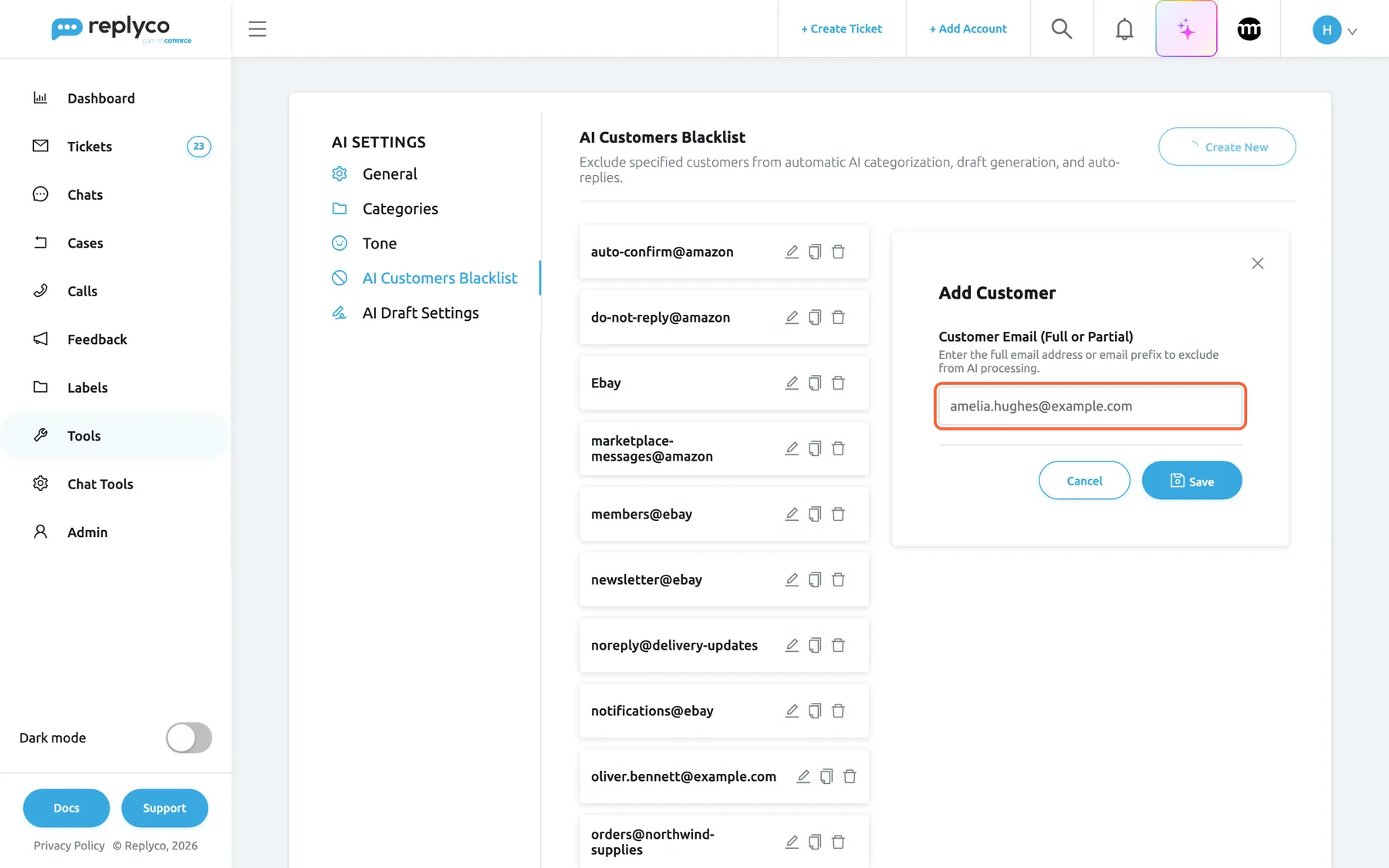
What this screenshot shows
- Screen
- Add Customer (/aiSettings?tab=customersBlackList)
- Highlighted
- textbox “Customer Email (Full or Partial)”, form-right, amelia.hughes@example.com. the address, address beginning or marketplace customer ID to leave out of automatic AI; Save sends it
- Also visible
- Add Customer heading; field description; Cancel and Save
- Purpose
- add an entry
The form closes, Replyco confirms with Success, and the new entry is in the list. From then on, the sender’s new messages are left out of the automatic AI and get no auto-response. With an empty field, the form stays open and Replyco shows Please enter the customer's marketplace ID or the beginning of an email address, for example 'Ebay' or 'amazon-global-selling@'.
Keep entries specific. The beginning of an address matches every sender whose address starts with it, so info@ would leave out every info@ address of every shop and supplier that writes to you.
Change, copy or delete an entry
Section titled “Change, copy or delete an entry”- To change an entry, select its card or its pencil icon. The form Edit Customer opens with the entry; change it and select Save.
- To copy an entry, select its copy icon. The form opens with the entry followed by (copy); change it and select Save to add it as a new entry.
- To delete an entry, select its bin icon and answer Are you sure you want to delete this item? with Yes, or No to keep it.
After a change or a copy, the form closes, Replyco confirms with Success, and the card shows the entry as saved. After a deletion, the card shows a spinner while the entry is removed, then disappears, and Replyco confirms with Success; the sender’s new messages go to the AI and your auto-response rules again.
Every control, explained
Section titled “Every control, explained”AI Customers Blacklist tab
Section titled “AI Customers Blacklist tab”ToolsAI Settings, the fourth tab of the strip. The address ends in ?tab=customersBlackList.
Lists the entries of the company’s blacklist, sorted alphabetically, with the description Exclude specified customers from automatic AI categorization, draft generation, and auto-replies. The list is checked for messages from every connected ticket account; it keeps listed senders away from auto-responses and from the AI features that are switched on, such as AI Categories and Message Tone Analysis.
Some senders are not customers, and some customers are better answered by a person; one list keeps both out of the automatic AI and auto-responses.
Create New
Section titled “Create New”Top right corner of the tab.
Opens the form Add Customer on the right. The button shows a spinner and cannot be selected while a new entry is being saved.
Start a new entry.
Entry card
Section titled “Entry card”One per entry in the list.
Shows the entry as it is stored. Selecting the card or its pencil opens Edit Customer; the copy icon opens the same form with a copy; the bin asks Are you sure you want to delete this item? with No and Yes. A card shows a spinner while its change is being sent.
Every change to an entry starts from its card.
Customer Email (Full or Partial)
Section titled “Customer Email (Full or Partial)”In the form on the right, with the description Enter the full email address or email prefix to exclude from AI processing. and the placeholder e.g. john@example.com or john@
Takes one entry: a full email address, the beginning of an address, or a marketplace customer ID. An address matches when the sender’s address starts with the entry; a customer ID must match exactly. Each entry can be stored only once. An empty field is refused with Please enter the customer's marketplace ID or the beginning of an email address, for example 'Ebay' or 'amazon-global-selling@'.
Marketplaces send notifications from many addresses that begin the same way; one beginning covers all of them.
Save, Cancel and the cross
Section titled “Save, Cancel and the cross”At the bottom of the form; the cross is in its top right corner.
Save sends the entry and closes the form; Replyco confirms with Success, and the list shows the entry. Cancel and the cross close the form without saving.
The form sits beside the list, so you can check the other entries while you type.
What you need to know
Section titled “What you need to know”| Topic | Fact |
|---|---|
| What it stops | AI categories, automatic AI drafts, tone scores and auto-responses for messages from listed senders. |
| What it does not stop | Automatic summaries, message rules, and AI features your team uses in a ticket. |
| Matching | The sender’s address starts with the entry, or the marketplace customer ID equals it. |
| Scope | One list for the whole company, checked for the messages of every ticket account. Chats are not checked against it. |
| Timing | Acts on messages that arrive after the entry exists; nothing already on a ticket is removed. |
| Entry length | Up to 450 characters; each entry can be stored only once. |
| Pre-filled entries | Amazon’s automated senders and Ebay may already be on your list. |
| Cost | Listed senders cost no AI actions for categories, drafts or tone; their summaries still count. |
| Who can change it | Users with the Admin permission with edit rights, who see ToolsAI Settings. |
Frequently asked questions
Section titled “Frequently asked questions”What the list does
Section titled “What the list does”What happens to messages from a customer on the blacklist?
Section titled “What happens to messages from a customer on the blacklist?”They arrive as normal tickets, but Replyco’s AI gives them no category, writes no automatic draft for them and gives them no tone score, and no auto-response is sent to them. They are still summarised, and your message rules still run for them. The list is on the AI Customers Blacklist tab of ToolsAI Settings.
Does the blacklist also stop auto-responses?
Section titled “Does the blacklist also stop auto-responses?”Yes. Customers on the AI Customers Blacklist get no auto-response, whichever auto-response rule would otherwise match their message. Message rules still run for them, their messages are still summarised, and their tickets stay in your ticket lists. See Auto-responses for tickets.
Are customers on the blacklist still summarised?
Section titled “Are customers on the blacklist still summarised?”Yes. Automatic AI summaries are written for listed senders like for everyone else, and anyone can generate a summary in the ticket. The blacklist on the AI Customers Blacklist tab only stops AI categories, automatic AI drafts, tone scores and auto-responses.
What is the difference between blocking a customer and the blacklist?
Section titled “What is the difference between blocking a customer and the blacklist?”Blocking a customer with Block Customer stops your rules, auto-responses and the AI for their messages and moves their tickets to the Blocked list. The AI Customers Blacklist stops the AI’s categories, automatic drafts and tone scores, and auto-responses too, but rules still run and the tickets stay in your lists. Block a sender whose tickets should leave your lists; use the blacklist for customers your team still serves.
Can agents still use AI in a blacklisted customer’s ticket?
Section titled “Can agents still use AI in a blacklisted customer’s ticket?”Yes. AI Draft, the AI assistant in the editor and generating a summary are actions of your team and work in every ticket. The AI Customers Blacklist stops only the automatic work Replyco does when a message arrives: AI categories, drafts, tone scores and auto-responses.
Entries
Section titled “Entries”What can I enter in the blacklist?
Section titled “What can I enter in the blacklist?”A full email address, the beginning of an address such as orders@northwind-supplies, or a marketplace customer ID such as an eBay buyer’s user ID. Replyco leaves a message alone when the sender’s address starts with the entry or the marketplace customer ID equals it exactly.
Does an entry like info@ block every info@ address?
Section titled “Does an entry like info@ block every info@ address?”Yes. An entry is compared with the beginning of the sender’s address, so info@ matches every info@ address on every domain, including suppliers and shops you do want the AI to handle. Enter the full address, or a beginning that only that sender uses.
Why is my blacklist already full of Amazon addresses?
Section titled “Why is my blacklist already full of Amazon addresses?”Replyco added Amazon’s automated senders, such as do-not-reply@amazon and marketplace-messages@amazon, and the entry Ebay to the lists of existing companies, so that marketplace notifications do not use AI. They are working as intended; leave them on the AI Customers Blacklist tab.
Does adding a sender remove the categories their tickets already have?
Section titled “Does adding a sender remove the categories their tickets already have?”No. The list acts on messages that arrive after an entry exists. Categories, tone scores and drafts already on a sender’s tickets stay; only new messages are left out of the automatic AI.
Saving
Section titled “Saving”How do I take a sender off the blacklist?
Section titled “How do I take a sender off the blacklist?”Select the bin icon on the sender’s card on the AI Customers Blacklist tab and answer Are you sure you want to delete this item? with Yes. The card disappears, Replyco confirms with Success, and the sender’s new messages get categories, automatic drafts, tone scores and auto-responses again.
Can I add the same entry twice?
Section titled “Can I add the same entry twice?”No. Each entry can be stored only once, and an entry holds up to 450 characters. To cover several addresses of one sender, enter the beginning those addresses share instead of listing every full address.
Who can change the blacklist?
Section titled “Who can change the blacklist?”Users with the Admin permission with edit rights, on a company with Replyco AI. Only they see ToolsAI Settings and its AI Customers Blacklist tab. The list applies to the whole company. See User permissions and roles.
Troubleshooting
Section titled “Troubleshooting”| Symptom | What to check |
|---|---|
| Please enter the customer's marketplace ID or the beginning of an email address, for example 'Ebay' or 'amazon-global-selling@'. | The field was empty. Type an address, its beginning or a customer ID. |
| A listed sender’s tickets are still labelled, assigned or prioritised | The blacklist does not stop message rules. To keep a rule away from the sender, add a condition such as Customer Email Not Contains with their address; see Rules for incoming tickets. |
| A listed sender’s tickets still have summaries | The blacklist does not stop summaries. |
| A listed sender’s ticket still has categories or a tone face | They were added before the entry existed, or the sender’s address does not start with the entry. Compare the address in the ticket with the entry. |
| Messages from other senders get no categories | A short entry such as info@ matches them too. Check the list for beginnings that are too broad. |
Related
Section titled “Related”- AI categories · AI drafts · Message tone analysis · AI summaries
- AI Settings: the switches for each AI feature
- Blocked tickets: moving a sender’s tickets out of your lists and stopping rules for them
- Auto-responses for tickets · Rules