

Auto-responses for tickets
A customer who writes to your shop at 23:40 on a Saturday hears nothing until Monday morning, and on a marketplace that silence counts against you. Auto-responses answer for you: a rule watches your accounts, and when a customer message arrives at a time and with a content the rule covers, Replyco sends one of your reply templates into the ticket, straight away or after a delay you choose.
What it does
Section titled “What it does”Your team cannot answer every message the minute it arrives: nights, weekends, holidays and busy mornings leave customers waiting without knowing whether anyone has read their message. They write again, open a case on the marketplace, or leave. A short, honest acknowledgement solves most of that, but writing it by hand defeats the purpose.
An auto-response rule sends a reply template automatically. It names the accounts it watches, a schedule (outside your working time, a window such as a weekend, or set days and hours, optionally between two dates), a delay before the reply goes out, how often a ticket gets it, and the conditions a message must meet. When a customer message arrives, every rule that matches sends its own reply. From there:
- You decide exactly when a rule may answer, down to the day and minute, including your company’s holidays. See when a rule answers.
- Replies can wait a fixed or random time, and a ticket gets a rule’s reply once or for every message. See every setting.
- Messages that should never get an automatic reply are left alone: your own replies, blocked customers, customers on the AI Customers Blacklist, marketplace notices and bounces. See what does not get an auto-response.
- Your team sees every automatic reply in the ticket, named after its rule, and can stop one that has not gone out yet. See auto-responses in your tickets.
- The Performance dashboard counts how many replies each rule sent. See the usage widget.
Every automatic reply stays in its ticket as a message with the rule’s name, and every change to a rule is recorded in the rule’s history with the person and the date, so you can always explain why a customer received what they did.
Before you start
Section titled “Before you start”| Requirement | Details |
|---|---|
| Plan | Every plan includes auto-responses, and every feature is on during a trial. Companies on an older plan may not have them; see What each plan includes. |
| Who can set it up | Users with the Automation permission see the tab; creating, changing, switching and deleting rules needs its edit level. Every user who can open a ticket sees the replies in it. See User permissions and roles. |
| A reply template | Each rule sends one template from ToolsAutomation › Templates. Write the acknowledgement there first; see Templates. |
| Your working time, for out-of-hours replies | Out-of-hours rules follow the days, hours and holidays under AdminCompany Settings › Working Time. See Company Settings. |
| Connected ticket accounts | Rules watch marketplace, webstore, mailbox and phone accounts. Chats have their own Chat auto-response rules. |
| Cost | No AI actions and no separate fee. The first reply sent in a ticket, an auto-response included, makes the ticket count among your tickets used in the billing period; see Billing. |
Understanding when a rule answers
Section titled “Understanding when a rule answers”A rule answers a customer message when the message arrives on one of its accounts, inside its schedule, and meets its conditions. The schedule is the part people get wrong most often. There are three kinds, and a date range can sit on top of any of them:
| Schedule | The rule may send | Typical use |
|---|---|---|
| Send Outside Working hours of Company | Whenever your company is not working: outside the working days and daily time span in Working Time, and on the dates under Holidays | Out of hours reply: “Our team works Monday to Friday, 9:00 to 18:00” |
| Use Working Time Range | In one unbroken window from Active From (a day and a time) to Active To | Weekend reply from Friday 18:00 to Monday 08:00 |
| Days and Working Hours | On the chosen days, inside the daily time window | First reply to marketplace questions on weekdays, 09:00 to 18:00 |
| Date Range, on top | Only from the first to the last date, both included | Holiday reply from 24 December to 2 January |
How Replyco decides
Section titled “How Replyco decides”For every incoming message, Replyco works through these checks in order. A message that fails one gets no reply from that rule.
- Is it a customer message? Replies from your team, and messages the channel marks as sent by your company, never trigger a rule.
- Is the customer blocked, or on the blacklist? Messages from blocked customers get no auto-response and run no message rules. Messages from customers on the AI Customers Blacklist get no auto-response either; message rules still run for them.
- May the channel’s message be answered? Some channels do not allow a reply to some or all of their messages; see what does not get an auto-response.
- Which rules apply? Every switched-on rule whose accounts include the message’s account and whose date range, if any, includes the message’s date.
- Is the message inside the rule’s schedule? Replyco compares the time the message was written, as the channel reports it, with the schedule.
- Does the frequency allow it? Once (1st response only) only answers a ticket’s first customer message; Continuous (every response) answers every one.
- Do the conditions match? At least one condition group must match completely. The first matching group is enough; a rule sends at most one reply per message.
- Every rule that passes sends its own reply. There is no order between rules and no “first rule wins”: two matching rules mean two replies.
Each reply is created in the ticket straight away with a send time: the arrival plus the rule’s delay, or a random time within its delay range. Replyco fills in the template’s placeholders from the ticket as it creates the reply, and sends it in its next sending round after that time.
Boundaries follow the code exactly. For the company’s working time, with Monday to Friday 09:00 to 18:00 and a holiday on 25 December:
| Customer writes | Inside working time? | Out-of-hours rule |
|---|---|---|
| Tuesday 08:59 | No | Sends |
| Tuesday 09:00 exactly | Yes; the start counts as working time | Does not send |
| Tuesday 18:00 exactly | Yes; the end counts as working time | Does not send |
| Tuesday 18:01 | No | Sends |
| Saturday 11:00 | No; not a working day | Sends |
| Friday 25 December, 10:00 | No; a holiday, every year on that date | Sends |
For a rule’s own time window, the start and end do not count. With Working Hours 09:00 to 18:00 on Monday to Friday:
| Customer writes | Rule sends? | Why |
|---|---|---|
| Monday 09:00 exactly | No | The start itself is excluded |
| Monday 09:01 | Yes | Inside the window |
| Monday 17:59 | Yes | Inside the window |
| Monday 18:00 exactly | No | The end itself is excluded |
| Saturday 10:00 | No | Saturday is not one of the days |
A window whose start is later than its end, such as 18:00 to 09:00, covers the evening and the early morning of each chosen day. A working time range from Friday 18:00 to Monday 08:00 answers on Friday after 18:00, all of Saturday and Sunday, and on Monday before 08:00.
What does not get an auto-response
Section titled “What does not get an auto-response”- Replies from your team and any message that arrives as sent by your company.
- Messages from blocked customers. Unblocking does not answer them afterwards, and running rules by hand from the ticket list sends no auto-response. See Blocked tickets.
- Messages from customers on the AI Customers Blacklist. The list also keeps them away from AI categories, automatic AI drafts and tone scores; message rules still run for them. See AI Customers Blacklist.
- Amazon messages from Amazon’s own no-reply address (addresses containing donotreply@amazon).
- eBay messages that are not from an eBay member, such as eBay’s own notices, and eBay tickets without a received buyer message to reply to.
- Etsy messages. Etsy lets the customer see a conversation only after they reply on Etsy, so Replyco never answers Etsy messages automatically.
- Fruugo messages that do not come from Fruugo with its reply line, and Kaufland messages on tickets that are closed on Kaufland or where the seller is not responsible.
- Outlook system messages without a sender.
- Delivery failures: messages whose subject contains undeliverable, delivery failed or delivery has failed, so a bounce never starts a loop of replies.
- Messages that arrived before the rule was saved or while it was switched off. Nothing is answered afterwards.
- Chats from WhatsApp, Facebook, Instagram, Telegram, TikTok Shop and live chat, which use chat auto-response rules instead.
Setting it up in five steps
Section titled “Setting it up in five steps”-
Write the reply. Under ToolsAutomation › Templates, create a template such as Out of hours reply: Hello
#customer_first_name#, thank you for your message. Our team works Monday to Friday, 9:00 to 18:00, and will reply on the next working day. Placeholders are filled in when the rule creates the reply. -
Check your working time. Under AdminCompany Settings, check the Working Time card: days, daily time span and holidays. Out-of-hours rules follow it.
-
Create the rule. Open the Auto-response Rules tab and select Create New. Enter a name, pick the template under Template to Send and the accounts under Accounts.
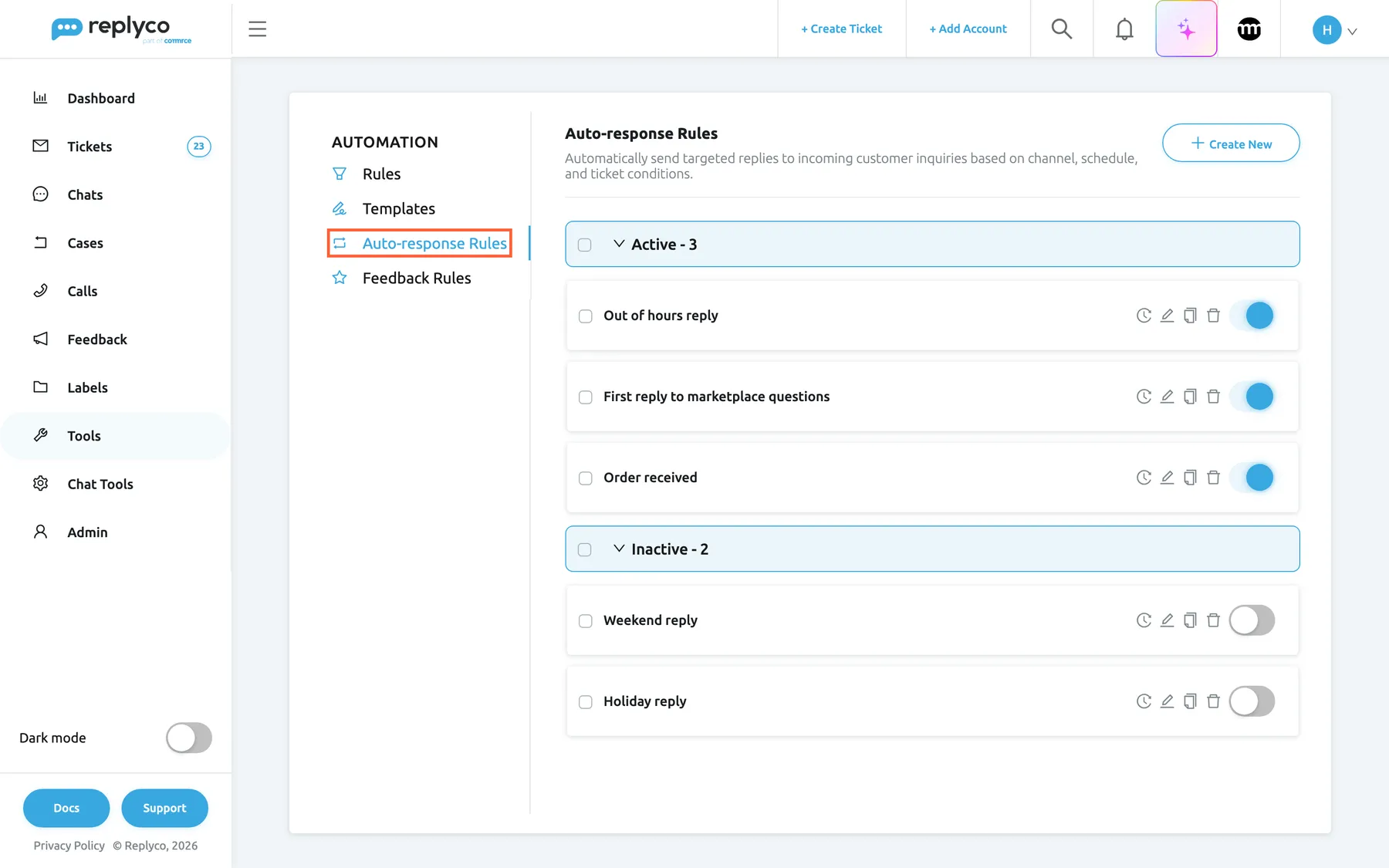
Auto-response rules live on their own tab of Tools › Automation, next to the templates they send. What this screenshot shows
- Screen
- Auto-response Rules (/tickets-automation?tab=autoresponseRules)
- Highlighted
- tab “Auto-response Rules”, left-tab-list, selected. shows the list of auto-response rules
- Also visible
- Automation tabs: Rules, Templates, Auto-response Rules, Feedback Rules; Active - 3: Out of hours reply, First reply to marketplace questions, Order received; Inactive - 2: Weekend reply, Holiday reply; Create New
- Purpose
- entry point of auto-responses
-
Set the schedule, the delay and the frequency. Switch on Send Outside Working hours of Company, or set a time window under Working Hours. Choose a delay such as 00:15 and keep Once (1st response only) for an acknowledgement.
-
Add a condition and save. A rule needs at least one condition; Client email Does not contain
noreply;no-replykeeps robots out and lets every other sender through. Select Save. The rule answers messages that arrive from now on.
Every setting, explained
Section titled “Every setting, explained”Every rule is edited in one form on the Auto-response Rules tab; the settings below appear in its order. For every button and list control of the tab, see Auto-response Rules.
Template to Send, the reply
Section titled “Template to Send, the reply”First section of the form, General Info, after Rule Name. Saved with Save.
The reply template the rule sends, from every template of your company, switched on or off. Required. The customer receives the template’s text with its placeholders filled in for the ticket, and its attachments; your signature is not added. The text is copied into the reply and its placeholders are filled in when the reply is created, so neither a change to the template nor newer order data changes replies that are already waiting. Switching the template off does not stop the rule; deleting the template deletes the rule.
One well-written template can serve several rules, and you improve every automatic reply by editing one text.
| Do | Don’t |
|---|---|
| Say what happens next: our team will reply on the next working day | Promise a time you may not keep: we will reply within the hour |
Use #customer_first_name# and other placeholders that every ticket has | Rely on #tracking_number# in a reply created before an order exists |
| Keep it short and honest about being automatic | Ask questions an automatic reply cannot follow up |
| Write one template per situation: nights, weekends, holidays | Reuse a detailed answer template as an acknowledgement |
Accounts, the accounts it watches
Section titled “Accounts, the accounts it watches”General Info, third field, a multi-select. Saved with Save; Add Accounts on the list adds accounts to several rules at once.
The accounts whose incoming messages the rule answers: marketplaces, webstores, mailboxes and phone accounts. At least one is required. The reply goes out through the same account, the way a reply from your team would.
Marketplaces, your shop and your mailbox often need different wording, and some marketplaces restrict what may be sent.
Send Outside Working hours of Company, follow your working time
Section titled “Send Outside Working hours of Company, follow your working time”Section Schedule, second switch. Saved with Save.
Off by default. On: the rule may send only outside your company’s working time: on days that are not working days, before the start or after the end of the daily span, and on the holidays listed under Holidays. Its own Use Working Time Range, days and hours are hidden and ignored.
Keep your hours in one place: when the team’s hours change, every out-of-hours rule follows without editing.
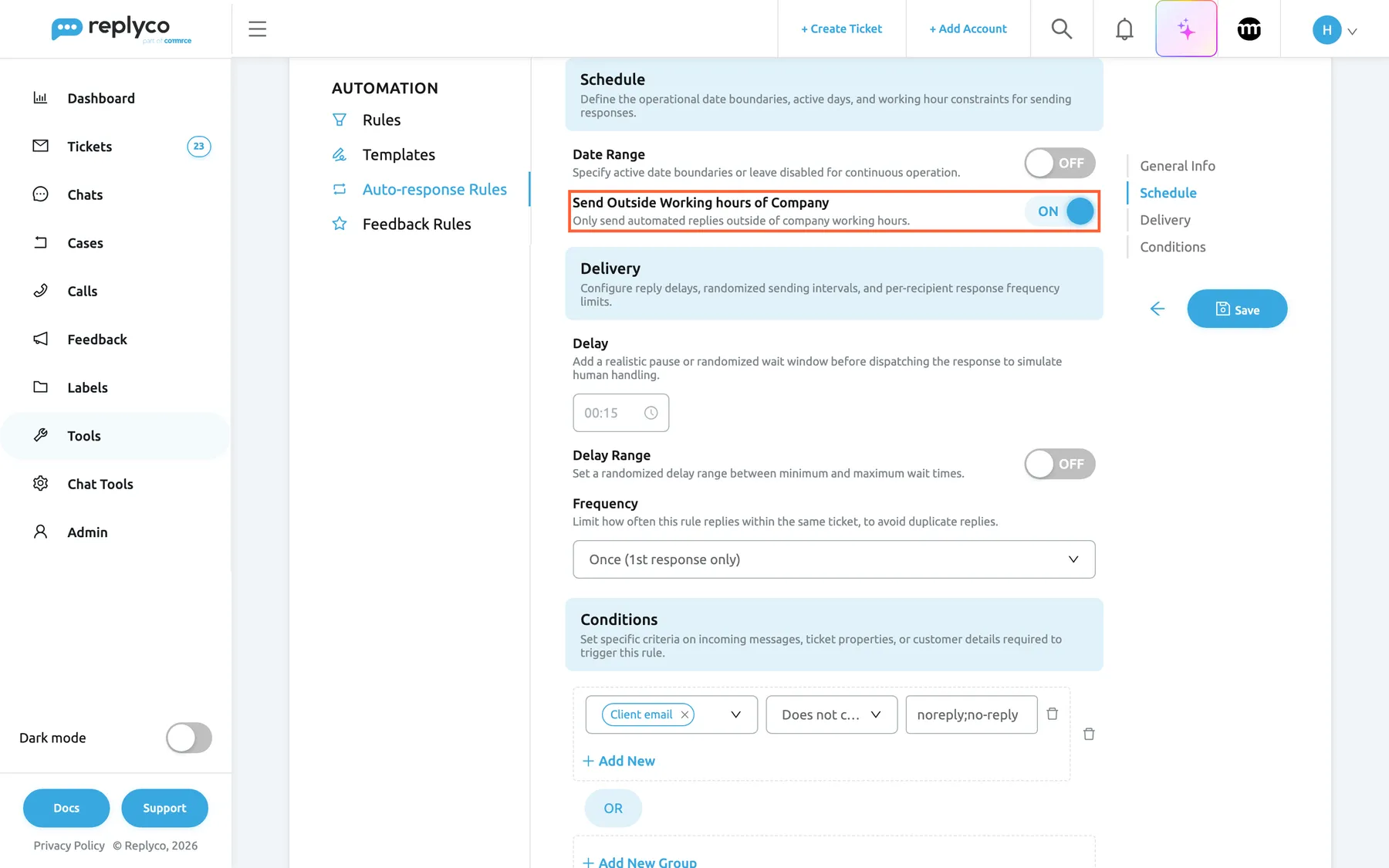
What this screenshot shows
- Screen
- Edit Auto-response Rule (/tickets-automation?tab=autoresponseRules)
- Highlighted
- switch “Send Outside Working hours of Company”, form-schedule, on. sends only outside the company's working time and hides the rule's own days and hours
- Also visible
- Date Range off; Delay 00:15, Delay Range off; Frequency Once (1st response only); condition Client email does not contain noreply;no-reply
- Purpose
- an out-of-hours auto-response
Use Working Time Range, one continuous window
Section titled “Use Working Time Range, one continuous window”Section Schedule, third switch, shown while the switch above is off; when on, it shows Active From and Active To, each with a day and a time.
The rule may send from the start day and time until the end day and time; days in between count all day. The window can wrap past Sunday. The start time on the first day and the end time on the last day are excluded, like any time window of a rule.
A weekend or a shift over several days is one period, not the same hours every day.
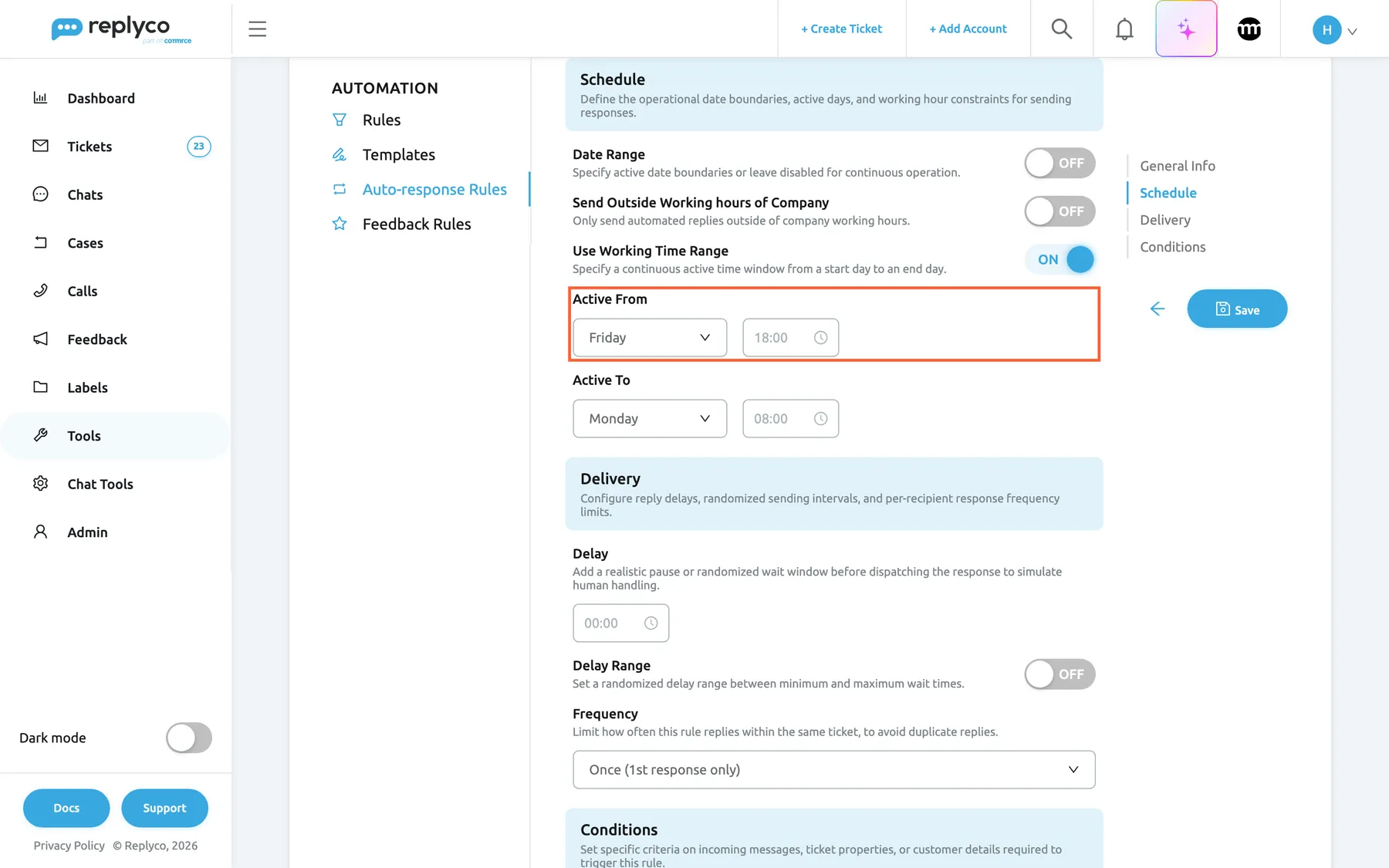
What this screenshot shows
- Screen
- Edit Auto-response Rule (/tickets-automation?tab=autoresponseRules)
- Highlighted
- combobox “Active From”, form-schedule, Friday 18:00. sets where the rule's continuous window starts
- Also visible
- Use Working Time Range on; Active From Friday 18:00; Active To Monday 08:00; Delay 00:00; Frequency Once
- Purpose
- a weekend auto-response
Days and Working Hours, days and hours
Section titled “Days and Working Hours, days and hours”Section Schedule, shown while both switches above are off.
The days of the week and one daily time window. All seven days by default, at least one required. Start and end are excluded; a start later than the end covers the evening and early morning of each chosen day.
The simplest schedule: an answer during a morning rush, or on days you know are busy.
Date Range, a season
Section titled “Date Range, a season”Section Schedule, first switch; when on, a date range picker appears. Saved with Save.
Off: the rule works on every date. On: only from the first to the last date, both included, on top of the schedule. The end must be after the start, or saving gives The End Date must be greater than the Start Date The rule stays in the Active group outside its dates; it simply does not match.
Prepare a holiday closure reply weeks ahead and let it switch itself off.
Delay and Delay Range, when the reply goes out
Section titled “Delay and Delay Range, when the reply goes out”Section Delivery: a time box, and the switch Delay Range under it. Saved with Save.
The wait between the arrival and the reply, in hours and minutes, 00:00 by default. With Delay Range on, each reply waits a random time between the two values; the second must be greater, or saving gives The Delay To must be greater than the Delay From While a reply waits, it sits in the ticket with its send time and the ticket is in the Delayed list. A reply from your team, or resolving the ticket, does not stop it; only Cancel on the reply does. Delay 00:00 sends in the next sending round.
A reply seconds after a message reads as a robot; a few minutes reads as a person. A random delay avoids the same exact gap every time.
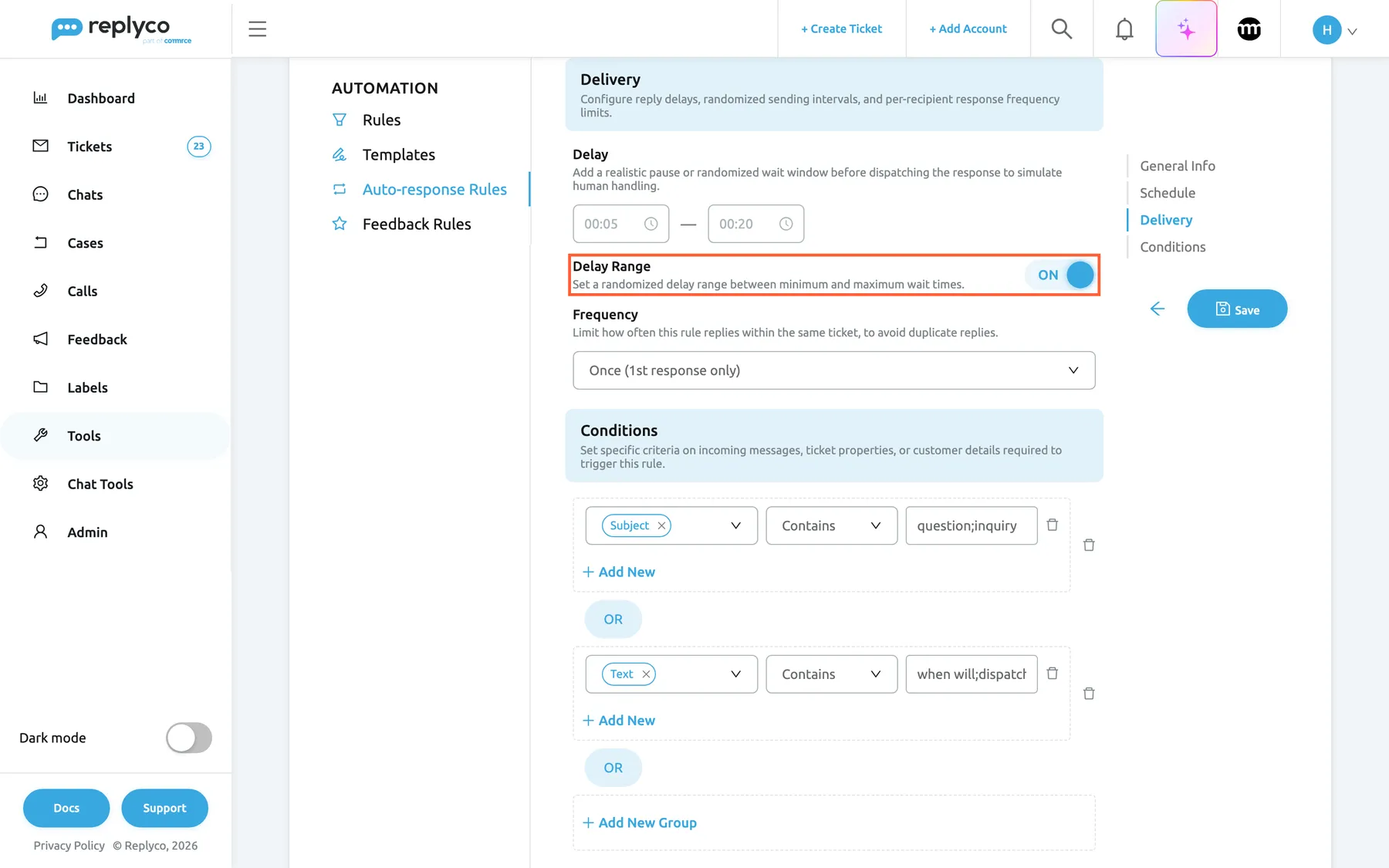
What this screenshot shows
- Screen
- Edit Auto-response Rule (/tickets-automation?tab=autoresponseRules)
- Highlighted
- switch “Delay Range”, form-delivery, on. replaces the fixed delay with a random delay between two values
- Also visible
- Delay 00:05 to 00:20; Frequency Once (1st response only); condition group Subject contains question;inquiry; OR; condition group Text contains when will;dispatch
- Purpose
- delay an auto-response
Frequency, once or every time
Section titled “Frequency, once or every time”Section Delivery, a drop-down list. Saved with Save.
Once (1st response only), the default, answers only when the message is the ticket’s first customer message. Continuous (every response) answers every customer message that matches. The limit is per ticket and per rule: the same customer’s next ticket gets the reply again.
An acknowledgement belongs at the start of a conversation; a closure notice may need repeating.
A customer writes three times on Saturday night in one ticket:
| Message | Once (1st response only) | Continuous (every response) |
|---|---|---|
| First message, 22:10 | Reply | Reply |
| Second message, 22:40 | No reply | Reply |
| Third message, 23:05 | No reply | Reply |
| First message was on Friday at 15:00, in working time; second on Saturday | No reply to either: the Saturday message is not the first | Reply to the Saturday message |
When your account adds a customer’s new messages to their latest ticket, a new message that joins an existing ticket is not its first customer message, so Once (1st response only) does not answer it. See Ticket merging.
Conditions, which messages it answers
Section titled “Conditions, which messages it answers”Section Conditions: condition groups joined by OR, each holding conditions with a field, a comparison and a value. Saved with Save.
All conditions of a group must match, and one matching group is enough. Fields: Client email (the sender’s address as the channel delivers it, or the customer’s email when there is none), Subject, Text and Language (the language Replyco detects in the message text, one of 20). Comparisons: Contains, Does not contain, Starts with, Ends with, Equals. Several values in one condition are separated by ; and any of them matches, except with Does not contain, where none may appear. Case and spaces are ignored. At least one condition with a value is required; a condition without a field matches every message.
Conditions keep automatic replies away from messages that need a person and from robots, and let one account have different replies for different topics.
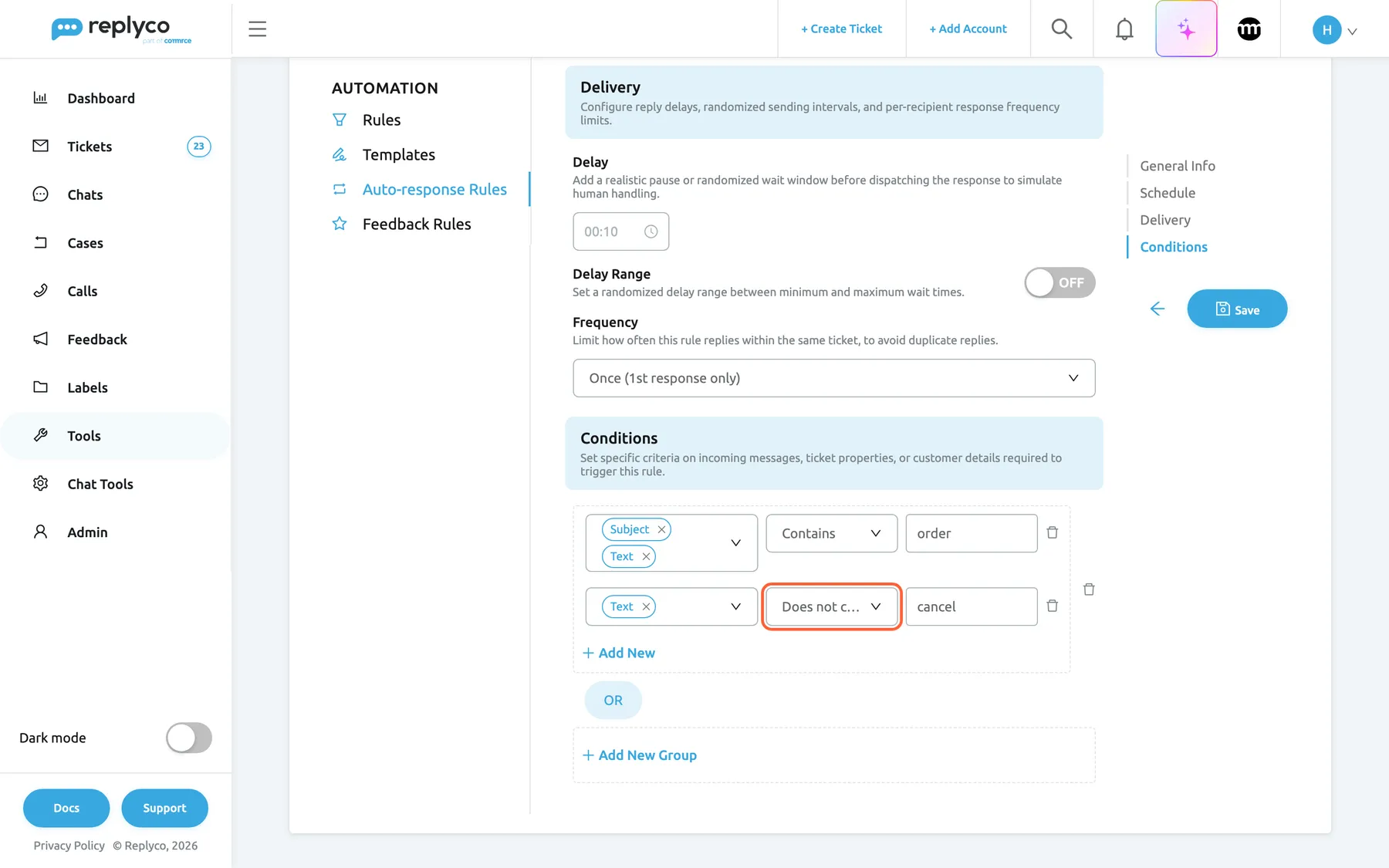
What this screenshot shows
- Screen
- Edit Auto-response Rule (/tickets-automation?tab=autoresponseRules)
- Highlighted
- combobox “Does not contain”, form-conditions, selected. the condition matches when the value is not in the field
- Also visible
- condition: Subject and Text Contains order; condition: Text Does not contain cancel; Add New; OR; Add New Group; Delay 00:10; Frequency Once
- Purpose
- limit which messages get an auto-response
Examples, as condition → effect:
| Condition | Message | Reply? |
|---|---|---|
Client email Does not contain noreply;no-reply | From a carrier’s no-reply address | No |
Client email Does not contain noreply;no-reply | From oliver.bennett@example.com | Yes |
Subject and Text Contains order, and Text Does not contain cancel | Where is my ORDER 4417? | Yes; case is ignored |
| The same group | Please cancel my order | No; the second condition fails |
Subject Equals question | Subject Question about my order | No; the whole subject must equal the value |
| Language Equals German | Wo bleibt meine Bestellung? | Yes, when German is detected |
How the settings combine
Section titled “How the settings combine”The schedule switches decide which time rules apply; the date range and conditions always apply on top:
| Send Outside Working hours of Company | Use Working Time Range | The rule may send |
|---|---|---|
| On | Any (hidden) | Outside the company’s working time and on its holidays |
| Off | On | From Active From to Active To |
| Off | Off | On Days, inside Working Hours |
Two rules that can match the same message both reply. Northwind’s Out of hours reply covers weekends through the company’s working time; switching on Weekend reply as well would give a Saturday customer two replies. That is why it stays switched off.
Auto-responses in your tickets
Section titled “Auto-responses in your tickets”An auto-response is a message in the ticket like any other reply, sent without a user. Its header names the rule:
| What you see | Meaning | When |
|---|---|---|
| Delayed with a clock bar and Send now and Cancel | The reply is waiting for its send time | From arrival until the send time |
| Sent and as auto-response “Out of hours reply” | The reply went out | After the sending round |
| One grey line, An Auto-response … has been sent at | A sent reply folded into one line | With the in-line view switched on |
| Cancelled | It was stopped before going out | After Cancel |
| Error Sending | The channel refused it | After a failed send |
The message header
Section titled “The message header”The header of a sent auto-response shows the status, the send time and as auto-response “Out of hours reply” where a reply from your team shows the agent’s name. The text is exactly what the customer received, placeholders filled in. On a new ticket that holds only the customer’s first message, the reply’s subject is the message’s subject with Re: in front, except in Gmail; otherwise it repeats the subject of the customer’s message. If the rule has since been deleted, the message stays but no longer names the rule. For everything else on this screen, see The ticket screen.
Why: agents see at once that the customer has only had an acknowledgement, not an answer.
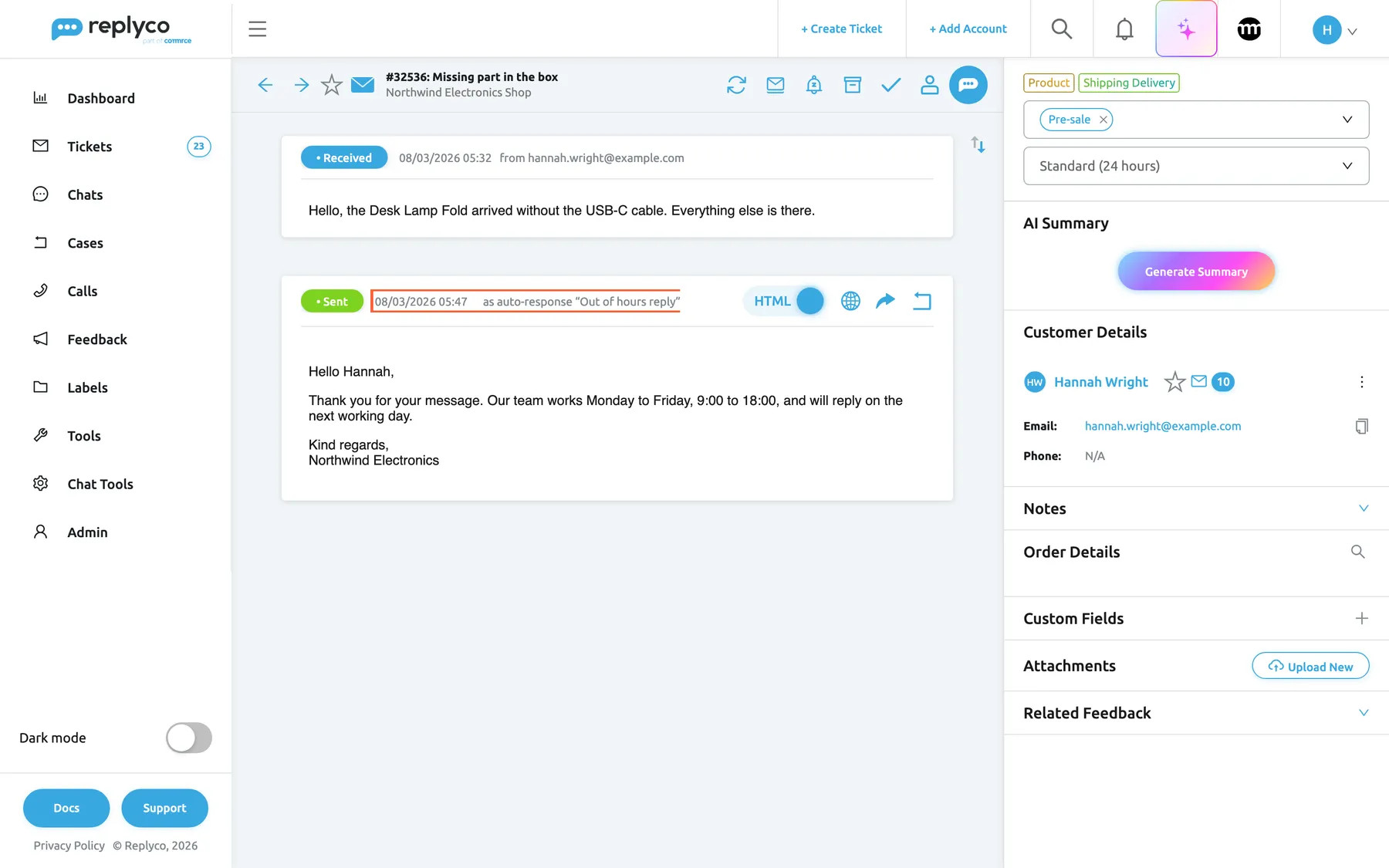
What this screenshot shows
- Screen
- as auto-response “{{autoresponse}}” (/ticket/:threadId)
- Highlighted
- text “as auto-response “{{autoresponse}}””, message-header, shown. names the auto-response rule that sent the message
- Also visible
- customer message Sunday 05:32; Sent message 05:47 as auto-response “Out of hours reply”; template text with the customer's first name filled in; customer details panel
- Purpose
- an auto-response inside a ticket
The in-line view
Section titled “The in-line view”With Show In-Line Auto-responses in Ticket Detail screen switched on in Account Settings, each sent auto-response shrinks to one grey line: An Auto-response with the rule’s name, has been sent at with the time, and Show to open the full message. It is a personal setting; waiting and failed auto-responses always show in full.
Why: in a long ticket the same acknowledgement repeated after every customer message hides the conversation.
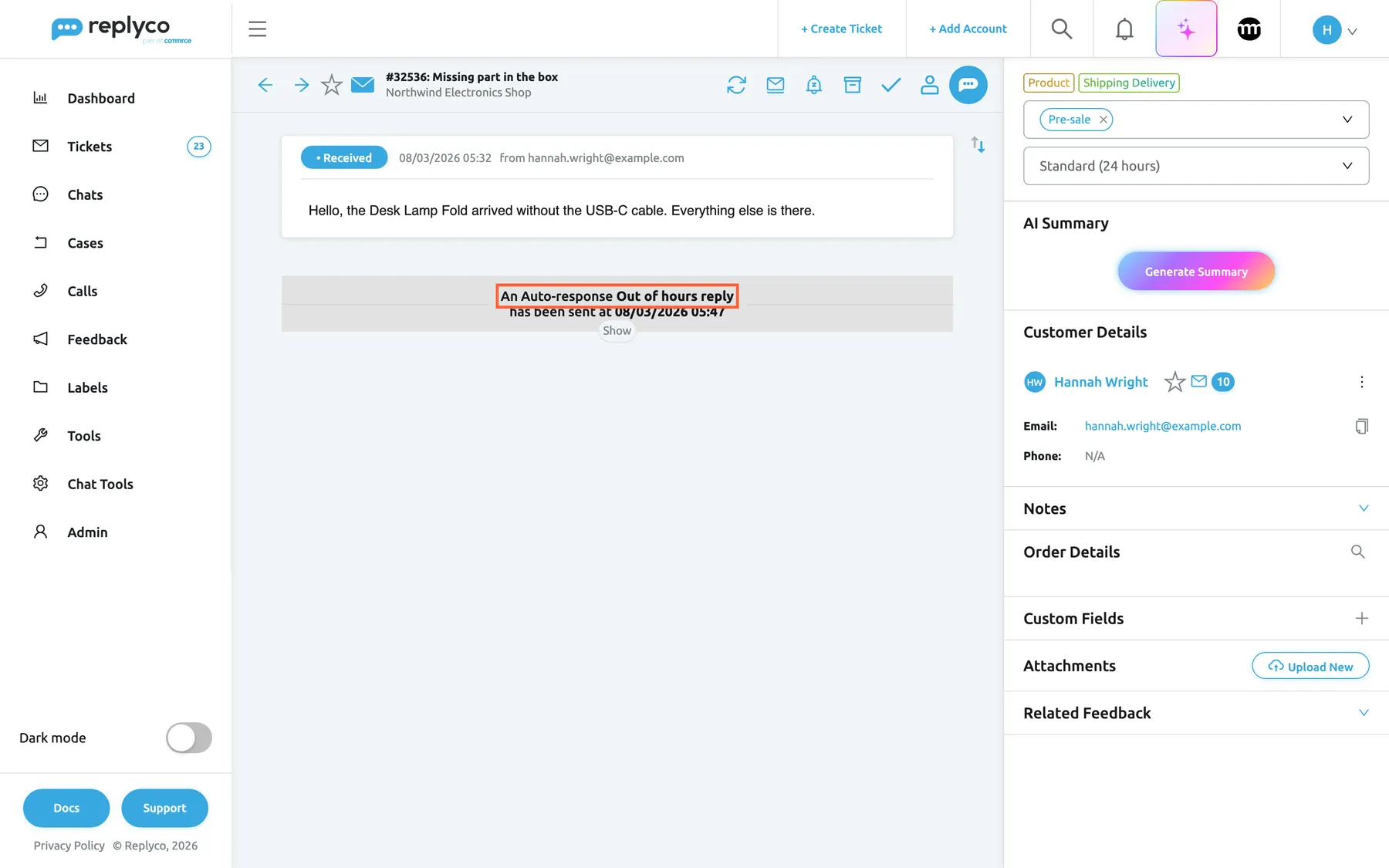
What this screenshot shows
- Screen
- Show In-Line Auto-responses in Ticket Detail screen (/ticket/:threadId)
- Highlighted
- text “An Auto-response”, conversation, collapsed. stands for the full auto-response; Show expands it
- Also visible
- customer message 05:32; one-line auto-response with rule name and send time; Show button
- Purpose
- keep long tickets short
A waiting auto-response
Section titled “A waiting auto-response”A reply with a delay appears in the ticket at once, with Delayed, a clock, Sending is scheduled for and the send time in your own time zone, marked as an auto-response, and the ticket appears under TicketsDelayed. Send now sends it immediately; Cancel stops it for good. An open ticket does not update by itself when the reply goes out at its send time; reload the ticket to see it as sent. For how waiting replies work in general, see Delayed sending.
Why: this is the one moment you can still stop an acknowledgement that has become pointless, for example because you have just answered.
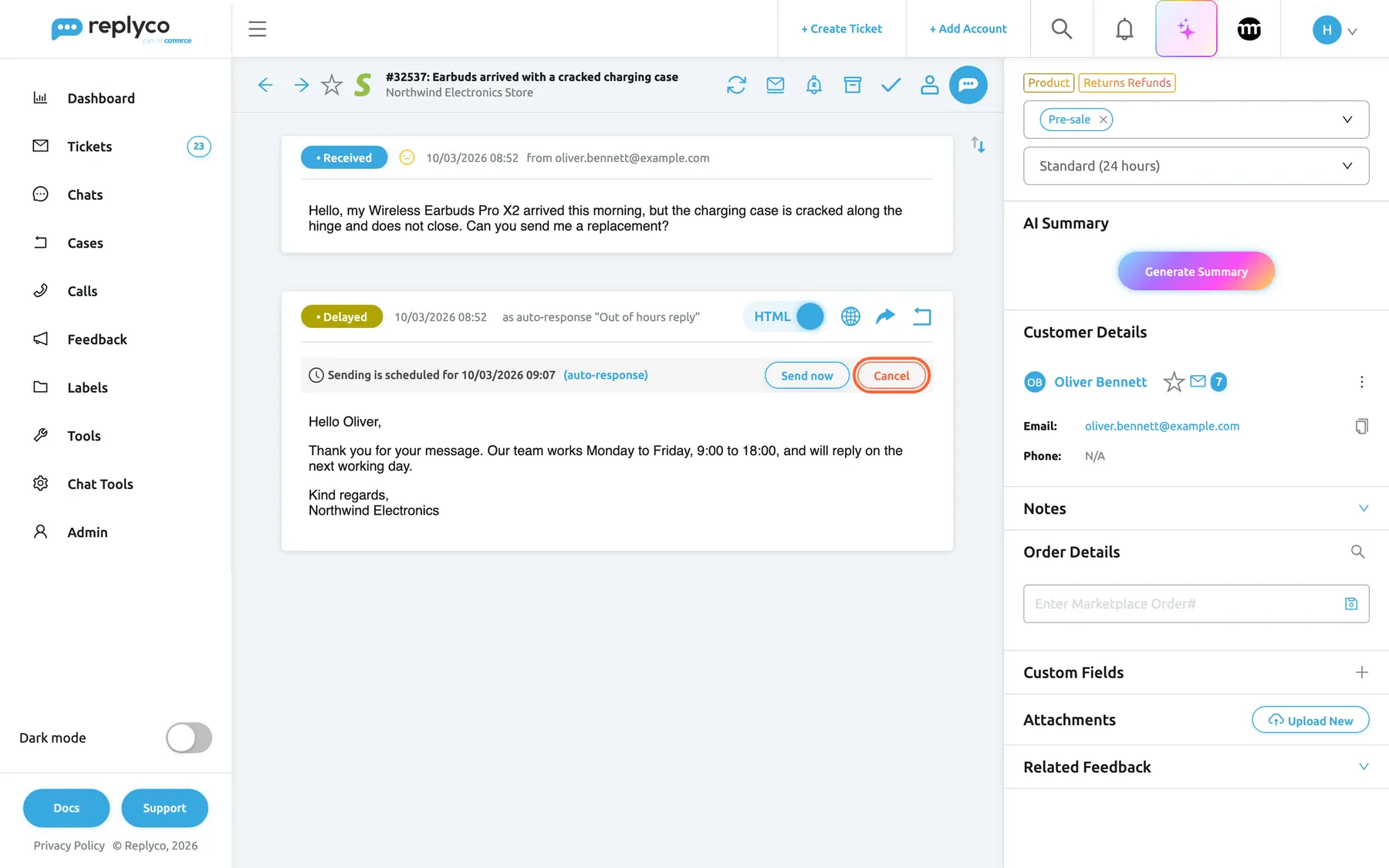
What this screenshot shows
- Screen
- Sending is scheduled for (/ticket/:threadId)
- Highlighted
- button “Cancel”, message-bar, enabled. cancels the waiting auto-response
- Also visible
- customer message 08:52; Delayed message as auto-response “Out of hours reply”; Sending is scheduled for 09:07 (auto-response); Send now and Cancel
- Purpose
- stop an auto-response that has not gone out yet
What your reply and resolving do
Section titled “What your reply and resolving do”Replying to the customer, or resolving the ticket, cancels auto-responses that are waiting to go out immediately. A reply with a delay keeps its send time and still goes out after your reply or after the ticket is resolved. Cancel it yourself when it should not.
| You do | A waiting auto-response |
|---|---|
| Reply to the customer | Keeps its send time and goes out |
| Resolve the ticket | Keeps its send time and goes out |
| Select Cancel on it | Is cancelled and never sent |
| Select Send now on it | Goes out in the next sending round |
| Switch off or delete the rule | Keeps its send time and goes out |
An auto-response does not count as your team’s reply: the ticket does not become Responded, and first response times on the dashboards leave it out. See Resolve, snooze or archive a ticket.
Working time under Company Settings
Section titled “Working time under Company Settings”AdminCompany Settings, tab General, the Working Time card. See Company Settings and Working time.
The working days, one daily time span and the holidays of your company, or one continuous stretch with Use Working Time Range. Every rule with Send Outside Working hours of Company on reads it when a message arrives, so a change applies to the next message without touching the rules. A holiday counts every year on the same day and month.
Your opening hours are one fact about your company; deadlines, dashboards and out-of-hours replies should agree on it.
Three ways to use it:
- Add 25 and 26 December under Holidays, and your out-of-hours rule answers all day on those dates.
- Move the daily span to 08:00 to 17:00 for the summer, and the out-of-hours reply starts an hour earlier the same evening.
- Keep Saturday as a working day during a sale, and Saturday customers get no out-of-hours reply.
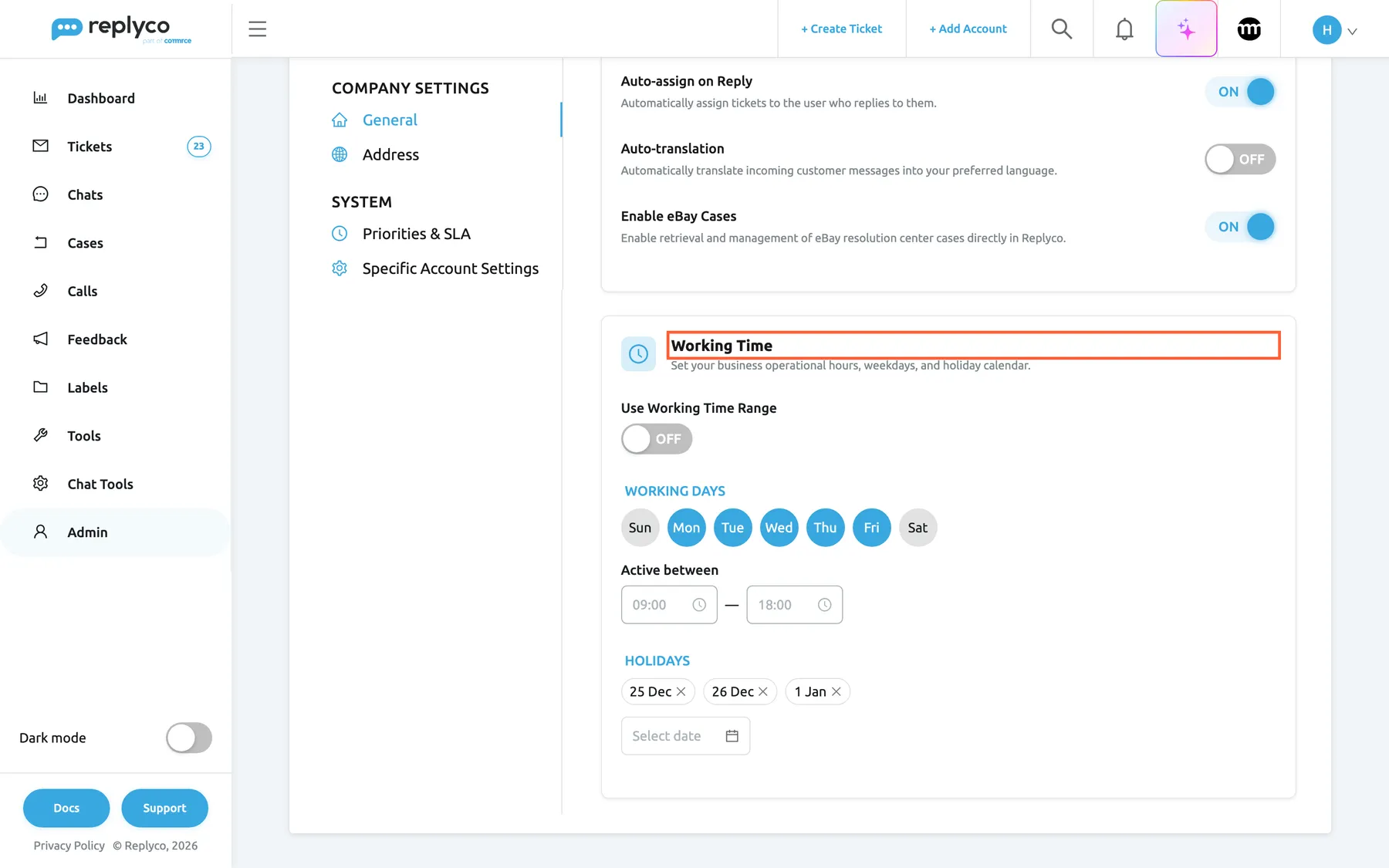
What this screenshot shows
- Screen
- Working Time (/company?tab=companyGeneral)
- Highlighted
- heading “Working Time”, working-time-card, shown. sets the working days
- Also visible
- Use Working Time Range off; working days Monday to Friday; 09:00 to 18:00; holidays 25 and 26 December, 1 January
- Purpose
- the working time behind out-of-hours auto-responses
Autoresponses Usage on the Performance dashboard
Section titled “Autoresponses Usage on the Performance dashboard”DashboardPerformance, the widget Autoresponses Usage. It follows the dashboard’s date, account and marketplace filters. To learn the rest of this dashboard, see Performance dashboard.
A table of every auto-response rule with Rule Name and Quantity, most used first, rules that sent nothing included, and a pie chart of the rules that sent something. Each count is the number of auto-responses the rule sent successfully in the period; waiting, cancelled and failed ones are not counted, and deleted rules disappear from it. The same messages also count for the rule’s template in Templates Usage.
A rule that never fires is usually a schedule mistake; a rule that fires far more than expected may be answering messages it should not.
Three ways to use it:
- After creating a rule, check after a week that it sent something; 0 for an out-of-hours rule means the schedule or conditions are wrong.
- Compare Out of hours reply week by week to see how many customers write outside your hours.
- Narrow the dashboard to one marketplace to see how much of it you answer automatically.
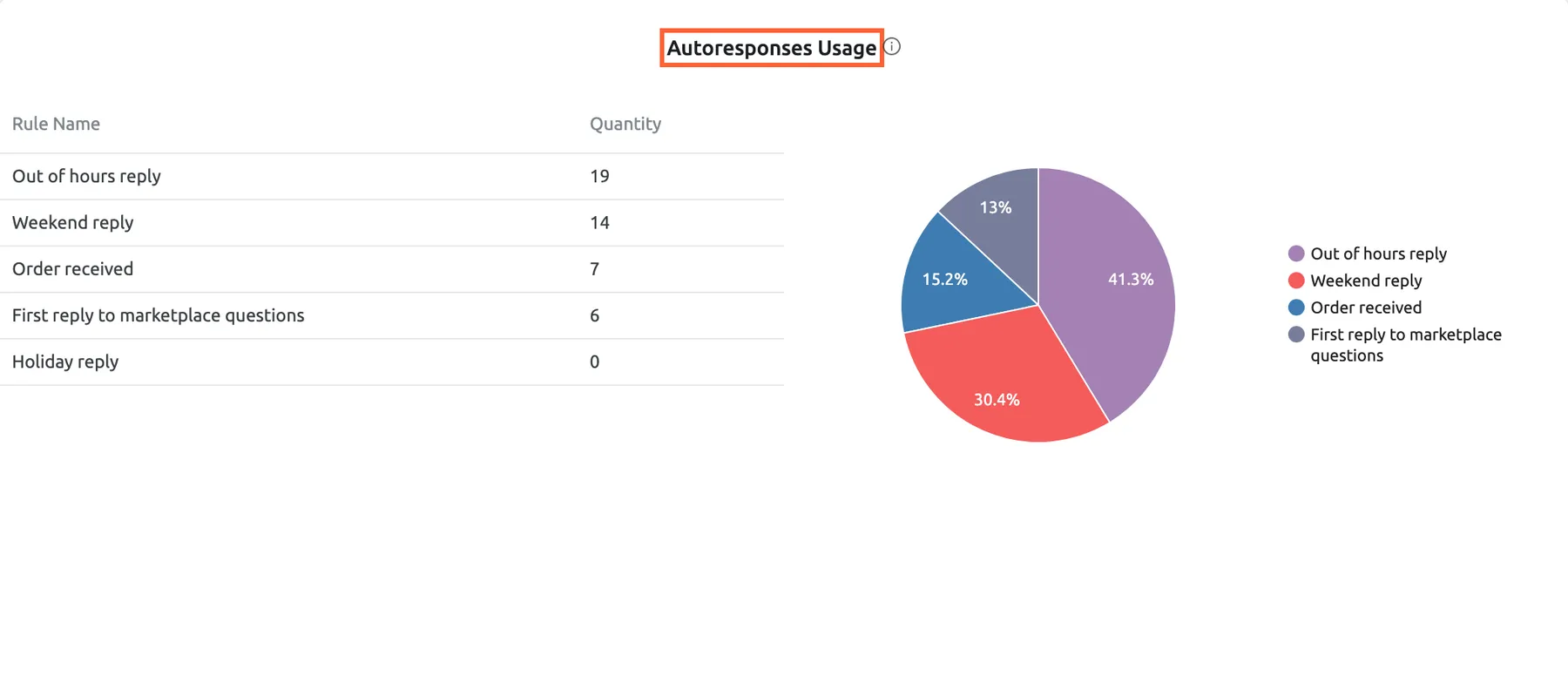
What this screenshot shows
- Screen
- Performance (/dashboard/performance)
- Highlighted
- heading “Autoresponses Usage”, autoresponses-usage-widget, enabled. lists how many auto-responses each rule sent
- Also visible
- table Rule Name and Quantity with five rules; pie chart with four slices
- Purpose
- see which auto-response rules fire
Auto-responses and your other automation
Section titled “Auto-responses and your other automation”Message rules under ToolsAutomation › Rules; templates on the Templates tab; blocking in the ticket’s customer details; the blacklist on the AI Customers Blacklist tab of ToolsAI Settings.
For an incoming message, Replyco runs the auto-response rules first and the message rules right after, independently: a message rule cannot stop or send an auto-response, and an auto-response does not change what message rules see. Blocking a customer stops both; the AI Customers Blacklist stops auto-responses and leaves message rules running. Templates are linked to rules: deleting a template deletes the rules that send it, and switching a template off does not stop them.
Knowing the order explains why an acknowledgement goes out even on a ticket your rules archive or assign.
Three combinations:
- A message rule archives newsletters from your supplier; add the supplier’s address to a Does not contain condition of your auto-response rule, or it still receives an acknowledgement.
- A message rule assigns Amazon tickets to one agent, while First reply to marketplace questions acknowledges them; both happen to the same message.
- You block a buyer who sends abuse: from then on neither rules nor auto-responses react to their messages. See Blocked tickets.
What you need to know
Section titled “What you need to know”| Topic | Fact |
|---|---|
| Several rules | Every matching rule sends its own reply; there is no order or priority between rules. |
| Once | Once (1st response only) means the ticket’s first customer message, per rule; a new ticket gets it again. |
| Boundaries | Company working time includes its start and end; a rule’s own window excludes them. Date ranges include both dates. |
| Delays | A reply with a delay keeps its send time; replying or resolving does not cancel it. |
| Switching off, deleting | Stops new replies; replies already waiting still go out. |
| Nothing retroactive | Only messages that arrive after a rule is saved, and while it is on, are answered. |
| Channels | Etsy never, and some Amazon, eBay, Fruugo, Kaufland and Outlook messages never, get an auto-response. |
| Blocked and blacklisted customers | Neither blocked customers nor customers on the AI Customers Blacklist get auto-responses. |
| Failures | A failed send shows Error Sending in the ticket and is not counted on the dashboard. |
| Cost | No AI actions; the first reply in a ticket, automatic or not, makes the ticket count as used. |
| Language | The template is sent as written; nothing is translated automatically. |
Frequently asked questions
Section titled “Frequently asked questions”General
Section titled “General”What is an auto-response in Replyco?
Section titled “What is an auto-response in Replyco?”An auto-response is a reply template that Replyco sends into a ticket on its own when a customer message matches an auto-response rule: its accounts, its schedule and its conditions. You set up rules under ToolsAutomation on the Auto-response Rules tab, and the reply appears in the ticket with the rule’s name.
Which plan do I need for auto-responses?
Section titled “Which plan do I need for auto-responses?”Every plan includes auto-responses, and every feature is on during a trial; companies on an older plan may not have them, see What each plan includes. Managing rules also needs the Automation permission under AdminUsers. Seeing the replies in tickets needs no extra permission.
Do auto-responses cost anything?
Section titled “Do auto-responses cost anything?”They use no AI actions and have no fee of their own. The first reply sent in a ticket, an auto-response included, makes the ticket count among your tickets used in the billing period, so on a plan with a ticket limit a ticket answered only automatically still counts. See Billing under AdminBilling.
Can auto-responses answer chats?
Section titled “Can auto-responses answer chats?”No. The rules on the Auto-response Rules tab answer ticket channels only: marketplaces, webstores, mailboxes and phone. WhatsApp, Facebook, Instagram, Telegram, TikTok Shop and live chat conversations have their own chat auto-response rules under Chat Tools.
My rule never sends. What should I check first?
Section titled “My rule never sends. What should I check first?”The time window. Open the rule on the Auto-response Rules tab and check that its Working Hours cover the time the message arrived, or switch on Send Outside Working hours of Company. Then check that the rule is switched on, the account is selected, and the date range includes today.
Do I need a condition for a rule that should answer everything?
Section titled “Do I need a condition for a rule that should answer everything?”Yes, Replyco refuses a rule without conditions. Use Client email Does not contain noreply;no-reply on the rule’s form: it matches every sender except no-reply robots, which you do not want to answer anyway.
Does a new rule answer messages that are already in my inbox?
Section titled “Does a new rule answer messages that are already in my inbox?”No. A rule answers only customer messages that arrive after you save it, while it is switched on. Tickets already open when you create the rule get no auto-response, and neither do messages that arrived while the rule was switched off.
When replies go out
Section titled “When replies go out”Two rules answered the same message. Why?
Section titled “Two rules answered the same message. Why?”Every rule that matches a message sends its own reply; there is no order and no priority between rules. For example, an out-of-hours rule and a weekend rule both match on Saturday. Give the rules different accounts, schedules or conditions, or switch one off, on the Auto-response Rules tab.
The customer wrote again and got no second auto-response. Why?
Section titled “The customer wrote again and got no second auto-response. Why?”The rule uses Once (1st response only), which answers only the ticket’s first customer message. Choose Continuous (every response) under Frequency in the rule’s form if every message should be answered, bearing in mind that a customer who writes three times then gets three replies.
Why did a returning customer get no out-of-hours reply?
Section titled “Why did a returning customer get no out-of-hours reply?”With Once (1st response only), only a ticket’s first customer message is answered. If your account adds a customer’s new messages to their latest ticket, the new message is not the first one in that ticket; see Ticket merging. A message whose first customer message arrived during working time is not first either.
Does the out-of-hours reply go out on holidays?
Section titled “Does the out-of-hours reply go out on holidays?”Yes, when the date is listed under Holidays in the Working Time card under AdminCompany Settings. A holiday counts every year on the same day and month.
A message arrived exactly at 18:00 and got no out-of-hours reply. Why?
Section titled “A message arrived exactly at 18:00 and got no out-of-hours reply. Why?”The start and end of your company’s working time count as working time, so a message at 18:00 on a working day with the span 09:00 to 18:00 is inside it. From 18:01 the out-of-hours rule answers. A rule’s own Working Hours behave the other way round: their start and end are excluded.
Delays, replies and resolving
Section titled “Delays, replies and resolving”I answered the customer, and the auto-response went out afterwards. Why?
Section titled “I answered the customer, and the auto-response went out afterwards. Why?”The auto-response had a delay: your reply cancels only auto-responses waiting to go out immediately, and a reply with a delay keeps its send time. Open the ticket and select Cancel on the waiting auto-response, which shows Delayed and a clock, before or after you answer.
Does resolving a ticket stop a waiting auto-response?
Section titled “Does resolving a ticket stop a waiting auto-response?”No. Resolving cancels only auto-responses waiting to go out immediately; one with a send time goes out at its time, even into a resolved ticket. Select Cancel on the waiting auto-response in the ticket first if the customer should not receive it.
How do I stop one auto-response without switching off the rule?
Section titled “How do I stop one auto-response without switching off the rule?”Open the ticket while the reply is still waiting and select Cancel on the bar that shows Sending is scheduled for and the time. The reply is cancelled for good. Once it has been sent, it cannot be recalled.
Does an auto-response count as our first response?
Section titled “Does an auto-response count as our first response?”No. Tickets answered only by an auto-response do not become Responded, and first response times on the dashboards leave auto-responses out, so they measure your team. For billing, though, the first reply sent in a ticket, automatic or not, makes the ticket count as used.
Channels and customers
Section titled “Channels and customers”Why do my Etsy customers never get an auto-response?
Section titled “Why do my Etsy customers never get an auto-response?”Etsy shows a conversation to the customer only after they reply on Etsy, so Replyco never sends automatic replies to Etsy messages.
Why didn’t an eBay or Amazon message get an auto-response?
Section titled “Why didn’t an eBay or Amazon message get an auto-response?”eBay’s own notices, and messages not written by an eBay member, cannot be answered; Amazon messages from Amazon’s no-reply address are skipped too. These restrictions come from the marketplaces and apply to every rule on the Auto-response Rules tab. Check the message’s sender in the ticket.
Do blocked customers get auto-responses?
Section titled “Do blocked customers get auto-responses?”No. Replyco skips auto-responses and message rules for every message from a blocked customer, and does not send them later after you unblock the customer. See Blocked tickets. Customers on the AI Customers Blacklist get no auto-responses either; unlike blocked customers, your message rules still run for them and their tickets stay in your ticket lists.
Can an auto-response reply to a bounce and cause a loop?
Section titled “Can an auto-response reply to a bounce and cause a loop?”No. Messages whose subject contains undeliverable, delivery failed or delivery has failed never get an auto-response. To keep other robots out, add a condition such as Client email Does not contain noreply;no-reply;mailer-daemon to the rule.
Where it is shown
Section titled “Where it is shown”How do I recognise an auto-response in a ticket?
Section titled “How do I recognise an auto-response in a ticket?”Its header shows as auto-response “Out of hours reply”, with the rule’s name, instead of an agent’s name. While it waits, it shows Delayed and a clock bar with Send now and Cancel.
How can I make auto-responses take up less space in tickets?
Section titled “How can I make auto-responses take up less space in tickets?”Switch on Show In-Line Auto-responses in Ticket Detail screen in your Account Settings. Each sent auto-response then shows as one grey line with the rule’s name and time, and Show opens it. The setting is personal, so colleagues keep their own view.
Where can I see how many auto-responses each rule sent?
Section titled “Where can I see how many auto-responses each rule sent?”On DashboardPerformance, in the widget Autoresponses Usage. It counts the auto-responses each rule sent successfully in the selected period, including rules with 0; waiting, cancelled and failed ones are not counted.
Why does a deleted rule no longer appear on the dashboard or in the ticket?
Section titled “Why does a deleted rule no longer appear on the dashboard or in the ticket?”Autoresponses Usage lists only rules that still exist, and a sent auto-response shows its rule’s name only while the rule exists. The messages themselves stay in their tickets unchanged. Switch a rule off on the Auto-response Rules tab instead of deleting it if you want to keep its numbers.
Data and privacy
Section titled “Data and privacy”What does the customer see?
Section titled “What does the customer see?”Only the reply: the template’s text with placeholders filled in and its attachments, sent through the channel like any reply from your team, with Re: in front of the subject when it answers the first message of a new ticket. The rule’s name, the conditions and the fact that it was automatic are not shown, unless your template says so.
What happens to replies when I delete a rule?
Section titled “What happens to replies when I delete a rule?”Deleting a rule on the Auto-response Rules tab stops new replies at once. Replies it already scheduled still go out unless you cancel them in their tickets, and sent replies stay in their tickets unchanged, without the rule’s name. To stop automatic replies for a while, switch the rule off instead.
Troubleshooting
Section titled “Troubleshooting”| Symptom | What to check |
|---|---|
| A rule never sends | In order: the time window covers the message’s time; the rule is in the Active group; the message’s account is under Accounts; the date range includes the message’s date; the conditions match; the message is the ticket’s first customer message if the rule uses Once (1st response only). |
| An out-of-hours rule sends during working time, or not after it | The Working Time card under AdminCompany Settings. |
| A customer got two replies | Two rules matched the same message; give them different accounts, schedules or conditions. |
| The customer got the acknowledgement after our answer | The auto-response had a send time; replying does not cancel it. Cancel it in the ticket, or shorten the delay. |
| A returning customer got no reply | Once (1st response only) and the message joined an existing ticket; see Ticket merging. |
| No reply on Etsy, or to some Amazon, eBay, Fruugo or Kaufland messages | The channel does not allow an automatic reply to that message; see What does not get an auto-response. |
| No reply to a customer | The customer is blocked, or on the AI Customers Blacklist; see Blocked tickets and AI Customers Blacklist. |
| The rule answers robots or newsletters | Add a Does not contain condition on Client email, such as noreply;no-reply;newsletter. |
| The rule answers every message | A condition is too broad, such as a Does not contain condition that nearly every message meets; open the rule and narrow it. |
| An auto-response shows Error Sending | The channel refused the message; read the reason in the ticket and check the template’s attachments and the account’s connection. See Troubleshooting tickets. |
| Autoresponses Usage shows 0 for a rule | The rule did not fire in the period, or its replies failed; check the schedule and the dashboard filters. |
| A rule disappeared | Its template was deleted on the Templates tab. |
Related
Section titled “Related”- Auto-response Rules: every control of the rules tab
- Templates · Reply templates: the replies rules send
- Company Settings · Working time: the hours out-of-hours rules follow
- Delayed sending: waiting replies, Send now and Cancel
- Blocked tickets · Ticket merging · AI summaries
- Performance dashboard · The ticket screen
- Rules for incoming tickets · Chat auto-response rules