

Feedback Requests
Feedback Requests is the log of the review requests Replyco asks Amazon to send to your buyers after delivery: one row per order, planned or sent, with its status, the date and the rule that created it. Sellers and admins use it to check that the automation is working and to find out why a request did not go out. Open it from FeedbackFeedback Requests in the sidebar. Requests exist only for Amazon orders: Replyco uses Amazon’s own “Request a Review” message, so the buyer gets Amazon’s standard message, and nothing is sent for eBay or other channels. The rules that create the requests are set up in Feedback Rules; the whole feature is explained in Automatic feedback requests.
What you can do here
Section titled “What you can do here”- See every review request in one place. Each Amazon order that a rule picked, or that you requested by hand, has one row with its order, customer, status and send date. Read the log · Automatic feedback requests
- Know when a request goes out. Replyco schedules each request for the delivery date plus the rule’s number of days and sends it in the background. Know when a request is sent
- Find out why a request failed. Point at Failed to read Amazon’s answer word for word. Find out why a request failed
- Narrow the log. Filter by status, rule and Amazon account, or search for an order number or a customer name. Filter and search the log
- Send, cancel or create a request for one order. Selecting a row opens the order, where a pending request can be sent at once or cancelled. Send, cancel or create a request
- Change what gets a request. The schedule, the accounts and the exclusions live in the feedback rules, not on this screen. Feedback Rules
The screen at a glance
Section titled “The screen at a glance”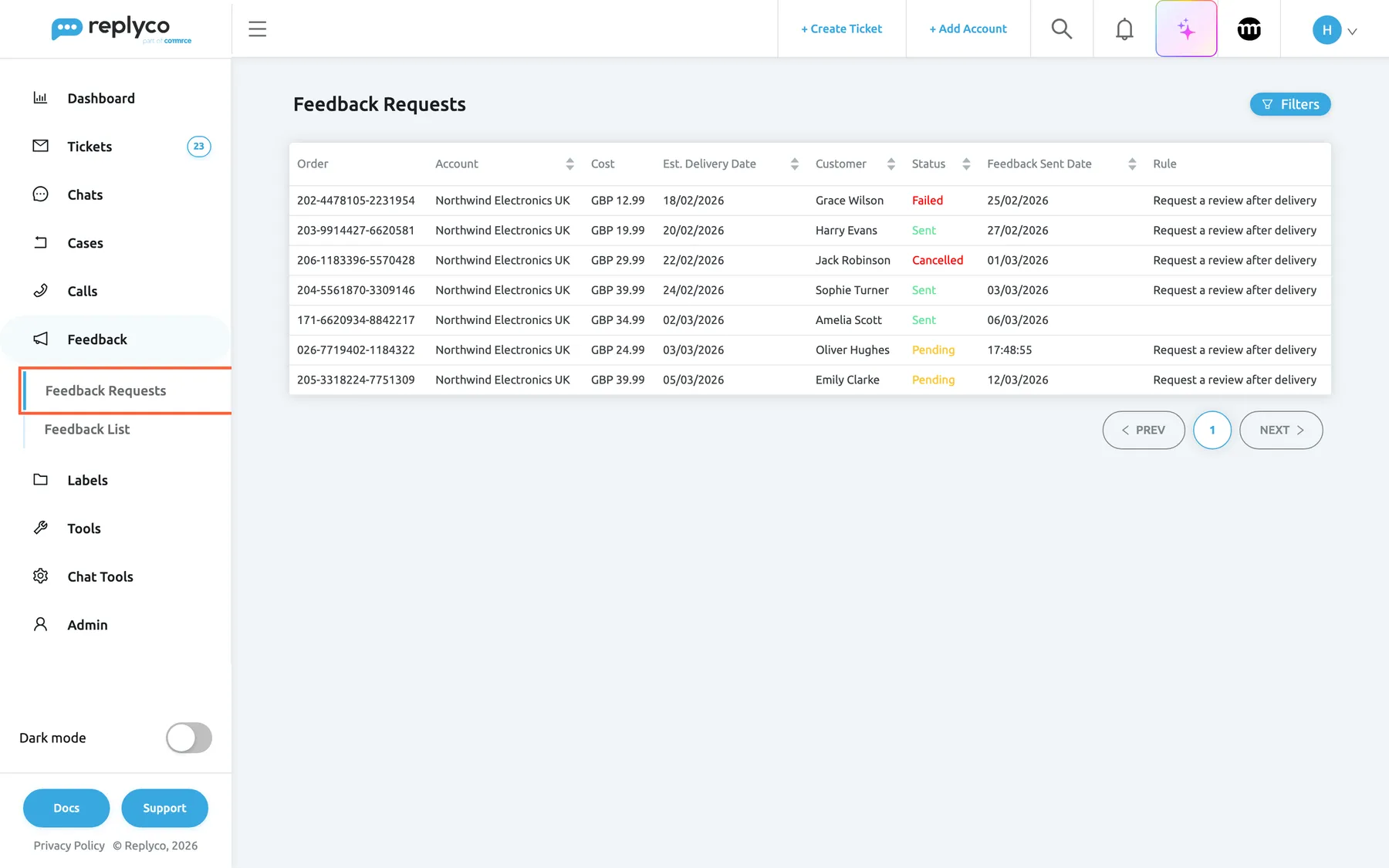
What this screenshot shows
- Screen
- Feedback Requests (/feedbacks-requests)
- Highlighted
- menuitem “Feedback Requests”, sidebar-left, selected. opens the log of review requests
- Also visible
- seven requests with Failed, Sent, Cancelled and Pending; one request without a rule; a Pending request due today shows a time
- Purpose
- the Feedback Requests log as it opens
| Region | What it shows | What you do there |
|---|---|---|
| Feedback Requests, in the sidebar under Feedback | The entry of this screen; with a lock icon when the company is on an older plan without the feature | Open the log |
| Heading, top left | Feedback Requests | – |
| Filters, top right | Opens the filter panel with search, status, rule and account | Narrow the log |
| The table | One row per request: order, account, cost, delivery date, customer, status, send date, rule | Read, sort, select a row to open the order |
| Paging, bottom right | 10 rows per page | Move through pages |
The rows are ordered by Feedback Sent Date, the earliest first, until you sort by another column. A date that is today shows only the time, as Pending requests due later today do in the screenshot.
Read the log
Section titled “Read the log”Each row is one request for one Amazon order. An order never gets a second request: once a request exists, Replyco only keeps its order data up to date.
| Status | Colour | What it means | What you can do |
|---|---|---|---|
| Pending | Yellow | Planned. Replyco sends it when Feedback Sent Date is reached | Send it now or cancel it from the order |
| Sent | Green | Amazon accepted the request and sends its review request to the buyer | Nothing more; Amazon allows one request per order |
| Failed | Red | Amazon refused the request. The reason is in a tooltip on the status and in the order | Read the reason; there is no retry button |
| Cancelled | Red | Stopped, by you, by a rule’s exclusion, or because Amazon’s time window was not open when you sent it by hand | Send it now from the order |
Feedback Sent Date is the planned send date while a request is Pending, and the send date once it was sent. Rule names the rule that created the request; it is empty for a request you created by hand from the order. Est. Delivery Date is the date Replyco counted from, taken from the Amazon order.
Example. Emily Clarke’s order 205-3318224-7751309 was due for delivery on 05/03/2026. The rule “Request a review after delivery” waits 7 days, so the request is Pending with the send date 12/03/2026. On that day Replyco sends it, and the row turns Sent in green, or Cancelled if Emily has opened a ticket about the order in the meantime and the rule excludes orders with active tickets.
Know when a request is sent
Section titled “Know when a request is sent”Replyco creates a request when an Amazon order is synced and first has a delivery date, and a rule matches it.
| Step | What Replyco does |
|---|---|
| The order gets a delivery date | Replyco takes the estimated delivery date from Amazon, else the latest ship date, else the moment Amazon marks the order as shipped |
| A rule matches | The first active rule, in order of name, that covers the order’s account and whose conditions the order meets. Orders whose number starts with “S” (Amazon multi-channel fulfilment) are skipped |
| The request is planned | Pending, with the send date = delivery date + the rule’s days, shifted by up to 30 minutes |
| The send date is reached | Replyco checks every few minutes and sends up to 100 due requests per Amazon account at a time |
| Just before sending | If the rule has Exclude orders with active tickets or Exclude orders with open Cases and the order has an unresolved ticket or an open case, the request becomes Cancelled |
| Amazon answers | Sent, or Failed with Amazon’s message |
Amazon only accepts a request between 5 and 30 days after delivery. When an automatic send is too early, Replyco tries again the next day while less than 20 days have passed since delivery; after that the request is marked Failed with Amazon’s message. A rule’s schedule and conditions are explained in Feedback Rules.
Find out why a request failed
Section titled “Find out why a request failed”Point at a red Failed in the table. A tooltip shows the reason exactly as Amazon sent it, in English. The same reason appears in the order under Feedback request failed (…).
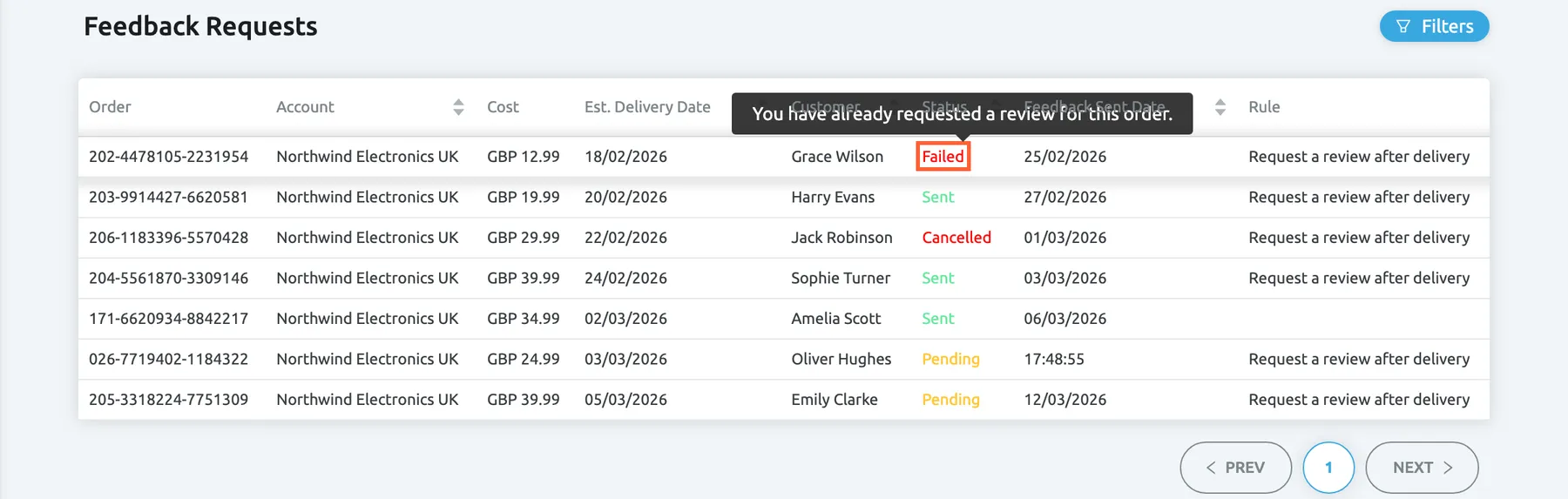
What this screenshot shows
- Screen
- Feedback Requests (/feedbacks-requests)
- Highlighted
- text “Failed”, table, hovered. shows Amazon's failure message in a tooltip
- Also visible
- tooltip You have already requested a review for this order.; status colours per row
- Purpose
- find out why a request failed
| Amazon’s message | What it means |
|---|---|
| “You have already requested a review for this order.” | A request for this order was already sent, from Replyco, from Seller Central or another tool. Amazon allows one per order |
| “The requested solicitation is not available for this amazonOrderId.” | Amazon does not allow a request for this order, for example because of the order’s type or state |
| “You can’t use this feature to request a review outside the 5-30 day range after the order delivery date.” | The request was too late: Replyco kept trying daily until 20 days after delivery |
| Any other message | Passed on from Amazon unchanged, for example a missing permission of the Amazon connection |
A failed request is not retried, and it has no button to try again. If the reason is a permission of the Amazon connection, reconnect the account; see Connect Amazon.
Filter and search the log
Section titled “Filter and search the log”-
Select Filters at the top right.
The filter panel opens with Search, Filter by Status, Filter by Feedback Rule and Filter by Account.
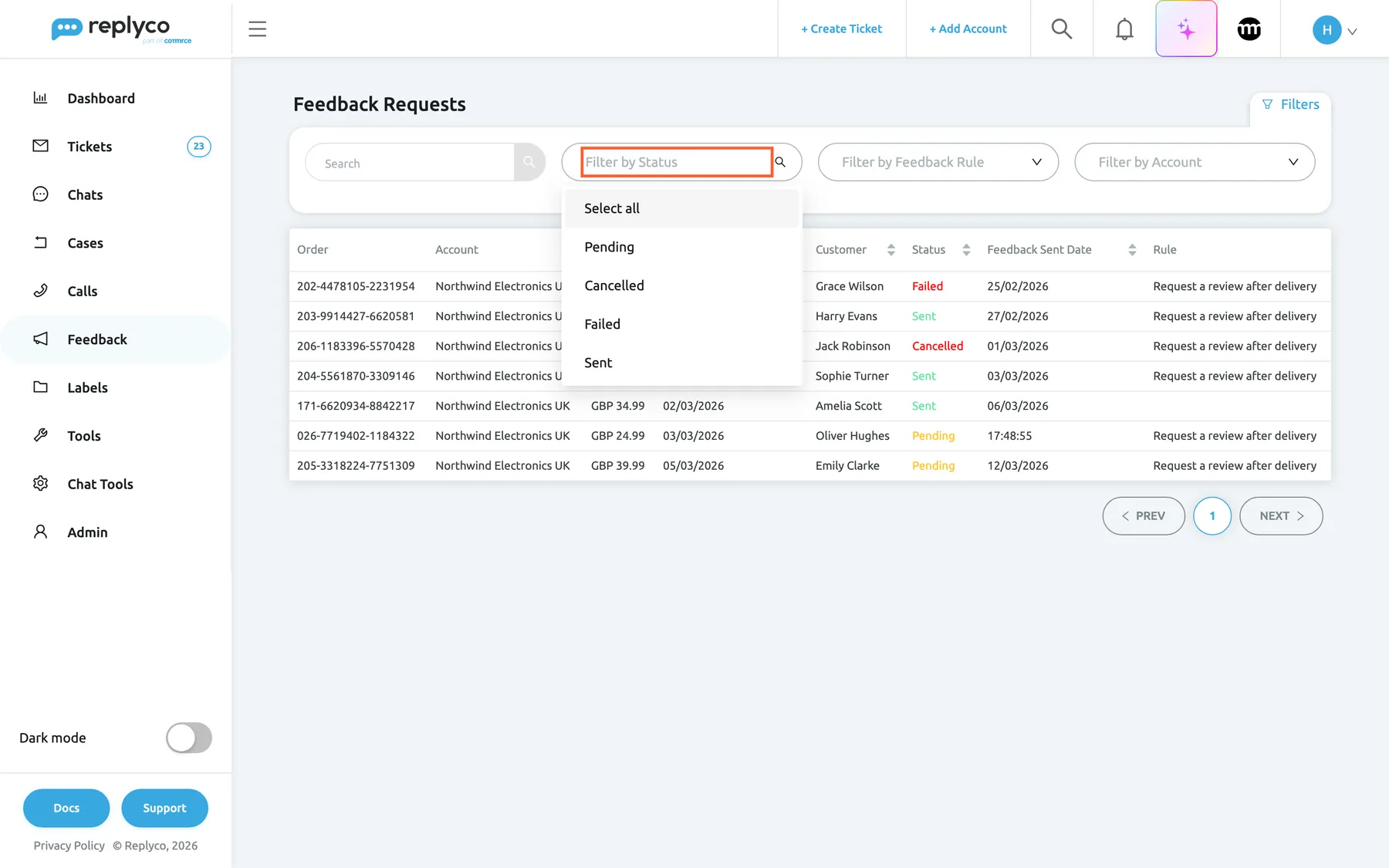
Filter the log by status, rule and Amazon account; Search finds an order number or a customer name. What this screenshot shows
- Screen
- Feedback Requests (/feedbacks-requests)
- Highlighted
- combobox “Filter by Status”, filters-panel, expanded. filters the log by one or more statuses
- Also visible
- Search box; Filter by Status open with four statuses; Filter by Feedback Rule; Filter by Account
- Purpose
- filter the log
-
Choose one or more statuses, rules or accounts. Each choice reloads the list at once and appears as a tag under the panel.
-
To search, type an order number or a customer name and press Enter or select the magnifier.
The search finds parts of a word too: “3318224” finds order 205-3318224-7751309.
-
To start again, select Clear Filters, or remove a single tag with its ×.
Your filters stay. Replyco keeps the filters, the sort order and the page in your browser, so the log opens as you left it, until you clear them or use another browser. Clear Filters also resets the sort order.
Example. To see what went wrong last month, choose Failed and Cancelled under Filter by Status and sort by Feedback Sent Date.
Send, cancel or create a request
Section titled “Send, cancel or create a request”Select a row to open the Order Details of the order. Under the products, a line tells you the state of its request, and the buttons depend on the status.
-
In FeedbackFeedback Requests, select the row of the order.
The Order Details window opens.
-
Scroll down to the line under the products, for example Feedback request will be sent 12/03/2026 18:14.
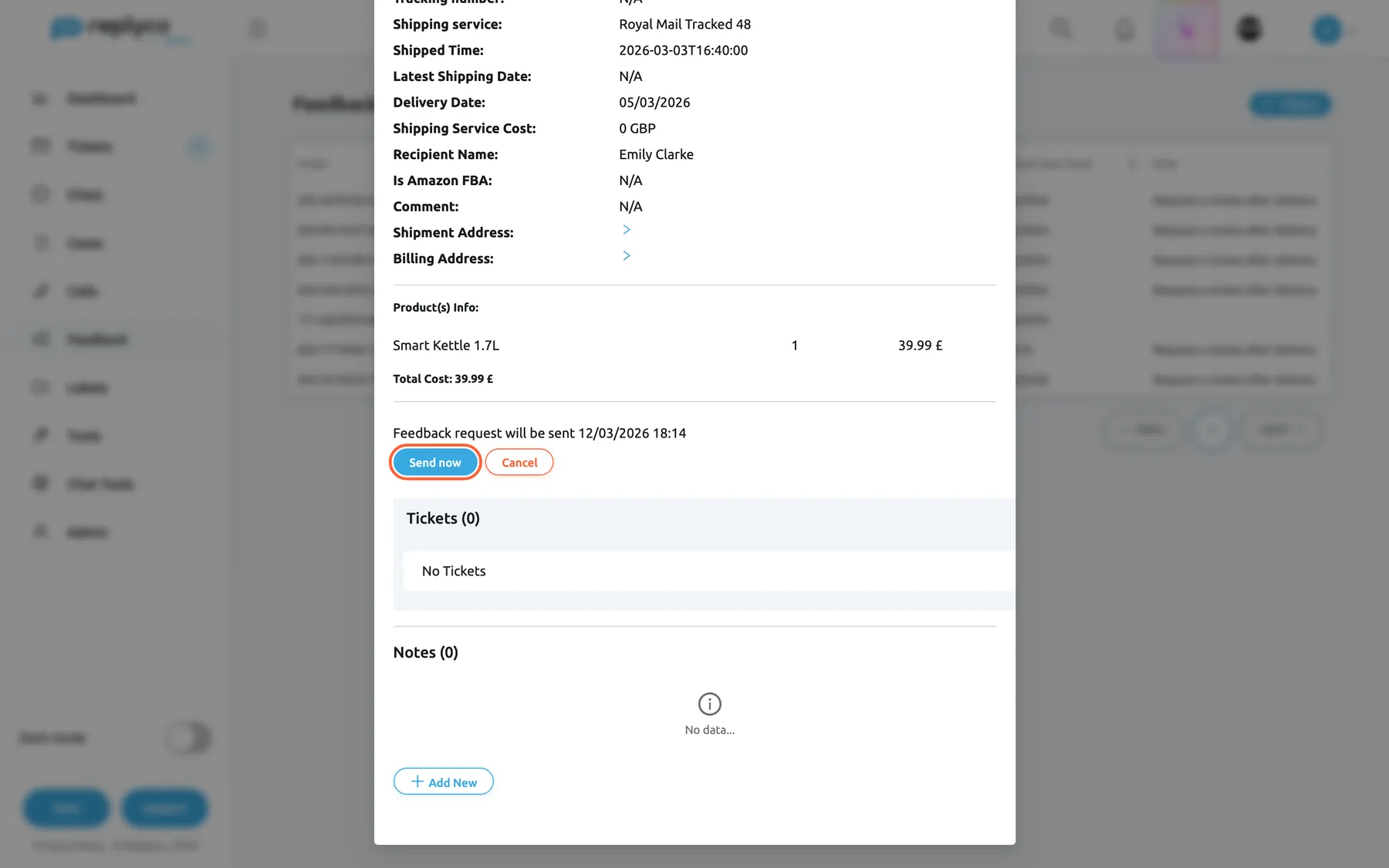
Select a row to open its order; a Pending request can be sent now or cancelled there. What this screenshot shows
- Screen
- Order Details (/feedbacks-requests)
- Highlighted
- button “Send now”, dialog, enabled. sends the review request through Amazon at once
- Also visible
- Feedback request will be sent 12/03/2026 18:14; Send now and Cancel; Tickets (0); Notes (0)
- Purpose
- act on one request from its order
-
Select Send now to send the request at once, or Cancel to stop it.
Replyco shows Success when Amazon accepted or the request was cancelled, You can't send a feedback request yet. when Amazon’s 5-to-30-day window is not open (the request is then Cancelled), and Error when Amazon refused it.
| Status of the request | Line in the order | Buttons |
|---|---|---|
| Pending | Feedback request will be sent 12/03/2026 18:14 | Send now, Cancel |
| Cancelled | Feedback request was cancelled, in red | Send now |
| Failed | Feedback request failed (Amazon's message), in red | None |
| Sent | Feedback request was sent 03/03/2026 18:05 | None |
| No request yet, Amazon order | – | Create feedback request |
Create feedback request appears in the order of an Amazon order that has no request. It creates a request without a rule and sends it straight away; the new row in the log has an empty Rule. You reach such orders from ToolsOrders, described in Orders. The rest of the order window, its fields, tickets and notes, is explained there too.
Every control, explained
Section titled “Every control, explained”Feedback Requests in the sidebar
Section titled “Feedback Requests in the sidebar”The sidebar, under Feedback, above Feedback List.
Opens this log. The whole Feedback menu is hidden for users without the Feedback permission. Every current plan includes the feature; when a company on an older plan lacks it, the entry shows a lock; selecting it asks Your subscription plan doesn't include this feature. Do you want to go on the billing page to unlock this feature? and, when you confirm, opens Billing.
One place to check the review automation for all Amazon accounts.
The columns
Section titled “The columns”| Column | What it shows | Why |
|---|---|---|
| Order | The Amazon order number | Find the order in Seller Central or search for it here |
| Account | The Amazon account in Replyco; sortable | Tell stores apart |
| Cost | Currency and order total | Spot high-value orders |
| Est. Delivery Date | The delivery date the schedule counts from; sortable | Check why a request is due when it is |
| Customer | The buyer’s name from the order; sortable | Recognise a customer who has a ticket open |
| Status | Pending, Cancelled, Failed or Sent, in colour; Failed has a tooltip with Amazon’s reason; sortable | See at a glance what went out |
| Feedback Sent Date | The planned or actual send date; today’s date shows as a time; sortable; the default order | See what goes out next |
| Rule | The name of the rule that created the request; empty for requests created by hand | Tell which rule is doing the work |
The filters
Section titled “The filters”| Filter | What it does | Why |
|---|---|---|
| Search | Finds the text in the order number or the customer name; runs on Enter or the magnifier | Jump to one order a customer asks about |
| Filter by Status | One or more statuses; Select all picks all four | Review failures and cancellations |
| Filter by Feedback Rule | One or more rules | Compare rules |
| Filter by Account | One or more Amazon accounts; only Amazon accounts are offered | Check one store |
| Clear Filters | Removes every filter and the sort order; shown while a filter is set | Start again |
The row
Section titled “The row”Any row of the table.
Opens the Order Details of that order in a window, with the request’s state and its buttons under the products. Close the window with the × to return to the log.
The decision to send or stop a request usually depends on the order: its tickets, its notes and its delivery.
Send now
Section titled “Send now”In the Order Details of an order whose request is Pending or Cancelled.
Sends the request to Amazon at once, whatever its planned date. Amazon’s answer sets the status: Sent, Failed with the reason, or Cancelled with the message You can't send a feedback request yet. when the order is outside Amazon’s 5-to-30-day window. The rule’s exclusions are not checked.
Ask for a review straight after a good support conversation, or send a request you cancelled earlier.
Cancel
Section titled “Cancel”In the Order Details of an order whose request is Pending, next to Send now.
Sets the request to Cancelled straight away, without a question, and shows Success. Nothing is sent to Amazon. The request can be sent later with Send now.
Keep a buyer who is unhappy with the order from receiving a review request.
Create feedback request
Section titled “Create feedback request”In the Order Details of an Amazon order that has no request yet, opened from ToolsOrders.
Creates a request without a rule and sends it at once. The result is shown as for Send now, and the order appears in this log.
Ask for a review for an order that no rule covers, or before any rule exists.
Who sees what
Section titled “Who sees what”| Part of the screen | What decides whether you see it or can use it |
|---|---|
| The Feedback menu and this screen | The Feedback permission of your user, set by an admin; see User permissions and roles |
| Feedback Requests without a lock | The review-request feature, which every current plan includes and which is on during a trial; companies on an older plan may not have it, see What each plan includes |
| Send now, Cancel, Create feedback request | Everyone who can open the order |
What you need to know
Section titled “What you need to know”| Topic | Fact |
|---|---|
| Channels | Amazon only. No requests are sent for eBay, shops, email or messengers |
| What the buyer receives | Amazon’s standard “Request a Review” message; Replyco adds no text |
| One per order | An order gets one request; Amazon refuses a second |
| Schedule | Delivery date + the rule’s days, ± up to 30 minutes |
| Amazon’s window | 5 to 30 days after delivery; automatic sends retry daily until day 20 |
| Sending | In the background every few minutes, up to 100 requests per account at a time |
| Exclusions | Checked just before an automatic send; skipped by Send now |
| Default order | Feedback Sent Date, earliest first; 10 rows per page |
| Filters | Kept in your browser until cleared |
| Retry | Failed requests are not retried; Cancelled ones can be sent by hand |
Frequently asked questions
Section titled “Frequently asked questions”General
Section titled “General”Can Replyco send review requests to eBay buyers or by email?
Section titled “Can Replyco send review requests to eBay buyers or by email?”No. Replyco sends review requests only for Amazon orders, through Amazon’s own “Request a Review” function. FeedbackFeedback Requests therefore lists only Amazon orders, and Filter by Account offers only Amazon accounts. For eBay, Replyco shows the feedback buyers leave; see Feedback List.
What does the buyer actually receive?
Section titled “What does the buyer actually receive?”The buyer receives Amazon’s standard review request. Replyco asks Amazon to send it and adds no text of its own, so you cannot change the wording or add a template. The request asks for a product review and seller feedback.
Why is the log empty?
Section titled “Why is the log empty?”Requests appear only when an active feedback rule matches an Amazon order that is synced after the rule was switched on, or when someone uses Create feedback request in an order. Check that a rule exists and is on in ToolsAutomation on the Feedback Rules tab, that it covers the Amazon account, and that your filters are cleared with Clear Filters. See Feedback Rules.
Why is the entry for review requests locked in my sidebar?
Section titled “Why is the entry for review requests locked in my sidebar?”The lock means the company’s plan does not include automatic review requests. Selecting it asks Your subscription plan doesn't include this feature. Do you want to go on the billing page to unlock this feature? and opens Billing when you confirm. The feature is part of every current plan, so a lock means your company is on an older plan without it; see What each plan includes.
Sending
Section titled “Sending”When exactly is a request sent?
Section titled “When exactly is a request sent?”Replyco plans each request for the order’s delivery date plus the number of days in the rule, shifted by up to 30 minutes, and shows that date in Feedback Sent Date. When the date is reached, the background job sends it within a few minutes. Amazon accepts requests only 5 to 30 days after delivery.
Which delivery date does Replyco use?
Section titled “Which delivery date does Replyco use?”Replyco uses the estimated delivery date Amazon gives for the order. When there is none, it uses the latest ship date, and when that is missing too, the moment Amazon marks the order as shipped. The date used is shown in Est. Delivery Date on FeedbackFeedback Requests.
Can I send a request earlier than planned?
Section titled “Can I send a request earlier than planned?”Yes. Select the row, and in the Order Details select Send now. Amazon still refuses requests earlier than 5 days after delivery; Replyco then shows You can't send a feedback request yet. and sets the request to Cancelled, so send it again later.
How do I stop a request for an unhappy customer?
Section titled “How do I stop a request for an unhappy customer?”Select the order’s row in FeedbackFeedback Requests and select Cancel in the Order Details. The request becomes Cancelled and is not sent. To do this automatically, switch on Exclude orders with active tickets in the rule; see Feedback Rules.
Can I request a review for an order no rule covers?
Section titled “Can I request a review for an order no rule covers?”Yes. Open the order from ToolsOrders and select Create feedback request. Replyco sends the request straight away and adds it to FeedbackFeedback Requests without a rule. The button appears only for Amazon orders without a request.
Statuses
Section titled “Statuses”Why did a request fail?
Section titled “Why did a request fail?”Point at Failed in the log to read Amazon’s reason, or open the order. The most common reason is “You have already requested a review for this order.”: a request was sent before, from Replyco, Seller Central or another tool. Amazon allows one request per order.
Why was a request cancelled when nobody cancelled it?
Section titled “Why was a request cancelled when nobody cancelled it?”A rule with Exclude orders with active tickets or Exclude orders with open Cases cancels the request just before sending when the order has an unresolved ticket or an open case. A request sent with Send now outside Amazon’s 5-to-30-day window is also set to Cancelled.
Can I retry a failed request?
Section titled “Can I retry a failed request?”No. A Failed request has no button in the order, and Replyco does not retry it. Most failures cannot succeed later anyway, because Amazon has already received a request for the order or does not allow one.
Why does the send date show only a time?
Section titled “Why does the send date show only a time?”Feedback Sent Date on FeedbackFeedback Requests shows only the time for a date that is today, for example 17:48:55 for a request due this evening. Every other day shows the full date.
Data and privacy
Section titled “Data and privacy”What does the log keep for each request?
Section titled “What does the log keep for each request?”For each request, FeedbackFeedback Requests keeps the Amazon order number, the account, the order total and currency, the delivery date, the buyer’s name, the send date, the rule, the status and, for a failed request, Amazon’s reason. Use Filter by Account to see one store.
Troubleshooting
Section titled “Troubleshooting”| Symptom | What to check |
|---|---|
| The log stays empty | A feedback rule exists and is on for the Amazon account (ToolsAutomation, Feedback Rules); the orders were synced after the rule was switched on; Clear Filters |
| A new order has no request | The order has no delivery date yet; its number starts with “S”; another request exists for it; no rule’s conditions match it |
| Many rows are Failed with “You have already requested a review for this order.” | Another tool or Seller Central also sends requests; switch one of them off |
| Rows are Failed with a permission or authorisation message | The Amazon connection’s permissions; reconnect the account, see Connect Amazon |
| Send now shows You can't send a feedback request yet. | The order is less than 5 or more than 30 days past delivery; send again inside the window |
| A buyer with an open ticket received a request | The rule’s Exclude orders with active tickets; the request was sent with Send now, which skips exclusions; the ticket was resolved before the send date |
| Feedback is missing from the sidebar | Your user’s Feedback permission; ask an admin, see User permissions and roles |