

Notifications
A customer answers while you are in another tab, a colleague hands you a ticket, the Amazon account stops syncing on a Friday evening: none of it helps if nobody notices. Replyco tells you about these events in four places: the bell in the top bar, an email, your browser and the Replyco app on your phone. You choose per event which of them you want, under Account Settings › Notifications.
What it does
Section titled “What it does”Most of the work in Replyco arrives while you are doing something else. A ticket assigned to you by a rule, a reply from a customer in a ticket you own, a new chat on your WhatsApp account or a negative review on eBay each needs someone to look at it soon, and nobody watches every list all day.
Notifications give each user their own table of eight events and three channels: Email, Mobile and Browser. Replyco checks that table every time one of the events happens and sends a notice through each channel you switched on. Some notices need no setting at all. From there:
- You hear about the events you care about, through the channel you want. One switch per event and channel, saved together. Every setting, explained.
- You know exactly which events count. Each row has its own trigger and its own recipients: the assignee, the users responsible for a chat account, or everyone who switched it on. Understanding the eight events.
- Mentions and ended snoozes always reach you. They arrive at the bell in the top bar whatever the table says. Notifications for mentions and snoozes.
- A blocked account never goes unnoticed. Every user sees a notice in Replyco and the company’s email address gets an email, for each account that has Receive Notifications about Blocking ticked. Notifications for blocked accounts.
- Chats can also ring. New chat messages can open a pop-up card in Replyco with a sound. The chat pop-up.
Every notice at the bell stays in its list with the date and time it arrived, read or unread, so you can always go back to what you were told.
Before you start
Section titled “Before you start”| Requirement | Details |
|---|---|
| Plan | Notifications are part of every plan. The two chat rows appear when your plan includes chats or live chat. See What each plan includes. |
| Who can set them | Every user, for themselves. The Notifications tab under Account Settings shows your own settings only; colleagues set theirs. |
| An email address | Email notifications go to the email address you sign in with. To check or change your details, see Account Settings. |
| A browser that allows notifications | The Browser column needs your browser’s permission for Replyco. Replyco asks for it when you open Replyco; each browser and each computer is asked separately. |
| The Replyco app | The Mobile column sends to the Replyco app for iPhone and Android on every phone where you are signed in to it. |
| Block notices | An administrator ticks or clears Receive Notifications about Blocking per account under AdminAccounts. See Accounts. |
| Cost | None. Notifications do not count towards any quota. |
Understanding the eight events
Section titled “Understanding the eight events”Each row of the table is one event. Replyco sends a notice for it only to the people the event concerns, and only through the channels each of them switched on.
| Row | When Replyco sends it | Who gets it | Example |
|---|---|---|---|
| Ticket Assigned to Me (manually) | A colleague assigns a ticket to you: in the ticket, in a ticket list, or on a new ticket they create for you | You, as the new assignee | Laura assigns ticket #32533 to you with Assign User |
| Ticket Assigned to Me (by rule) | A message rule assigns an incoming message’s ticket to you | The user the rule assigns | Your rule “Returns to Simon” matches a new message and assigns Simon |
| New Ticket | A customer’s message starts a new ticket | Every user who switched it on | A buyer on Amazon writes Where is my parcel? for the first time |
| New Ticket Message | A customer writes again in an existing ticket | The users the ticket is assigned to | The customer of your ticket replies with a photo of the damaged box |
| New Chat Message (All) | A customer writes in a chat | The users assigned to the chat and the users responsible for its account or live chat widget | A new WhatsApp message arrives on the account you look after |
| New Chat Message (Personal) | A customer writes in a chat assigned to you, or starts a new chat that nobody is assigned to yet | You, when the chat is assigned to you; the users responsible for the account, for a brand-new chat | A visitor opens the live chat widget and types the first message |
| Ticket Snoozed | A colleague snoozes a ticket with Snooze | Every other user who switched it on | Laura snoozes a ticket until tomorrow morning |
| New Neutral/Negative Feedback | A neutral or negative feedback arrives from a marketplace | Every user who switched it on | A buyer leaves negative eBay feedback on an order |
You are responsible for a chat account or a live chat widget when an administrator has given you access to it; see Invite users and set what they can do.
How Replyco decides
Section titled “How Replyco decides”- One check per user, per channel. For each event, Replyco looks at each recipient’s Email, Mobile and Browser switch separately. Email ON and Browser OFF for a row means an email and nothing in the browser.
- Only customer messages count. New Ticket, New Ticket Message and both chat rows react to messages from the customer, never to replies your team sends.
- A new ticket and a new message are different events. The first customer message of a ticket is New Ticket; every later one is New Ticket Message.
- New Ticket Message follows the assignee. It goes only to the users the ticket is assigned to. An unassigned ticket sends no New Ticket Message notice to anyone.
- The two chat rows never double up. When a message qualifies for both, and you switched on both rows for the same channel, Replyco sends you one notice through that channel, from New Chat Message (All).
- Your own actions stay quiet. Assigning a ticket to yourself sends you nothing, and snoozing a ticket notifies your colleagues, not you.
The two chat rows differ in which chats they cover. For a customer message in a chat on an account or widget you are responsible for:
| Chat situation | New Chat Message (All) ON | New Chat Message (Personal) ON |
|---|---|---|
| A customer writes in a chat assigned to you | Notice | Notice |
| A customer writes in a chat on your account that is assigned to a colleague | Notice | Nothing |
| A new chat starts on your account and nobody is assigned | Notice | Notice |
| The same new chat’s second message, still unassigned | Notice | Nothing |
| A chat on an account you have no access to, not assigned to you | Nothing | Nothing |
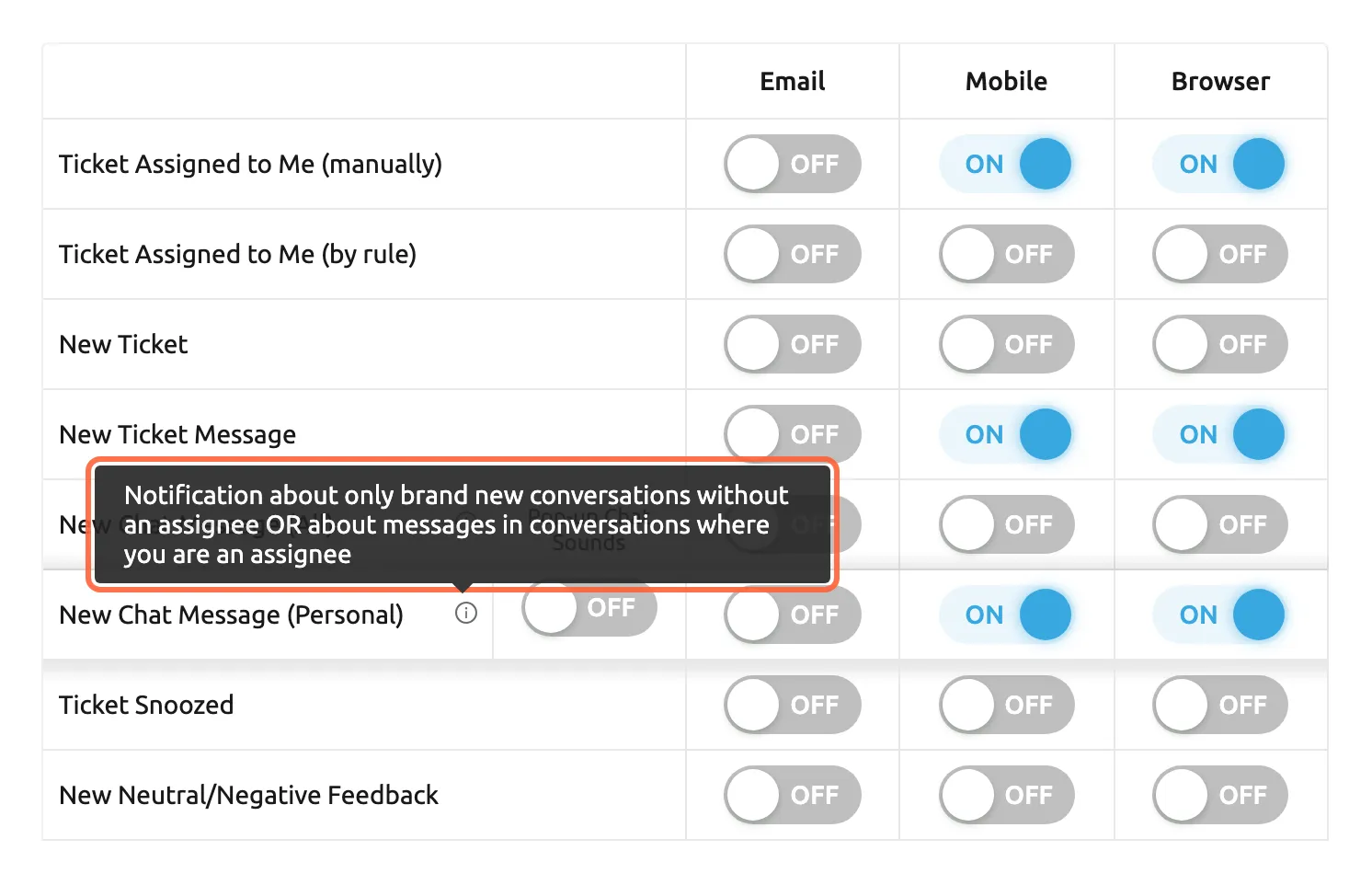
What this screenshot shows
- Screen
- Notifications (/user-settings?tab=notifications)
- Highlighted
- tooltip “Notification about only brand new conversations without an assignee OR about messages in conversations where you are an assignee”, table-chat-rows, shown on hover. explains the personal chat row
- Also visible
- New Chat Message (All) and New Chat Message (Personal) rows; Pop-up Chat Sounds switch; Email, Mobile, Browser columns
- Purpose
- tell the two chat rows apart
What does not send a notification
Section titled “What does not send a notification”- Replies and notes your team writes. Only the customer’s messages trigger the ticket and chat rows.
- A ticket you assign to yourself, and a ticket a colleague creates with themselves as the assignee.
- A customer message in a ticket nobody is assigned to, for New Ticket Message. Such a message counts for New Ticket only when it starts the ticket.
- Positive feedback. New Neutral/Negative Feedback covers neutral and negative feedback only.
- A ticket snoozed by you, for your own Ticket Snoozed notice.
- Events that happened before you switched a row on. Nothing is sent afterwards.
Setting it up in four steps
Section titled “Setting it up in four steps”-
Open the Notifications tab. Select your initials in the top right corner, choose Account Settings and then the tab Notifications. The table shows one row per event and the columns Email, Mobile and Browser.
-
Switch on what you want. Select a switch to turn it from OFF to ON or back. For example, turn on Email for Ticket Assigned to Me (manually) and Ticket Assigned to Me (by rule) so every ticket handed to you also reaches your inbox. A Save button appears below the table as soon as something differs from what is saved.
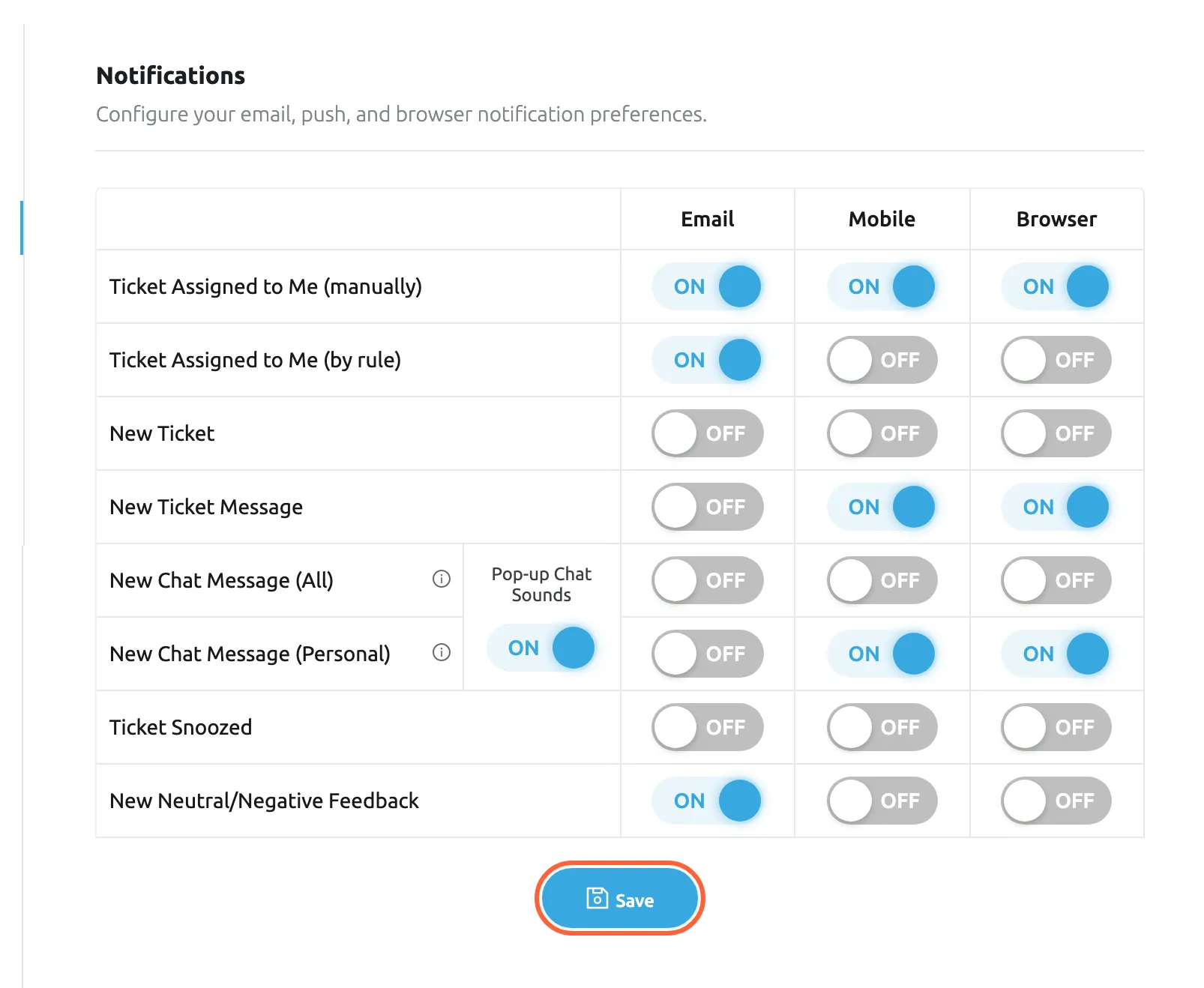
Switch what you want, then select Save; nothing changes until you do. What this screenshot shows
- Screen
- Notifications (/user-settings?tab=notifications)
- Highlighted
- button “Save”, below-table, shown after a change. saves every switch on the tab
- Also visible
- Email ON for manual assignment, assignment by rule and neutral or negative feedback; Pop-up Chat Sounds ON; Mobile and Browser defaults
- Purpose
- save a notification set-up
-
Let your browser show notifications (optional). If a red line below the table says The browser notification is turned off in the current browser, select Resubscribe and allow notifications when the browser asks. Do the same on each computer and browser you use.
-
Save. Select Save. Replyco confirms with Success, and the next event is handled with your new settings.
Every setting, explained
Section titled “Every setting, explained”The Notifications tab has three columns of switches, one sound switch, the browser line below the table and the Save button, in that order. The block notices are set per account under AdminAccounts.
Email, notifications in your inbox
Section titled “Email, notifications in your inbox”Account Settings › Notifications, the first column of switches. Saved with Save.
All eight switches are OFF for a new user. With a switch ON, Replyco sends an email to the address you sign in with each time that event concerns you. The subject names the event, for example New thread is assigned to you or New ticket arrived; for a chat it is the chat’s title. The email has an Open message button that opens the ticket, the chat or the feedback in Replyco, and a link at the bottom that leads to your account settings. The email carries no text from the customer’s message.
An email reaches you when Replyco is closed and your phone is not at hand, and it stays in your inbox as a to-do. It suits rare, important events such as a ticket handed to you, more than frequent ones such as every new ticket.
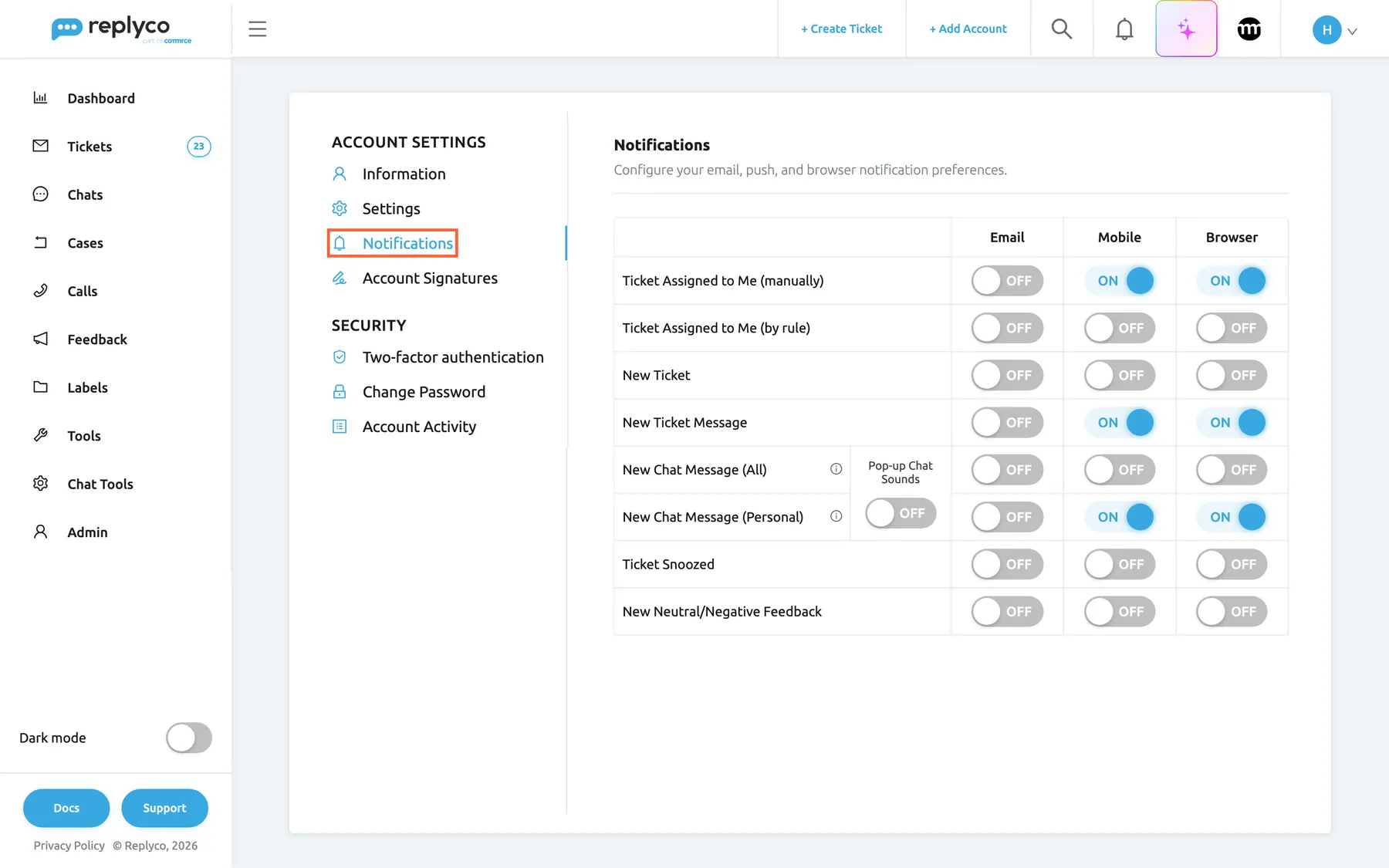
What this screenshot shows
- Screen
- Account Settings (/user-settings?tab=notifications)
- Highlighted
- tab “Notifications”, settings-menu-left, selected. shows the notification switches
- Also visible
- table with eight event rows; columns Email, Mobile, Browser; defaults: Mobile and Browser on for manual assignment, new ticket message and personal chat message; Pop-up Chat Sounds switch in the chat rows
- Purpose
- where each user sets their notifications
Mobile, notifications on your phone
Section titled “Mobile, notifications on your phone”Account Settings › Notifications, the second column. Saved with Save.
ON for a new user for Ticket Assigned to Me (manually), New Ticket Message and New Chat Message (Personal); OFF for the others. With a switch ON, Replyco sends a push notification to the Replyco app on every phone where you are signed in. It shows the event as its title, for example New message received; for a chat, it shows the chat’s title and the customer’s message. Tapping a notice about a ticket opens that ticket in the app, and one about a chat opens the chat; other notices open the app. Signing out of the app on a phone stops notices to that phone.
The phone is the channel that reaches you away from the desk, which is why the defaults keep it for the events that are about you personally.
Browser, notifications from your browser
Section titled “Browser, notifications from your browser”Account Settings › Notifications, the third column. Saved with Save. The browser must also allow notifications for Replyco; see the browser permission.
ON for a new user for the same three rows as Mobile. With a switch ON, your browser shows a notification from Replyco, with the same title and text as on the phone, in each browser where you allowed it; selecting it opens the ticket, the chat or the feedback in a new tab. For the two chat rows, the switch also turns on the chat pop-up inside Replyco while Replyco is open.
Most agents keep Replyco open in a tab behind other work. A browser notification brings them back to the right record in one click.
Pop-up Chat Sounds, a sound with the chat pop-up
Section titled “Pop-up Chat Sounds, a sound with the chat pop-up”Account Settings › Notifications, the switch between the two chat rows, labelled Pop-up Chat Sounds. One switch for both rows. Saved with Save. Shown only when your plan includes chats or live chat.
ON for a new user. With it ON, Replyco plays a short sound each time it shows the chat pop-up. It has no effect on its own: the pop-up, and so the sound, needs Browser ON for New Chat Message (All) or New Chat Message (Personal). It does not change the sound of your phone or of browser notifications, which your devices decide.
Chat customers expect an answer within minutes. A sound catches your attention when Replyco is open on a second screen.
Resubscribe, the browser permission
Section titled “Resubscribe, the browser permission”Account Settings › Notifications, a red line under the table with a button to its right. It appears only when this browser does not allow Replyco’s notifications. Acts at once; no Save needed.
When the browser has not decided yet, the line reads The browser notification is turned off in the current browser and Resubscribe asks the browser again. Once you allow it, Replyco registers this browser and the line disappears. When the browser has blocked Replyco, the line reads The browser notification is denied in the current browser. Allow notifications in settings. and there is no button: allow notifications for Replyco in the browser’s site settings, then reload Replyco. The permission belongs to one browser on one computer; your switches belong to you everywhere.
Browsers only show notifications from sites the user allowed. The line tells you why the Browser column stays silent in this browser.
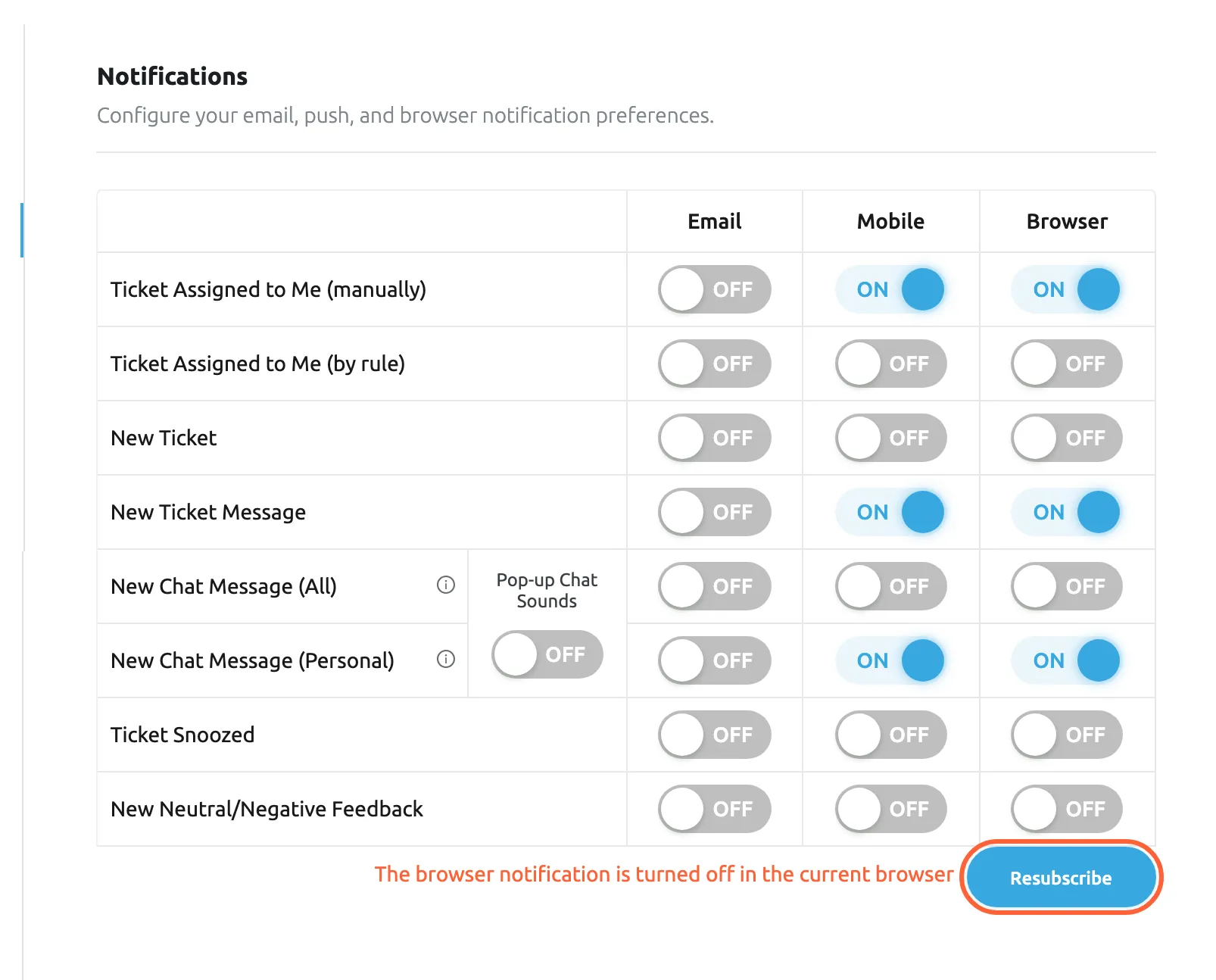
What this screenshot shows
- Screen
- Notifications (/user-settings?tab=notifications)
- Highlighted
- button “Resubscribe”, below-table-right, enabled. asks the browser for permission and registers it
- Also visible
- red line: browser notification turned off; notification table
- Purpose
- turn browser notifications on in this browser
Save, the button that applies your changes
Section titled “Save, the button that applies your changes”Below the table, in the middle. It appears only when a switch differs from what is saved.
Saves every switch on the tab at once and shows Success. Until you select it, nothing changes: leaving Account Settings without saving discards your changes. The new settings apply from the next event on.
Changing several switches and saving once keeps you from being notified by a half-finished set-up.
Receive Notifications about Blocking, block notices per account
Section titled “Receive Notifications about Blocking, block notices per account”AdminAccounts, select the account’s row: the tick box in the left column of the Account Details dialog. Saved with Save Changes. Administrators only.
Ticked for every new account. While it is ticked and Replyco blocks the account, every user of your company gets a notice in Replyco, and your company’s email address gets an email with every administrator in copy. Cleared: no notice and no email about this account. The tick box belongs to the account, so it applies to every user at once; it is not part of anyone’s personal table.
A blocked account stops bringing in messages, and customers wait without anyone knowing. The notice makes sure someone reconnects it the same day.
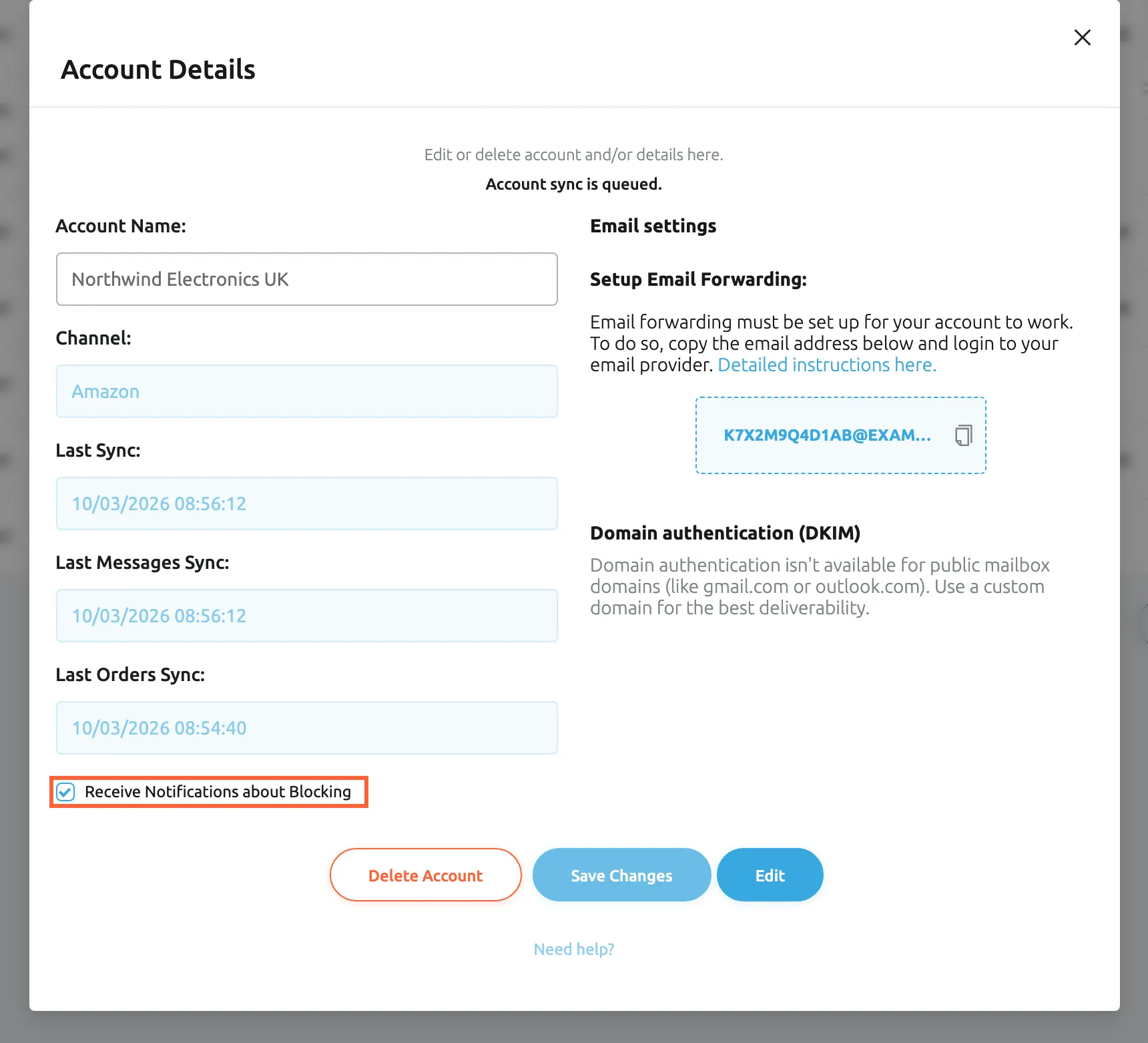
What this screenshot shows
- Screen
- Account Details (/integrations)
- Highlighted
- checkbox “Receive Notifications about Blocking”, dialog-left, checked. turns block notices for this account on or off
- Also visible
- Account Name: Northwind Electronics UK; Marketplace: Amazon; sync times; Email settings; Delete Account, Save Changes, Edit
- Purpose
- the per-account switch for block notices
How the settings combine
Section titled “How the settings combine”| Your settings | What you get |
|---|---|
| A row ON in all three columns | An email, a phone notification and a browser notification for the same event |
| A row OFF in all three columns | Nothing for that event, except what the bell always shows |
| Browser ON, but the browser blocks Replyco | Nothing in that browser; email and phone work as set |
| New Chat Message (All) and New Chat Message (Personal) both ON in one column | One notice per chat message through that column, never two |
| Browser ON for a chat row and Pop-up Chat Sounds ON | The chat pop-up with a sound while Replyco is open, and a browser notification |
| Pop-up Chat Sounds ON, Browser OFF for both chat rows | No pop-up and no sound |
| Every switch OFF | Only the bell: mentions, ended snoozes, blocked accounts and messages from Replyco |
| Receive Notifications about Blocking cleared on an account | No block notice about that account for anyone, whatever their table says |
Notifications in Replyco and on your devices
Section titled “Notifications in Replyco and on your devices”| Where | What you see | Which events |
|---|---|---|
| The bell in the top bar | A red number for unread notices and a list on two tabs | Mentions, ended snoozes, blocked accounts, messages from Replyco |
| A window over the screen | The text of an unread notice from Replyco | Blocked accounts and messages from Replyco |
| Your inbox | An email with an Open message button | The rows with Email ON |
| Your browser | A notification from Replyco; selecting it opens the record | The rows with Browser ON |
| Your phone | A push notification from the Replyco app | The rows with Mobile ON |
| A pop-up card inside Replyco | The chat’s title and the new message, with or without a sound | The chat rows with Browser ON |
The bell
Section titled “The bell”The bell in the top bar is where Replyco keeps its own notices. The red number counts every unread notice on both tabs. Select the bell and a panel opens with two tabs: App for mentions and ended snoozes, System for blocked accounts and messages from Replyco. Unread notices are shaded. Selecting one marks it as read and opens what it is about: the ticket, order, customer, call, case or chat; a message from Replyco opens in a window. Mark all as Read marks every notice on the open tab as read. The panel loads ten notices at a time and more as you scroll; an empty tab says No Notifications.
Why: the bell is the one place where notices wait for you whatever your table says, so nothing about your own work is lost when every switch is off. For a tour of the rest of the top bar, see The Replyco screen.
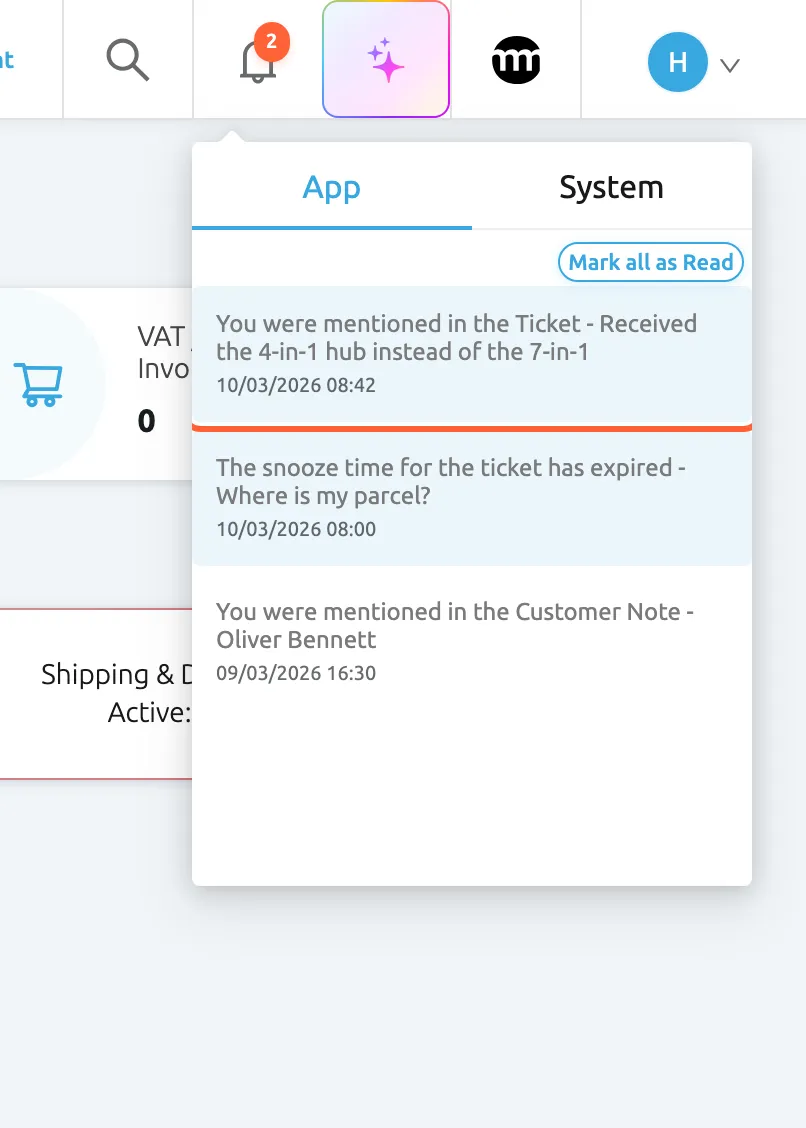
What this screenshot shows
- Screen
- Notifications (/)
- Highlighted
- listitem “”, top-bar-right, unread. opens the ticket and marks the notification read
- Also visible
- red 2 on the bell; App and System tabs; Mark all as Read; mention, expired snooze, read customer-note mention
- Purpose
- where mentions and expired snoozes arrive
Windows over the screen
Section titled “Windows over the screen”Unread notices on the System tab also open as a window in the middle of the screen when you open Replyco, and at the hourly check while it stays open, one window per notice. Close a window with the cross in its corner and the notice is marked as read. When more than five messages from Replyco are unread, they arrive together in one window, each with its date.
Why: a blocked account or a message about your subscription affects the whole team, so Replyco makes sure it is seen and not just counted.
Emails
Section titled “Emails”Each email is about one event and goes to the address you sign in with. Its subject names the event; for a chat it is the chat’s title. The Open message button opens the ticket, the chat or the feedback in Replyco. Block notices are different: they go to your company’s email address, with every administrator in copy; see Notifications for blocked accounts.
Why: an email is a record outside Replyco, useful when you are not signed in.
Browser notifications
Section titled “Browser notifications”Your browser shows the notice as its own notification, even when the Replyco tab is in the background. Its title is the event, such as New message received; for a chat, the title is the chat’s title and the text is the customer’s message. Selecting it opens the ticket, the chat or the feedback in a new tab. Each browser where you allowed notifications receives them, and signing out of Replyco in a browser stops them there.
Why: a browser notification is the fastest way back to the one ticket that needs you, without searching a list.
On your phone
Section titled “On your phone”The Replyco app shows the same title and text as the browser notification, on every phone where you are signed in to the app. Signing out of the app on a phone stops notices to that phone.
Why: assignments and replies to your tickets reach you away from the desk, which is why the phone column is on for them by default.
The chat pop-up
Section titled “The chat pop-up”While Replyco is open, a chat message that qualifies under Browser for a chat row also opens a card in the top right corner of Replyco. The card shows the chat’s title and, for a new chat, You received a new chat!; for a message in an existing chat, the first 100 characters of the message, or File for an attachment. Selecting the card opens the chat. With Pop-up Chat Sounds ON, a sound plays with it. No card appears for the chat you already have open, or for messages you send yourself.
Why: chat customers wait on the other side of the screen. A card and a sound get the chat answered while it is still a conversation. For how to answer, see Answer a chat.
Notifications for mentions and snoozes
Section titled “Notifications for mentions and snoozes”In a note: Notes in the ticket’s right panel, or the notes of an order, a customer, a call, a case or a chat. In a ticket: Snooze in the ticket header. The notices arrive at the bell, on the App tab.
Type @ in a note and pick a colleague from the list, then save the note: the colleague gets a notice such as You were mentioned in the Ticket - Received the 4-in-1 hub instead of the 7-in-1, with the ticket’s subject. A mention on an order names the order, on a customer note the customer, on a call the caller, on a case the case, and in a chat the chat. When you edit a note and add a colleague, only the newly mentioned colleague is notified. When a snoozed ticket’s time is up, the user the ticket is assigned to gets The snooze time for the ticket has expired, followed by the subject; an unassigned ticket sends this notice to nobody. Both texts appear in your company’s interface language, English or German. These notices do not depend on the Notifications tab and do not arrive by email, browser or phone.
A mention is how one agent asks another for something inside the record itself, and a snooze is a promise to come back. Both only work if the right person hears about them.
- Mention @Simon in a note on a return ticket: Please check the serial number before we refund. Simon’s bell shows the ticket’s subject and takes him straight to it.
- Mention a colleague in a customer note: VIP, always answer the same day. The notice names the customer and opens their page.
- Snooze a ticket assigned to Laura until Monday 09:00 while the warehouse checks the parcel: on Monday, Laura’s bell tells her the snooze has expired.
For writing notes and mentions in a ticket, see The ticket screen; for snoozing, see Resolve, snooze or archive a ticket.
Notifications for blocked accounts
Section titled “Notifications for blocked accounts”Set per account by an administrator: AdminAccounts › the account’s row › Receive Notifications about Blocking. The notice arrives at the bell on the System tab, as a window over the screen, and as an email to your company’s address.
When Replyco blocks an account, for example because its login expired or its sync failed more than five times in a row, and the account has Receive Notifications about Blocking ticked:
- every user of your company gets a notice in Replyco saying that one of your integrations is no longer receiving data, naming your company’s email address as the administrator to contact;
- your company’s email address, the one Replyco was registered with, gets an email with the subject Important information about one of your integrations, with every administrator in copy. The email names the account and explains how to unblock it: open the accounts screen, select the red padlock next to the account, select Unblock and follow the instructions.
Once a user has read the notice, it becomes unread again four hours later and opens as a window again, for as long as the account is still blocked. Reconnecting or unblocking the account ends the repeats.
While an account is blocked, no new messages arrive from it and replies do not go out. The repeated notice keeps the problem in front of everyone until someone fixes it.
- The Amazon login of Northwind Electronics UK expires overnight: the next morning every agent sees the window, and the administrators have the email.
- An old test mailbox you no longer use keeps failing: clear Receive Notifications about Blocking on it, or delete the account.
- A shared mailbox is blocked after its password changed: an administrator enters the new password and the notices stop.
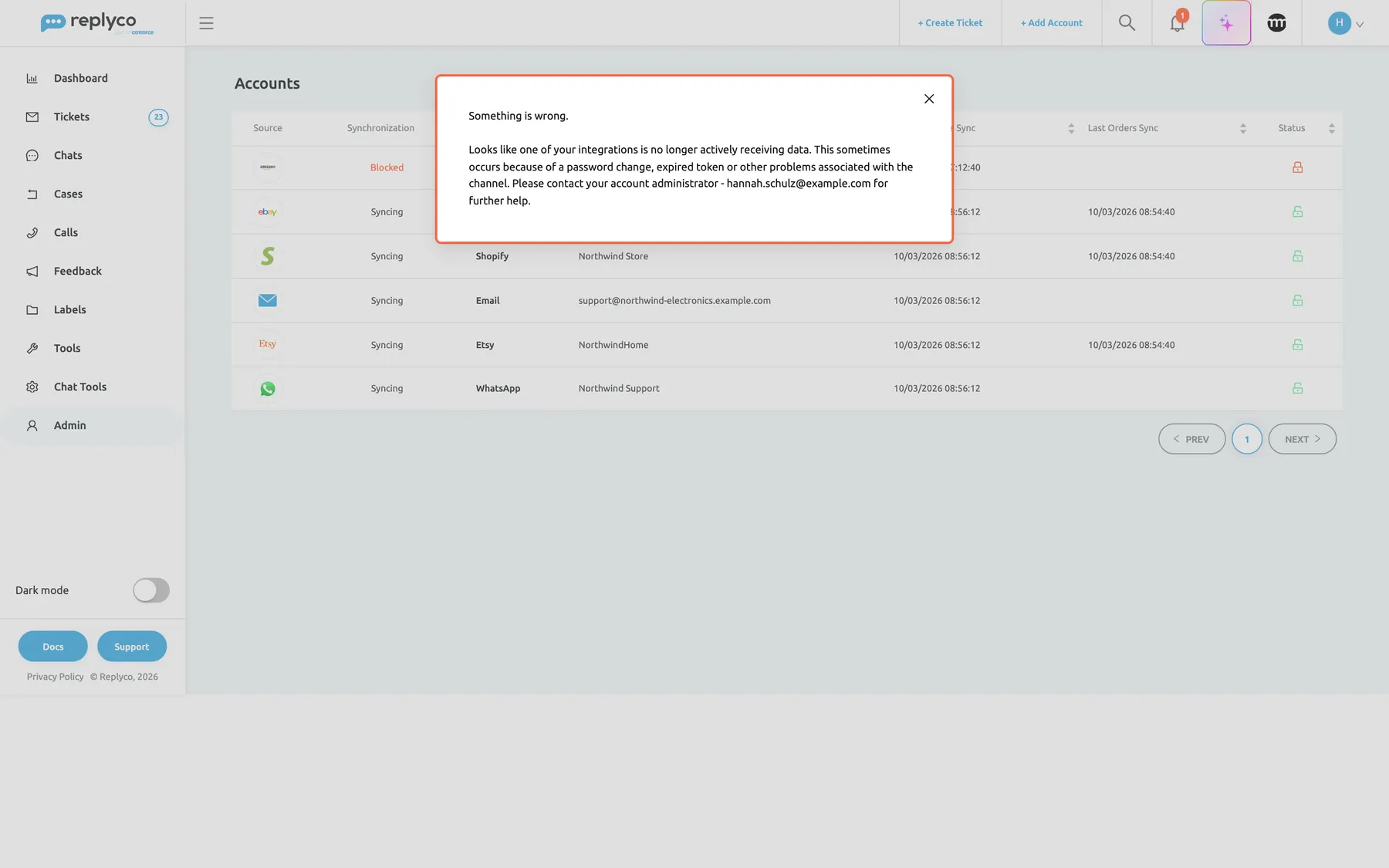
What this screenshot shows
- Screen
- Accounts (/integrations)
- Highlighted
- dialog “”, centre, open. closing it marks the notice read
- Also visible
- Accounts list greyed out behind; red padlock on the Amazon account; red 1 on the bell; company address as the administrator contact
- Purpose
- what a block notice looks like in Replyco
To reconnect or unblock an account, see Fix a blocked or silent account.
Notifications and message rules
Section titled “Notifications and message rules”ToolsAutomation › Rules, in a rule’s actions: assigning the ticket to a user. The notice follows the assigned user’s row Ticket Assigned to Me (by rule).
When a rule that assigns a user matches an incoming message, the assigned user gets Ticket Assigned to Me (by rule) through the channels they switched on for that row. Assignments made by a person use the other row, Ticket Assigned to Me (manually), so each user can treat the two differently.
Rules hand out work around the clock. The assigned agent should know about it without watching TicketsMy Tickets.
- Rule: the message’s account is the eBay account → assign Simon. Simon has Ticket Assigned to Me (by rule) ON for Mobile and gets a phone notification for each of those tickets.
- Rule: the subject contains “refund” → assign Laura. Laura keeps the row OFF and works through her list twice a day.
- Rule: the customer is a known wholesale buyer → assign the account manager, who has the row ON in all three columns.
To create rules, see Rules for incoming tickets.
What you need to know
Section titled “What you need to know”| Topic | Fact |
|---|---|
| Personal | The table on the Notifications tab belongs to you. Your changes do not affect colleagues. |
| Defaults | Email all OFF; Mobile and Browser ON for Ticket Assigned to Me (manually), New Ticket Message and New Chat Message (Personal); Pop-up Chat Sounds ON. |
| Saving | Nothing changes until you select Save. New settings apply to the next event, never to earlier ones. |
| Always at the bell | Mentions in notes, ended snoozes, blocked accounts and messages from Replyco appear at the bell whatever the table says. |
| Bell count | The red number updates when you open or reload Replyco and once an hour. |
| Per browser, per phone | Browser notices need the permission of each browser; phone notices go to every phone signed in to the Replyco app. Signing out stops them on that device. |
| Chat rows | Shown when your plan includes chats or live chat. |
| Block notices | Per account, for the whole company. They come back four hours after they were read while the account stays blocked. |
| Language | Mention and snooze notices at the bell use your company’s interface language, English or German. |
| Cost | None. |
Frequently asked questions
Section titled “Frequently asked questions”General
Section titled “General”Which events can Replyco notify me about?
Section titled “Which events can Replyco notify me about?”Eight events under Account Settings › Notifications: a ticket assigned to you by a colleague or by a rule, a new ticket, a new message in your ticket, new chat messages for all your chats or only your personal ones, a colleague snoozing a ticket, and new neutral or negative feedback. On top of that, mentions in notes, ended snoozes and blocked accounts always appear at the bell in the top bar.
If I change my notifications, does it change them for my colleagues?
Section titled “If I change my notifications, does it change them for my colleagues?”No. The table under Account Settings › Notifications belongs to the user who is signed in. Each colleague opens their own Account Settings and chooses their own events and channels. Only the block notice tick box on an account applies to the whole company.
Can an administrator set notifications for another user?
Section titled “Can an administrator set notifications for another user?”The Notifications tab under Account Settings always shows the settings of the user who is signed in, so each user sets their own. What an administrator decides for everyone is whether a blocked account sends a notice at all, with Receive Notifications about Blocking on the account.
What does a new user get by default?
Section titled “What does a new user get by default?”A new user gets phone and browser notices for Ticket Assigned to Me (manually), New Ticket Message and New Chat Message (Personal), with Pop-up Chat Sounds ON. Every Email switch is OFF. Change them under Account Settings › Notifications and select Save.
Do notifications cost anything?
Section titled “Do notifications cost anything?”No. Emails, browser notifications, phone notifications and notices at the bell are part of every plan and do not count towards any quota or usage limit. You can switch on as many rows and columns under Account Settings › Notifications as you like.
How do I get an email when a ticket is assigned to me?
Section titled “How do I get an email when a ticket is assigned to me?”Open Account Settings › Notifications, turn on Email in the rows Ticket Assigned to Me (manually) and Ticket Assigned to Me (by rule), and select Save. From the next assignment on, an email reaches the address you sign in with, unless you assigned the ticket to yourself.
I changed some switches, but nothing is different. Why?
Section titled “I changed some switches, but nothing is different. Why?”Changes on the Notifications tab only take effect after you select Save below the table and see Success. Leaving Account Settings before that discards them. Open Account Settings › Notifications again, set the switches and save.
How do I turn on browser notifications?
Section titled “How do I turn on browser notifications?”Allow notifications when your browser asks as you open Replyco. Then turn on Browser for the rows you want under Account Settings › Notifications and select Save. If a red line below the table says The browser notification is turned off in the current browser, select Resubscribe and allow it.
How do I get notifications on my phone?
Section titled “How do I get notifications on my phone?”Install the Replyco app for iPhone or Android and sign in with your Replyco user. Then turn on Mobile for the rows you want under Account Settings › Notifications and select Save. Notices go to every phone where you are signed in to the app.
What does the Resubscribe button do?
Section titled “What does the Resubscribe button do?”Resubscribe appears under the table on Account Settings › Notifications when this browser has not allowed Replyco’s notifications yet. It asks the browser again; once you allow it, Replyco registers the browser and the Browser column works there.
The eight events
Section titled “The eight events”What is the difference between the two assignment rows?
Section titled “What is the difference between the two assignment rows?”Ticket Assigned to Me (manually) is for tickets a colleague assigns to you, in the ticket, in a list or on a ticket they create. Ticket Assigned to Me (by rule) is for tickets a message rule assigns to you. Both are under Account Settings › Notifications, so you can, for example, get emails only for personal handovers.
What is the difference between a new ticket and a new message notification?
Section titled “What is the difference between a new ticket and a new message notification?”New Ticket fires when a customer’s message starts a new ticket and goes to every user who switched it on. New Ticket Message fires when the customer writes again in an existing ticket and goes only to the users the ticket is assigned to. Set both under Account Settings › Notifications.
What is the difference between the two chat rows?
Section titled “What is the difference between the two chat rows?”New Chat Message (All) covers every customer message in chats assigned to you and in chats of the accounts and live chat widgets you are responsible for. New Chat Message (Personal) covers messages in chats assigned to you, plus the first message of a new chat on your accounts that nobody is assigned to yet.
If both chat rows are on, do I get two notifications for one message?
Section titled “If both chat rows are on, do I get two notifications for one message?”No. When a chat message qualifies for both New Chat Message (All) and New Chat Message (Personal) and you switched on both in the same column under Account Settings › Notifications, Replyco sends you one notice through that column.
Am I notified about things I do myself?
Section titled “Am I notified about things I do myself?”No. Assigning a ticket to yourself does not send Ticket Assigned to Me (manually), snoozing a ticket sends Ticket Snoozed to your colleagues but not to you, and replies your team sends never count as new messages. Notices are meant for events that someone else, a customer or a rule caused.
Why am I notified when a colleague snoozes a ticket?
Section titled “Why am I notified when a colleague snoozes a ticket?”Ticket Snoozed tells you that a colleague snoozed a ticket, at the moment they snooze it. Every user who switched the row on under Account Settings › Notifications gets it, except the person who snoozed. The later notice that a snooze has expired is a different one: it goes to the ticket’s assignee at the bell.
Which feedback sends a notification?
Section titled “Which feedback sends a notification?”Feedback that a marketplace reports as neutral or negative, as soon as Replyco has synced it. Positive feedback sends nothing. Every user who switched on New Neutral/Negative Feedback under Account Settings › Notifications is told, and the email or browser notification opens the feedback. See Feedback List.
Where it is shown
Section titled “Where it is shown”What does the red number on the bell count?
Section titled “What does the red number on the bell count?”The red number on the bell in the top bar counts your unread notices on both tabs, App and System. It updates when you open or reload Replyco and once an hour. Selecting a notice or Mark all as Read lowers it. Emails, browser and phone notifications are not counted there.
What is on the App tab and on the System tab of the bell?
Section titled “What is on the App tab and on the System tab of the bell?”App lists mentions in notes on tickets, orders, customers, calls, cases and chats, and tickets whose snooze time has expired. System lists notices about blocked accounts and messages from Replyco. Select a notice to open it; Mark all as Read marks the whole tab as read.
What does a notification email contain?
Section titled “What does a notification email contain?”A notification email names the event in its subject, for example that a ticket was assigned to you or a new ticket arrived; for a chat, the subject is the chat’s title. It has an Open message button that opens the ticket, chat or feedback in Replyco, and a link to your account settings at the bottom. It carries no text from the customer’s message.
When does the chat pop-up appear, and what does it show?
Section titled “When does the chat pop-up appear, and what does it show?”The chat pop-up appears in the top right corner while Replyco is open, when Browser is ON for a chat row and a message qualifies. It shows the chat’s title and the message, or You received a new chat! for a new chat. It does not appear for the chat you have open. Selecting it opens the chat.
Why does a window open over the screen when I open Replyco?
Section titled “Why does a window open over the screen when I open Replyco?”The window shows an unread notice from the System tab of the bell, such as a blocked account or a message from Replyco. It opens when you open Replyco, one window per notice. Close it with the cross in its corner to mark it as read; for a blocked account it comes back after four hours until the account works again.
Mentions, snoozes and blocked accounts
Section titled “Mentions, snoozes and blocked accounts”How do I notify a colleague about a note?
Section titled “How do I notify a colleague about a note?”In the note, type @ and pick the colleague from the list, then save the note. The colleague gets a notice at the bell, on the App tab, naming the ticket’s subject, the order, the customer, the call, the case or the chat. Mentions work in notes on tickets, orders, customers, calls, cases and chats, whatever the colleague’s Notifications table says.
Who is told when a snooze ends?
Section titled “Who is told when a snooze ends?”The user the ticket is assigned to. When the snooze time has passed, that user gets The snooze time for the ticket has expired, followed by the ticket’s subject, at the bell on the App tab. A ticket that nobody is assigned to sends this notice to nobody, so assign snoozed tickets you need to come back to.
Who is told when an account is blocked?
Section titled “Who is told when an account is blocked?”Every user of your company gets a notice at the bell and a window over the screen, and your company’s email address gets an email with every administrator in copy. This happens only while Receive Notifications about Blocking is ticked for the account under AdminAccounts, which it is for every new account.
How do I stop block notices for one account?
Section titled “How do I stop block notices for one account?”An administrator opens AdminAccounts, selects the account’s row, clears Receive Notifications about Blocking in the Account Details dialog and selects Save Changes. From then on, a block of that account sends no notice and no email to anyone in your company.
Why does the block notice keep coming back?
Section titled “Why does the block notice keep coming back?”A notice about a blocked account returns four hours after you read it, for as long as the account stays blocked, so the problem is not forgotten. Reconnect or unblock the account under AdminAccounts to end the repeats; see Fix a blocked or silent account.
Data and privacy
Section titled “Data and privacy”Can customers see our notifications?
Section titled “Can customers see our notifications?”No. Every notice described here goes to users of your company only: the bell, the windows, emails to your users and your company address, browser and phone notifications, and the chat pop-up. Customers never receive or see any of them, and mentions in notes stay internal.
Where do my notification emails go?
Section titled “Where do my notification emails go?”Email notifications from your Notifications table go to the email address you sign in with. Block notices go to your company’s email address, the one Replyco was registered with, with every administrator in copy. To check your own details, see Account Settings.
Do phone and browser notifications show the customer’s message?
Section titled “Do phone and browser notifications show the customer’s message?”For the two chat rows, yes: the notification shows the chat’s title and the customer’s message, so it can appear on a lock screen. Ticket, assignment, snooze and feedback notifications show only the event, such as a new message received, without the customer’s text.
What happens to my notifications when I sign out?
Section titled “What happens to my notifications when I sign out?”Signing out of Replyco in a browser stops browser notifications in that browser, and signing out of the Replyco app stops phone notifications on that phone. Emails and your settings under Account Settings › Notifications are not affected, and the bell keeps its list for your next sign-in.
Troubleshooting
Section titled “Troubleshooting”| Symptom | What to check |
|---|---|
| No emails arrive | In order: Email is ON for that row and you selected Save; the event concerns you (for example, New Ticket Message only for tickets assigned to you); the email address you sign in with; your spam folder. |
| No browser notifications | In order: Browser is ON for that row and saved; no red line under the table; the browser’s own settings allow notifications for Replyco; you are signed in to Replyco in that browser. |
| The red line says The browser notification is turned off in the current browser | Select Resubscribe and allow notifications when the browser asks. |
| The red line says The browser notification is denied in the current browser. Allow notifications in settings. | The browser blocks Replyco. Allow notifications for Replyco in the browser’s site settings, then reload Replyco. |
| Nothing arrives on the phone | In order: Mobile is ON for that row and saved; you are signed in to the Replyco app on the phone; the phone allows notifications for the app. |
| No notice when a ticket was assigned to me | You assigned it yourself, which sends nothing. For a rule, check Ticket Assigned to Me (by rule); for a colleague, Ticket Assigned to Me (manually). |
| No notice when the customer wrote again | New Ticket Message goes only to the ticket’s assignees. Check that the ticket is assigned to you. |
| Too many notifications about new tickets | Turn New Ticket OFF in the noisy column and keep the assignment rows ON instead. |
| No chat pop-up or no sound | Browser must be ON for a chat row, and Pop-up Chat Sounds ON for the sound. The pop-up appears only while Replyco is open, and not for the chat you have open. |
| The chat rows are missing from the table | Your plan does not include chats or live chat. See What each plan includes. |
| A colleague did not get my mention | Type @ and pick the colleague from the list, then save the note. Their bell count updates when they open or reload Replyco and once an hour. |
| Nobody was told that a snooze ended | The ticket had no assignee. Only the assigned user gets the notice at the bell. |
| The block window keeps coming back | The account is still blocked. Reconnect or unblock it under AdminAccounts. |
| An account was blocked and nobody was told | Receive Notifications about Blocking is cleared on that account. An administrator ticks it and selects Save Changes. |
Related
Section titled “Related”- Account Settings
- Your user account
- The Replyco screen
- The ticket screen
- Resolve, snooze or archive a ticket
- Assign, label and merge tickets
- Rules for incoming tickets
- Chat list and conversations
- Answer a chat
- Feedback List
- Accounts
- Fix a blocked or silent account
- Invite users and set what they can do
- What each plan includes