

Rules for incoming tickets
Overnight, Northwind Electronics receives a cancellation, three Amazon notifications, a furious “third time asking” and a wholesale enquiry, all in one list. Before anyone can answer, someone has to sort them. Rules do that sorting as each message arrives: when a new customer message matches a rule’s conditions, Replyco labels, prioritises, assigns, resolves or archives its ticket, and writes down which rule did it.
What it does
Section titled “What it does”A support inbox mixes messages that need a person today with messages that need nobody: order notifications, marketplace reports, “thank you” replies. Without rules, every one of them waits in the same queue, gets the same deadline and is opened by whoever is free, so the urgent ones are found late and the routine ones cost time.
A rule is a set of conditions and a set of actions. Every switched-on rule is checked on every incoming customer message, from the top of the list down, and every rule that matches acts, not only the first. From there:
- Tickets are sorted by what the message says, who sent it, where it came from and what was ordered: text, subject, language, account, marketplace, customer, order and product. Every setting, explained
- The ticket is changed straight away: status, priority with its deadlines, labels, assignee, archive and read state, and Linnworks orders. Every setting, explained
- Rules can react to the customer’s mood through the AI tone score. Tone score as a rule condition
- Tickets that arrived before a rule existed can be sorted by hand from any ticket list. Running rules from the ticket lists
- Rules take their place among tone analysis, auto-responses and SLA, in a fixed order. Rules and your other automation
Every rule that matches a message leaves the row Rule Escalations applied in the ticket’s history, and every rule keeps its own history of who created, switched, changed and moved it, so a surprising label or priority can always be traced to its rule.
Before you start
Section titled “Before you start”| Requirement | Details |
|---|---|
| Plan | Every plan includes rules; there is no add-on. |
| Permission | The Automation permission shows ToolsAutomation; changing rules needs its edit level. The Admin and Moderator roles include it. See User permissions and roles. |
| Labels | A rule can only add labels that exist. Create them under ToolsLabels; see Labels. |
| Priorities | For Update Ticket Priority, the priorities under AdminCompany Settings › Priorities & SLA, which every plan includes; companies on an older plan may not have the tab. A new company already has 24 standard hours. See Priorities & SLA. |
| Tone analysis, only for the tone condition | Tone score (0 = furious, 1 = delighted) is offered with Replyco AI, part of every plan, and matches only messages scored while tone analysis was on. See Message tone analysis. |
| Linnworks, only for the Linnworks actions | A connected Linnworks account; see Linnworks. |
| Cost | None. Rules use no AI actions; the tone condition reads a score that tone analysis already stored. |
Understanding how rules run
Section titled “Understanding how rules run”Each new customer message goes through the same steps, always in this order. Rules are step 6, so they see what the steps before them produced:
| Step | What happens to the message | Example |
|---|---|---|
| 1 | Replyco saves it and reopens its ticket: not resolved, out of the archive, no longer snoozed | A resolved ticket gets “Actually, it still does not work”; it is open again before any rule runs |
| 2 | Translation, AI categories and an AI draft, if you use them | Categories are set, but no rule can look at them |
| 3 | Tone analysis scores the message | The chase “Any update on this, please?” scores 0.28 |
| 4 | The AI summary is renewed, if automatic renewal is on | The ticket’s summary covers the new message |
| 5 | Auto-responses are sent or queued | The customer gets your holiday reply |
| 6 | Your rules run, top to bottom | Escalations matches 0.28 and assigns the ticket to Theo Rowe |
| 7 | Tone rules may set a priority | Tone sets Urgent, because no rule set a priority on this message |
Messages from customers you have blocked get no AI in steps 2 to 4 (no AI categories, draft, tone score or summary), and steps 5 to 7 are skipped for them: no auto-response, no rules, no tone priority. For customers on the AI Customers Blacklist, steps 2, 3 and 5 leave out AI categories, the AI draft, the tone score and the auto-response; translation, the summary and your rules still run.
How Replyco decides
Section titled “How Replyco decides”- Every switched-on rule runs. There is no “first match wins” and no “stop processing”: a message that matches five rules gets all five rules’ actions.
- In a rule, all conditions of one group must match, and one matching group is enough. Groups are joined by OR, conditions inside a group by AND.
- Later rules have the last word. Status, priority and assignee hold one value, so a later matching rule replaces what an earlier one set. Labels add up. Archive and read only ever switch on.
- Later rules see what earlier rules did. Conditions are checked against the ticket as it is at that moment, so a rule near the bottom with Assigned To Not Set (N/A) catches only tickets no earlier rule assigned.
- Rules act on every matching message, not once per ticket. A rule sets its priority again on the customer’s next message, and assigns its colleague again, even if someone changed it by hand in between.
- Text is matched as typed, anywhere in the field. Contains cancel also matches cancelled and cancellation; a value with several words is looked for as one piece.
- An empty field matches nothing but Not Set (N/A). A customer without an email address does not match Customer Email Not Contains marketplace.amazon.
- “Or more” and “or less” include the value. Equals or More Than 250 matches 250.
What does not get processed
Section titled “What does not get processed”- Replies from your team, and messages that arrive as sent by your company.
- Messages from customers you have blocked; see Blocked tickets.
- Conversations under Chats: rules are for tickets.
- Tickets you create yourself with Create Ticket, because they start with your message.
- Messages that arrived before a rule existed or while it was switched off, until you use Run Rules.
Setting it up in five steps
Section titled “Setting it up in five steps”-
Prepare labels and priorities. Create the labels your rule should add under ToolsLabels, and check your priorities under AdminCompany Settings › Priorities & SLA if the rule should set one.
-
Create the rule. Open ToolsAutomation, tab Rules, and select Create New. Enter a name, pick the conditions under Conditions and at least one action under Actions, leave Active at OFF and select Save. The rule appears at the bottom of the list, switched off.
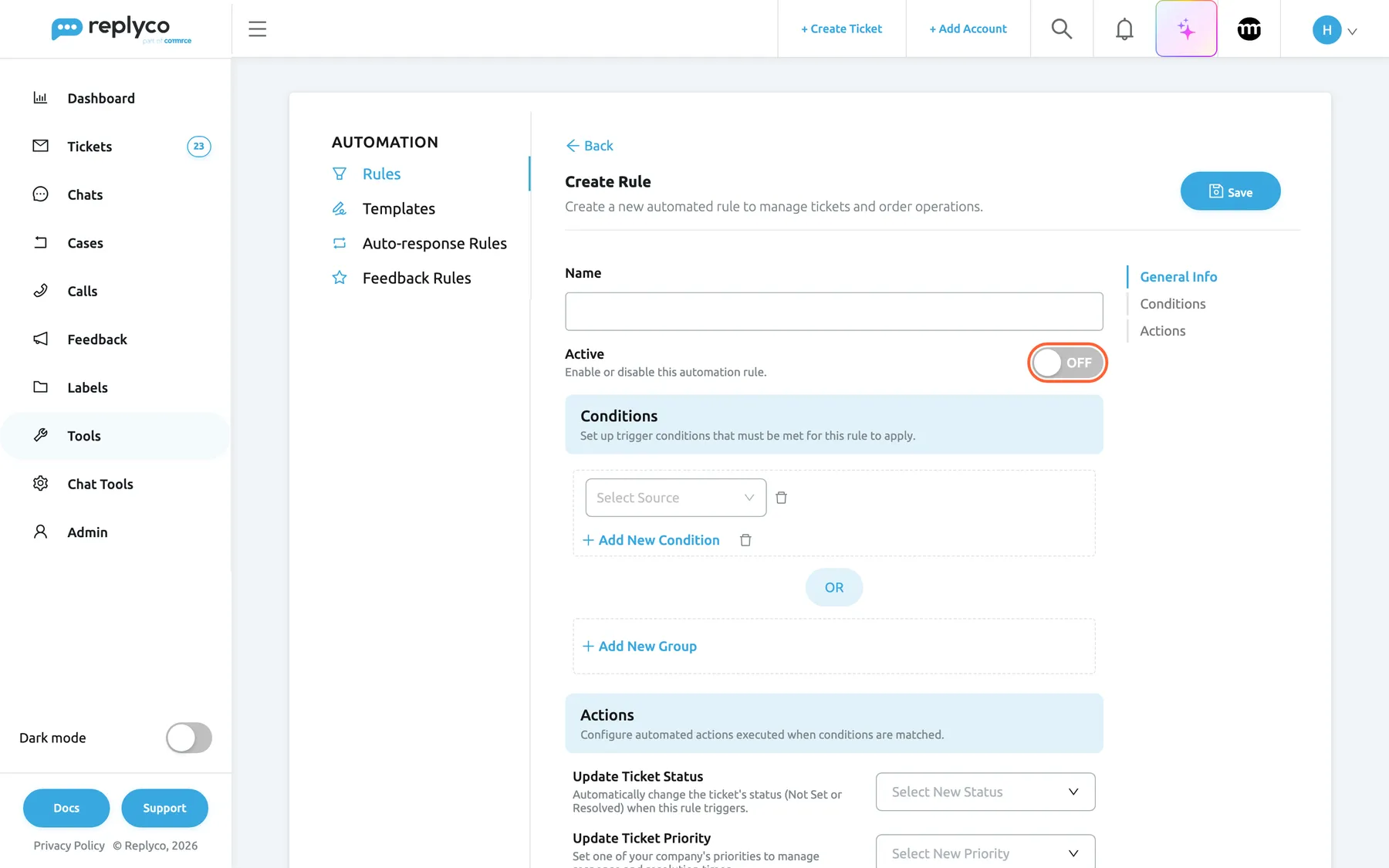
A new rule starts switched off; turn Active on before you save if it should run straight away. What this screenshot shows
- Screen
- Create Rule (/tickets-automation?tab=rules)
- Highlighted
- switch “Active”, general-info, OFF. switches the rule on when saved
- Also visible
- Name empty; Conditions: one group with Select Source; Add New Condition, Add New Group; Save button
- Purpose
- the default state of a new rule
-
Read it back. Select the rule’s name. The details panel writes out every condition with AND and OR and every action, so you can check it says what you meant.
-
Put it in its place. Drag the card by its handle. A rule that should have the last word on a priority or an assignee goes below the rules it should override.
-
Switch it on, then catch up (optional). Switch it on with the switch on its card; it acts on the next customer message. To sort tickets from before, tick them in a ticket list and select Run Rules.
Every setting, explained
Section titled “Every setting, explained”The rule form has a name and a switch, the conditions, and the actions, in that order; the rule’s place in the list is set on the list itself.
ToolsAutomation › Rules, first field of the form Create Rule or Edit Rule. Saved with Save.
Required; saving without it gives You cannot save a Rule without name. Names do not have to be unique and have no length limit in the form. The name is written into every ticket history row the rule leaves, as it is at that moment.
The history row shows only the name, so Escalations explains a new assignee at a glance where Rule 7 explains nothing.
Active, the on switch
Section titled “Active, the on switch”Under the name in the form, saved with Save; and the switch on the rule’s card in the list, which saves at once.
ON: the rule runs on new customer messages and with Run Rules. OFF: the rule is kept with its conditions, actions and place, and does not run. A new rule starts at OFF; a copy starts as its original was.
Build a rule switched off, read it back in the details panel, then switch it on. Switching off is the safe way to pause a rule without losing it.
Conditions, groups joined by AND and OR
Section titled “Conditions, groups joined by AND and OR”The Conditions section of the form: dashed boxes with one condition per row, Add New Condition under each box and Add New Group below the last one.
All conditions in a box must match; one matching box is enough. Every box needs at least one condition and every condition a value, otherwise saving is refused with Every group must contain at least one condition. or You must set a value for each condition. A rule always has at least one condition. To make a rule match every message, use Number Of Messages Equals or More Than 1.
“From the support mailbox and about wholesale” is one box with two conditions; “about wholesale or about a bulk order” is two boxes.
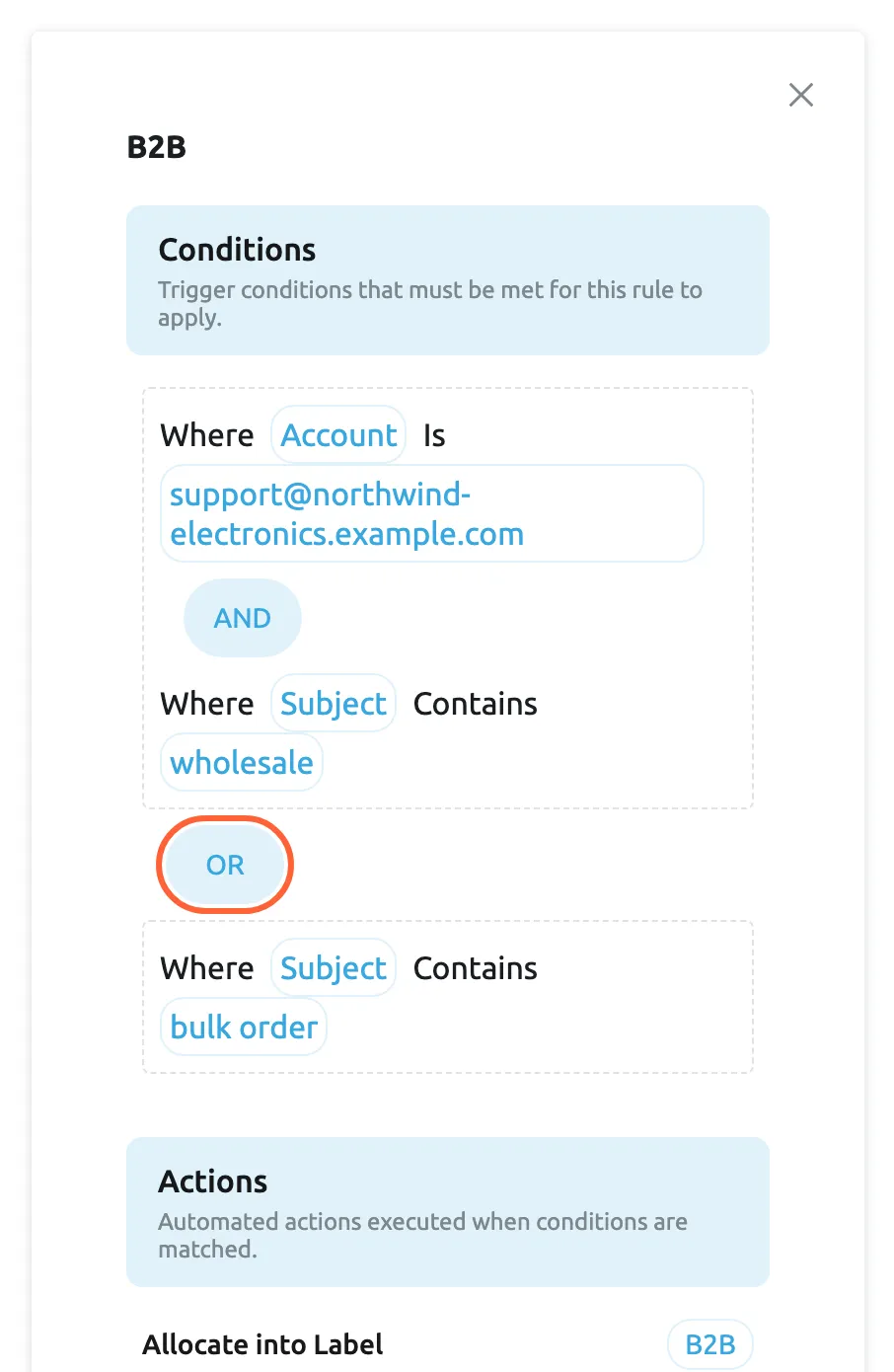
What this screenshot shows
- Screen
- Rules (/tickets-automation?tab=rules)
- Highlighted
- text “OR”, details-panel, shown. separates alternative condition groups
- Also visible
- group 1: Account Is support@northwind-electronics.example.com AND Subject Contains wholesale; group 2: Subject Contains bulk order; Actions: Allocate into Label B2B
- Purpose
- how AND and OR read in a rule
Message conditions
Section titled “Message conditions”Select Source › Message.
These look at the incoming message itself:
| Source | What it compares | Comparisons |
|---|---|---|
| Text | The message body as plain text | Contains, Not Contains, Starts With, Ends With |
| Subject | The subject of this message, which for replies often starts with Re: | The same four |
| Language | The language Replyco detected, one of 20, listed alphabetically by its name in your interface language; see Translations | Pick one from the list |
| Sent To | The address the message was sent to | The four above and Equals |
| Tone score (0 = furious, 1 = delighted) | The AI tone score of the message, 0 to 1 | Equals, Equals or More Than, Equals or Less Than |
Most sorting starts with what the customer wrote: a word such as cancel, a notification subject, the language your German-speaking colleague answers, or the address of a dedicated mailbox.
Ticket conditions
Section titled “Ticket conditions”Select Source › Ticket.
These look at the ticket the message belongs to, as it is when the rule runs:
| Source | What it compares | Values |
|---|---|---|
| Assigned To | The colleague the ticket is assigned to, including by an earlier rule | A user, or Not Set (N/A) for unassigned |
| Marketplace | The channel of the ticket | Pick one; channels are listed alphabetically |
| Account | The account the message arrived in | Pick one of your accounts that create tickets |
| Day of week | The weekday of the message being processed, in UTC | One or more days |
| Created On | When the ticket was created | More Than or Less Than a number of days ago |
| Number Of Messages | Every message in the ticket, yours included | Equals, Equals or More Than, Equals or Less Than |
| Ticket Status | Whether the ticket is resolved | Not Set or Resolved |
Three of them need a closer look. Day of week is the day of the message being processed, not the day the ticket began, so a customer’s Monday reply in a ticket that started on Saturday counts as Monday; with Run Rules it is the day of the ticket’s latest message. Number Of Messages also counts an auto-response that Replyco has just queued for this message, because auto-responses come first. Ticket Status is always Not Set for a new message, because the message has already reopened the ticket; Resolved only matters with Run Rules.
Route by channel and account, spot tickets that come back after a long time, and write a catch-all rule that matches every message.
Customer conditions
Section titled “Customer conditions”Select Source › Customer.
Customer Name and Customer Email compare the ticket’s customer with Contains, Not Contains, Starts With, Ends With and Equals. Customer Name also offers Not Set (N/A) for customers without a name. Marketplaces often send from their own address or name, which is how notifications are told apart from buyers.
Amazon buyer messages come from an address containing marketplace.amazon; eBay’s own notices come from the customer eBay. A condition on the sender separates the two.
Order and product conditions
Section titled “Order and product conditions”Select Source › Order and › Product.
These look at the order linked to the ticket and its products:
| Source | What it compares | Comparisons |
|---|---|---|
| Order Status | The order status as the channel reports it | Text comparisons and Not Set (N/A) |
| Payment Status | The payment status as the channel reports it | Text comparisons and Not Set (N/A) |
| Created Date | The order’s purchase date | More Than or Less Than days ago |
| Shipped Date | The order’s latest ship date from the channel | Days ago, and Not Set (N/A) |
| Total Price | The order total, as a plain number in the order’s currency | Number comparisons |
| Marketplace ID, Subject, SKU | The channel’s item ID, the product title and the SKU of any product of the ticket or its order | Text comparisons |
A ticket without an order matches Order Status Not Set (N/A) and nothing else in these groups. Total Price does not convert currencies: 250 is 250 pounds on one order and 250 euros on another.
Questions before a purchase, high-value orders and problem products each deserve their own queue, and the order says which is which.
Comparisons and Not Set (N/A)
Section titled “Comparisons and Not Set (N/A)”The second field of a condition row, Select Condition until you choose; the value box or list follows it.
Text sources offer Contains, Not Contains, Starts With, Ends With and, except for the message’s text and subject, Equals. Numbers offer Equals, Equals or More Than and Equals or Less Than, both “or” comparisons including the value. Dates offer More Than and Less Than a number of days before the moment the rule runs; the details panel adds day(s) ago. Use whole numbers for days and message counts. Not Set (N/A) hides the value box and matches exactly the tickets where the field is empty. Changing the source clears the comparison and the value.
Boundaries, with the Northwind rules High value order (Total Price Equals or More Than 250) and Escalations (Tone score (0 = furious, 1 = delighted) Equals or Less Than 0.3), and a rule with Created On More Than 30:
| Value | Condition | Matches? |
|---|---|---|
| Order total 249.99 | Equals or more than 250 | No |
| Order total 250.00 | Equals or more than 250 | Yes, the value itself is included |
| Tone score 0.300 | Equals or less than 0.3 | Yes |
| Tone score 0.301 | Equals or less than 0.3 | No; scores are stored with three decimals |
| Ticket created 29 days and 23 hours ago | More than 30 days ago | No |
| Ticket created 30 days and 1 hour ago | More than 30 days ago | Yes |
| Ticket without an order | Order Status Not Set (N/A) | Yes |
| Customer without an email address | Customer Email Not Contains amazon | No; an empty field matches only Not Set (N/A) |
What to type into a text condition:
| Do | Don’t |
|---|---|
| Type the shortest word that identifies the case: cancel catches cancel, cancelled and cancellation | Type a sentence such as Please cancel my order; the whole text must appear exactly like that |
| Add a group per synonym or language, for example cancel and storn | Type refund, return expecting either word; the comma and both words are looked for as one piece |
| Use Starts With on the subject of notifications with a fixed wording | Use Not Contains to catch customers without that field; use Not Set (N/A) where it is offered |
The comparison decides how much a rule catches; a boundary set one step too wide sends every ticket to the wrong queue.
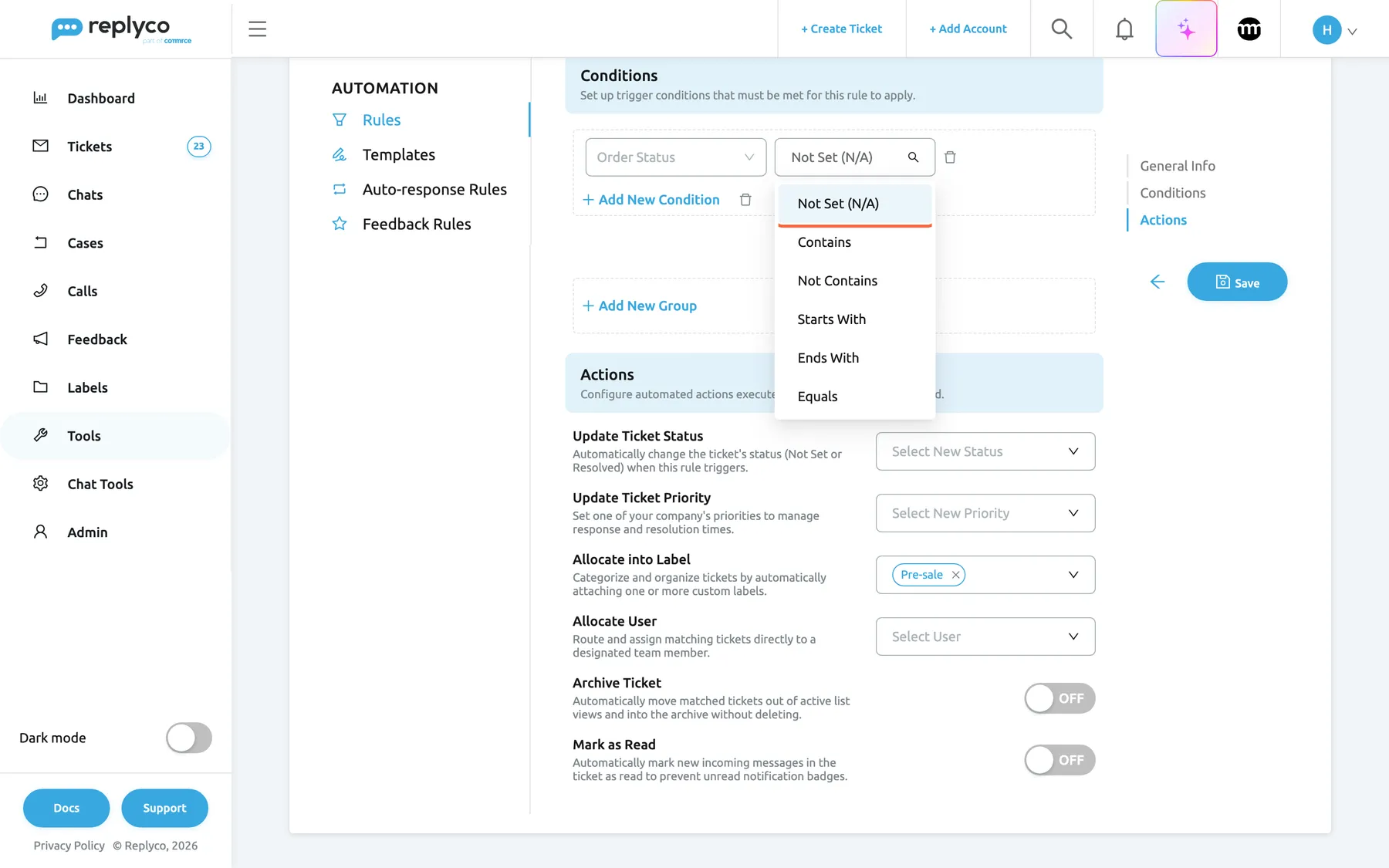
What this screenshot shows
- Screen
- Edit Rule (/tickets-automation?tab=rules)
- Highlighted
- option “Not Set (N/A)”, conditions, selected. matches tickets whose order status is empty
- Also visible
- condition source Order Status; comparisons: Not Set (N/A), Contains, Not Contains, Starts With, Ends With, Equals; Allocate into Label: Pre-sale
- Purpose
- comparisons of a text source and the empty case
Update Ticket Status
Section titled “Update Ticket Status”First action under Actions, the select Select New Status; the cross in the select clears it.
Resolved resolves the ticket; Not Set makes it unresolved again. The ticket’s next customer message reopens a resolved ticket, and the rule resolves it again if it matches. With Linnworks, Billbee or Brightpearl connected, Replyco also updates the order in that system, as it does when you resolve or reopen a ticket by hand. In Linnworks, for example, the order’s identifier switches between “Resolved Ticket” and “Unresolved Ticket”; see Linnworks.
Notifications that need no answer, such as Your order has shipped, can be resolved the moment they arrive and stay out of your open queue.
Update Ticket Priority
Section titled “Update Ticket Priority”Second action, the select Select New Priority, listing your priorities in urgency order.
Gives the ticket that priority and starts both its deadlines afresh, in calendar or working hours as the priority is set up, on every matching message. Tone analysis runs after rules and replaces a priority a rule set on this message only when Override an SLA set by message rules is ticked. If the priority is deleted, the rule sets nothing and its summary shows [priority deleted]. See Ticket priorities and SLA.
Facts a rule can see, such as the order value or the channel, decide the promise you make; the rule applies it before anyone reads the message.
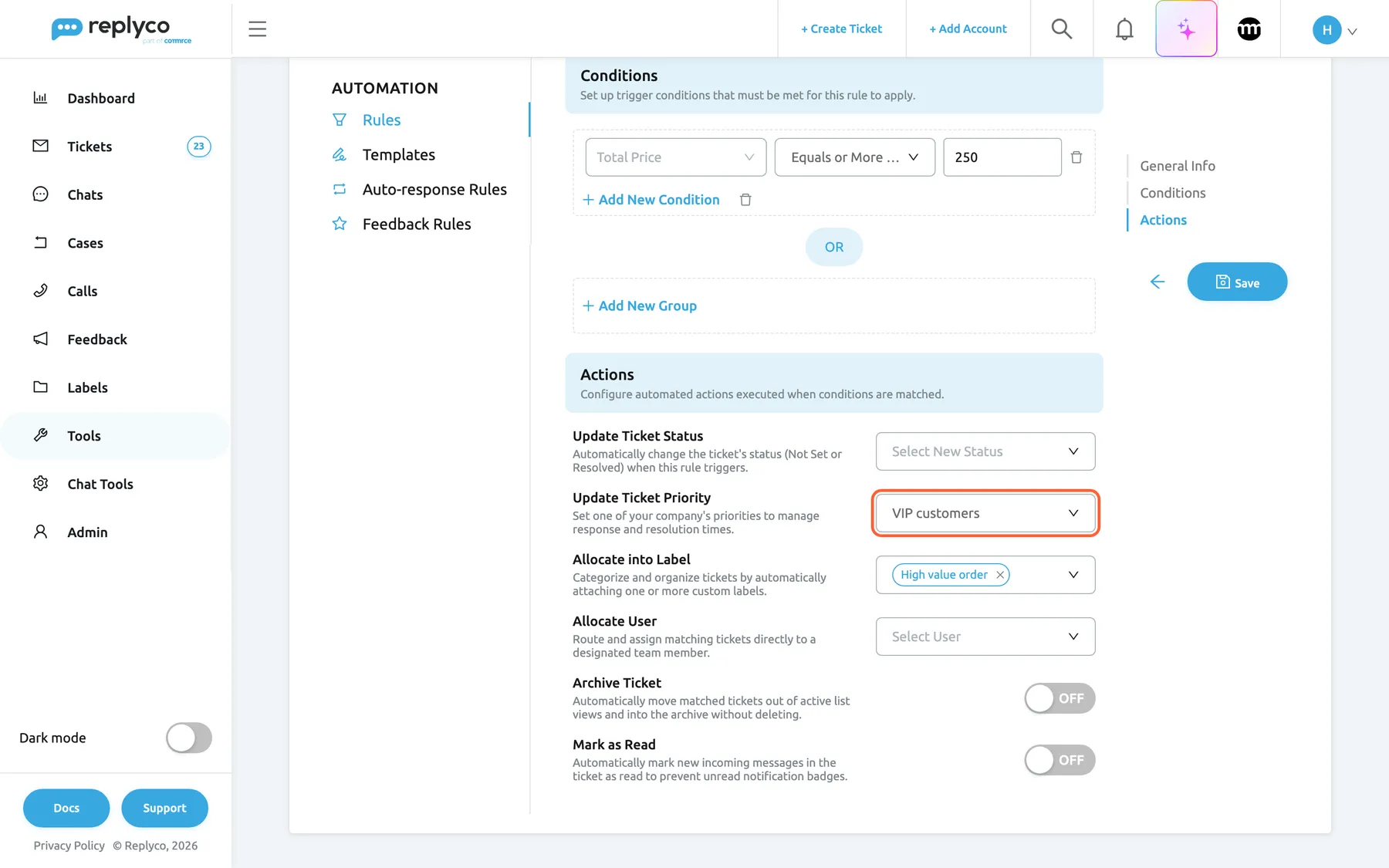
What this screenshot shows
- Screen
- Edit Rule (/tickets-automation?tab=rules)
- Highlighted
- combobox “Update Ticket Priority”, actions, VIP customers selected. sets the priority and its deadlines on every matching ticket
- Also visible
- Update Ticket Status empty; Allocate into Label: High value order; Allocate User empty; Archive Ticket OFF; Mark as Read OFF
- Purpose
- a rule with a priority action
Allocate into Label
Section titled “Allocate into Label”Third action, the multi-select Select Label to assign.
Adds each chosen label to the ticket; labels the ticket already has stay, and a label it already has is not added twice. Rules never remove labels. A label that a rule adds cannot be deleted until you remove it from the rule; Replyco names up to three rules that use it.
A label gives each kind of ticket its own list under Labels, and adding is harmless, which makes labels the safest first action.
Allocate User
Section titled “Allocate User”Fourth action, the select Select User.
Assigns the ticket to that colleague and replaces any other assignee, on every matching message, so it also undoes a reassignment made by hand when the customer writes again. The colleague is notified according to their notification settings. See Assign, label and merge tickets.
Specialists get their tickets without a dispatcher: returns to the returns person, German messages to the German speaker.
Archive Ticket
Section titled “Archive Ticket”Fifth action, a switch.
ON archives the matching ticket: it leaves your working lists and appears under TicketsArchive. The customer’s next message brings it back, and the rule archives it again if it matches. See Archived tickets.
Automatic notices you want to keep but never work on stay out of sight.
Mark as Read
Section titled “Mark as Read”Sixth action, a switch.
ON marks the new message, and so the ticket, as read, so it does not count as unread in your lists.
Notifications should not make your queue look busier than it is.
Linnworks order actions
Section titled “Linnworks order actions”Below the other actions, only while a Linnworks account is connected: Change Order Tag, Change Order Lock State and Change Order Park State.
Set tag 1 to 6 on the ticket’s Linnworks order, lock or unlock it, or park or unpark it. They act only on tickets whose order comes from Linnworks. See Linnworks.
Hold an order in Linnworks the moment a customer asks to cancel it, before it is picked.
Rule order, the drag handle
Section titled “Rule order, the drag handle”The handle on the left of each card on the Rules tab; the order is saved when you drop the card.
Rules run from the top of the list down on every message. A new rule and a copy are added at the bottom; editing a rule keeps its place.
How the order decides, for an order of 300 from a customer who writes my charger arrived damaged, with Northwind’s rules:
| Order of the rules | Priority at the end | Labels at the end | Assignee at the end |
|---|---|---|---|
| SLA Allocation, High value order, Damaged items | VIP customers: set by SLA Allocation, replaced by High value order | High value order, Damaged items | Laura Graf, from Damaged items |
| High value order, Damaged items, SLA Allocation | Standard (24 hours): SLA Allocation runs last and replaces VIP customers | High value order, Damaged items | Laura Graf |
| SLA Allocation switched off | VIP customers | High value order, Damaged items | Laura Graf |
A broad rule belongs at the top, where more specific rules below can override it.
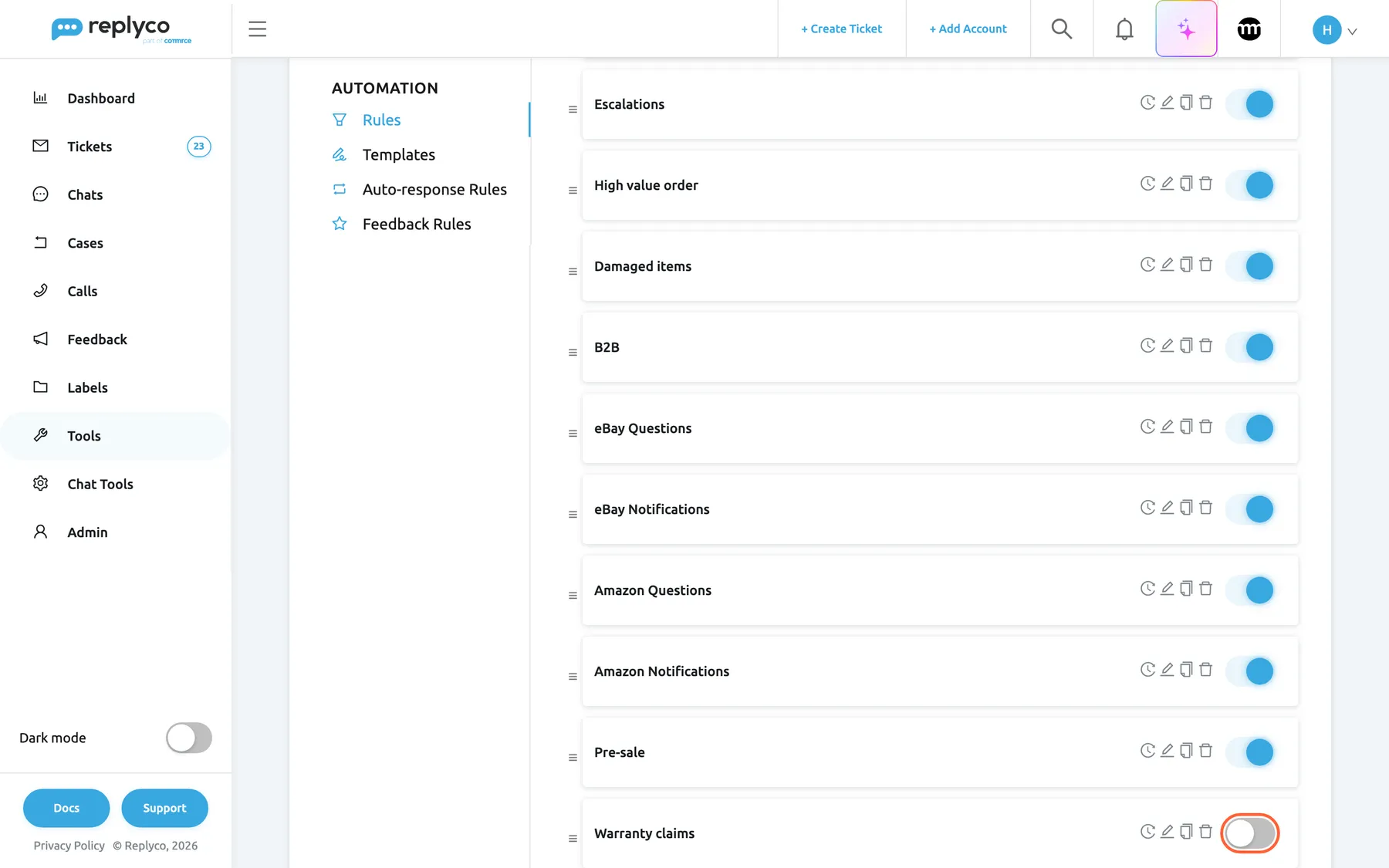
What this screenshot shows
- Screen
- Rules (/tickets-automation?tab=rules)
- Highlighted
- switch “”, last-card-right, off. switches the rule on; saves at once
- Also visible
- rule cards 3 to 12 in run order; drag handle, history, edit, copy, delete icons per card; all switches on except the last
- Purpose
- rules run in list order; switched-off rules do not run
How the settings combine
Section titled “How the settings combine”When several rules match one message, their actions combine like this:
| Two matching rules both… | Result on the ticket |
|---|---|
| set a priority | The lower rule’s priority, with deadlines started afresh |
| assign a colleague | The lower rule’s colleague, alone |
| set a status | The lower rule’s status |
| add labels | Every label of both rules |
| archive, or mark as read | Archived, or read |
| one resolves, the other archives | Resolved and archived |
| the upper assigns, the lower has Assigned To Not Set (N/A) | The lower rule does not match, because the ticket is assigned by then |
Rules in your tickets
Section titled “Rules in your tickets”A rule shows itself in three places: on the ticket it changed, in the ticket’s history, and in the rule’s own history.
| Where | What you see | Which record |
|---|---|---|
| The ticket list and the ticket | The status, priority with Respond Till, labels and assignee the rules set | The current state, after the last matching rule |
| The ticket’s history | Rule Escalations applied once per matching rule and message; after Run Rules the row names who ran it: Henry Clarke ran rule Escalations | Every rule that matched, in order |
| The rule’s history | Who created, switched, changed and moved the rule | Every change to the rule |
Ticket history row
Section titled “Ticket history row”The grey rows between the messages include one row per rule that matched the message, with the rule’s name and the time. The row says that the rule ran, not what it changed; the ticket itself shows the result. Several rows at the same moment are grouped, with a chip such as 1 more that opens them. A rule that did not match leaves nothing. History rows appear for users who have Load user logs in the ticket switched on in Account Settings.
Why: when a ticket suddenly has a new owner or priority, the history names the rule, and the rule’s details panel says why it matched.
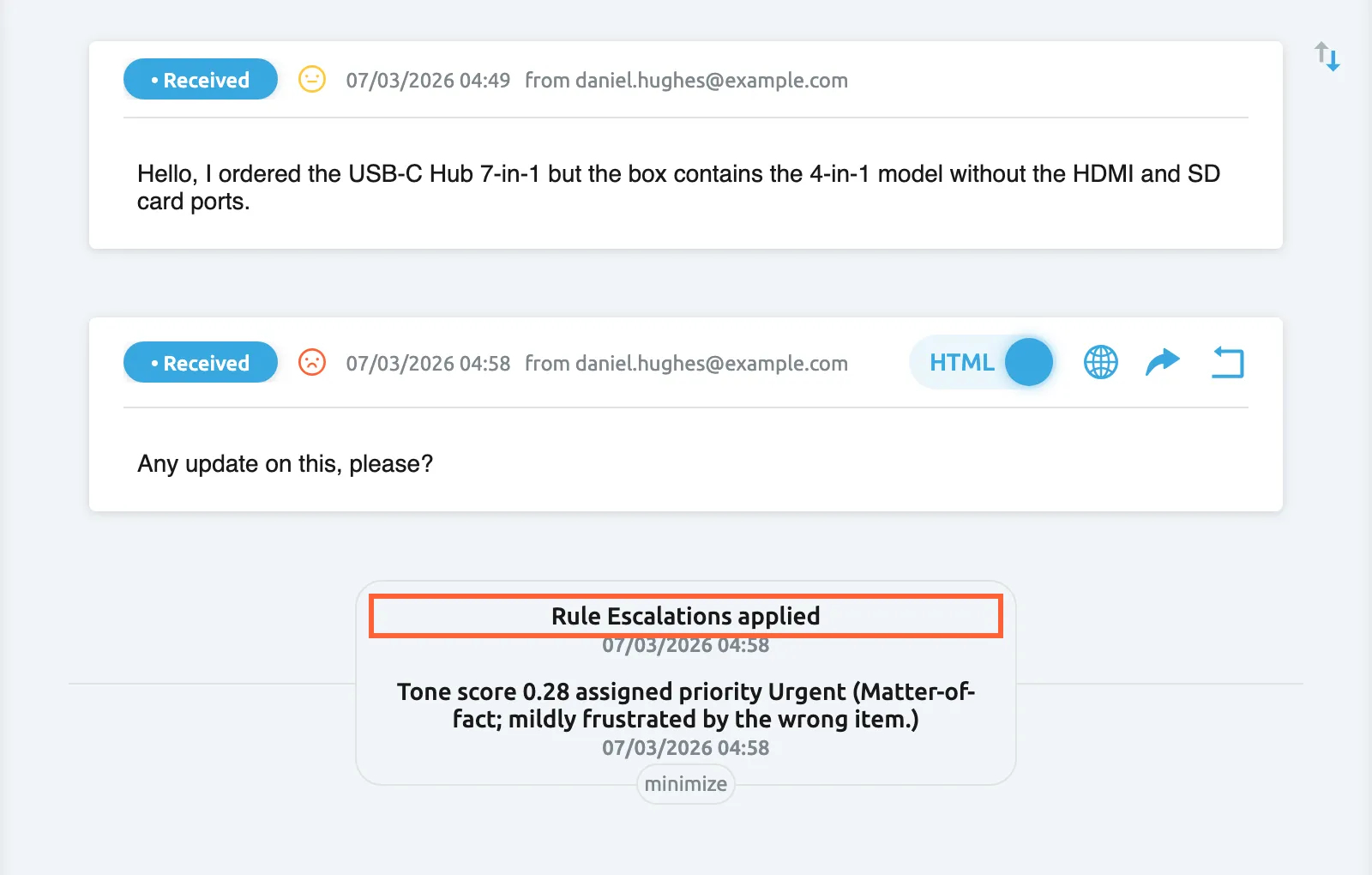
What this screenshot shows
- Screen
- Respond (/ticket/:threadId)
- Highlighted
- paragraph “Rule {{ruleName}} applied”, conversation, visible. records that the rule Escalations matched this message
- Also visible
- two customer messages with yellow and red faces; history row Rule Escalations applied; history row Tone score 0.28 assigned priority Urgent; minimize chip
- Purpose
- the ticket history row a rule writes
The rule’s own history
Section titled “The rule’s own history”The clock icon on a rule’s card opens its history: created this message rule, turned on this message rule or turned off this message rule, updated this message rule. Click on this row to see changes (select it to see what changed) and changed the priority of this message rule, each with a name and a date. Dragging one card writes the last line to every rule, because the whole order is saved again.
Why: when tickets start to behave differently, the history shows who changed which rule and when.
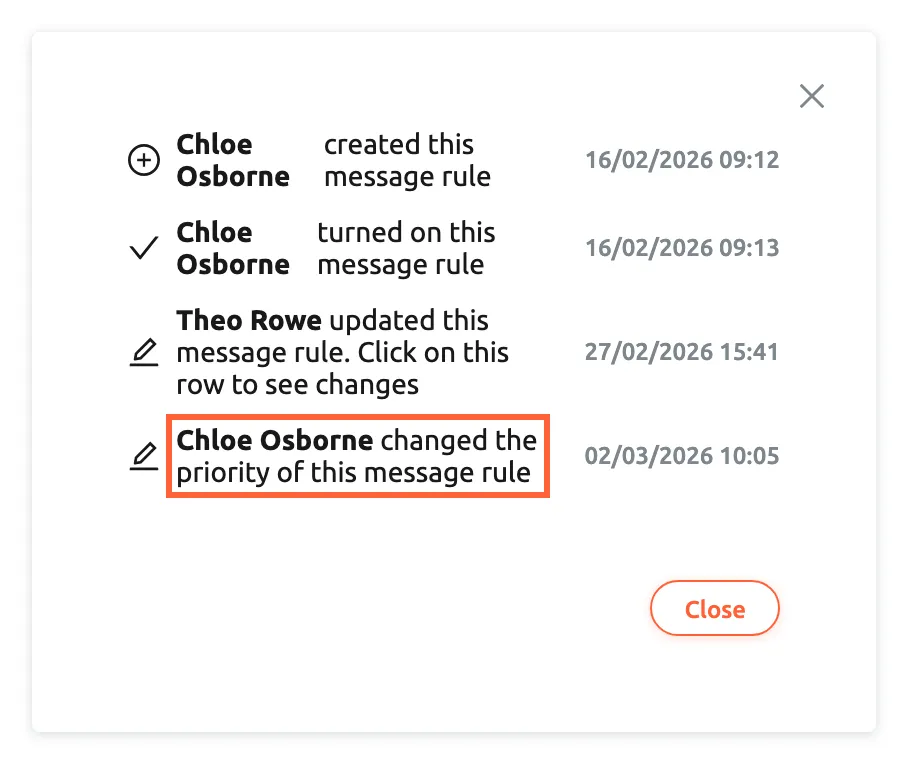
What this screenshot shows
- Screen
- Rules (/tickets-automation?tab=rules)
- Highlighted
- row “ changed the priority of this message rule ”, details-panel, shown. records that the rule was moved in the list
- Also visible
- created this message rule; turned on this message rule; updated this message rule; changed the priority of this message rule; Close button
- Purpose
- audit changes to a rule
Tone score as a rule condition
Section titled “Tone score as a rule condition”ToolsAutomation › Rules, then Create New or the pencil icon. In Conditions, Select Source › Message › Tone score (0 = furious, 1 = delighted). It is offered to every company with Replyco AI.
Compares the incoming message’s tone score, from 0 (furious) to 1 (delighted), with Equals, Equals or More Than or Equals or Less Than. Type a decimal such as 0.3. Equals compares with the stored three-decimal score and rarely matches. Tone analysis scores the message before rules run, so the condition always sees the score; a message without a score never matches: a reply from your team, a customer on the AI Customers Blacklist, a message without text, a failed AI call, or a message from while tone analysis was off. For the score itself, see Message tone analysis.
Tone rules on the Tone tab can only set a priority. A message rule with a tone condition can do everything else: assign, label, archive.
Three rules you could write:
- Escalations: Tone score (0 = furious, 1 = delighted) Equals or Less Than 0.3 → Allocate User Theo Rowe and Allocate into Label Escalations.
- Tone score (0 = furious, 1 = delighted) Equals or Less Than 0.2 and Total Price Equals or More Than 250 → Update Ticket Priority Urgent: an angry customer with a big order.
- Tone score (0 = furious, 1 = delighted) Equals or More Than 0.8 → Allocate into Label VIP, to find happy customers worth asking for a review.
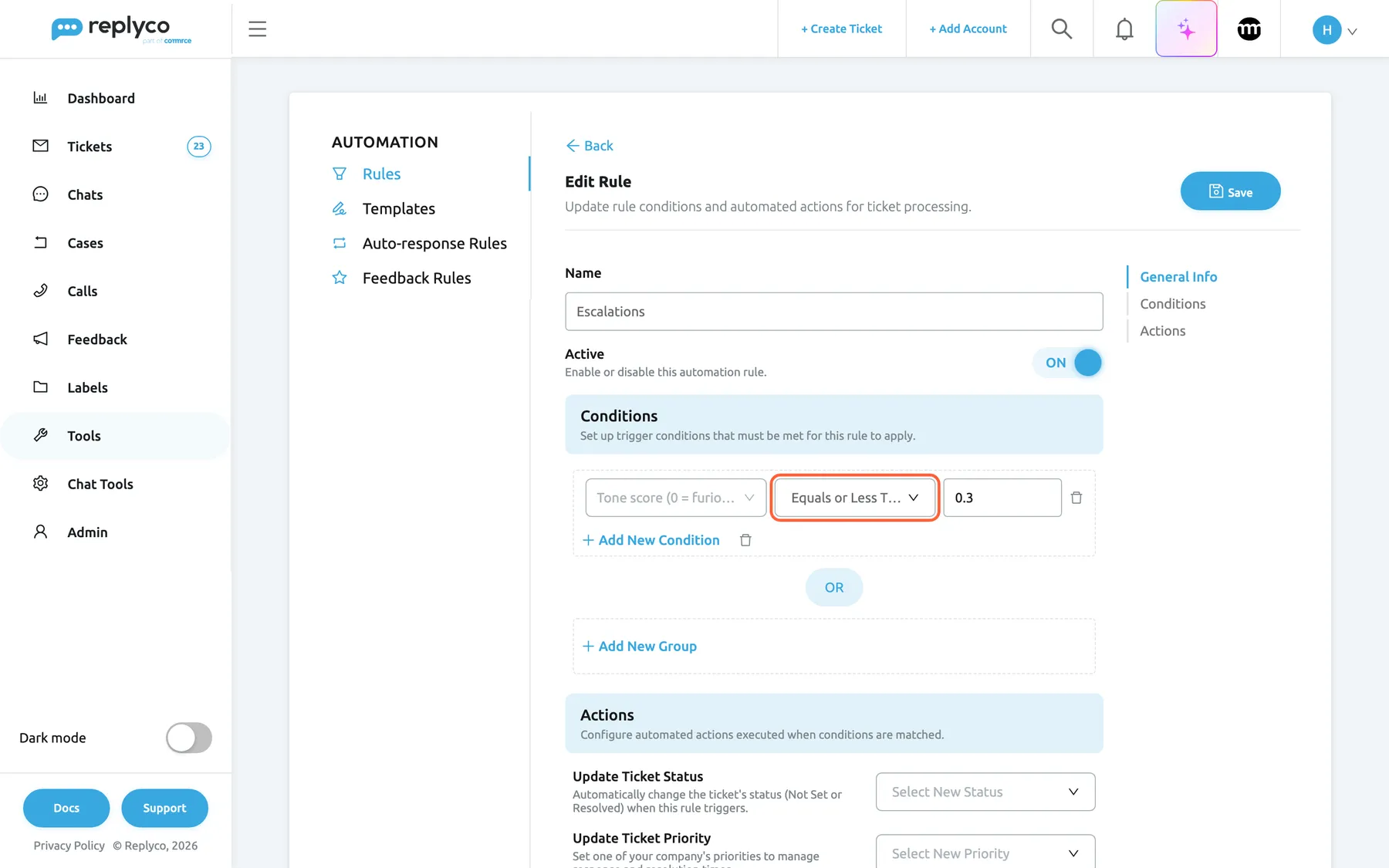
What this screenshot shows
- Screen
- Edit Rule (/tickets-automation?tab=rules)
- Highlighted
- combobox “Equals or Less Than”, conditions, selected. compares the tone score with 0.3, inclusive
- Also visible
- source Tone score (0 = furious, 1 = delighted); value 0.3; Name Escalations, Active ON; Add New Condition, OR, Add New Group
- Purpose
- a rule that reacts to the customer's mood
Running rules from the ticket lists
Section titled “Running rules from the ticket lists”Every ticket list under Tickets: tick tickets, then Run Rules, the first icon of the bar that appears at the top.
Runs every switched-on rule, in the order of the Rules tab, on the latest message of each ticked ticket, as if it had just arrived, then shows Success and reloads the list. Unlike on arrival, no auto-response is sent, tone analysis does not set a priority, and tickets of blocked customers are included. Run Rules appears in the bar of every ticket list. See Ticket lists.
Rules only see new messages. After you create or correct a rule, this brings the tickets that are already there up to date.
Three ways to use it:
- After creating Damaged items, open Not Resolved, tick last week’s tickets and run the rules, so they get the label too.
- After unblocking a customer, tick their tickets in Blocked or in the list they moved to, and run the rules they missed; see Blocked tickets.
- After changing a rule’s priority, run the rules on its label’s list, so older tickets get the new deadline.
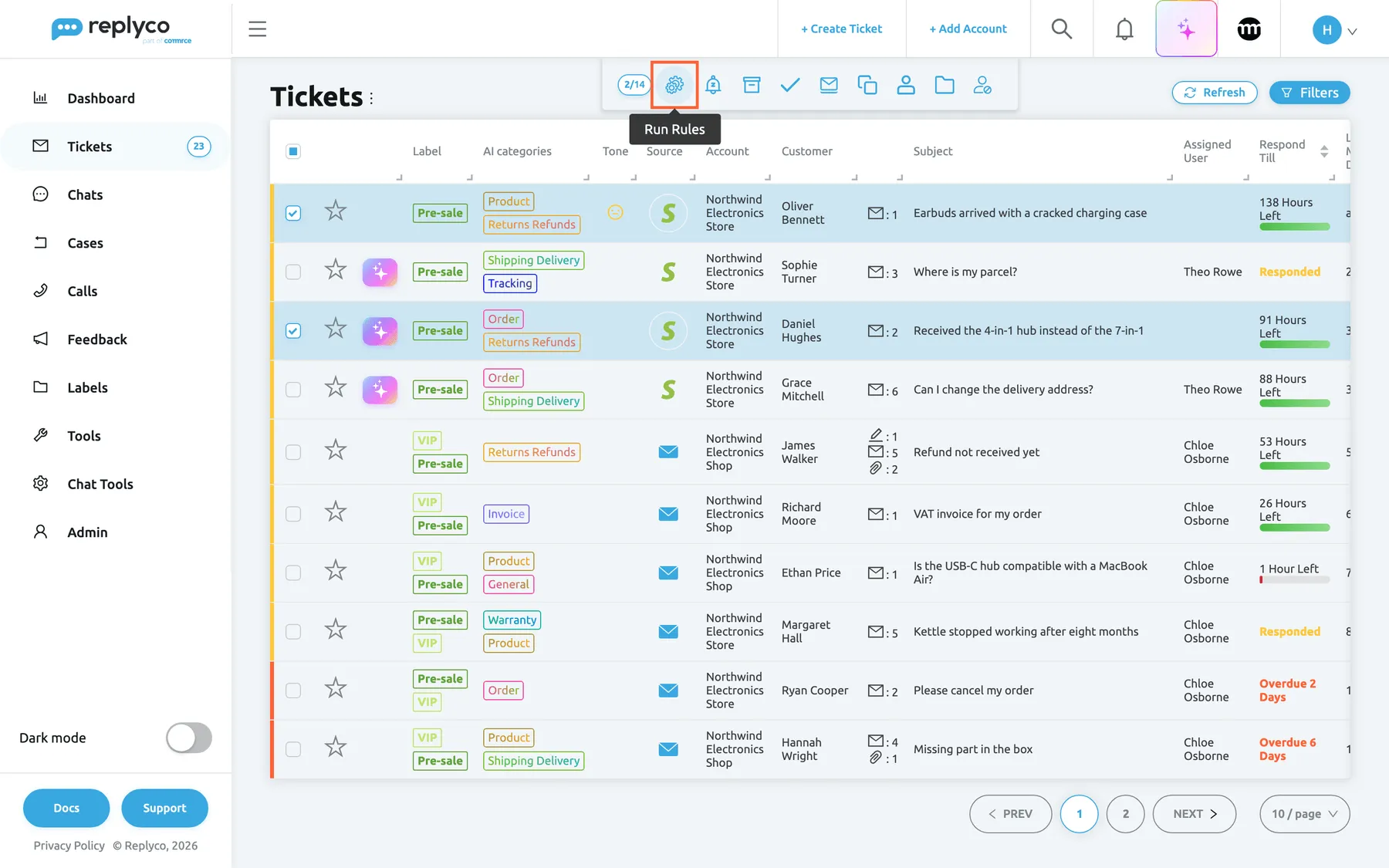
What this screenshot shows
- Screen
- Not Resolved (/tickets/notresolved)
- Highlighted
- button “Run Rules”, top-center, hovered. runs every active rule on the latest message of each selected ticket
- Also visible
- two rows ticked; counter 2/14; tooltip Run Rules
- Purpose
- run rules by hand on existing tickets
Rules and your other automation
Section titled “Rules and your other automation”Several features act on the same incoming message. They always run in the same order, so the result is predictable:
| Feature | Runs | Who wins |
|---|---|---|
| Auto-responses | Before rules | They are sent or queued before any rule runs; a rule that resolves or archives the ticket does not stop them. See Auto-responses for tickets. |
| Tone analysis, the score | Before rules | Rules can use the score as a condition. |
| Tone analysis, tone rules | After rules | A priority a rule set on this message stays unless Override an SLA set by message rules is ticked. See Message tone analysis. |
| Priorities and deadlines | With the rule | A rule sets the priority and starts both deadlines on every matching message. See Ticket priorities and SLA. |
| Auto-assign on Reply | When you reply | It assigns only unassigned tickets, so a rule’s assignee stays. See Company Settings. |
| AI categories and drafts | Before rules | No rule can look at categories. See AI categories. |
| AI summaries | Before rules | The summary is renewed before rules run. See AI summaries. |
| AI Customers Blacklist | Before rules | Those customers’ messages get no tone score and no auto-response, so tone conditions never match them; your rules still run, and other conditions work. See AI Customers Blacklist. |
| Blocked customers | Instead of rules | Rules, auto-responses and tone priorities are skipped; Run Rules still works. See Blocked tickets. |
Examples from Northwind
Section titled “Examples from Northwind”Rules Northwind Electronics uses, written as condition → action:
| Rule | Condition → action | Why |
|---|---|---|
| SLA Allocation | Number Of Messages Equals or More Than 1 → Update Ticket Priority Standard (24 hours) | Every ticket gets a deadline; kept at the top so specific rules override it |
| Cancellations | Subject contains cancel, or Text contains cancel → Allocate into Label Cancellations | Cancellation requests are answered before the order ships |
| Escalations | Tone score (0 = furious, 1 = delighted) Equals or Less Than 0.3 → Allocate User Theo Rowe, Allocate into Label Escalations | Angry customers reach a senior agent |
| High value order | Total Price Equals or More Than 250 → Update Ticket Priority VIP customers, Allocate into Label High value order | Big orders get the 4-hour promise |
| Damaged items | Text contains damaged, or Subject contains broken → Allocate into Label Damaged items, Allocate User Laura Graf | Returns go to the returns specialist |
| B2B | (Account is the support mailbox and Subject contains wholesale) or Subject contains bulk order → Allocate into Label B2B, Allocate User Chloe Osborne | Trade enquiries reach the account manager |
| eBay Notifications | Marketplace is eBay and Customer Name equals eBay → Allocate into Label eBay Notifications, Mark as Read | eBay’s own notices do not count as unread |
| Amazon Notifications | Marketplace is Amazon and Customer Email does not contain marketplace.amazon → Allocate into Label Amazon Notifications, Mark as Read, Update Ticket Status Resolved | Amazon reports are filed and resolved on arrival |
| Pre-sale | Order Status Not Set (N/A) → Allocate into Label Pre-sale | Questions without an order are potential sales |
| German speakers | Language is German → Allocate User Simon Wagner | German messages reach a German speaker |
| Back after a month | Created On More Than 30 days ago → Allocate into Label After-sales | Old tickets that come back are usually warranty questions |
| Unassigned fallback, at the bottom | Assigned To Not Set (N/A) → Allocate User Chloe Osborne | Nothing stays without an owner |
What you need to know
Section titled “What you need to know”| Topic | Fact |
|---|---|
| What triggers a rule | A new incoming customer message, or Run Rules in a ticket list. Nothing else. |
| How many rules act | Every switched-on rule that matches, top to bottom. There is no stop. |
| Order | The list order. Later rules replace status, priority and assignee; labels add up. |
| Per message | Rules act on every matching message, not once per ticket, and write one history row each time. |
| New rules | Start switched off, are added at the bottom and change no existing ticket until you use Run Rules. |
| Values | Use whole numbers for days and message counts; text is matched as typed. |
| Limits | No limit on the number of rules, groups or conditions. |
| Failures | If a rule fails while running, Replyco records it for support and runs the next rule; the ticket gets no row for it. |
| Deleted things | A deleted priority, user or account makes that part of the rule do nothing; labels in use cannot be deleted. |
| Switching off | Keeps the rule, its conditions, actions and place. |
| Deleting | Permanent; what the rule already did and its history rows in tickets stay. |
| Cost | Rules use no AI actions. |
| Language | Labels follow your interface language; text conditions match exactly the words you type, in any language. |
| Customers | Nothing a rule does is sent to the customer. Only an auto-response writes to them, and that is a separate feature. |
Frequently asked questions
Section titled “Frequently asked questions”General
Section titled “General”What do rules do in Replyco?
Section titled “What do rules do in Replyco?”Rules sort incoming tickets for you. Each rule under ToolsAutomation › Rules has conditions and actions; when a new customer message matches the conditions, Replyco changes its ticket: status, priority, labels, assignee, archive or read state. Every switched-on rule is checked on every new customer message.
Do I need a special plan for rules?
Section titled “Do I need a special plan for rules?”No. Every plan includes rules, the priorities of Priorities & SLA that rules can set, and Replyco AI for the tone condition; companies on an older plan may not have all of them, see What each plan includes. You need the Automation permission to see ToolsAutomation and its edit level to change rules.
Does a message stop at the first rule that matches?
Section titled “Does a message stop at the first rule that matches?”No. Every switched-on rule runs on every new customer message, from the top of the Rules list down, and every rule that matches carries out its actions. There is no “stop processing” option. When two rules set the same priority, status or assignee, the lower one wins; labels from all matching rules add up.
Do rules change tickets I already have?
Section titled “Do rules change tickets I already have?”Not by themselves. Rules act on customer messages as they arrive. To apply a new or changed rule to existing tickets, open a ticket list under Tickets, tick the tickets and select Run Rules; Replyco then runs every switched-on rule on each ticket’s latest message.
Why does my new rule do nothing?
Section titled “Why does my new rule do nothing?”A new rule is saved with Active at OFF unless you switched it on in the form. Switch it on with the switch on its card on the Rules tab. It then acts on the next customer message that matches; tickets from before need Run Rules in a ticket list.
How do I make a rule match every message?
Section titled “How do I make a rule match every message?”A rule needs at least one condition. For a rule that should catch every ticket, use Number Of Messages Equals or More Than 1, which every ticket meets. Put such a catch-all rule at the top of the Rules list, so more specific rules below it can override what it sets.
Can I write “if this or that”?
Section titled “Can I write “if this or that”?”Yes. Put each alternative in its own group with Add New Group on the rule form under ToolsAutomation › Rules. Groups are joined by OR, so one matching group is enough; conditions inside a group are joined by AND and must all match.
Is there a limit on the number of rules?
Section titled “Is there a limit on the number of rules?”Replyco sets no limit on the number of rules, groups or conditions. Every switched-on rule runs on every new customer message, so a long list of narrow rules works, but keep it readable: give rules names that say what they do, because the ticket history shows only the name.
Conditions
Section titled “Conditions”Which conditions can a rule use?
Section titled “Which conditions can a rule use?”Under Select Source: the message’s Text, Subject, Language, Sent To and tone score; the ticket’s assignee, marketplace, account, creation date, message count and status, and the weekday of the message; the customer’s name and email; the order’s status, payment status, dates and total; and the product’s ID, title and SKU.
Can a rule check the AI category of a ticket?
Section titled “Can a rule check the AI category of a ticket?”No. Rules have no condition on AI categories; the only AI value they can use is the tone score. To work by category, filter any ticket list by AI category or use the category cards under Smart Filters. See AI categories.
Is there a condition for messages that arrive outside our working hours?
Section titled “Is there a condition for messages that arrive outside our working hours?”No. Rules have no working-hours condition. Day of week checks the weekday of the message being processed, in UTC, but not its time of day. For replies outside your hours, use auto-response rules, which have their own schedules; see Auto-response Rules.
Why doesn’t my ticket status condition match new messages?
Section titled “Why doesn’t my ticket status condition match new messages?”A new customer message reopens its ticket before any rule runs, so Ticket Status is always Not Set for a new message and Resolved never matches on arrival. It only matters when you run rules by hand with Run Rules on resolved tickets.
Why does the message count show one more message than I expect?
Section titled “Why does the message count show one more message than I expect?”Number Of Messages counts every message in the ticket, your replies included. Auto-responses are created before rules run, so a new ticket that just got an auto-response already has two messages when your rules check it. Use Equals or Less Than 2 rather than Equals 1 for first messages if you use auto-responses.
Why did my “does not contain” condition miss some tickets?
Section titled “Why did my “does not contain” condition miss some tickets?”A text comparison never matches a field that is empty, including Not Contains. A customer without an email address, or a ticket without an order, therefore does not match. Where the source offers Not Set (N/A), add a second group with it to catch the empty case as well.
Does Contains find parts of words?
Section titled “Does Contains find parts of words?”Yes. Contains looks for the characters you typed anywhere in the field, so cancel also matches cancelled and cancellation. Several words are looked for as one piece, exactly in that order; for alternatives, add one group per word under ToolsAutomation › Rules.
Actions and order
Section titled “Actions and order”Two rules set different priorities. Which one wins?
Section titled “Two rules set different priorities. Which one wins?”The lower one in the Rules list, because rules run from the top down and each matching rule replaces the priority an earlier one set. The same applies to status and assignee. Drag the rule that should win below the other; labels from both rules are added in any order.
Why was a ticket reassigned after I changed its owner?
Section titled “Why was a ticket reassigned after I changed its owner?”A rule with Allocate User matched the customer’s next message and assigned the ticket again. Rules act on every matching message, not once per ticket. Narrow the rule’s conditions, for example with Assigned To Not Set (N/A), so it only assigns tickets nobody owns yet.
Can a rule remove a label or unassign someone?
Section titled “Can a rule remove a label or unassign someone?”No. Allocate into Label only adds labels, and Allocate User always assigns one colleague. Remove labels or assignees in the ticket or with the bulk actions of a ticket list; see Assign, label and merge tickets.
Can a rule send a reply to the customer?
Section titled “Can a rule send a reply to the customer?”No. Rules change the ticket, never write to the customer. Automatic replies are auto-responses, set up under ToolsAutomation › Auto-response Rules. They run before rules on each new message; see Auto-responses for tickets.
Is the colleague notified when a rule assigns a ticket?
Section titled “Is the colleague notified when a rule assigns a ticket?”Yes, according to their own notification settings, like any assignment. The ticket also appears in the colleague’s My Tickets list, so they find it there even with notifications switched off.
Tone and other automation
Section titled “Tone and other automation”Do rules run before or after tone analysis?
Section titled “Do rules run before or after tone analysis?”Tone analysis scores the message before your rules run, so a rule can use the score; tone rules on the Tone tab set their priority after your rules. A priority a message rule set on this message stays unless Override an SLA set by message rules is ticked. See Message tone analysis.
Why didn’t my tone condition match?
Section titled “Why didn’t my tone condition match?”Either the rules did not run, because the customer is blocked, or the message had no tone score: it was a reply from your team, came from a customer on the AI Customers Blacklist, had no text, the AI call failed, or tone analysis was off when it arrived. Also check the comparison: Equals 0.3 matches only exactly 0.300; use Equals or Less Than.
Do rules run for blocked customers?
Section titled “Do rules run for blocked customers?”No. Messages from customers you have blocked are imported, but rules, auto-responses and tone priorities are skipped for them. After unblocking, tick their tickets in a ticket list and select Run Rules to apply your rules to each ticket’s latest message. See Blocked tickets.
Does a rule stop an auto-response?
Section titled “Does a rule stop an auto-response?”No. Auto-responses are decided and queued before rules run on the same message, so a rule that resolves or archives the ticket does not cancel them. To keep a kind of message from getting an automatic reply, narrow the auto-response rule’s own conditions under Auto-response Rules; see Auto-response Rules.
Running rules by hand and history
Section titled “Running rules by hand and history”Which message do rules check when I run them by hand?
Section titled “Which message do rules check when I run them by hand?”Run Rules uses the latest message of each ticked ticket, which can be your own reply. Conditions on the message’s text, subject, language, recipient or tone then look at your reply and usually do not match; conditions on the ticket, customer, order and product work as usual. No auto-response is sent.
How can I see which rule changed a ticket?
Section titled “How can I see which rule changed a ticket?”Open the ticket: each rule that matched leaves Rule Escalations applied between the messages, or Henry Clarke ran rule Escalations when a colleague applied it with Run Rules. The row names the rule, not the change; select the rule on the Rules tab to read its actions. Rows appear for users who have Load user logs in the ticket switched on in Account Settings.
I don’t see any rule rows in the ticket history. Why?
Section titled “I don’t see any rule rows in the ticket history. Why?”History rows load only for users who have Load user logs in the ticket switched on in Account Settings. If it is on, no rule matched that message: rules only write a row when their conditions match, and rules are skipped for your replies and for blocked customers.
Data and privacy
Section titled “Data and privacy”Does the customer see anything of my rules?
Section titled “Does the customer see anything of my rules?”No. Rules change the ticket inside Replyco: status, priority, labels, assignee, archive and read state. Nothing is sent to the customer or changed on the marketplace, except the Linnworks actions, which change the order in your Linnworks account. Customers only receive what your team or your auto-responses send.
What happens to tickets when I delete a rule?
Section titled “What happens to tickets when I delete a rule?”Nothing. Deleting a rule under ToolsAutomation › Rules is permanent, but the labels, priorities, assignees and statuses it set stay on the tickets, and so do the history rows with its name. The rule simply stops acting on new messages.
Troubleshooting
Section titled “Troubleshooting”| Symptom | What to check |
|---|---|
| A new rule does nothing | Its switch on the Rules tab (new rules start at OFF); whether a message arrived since; for older tickets, Run Rules. |
| A rule matches in the details panel but not on new messages | In order: is the sender blocked? Is the message your own reply? Is the condition Ticket Status Resolved, which never matches on arrival? |
| A ticket got the wrong priority | Rules further down the list that set another priority; then whether tone analysis replaced it (the history shows a tone row); then the priority’s own targets under Priorities & SLA. |
| An agent’s priority or assignee keeps changing back | A broad rule with Update Ticket Priority or Allocate User acts on every customer message. Narrow it or switch it off. |
| A tone condition never matches | The comparison (Equals rarely matches), then whether messages have a score: tone analysis on, customer not on the AI Customers Blacklist, message with text. |
| A text condition misses messages | Whether the word appears as typed; a sentence must appear exactly. Add a group per synonym or language. For empty fields, use Not Set (N/A). |
| A “first message only” rule never matches | Number Of Messages counts your replies and a just-queued auto-response. Use Equals or Less Than 2 with auto-responses. |
| A weekday rule matches on the wrong days | Open the rule and check which days the condition ticks. Day of week uses the date of the message being processed, in UTC, not the day the ticket began. |
| You must set a value for each condition. | A condition has no value, or a row has no source. Fill in the value or delete empty rows. |
| The colleague was assigned but not notified | Their settings under Notifications. |
| Linnworks actions did not change the order | The ticket’s order must come from Linnworks. |
| Run Rules changed nothing | The ticket’s latest message is your reply, so message conditions look at it; or no switched-on rule matches. |
| A rule’s summary shows [priority deleted] or [user deleted] | The priority or user was deleted; that action does nothing now. Edit the rule and choose a current one. |
Related
Section titled “Related”- Rules: the Rules tab, every control on it
- Message tone analysis · Ticket priorities and SLA · Priorities & SLA
- Auto-responses for tickets · Auto-response Rules
- Ticket lists · Blocked tickets · Assign, label and merge tickets
- AI categories · AI summaries · Labels · Linnworks