

Mailbox with IMAP and SMTP
Your support mailbox lives on your own mail server or with a host that offers IMAP and SMTP, and you want Replyco to work with it directly. Connected with IMAP and SMTP, Replyco signs in to your mailbox with its address and password, reads new mail from the folders you choose, and sends your replies through your own SMTP server, so every reply leaves exactly like mail from your mail program. You add it under AdminAccounts with + Add Account.
What it does
Section titled “What it does”A mailbox that Replyco only receives copies of cannot show the replies you sent elsewhere, and replies Replyco sends for you come from a different server. When your mail host supports IMAP or POP and SMTP, there is a more direct way: let Replyco use the mailbox the way your mail program does.
When you connect a mailbox with IMAP and SMTP, Replyco stores your server settings and tests the sign-in to your IMAP or POP server before it saves anything. From there:
- New mail in the folders you choose becomes tickets, about every five minutes; with no folders chosen, Replyco reads the inbox and the Sent folder. See folders to sync.
- Replies from a ticket go out through your SMTP server, from your address and sender name. See the SMTP settings.
- Presets fill in the servers of Gmail, Zoho, Yandex and Outlook for you. See Popular Systems.
- A mailbox that keeps failing to sign in is blocked with the server’s reason, so you know which setting to fix. See a blocked mailbox.
- The same settings connect the email of marketplace and webstore accounts through your own server. See IMAP and SMTP for webstores and marketplaces.
Replyco reads your mailbox without deleting or moving any mail, and the account’s details show which folders it reads and when it last did, so you can always see what reaches your team.
Before you start
Section titled “Before you start”| Requirement | Details |
|---|---|
| The Admin permission | + Add Account in the top bar and the Admin menu appear only for users with the Admin permission. See User permissions and roles. |
| A free account on your plan | Every plan can connect a mailbox with IMAP and SMTP. Each mailbox counts towards your plan’s number of accounts; during a trial there is no limit. See What each plan includes. |
| The mailbox’s sign-in | The mailbox’s address and a password that signs in over IMAP or POP and SMTP. Replyco uses the same address and password for receiving and sending. |
| Your mail host’s server settings | The addresses, ports and SSL settings of the incoming (IMAP or POP) and outgoing (SMTP) servers, from your mail host’s help or your mail administrator. For Gmail, Zoho, Yandex and Outlook, Replyco fills them in. |
| Cost | None. Reading and sending mail uses no AI actions or paid add-ons. |
Understanding the IMAP and SMTP connection
Section titled “Understanding the IMAP and SMTP connection”A mailbox connected this way uses two servers, and both need the mailbox’s address and password:
| Server | Protocol | What Replyco does with it | Typical port with SSL | Example |
|---|---|---|---|---|
| Incoming | IMAP | Reads new mail from the folders you choose, including your Sent folder | 993 | mail.northwind-electronics.example.com, 993, SSL ticked |
| Incoming | POP | Reads new mail from the mailbox’s single inbox | your host’s POP port | your host’s POP server |
| Outgoing | SMTP | Sends the replies you write in Replyco | 465 (SSL ticked) or 587 (SSL clear) | mail.northwind-electronics.example.com, 465, SSL ticked |
How Replyco decides
Section titled “How Replyco decides”- It tests before it saves. Authorize signs in to your IMAP or POP server with E-Mail Account Address and Password. If the server refuses, Replyco shows “Authentication failed.” and saves nothing.
- One sign-in for both directions. The same address and password sign in to the incoming server and to the SMTP server.
- SSL means encrypted from the start. With SSL ticked, Replyco opens an encrypted connection straight away, which servers on ports 465 and 993 expect. With SSL clear, it connects normally and switches to encryption when the server offers it, which is how port 587 works.
- The folders you choose replace the default. With no folders chosen, Replyco reads the inbox and the folder named Sent. Once you choose folders, it reads only those, so include INBOX if you want new mail.
- The last two days, then everything new. On connecting, Replyco imports the mail of the last two days from those folders, not the mailbox’s whole history. After that each sync fetches what arrived since the last one, looking back one extra day so nothing slips through.
- Your own messages count as your team’s. Mail in the Sent folder, and with POP any message from the mailbox’s own address, is imported as a reply from your team, not as a customer message.
- Every message once. Replyco recognises each email and never imports it twice for the same mailbox.
- Repeated sign-in failures block the mailbox. When signing in to your incoming or SMTP server fails more than five times, Replyco blocks the mailbox and shows the server’s answer as the reason.
What does not get imported
Section titled “What does not get imported”- Mail older than two days when you connect, and mail in folders you did not choose.
- Mail in subfolders: the folder list offers the mailbox’s top-level folders.
- With POP, anything outside the inbox; POP has no folders.
- A message this mailbox already has.
Setting it up in six steps
Section titled “Setting it up in six steps”-
Choose IMAP and SMTP. Select + Add Account in the top bar, then the Email tile under Mailbox Accounts, and select Setup Custom SMTP.
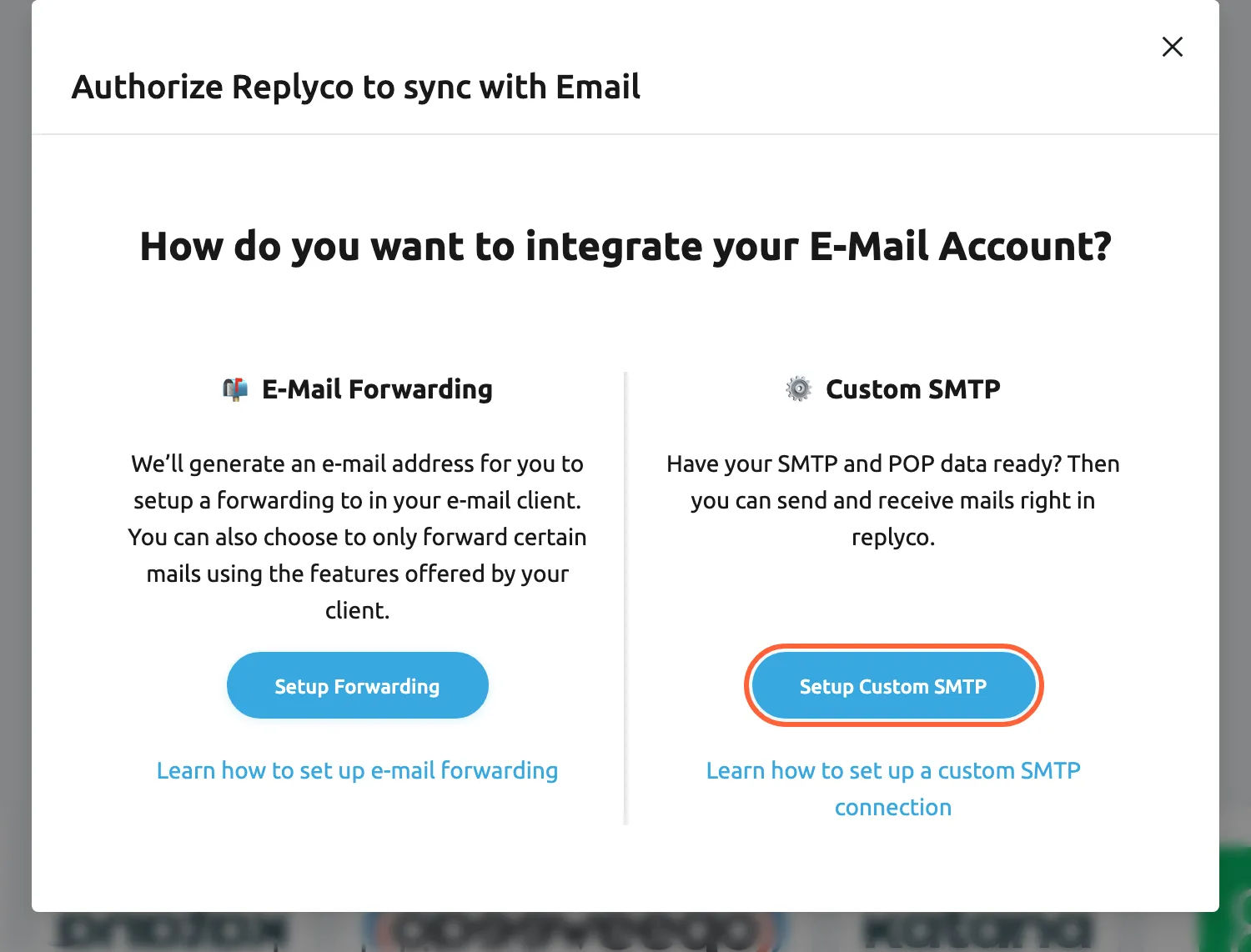
Choose Setup Custom SMTP to connect a mailbox through your own mail server. What this screenshot shows
- Screen
- Add Account (/integrations/add)
- Highlighted
- button “Setup Custom SMTP”, dialog-right-column, enabled. opens the form with the IMAP/POP and SMTP fields
- Also visible
- question How do you want to integrate your E-Mail Account?; E-Mail Forwarding column; Custom SMTP column with its help link
- Purpose
- entry point of connecting a mailbox over IMAP and SMTP
-
Enter the address customers see. At INFO, fill in E-mail address and, if you like, Sender Name.
-
Enter the mailbox’s sign-in. Type the mailbox’s address in E-Mail Account Address and its password in Password.
-
Fill in the servers. Under Popular Systems, choose Gmail, Zoho, Yandex or Outlook to fill in their servers, or keep Custom and enter SMTP Server, SMTP Port, SMTP Use SSL, Protocol Type, Protocol Address, Protocol Port and Protocol Use SSL from your mail host.
-
Authorize. Select Authorize. Replyco signs in to your incoming server; when that works, it saves the mailbox and shows Account successfully saved..
-
Choose the folders (optional), then finish. For an IMAP mailbox, FOLDERS TO SYNC lists the mailbox’s folders. Choose the ones Replyco should read, or leave the field empty for the inbox and the Sent folder, select Authorize and then Finish. A POP mailbox has no folders and goes straight to FINISH; select Finish.
Send a test email to the mailbox from another address. It arrives as a ticket at the next sync, usually within five minutes. Then reply to it from Replyco to test your SMTP settings.
Every setting, explained
Section titled “Every setting, explained”The settings are in the add window in the order below, and afterwards in the account’s details on AdminAccounts: the folders directly, everything else under Edit.
E-mail address, the address customers see
Section titled “E-mail address, the address customers see”+ Add Account › Email › Setup Custom SMTP › INFO, the first field. Later: the account’s details › Edit.
The address your replies come from and customers write to, such as support@northwind-electronics.example.com. Required, and it must be an e-mail address; otherwise the field shows Make sure to put in a valid e-mail address. It also becomes the account’s name in the list. Replyco refuses to add an address that is already connected as a mailbox.
It is usually the mailbox’s own address; keeping them the same means customers see and answer the address they know.
Sender Name
Section titled “Sender Name”The second field at INFO, and under Edit.
The name next to your address on every reply, such as Northwind Electronics Support. Optional; without it, customers see the address alone. A change applies to the next reply.
Customers open mail from a name they recognise.
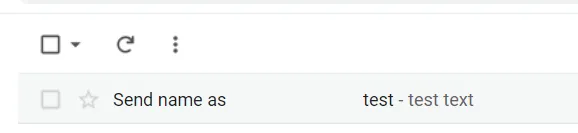
What this screenshot shows
- Screen
- ()
- Highlighted
- “”, , .
- Also visible
- inbox row with the sender name Send name as; subject test; preview test text
- Purpose
E-Mail Account Address
Section titled “E-Mail Account Address”Under the two fields above, in the server part of the form, and under Edit.
The address Replyco signs in with, at your incoming server and at your SMTP server. Required, and it must be an e-mail address. For most mailboxes it is the same as E-mail address.
Your mail server recognises the mailbox by its address; this is the name Replyco gives it.
Password
Section titled “Password”Under E-Mail Account Address, and under Edit.
The mailbox’s password, required when you add the mailbox. Replyco keeps it with the account and never shows it again: under Edit the field is empty, and leaving it empty keeps the stored password. Type a new one after you change the password at your mail host.
For a Gmail address with 2-Step Verification switched on, Google needs an app password here instead of the usual password: create one in the Google account and type it in this field. Where Google offers no app passwords, for example for many work or school accounts, connect the mailbox with Gmail, which signs in with Google.
Replyco signs in every few minutes; without a working password, it cannot read or send.
Popular Systems, presets for common mail services
Section titled “Popular Systems, presets for common mail services”Under Password. Custom is selected when the form opens.
Choosing a service fills in its servers, ports and SSL settings and, in the add window, locks those fields; choose Custom to type your own. All presets use IMAP:
| Preset | SMTP server, port, SSL | IMAP server, port, SSL |
|---|---|---|
| Gmail | smtp.gmail.com, 465, ticked | imap.gmail.com, 993, ticked |
| Zoho | smtp.zoho.eu, 465, ticked | imap.zoho.eu, 993, ticked |
| Yandex | smtp.yandex.com, 465, ticked | imap.yandex.com, 993, ticked |
| Outlook | smtp.office365.com, 587, clear | outlook.office365.com, 993, ticked |
| Custom | empty | empty |
Microsoft 365 and Outlook.com mailboxes no longer accept a password sign-in over IMAP and SMTP, so the Outlook preset does not connect them. Connect those mailboxes with Outlook and Microsoft 365, which signs in with Microsoft instead of a password.
Most sign-in problems are a wrong port or SSL setting; presets take that guesswork away for the services they cover.
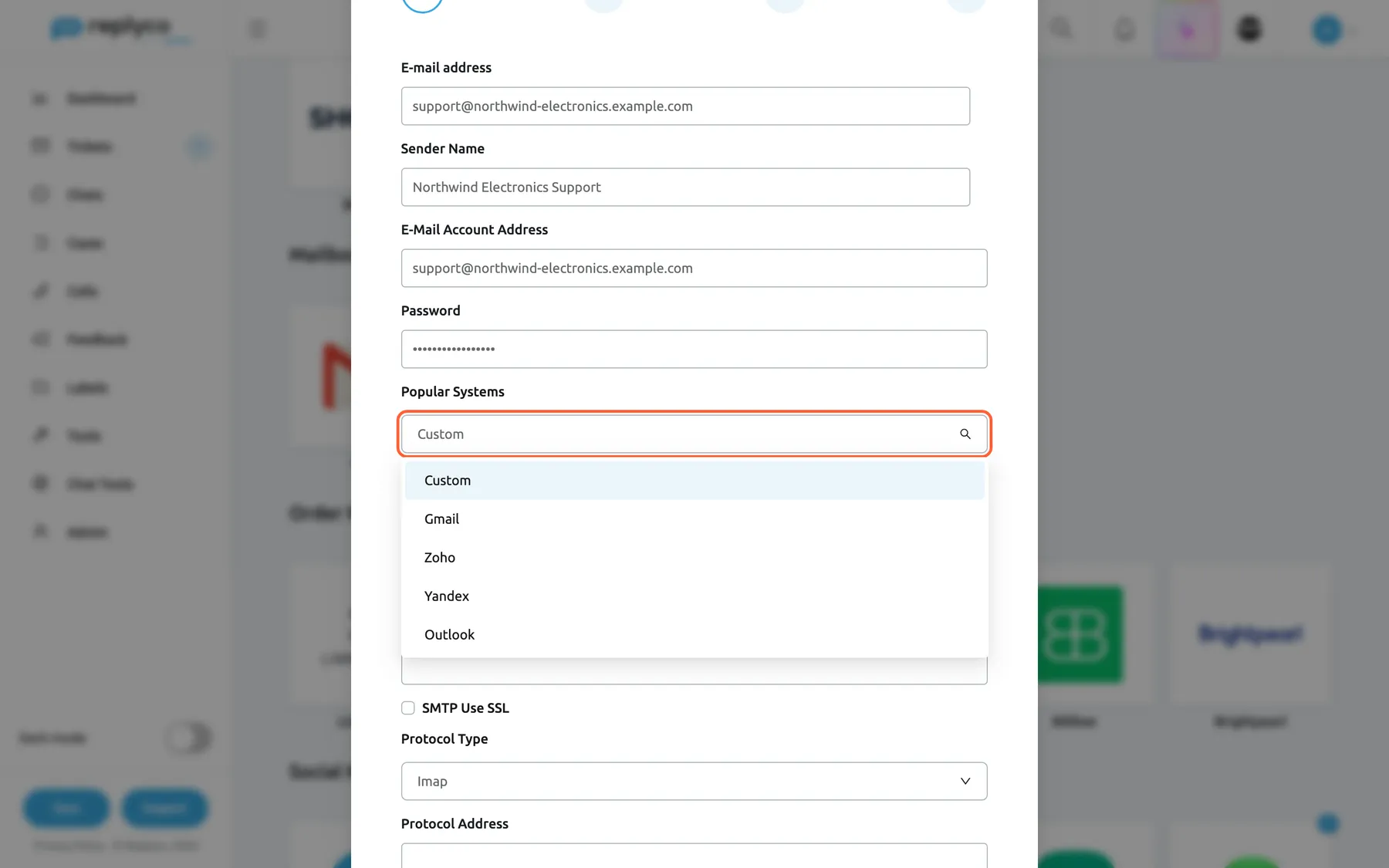
What this screenshot shows
- Screen
- Add Account (/integrations/add)
- Highlighted
- “Popular Systems”, dialog-middle, expanded. fills the server settings of the chosen service
- Also visible
- options Custom, Gmail, Zoho, Yandex, Outlook; E-mail address, Sender Name, E-Mail Account Address and Password filled
- Purpose
- presets for common mail services
SMTP Server and SMTP Port
Section titled “SMTP Server and SMTP Port”Under Popular Systems, and under Edit.
The outgoing server Replyco sends your replies through, such as mail.northwind-electronics.example.com, and its port. Both required. Replyco signs in to it with the same address and password each time it sends a reply.
Replies sent through your own server leave like any mail from your mail program.
SMTP Use SSL
Section titled “SMTP Use SSL”Under SMTP Port. Clear when the form opens.
Ticked: Replyco opens an encrypted connection from the start. Clear: it connects and switches to encryption when the server offers it. The setting must match the port:
| SMTP port | SMTP Use SSL | Result |
|---|---|---|
| 465 | ticked | Works: the server expects encryption from the start |
| 465 | clear | Fails: the server waits for encryption that never starts |
| 587 | clear | Works: the connection switches to encryption when the server offers it |
| 587 | ticked | Fails: the server expects a plain start |
Port and SSL are one decision; your mail host’s help names both together.
Protocol Type
Section titled “Protocol Type”Under the SMTP settings. Imap is selected when the form opens.
Imap or Pop: how Replyco reads your mailbox. IMAP reads folders and offers FOLDERS TO SYNC; POP reads the single inbox and has no folder choice.
IMAP lets Replyco read your Sent folder and the folders you sort mail into; choose POP only if your host offers nothing else.
Protocol Address, Protocol Port and Protocol Use SSL
Section titled “Protocol Address, Protocol Port and Protocol Use SSL”Under Protocol Type, and under Edit.
The incoming server, such as mail.northwind-electronics.example.com, its port and its SSL setting. Address and port are required. For IMAP, port 993 goes with SSL ticked; for POP, use the port and SSL setting your host names. This is the server Authorize tests.
Replyco reads every new message through this connection, about every five minutes.
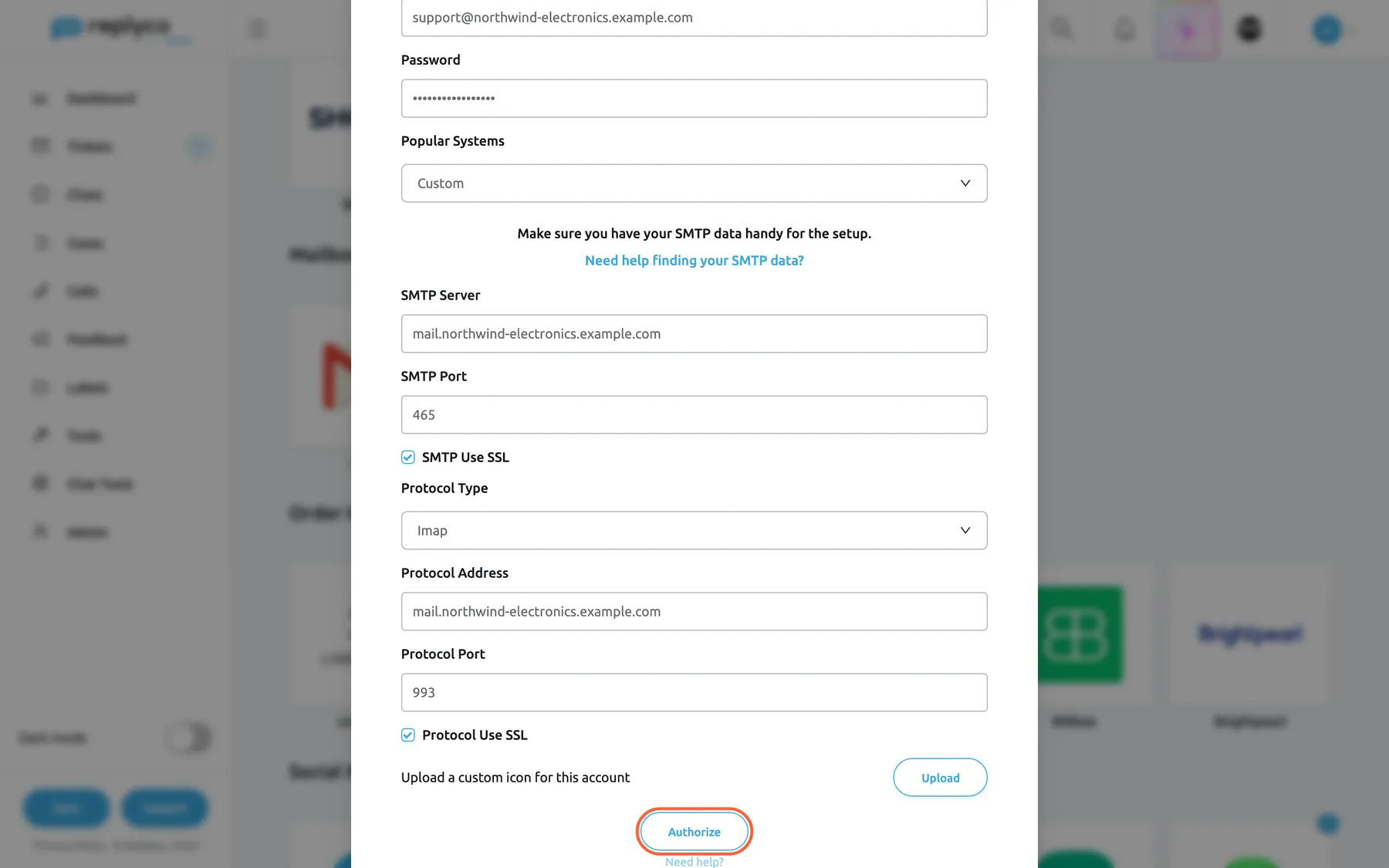
What this screenshot shows
- Screen
- Add Account (/integrations/add)
- Highlighted
- button “Authorize”, dialog-bottom, enabled. tests the IMAP sign-in and saves the mailbox
- Also visible
- SMTP Server mail.northwind-electronics.example.com, port 465, SSL ticked; Protocol Type Imap, address mail.northwind-electronics.example.com, port 993, SSL ticked
- Purpose
- the server settings of a mailbox on your own server, filled
Authorize, the connection test
Section titled “Authorize, the connection test”At the bottom of the form in the add window. Under Edit, Save runs the same test.
Replyco signs in to your incoming server with E-Mail Account Address and Password. If that works, it saves the mailbox; if not, it shows “Authentication failed.” and saves nothing, and the form keeps your entries so you can correct them. A required field left empty is marked in red, and Authorize stays unavailable until you fill it.
A mailbox that cannot sign in would stay silent. Testing first means every saved mailbox works on its first sync.
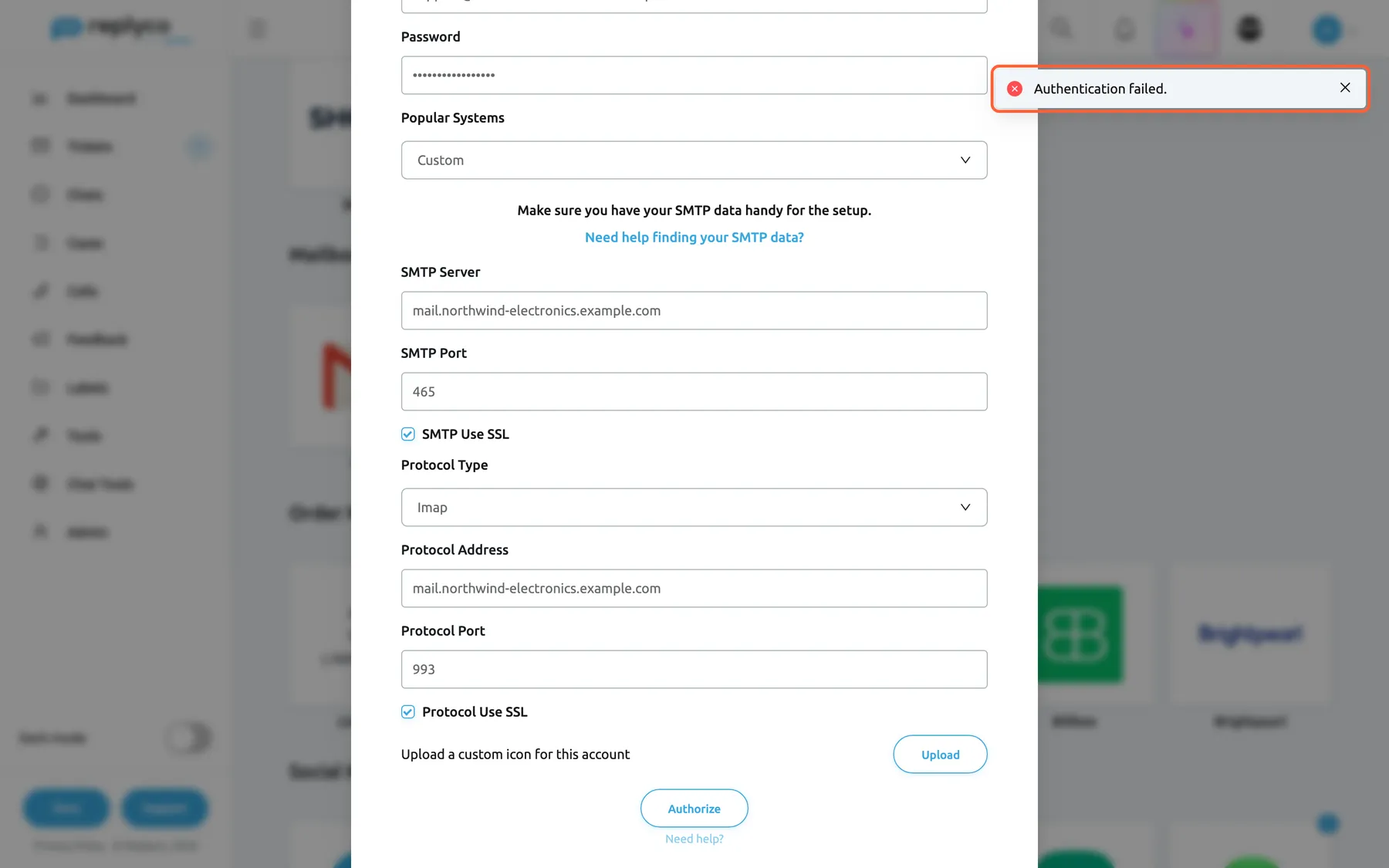
What this screenshot shows
- Screen
- Add Account (/integrations/add)
- Highlighted
- alert “”, top-right, shown. reports that the sign-in test failed; closes with its cross
- Also visible
- form still filled; Authorize button available again
- Purpose
- what a failed connection test looks like
Sync Messages from Folders:, the folders Replyco reads
Section titled “Sync Messages from Folders:, the folders Replyco reads”Step FOLDERS TO SYNC of the add window, after Authorize, for IMAP mailboxes. Later: the account’s details under Email settings, saved with Save Changes. The field is marked BETA.
The list shows the mailbox’s top-level folders, with Select all. Empty: Replyco reads the inbox and the folder named Sent. With folders chosen: it reads only those. The step is optional; This step is optional. You can do it later at any time.
Many mailboxes also receive invoices, newsletters or supplier mail. Choosing the folders your support mail lands in keeps the rest out of your ticket lists.
| Folders chosen | What Replyco reads |
|---|---|
| none | INBOX and Sent |
| INBOX | INBOX only; replies sent from your mail program no longer appear |
| INBOX and Sent | the same as none |
| INBOX and Returns | new mail in both; Sent is not read |
| Returns only | only Returns; new mail in INBOX is not read |
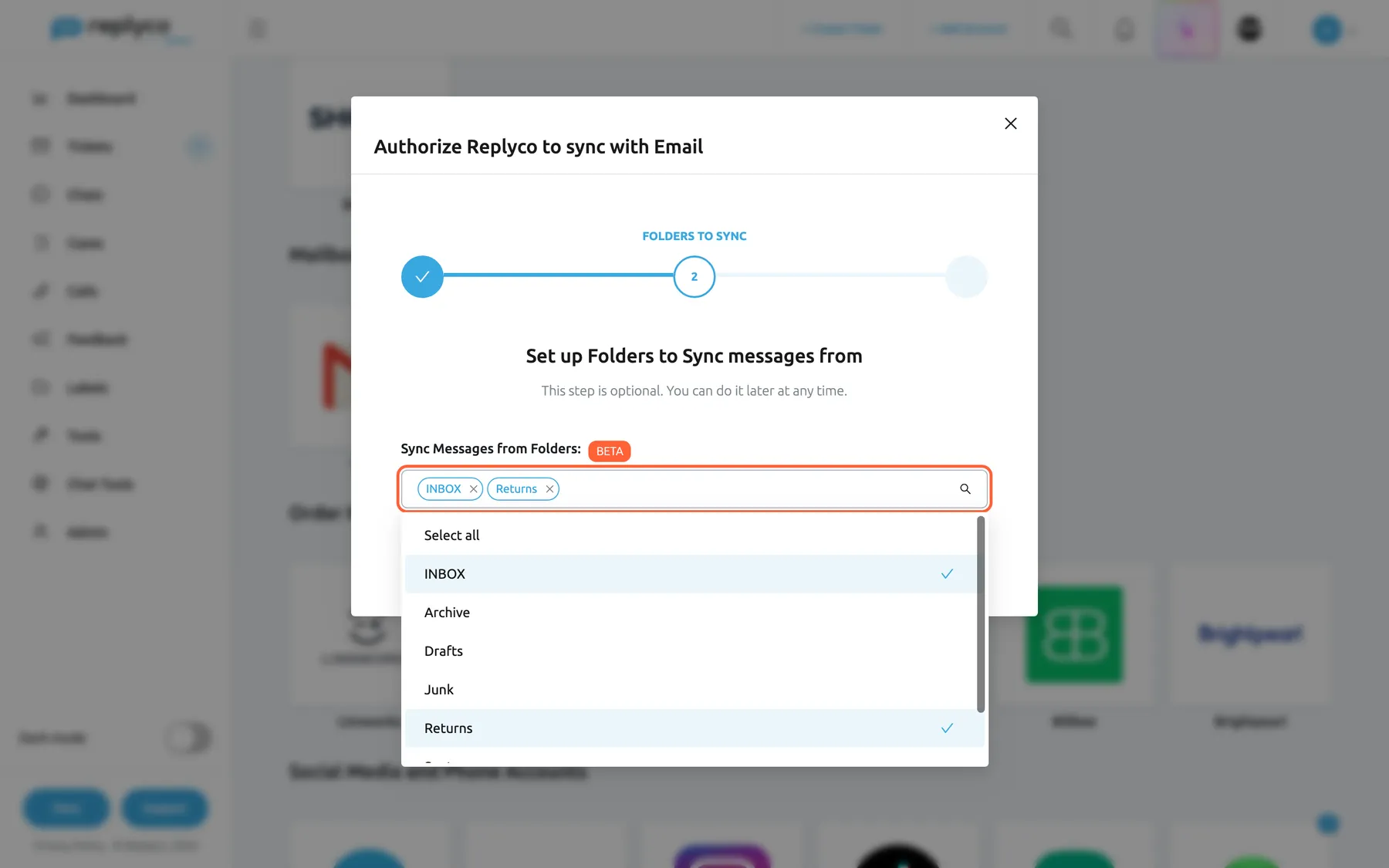
What this screenshot shows
- Screen
- Add Account (/integrations/add)
- Highlighted
- “Sync Messages from Folders:”, dialog-center, expanded. chooses the folders to import messages from
- Also visible
- folders INBOX, Archive, Drafts, Junk, Returns, Sent, Trash; Select all entry; BETA badge; Authorize button
- Purpose
- choose the folders to sync when connecting
Upload a custom icon for this account
Section titled “Upload a custom icon for this account”Above Authorize, and under Edit.
An image of your choice for this mailbox. It replaces the envelope icon wherever Replyco shows this account’s icon, such as the Source column of AdminAccounts. Optional.
With several mailboxes, a logo per brand or team tells them apart.
How the settings combine
Section titled “How the settings combine”| Protocol | Folders | What becomes tickets | Your own replies from your mail program |
|---|---|---|---|
| Imap | none chosen | New mail in INBOX | Imported from Sent as your team’s replies |
| Imap | chosen, with INBOX | New mail in the chosen folders | Imported only if Sent is chosen |
| Imap | chosen, without INBOX | Only mail in the chosen folders | Imported only if Sent is chosen |
| Pop | not offered | New mail in the inbox | Only if they reach the inbox from your own address |
Your mailbox in the account’s details
Section titled “Your mailbox in the account’s details”The mailbox is a row on AdminAccounts with Email under Account and your address under Name. For every column and status, see Accounts.
The folders it reads
Section titled “The folders it reads”In the account’s details, Email settings shows Sync Messages from Folders: with the chosen folders as tags. Add or remove folders, then select Save Changes; the next sync uses the new choice.
Why: you can narrow or widen what Replyco reads without adding the mailbox again.
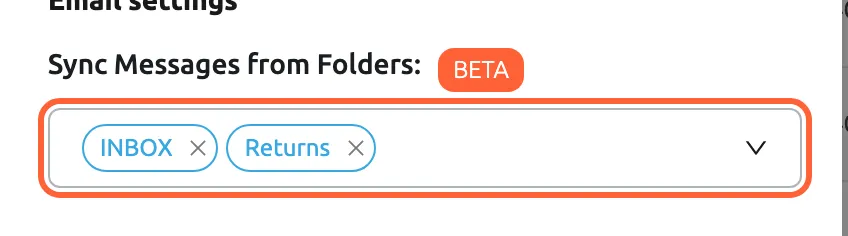
What this screenshot shows
- Screen
- Accounts (/integrations)
- Highlighted
- “Sync Messages from Folders:”, details-right-column, filled. adds or removes folders to sync
- Also visible
- tags INBOX and Returns; BETA badge
- Purpose
- change the synced folders after connecting
Password and server settings
Section titled “Password and server settings”Edit in the details opens Edit Account with every setting from the add window. Custom SMTP Configuration is ticked and cannot be cleared on a mailbox that uses your own server. The password field is empty; type a new password only when it has changed. Save signs in to your server with the new settings and stores them. For moving a forwarding mailbox to your own server, see Mailbox by forwarding.
Why: a changed password at your mail host is the most common reason a mailbox stops syncing.
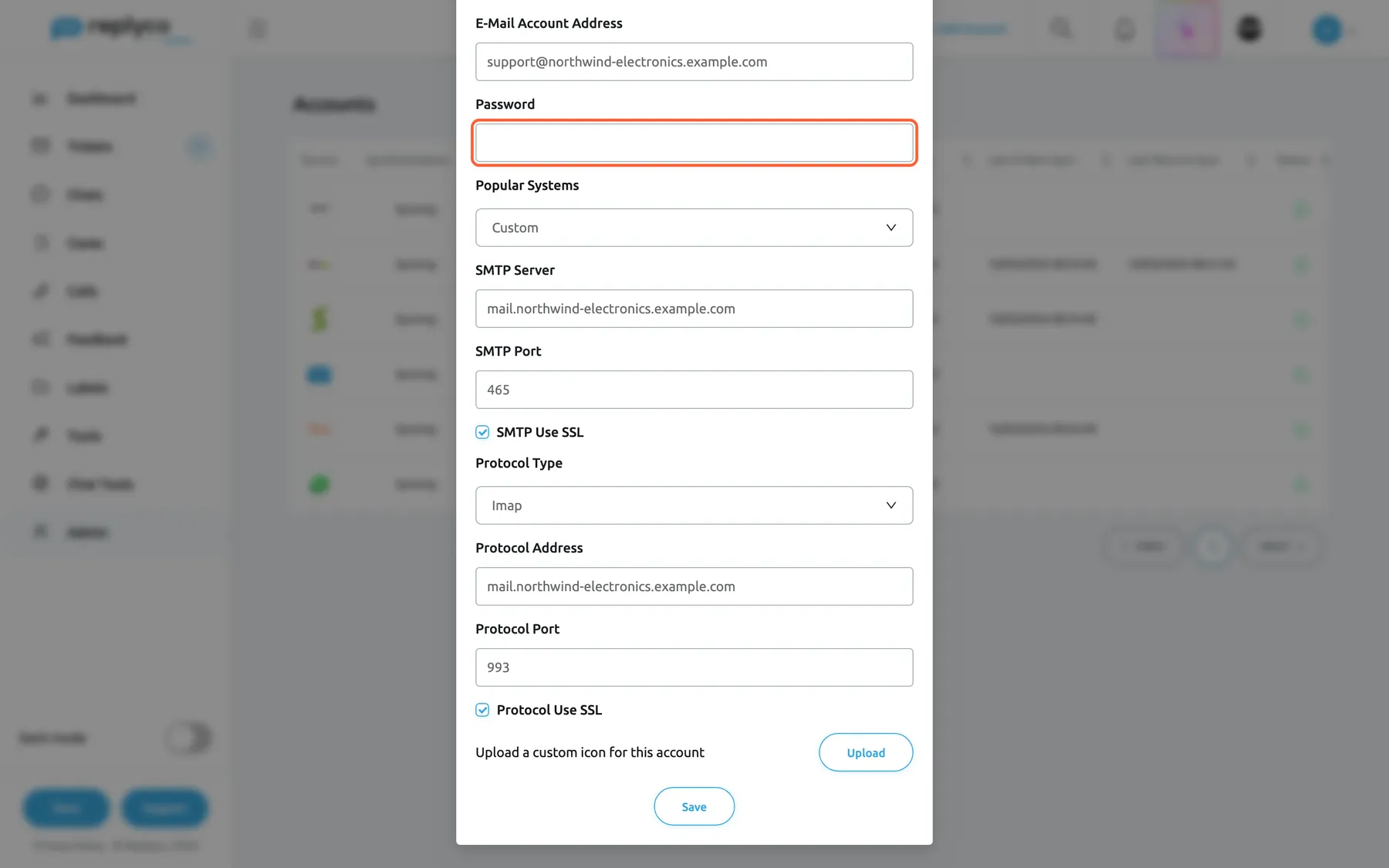
What this screenshot shows
- Screen
- Accounts (/integrations)
- Highlighted
- textbox “Password”, edit-dialog, empty. takes a new mailbox password
- Also visible
- E-Mail Account Address; SMTP Server, SMTP Port, SMTP Use SSL; Protocol Type Imap; Save button
- Purpose
- update the password or server settings of an IMAP/SMTP mailbox
Domain authentication (DKIM)
Section titled “Domain authentication (DKIM)”When the mailbox’s address is on your own domain, Email settings in the details also shows Domain authentication (DKIM), with the domain’s status after Deliverability:. The add window has no step for it on a mailbox with its own server, so you set it up here:
- If the section shows the button Set up DKIM, select it. Replyco creates a DKIM key for your domain and shows the record under DKIM record.
- Add that TXT record at your domain’s DNS provider, at the host
rco1._domainkey.plus your domain, such asrco1._domainkey.northwind-electronics.example.com. - Select Verify DNS. When the record matches, the section shows Good.
From then on, Replyco signs the replies it sends through your SMTP server as your domain. Until the record is verified, replies still go out, without that signature. An address at a public mail service such as gmail.com shows no such section, because there is nothing to set up. Replyco creates one key per domain, so a forwarding mailbox on the same domain shares the record. For every status and message, see Mailbox by forwarding.
Why: strict recipients such as Gmail and Microsoft check whether your domain allowed a message; a verified record lets them accept your replies.
A blocked mailbox
Section titled “A blocked mailbox”When signing in to your incoming or SMTP server fails more than five times, the mailbox shows Blocked in red in the Synchronization column. The details show Blocking reason: followed by “Error:” and your server’s answer, such as Error: Authentication failed. With Receive Notifications about Blocking ticked, Replyco also notifies you. To fix it, correct the password or server settings under Edit and select Save, then select Unblock; Replyco shows Account successfully unblocked. and catches up at the next sync. See Fix a blocked or silent account.
Why: a blocked mailbox tells you that a setting needs fixing, with the server’s own words, instead of failing quietly at every sync.
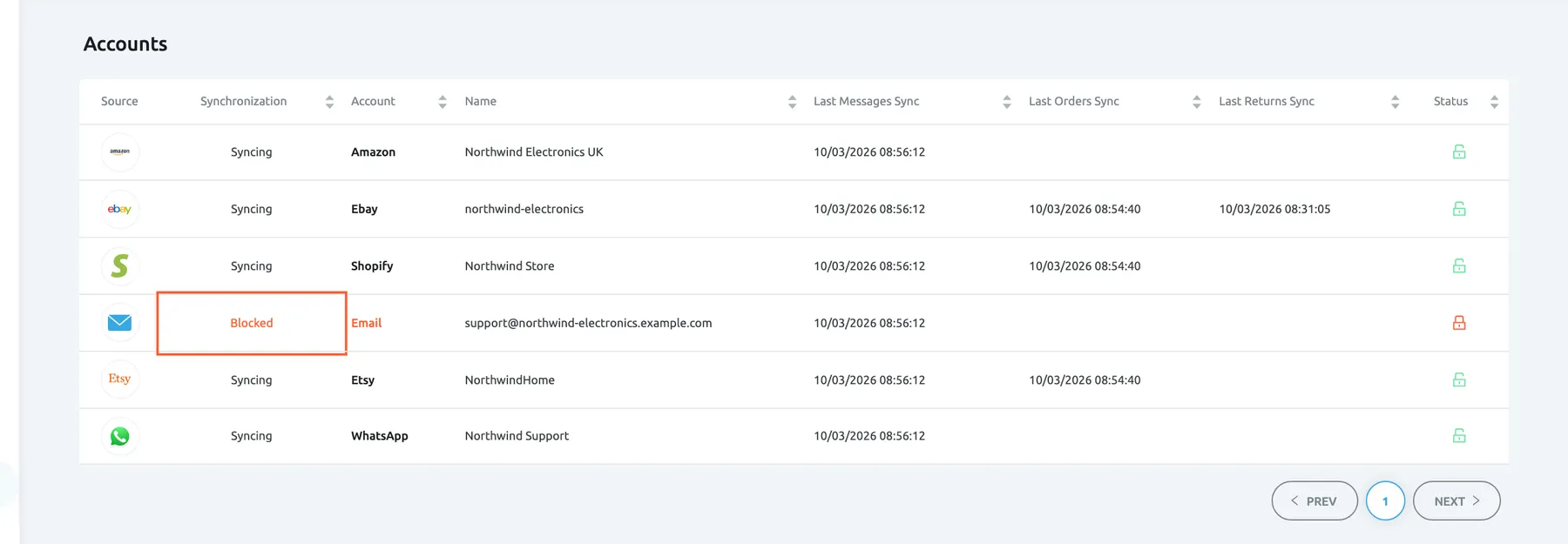
What this screenshot shows
- Screen
- Accounts (/integrations)
- Highlighted
- cell “Blocked”, synchronization-column, shown. none; the row opens the account's details
- Also visible
- Email row Blocked with a red lock; five other accounts Syncing
- Purpose
- how a blocked IMAP/SMTP mailbox shows in the list
IMAP and SMTP for webstores and marketplaces
Section titled “IMAP and SMTP for webstores and marketplaces”+ Add Account › Amazon, Shopify, WooCommerce, BigCommerce, Magento, Etsy, OTTO, Fruugo or Shopline › INFO › Custom SMTP Configuration. Also under Edit in the account’s details.
Ticking the box shows the same fields as on this page, for the email the channel’s customers send and receive. The account then reads that mailbox and sends through your SMTP server instead of using a Replyco forwarding address; for IMAP, the details offer Sync Messages from Folders: too. Everything on this page applies: the connection test, the folders, the blocking.
Shops that already run an order mailbox keep their customers’ email in that mailbox and still answer it next to the orders.
Three ways it is used:
- Northwind’s Shopify store sends and receives through
support@northwind-electronics.example.comon its own server, so shop email arrives in the Shopify account’s tickets. See Connect Shopify. - A WooCommerce account reads only the folder Orders of its mailbox, where the shop sorts order questions. See Connect WooCommerce.
- An Amazon account sends and receives its email through the company’s own mailbox; for Amazon the form adds Display Email above the server fields. See Connect Amazon.
What you need to know
Section titled “What you need to know”| Topic | Fact |
|---|---|
| Connection test | Signs in to the incoming server when you add or edit the mailbox; nothing is saved if it fails. |
| Sign-in | The same address and password for the incoming and the SMTP server. |
| How often | Replyco reads the mailbox about every five minutes. |
| History | The last two days of mail from the chosen folders on connecting, not the whole mailbox. |
| Default folders | INBOX and Sent; choosing folders replaces that default. |
| Folder list | Top-level folders of the mailbox; available for IMAP only. |
| Your mail | Replyco never deletes or moves mail on your server. |
| Password | Stored with the account and never shown again; an empty field under Edit keeps it. |
| Blocking | After more than five failed sign-ins, with the server’s answer as the reason; Unblock lifts it. |
| Domain authentication | For an address on your own domain, in the account’s details; with a verified DKIM TXT record at your DNS provider, Replyco signs replies sent through your SMTP server as your domain. |
| Switching | A forwarding mailbox can move to your own server; a mailbox on your own server stays there. |
| Plan | Every plan; each mailbox counts towards the plan’s number of accounts. |
| Deleting | Delete Account removes the account with its tickets, orders and customers; your mailbox on your server is untouched. |
Frequently asked questions
Section titled “Frequently asked questions”General
Section titled “General”What is a mailbox with IMAP and SMTP?
Section titled “What is a mailbox with IMAP and SMTP?”An Email account in Replyco that signs in to your own mailbox: it reads new mail over IMAP or POP and sends your replies through your SMTP server. You add it with + Add Account › Email › Setup Custom SMTP and your server settings.
Should I use IMAP and SMTP or forwarding?
Section titled “Should I use IMAP and SMTP or forwarding?”Use IMAP and SMTP when you have the mailbox’s password and server settings and want replies to leave from your own server. Use forwarding when Replyco cannot sign in, for example for an alias or group address; see Mailbox by forwarding. For Gmail and Microsoft mailboxes, the Gmail and Outlook and Microsoft 365 integrations sign in without a password.
Does Replyco delete mail from my server?
Section titled “Does Replyco delete mail from my server?”No. Replyco reads your folders and never deletes or moves mail. Your mailbox stays as it is, and you can keep using your mail program alongside Replyco.
Who can connect a mailbox with IMAP and SMTP?
Section titled “Who can connect a mailbox with IMAP and SMTP?”Users with the Admin permission. Only they see + Add Account in the top bar and AdminAccounts, where mailboxes are added and changed. See User permissions and roles.
Where do I find my server settings?
Section titled “Where do I find my server settings?”In your mail host’s help pages or from your mail administrator: the incoming server (IMAP or POP) with its port and SSL setting, and the outgoing SMTP server with its port and SSL setting. For Gmail, Zoho, Yandex and Outlook, choose the service under Popular Systems and Replyco fills them in.
Which port and SSL setting should I use?
Section titled “Which port and SSL setting should I use?”Take both from your mail host. As a rule, SMTP port 465 goes with SMTP Use SSL ticked, port 587 with it clear, and IMAP port 993 with Protocol Use SSL ticked. A port and SSL setting that do not match is the most common reason a connection fails.
What does Authentication failed. mean when I add the mailbox?
Section titled “What does Authentication failed. mean when I add the mailbox?”Your incoming server refused the sign-in, so Replyco saved nothing. Check E-Mail Account Address and Password, then Protocol Address, Protocol Port and Protocol Use SSL, and select Authorize again; the form keeps your entries.
Can I sign in with a user name instead of an e-mail address?
Section titled “Can I sign in with a user name instead of an e-mail address?”No. E-Mail Account Address must be an e-mail address, such as support@northwind-electronics.example.com; Replyco signs in to the incoming server and the SMTP server with it.
Should I choose IMAP or POP?
Section titled “Should I choose IMAP or POP?”IMAP whenever your host offers it. IMAP lets Replyco read your Sent folder and the folders you choose; POP reads only the inbox and offers no folder choice.
How much of my mailbox’s history is imported?
Section titled “How much of my mailbox’s history is imported?”The mail of the last two days from the folders Replyco reads, not the mailbox’s whole history. From then on, every new message arrives at the next sync, about every five minutes.
Folders
Section titled “Folders”Which folders does Replyco read?
Section titled “Which folders does Replyco read?”With no folders chosen, the inbox and the folder named Sent. Once you choose folders at FOLDERS TO SYNC or under Sync Messages from Folders: in the account’s details, only those. POP mailboxes have no folders; Replyco reads the inbox.
I chose some folders and now new mail does not arrive. Why?
Section titled “I chose some folders and now new mail does not arrive. Why?”Choosing folders replaces the default, so INBOX is read only if it is among them. Open the mailbox on AdminAccounts, add INBOX under Sync Messages from Folders:, or remove every folder to go back to the inbox and Sent, and select Save Changes.
Can I change the folders later?
Section titled “Can I change the folders later?”Yes, at any time. Open the mailbox on AdminAccounts, change Sync Messages from Folders: under Email settings and select Save Changes. The next sync, about five minutes later, uses the new choice.
Why do replies I sent from my mail program appear in the ticket?
Section titled “Why do replies I sent from my mail program appear in the ticket?”Replyco reads your Sent folder and imports those messages as your team’s replies, so the ticket shows the whole conversation. To stop that, choose folders without Sent under Sync Messages from Folders: in the account’s details.
A folder I need is not in the list. Why?
Section titled “A folder I need is not in the list. Why?”The list shows the mailbox’s top-level folders. Mail sorted into a subfolder is not offered; move the rule’s target to a top-level folder in your mail program.
Sending
Section titled “Sending”Which address do my replies come from?
Section titled “Which address do my replies come from?”From E-mail address with Sender Name, sent through your SMTP server. Customers answer that address, and their answers arrive in the same ticket. Replyco recognises an answer by the email’s message ids and threading headers; when the customer’s mail program drops them, the answer can arrive as a separate conversation.
A reply was not sent. What should I check?
Section titled “A reply was not sent. What should I check?”The ticket shows that the reply could not be sent, with your server’s reason. Check SMTP Server, SMTP Port and SMTP Use SSL under Edit in the account’s details; port and SSL must match. For replies that do not reach the customer, see Tickets troubleshooting.
Blocking and changes
Section titled “Blocking and changes”Why is my mailbox blocked?
Section titled “Why is my mailbox blocked?”Signing in to your incoming or SMTP server failed more than five times, usually because the mailbox password changed. The details show the server’s answer after Blocking reason:. Correct the password under Edit, select Save, then Unblock.
I changed my mailbox password. What do I do in Replyco?
Section titled “I changed my mailbox password. What do I do in Replyco?”Open the mailbox on AdminAccounts, select Edit, type the new password in Password and select Save. Replyco tests the new password before storing it. If the mailbox was blocked meanwhile, select Unblock afterwards.
Can I switch back from my own server to forwarding?
Section titled “Can I switch back from my own server to forwarding?”No. On a mailbox that uses your own server, Custom SMTP Configuration under Edit is ticked and cannot be cleared. A forwarding mailbox can move to your own server; see Mailbox by forwarding.
What happens when I delete the mailbox?
Section titled “What happens when I delete the mailbox?”Delete Account in the account’s details removes the account with its tickets, orders and customers after you confirm. The mailbox on your server and its mail stay untouched.
Data and privacy
Section titled “Data and privacy”Where is my password stored?
Section titled “Where is my password stored?”With the account in Replyco, which uses it to sign in to your servers. It is never shown again after you save; under Edit the password field stays empty.
Does Replyco change anything in my mailbox?
Section titled “Does Replyco change anything in my mailbox?”It does not delete, move or send anything you did not write in Replyco. Replies you send from a ticket go through your SMTP server like mail from your mail program.
Troubleshooting
Section titled “Troubleshooting”| Symptom | What to check |
|---|---|
| “Authentication failed.” when you select Authorize | In order: E-Mail Account Address and Password; Protocol Type; Protocol Address; Protocol Port and Protocol Use SSL together. |
| “Authentication failed.” for a Gmail address | With 2-Step Verification on, Google needs an app password in Password; create one in the Google account. Where none is offered, use Gmail instead. |
| Authorize stays unavailable | A required field is empty, or E-mail address or E-Mail Account Address is not an e-mail address; the field shows Make sure to put in a valid e-mail address. |
| The mailbox cannot be saved for another reason | The address is already connected as a mailbox, or your plan’s accounts are used up; the message says which. |
| No new tickets, the mailbox is not blocked | Open the details: are folders chosen without INBOX? Is the mail in a subfolder? Check Last Messages Sync on AdminAccounts; it changes about every five minutes. |
| Older mail from before connecting is missing | Replyco imports the last two days of mail on connecting, not the whole history. |
| The mailbox shows Blocked | Read Blocking reason: in the details. Correct the password or server under Edit, select Save, then Unblock. See Fix a blocked or silent account. |
| It is blocked again soon after unblocking | The saved settings still fail. Check the password and the ports and SSL settings of both servers. |
| Replies are not sent | SMTP Server, SMTP Port and SMTP Use SSL: port 465 with SSL ticked, port 587 with SSL clear. The ticket shows the reply with your server’s reason. |
| Your own replies appear as tickets | Mail you send from your mail program is imported from Sent as your team’s replies. If you do not want it, choose folders without Sent. |
| Every message arrives twice | The mailbox is connected to two accounts, or also forwarded to a forwarding mailbox. Keep one connection per mailbox. |
| A needed folder is not offered | Only top-level folders are listed. Move the mail to a top-level folder. |
| FOLDERS TO SYNC does not appear | The mailbox uses POP, which has no folders; the add window goes straight to FINISH. |