

Auto-response Rules
The Auto-response Rules tab is where you decide which incoming ticket messages Replyco answers on its own, with which reply template, on which accounts and at what times: an acknowledgement at night, a holding reply over the weekend, a first answer to marketplace questions. Each rule names a template to send, the accounts it watches, a schedule, an optional delay and the conditions a message must meet. Open it from ToolsAutomation and select the Auto-response Rules tab.
Availability: every plan includes the tab, and every feature is on during a trial; companies on an older plan may not have it, see What each plan includes. It is shown to users with the Automation permission; creating, changing, switching and deleting rules needs the edit level of that permission (see User permissions and roles).
What you can do here
Section titled “What you can do here”- See every automatic reply your company sends. The tab lists all rules in an Active and an Inactive group, and a click shows a rule’s accounts, template, schedule, delay and conditions. Find a rule and see its details.
- Set up a new automatic reply. A rule needs a name, a template and at least one account; the schedule, delay and conditions decide when it answers. For the whole behaviour, from arrival to sending, see the feature guide. Create a rule · Auto-responses for tickets.
- Answer only at the right times. Send outside your company’s working time, over one continuous stretch such as a weekend, or on chosen days and hours, optionally only between two dates. Set when a rule may send.
- Make the reply feel less automatic, and limit repeats. A fixed or random delay holds the reply back; the frequency decides whether a ticket gets it once or for every message. Set the delay and how often it answers.
- Answer only the messages you mean. Conditions on the sender’s address, subject, text or language, combined with AND inside a group and OR between groups. Set which messages a rule answers.
- Change, copy or pause a rule. Edit it, start a variant from a copy, or switch it off without losing it. Edit a rule · Copy a rule · Switch a rule off or on.
- Give several rules the same accounts at once, for example after connecting a new shop. Add accounts to several rules at once.
- See who changed what. Each rule keeps a history of who created, changed and switched it. See who changed a rule.
- Delete what you no longer need, knowing what happens to replies already scheduled. Delete a rule.
The screen at a glance
Section titled “The screen at a glance”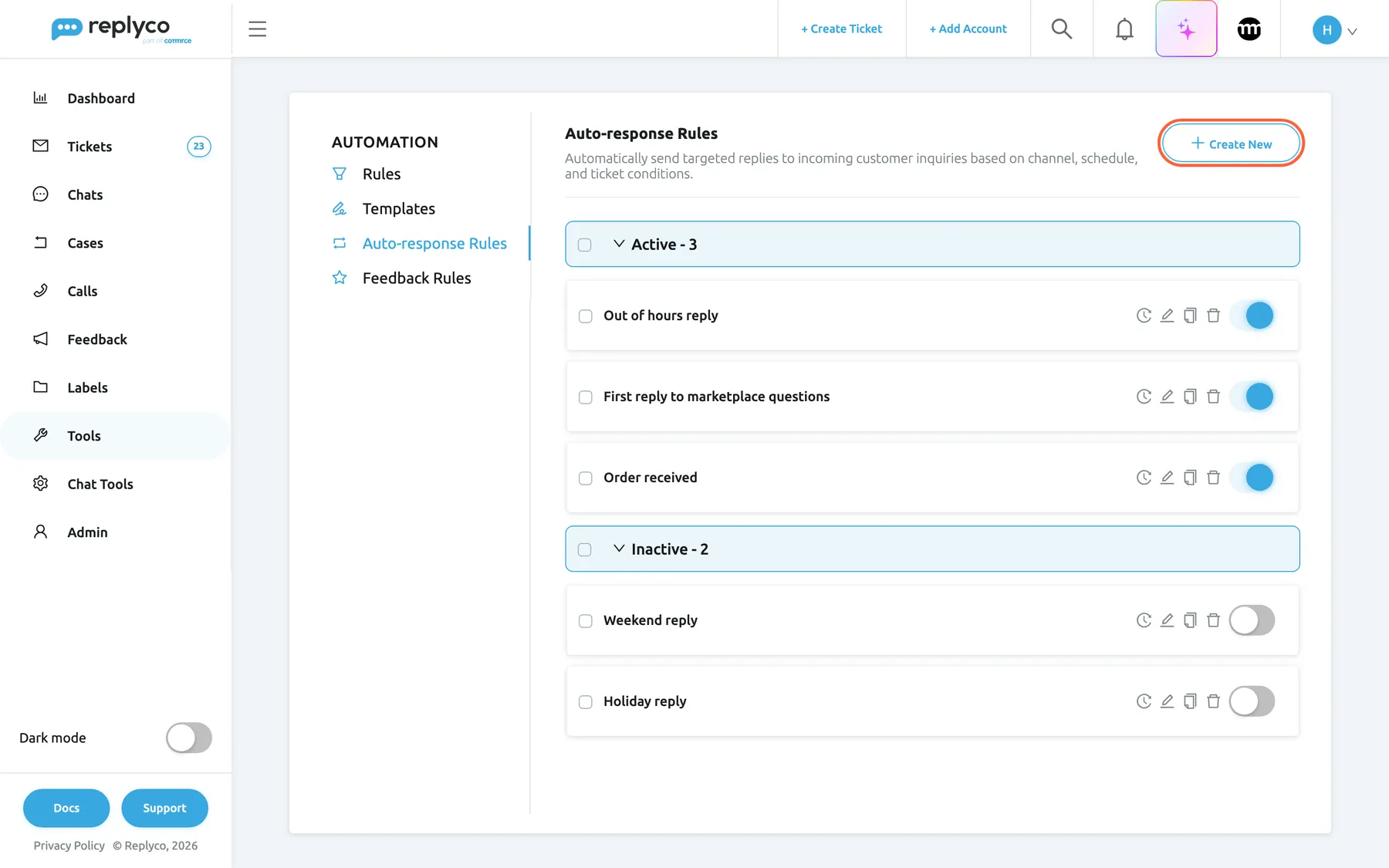
What this screenshot shows
- Screen
- Auto-response Rules (/tickets-automation?tab=autoresponseRules)
- Highlighted
- button “Create New”, header-right, enabled. opens the Create Auto-response Rule form
- Also visible
- Automation tabs: Rules, Templates, Auto-response Rules, Feedback Rules; group Active - 3 with three rule cards, switches on; group Inactive - 2 with two rule cards, switches off
- Purpose
- the Auto-response Rules tab as it opens
| Region | What it shows | What you do there |
|---|---|---|
| Automation tabs, left | Rules, Templates, Auto-response Rules, Feedback Rules | Switch between the automation lists |
| Header, top | The heading, a short description and Create New | Start a new rule |
| Bulk action, above the list | Add Accounts, shown only while rules are ticked | Link accounts to all ticked rules |
| Active group | Every rule that is switched on, with the count | Open, tick, edit, copy, delete, switch off |
| Inactive group | Every rule that is switched off, with the count | Switch rules back on or clean up |
| Details panel, right (after a click) | The rule’s accounts, template, schedule, delay, frequency and conditions, and Delete, Copy, Edit | Read a rule, then act on it |
A group appears only when it has rules. With no rules at all, the list reads No rules found.
Find a rule and see its details
Section titled “Find a rule and see its details”The list has no search box, no columns and no manual order; the order of rules does not matter, because every rule that matches a message sends its reply. Each group header shows its count, for example Active - 3, and a click on the header folds the group away or opens it again.
- Open ToolsAutomation and select the Auto-response Rules tab.
- Select a rule’s name. The card is outlined, the list moves to the left and the details panel opens on the right.
- Read the panel from top to bottom: Affected Accounts, Template, Working Dates, Frequency, the delay, the schedule and Conditions.
- Select Edit, Copy or Delete at the bottom of the panel, or the cross in its corner to close it.
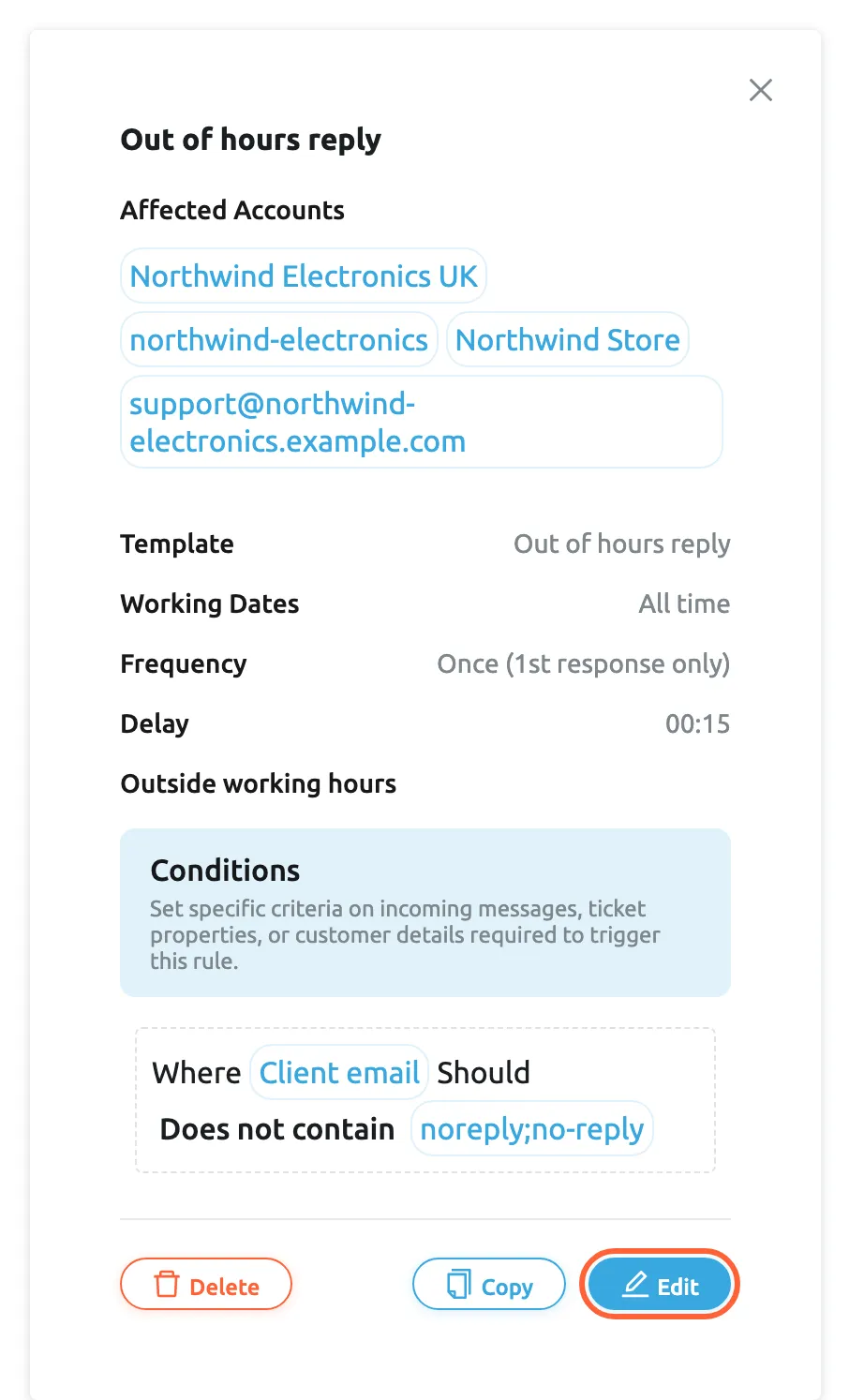
What this screenshot shows
- Screen
- Auto-response Rules (/tickets-automation?tab=autoresponseRules)
- Highlighted
- button “Edit”, details-panel-bottom-right, enabled. opens the Edit Auto-response Rule form
- Also visible
- title Out of hours reply; Affected Accounts: four Northwind accounts; Template, Working Dates, Frequency, Delay, Outside working hours; Conditions: Client email does not contain noreply;no-reply; Delete, Copy and Edit buttons
- Purpose
- read a rule before changing it
What the schedule lines mean:
| Line in the panel | Meaning |
|---|---|
| Working Dates: All time | No date range; the rule works every day of the year |
| Working Dates: two dates | The rule works only from the first to the last date, both included |
| Outside working hours | The rule follows your company’s working time and sends only outside it |
| Days and Working Hours | The days and the daily time window the rule may send in |
| Active between | One continuous window, for example Friday 18:00 - Monday 08:00 |
| Delay | The fixed wait before sending, hours and minutes, such as 00:15 |
| Delay From (minutes) and Delay To (minutes) | The random wait, in minutes |
Each condition reads as a sentence: Where the field, Should, the comparison and the value; AND joins conditions of one group and OR joins groups.
Example: Northwind Electronics’ Out of hours reply watches its Amazon, eBay, shop and mailbox accounts, sends the template Out of hours reply once per ticket, 15 minutes after the message, outside working hours, unless the sender’s address contains noreply or no-reply.
Create a rule
Section titled “Create a rule”- On the Auto-response Rules tab, select Create New in the top right corner. The form Create Auto-response Rule replaces the list; a contents list on the right jumps to General Info, Schedule, Delivery and Conditions.
- Under Rule Name, name the rule after the situation, for example Easter closure. Only your team sees the name: in the list, in the ticket and on the dashboard.
- Under Template to Send, pick the reply template the rule sends. Templates are written on the Templates tab.
- Under Accounts, pick the accounts whose incoming messages the rule answers.
- Set the schedule, the delay and the frequency, as described below, including the time window under Working Hours.
- Fill in at least one condition, with a field, a comparison and a value.
- Select Save in the top right corner, or in the column on the right once you have scrolled down.
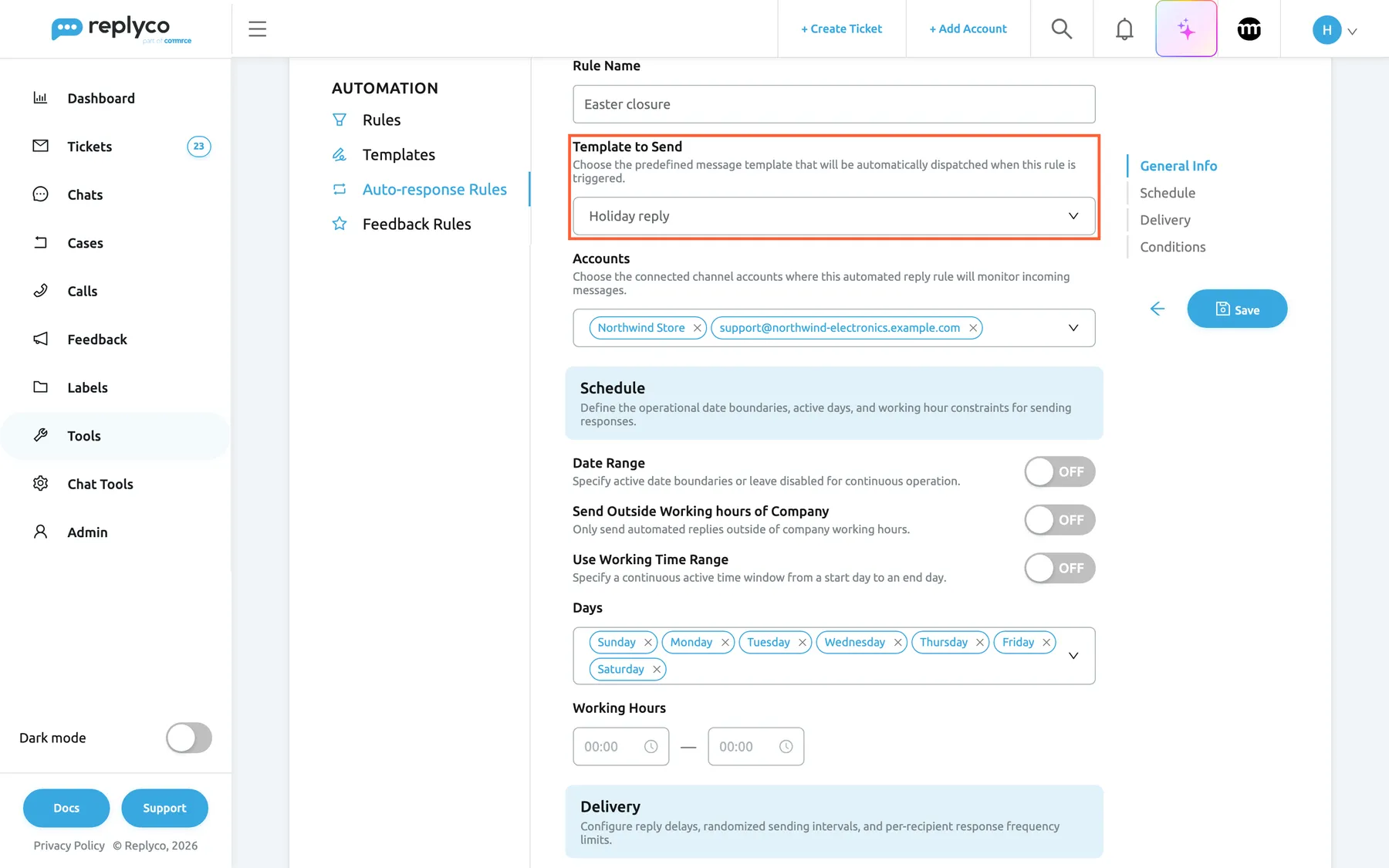
What this screenshot shows
- Screen
- Create Auto-response Rule (/tickets-automation?tab=autoresponseRules)
- Highlighted
- combobox “Template to Send”, form-general-info, Holiday reply selected. chooses the reply template the rule sends
- Also visible
- Rule Name: Easter closure; Accounts: Northwind Store, support@northwind-electronics.example.com; Schedule: Date Range off, Send Outside Working hours of Company off; contents list: General Info, Schedule, Delivery, Conditions; Back and Save
- Purpose
- create a rule, general part
Replyco returns you to the list at once and sends the rule to the server. When the server confirms, Success appears and the new rule is in the Active group, switched on. Creating a rule also ticks the matching item of the onboarding checklist. The rule answers messages that arrive from now on; it never answers older ones.
Replyco checks the form before it sends anything. It refuses to save, and shows the message in the top right corner, when:
| Message | What is missing or wrong |
|---|---|
| All fields must be completed. | The name, the template, the accounts or the days are empty |
| The End Date must be greater than the Start Date | Date Range is on and the end date is not after the start date |
| The Delay To must be greater than the Delay From | Delay Range is on and the second value is not greater than the first |
| Please enter valid conditions. | A condition has no value |
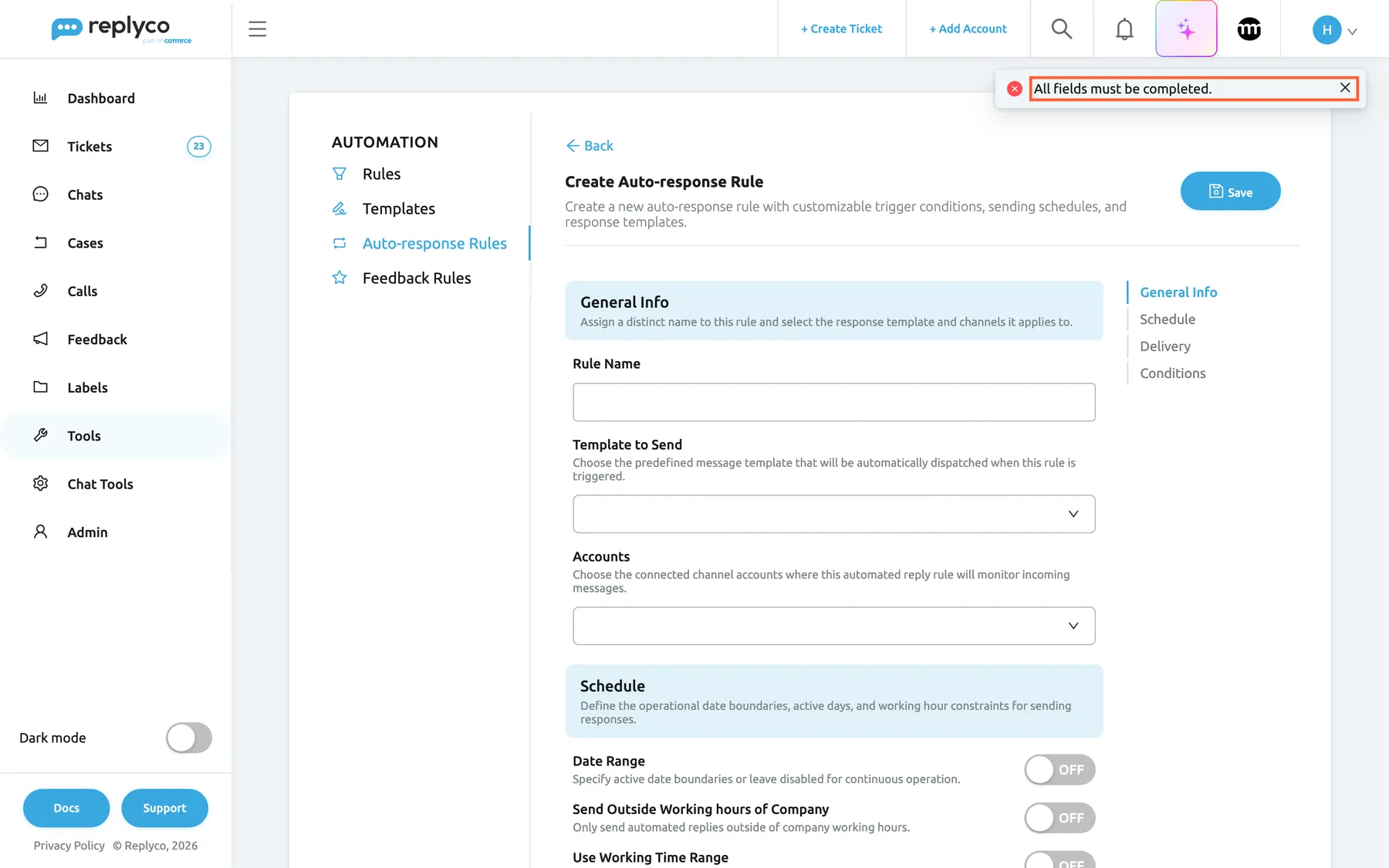
What this screenshot shows
- Screen
- Create Auto-response Rule (/tickets-automation?tab=autoresponseRules)
- Highlighted
- alert “All fields must be completed.”, top-right, shown. reports a missing name
- Also visible
- Create Auto-response Rule form, empty; Rule Name, Template to Send, Accounts; Schedule switches off; Save button
- Purpose
- the validation message of the rule form
The server also refuses a rule without any condition, for example after you delete every condition group; an error message appears and nothing is saved. Because the form has already closed by then, what you entered is lost, so check the form before you save.
Back at the top of the form leaves without saving.
Set when a rule may send
Section titled “Set when a rule may send”The Schedule section decides the dates, days and hours a rule works. Three switches choose between three kinds of schedule; for how each is checked against a message’s arrival time, see Auto-responses for tickets.
| You want | Set |
|---|---|
| A reply whenever your team is not working | Send Outside Working hours of Company on. The days and hours come from your company’s working time in Company Settings, holidays included |
| One unbroken window across days, such as a weekend | Use Working Time Range on, then Active From Friday 18:00 and Active To Monday 08:00 |
| The same hours on chosen days | Both switches off, then Days and Working Hours, for example Monday to Friday, 09:00 to 18:00 |
Date Range works on top of any of them: switch it on and pick a first and a last date to limit the rule to a season, such as 24 December to 2 January. To learn how working time, holidays and time zones work across Replyco, see Working time.
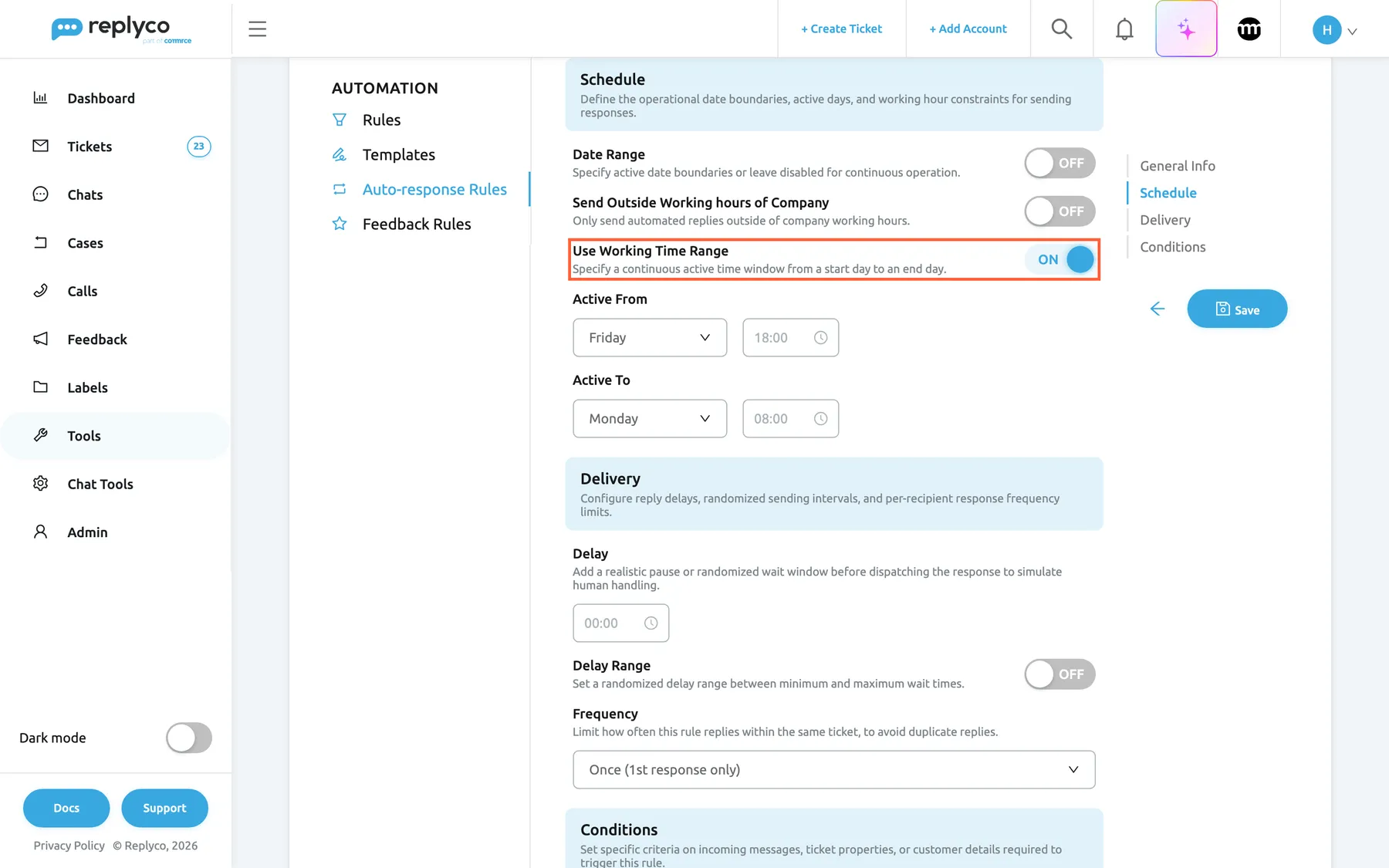
What this screenshot shows
- Screen
- Edit Auto-response Rule (/tickets-automation?tab=autoresponseRules)
- Highlighted
- switch “Use Working Time Range”, form-schedule, on. replaces Days and Working Hours with Active From and Active To
- Also visible
- Date Range off; Send Outside Working hours of Company off; Active From: Friday 18:00; Active To: Monday 08:00; Delivery: Delay 00:00, Delay Range off, Frequency Once
- Purpose
- set when a rule may send
Example: Northwind’s Weekend reply uses Use Working Time Range from Friday 18:00 to Monday 08:00. A message on Saturday afternoon matches; one on Monday at 08:30 does not.
Working Hours can run past midnight: 18:00 to 09:00 on Monday to Friday answers each of those days in the evening after 18:00 and in the morning before 09:00, but not Saturday morning, because Saturday is not one of the days. The start and end times themselves do not count, so 09:00 to 18:00 answers from just after 09:00 until just before 18:00.
Set the delay and how often it answers
Section titled “Set the delay and how often it answers”The Delivery section decides how long the reply waits and how often a ticket gets it.
- Delay holds every reply back by a fixed time, in hours and minutes. 00:00 sends it in Replyco’s next sending round.
- Delay Range replaces the fixed time with two values; each reply waits a random time between them, such as 5 to 20 minutes.
- Frequency: Once (1st response only) answers only the first customer message of a ticket; Continuous (every response) answers every matching customer message.
While a reply waits, the ticket shows it with Send now and Cancel, and it still goes out if someone answers the customer first. For how waiting replies behave, see Delayed sending.
Set which messages a rule answers
Section titled “Set which messages a rule answers”The Conditions section decides which messages the rule answers. It starts with one group holding one empty condition.
- In the first box of a condition, pick one or more fields: Client email, Subject, Text or Language.
- In the second box, pick the comparison: Contains, Does not contain, Starts with, Ends with or Equals.
- In the third box, type the value. Separate alternatives with a semicolon:
question;inquirymatches either word. - Select Add New to add another condition to the same group, or Add New Group to add an alternative group.
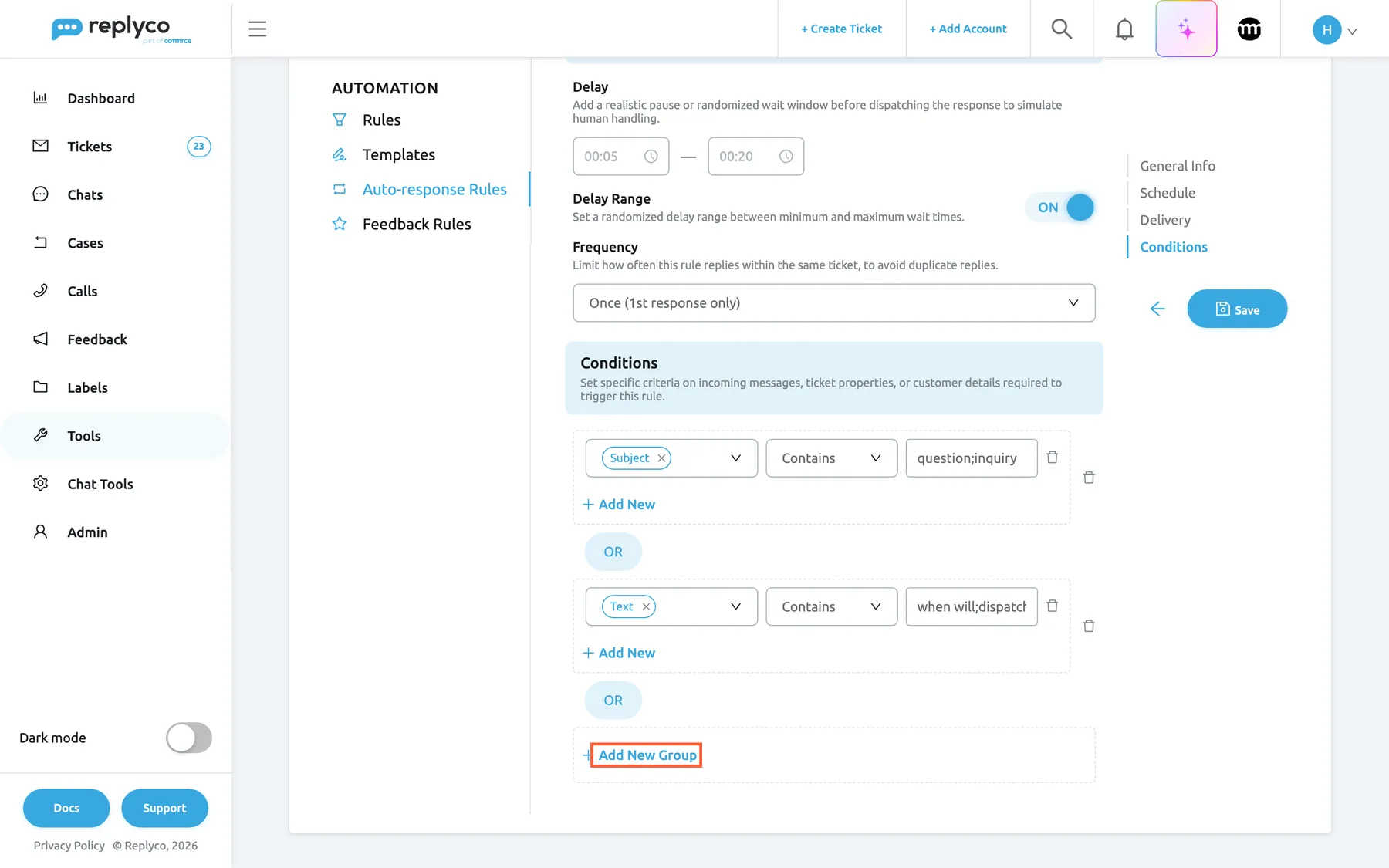
What this screenshot shows
- Screen
- Edit Auto-response Rule (/tickets-automation?tab=autoresponseRules)
- Highlighted
- button “Add New Group”, form-conditions-bottom, enabled. adds an empty condition group joined by OR
- Also visible
- Delay 00:05 to 00:20 with Delay Range on; Frequency Once; group 1: Subject Contains question;inquiry; OR; group 2: Text Contains when will;dispatch
- Purpose
- set which messages a rule answers
All conditions in a group must match; one matching group is enough. Upper and lower case and spaces are ignored. Language offers a list of 20 languages, only with Equals, and cannot share a condition with other fields; the form says * The language target can only be used alone
Example: Order received has one group with two conditions: Subject and Text Contains order, and Text Does not contain cancel. Where is my order 4417? gets the reply; Please cancel my order does not.
The bin next to a condition removes it; the last condition of a group cannot be removed that way (Every group must contain at least one condition.), so use the bin next to the group instead. Add New Group refuses to add a group while the last one is empty: Please finish creating the last Group before adding another.
Edit a rule
Section titled “Edit a rule”- Select the rule, then Edit in the details panel; or select the pencil icon on its card.
- Change what you need in the form Edit Auto-response Rule. The Save button pulses while you have unsaved changes.
- Select Save.
A change applies to the next incoming message. Replies the rule has already scheduled keep their send time and go out unchanged.
Copy a rule
Section titled “Copy a rule”Select the copy icon on a card, or Copy in the details panel. The form opens filled with everything the original has, and the name ends in (copy). Save creates a new, switched-on rule and leaves the original unchanged. Rename the copy and change what should differ, for example the accounts or the template, before you save; otherwise both rules answer the same messages.
Switch a rule off or on
Section titled “Switch a rule off or on”The switch on each card turns a rule off or on. It saves at once, shows Success, and moves the card to the other group. A switched-off rule answers no new message but keeps all its settings. Replies it had already scheduled still go out; cancel them in the ticket if they should not.
Add accounts to several rules at once
Section titled “Add accounts to several rules at once”- Tick the check box on each rule card, or the check box of a group header to tick the whole group. The button Add Accounts appears above the list.
- Select Add Accounts. A panel opens with the explanation Select channel accounts to assign to all currently selected auto-response rules.
- Pick one or more accounts in the field Filter by Account.
- Select Apply. It stays disabled until you pick an account.
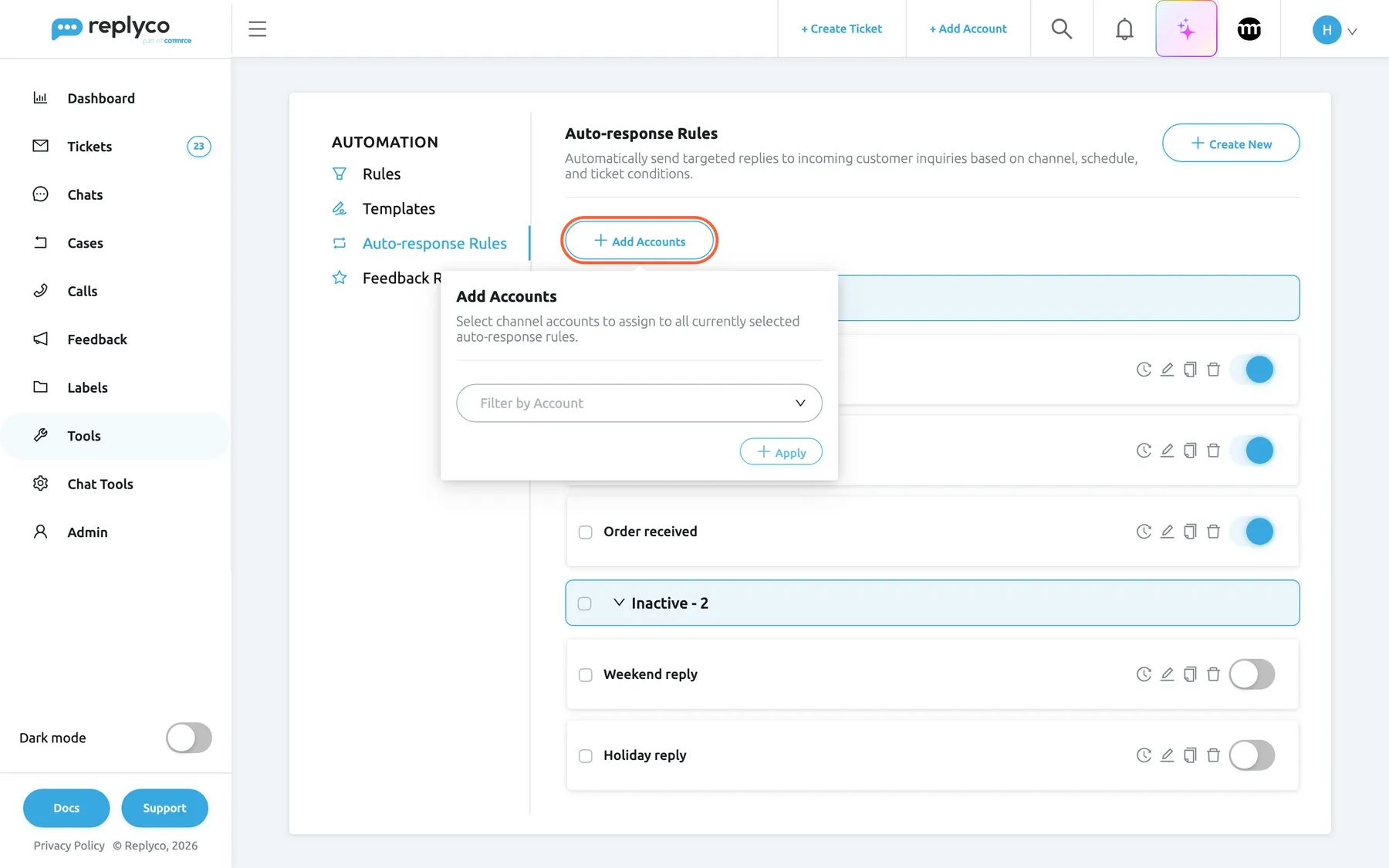
What this screenshot shows
- Screen
- Auto-response Rules (/tickets-automation?tab=autoresponseRules)
- Highlighted
- button “Add Accounts”, above-list-left, open. shows the account picker for the ticked rules
- Also visible
- two rules ticked; panel: Add Accounts, description, Filter by Account, Apply (disabled); remaining rule cards
- Purpose
- link accounts to several rules at once
Replyco adds the accounts to every ticked rule, reloads the list and shows Success. Accounts a rule already has are kept; this action never removes one. To remove an account, edit the rule.
Example: Northwind connects a second eBay account. Tick Out of hours reply and First reply to marketplace questions, add the new account, and both rules answer its messages.
See who changed a rule
Section titled “See who changed a rule”Select the clock icon on a card. The details panel shows the rule’s history, one line per change with the person and the date:
| Line | When it is written |
|---|---|
| [name] created this autoresponse | The rule was created |
| [name] updated this autoresponse. Click on this row to see changes | Someone saved changes; select the line to see each changed property with its old and new value |
| [name] turned off this autoresponse or turned on this autoresponse | Someone used the switch |
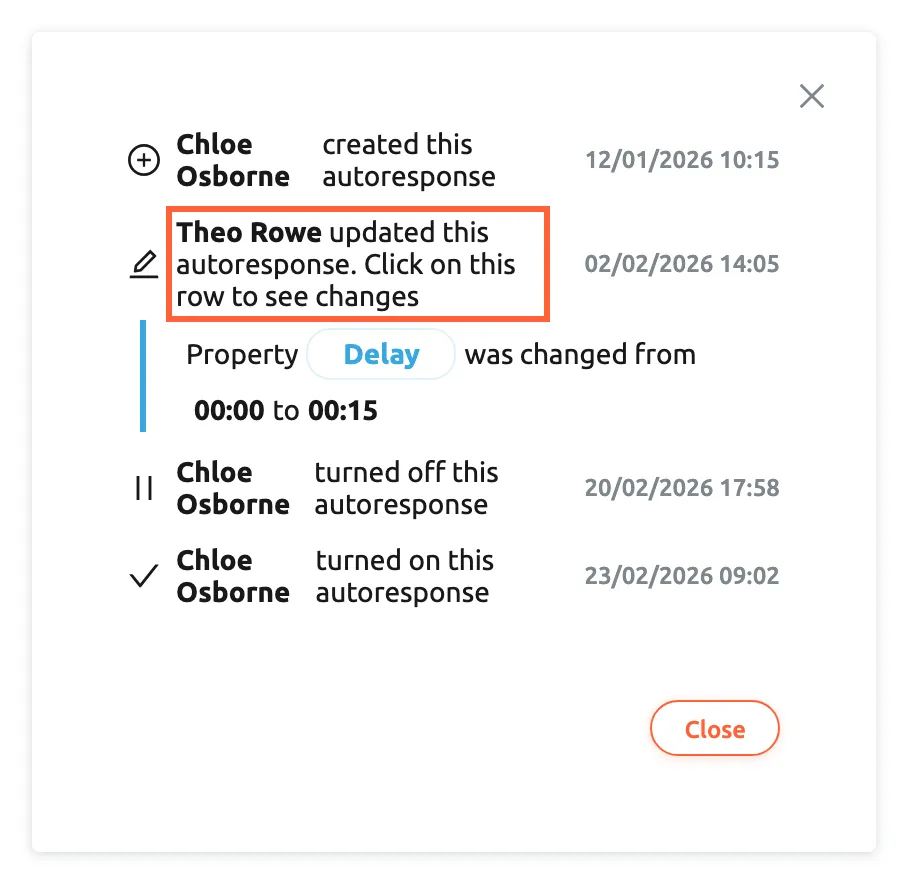
What this screenshot shows
- Screen
- Auto-response Rules (/tickets-automation?tab=autoresponseRules)
- Highlighted
- row “ updated this autoresponse. Click on this row to see changes”, details-panel, expanded. lists the properties that changed
- Also visible
- created by Chloe Osborne 12/01/2026; updated by Theo Rowe 02/02/2026: Delay 00:00 to 00:15; turned off 20/02/2026 and on 23/02/2026 by Chloe Osborne; Close button
- Purpose
- see who changed a rule
A rule with no recorded changes shows No changes were made to this item yet. Close returns to the details.
Delete a rule
Section titled “Delete a rule”Select the bin icon on a card, or Delete in the details panel, and confirm with Yes. The card’s confirmation asks Are you sure you want to delete this rule?, the panel’s asks Are you sure you want to delete this item?; both delete the rule.
Deleting is permanent. Replies the rule has already scheduled still go out, so cancel them in their tickets first if they should not. Replies it has sent stay in their tickets, but no longer name the rule, and the rule disappears from the Performance dashboard’s usage widget. To stop a rule for a while, switch it off instead.
Every control, explained
Section titled “Every control, explained”The tab has a list with a header and a details panel, and a full-width form for creating and editing.
Auto-response Rules tab
Section titled “Auto-response Rules tab”ToolsAutomation, third tab in the left column under Automation. The address ends in ?tab=autoresponseRules, so you can bookmark it.
Opens the list of auto-response rules for tickets. It is hidden for users without the Automation permission, and for companies on an older plan without auto-responses. Without its edit level, saving, switching and deleting are refused with You don't have enough rights Chats have their own rules under Chat Tools.
Rules and templates live side by side, because each rule sends a template.
Create New
Section titled “Create New”Top right corner of the tab, next to the heading.
Opens the empty form Create Auto-response Rule. It shows a spinner and is disabled while a new rule is being saved.
Start a rule from scratch. To start from an existing one, use Copy instead.
Group headers
Section titled “Group headers”Above each group of cards: Active and Inactive, each followed by the number of rules.
Selecting the header text folds the group away or opens it. The check box on the left ticks every rule of the group; while some are ticked it shows a dash.
Fold away the switched-off rules while you work, and tick a whole group to add the same accounts to all of it.
Rule card
Section titled “Rule card”Each card holds the rule’s name and these controls, from left to right:
| Control | What it does | Why |
|---|---|---|
| Check box | Ticks the rule for Add Accounts | Act on several rules at once |
| Name | Opens the details panel | Read before you change |
| Clock icon | Opens the rule’s history in the details panel | Find out who changed a rule and when |
| Pencil icon | Opens the form Edit Auto-response Rule | Change the rule |
| Copy icon | Opens a filled form that saves as a new rule | Write a variant without retyping |
| Bin icon | Asks Are you sure you want to delete this rule? and deletes on Yes | Remove rules nobody needs |
| Switch | Switches the rule on or off; saves at once | Pause a rule without losing it |
Add Accounts
Section titled “Add Accounts”Above the list, on the left; shown only while at least one rule is ticked.
Opens a panel with Filter by Account and Apply. Apply links the chosen accounts to every ticked rule, keeps their existing accounts and clears the ticks.
After connecting a new account, let your existing rules answer it in one step.
Details panel
Section titled “Details panel”Right of the list, after you select a rule’s name.
Shows Affected Accounts, Template, Working Dates, Frequency, the delay, the schedule and Conditions; the accounts row is left out when the rule has none. At the bottom: Delete (asks Are you sure you want to delete this item?), Copy and Edit. The cross in the corner closes the panel.
Check what a rule does before you change or delete it.
Rule Name
Section titled “Rule Name”First field of the form, under General Info.
The rule’s name, up to 500 characters. Required: an empty name gives All fields must be completed. Names do not have to be unique. The name appears on the card, in the ticket next to each reply the rule sends, and in the dashboard’s usage widget; customers never see it.
A name that states the situation, such as Weekend reply, tells your team at a glance why a customer got a reply.
Template to Send
Section titled “Template to Send”Second field of the form, a drop-down list.
The reply template the rule sends, chosen from every template of your company, switched on or off. Required. The template’s text is sent with its placeholders filled in for the ticket, and its attachments go with it; your signature is not added. To write or change templates, see Templates.
One template can serve several rules, and a change to the template changes every automatic reply that uses it.
Accounts
Section titled “Accounts”Third field of the form, a multi-select of your accounts.
The accounts whose incoming messages the rule answers: marketplaces, webstores, mailboxes and phone accounts. Chat channels are not offered. Required: at least one account. A message from any other account is ignored by this rule. Some channels allow no automatic reply to some or all of their messages; see Auto-responses for tickets.
An acknowledgement that suits your shop may not suit a marketplace with its own messaging rules.
Date Range
Section titled “Date Range”First switch under Schedule; when on, a date range picker appears under it.
Off by default: the rule works on every date. On: the rule works only from the first to the last date, both included. The end must be after the start, or saving gives The End Date must be greater than the Start Date
Prepare a holiday closure reply in advance and let it end by itself.
Send Outside Working hours of Company
Section titled “Send Outside Working hours of Company”Second switch under Schedule.
Off by default. On: the rule sends only outside your company’s working time, set under AdminCompany Settings › Working Time, including on the holidays listed there. The rule’s own Use Working Time Range, days and hours are hidden and ignored while it is on.
One place to keep your hours: when you change the company’s working time, every out-of-hours rule follows.
Use Working Time Range, Active From and Active To
Section titled “Use Working Time Range, Active From and Active To”Third switch under Schedule, shown while Send Outside Working hours of Company is off. When on, it shows Active From and Active To, each with a day and a time.
One continuous window from a start day and time to an end day and time; the days in between count all day. The window can wrap past Sunday, such as Friday to Monday.
A weekend or a shift that spans days cannot be described with one daily time window.
Days and Working Hours
Section titled “Days and Working Hours”Under Schedule, shown while both switches above are off.
The days of the week the rule works and one time window for those days. All seven days are picked by default; at least one is required. The start and end times themselves do not count. A start later than the end, such as 18:00 to 09:00, covers the evening and the early morning of each chosen day.
The simplest schedule: the same hours on the same days every week.
Delay and Delay Range
Section titled “Delay and Delay Range”Under Delivery: a time box, and under it the switch Delay Range, which turns the box into two.
The wait before the reply is sent, in hours and minutes, 00:00 by default. With Delay Range on, each reply waits a random time between the two values; the second must be greater than the first, or saving gives The Delay To must be greater than the Delay From A waiting reply shows in the ticket and in the Delayed list and keeps its time even when someone answers first.
An instant reply at 02:00 looks automatic; a reply after a few minutes reads more like a person.
Frequency
Section titled “Frequency”Under Delivery, a drop-down list.
Once (1st response only), the default, answers a ticket only on its first customer message. Continuous (every response) answers every customer message that matches, so a customer who writes three times at night gets three replies.
Most acknowledgements should arrive once per conversation, not after every follow-up.
Condition groups and conditions
Section titled “Condition groups and conditions”Under Conditions: dashed boxes, one per group, joined by OR. Each condition has a field box, a comparison box, a value box and a bin; each group has Add New and its own bin. Add New Group is at the bottom.
All conditions of a group must match, and one matching group is enough. Fields: Client email (the sender’s address, or the customer’s email when the message has none), Subject, Text (the message text) and Language (the language Replyco detects in the text). Picking several fields in one condition means any of them. A value may hold several alternatives separated by ;; case and spaces are ignored. Every condition needs a value, or saving gives Please enter valid conditions.
Keep automatic replies away from messages that need a person, and away from robots such as noreply senders.
| Comparison | Matches when | Example with the subject Question about my order |
|---|---|---|
| Contains | The value appears anywhere in the field | question matches |
| Does not contain | None of the values appears | refund;cancel matches |
| Starts with | The field begins with the value | question matches, order does not |
| Ends with | The field ends with the value | order matches |
| Equals | The whole field equals the value | only question about my order, in any case |
Save, Back and the contents list
Section titled “Save, Back and the contents list”Back and Save at the top of the form; once you scroll down, a back arrow and Save stay in the right column under the contents list General Info · Schedule · Delivery · Conditions.
Save checks the form, closes it and sends the rule to the server. Back returns without saving. The contents list jumps to that part of the form.
The form is long; the contents list saves scrolling.
Who sees what
Section titled “Who sees what”| Part of the tab | What shows it |
|---|---|
| The tab itself, under ToolsAutomation | The Automation permission; companies on an older plan may not have the tab |
| Saving, copying, switching, deleting, Add Accounts | The edit level of Automation; otherwise You don't have enough rights |
| Days and Working Hours | Both schedule switches off |
| Active From and Active To | Use Working Time Range on |
| The rules’ replies in tickets | Everyone who can open the ticket; no Automation permission needed |
What you need to know
Section titled “What you need to know”| Topic | Fact |
|---|---|
| Required fields | A name, a template, at least one account, at least one day, and at least one condition with a value. |
| Several rules match | Each matching rule sends its own reply; the list’s order does not change that. |
| Defaults | Every day, no delay, Once (1st response only), one empty condition. |
| Nothing retroactive | A new or changed rule answers messages that arrive after you save it. |
| Switch | Saves at once. Replies already scheduled still go out. |
| Copy | Copies everything; saves as a new, switched-on rule. |
| Bulk accounts | Adds, never removes. |
| Delete | Permanent. Scheduled replies still go out; sent replies stay in their tickets. |
| Templates | Deleting a template deletes its rules; switching it off does not stop them. |
| Scope | Rules belong to the company: everyone with the permission sees the same list. |
Frequently asked questions
Section titled “Frequently asked questions”General
Section titled “General”What is an auto-response rule?
Section titled “What is an auto-response rule?”An auto-response rule sends a reply template automatically when an incoming ticket message arrives on one of its accounts, inside its schedule, and meets its conditions. You manage rules under ToolsAutomation on the Auto-response Rules tab; each one names a template, accounts, a schedule, a delay and conditions.
Why can’t I see the tab for auto-response rules?
Section titled “Why can’t I see the tab for auto-response rules?”The tab needs the Automation permission, which shows Automation under Tools; ask an administrator to check your permissions under AdminUsers. Every plan includes auto-responses, but companies on an older plan may not have them; see What each plan includes.
In which order are rules checked?
Section titled “In which order are rules checked?”Order does not matter. When a message arrives, Replyco checks every switched-on rule, and each rule that matches sends its own reply. The list on the Auto-response Rules tab has no manual order; to stop two rules from answering the same message, give them different accounts, schedules or conditions.
Creating and editing
Section titled “Creating and editing”Why won’t Replyco save my rule?
Section titled “Why won’t Replyco save my rule?”All fields must be completed. means the Rule Name, the Template to Send, the accounts under Accounts or the days are empty. Please enter valid conditions. means a condition has no value. The server also refuses a rule without any condition, and a date range or random delay whose end is not after its start.
I saved a rule and it never sends. What is wrong?
Section titled “I saved a rule and it never sends. What is wrong?”Most often the time window. Open the rule on the Auto-response Rules tab and check that its Working Hours cover the time the message arrived, or switch on Send Outside Working hours of Company, and save. Then check the accounts, the date range and the conditions.
Do I have to add conditions?
Section titled “Do I have to add conditions?”Yes. A rule needs at least one condition with a value, and Replyco refuses a rule without any. To answer nearly every message, use a condition that excludes robots, such as Client email Does not contain noreply;no-reply; it matches every sender whose address contains neither word.
Can a rule send a template that is switched off?
Section titled “Can a rule send a template that is switched off?”Yes. Template to Send offers every template, switched on or off, and a rule keeps sending its template when someone switches the template off on the Templates tab. To stop the automatic reply, switch off the rule on the Auto-response Rules tab.
Schedule and conditions
Section titled “Schedule and conditions”What is the difference between the three schedule options?
Section titled “What is the difference between the three schedule options?”Send Outside Working hours of Company uses your company’s working time and holidays and sends outside them. Use Working Time Range sends in one continuous window from a start day and time to an end day and time. With both off, the rule sends on the chosen Days within the daily Working Hours.
How do I answer only German-speaking customers?
Section titled “How do I answer only German-speaking customers?”Add a condition with the field Language, the comparison Equals and the value German. Replyco compares it with the language it detects in the message text. The language must be alone in its condition, but you can add other conditions to the same group, for example a subject condition.
Can one condition check several words?
Section titled “Can one condition check several words?”Yes. Separate the words with a semicolon, such as refund;return;exchange. With Contains any of them matches; with Does not contain the condition matches only if none of them appears. Upper and lower case and spaces are ignored, so Refund and re fund count as the same.
Switching off and deleting
Section titled “Switching off and deleting”Does switching a rule off cancel replies it already scheduled?
Section titled “Does switching a rule off cancel replies it already scheduled?”No. The switch on the Auto-response Rules tab stops the rule from answering new messages, but replies it scheduled with a delay still go out at their time. Open the ticket and select Cancel on the waiting reply if it should not be sent.
Can I get a deleted rule back?
Section titled “Can I get a deleted rule back?”No. Deleting a rule on the Auto-response Rules tab is permanent; create it again, or next time switch it off instead. Replies the rule already sent stay in their tickets, and replies it scheduled still go out unless you cancel them in the ticket.
Why did an auto-response rule disappear from the list?
Section titled “Why did an auto-response rule disappear from the list?”Its template was deleted. Deleting a template on the Templates tab also deletes every auto-response rule that sends it. Recreate the template, then the rule, or switch templates off instead of deleting them.
Troubleshooting
Section titled “Troubleshooting”| Symptom | What to check |
|---|---|
| All fields must be completed. when saving | The name, the template, the accounts and the days are all filled in. |
| Please enter valid conditions. when saving | Every condition has a value; delete conditions you do not need. |
| You don't have enough rights when saving, switching or deleting | Under AdminUsers, the user has the edit level of Automation. |
| The rule is saved but never sends | 1. The time window covers the message’s time. 2. The rule is in the Active group. 3. The message’s account is under Accounts. 4. The date range includes today. 5. The conditions match the message. See Auto-responses for tickets. |
| The rule answers every message | A condition is too broad, such as a Does not contain condition that nearly every message meets. |
| A customer got two different auto-responses | Two rules matched the same message; give them different accounts, schedules or conditions. |
| A rule disappeared | Its template was deleted on the Templates tab. |
Related
Section titled “Related”- Auto-responses for tickets: when a reply goes out, and what can stop it
- Templates · Reply templates: the replies rules send
- Company Settings · Working time: the working time out-of-hours rules follow
- Delayed sending: waiting replies in tickets
- Performance dashboard: how many replies each rule sent
- Rules · Chat auto-response rules