

Connect Fruugo
Connect your Fruugo retailer account and the enquiries Fruugo passes on from your customers arrive in Replyco as tickets, with the Fruugo order beside them; you answer them by email from Replyco, and Fruugo delivers your reply to the customer. The connection has two parts: Replyco reads your Fruugo orders with your Fruugo username and password, and Fruugo’s customer emails reach Replyco through an address that Replyco creates for the account.
Before you start
Section titled “Before you start”| You need | Where it lives |
|---|---|
| The Admin permission in Replyco | AdminUsers; see Invite users and set what they can do |
| The username and password of your Fruugo retailer account | Fruugo |
| Access to the Notifications settings of your Fruugo retailer account, to give Fruugo the Replyco address (or to the mailbox that receives Fruugo’s emails, if you forward them instead) | Fruugo (or your email provider) |
| The address your replies should come from, and access to its domain’s DNS settings for the optional domain step | Your email provider and domain registrar |
| A free account on your plan | AdminBilling; see Billing |
Availability: every plan includes Fruugo, and Replyco checks Fruugo for new orders. Companies on an older plan may not have order sync; see What each plan includes.
-
Select + Add Account in the top bar.
The Add Account page opens with one tile per marketplace. To connect another channel instead, see Add Account.
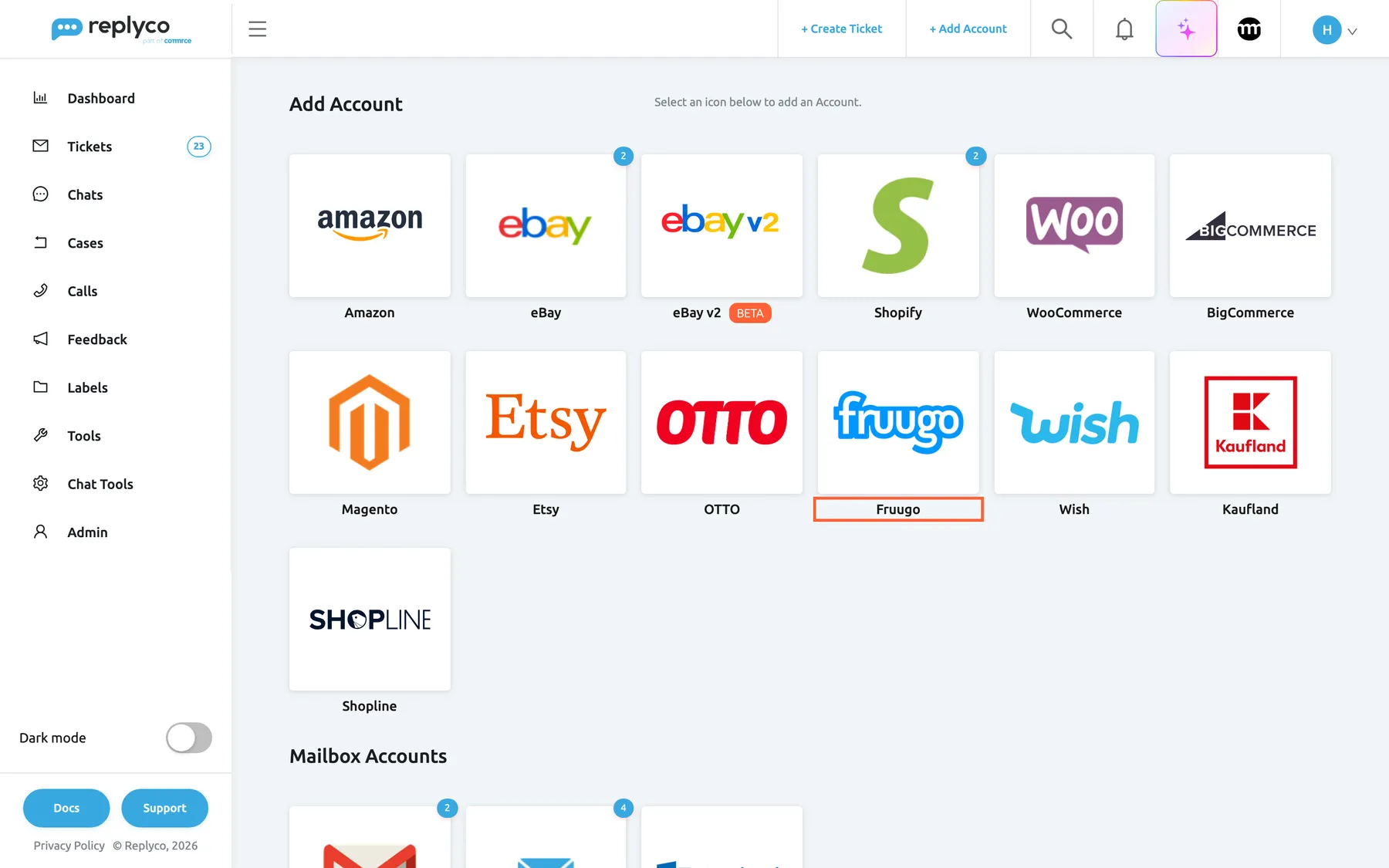
Fruugo has its own tile among the marketplaces on the Add Account page. What this screenshot shows
- Screen
- Add Account (/integrations/add)
- Highlighted
- button “”, marketplace-tiles, enabled. opens the Fruugo connect dialog
- Also visible
- marketplace and webstore tiles; Mailbox Accounts heading below
- Purpose
- start connecting Fruugo
-
Select the Fruugo tile. The dialog Authorize Replyco to sync with Fruugo opens at AUTHORIZE. Select Authorize to go on to the form.
-
At INFO, fill in the form and select Authorize:
- Account Name: a name your team recognises; it labels every ticket from Fruugo.
- Username and Password: your Fruugo login. Replyco checks them with Fruugo before it saves the account.
- Display Email: the address your replies are sent from.
- Send Name as (optional): the name customers see next to that address.
Leave Custom SMTP Configuration unticked to receive Fruugo’s emails at a Replyco address; the other choice is under Options.
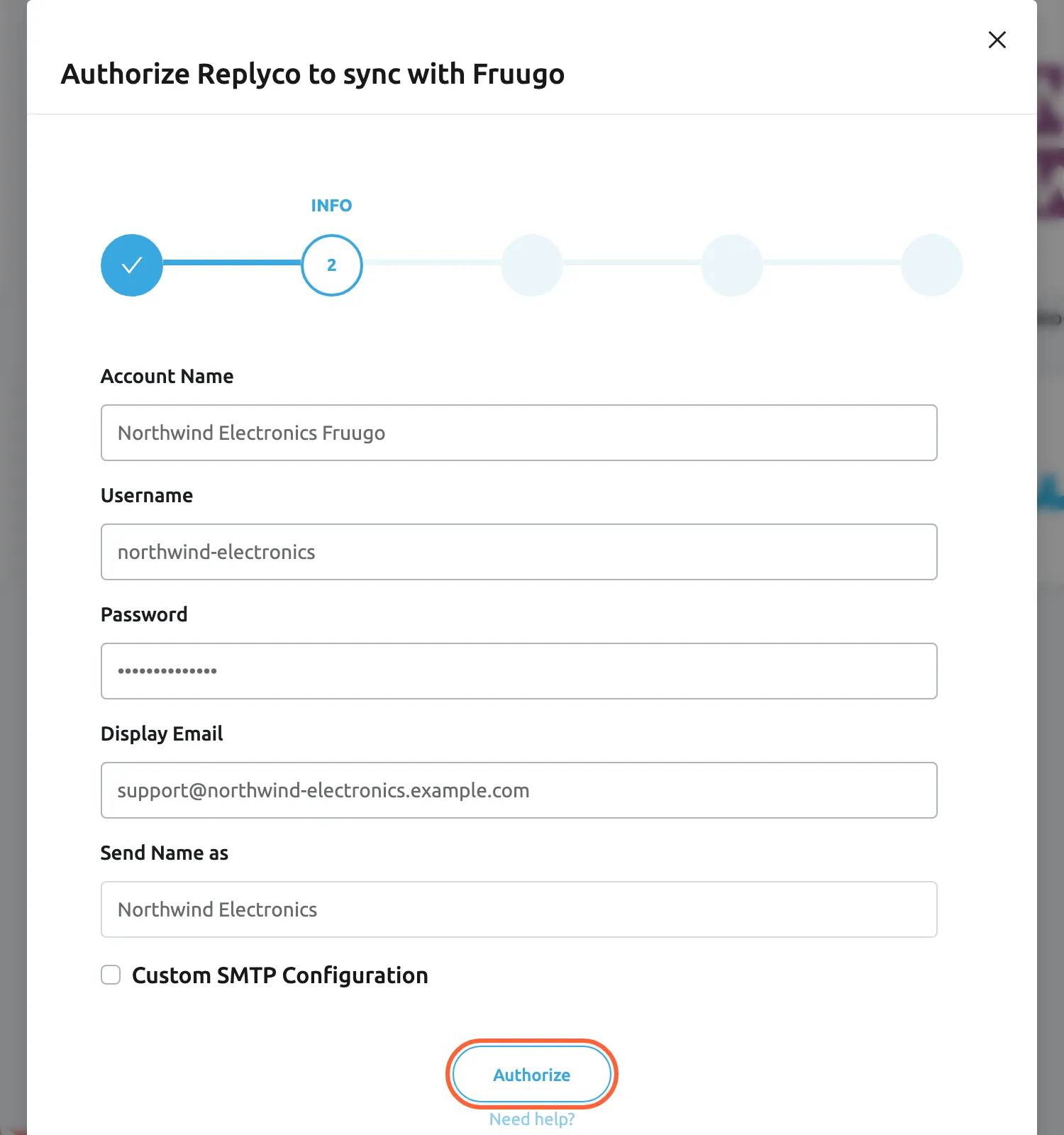
Enter your Fruugo username and password, and the address your replies are sent from. What this screenshot shows
- Screen
- Authorize Replyco to sync with {{name}} (/integrations/add)
- Highlighted
- button “Authorize”, dialog-bottom, enabled. validates the Fruugo credentials and saves the account
- Also visible
- Account Name: Northwind Electronics Fruugo; Username: northwind-electronics; Password hidden; Display Email: support@northwind-electronics.example.com; Send Name as: Northwind Electronics; Custom SMTP Configuration unticked
- Purpose
- enter the Fruugo credentials and sender details
-
When Fruugo accepts the login, Replyco saves the account and moves to EMAIL. Select Copy Email Address to copy the address Replyco created for the account, then select Done.
Done works only after you copied the address; until then Replyco shows Click the copy icon and save the e-mail address before you proceed.. You can copy it again at any time from the account’s details under Setup Email Forwarding:.
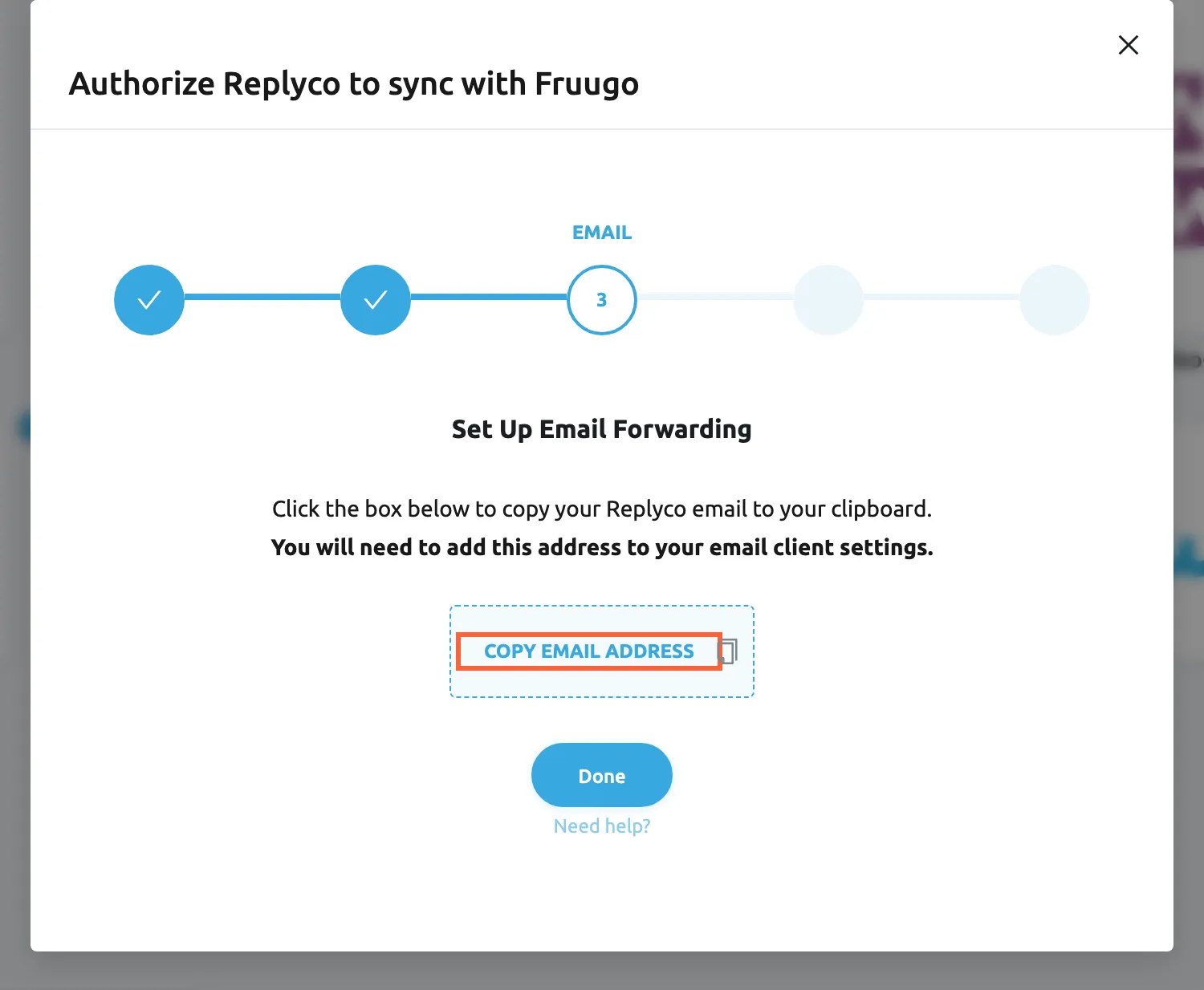
Copy the Replyco address; Fruugo's customer emails have to reach it before any ticket arrives. What this screenshot shows
- Screen
- Authorize Replyco to sync with {{name}} (/integrations/add)
- Highlighted
- button “Copy Email Address”, dialog, enabled. copies the account's Replyco address
- Also visible
- step EMAIL; Set Up Email Forwarding; Done button
- Purpose
- copy the address Fruugo's customer emails must reach
-
(Optional, recommended) At DOMAIN AUTH, publish the TXT record shown under DKIM record for the domain of your Display Email, then select Verify DNS.
Replyco sends your replies on your behalf; with the record in place, Deliverability: changes from Limited to Good and strict mail providers such as Gmail and Microsoft accept them. DNS changes can take a few hours, so you can select Skip and confirm with Skip anyway, then verify later from the account’s details. For an address at a public mail provider such as gmail.com, the step shows Domain authentication isn't available for public mailbox domains (like gmail.com or outlook.com). Use a custom domain for the best deliverability. and Continue.
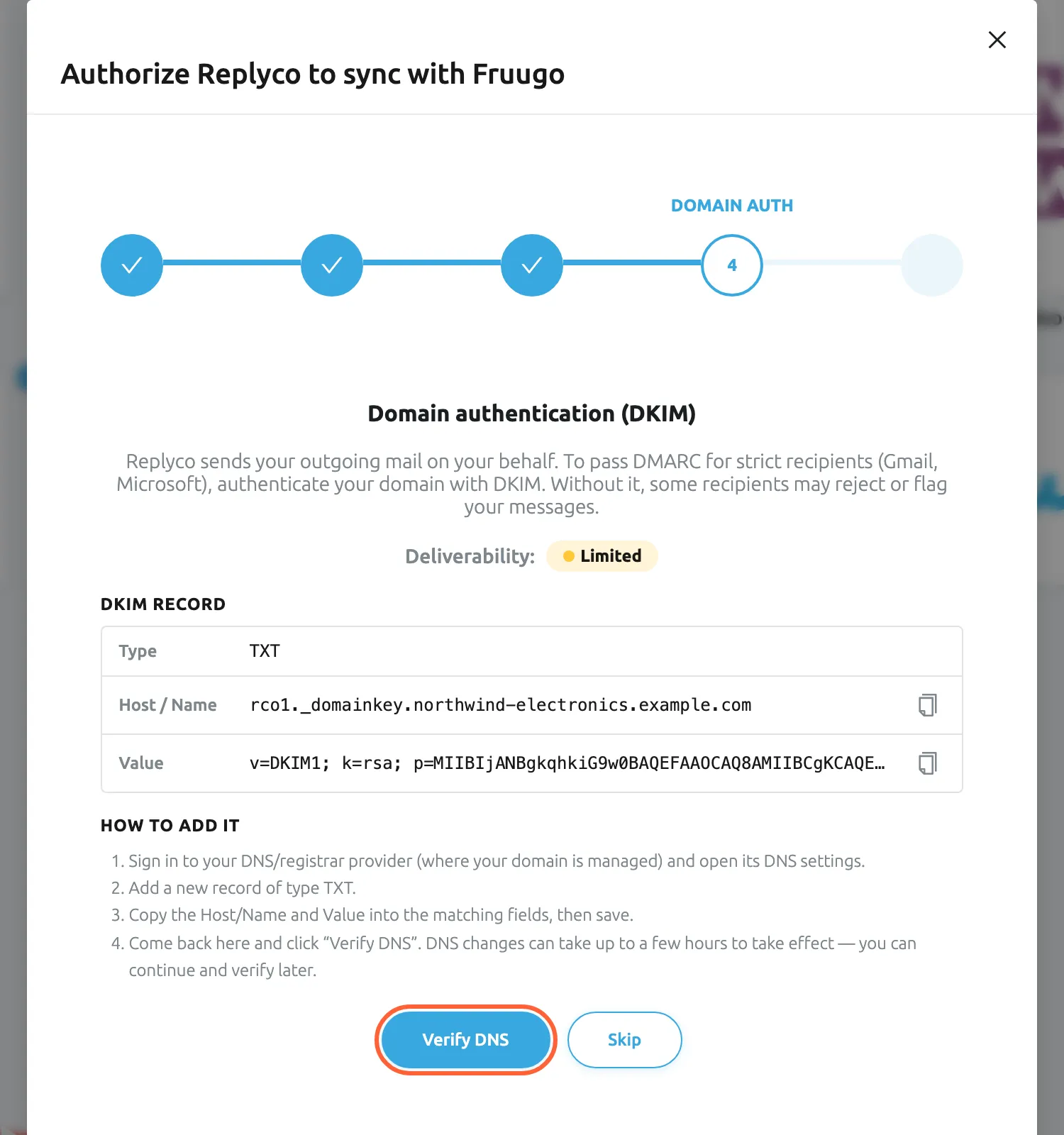
Publish the DKIM record for your Display Email domain, or skip the step and set it up later. What this screenshot shows
- Screen
- Authorize Replyco to sync with {{name}} (/integrations/add)
- Highlighted
- button “Verify DNS”, dialog-bottom, enabled. checks whether the DKIM record is published
- Also visible
- step DOMAIN AUTH; Deliverability: Limited; DKIM record Type, Host / Name, Value; How to add it; Skip button
- Purpose
- authenticate the Display Email domain
-
At FINISH, select Finish.
-
Give Fruugo the Replyco address. In the settings of your Fruugo retailer account, open Notifications and, under Customer Services Contact, enter the Replyco address you copied at EMAIL in the Email field in place of the current address, then save. Fruugo then sends its customer emails and notifications straight to Replyco.
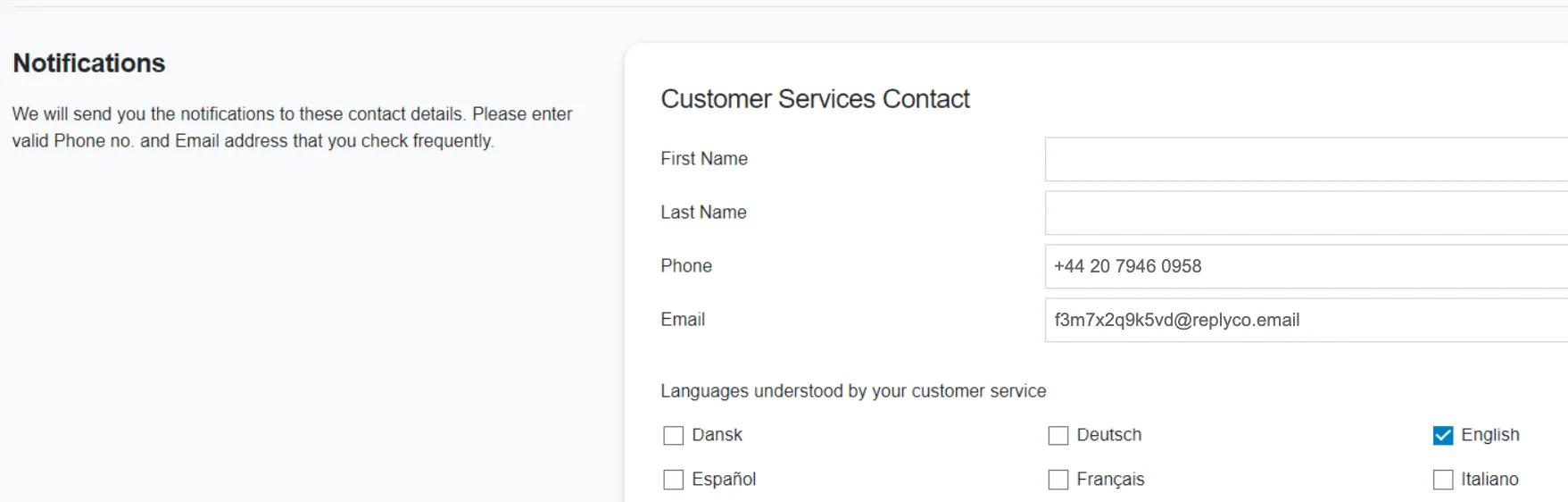
With the Replyco address as the customer services email, Fruugo writes straight to Replyco. What this screenshot shows
- Screen
- ()
- Highlighted
- “”, , .
- Also visible
- Customer Services Contact form; Email field with the Replyco address; Languages understood by your customer service
- Purpose
If you would rather keep your own address with Fruugo, forward Fruugo’s customer emails from that mailbox to the Replyco address instead; see Mailbox by forwarding.
What happens next
Section titled “What happens next”The account appears on AdminAccounts and starts to sync at once; to check how its sync is going, see Accounts. Replyco checks Fruugo for new orders every few minutes. Tickets arrive only once Fruugo’s emails reach the Replyco address, which starts as soon as Fruugo has it as the customer services email (or your forwarding is in place): Replyco checks the Replyco address for new emails every five minutes, and earlier emails are not imported. When the subject of a Fruugo email carries an order number, Replyco puts that Fruugo order beside the ticket. When the next customer enquiry arrives, check that a ticket appears in TicketsNot Resolved.
Replying to Fruugo customers
Section titled “Replying to Fruugo customers”- Only customer enquiries that Fruugo relays can be answered. Fruugo marks each relayed enquiry with a reference line; those messages have a Respond button. Fruugo’s own notices, such as new or overdue orders, have none, and auto-responses skip them.
- When you reply, the editor starts with Fruugo’s reference line. Write your answer above it and leave the line in place: Fruugo uses it to deliver your reply to the right customer.
- Your reply goes out by email from your Display Email, with your Send Name as, to the Fruugo address the enquiry came from. See Answer a ticket.
- Fruugo orders come only from Fruugo’s order list, so the order beside a Fruugo ticket has no Show full Market Order or Sync Order from Market button.
Options
Section titled “Options”| Choice | When to pick it | Effect |
|---|---|---|
| A Replyco address (Custom SMTP Configuration unticked) | The usual choice: you give Fruugo the Replyco address as its customer services email, or forward Fruugo’s emails to it | Replyco creates a mailbox for the account, shows its address to copy, sends your replies through its own mail server and offers the domain step. |
| Your own mailbox (Custom SMTP Configuration ticked) | Fruugo’s customer emails arrive in a mailbox you want Replyco to read directly | Enter the mailbox’s login and its IMAP or POP3 and SMTP servers; Replyco checks the login together with the Fruugo login. With IMAP, the address and domain steps are replaced by FOLDERS TO SYNC; This step is optional. You can do it later at any time. See Mailbox with IMAP and SMTP. |
If something goes wrong
Section titled “If something goes wrong”| Symptom | Check | Fix |
|---|---|---|
| You must complete ALL FIELDS in order to save this account! | A field other than Send Name as is empty. | Fill in every field. |
| Email is invalid | Display Email is not a complete address. | Enter an address such as support@yourshop.com. |
| “Bad authorization on Fruugo. It seems like Fruugo login or password is wrong. Error:” followed by Fruugo’s text | Fruugo refused the Username and Password. | Sign in to Fruugo with the same login to test it, then enter it again. |
| “Authentication failed.” | You ticked Custom SMTP Configuration and your mailbox refused the login. | Check the mailbox’s login and servers. |
| “Integration with this name already exists” | Another Fruugo account in Replyco has the same Account Name. | Enter a different name. |
| “You reached your current plan maximum integrations count. Contact support for more info.” | Your plan has no free account; + Add Account is then also missing from the top bar. | Delete an account you no longer use, or change your plan on AdminBilling. |
| Orders arrive but no tickets | Does the Email field under Customer Services Contact in Fruugo’s Notifications settings hold the Replyco address? If you forward instead, is the forwarding in place? | Copy the address from the account’s details under Setup Email Forwarding:, enter it in Fruugo and save. |
| A Fruugo ticket has no Respond button | It is one of Fruugo’s own notices, not a relayed customer enquiry. | Nothing to answer; act on the order in Fruugo. |
| The account shows Marketplace data sync is Temporarily Blocked. | Fruugo no longer accepts the login, for example after a password change. Customer emails still arrive. | Select Re-login in the account’s details and enter the new password; see Fix a blocked or silent account. |