

Chat auto-response rules
The Auto-response Rules tab of the chat automation screen holds the rules that answer chat messages by themselves: a welcome for every new live chat visitor, an out-of-hours note on Messenger and Instagram, the returns policy when someone writes “refund”. Each rule sends one chat template to the chats of the accounts and live chat widgets you choose, when its schedule and conditions match. Open it from Chat ToolsAutomation and select the tab Auto-response Rules. This page explains the screen and every field; how Replyco decides which message gets an automatic reply, across every channel, is in Auto-responses for chats.
Availability: chats and the live chat widget are part of every plan; companies on an older plan may not have them. The tab is shown to users with the Automation permission in the Chat Tools section of their permissions; creating, changing, switching and deleting rules needs its edit level. See User permissions and roles and What each plan includes.
What you can do here
Section titled “What you can do here”- See every chat rule and read one. Rules are listed in an Active and an Inactive group; a click shows a rule’s accounts, widgets, template, schedule, delay and conditions. See your rules and read one
- Create a rule in four parts: what it sends and where, when, how quickly and how often, and for which messages. Create a rule
- Choose where a rule answers. A rule listens to the Messenger, Instagram, Telegram and TikTok Shop accounts and live chat widgets you pick; WhatsApp chats are not answered automatically. Choose the accounts and widgets
- Decide when it answers. A date range, days and hours, a range across the week, or only outside your company’s working hours. Set the schedule
- Set a delay and how often it answers. Wait a fixed or random time before replying, and answer only the first message or every one. Set the delay and frequency
- Answer only some messages. Conditions on the text, the customer’s name or email, combined with AND and OR. Write the conditions
- Know which rule answers. Replyco sends at most one automatic reply per customer message, and the tab has no order to set. Which rule answers
- Change, copy, switch off or delete a rule, and give several rules a new account at once. Edit a rule · Copy a rule · Switch a rule off or on · Add accounts to several rules at once · Delete a rule
- See who changed a rule, with every changed field. See who changed a rule
The screen at a glance
Section titled “The screen at a glance”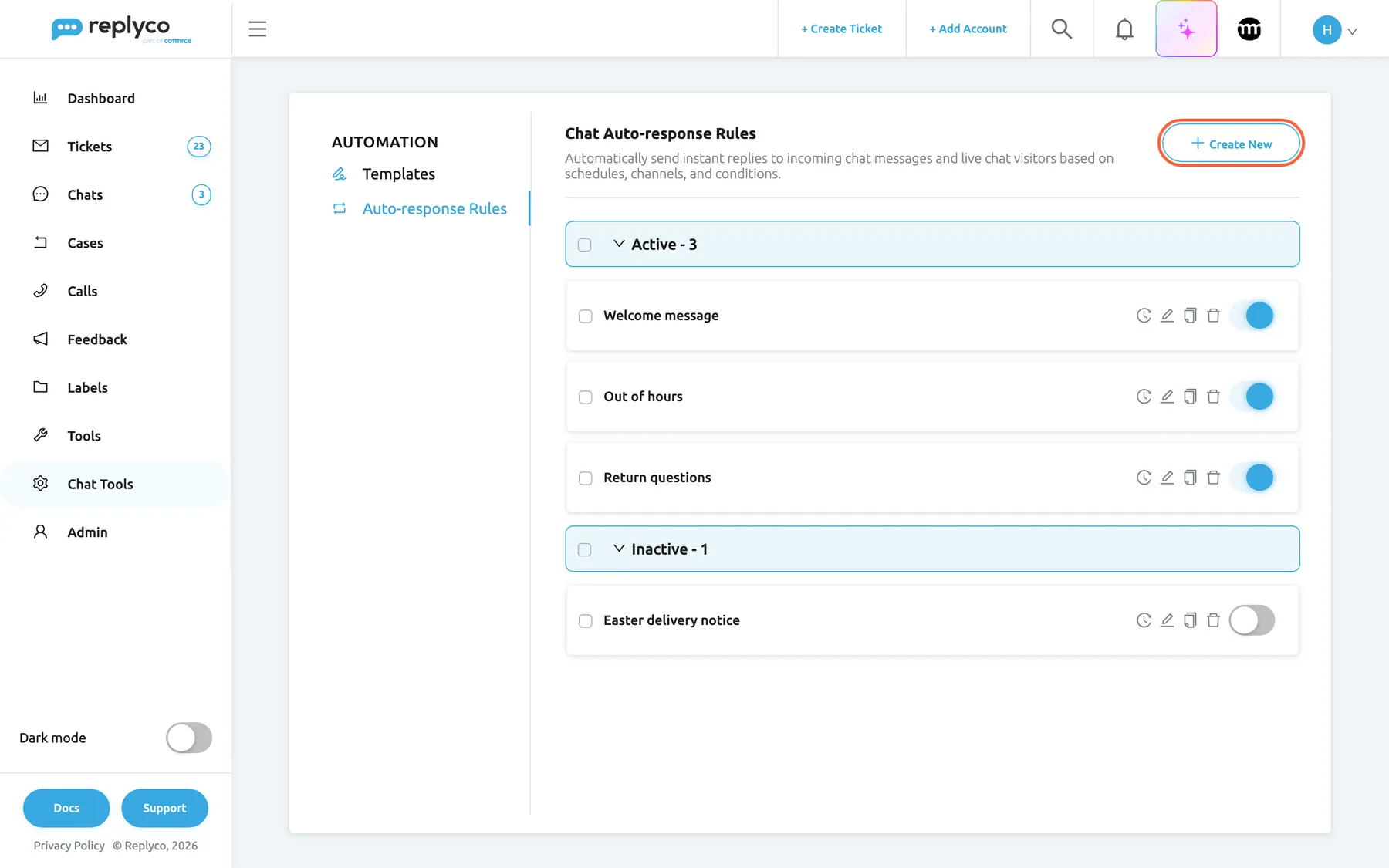
What this screenshot shows
- Screen
- Chat Auto-response Rules (/instant-messages-automation?tab=autoresponseRules)
- Highlighted
- button “Create New”, header-right, enabled. opens the Create Chat Auto-response Rule form
- Also visible
- Active - 3: Welcome message, Out of hours, Return questions; Inactive - 1: Easter delivery notice; check box, history, edit, copy, delete and switch on each card
- Purpose
- the chat rule list as it opens
| Region | What it shows | What you do there |
|---|---|---|
| Tabs, left | Automation with Templates and Auto-response Rules | Switch to the chat templates the rules send |
| Header, top | The heading Chat Auto-response Rules, a description and Create New | Start a new rule |
| Bulk action, above the list | Add Accounts, shown only while rules are ticked | Add chat accounts to all ticked rules |
| Active group | Every rule that is switched on, with the count | Open, tick, edit, copy, delete, switch off |
| Inactive group | Every rule that is switched off, with the count | Switch rules back on or clean up |
| Details panel, right (after a click) | The rule’s accounts, widgets, template, dates, frequency, delay, days and hours, and conditions | Read a rule, then act on it |
A group appears only when it has rules. With no rules at all, the list reads No rules found..
See your rules and read one
Section titled “See your rules and read one”The list has no search box and no sorting: rules appear in the order Replyco stores them, and a new rule is added at the end of its group. Each group header shows its count, for example Active - 3, and folds the group away when you select it.
- Open Chat ToolsAutomation and select the tab Auto-response Rules.
- Select a rule’s name. The details panel opens on the right.
- Read the panel from the top: Accounts with the chat accounts as chips, Widgets, Template, Working Dates, Frequency, the delay, then either Days and Working Hours, Active between, or Outside working hours, and at the bottom Conditions.
- Select Edit, Copy or Delete at the bottom of the panel.
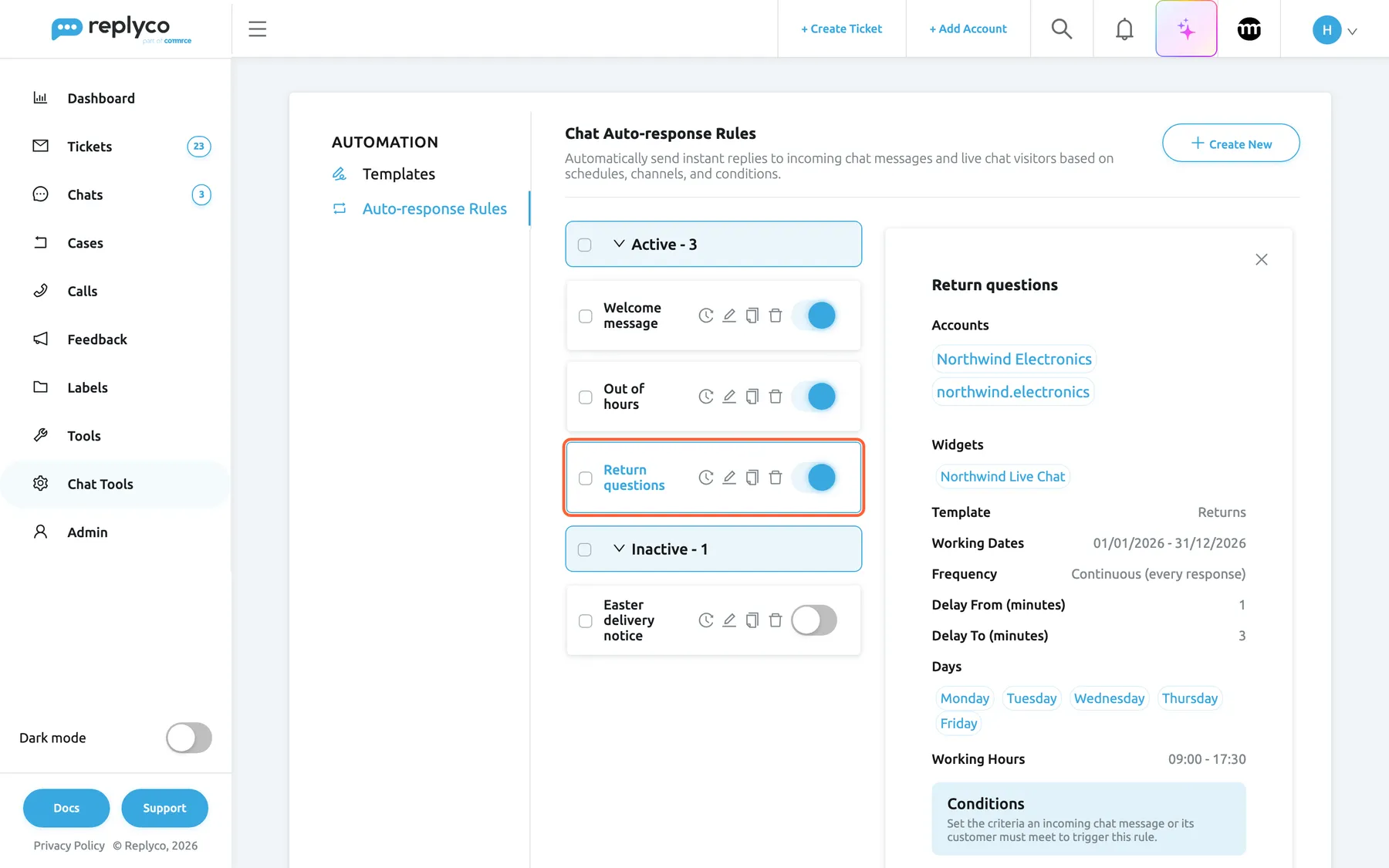
What this screenshot shows
- Screen
- Chat Auto-response Rules (/instant-messages-automation?tab=autoresponseRules)
- Highlighted
- button “”, list, selected. shows the rule's details
- Also visible
- 2 accounts and the Northwind Live Chat widget; Template: Returns; Working Dates 01/01/2026 - 31/12/2026; Continuous, delay 1 to 3 minutes; Monday to Friday 09:00 - 17:30; start of the Conditions box with its chat description
- Purpose
- read a chat rule
The conditions read as sentences, for example Where Text Should Contains return;refund, with AND between the conditions of a group and OR between groups. Working Dates shows All time for a rule without a date range, and the first and last date for a rule with one.
Create a rule
Section titled “Create a rule”- On the tab Auto-response Rules, select Create New. The form Create Chat Auto-response Rule opens, with a contents list on the right: General Info, Schedule, Delivery, Conditions.
- Under General Info, enter the Rule Name and pick the chat template under Template to Send. The template must exist first; see Chat templates.
- Pick the chat accounts under Accounts, the live chat widgets under Widgets, or both.
- Under Schedule, set when the rule may answer: set the days and Working Hours, or switch on Send Outside Working hours of Company, for the times the rule should answer.
- Under Delivery, set the delay and the frequency.
- Under Conditions, choose a field, a mode and a value for the first condition.
- Select Save.
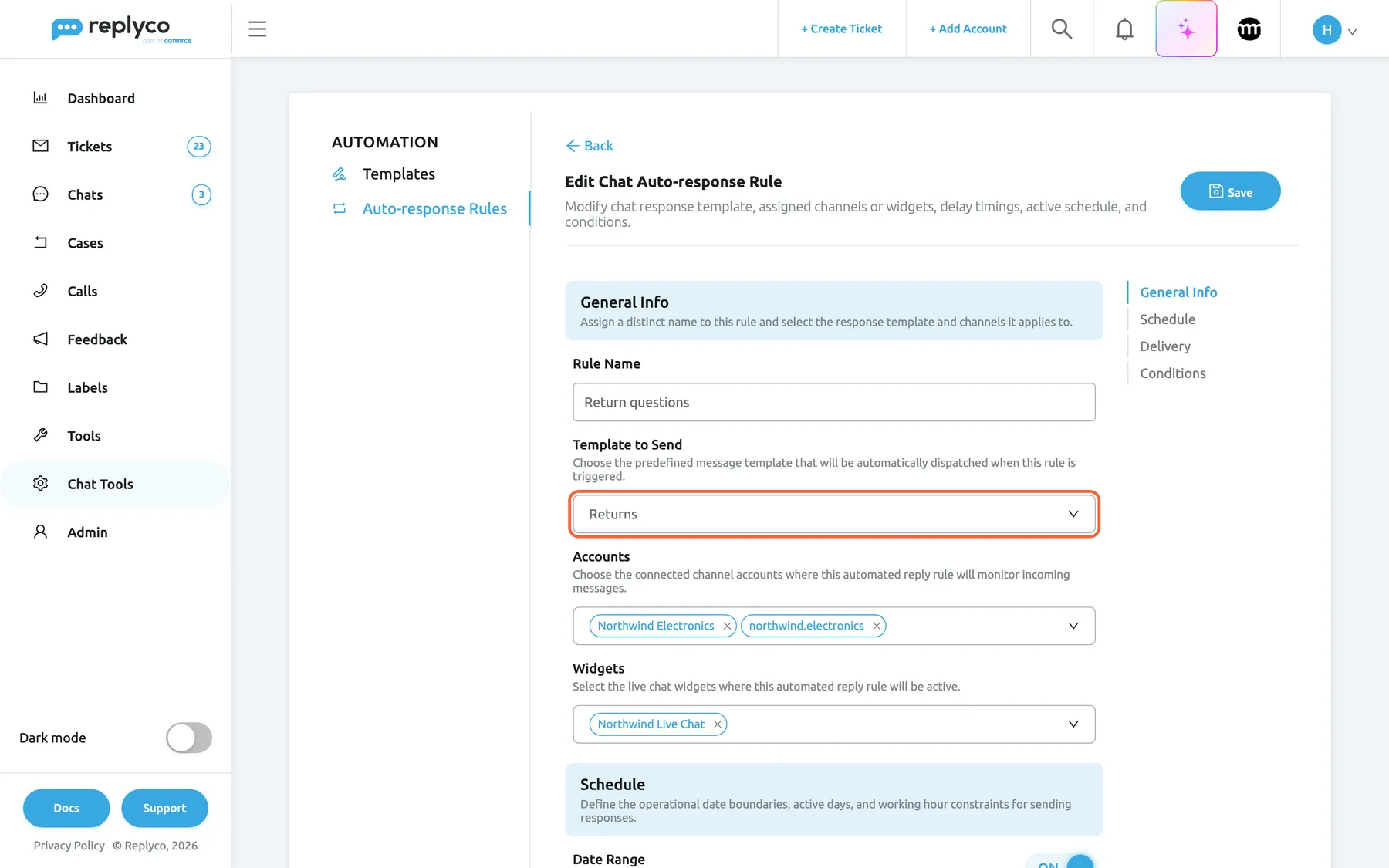
What this screenshot shows
- Screen
- Edit Chat Auto-response Rule (/instant-messages-automation?tab=autoresponseRules)
- Highlighted
- combobox “Template to Send”, form-general, Returns. chooses the chat template the rule sends
- Also visible
- Rule Name: Return questions; Accounts: Northwind Electronics, northwind.electronics; Widgets: Northwind Live Chat; contents list General Info, Schedule, Delivery, Conditions
- Purpose
- the general part of the rule form
Replyco returns you to the list at once, saves the rule switched on, and shows Success. The new rule appears at the end of the Active group.
Nothing is saved when a check fails, and a message appears in the top right corner:
| Message | Cause |
|---|---|
| All fields must be completed. | No name, no template, neither an account nor a widget, no day under Days, or no delay |
| The End Date must be greater than the Start Date | Date Range is on and the end date is not after the start date |
| The Delay To must be greater than the Delay From | Delay Range is on and the second time is not later than the first |
| Please enter valid conditions. | A condition has no value |
Back leaves the form without saving and does not ask first.
Example: the rule Return questions sends the template Returns to chats from the Messenger account Northwind Electronics, the Instagram account northwind.electronics and the Northwind Live Chat widget, Monday to Friday between 09:00 and 17:30, one to three minutes after a customer writes return or refund.
Choose the accounts and widgets
Section titled “Choose the accounts and widgets”A rule answers a chat when the chat’s account is in Accounts or its live chat widget is in Widgets. You need at least one of the two.
- Accounts lists your Facebook Messenger, Instagram, Telegram and TikTok Shop accounts, with Select all at the top.
- Widgets lists your live chat widgets by their chat title; to set up a widget, see Live chat widget.
- WhatsApp accounts are not in the list, and WhatsApp chats never receive an automatic chat reply. Answer WhatsApp chats by hand, with a chat template if you like.
Set the schedule
Section titled “Set the schedule”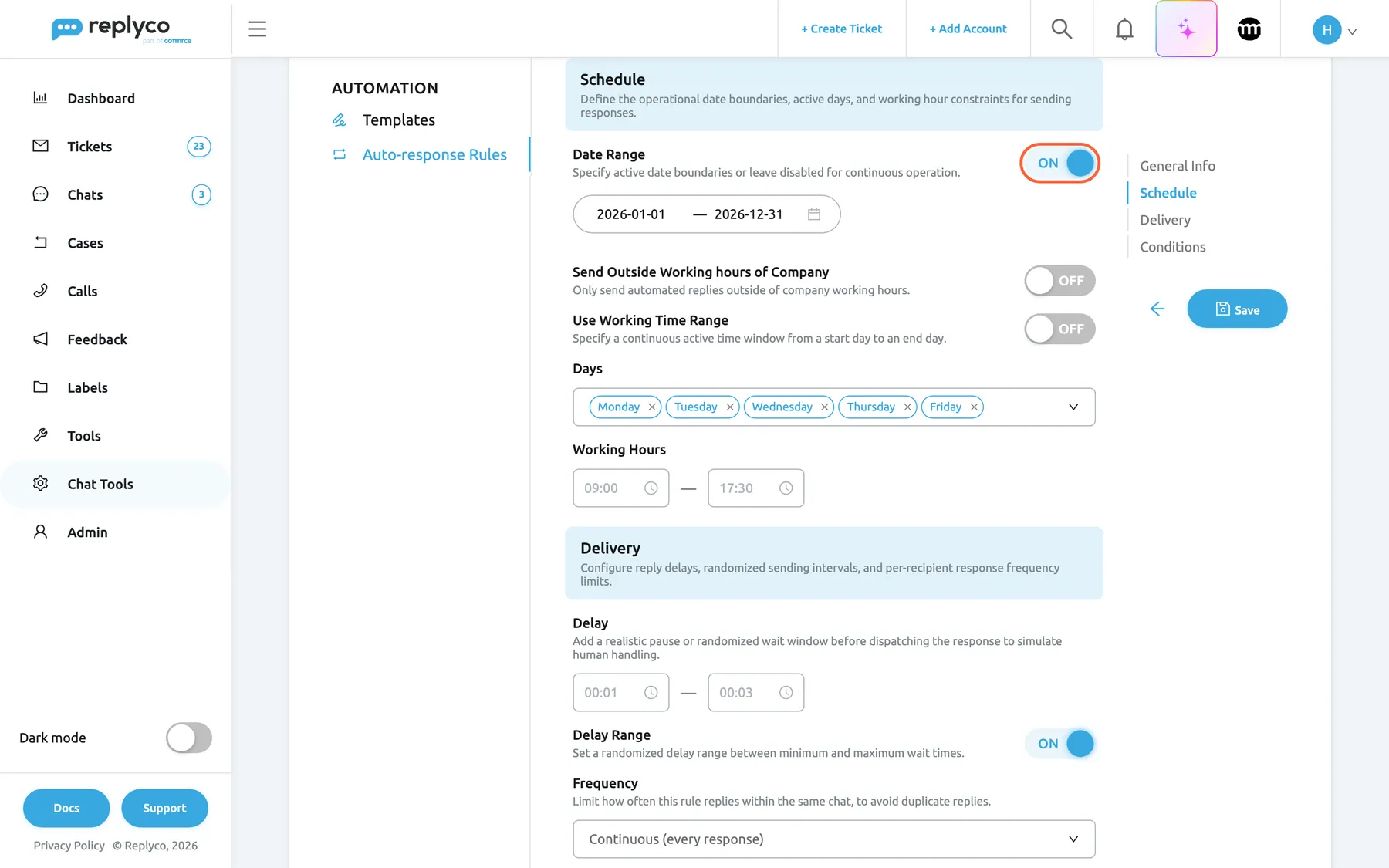
What this screenshot shows
- Screen
- Edit Chat Auto-response Rule (/instant-messages-automation?tab=autoresponseRules)
- Highlighted
- switch “Date Range”, form-schedule, on. limits the rule to a period
- Also visible
- Date Range 2026-01-01 — 2026-12-31; Send Outside Working hours of Company off; Use Working Time Range off; Days Monday–Friday, Working Hours 09:00 — 17:30; Delay 00:01 — 00:03 with Delay Range on; Frequency Continuous
- Purpose
- the schedule and delivery part of the rule form
The Schedule section decides when a rule may answer. It offers three ways, and the fields change with the switches:
| Setting | What the rule does |
|---|---|
| Days and Working Hours (both switches below off) | Answers on the chosen days, within the time window; 00:00 — 23:59 covers the whole day. An end time earlier than the start time spans midnight, for example 18:00 — 08:00 for evenings and nights |
| Use Working Time Range on | Answers in one stretch from Active From (a day and a time) to Active To, for example Friday 18:00 to Monday 08:00; the days in between count whole |
| Send Outside Working hours of Company on | Answers only outside your company’s working days and hours and on its holidays, as set in Working time; the day and hour fields disappear |
Date Range limits any of these to a period, both dates included. The times are entered in your computer’s time zone.
Example: a welcome for every live chat visitor at any time: Date Range off, all seven days, Working Hours 00:00 — 23:59.
Set the delay and frequency
Section titled “Set the delay and frequency”Under Delivery:
- Delay is the time, in hours and minutes, Replyco waits before sending; 00:00 sends at once. With Delay Range on, you enter two times and Replyco picks a random wait between them for each reply, so the answer feels less automatic.
- Frequency is Once (1st response only) or Continuous (every response); the form describes it as Limit how often this rule replies within the same chat, to avoid duplicate replies. Once answers only the very first message a customer sends in the chat; when the chat reopens weeks later, it does not answer again. Continuous answers every message that matches.
While a delayed reply waits, the chat shows it with the time it is scheduled for and a red cross to cancel it. As soon as someone in your team replies in the chat, every waiting automatic reply of that chat is cancelled, so customers do not get a welcome after the real answer. In the chat, a sent automatic reply is marked with the rule’s name; see Chat list and conversations.
Write the conditions
Section titled “Write the conditions”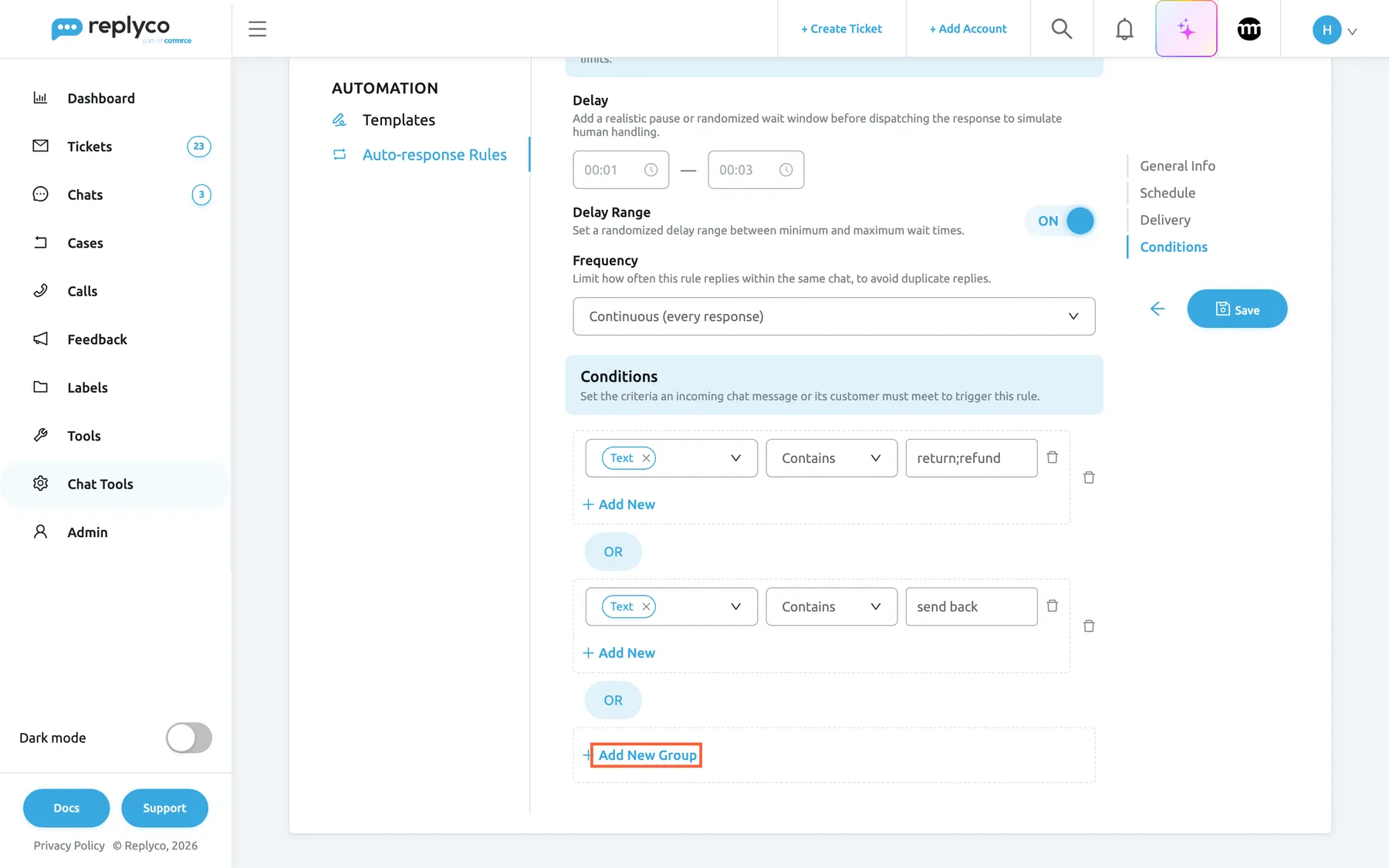
What this screenshot shows
- Screen
- Edit Chat Auto-response Rule (/instant-messages-automation?tab=autoresponseRules)
- Highlighted
- button “Add New Group”, form-conditions, enabled. adds a condition group joined by OR
- Also visible
- group 1: Text Contains return;refund; OR; group 2: Text Contains send back; Add New per group, bin per condition and per group
- Purpose
- the conditions part of the rule form
The section’s description sums it up: Set the criteria an incoming chat message or its customer must meet to trigger this rule. Every rule needs at least one condition. A condition has three parts:
| Part | Choices |
|---|---|
| Field | Text (the customer’s message), Client name, Client email |
| Mode | Equals, Contains, Does not contain, Starts with, Ends with |
| Value | One or more values separated by ; |
- Conditions in one group, added with Add New, must all match (AND). Groups, added with Add New Group, are alternatives (OR): the rule answers when any group matches.
return;refundwith Contains matches a message that contains either word. With Does not contain, none of the values may appear.- Replyco ignores upper and lower case and spaces when it compares, so
send backalso matches SENDBACK. - The form starts with one condition whose field is empty. Choose a field for every condition.
- Client email is empty for customers who have not given an email address, as on most messenger channels, and a condition on it never matches them. Use it for live chat visitors.
- To answer every message, use a condition every message meets, such as Text Does not contain
unsubscribe.
The bin next to a condition removes it, and the bin next to a group removes the whole group. A group must keep at least one condition (Every group must contain at least one condition.), and Add New Group asks you to fill in the last group first (Please finish creating the last Group before adding another.).
| Customer’s message | Rule Return questions: group 1 Text Contains return;refund, OR group 2 Text Contains send back |
|---|---|
| Can I get a Refund for the speaker? | Matches group 1 |
| How do I send it back? | Matches group 2 |
| Where is my parcel? | No match; no automatic reply from this rule |
Which rule answers
Section titled “Which rule answers”Replyco sends at most one automatic reply to each customer message. It checks the switched-on rules of the chat’s account or widget, and the first rule whose schedule, frequency and conditions all match sends its template; the others do not. The tab has no order, priority or drag handle, so you cannot choose which of two matching rules answers. Keep rules for the same accounts from overlapping: give them different schedules, or conditions that exclude each other.
Edit a rule
Section titled “Edit a rule”- Select the rule, then Edit in the details panel; or select the pencil icon on its card.
- Change any field in the form Edit Chat Auto-response Rule. Save pulses while you have unsaved changes.
- Select Save.
The change applies to the next customer message. Replies already scheduled keep their time and text.
Copy a rule
Section titled “Copy a rule”Select the copy icon on a card, or Copy in the details panel. The form Create Chat Auto-response Rule opens with the rule’s name followed by (copy) and every other field as in the original. Save creates a new rule, switched on, and leaves the original unchanged.
Switch a rule off or on
Section titled “Switch a rule off or on”The switch on each card turns a rule off or on. It saves at once, shows Success and moves the card to the other group. A switched-off rule keeps all its settings and answers nothing until you switch it on again; replies it had already scheduled are still sent.
Add accounts to several rules at once
Section titled “Add accounts to several rules at once”- Tick the check box on each rule card, or the check box of a group header to tick the whole group. Add Accounts appears above the list.
- Select Add Accounts. A panel opens: Select channel accounts to assign to all currently selected auto-response rules.
- Pick one or more chat accounts under Filter by Account.
- Select Apply.
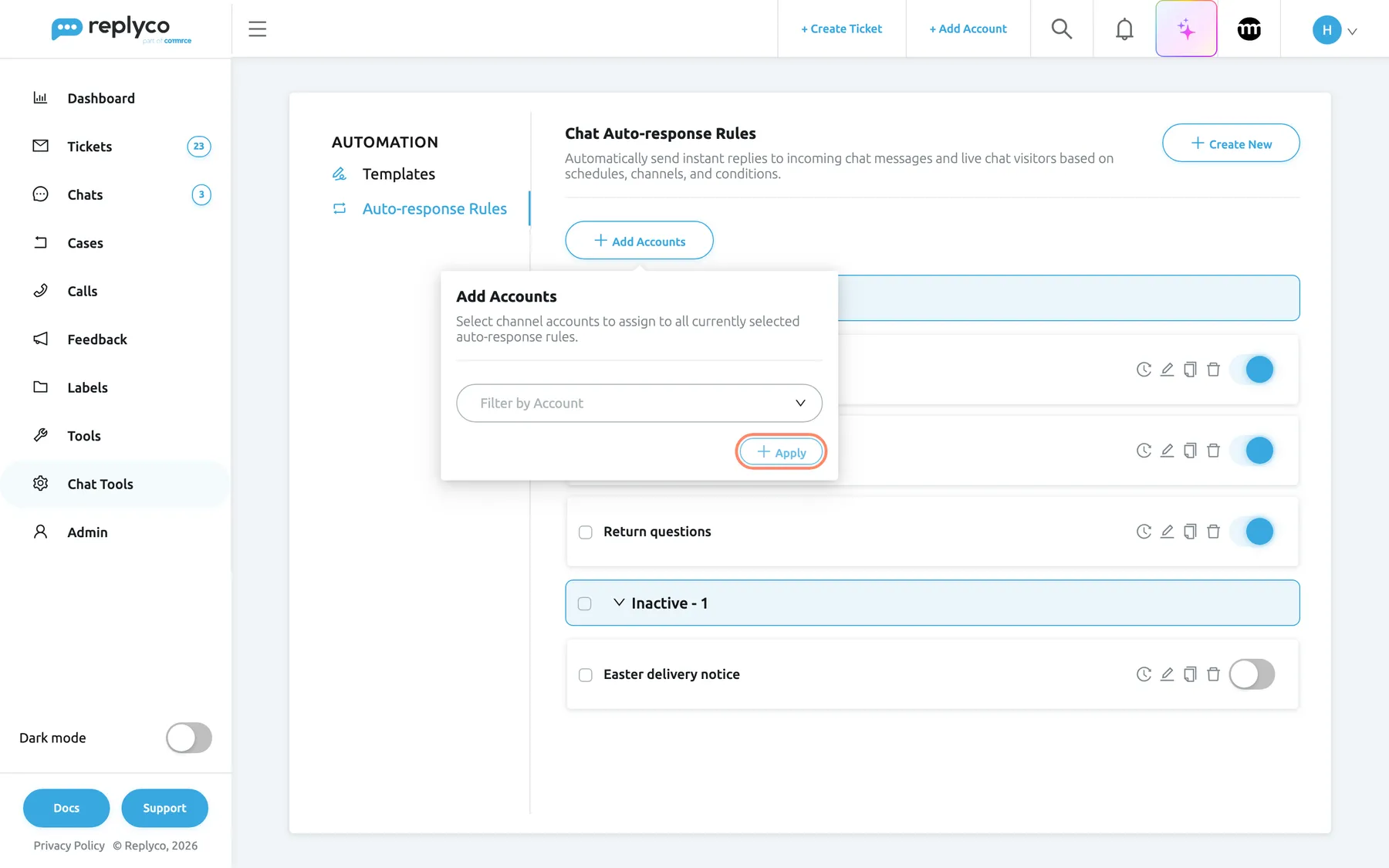
What this screenshot shows
- Screen
- Chat Auto-response Rules (/instant-messages-automation?tab=autoresponseRules)
- Highlighted
- button “Apply”, bulk-action-panel, enabled. adds the chosen accounts to every ticked rule
- Also visible
- 2 rules ticked; Add Accounts panel with its explanation; Filter by Account; Apply
- Purpose
- add accounts to several rules at once
Replyco adds the accounts to every ticked rule, keeps the accounts they already have, reloads the list and shows Success. The panel adds accounts only, not live chat widgets, and it never removes one; to remove an account or add a widget, edit the rule. This action writes no line in the rules’ history.
Example: Northwind connects a TikTok Shop account. Tick Welcome message and Out of hours, add Northwind TikTok Shop, and both rules answer its chats.
See who changed a rule
Section titled “See who changed a rule”Select the clock icon on a card. The details panel lists the rule’s history, one line per change with the person and the date:
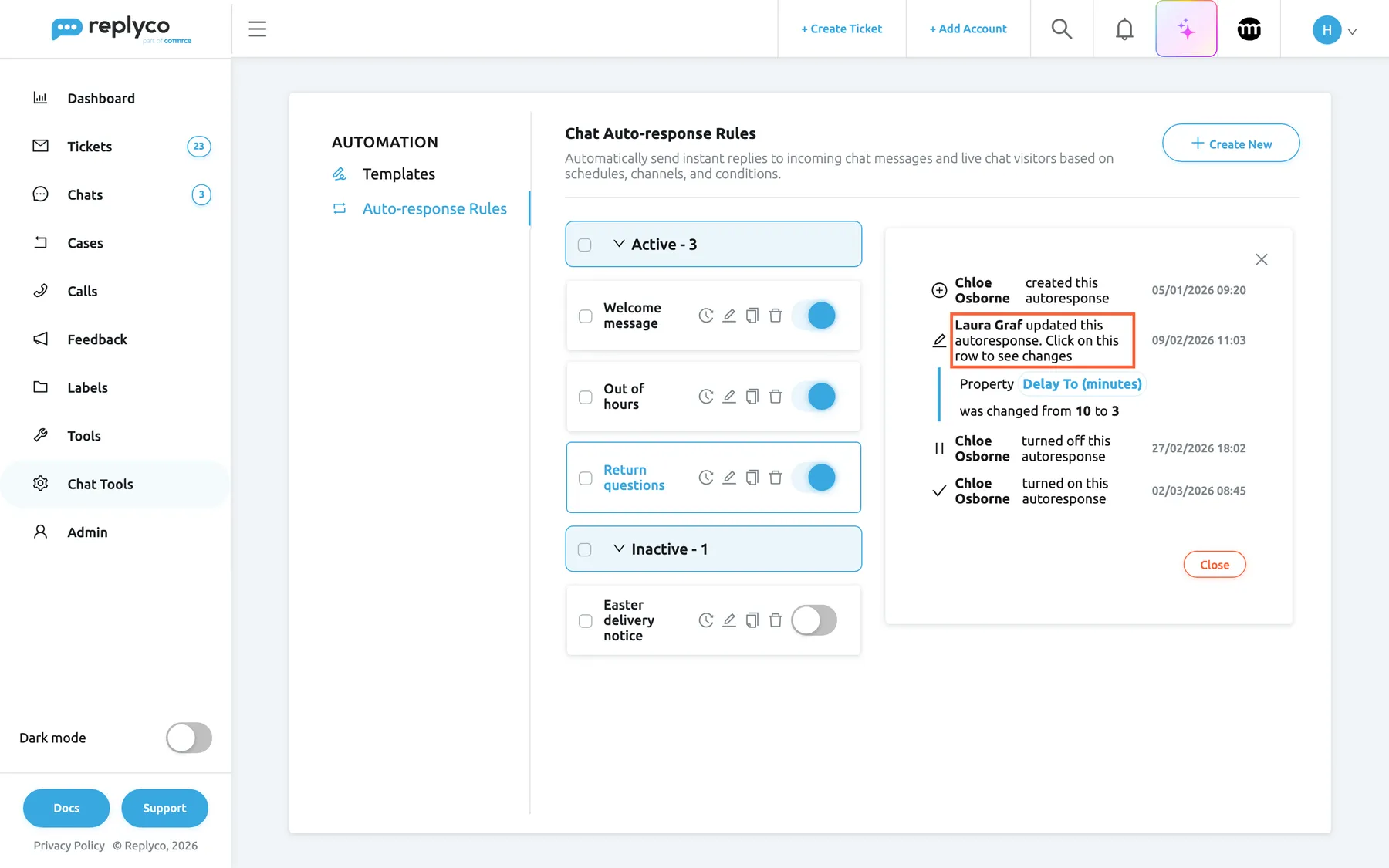
What this screenshot shows
- Screen
- Chat Auto-response Rules (/instant-messages-automation?tab=autoresponseRules)
- Highlighted
- row “ updated this autoresponse. Click on this row to see changes”, details-panel, expanded. shows what changed
- Also visible
- created by Chloe Osborne; updated by Laura Graf with the Delay To change; turned off and turned on by Chloe Osborne; Close
- Purpose
- see who changed a chat rule
| Line | When it is written |
|---|---|
| [name] created this autoresponse | The rule was created |
| [name] updated this autoresponse. Click on this row to see changes | Someone saved changes; select the line to see each changed field with its old and new value |
| [name] turned off this autoresponse or turned on this autoresponse | Someone used the switch |
A rule with no recorded changes shows No changes were made to this item yet. Close returns to the details.
Delete a rule
Section titled “Delete a rule”Select the bin icon on a card and confirm Are you sure you want to delete this rule?, or Delete in the details panel and confirm Are you sure you want to delete this item?, with Yes. The rule is deleted for good. Automatic replies it had already scheduled are still sent, and replies already sent stay in their chats. A rule also disappears when its chat template is deleted; see Chat templates.
Every control, explained
Section titled “Every control, explained”The tab has a list with a details panel, and a full-width form in four sections.
Auto-response Rules tab
Section titled “Auto-response Rules tab”Chat ToolsAutomation, second tab. The address ends in ?tab=autoresponseRules.
Opens the list of chat auto-response rules. These rules answer chats only; rules for tickets are under the Tools menu, see Auto-response Rules.
The rules send the chat templates of the neighbouring tab.
Create New
Section titled “Create New”Top right corner of the tab.
Opens the empty form Create Chat Auto-response Rule with one condition and the presets below. It shows a spinner while a new rule is being saved.
Start a rule from scratch; to start from an existing one, use Copy.
Group headers
Section titled “Group headers”Above each group: Active and Inactive, each followed by the number of rules.
Selecting the header folds the group away or opens it. The check box on the left ticks every rule of the group for Add Accounts.
Fold away switched-off rules; tick a whole group to give it a new account.
Rule card
Section titled “Rule card”| Control | What it does | Why |
|---|---|---|
| Check box | Ticks the rule for Add Accounts | Act on several rules at once |
| Name | Opens the details panel | Read before you change |
| Clock icon | Opens the rule’s history | Find out who changed what |
| Pencil icon | Opens the form Edit Chat Auto-response Rule | Change the rule |
| Copy icon | Opens a filled form that saves as a new rule | Write a variant quickly |
| Bin icon | Asks Are you sure you want to delete this rule? and deletes on Yes | Remove a rule for good |
| Switch | Switches the rule on or off; saves at once | Pause a rule without losing it |
Add Accounts
Section titled “Add Accounts”Above the list, on the left; shown only while at least one rule is ticked.
Opens a panel with Filter by Account (chat accounts only) and Apply, which adds the chosen accounts to every ticked rule and keeps their existing accounts.
After connecting a new chat account, let your existing rules answer it in one step.
Details panel
Section titled “Details panel”Right of the list, after you select a rule’s name.
Shows the rule’s accounts under Accounts, widgets, template, working dates, frequency, delay, days and hours or the outside-hours note, and the conditions. At the bottom: Delete (asks Are you sure you want to delete this item?), Copy and Edit.
Check where and when a rule answers before you change it.
Rule Name
Section titled “Rule Name”General Info, first field.
The name in the list, in the history and on the automatic replies in the chat. Required; at most 500 characters.
A name that states the purpose, such as Out of hours, tells your team why a customer got a reply.
Template to Send
Section titled “Template to Send”General Info, second field.
The chat template the rule sends, chosen from every chat template. Required. Deleting that template deletes the rule.
Write the text once under Templates and reuse it in rules and chats.
Accounts and Widgets
Section titled “Accounts and Widgets”General Info, third and fourth fields.
The Messenger, Instagram, Telegram and TikTok Shop accounts, and the live chat widgets, whose chats the rule answers. At least one account or one widget is required. WhatsApp accounts are not offered.
Answer each channel in its own way, for example a longer welcome on the website than on Instagram.
Date Range
Section titled “Date Range”Schedule, first switch, with a start and an end date when on.
Off, the default: the rule answers on every date, without an end. On: it answers only from the first to the last date, both included; the end must be after the start.
Run seasonal messages, such as holiday delivery times, only while they are true.
Send Outside Working hours of Company
Section titled “Send Outside Working hours of Company”Schedule, second switch. Off by default.
On, the rule answers only outside your company’s working days and hours and on its holidays, from Working time, and the day and hour fields disappear.
Keep one set of opening hours for the whole company instead of repeating them in each rule.
Use Working Time Range, Active From and Active To
Section titled “Use Working Time Range, Active From and Active To”Schedule, third switch; when on, two rows of a day and a time.
One continuous window: the first day from its time, the last day until its time, and every day in between whole.
Cover a weekend, from Friday evening to Monday morning, in one rule.
Days and Working Hours
Section titled “Days and Working Hours”Schedule, shown while both switches above are off.
The days (all seven by default; at least one required) and a time window on each of those days. The rule answers on the chosen days within the window; 00:00 — 23:59 covers the whole day.
Answer during set hours, for example while nobody watches the chats at lunchtime.
Delay and Delay Range
Section titled “Delay and Delay Range”Delivery, a time field in hours and minutes; the switch below turns it into two fields.
The wait before sending, 00:00 by default; with the range on, a random wait between the two times, the second later than the first. An agent’s reply in the chat cancels a waiting automatic reply.
Give your team a moment to answer in person before the automatic reply goes out.
Frequency
Section titled “Frequency”Delivery, a select below the delay.
Once (1st response only) answers only the customer’s first message in the chat; Continuous (every response) answers every matching message. The preset is Once.
Greet once; repeat only replies that each message deserves, such as a returns answer.
Conditions
Section titled “Conditions”| Control | What it does | Why |
|---|---|---|
| Field select | Text, Client name or Client email; several fields in one condition count as alternatives | Decide what the rule looks at |
| Mode select | Equals, Contains, Does not contain, Starts with, Ends with | Decide how the value is compared |
| Value | One or more values separated by ;; required | Catch several wordings in one condition |
| Bin next to a condition | Removes the condition; the last one of a group cannot be removed | Tidy up |
| Add New | Adds a condition to the group (AND) | Narrow the group |
| Bin next to a group | Removes the whole group | Drop an alternative |
| Add New Group | Adds a group (OR) | Add an alternative |
Save, Back and the contents list
Section titled “Save, Back and the contents list”Back and Save at the top of the form; once you scroll down, a back arrow and Save stay in the right column under the contents list.
Save runs the checks, closes the form and saves. Back returns without saving and without asking. The contents list jumps to General Info, Schedule, Delivery or Conditions.
The form is long; jump straight to the part you want to change.
Who sees what
Section titled “Who sees what”| Part | What shows it |
|---|---|
| The tab, under Chat ToolsAutomation | The Automation permission in the Chat Tools section of the user’s permissions |
| Saving, copying, switching, deleting, Add Accounts | The edit level of that permission; otherwise You don't have enough rights |
| Automatic replies in chats | Every user who can open the chat |
The Admin and Moderator presets in Users do not include the Automation permission of the Chat Tools section; an admin ticks it for each person who should manage chat rules.
What you need to know
Section titled “What you need to know”| Topic | Fact |
|---|---|
| Channels | Messenger, Instagram, Telegram, TikTok Shop and live chat widgets; not WhatsApp |
| Replies per message | At most one; no order or priority between rules |
| Required | Name, template, an account or a widget, at least one day, at least one condition with a value |
| Presets | Date range off, days all week, hours 00:00 — 00:00, delay 00:00, frequency Once, one condition without a field |
| Date range | Off: every date. On: from the first to the last date, both included |
| Delay | Up to 23:59; an agent’s reply cancels waiting automatic replies |
| Once | Only the customer’s first message in the chat |
| Conditions | AND within a group, OR between groups, ; between values, case and spaces ignored |
| Order in the list | As stored; new rules at the end; no search |
| Delete | Permanent; scheduled replies still go out; deleting the template deletes the rule |
Frequently asked questions
Section titled “Frequently asked questions”General
Section titled “General”What is a chat auto-response rule?
Section titled “What is a chat auto-response rule?”A chat auto-response rule sends one chat template automatically when a customer writes in a chat of the accounts or live chat widgets you choose, at the times and for the messages you set. Rules are managed under Chat ToolsAutomation, tab Auto-response Rules. The full sending behaviour is explained in Auto-responses for chats.
Are chat rules the same as the auto-response rules for tickets?
Section titled “Are chat rules the same as the auto-response rules for tickets?”No. Chat rules answer chats and live chat visitors and send chat templates; the rules under the Tools menu answer tickets and send ticket templates, with placeholders. Each kind has its own list, and neither affects the other; for tickets, see Auto-response Rules.
Why can’t I pick our WhatsApp account in a rule?
Section titled “Why can’t I pick our WhatsApp account in a rule?”The Accounts field of a chat auto-response rule lists Facebook Messenger, Instagram, Telegram and TikTok Shop accounts only, and WhatsApp chats never receive an automatic chat reply. Answer WhatsApp chats by hand from Chats, with a chat template from the form icon next to the reply box if you like.
Setting up a rule
Section titled “Setting up a rule”Why won’t Replyco save my rule?
Section titled “Why won’t Replyco save my rule?”All fields must be completed. means the name, the template, the accounts and widgets (at least one), the days or the delay are missing. Please enter valid conditions. means a condition has no value. The two other messages are about a date range whose end is not after its start, or a delay range whose second time is not later than the first.
My rule is switched on but never answers. Why?
Section titled “My rule is switched on but never answers. Why?”Check four things in the rule’s form. The days and Working Hours must include the time of the message. A switched-on Date Range must cover today. The chat’s account or widget must be in the rule. And with Once (1st response only), only the customer’s first message in the chat is answered.
How do I make a rule answer every message, at any time?
Section titled “How do I make a rule answer every message, at any time?”Leave Date Range off, keep all seven days, set Working Hours to 00:00 — 23:59, choose Continuous (every response), and use a condition every message meets, such as Text Does not contain unsubscribe. A rule always needs at least one condition with a value.
How do I reply only outside our opening hours?
Section titled “How do I reply only outside our opening hours?”Switch on Send Outside Working hours of Company in the rule’s Schedule section. The rule then answers outside the working days and hours and on the holidays set for your company under Working time, and the rule’s own days and hours disappear from the form.
Conditions
Section titled “Conditions”What does the semicolon in a condition value do?
Section titled “What does the semicolon in a condition value do?”It separates alternatives. Text Contains return;refund matches a message containing either word. With Does not contain, none of the values may appear. Replyco ignores upper and lower case and spaces in both the message and the values.
How do AND and OR work in chat rule conditions?
Section titled “How do AND and OR work in chat rule conditions?”Conditions you add inside one group with Add New must all match. Groups you add with Add New Group are alternatives: the rule answers when any one group matches completely. The details panel shows the result with AND and OR between them.
Why doesn’t a condition on the client email match Messenger customers?
Section titled “Why doesn’t a condition on the client email match Messenger customers?”Client email is the email address stored for the customer, and customers who write on messenger channels usually have none. A condition on an empty field never matches. Use Client email for live chat visitors, who give their email address, and Text or Client name for the other channels.
Timing and order
Section titled “Timing and order”Two rules match the same message. Which one answers?
Section titled “Two rules match the same message. Which one answers?”Only one of them: Replyco sends at most one automatic reply per customer message, and the tab has no order or priority to decide which. Make rules for the same accounts and widgets exclusive, with different schedules or conditions, so that only one can match a given message.
Does the customer still get the automatic reply if we answer first?
Section titled “Does the customer still get the automatic reply if we answer first?”No. When anyone in your team replies in the chat, every automatic reply still waiting in that chat is cancelled. Set a delay of a few minutes under Delivery to give your team the chance to answer in person first.
Changing and deleting
Section titled “Changing and deleting”Does switching a rule off cancel replies it already scheduled?
Section titled “Does switching a rule off cancel replies it already scheduled?”No. Switching a rule off, or deleting it, stops it from answering new messages, but automatic replies it had already scheduled are still sent. To stop one, open the chat and select the red cross next to the scheduled time, or reply in the chat yourself.
Can I get a deleted rule back?
Section titled “Can I get a deleted rule back?”No. Deleting a chat auto-response rule is permanent. If you might need a rule again, switch it off with the switch on its card instead; it waits in the Inactive group with all its settings.
Troubleshooting
Section titled “Troubleshooting”| Symptom | What to check |
|---|---|
| A switched-on rule never answers | 1. The days and Working Hours include the time of the message. 2. A switched-on Date Range covers today. 3. The chat’s account or widget is in the rule. 4. With Once, only the first message of the chat is answered. |
| WhatsApp customers get no automatic reply | WhatsApp is not supported by chat auto-response rules; answer those chats by hand. |
| A different rule answered than expected | Only one rule answers per message and there is no order; make the rules’ schedules or conditions exclusive. |
| A condition on the client email never matches | The customer has no email address; use Text or Client name. |
| You don't have enough rights when saving or switching | Under Users, the user has the edit level of Automation in the Chat Tools section. |
| A rule has disappeared | Its chat template was deleted, which deletes the rule; create the template and the rule again. |
| The customer got the automatic reply after our answer | The reply was sent before your agent answered; a reply in the chat cancels only replies that are still waiting. |
Related
Section titled “Related”- Auto-responses for chats: how Replyco decides which chat message gets an automatic reply
- Chat templates: the texts the rules send
- Live chat widget: the widgets a rule can answer
- Working time: the company hours behind the outside-hours option
- Chat list and conversations: where automatic replies appear
- Auto-response Rules: the rules for tickets
- Chat tools