

Snippets and placeholders
A customer who asks where is my parcel? wants their own order number and tracking number, not a reply that could have been sent to anyone. Typing those details into every reply is slow and error-prone. Placeholders let one reply fit every customer: write #customer_first_name# or #tracking_number# once, and Replyco puts in the right value for each ticket when the message goes out. Snippets and fallbacks do the rest: / inserts a sentence you use every day, and a fallback text takes over when a ticket has no value.
What it does
Section titled “What it does”A support team writes the same answers all day, but each customer expects to be addressed by name and told about their own order. Copying names, order numbers and tracking numbers from the order panel into each reply takes time, and a slip sends one customer another customer’s details.
Replyco offers 33 placeholders, plus one order number for each connected order-management system. A placeholder is a word between two # signs; in every editor it stays as written, and when the message is created Replyco replaces it with the value from the ticket, its customer and its linked order. From there:
- You insert placeholders without remembering their spelling. Type
#for a list, or use Tags for a box of chips; a misspelt placeholder turns red. See the placeholder list. - Your team inserts everyday sentences with
/. Snippets are short texts with a shortcut name, shared with the team or personal. See the snippet list. - A missing value does not break the sentence. For each placeholder you set one fallback text, used whenever a ticket has no value. See fallback texts.
- Tracking numbers arrive as links.
#tracking_url#links the tracking number to the carrier’s page, for the carriers Replyco knows and those you add as custom shipping links. See custom shipping links. - The same text works everywhere. Replies, Create Ticket, forwarding, templates, signatures, auto-responses and eBay case messages all fill placeholders. See snippets and placeholders in every editor.
Nothing is filled in secretly: Preview under the reply editor shows the message exactly as the customer will receive it, and the ticket keeps the message as it was sent, with every value filled in.
Before you start
Section titled “Before you start”| Requirement | Details |
|---|---|
| Plan | Every plan includes placeholders, the Tags chips, fallbacks, custom shipping links, snippets, the / list and the Snippets screen, and during a trial every part is available. Companies on an older plan may not have snippets. See What each plan includes. |
| Snippets | Anyone in a company with snippets can create them under ToolsSnippets; there is no permission. See Snippets. |
| Fallbacks | ToolsFallbacks needs the Fallbacks permission, included in the Admin and Moderator roles; saving needs its edit level. See Fallbacks. |
| Custom shipping links | ToolsCustom Shipping Links needs the Custom Shipping Links permission, which no ready-made role includes; the person who created your Replyco account has it. See Custom Shipping Links. |
| Order data | Order placeholders need an order linked to the ticket. Marketplaces and shops link orders on their own; order-management systems add their order numbers. See Orders. |
| Cost | None. Filling placeholders is not an AI action and does not count towards any quota. |
Understanding placeholders
Section titled “Understanding placeholders”Every placeholder is exact text between two # signs, in lower case with underscores. The table lists them in the order of the Tags chips, with what the customer receives and when the value is missing. “Fallback” means the text set under Fallbacks; without one, the placeholder becomes nothing.
| Placeholder | What the customer receives | Missing, and what happens then |
|---|---|---|
#marketplace# | The channel of the ticket | Never missing; no fallback |
#order_id# | The channel’s number for the order linked to the ticket, such as 610-0813064-3887956 | No linked order: fallback |
#product_id# | The channel’s item ID of the product the ticket is about, or else of the order’s first product | No product: fallback |
#product_name# | The title of that product | No product: fallback |
#customer_id# | The customer’s ID on the channel, such as an eBay user ID | The channel sends none: fallback |
#customer_name# | The customer’s full name, such as Daniel Hughes | No name: fallback |
#username# | In replies and new tickets, the full name of the person who sends; in auto-responses, the agent the ticket is assigned to | Auto-response on an unassigned ticket: fallback |
#ticketid# | The ticket number without #, such as 32533 | Never missing; no fallback |
#tracking_number# | The order’s tracking number, such as H008MA0001650725 | No tracking number: fallback |
#tracking_url# | The tracking number, linked to the carrier’s tracking page when Replyco has a link for the carrier; the plain number on eBay or without a link | No tracking number: fallback |
#payment_method# | The order’s payment method as the channel reports it | Not reported: fallback |
#shipping_service_name# | The order’s shipping service as the channel names it | No service, or no shipping address: fallback |
#shipping_address# | The first and second address line, separated by a comma | No shipping address: fallback |
#full_shipping_address# | Every address line, city, state, postcode and country, separated by commas; companies in the German region get name, street, “postcode city” and country | No shipping address: fallback |
#shipping_city#, #shipping_country#, #shipping_postcode# | That part of the shipping address | Missing part or no address: fallback |
#order_shipped_date/time# | Date and time the order was shipped, such as 05/03/2026 20:24:58 | No order: fallback |
#order_shipped_date# | The shipping date alone, such as 05/03/2026 | Not shipped yet, or no order: fallback |
#order_created_date/time# | Date and time the order was created | No order: fallback |
#expected_delivery_dates# | The first day of the delivery window | No window: fallback |
#latest_delivery_dates# | The last day of the delivery window | No window: fallback |
#latest_shipping_date# | Date and time by which the order has to ship | No order: fallback |
#estimated_delivery_date# | The delivery window as “first day - last day”, or whichever day exists | No window: fallback |
#customer_first_name# | The customer’s first name; without one, the first word of the full name | No name at all: fallback |
#customer_email# | The customer’s email address | None: fallback |
#order_status# | The order’s status as the channel reports it, untranslated | No order: fallback |
#order_purchase_date# | Date and time of the purchase | No order: fallback |
#product_asin# | The product’s SKU as the channel reports it. On Amazon this is your seller SKU; the ASIN is the item ID that #product_id# gives | No product: fallback |
#order_total_price# | The order total with its currency code, such as 14.99 GBP | No order: fallback |
#all_product_asins# | The SKUs of every product in the order, separated by commas. On Amazon these are your seller SKUs, not ASINs | A product without one: fallback |
#all_product_names# | The titles of every product in the order, separated by commas | A product without one: fallback |
#all_product_ids# | The item IDs of every product in the order, separated by commas | A product without one: fallback |
Order numbers of an order-management system: #linnworks_order_id#, #channelAdvisor_order_id#, #veeqo_order_id#, #katana_order_id#, #billbee_order_id#, #brightpearl_order_id# | The order’s number in that system; offered only while the system is connected | No number from that system: fallback |
How Replyco decides
Section titled “How Replyco decides”- Exact spelling. Replyco replaces only the exact placeholder text, case included.
#Order_ID#or#order_number#stays in the message as written, which is why the editor shows unknown placeholders in red. - The ticket’s own data. Values come from the ticket, its customer and the order linked to the ticket; the product placeholders use the product the ticket is about, or else the order’s first product. A ticket without a linked order has no order values, whatever the customer wrote.
- Dates follow a language. Companies in the German region always get German dates, such as 05.03.2026. Otherwise dates follow the browser language of the person who sends: 05/03/2026 in British English, 3/5/2026 in US English. Auto-responses have no sender and use the US English format.
- Values are filled when the message is created. When you select Send or schedule a reply, when you create a ticket, when an auto-response rule fires. See when placeholders are filled in.
#username#is the sender. In a reply or a new ticket it becomes your full name. In an auto-response nobody sends, so it becomes the agent the ticket is assigned to, or the fallback.- Links only where links arrive.
#tracking_url#becomes a link in emails and on channels that show HTML; eBay messages carry plain text, so eBay customers get the tracking number without the link.
What does not get filled
Section titled “What does not get filled”- Misspelt placeholders, and any word between
#signs that is not a placeholder: sent as written. - Placeholders in chats. The chat reply box and chat templates have no placeholders; text such as
#customer_first_name#in a chat is sent as typed. See Chat list and conversations. - Placeholders in the Preview of Create Ticket, except
#username#, because the ticket does not exist yet. The customer still receives them filled in. - Formatting inside a value. Values and fallback texts are inserted as plain text in the place of the placeholder.
Setting it up in five steps
Section titled “Setting it up in five steps”-
Set fallbacks for the placeholders you use most. Open ToolsFallbacks, give
#customer_first_name#a text such as there,#tracking_number#and#tracking_url#a promise such as (we will send it as soon as your parcel leaves our warehouse), and#username#your team’s name, then select Save. A missing value now reads as a sentence, not a gap. -
Add links for your carriers (optional). If your orders ship with a carrier Replyco does not recognise, open ToolsCustom Shipping Links, select Create New, name the link exactly like the shipping service in your orders and enter the carrier’s tracking address up to where the number goes. New and updated orders then carry a tracking link.
-
Create snippets for everyday sentences (optional). Open ToolsSnippets, select Create New, and add short texts such as
/refund-timeand/return-label. Switch Available for everyone on for the ones your whole team uses. -
Write templates with placeholders. Under ToolsAutomation › Templates, open or create a template and type
#wherever a customer’s detail belongs, such as Hello#customer_first_name#, your order#order_id#has shipped. To manage templates, see Templates. -
Check a real ticket in Preview. Open a ticket, select Respond, pick the template and select Preview. Message Preview shows every value, and every fallback where data is missing.
Every setting, explained
Section titled “Every setting, explained”Placeholders have no switch; what you control is how they are inserted, what a missing value becomes, which tracking link Replyco builds and which snippets your team has. In the order a writer meets them:
Placeholder list, the quickest way in
Section titled “Placeholder list, the quickest way in”In every ticket editor: type # at the start of a line or after a space. Works in the reply editor, Create Ticket, forwarding, the template editor and the signature editor.
Opens a list of placeholders under the cursor, starting with #marketplace#, #order_id#, #product_id# and #product_name#; the list scrolls to the rest. Typing more letters keeps only the placeholders whose names contain them: #cust keeps #customer_id#, #customer_name#, #customer_first_name# and #customer_email#. Enter or a click inserts the highlighted one, followed by a space; Escape closes the list. The order numbers of Linnworks, ChannelAdvisor, Veeqo, Katana, Billbee and Brightpearl appear only while that system is connected. A # inside a word does not open the list.
A placeholder works only when it is spelt exactly; picking it from the list guarantees that.
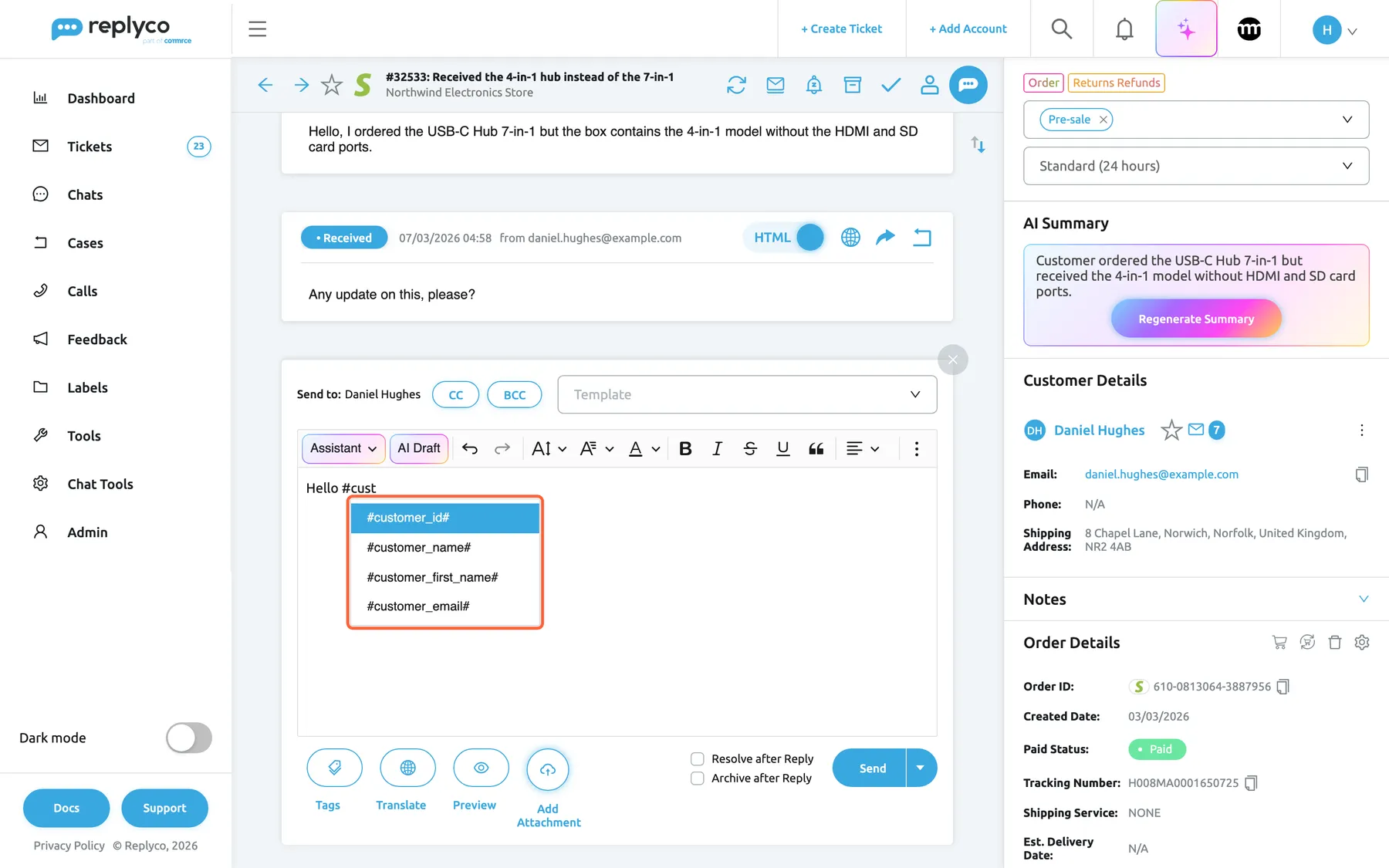
What this screenshot shows
- Screen
- Respond (/ticket/:threadId)
- Highlighted
- list “Tags”, editor-body, open, filtered by cust, first entry selected. inserts the chosen placeholder
- Also visible
- Hello #cust typed in the text box; #customer_id#, #customer_name#, #customer_first_name#, #customer_email#; Order Details with order ID and tracking number
- Purpose
- insert a placeholder with
Tags, the placeholder chips
Section titled “Tags, the placeholder chips”In the reply editor, on Create Ticket and when forwarding: the Tags button at the left end of the buttons under the text box. In the template editor: the always-open box Tags under Tags & Attachments, with the text Tags save you time: Replyco replaces each tag with the matching value from your ticket. In eBay case actions: a Tags button beside the message box.
Shows every available placeholder as a chip. Selecting a chip inserts the placeholder where the cursor is; under the reply editor the box then closes. The chips show the same placeholders as the # list.
See all 33 placeholders at once, which helps when you do not yet know what exists.
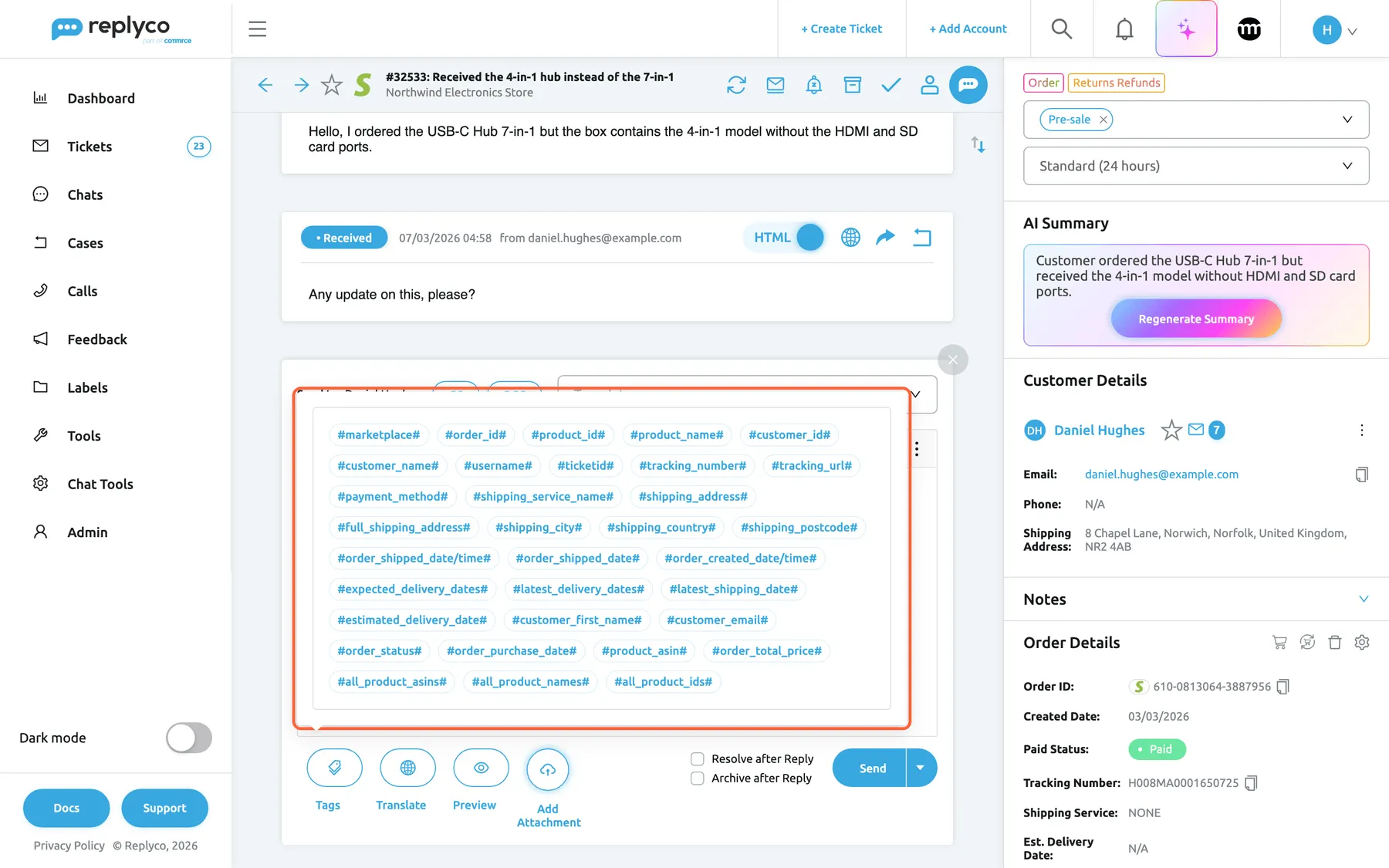
What this screenshot shows
- Screen
- Respond (/ticket/:threadId)
- Highlighted
- button “Tags”, editor-bottom-left, open, 33 chips. inserts the chosen placeholder at the cursor
- Also visible
- 33 placeholder chips; Tags, Translate, Preview, Add Attachment buttons; Send
- Purpose
- insert a placeholder without typing it
Highlighted placeholders, the spelling check
Section titled “Highlighted placeholders, the spelling check”In every editor that has the # list, as you type.
Text between two # signs that is not an available placeholder is shown in red, such as #order_number#. The colour is only a warning in the editor; it is removed from the saved text, and the text reaches the customer as written. An order-management placeholder whose system is not connected also turns red.
A misspelt placeholder is the most common reason a customer receives #…# text. Red text in the editor is the moment to fix it.
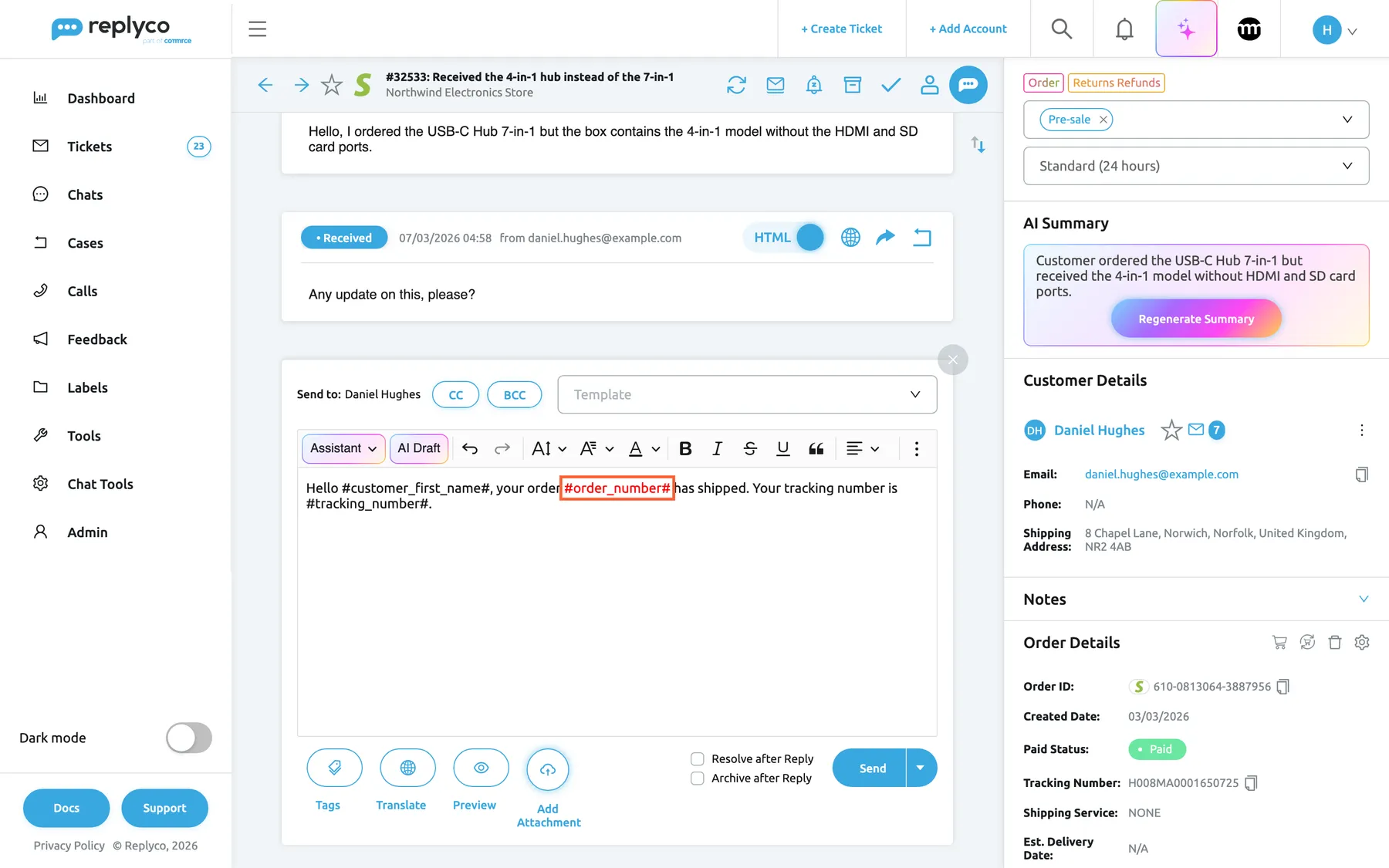
What this screenshot shows
- Screen
- Respond (/ticket/:threadId)
- Highlighted
- text “”, editor-body, shown in red. none; warns that the text is not a placeholder
- Also visible
- #customer_first_name# and #tracking_number# in normal colour; #order_number# in red
- Purpose
- spot a misspelt placeholder before sending
| Do | Don’t |
|---|---|
Pick from the list: #customer_first_name# | Type from memory: #first_name#, #Customer_First_Name# |
#order_id# for the channel’s order number | #order_number#, which is not a placeholder |
#tracking_url# where the customer should click | #tracking_url# in eBay templates, where it arrives as the plain number anyway |
| Set a fallback for placeholders that can be empty | Assume every ticket has an order and a tracking number |
Snippet list, inserting a snippet
Section titled “Snippet list, inserting a snippet”In the same editors: type / at the start of a line or after a space. Snippets are kept under ToolsSnippets.
Opens a list of the snippet names you can use: the shared ones and your own. Typing letters keeps the names that contain them. Enter or a click replaces what you typed with the snippet’s text, as plain text, followed by a space. At most 40 names show at once. A snippet’s text may contain placeholders, which are filled in when the message is sent. Available on every plan.
Snippets are for the sentence you add to many different replies, such as a refund time or a warranty note, where a whole template would be too much.
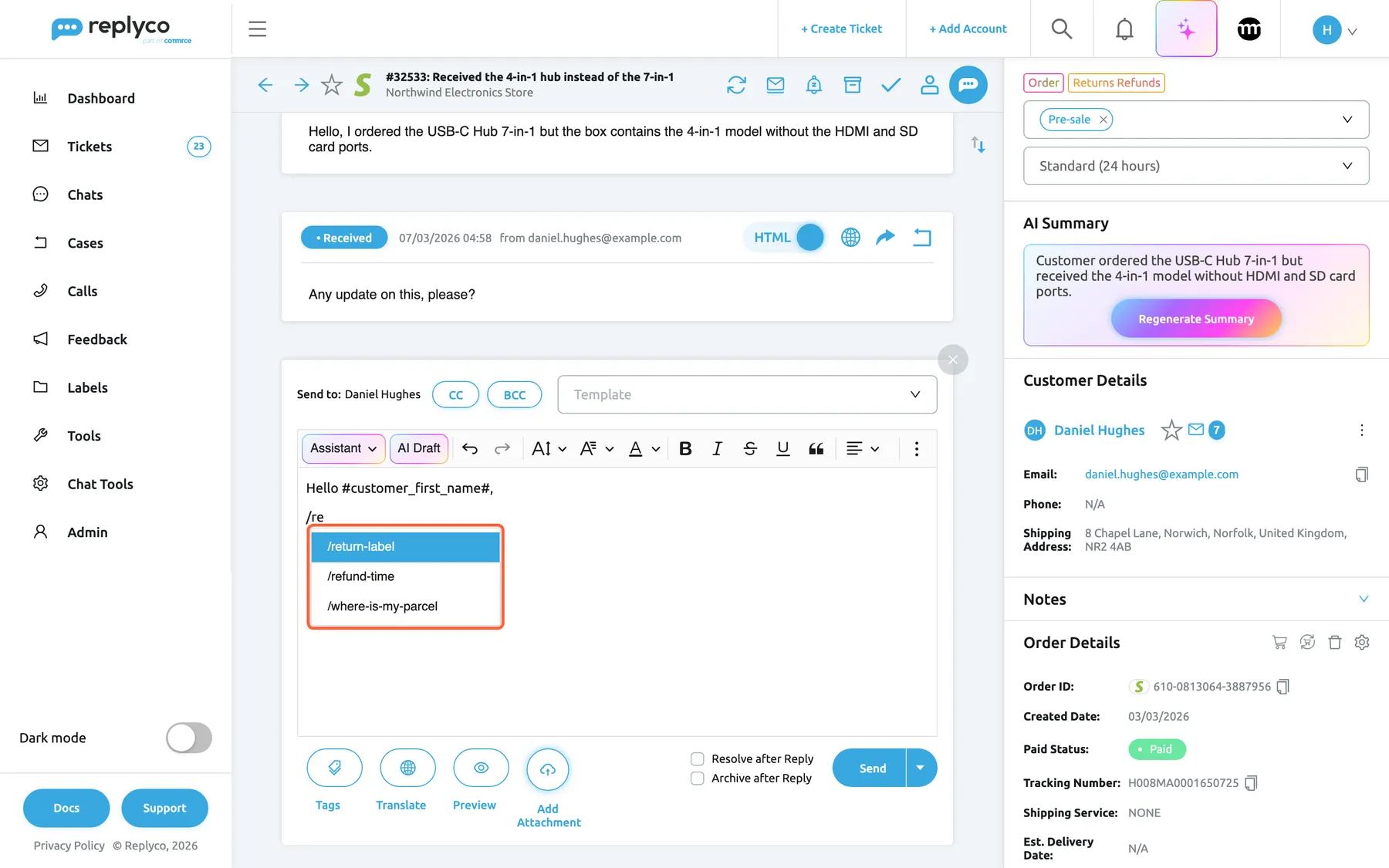
What this screenshot shows
- Screen
- Respond (/ticket/:threadId)
- Highlighted
- list “Snippets”, editor-body, open, filtered, first entry selected. inserts the chosen snippet's text
- Also visible
- Hello #customer_first_name#, on the first line; filtered snippet names; Tags, Translate, Preview, Add Attachment, Send
- Purpose
- insert a snippet with /
A snippet is created with a name without spaces and a text; Available for everyone decides whether the whole team or only its author sees it. Inserting a snippet copies its text, so later changes to the snippet do not change templates, signatures or replies that already contain it. For the whole screen, see Snippets.
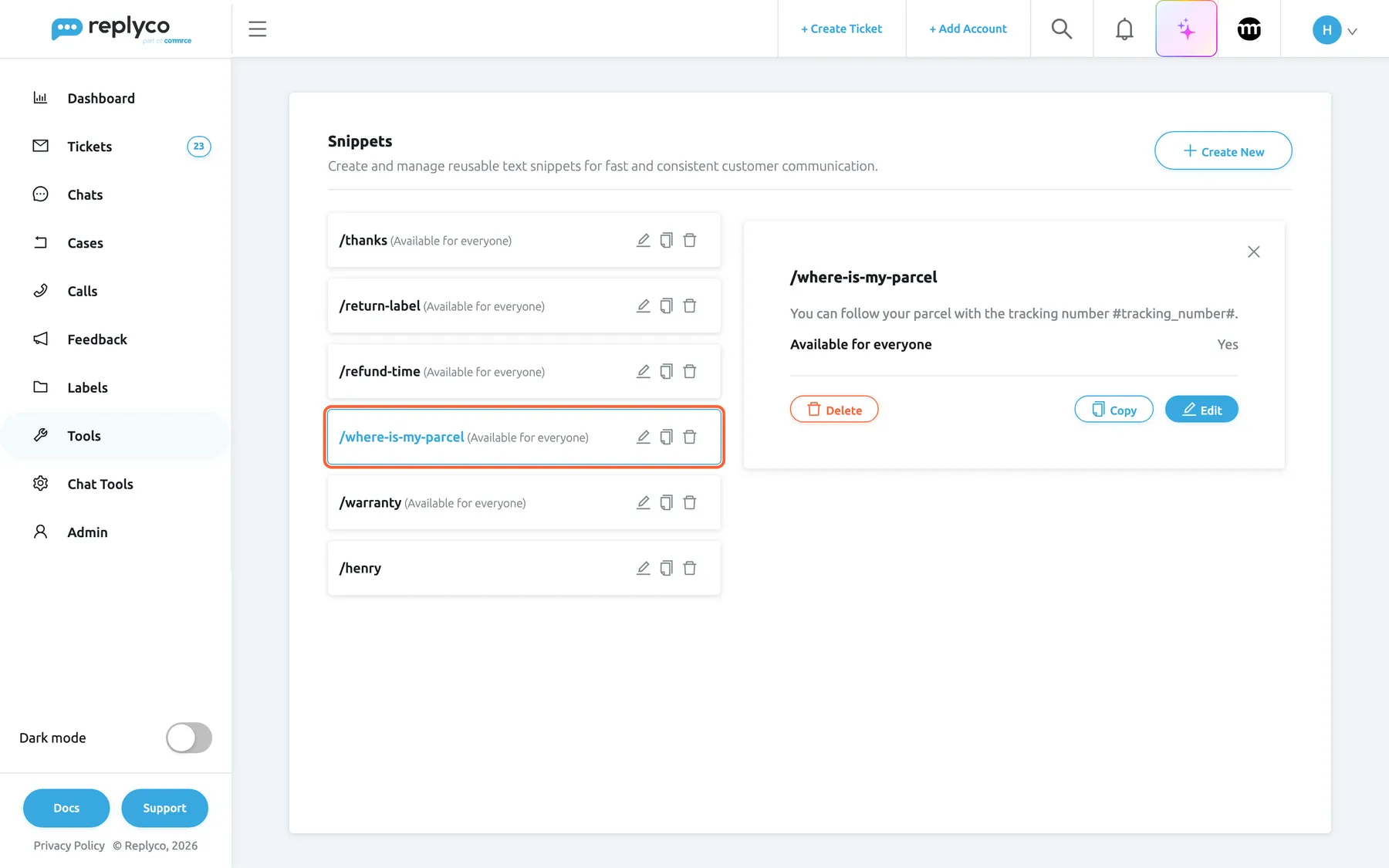
What this screenshot shows
- Screen
- Snippets (/snippets)
- Highlighted
- button “”, list, selected. shows the snippet's text in the details panel
- Also visible
- six snippet cards; details: You can follow your parcel with the tracking number #tracking_number#.; Available for everyone: Yes; Delete, Copy, Edit
- Purpose
- snippets with placeholders
Fallback texts, what a missing value becomes
Section titled “Fallback texts, what a missing value becomes”ToolsFallbacks: one text field per placeholder, titled with the placeholder, and Save at the top right, which saves every field at once.
The text Replyco inserts when a ticket has no value for that placeholder. Every field starts empty, which means a missing value becomes nothing. One text per placeholder for the whole company, inserted exactly as typed and never translated. #marketplace# and #ticketid# have no field, because they always have a value. The date-and-time placeholders give a blank instead of their fallback when the ticket’s order lacks that date, and the three all-product placeholders are left as written when the ticket has no order. Saving needs the edit level of Fallbacks.
A template has to read well for the customer whose order has no tracking number yet, not only for the typical one.
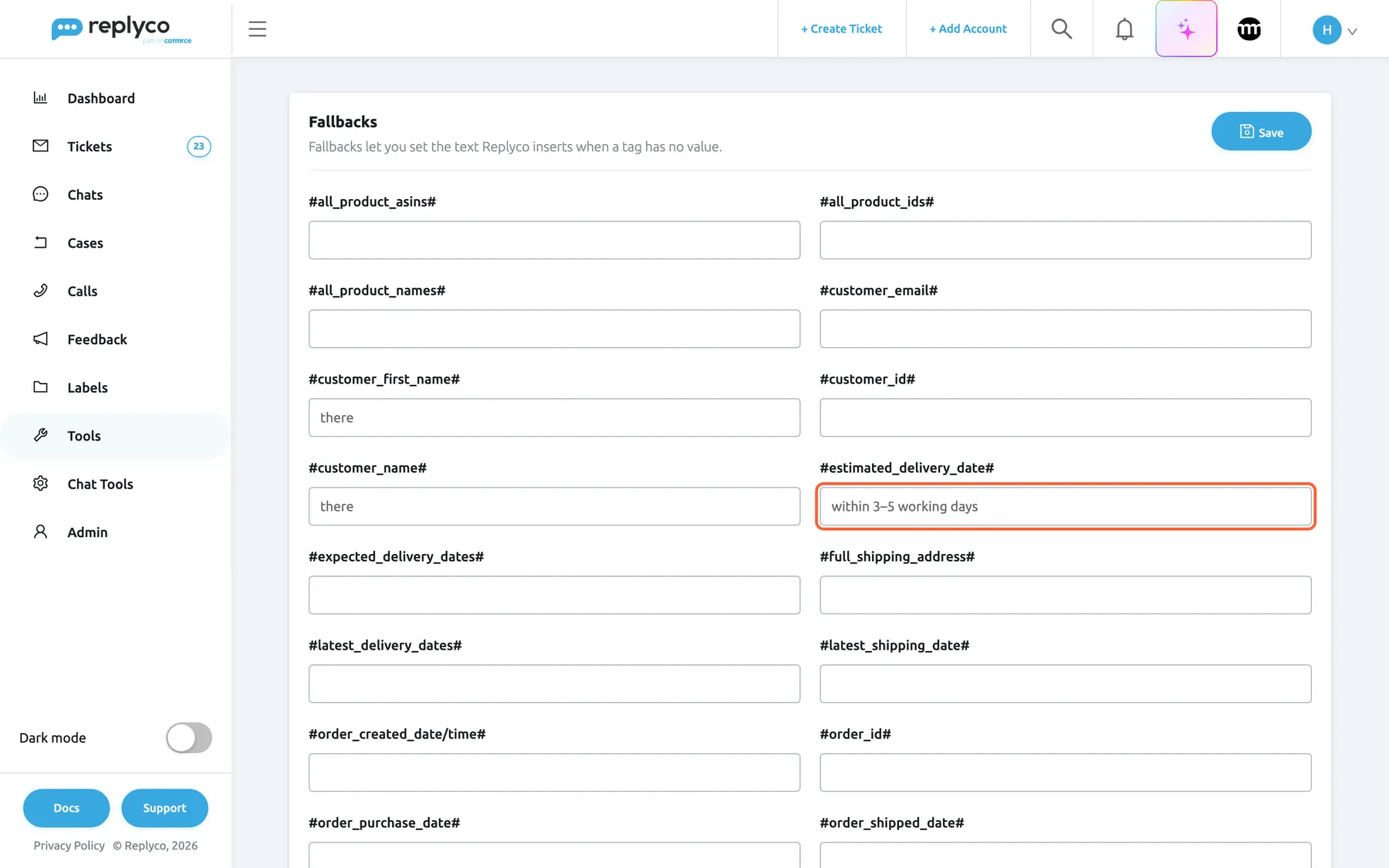
What this screenshot shows
- Screen
- Fallbacks (/fallbacks)
- Highlighted
- textbox “”, form, within 3–5 working days (de: innerhalb von 3–5 Werktagen). text used when the order has no delivery dates, after Save
- Also visible
- Save button; fields titled with placeholders; #customer_first_name#: there (de: liebe Kundschaft); most fields empty
- Purpose
- set the text for missing values
Worked example with Northwind Electronics’ fallbacks:
| Template text | The ticket has | The customer reads |
|---|---|---|
Hello #customer_first_name#, | First name Daniel | Hello Daniel, |
Hello #customer_first_name#, | Full name Daniel Hughes, no first name | Hello Daniel, (first word of the full name) |
Hello #customer_first_name#, | No name at all | Hello there, (fallback) |
arrive #estimated_delivery_date# | Delivery window 09/03/2026 to 11/03/2026 | arrive 09/03/2026 - 11/03/2026 |
arrive #estimated_delivery_date# | An order without a delivery window | arrive within 3–5 working days (fallback) |
For the whole screen, see Fallbacks.
Custom shipping links, the tracking link pattern
Section titled “Custom shipping links, the tracking link pattern”ToolsCustom Shipping Links, with Create New; each link has a Name and a Link, typed after a fixed https:// and followed by [Tracking Number]. Needs the Custom Shipping Links permission.
Decides the link behind #tracking_url# and behind the tracking number in the ticket’s order panel. When Replyco saves an order that has a shipping service and a tracking number, it looks for a custom link whose name equals the shipping service, ignoring spaces and capital letters, and builds https:// + your link + the tracking number. Without a matching custom link it uses its own address for carriers it knows, among them Royal Mail, Evri, DPD, DHL, UPS, FedEx, USPS, Yodel and Parcelforce; otherwise the order has no tracking link and #tracking_url# gives the plain tracking number. A custom link wins over Replyco’s own address for the same carrier. Links apply to orders saved or updated after you add them, not to orders already stored. Both fields are required (All fields must be completed.), and the link may not contain a space (The link must not contain spaces.).
A clickable tracking number answers where is my parcel? in one click, which saves the customer’s next message.
Example: Northwind ships bulky items with Severn Freight, whose tracking page is https://track.severnfreight.example/parcel/ followed by the number. A link named Severn Freight with that address makes #tracking_url# on an order shipped with Severn Freight under SF20260305118 arrive as SF20260305118, linked to the Severn Freight page. For the whole screen, see Custom Shipping Links.
How the settings combine
Section titled “How the settings combine”What the customer receives for one placeholder depends on the ticket’s value, the fallback and, for #tracking_url#, the tracking link:
| The ticket has the value | Fallback set | Placeholder spelt correctly | The customer receives |
|---|---|---|---|
| yes | any | yes | The value |
| no | yes | yes | The fallback text |
| no | no | yes | Nothing: the placeholder disappears |
| any | any | no | The #…# text as written |
For #tracking_url#: a tracking number and a tracking link give the linked number, except on eBay, which gets the plain number; a tracking number without a link gives the plain number; no tracking number gives the fallback.
Snippets and placeholders in every editor
Section titled “Snippets and placeholders in every editor”Placeholders and snippets work wherever you write a message for a ticket. Where exactly, and where the values come from:
| Editor | # list | Tags chips | / list | Placeholders filled from | Preview |
|---|---|---|---|---|---|
| Reply editor of a ticket | yes | yes | yes | The ticket | Filled |
| Create Ticket | yes | yes | yes | The new ticket | Only #username# |
| Forwarding a ticket | yes | yes | yes | The new ticket | Filled from the original ticket |
| Template editor | yes | yes (Tags) | yes | The ticket it is used in | None |
| Signature editor | yes | no | yes | The ticket it is used in | None |
| Auto-responses | no editor: they send a template | no | no | The ticket | None |
| eBay case actions | no | yes | no | The case | None |
| AI draft review | no | no | no | The ticket, when sent | None |
| Chats | no | no | no | Not filled | None |
In the reply editor
Section titled “In the reply editor”Placeholders stay as written while you write, so you see what will be filled in. Preview under the text box opens Message Preview, with every value, your name for #username# and fallbacks where data is missing; if you chose a language under Translate, the preview is translated first. Templates you pick under Template arrive with their placeholders. To answer step by step, see Answer a ticket.
Why: the preview is the only place you see the customer’s version before it goes out.
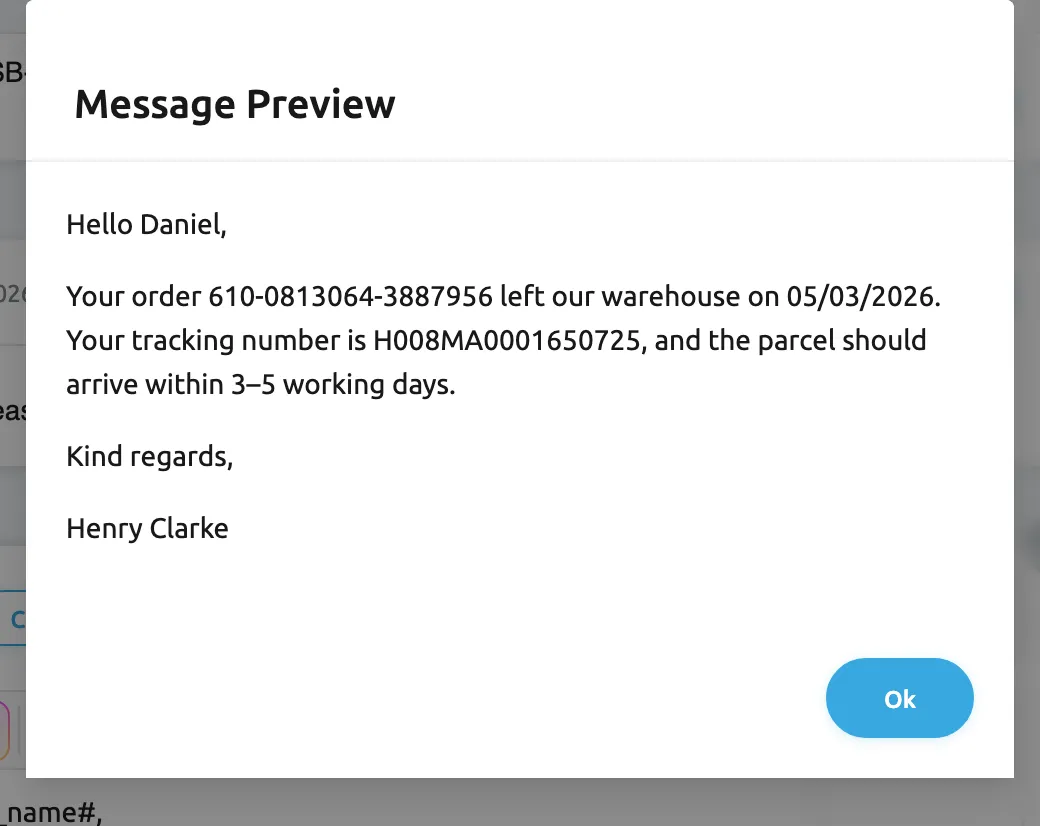
What this screenshot shows
- Screen
- Message Preview (/ticket/:threadId)
- Highlighted
- dialog “Message Preview”, dialog, open. shows the reply as the customer will receive it
- Also visible
- Hello Daniel (de: Hallo Felix); order 610-0813064-3887956, shipped 05/03/2026 (de: 05.03.2026); tracking number H008MA0001650725; fallback: within 3–5 working days (de: innerhalb von 3–5 Werktagen); Henry Clarke; Ok
- Purpose
- the worked example, checked before sending
On Create Ticket and when forwarding
Section titled “On Create Ticket and when forwarding”The editor is the same, with #, Tags and /. Placeholders are filled from the new ticket when you create it: its recipient gives the customer values, and an order linked to the new ticket gives the order values; without one, fallbacks apply. Preview on Create Ticket leaves placeholders as written, except #username#; when forwarding, it fills them from the original ticket, while the sent message uses the new one. See Create Ticket.
Why: when you are not sure the new ticket will have an order, type the order details yourself or rely on a fallback.
In templates
Section titled “In templates”The template editor under ToolsAutomation › Templates has the # list, the / list and the chip box Tags, and shows misspelt placeholders in red. A template stores placeholders as written; they are filled each time the template is used. See Templates and Reply templates.
Why: a template is written once for thousands of customers; placeholders are what make each copy personal.
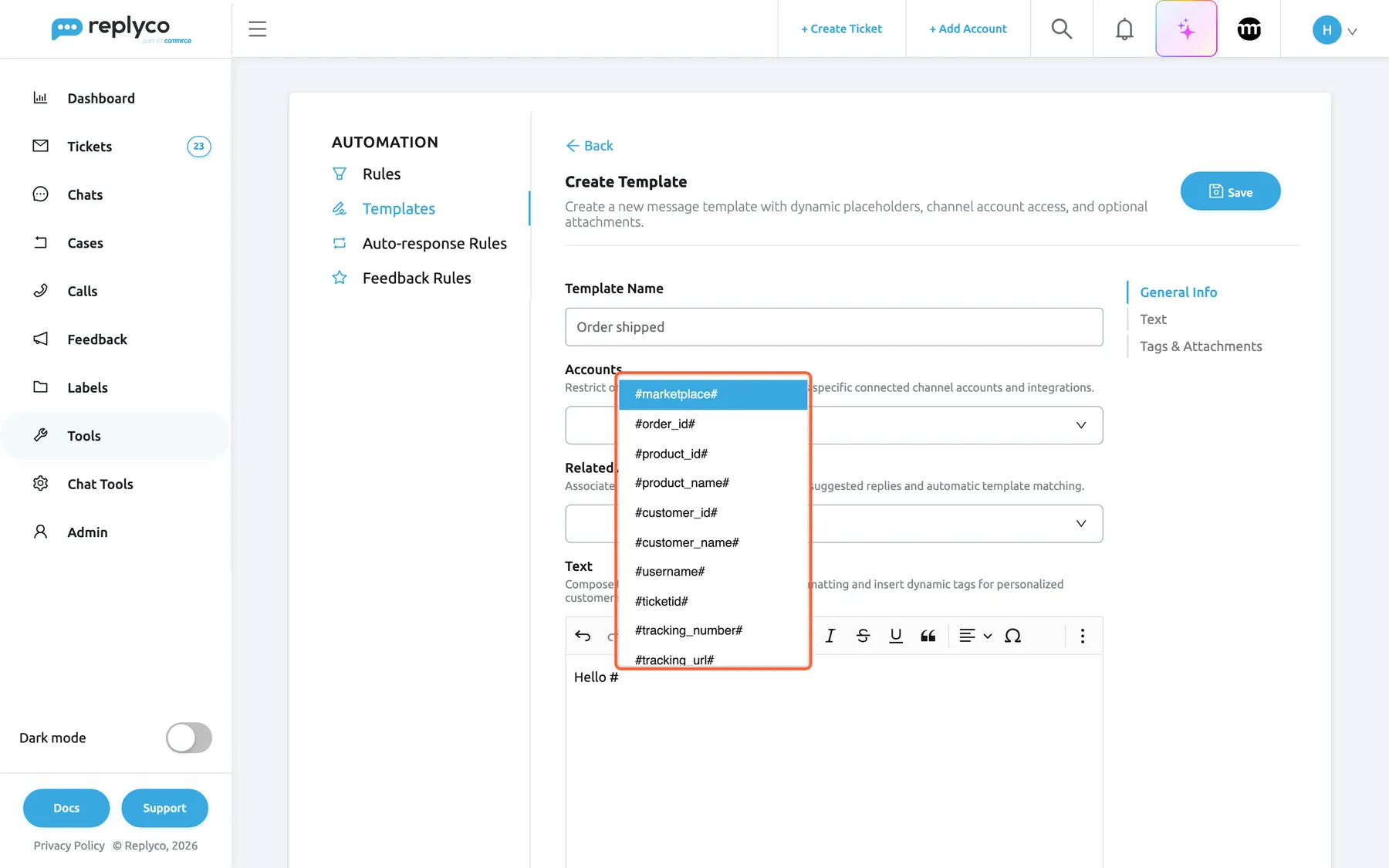
What this screenshot shows
- Screen
- Templates (/tickets-automation?tab=templates)
- Highlighted
- list “Tags”, form-text, open, unfiltered, first entry selected. inserts the chosen placeholder into the template
- Also visible
- Template Name: Order shipped (de: Bestellung verschickt); Hello # in the Text editor; placeholder list from #marketplace#
- Purpose
- placeholders in templates
In auto-responses
Section titled “In auto-responses”An auto-response rule sends a template chosen under Template to Send; there is no editor of its own. Replyco fills the template’s placeholders from the ticket when the rule creates the reply. #username# becomes the agent the ticket is assigned to, or the fallback when nobody is, and dates use the US English format unless your company is in the German region. See Auto-responses for tickets.
Why: an auto-response goes out with nobody reading it first, so its placeholders need fallbacks most of all.
In signatures
Section titled “In signatures”The signature editor on the Account Signatures tab of Account Settings has the # and / lists. The reply editor adds your signature to the text, so placeholders in it, such as #username#, are filled like the rest of the reply. See Account Signatures.
Why: one signature text with #username# can be shared by a whole team.
In eBay case actions
Section titled “In eBay case actions”Case actions with a Message or Comment box have a template picker and a Tags button, but no # or / list. Placeholders are filled from the case’s customer and order, #username# with your name; #ticketid# becomes nothing. There is no preview. See eBay cases.
Why: eBay cases have deadlines; a template with placeholders answers an inquiry in one step.
In AI drafts, the AI assistant and translation
Section titled “In AI drafts, the AI assistant and translation”AI drafts use placeholders for the data that exists on the ticket, such as #customer_first_name# or #tracking_number#, and Replyco fills them when the reply is sent; the AI never sees the values. Assistant keeps placeholders in place when it rewrites your text, and Translate leaves them untranslated. The window for reviewing AI drafts from the ticket list has no # or / list. See AI drafts and Translations.
Why: you can trust an AI-written reply with the customer’s details, because the details are filled in by Replyco, not written by the AI.
Not in chats
Section titled “Not in chats”The chat reply box has chat templates, files and the AI assistant, but no placeholders and no snippets; chat templates are plain text. Personalise chat replies by hand. See Chat list and conversations.
When placeholders are filled in
Section titled “When placeholders are filled in”Replyco fills placeholders once, when the message is created, and stores the finished text in the ticket:
| Message | Filled when | With |
|---|---|---|
| A reply sent now | You select Send | The ticket’s data at that moment; #username# is you |
| A reply sent later | You schedule it | The data at scheduling; the text does not change before it goes out. See Delayed sending |
| A new ticket or a forward | You create it | The new ticket’s data |
| An auto-response | The rule creates the reply, also when it waits for a delay | The ticket’s data at that moment |
| An eBay case message | You submit the action | The case’s data |
| Preview | You open the preview | The ticket’s data now; nothing is sent or stored |
A value that arrives later, such as a tracking number added to the order an hour after you replied, does not change a message already created. Neither does a new fallback text.
Worked example. Northwind Electronics’ template Order shipped reads:
Hello
#customer_first_name#, Your order#order_id#left our warehouse on#order_shipped_date#. Your tracking number is#tracking_number#, and the parcel should arrive#estimated_delivery_date#. Kind regards,#username#
Henry uses it on ticket #32533 from Daniel Hughes, whose linked order 610-0813064-3887956 shipped on 5 March 2026 with the tracking number H008MA0001650725 but has no delivery window. Henry’s browser is set to British English. Daniel receives:
Hello Daniel, Your order 610-0813064-3887956 left our warehouse on 05/03/2026. Your tracking number is H008MA0001650725, and the parcel should arrive within 3–5 working days. Kind regards, Henry Clarke
| Placeholder | Value | Where it came from |
|---|---|---|
#customer_first_name# | Daniel | The customer’s name |
#order_id# | 610-0813064-3887956 | The linked order |
#order_shipped_date# | 05/03/2026 | The order’s shipping date, in British English format |
#tracking_number# | H008MA0001650725 | The linked order |
#estimated_delivery_date# | within 3–5 working days | The fallback, because the order has no delivery window |
#username# | Henry Clarke | The person who sent the reply |
Had the template used #tracking_url#, Daniel would have received the plain number too: the order’s shipping service matches no carrier Replyco knows, and no custom shipping link. With a US English browser the date would read 3/5/2026; in a company in the German region, 05.03.2026.
What you need to know
Section titled “What you need to know”| Topic | Fact |
|---|---|
| How many | 33 placeholders, plus one order number per connected order-management system. |
| Spelling | Exact, lower case with underscores. Anything else is sent as written. |
| When | Filled once, when the message is created. Later data changes do not update it. |
| Where values come from | The ticket, its customer and its linked order; products from the ticket or the order’s first product. |
| Dates | German format for companies in the German region; otherwise the sender’s browser language; auto-responses use US English. |
| Tracking link | A link in emails and HTML channels, the plain number on eBay; built from custom shipping links or Replyco’s own carriers when the order is saved. |
| Missing values | The fallback text, or nothing. |
| Fallbacks | One text per placeholder for the whole company, untranslated. |
| Snippets | Plain text, no length limit, every plan; personal or shared. |
| Languages | Placeholder names are the same in every language. Values arrive as the channel sends them; #order_status# and #marketplace# are not translated. |
| Limits | No limit on placeholders per message; eBay accepts at most 4,000 characters per message, counted after filling. The # and / lists show up to 40 entries. |
| Failures | A value that cannot be found is treated as missing; the message is sent regardless. |
| Chats | No placeholders and no snippets. |
| Privacy | Values stay in Replyco and the customer’s message; the AI never sees them. |
Frequently asked questions
Section titled “Frequently asked questions”General
Section titled “General”What are placeholders in Replyco?
Section titled “What are placeholders in Replyco?”Placeholders are words between two # signs, such as #customer_first_name# or #tracking_number#, that Replyco replaces with the ticket’s data when a message is created. Replyco offers 33 of them plus one order number per connected order-management system. Type # in the reply editor or template editor to pick one from a list.
Which placeholders does Replyco offer?
Section titled “Which placeholders does Replyco offer?”Customer details (#customer_name#, #customer_first_name#, #customer_email#, #customer_id#), order details such as #order_id#, #order_status#, #order_total_price# and the order dates, shipping details such as #tracking_number#, #tracking_url#, #shipping_service_name# and the address parts, product details such as #product_name# and #all_product_names#, and #marketplace#, #ticketid# and #username#. Type # in any ticket editor to see them all.
Do placeholders need a special plan?
Section titled “Do placeholders need a special plan?”No. Every plan includes placeholders, the Tags chips, fallbacks, custom shipping links, snippets and the / list, and every feature is available during a trial. Companies on an older plan may not have snippets; see What each plan includes.
What is the difference between a snippet and a placeholder?
Section titled “What is the difference between a snippet and a placeholder?”A placeholder is filled by Replyco with ticket data, such as the customer’s name, when the message is created. A snippet is text you wrote in advance under ToolsSnippets and insert yourself with / and its name. A snippet can contain placeholders, which are then filled like any other.
How do I insert a placeholder?
Section titled “How do I insert a placeholder?”Type # at the start of a line or after a space in the reply editor, on Create Ticket, when forwarding, in the template editor or in the signature editor, and pick a placeholder from the list; typing a few letters narrows it. Or select Tags under the reply editor, or a chip under Tags in a template, to insert one at the cursor.
How do I set what a placeholder shows when the ticket has no value?
Section titled “How do I set what a placeholder shows when the ticket has no value?”Open ToolsFallbacks, type the text into the field titled with the placeholder, for example there for #customer_first_name#, and select Save. This needs the Fallbacks permission, included in the Admin and Moderator roles.
How do I make tracking numbers clickable in replies?
Section titled “How do I make tracking numbers clickable in replies?”Use #tracking_url# in your template or reply. Replyco links the tracking number to the carrier’s page when it knows the carrier; for other carriers, add a link under ToolsCustom Shipping Links named exactly like the shipping service in your orders. eBay messages always get the plain number.
Can I create my own placeholders?
Section titled “Can I create my own placeholders?”No. Replyco offers a fixed set of placeholders, and any other word between # signs is sent as written; the editor shows it in red. For your own reusable text, create a snippet under ToolsSnippets; for ticket-specific values the set does not cover, type them yourself.
Placeholders and values
Section titled “Placeholders and values”Why did the customer receive a placeholder as written?
Section titled “Why did the customer receive a placeholder as written?”The placeholder was misspelt, for example #order_number# instead of #order_id#. Pick placeholders from the # list, watch for red text in the editor, and check with Preview before sending.
Why was a placeholder empty in the customer’s message?
Section titled “Why was a placeholder empty in the customer’s message?”The ticket had no value for it, such as no linked order or no tracking number yet, and no fallback text was set. Set one under ToolsFallbacks.
Which order does Replyco use for order placeholders?
Section titled “Which order does Replyco use for order placeholders?”The order linked to the ticket, shown in the ticket’s order panel. Product placeholders use the product the ticket is about, or else the order’s first product. A ticket without a linked order has no order values, so link the order in the ticket first if Replyco did not find it.
In which format do dates appear?
Section titled “In which format do dates appear?”Companies in the German region always get German dates, such as 05.03.2026. Otherwise the date follows the browser language of the person who sends the reply, 05/03/2026 in British English and 3/5/2026 in US English, and auto-responses use the US English format. The date-and-time placeholders add the time.
Which name does #username# show?
Section titled “Which name does #username# show?”In a reply, a forward or a new ticket, the full name of the person who sends it. In an auto-response, the name of the agent the ticket is assigned to, or the fallback text for #username# set under ToolsFallbacks when nobody is. In eBay case messages, your name.
When are placeholders filled in?
Section titled “When are placeholders filled in?”When the message is created: when you select Send, when you schedule a reply, when you create a ticket, when an auto-response rule creates its reply, or when you submit an eBay case action. A value added to the order later does not change a message that already exists.
Does Preview show exactly what the customer receives?
Section titled “Does Preview show exactly what the customer receives?”In the reply editor, yes: Preview fills every placeholder from the ticket, with your name for #username# and fallbacks where data is missing, and translates first if you chose a language. On Create Ticket the preview leaves placeholders as written, except #username#, because the ticket does not exist yet.
Snippets
Section titled “Snippets”How do I insert a snippet?
Section titled “How do I insert a snippet?”Type / at the start of a line or after a space in the reply editor, on Create Ticket, when forwarding, in the template editor or in the signature editor, then pick the snippet’s name; typing a few letters narrows the list. The snippet’s text replaces what you typed. Every plan includes snippets.
Can a snippet contain placeholders?
Section titled “Can a snippet contain placeholders?”Yes. Write placeholders such as #tracking_number# into the snippet’s text under ToolsSnippets. They are inserted as written and filled in from the ticket when the message is sent, like placeholders you typed yourself.
Fallbacks and tracking links
Section titled “Fallbacks and tracking links”Can I set different fallbacks per account or per language?
Section titled “Can I set different fallbacks per account or per language?”No. Each placeholder has one fallback text for the whole company under ToolsFallbacks, inserted exactly as typed and never translated. Write it so it fits the sentence around the placeholder in your templates.
Why is #tracking_url# only the number, without a link?
Section titled “Why is #tracking_url# only the number, without a link?”Either the message goes to eBay, which receives plain text, or the order has no tracking link: its shipping service matches neither a carrier Replyco knows nor a link under ToolsCustom Shipping Links. A new custom link applies to orders saved or updated after you add it.
My custom shipping link does not work. What should I check?
Section titled “My custom shipping link does not work. What should I check?”The link’s name must equal the shipping service shown in the ticket’s order panel, ignoring spaces and capital letters: Severn Freight matches SevernFreight but not Severn Freight 48. The link must be the carrier’s address up to where the tracking number goes. It applies from the order’s next update, not to orders already stored.
Where it works
Section titled “Where it works”Do placeholders work in auto-responses?
Section titled “Do placeholders work in auto-responses?”Yes. An auto-response sends a template, and Replyco fills its placeholders from the ticket when the rule creates the reply. #username# becomes the agent the ticket is assigned to, or its fallback when nobody is, so set a fallback such as your team’s name under ToolsFallbacks.
Do placeholders and snippets work in chats?
Section titled “Do placeholders and snippets work in chats?”No. The chat reply box has chat templates, files and the AI assistant, but no placeholders and no snippets, and chat templates are plain text. Personalise chat replies by hand. Placeholders and snippets work in the ticket editors.
Do placeholders survive translation and the AI assistant?
Section titled “Do placeholders survive translation and the AI assistant?”Yes. Translate leaves placeholders untranslated in place, and Assistant keeps them when it rewrites your text. Replyco fills them when the reply is sent. A fallback text is inserted as you wrote it, not translated.
Can I use placeholders in my signature?
Section titled “Can I use placeholders in my signature?”Yes. The signature editor on the Account Signatures tab of Account Settings has the # and / lists. The reply editor adds the signature to the reply, so its placeholders, such as #username#, are filled like the rest of the text.
Data and privacy
Section titled “Data and privacy”Does the AI see my customers’ names and order data?
Section titled “Does the AI see my customers’ names and order data?”No. When the AI writes a draft, it is told which data exists for the ticket as placeholders such as #tracking_number#, never the values, and it writes the placeholders into the draft. Replyco fills them in when the reply is sent.
Can a customer see the placeholders or fallbacks I set up?
Section titled “Can a customer see the placeholders or fallbacks I set up?”Customers see only the finished message: values where data exists, your fallback texts where it does not, and any misspelt placeholder as written. Your fallback settings, snippet names and templates stay inside Replyco.
Troubleshooting
Section titled “Troubleshooting”| Symptom | What to check |
|---|---|
The customer received #…# text | Is it spelt exactly as in the # list? The editor shows unknown placeholders in red. Is it an all-product placeholder on a ticket without an order? |
| A placeholder came out empty | Did the ticket have the value? Is a fallback set and saved under ToolsFallbacks? Was the message created before the fallback was saved? |
| Order placeholders are empty although the customer mentions an order | The ticket has no linked order. Link it in the ticket’s order panel, then write the reply. |
#tracking_url# is not a link | eBay? It always gets the plain number. Otherwise the order’s shipping service matches no known carrier and no custom shipping link. |
| A custom shipping link has no effect | Does its name equal the order’s shipping service, ignoring spaces and capitals? Has the order been updated since you added the link? |
| The date is in the wrong format | It follows the sender’s browser language, US English for auto-responses, German for companies in the German region. |
#username# shows the wrong name or the fallback | In auto-responses it is the assigned agent, or the fallback when nobody is assigned. |
Typing # or / opens no list | Is it at the start of a line or after a space? Is it a chat, an eBay case action or the AI draft review? For /: does a snippet’s name contain what you typed? Companies on an older plan may not have snippets. |
| Preview on Create Ticket shows placeholders as written | Expected; the new ticket does not exist yet. The customer receives them filled. |