

Ticket priorities and SLA
A marketplace counts the hours until you answer a buyer, and a customer who asked about a missing refund does not wait patiently while your team works through routine questions. Ticket priorities give each ticket a respond deadline and a resolve deadline, counted in calendar hours or only in your working time, and put the countdown in front of everyone who works the queue.
What it does
Section titled “What it does”Without deadlines, every ticket looks equally urgent. The ticket list shows who wrote last and when, but not how long a customer has left before a promise is broken, so the oldest ticket gets answered first and the one that is about to breach a marketplace’s response time waits in the middle of the list.
With Priorities and SLA, an administrator defines the company’s priorities, each with a respond target and a resolve target of up to 30 days, 23 hours and 59 minutes, counted in calendar or working hours. When a ticket gets a priority, Replyco turns the targets into two deadlines on the ticket, a respond-by and a resolve-by, and keeps them up to date as the conversation moves. From there:
- Your team sees every deadline without opening a ticket: a countdown in Respond Till and Resolve Till, and a yellow or red stripe on each row. See deadlines in your tickets.
- Priorities are set where your work happens: by hand in the ticket, by rules as messages arrive, or by tone analysis from the customer’s mood. See priorities set by rules and priorities set by tone.
- Working time and holidays stop the clock for priorities counted in working hours. See working time and holidays.
- The list’s Priority filter and a Smart Filter collect the tickets that are due, overdue or answered. See deadlines in a Smart Filter.
- The Overview and Users dashboards count tickets and messages inside and outside their deadlines. See deadlines on the dashboards.
Every priority set by hand is written to the ticket’s history with the person’s name, every rule that ran is recorded by name, and every priority set by tone keeps the score that set it, so a deadline can always be traced back to its source.
Before you start
Section titled “Before you start”| Requirement | Details |
|---|---|
| Plan | Every plan includes Priorities and SLA, and every feature is on during a trial. Companies on an older plan may not have it; the Priorities & SLA tab is then missing from AdminCompany Settings. See What each plan includes. |
| Who defines priorities | Users with the Admin permission with Edit rights. Only they see AdminCompany Settings; for anyone else a bookmarked link to it opens the start screen. Only they can create, change, reorder or delete a priority. See User permissions and roles. |
| Who sets priorities on tickets | Every user who can open a ticket, in its right panel. Rules need the Automation permission; tone rules are set on the Tone tab of ToolsAI Settings. |
| Working time, only for working hours | Priorities counted in Working Hours use the working days, hours and holidays on the General tab of AdminCompany Settings. See Working time. |
| Cost | None. Priorities and deadlines do not count towards any quota. |
Understanding respond-by and resolve-by
Section titled “Understanding respond-by and resolve-by”Every ticket with a priority carries two deadlines. The respond-by is when your team must answer the customer’s latest unanswered message; the resolve-by is when the whole ticket must be resolved. Respond Till in the ticket list shows the respond-by like this:
| What the column shows | When | Example from Northwind’s list |
|---|---|---|
| A number, Hours Left and a bar | The deadline is ahead, in whole hours | Refund not received yet: 53, green bar |
| Hour Left and a red bar | One hour or less is left; under an hour reads 0 | Is the USB-C hub compatible with a MacBook Air?: 1 |
| Overdue with days or hours, in red | The deadline has passed without a reply | Please cancel my order: 2 days |
| Responded, in yellow | Your team wrote last | Where is my parcel? |
| Not Set | The priority has no respond target | A ticket with Marketplace notices |
| No priority | The ticket has no priority | Any ticket nobody prioritised |
| Resolved, in green | The ticket is resolved | Any resolved ticket |
Resolve Till shows the resolve-by the same way, except that it has no Responded state: it keeps counting after you reply, until the ticket is resolved.
How Replyco decides
Section titled “How Replyco decides”- The respond-by starts at the customer’s first unanswered message. That is the first message after your team’s latest reply, or the moment the ticket was created if nobody has answered yet. A second or third message from the customer before you answer does not move it.
- Your reply stops the respond clock; the customer’s next message starts a new one. As soon as your reply is saved, the ticket shows Responded. When the customer writes again, Replyco counts a fresh respond-by from that message with the ticket’s current priority.
- Auto-responses are not replies. An automatic answer neither stops the respond clock nor starts a new one.
- The resolve-by starts at the ticket’s first message and does not move when messages come and go. Only resolving the ticket takes it off the clock.
- Calendar hours add the target to the starting time. Working hours count only your working days, your daily working span and the days that are not holidays, and skip everything else; the starting time is taken to the minute, without seconds.
- Deadlines are fixed when the priority is set, from the starting points above. A priority set by hand on a ticket whose customer wrote three days ago can therefore be overdue the moment you set it.
- Replyco recalculates deadlines when you change a priority’s targets or clock, and, in a company with Priorities and SLA, when you change the start or end time of your working time; both apply to the tickets that have a priority and are waiting for your reply. Giving a ticket a priority, by hand, by a rule or by tone, sets both of its deadlines afresh, and a rule does so on every message it matches.
With a working time of Monday to Friday, 09:00–18:00, and the priority VIP customers set to respond within 4 hours in working hours:
| Customer’s message arrives | Respond-by | Why |
|---|---|---|
| Monday 07:30 | Monday 13:00 | The clock starts at 09:00 |
| Monday 10:00 | Monday 14:00 | Four hours inside the working day |
| Monday 14:00 | Monday 18:00 | A deadline can end exactly at the end of the working day |
| Monday 16:30 | Tuesday 11:30 | 1.5 hours on Monday, 2.5 hours on Tuesday |
| Monday 18:00 | Tuesday 13:00 | No working time is left on Monday |
| Friday 17:00 | Monday 12:00 | One hour on Friday; the weekend does not count |
| Saturday 11:00 | Monday 13:00 | Saturday is not a working day |
What does not get a deadline
Section titled “What does not get a deadline”- Tickets without a priority. They show No priority and match only the no-priority states of the Priority filter.
- A target set to zero. A priority whose respond target is zero gives no respond-by; one whose resolve target is zero gives no resolve-by.
- Resolved tickets. They show Resolved, match no state of the Priority filter and are not counted as within or overdue on the dashboards.
- Tickets where your team wrote last. They have no running respond-by until the customer writes again; their resolve-by keeps running.
- Conversations under Chats. Priorities and deadlines belong to tickets only.
- Messages from customers you have blocked. Rules and tone rules do not act on them, so they get no priority automatically; your team can still set one by hand.
Setting it up in five steps
Section titled “Setting it up in five steps”-
Check your working time (optional). If any priority will count in working hours, open AdminCompany Settings › General and check the working days, the daily span and the holidays in the Working Time card. Save with the tab’s own save button.
-
Create your priorities. Select the Priorities & SLA tab and then Create New. Give each priority a name, a respond target, a resolve target and a clock, and save. Northwind uses four: Urgent (2 hours to respond, 1 day to resolve, calendar hours), VIP customers (4 and 48 hours, working hours), Standard (24 hours) (1 day and 3 days, calendar hours) and Marketplace notices (no respond target, 3 days to resolve, working hours).
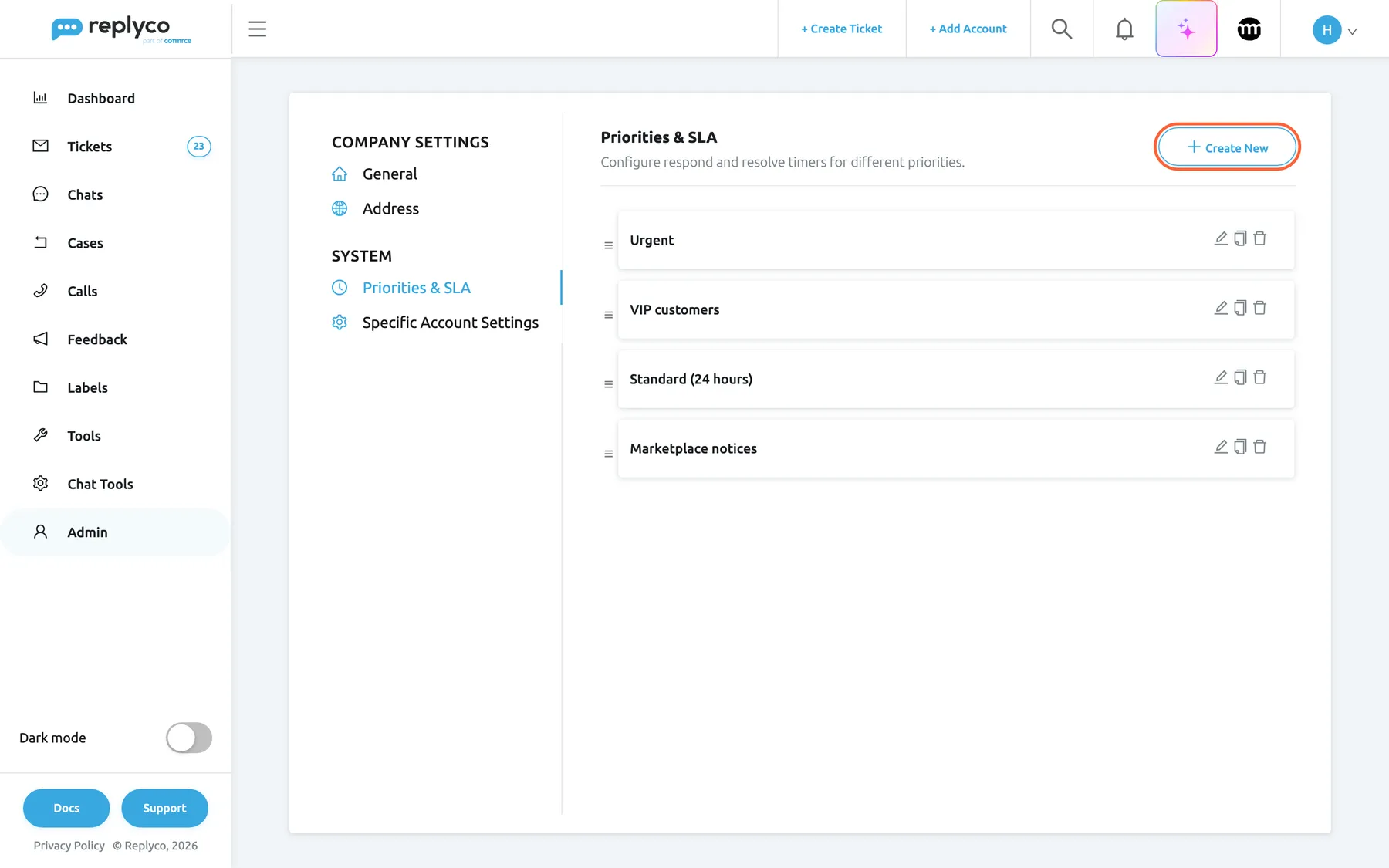
Priorities live in one company-wide list, most urgent at the top. What this screenshot shows
- Screen
- Priorities & SLA (/company?tab=priorities)
- Highlighted
- button “Create New”, header-right, enabled. opens the Create Priority & SLA form
- Also visible
- four priorities in urgency order: Urgent, VIP customers, Standard (24 hours), Marketplace notices; drag handle, edit, copy and delete icons on each row
- Purpose
- entry point of the feature
-
Put them in urgency order. Drag the rows by their handles until the most urgent priority is at the top. The order is saved when you drop a row.
-
Decide how tickets get a priority. Choose any mix: agents pick it in the ticket; a rule under ToolsAutomation › Rules sets it with Update Ticket Priority; tone rules on the Tone tab of ToolsAI Settings set it from the customer’s mood. Check the default rule SLA Allocation, which gives every incoming message the priority 24 standard hours; switch it off or change its priority if that is not what you want.
-
Check where your team sees it. Respond Till is part of the default ticket list layout; Resolve Till is offered in the column choice. The Overview dashboard shows Due/Overdue tickets by default.
Every setting, explained
Section titled “Every setting, explained”Every priority has the settings below, on the Priorities & SLA tab of AdminCompany Settings; the tab itself is described step by step in Priorities & SLA.
Priority Name, what your team picks
Section titled “Priority Name, what your team picks”The first field of Create Priority & SLA and Edit Priority & SLA. Saved with the form’s save button.
Required: the save button stays unavailable while the field is empty, and spaces at either end are removed. Each name can exist only once; a new priority with a name already in use is refused with “This name is already used.” The name appears exactly as typed in the ticket’s priority select, in the rule action, in tone rules and in the ticket history, in every language of the screen.
Agents choose priorities by name in the middle of a conversation. A name that states the promise, such as Standard (24 hours), tells them what they are committing to.
| Do | Don’t |
|---|---|
| Name the promise or the customer group: VIP customers, Standard (24 hours) | Name a colour or a number only: Red, P2 |
| Keep the time in the name only if the target matches it | Leave Standard (24 hours) at 3 days after changing its target |
| Use one priority per response promise | Create two priorities with the same targets for two teams |
| Keep the list short enough to scan in a dropdown | Add a priority for every product line |
Respond Within, the respond target
Section titled “Respond Within, the respond target”The left group of boxes on the form, with days, hrs and min.
How long your team has to answer, counted from the customer’s first unanswered message, or from the ticket’s creation if nobody has answered yet. Days 0–30, hours 0–23, minutes 0–59: Replyco removes anything that is not a digit and turns a larger number into the maximum. Zero in all three boxes means not set, and tickets with this priority show Not Set in Respond Till. A new priority starts at zero.
This is the promise customers feel and marketplaces measure. It drives the countdown, the row stripe, the Priority filter and the dashboard counts.
Resolve Within, the resolve target
Section titled “Resolve Within, the resolve target”The right group of boxes on the form, with the same three boxes.
How long the whole ticket may stay unresolved, counted from its first message. It keeps running after your replies and stops only when the ticket is resolved. The same limits apply; zero means not set, and Resolve Till shows Not Set.
A quick first answer is not the end of a problem. The resolve target catches returns, replacements and refunds that drag on over many messages.
Operational Hrs, the clock
Section titled “Operational Hrs, the clock”The select under the targets: Calendar Hours, the default, or Working Hours.
Applies to both targets of the priority. Calendar hours count every minute of every day. Working hours count only the working days, the daily time span and the non-holiday days set on the General tab; outside them the clock stops. A day in working hours is 24 working hours, not one working day: with 09:00–18:00, 1 day ends almost three working days later.
Marketplaces judge response times on the calendar, so priorities for their tickets usually count calendar hours. Promises to your own shop’s customers can pause when nobody is at work.
The same target of 1 day, for a message that arrives on Monday at 10:00, with Monday to Friday, 09:00–18:00:
| Target | Calendar Hours | Working Hours |
|---|---|---|
| 0 days, 9 hrs, 0 min | Monday 19:00 | Tuesday 10:00 |
| 1 day, 0 hrs, 0 min | Tuesday 10:00 | Wednesday 16:00 |
| 2 days, 0 hrs, 0 min | Wednesday 10:00 | the following Monday 13:00 |
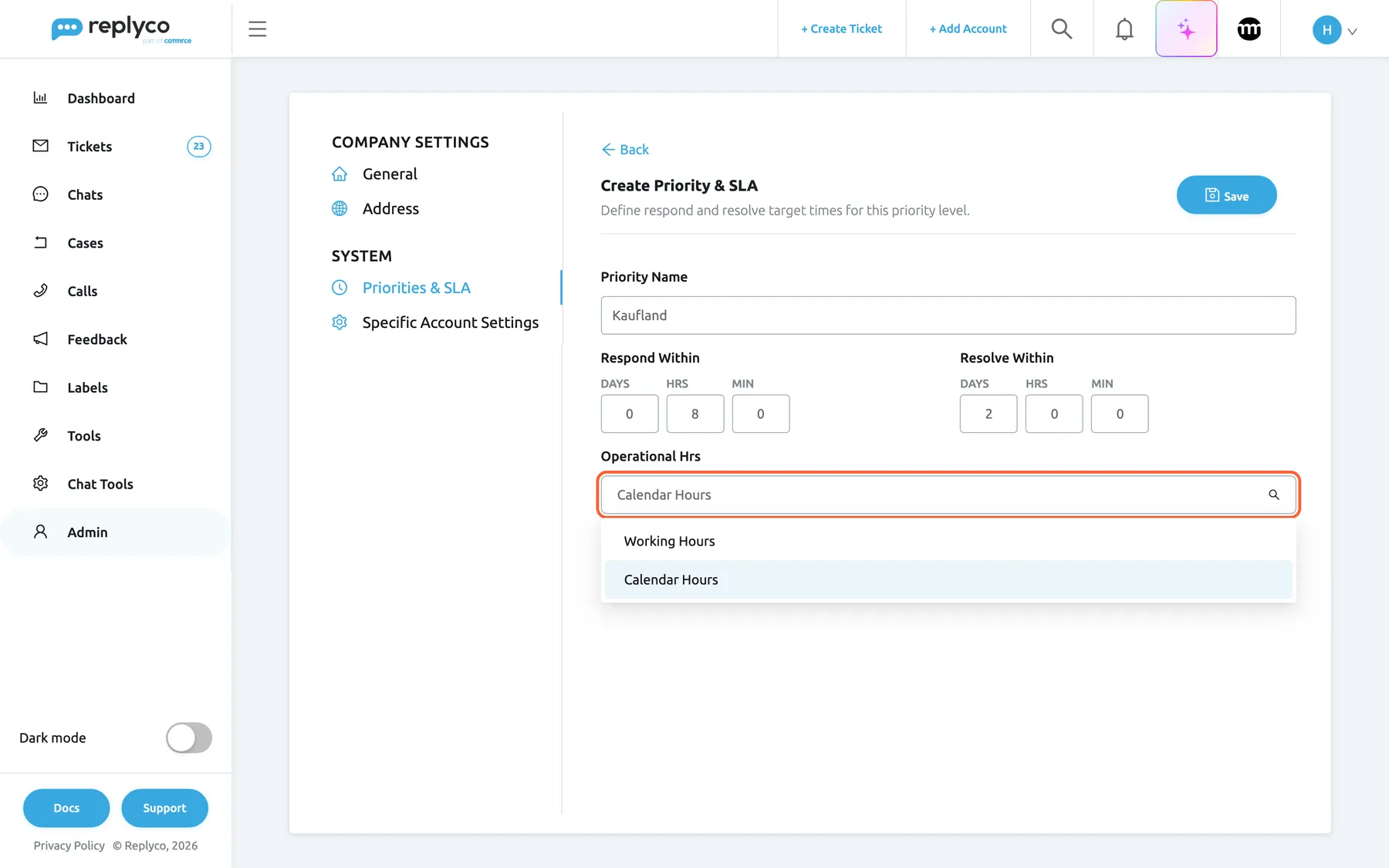
What this screenshot shows
- Screen
- Create Priority & SLA (/company?tab=priorities)
- Highlighted
- combobox “Operational Hrs”, form-bottom, expanded. chooses calendar or working hours for both targets
- Also visible
- Priority Name Kaufland; Respond Within 0 days 8 hrs 0 min; Resolve Within 2 days 0 hrs 0 min; options Working Hours and Calendar Hours
- Purpose
- create a priority with its targets
The order of the list, what counts as more urgent
Section titled “The order of the list, what counts as more urgent”The list on the Priorities & SLA tab. Drag a row by the handle on its left; the order is saved when you drop it.
The higher a priority sits, the more urgent it counts. Every priority list in Replyco follows this order: the ticket’s priority select, the rule action and the tone rules. Tone analysis with Only escalate, never de-escalate moves a ticket only to a priority higher in this list. A new priority is added at the bottom.
Replyco cannot tell from a name that VIP customers outranks Standard (24 hours); the order tells it.
How the settings combine
Section titled “How the settings combine”The two targets and the clock together decide what a ticket with the priority shows:
| Respond target | Resolve target | Respond Till | Resolve Till |
|---|---|---|---|
| set | set | Countdown until your reply, then Responded | Countdown until resolved |
| set | zero | Countdown until your reply | Not Set |
| zero | set | Not Set, or Responded after your reply | Countdown until resolved |
| zero | zero | Not Set, or Responded after your reply | Not Set |
The clock applies to whichever targets are set. A ticket whose priority has no respond target has no row stripe while it waits for your reply, and it counts under the no-priority state of the Priority filter for responding.
Deadlines in your tickets
Section titled “Deadlines in your tickets”Once tickets have priorities, the deadlines show in the ticket lists, in the ticket and in its history. The row stripe is the same everywhere, in the lists and in the list of tickets beside an open ticket:
| Stripe at the left edge | Meaning | When |
|---|---|---|
| Green | Resolved | The ticket is resolved |
| Yellow | On time or answered | A priority with a respond-by still ahead, or your team wrote last |
| Red | Overdue | A priority whose respond-by has passed without a reply |
| None | No deadline | The ticket has no priority, or a priority without a respond target |
Ticket list, the deadline columns
Section titled “Ticket list, the deadline columns”Respond Till shows the ticket’s respond-by, Resolve Till its resolve-by, in the states listed in understanding respond-by and resolve-by. A running deadline reads in whole hours, however far away it is, with a bar that is full while more than 24 hours are left and shrinks over the last 24: green from 20 hours, yellow from 10 hours, red below that. Once it has passed, it reads Overdue with the days, or with the hours during the first day.
Both columns can be sorted. Sorting Respond Till ascending puts the running deadlines first, the nearest at the top, and the tickets without a running deadline after them. Respond Till is part of the default layout; Resolve Till is offered in the column choice. For every column and sort of the list, see Ticket lists.
Why: sorting by Respond Till turns the list into a work queue in deadline order.
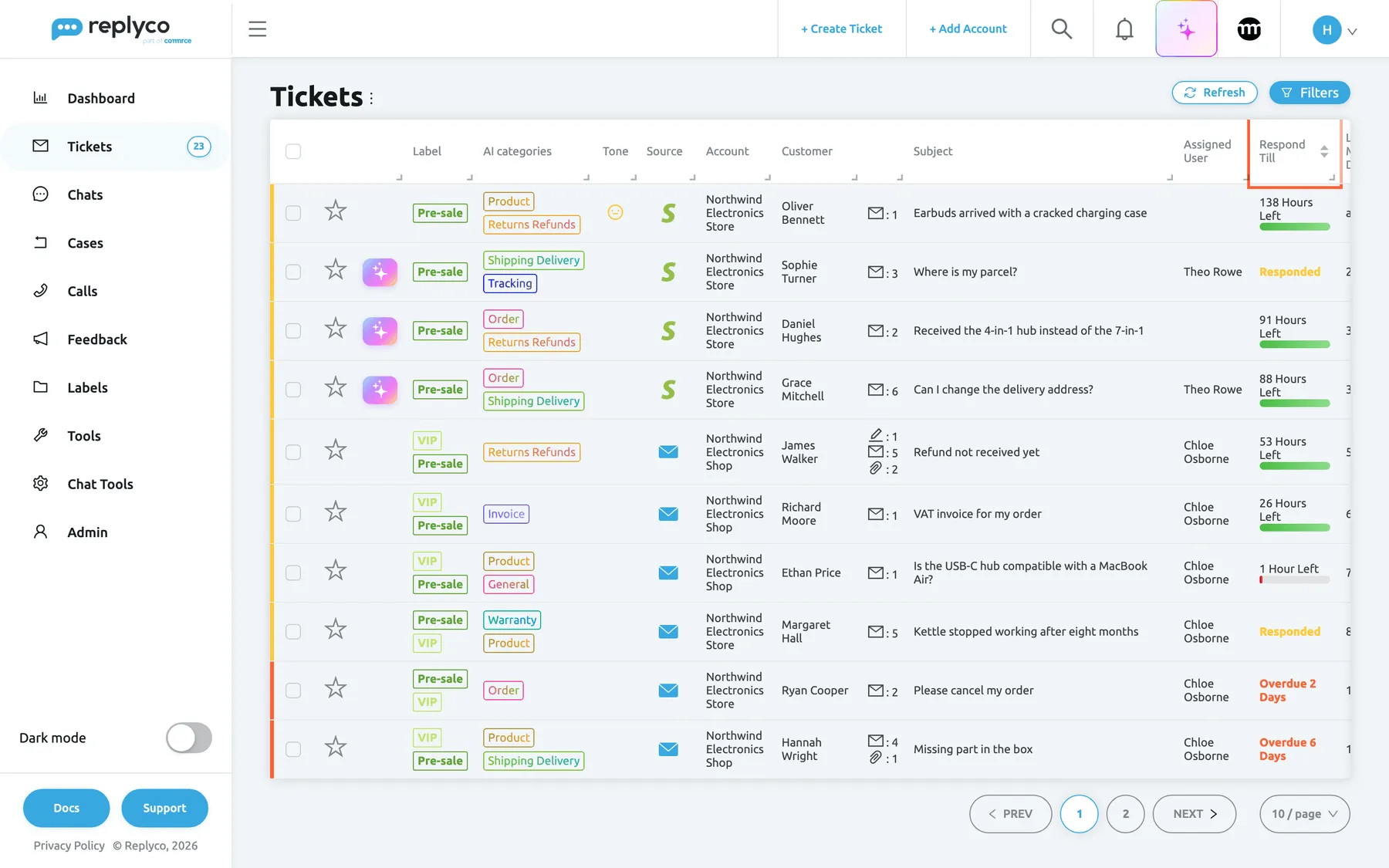
What this screenshot shows
- Screen
- Not Resolved (/tickets/notresolved)
- Highlighted
- columnheader “Respond Till”, table-header-right, sortable. sorts the list by response deadline
- Also visible
- Hours Left with a green bar; 1 Hour Left with a red bar; Responded in yellow; Overdue 2 Days and Overdue 6 Days in red; yellow and red row stripes
- Purpose
- see deadlines in the ticket list
Ticket list, the Priority filter
Section titled “Ticket list, the Priority filter”The ticket list’s filter panel, opened with Filters; the select Priority.
Seven deadline states; choose one or more, and a ticket in any of them stays in the list:
| State | Keeps tickets that |
|---|---|
| Respond Within - Due | have a priority, wait for your reply and have a respond-by ahead |
| Respond Within - Overdue | have a priority, wait for your reply and have a respond-by that has passed |
| Respond Within - Responded | have a priority and your team wrote last |
| Respond Within - No priority | have no priority, or a priority without a respond target |
| Resolve Within - Due | have a priority and a resolve-by ahead |
| Resolve Within - Overdue | have a priority and a resolve-by that has passed |
| Resolve Within - No priority | have no priority, or a priority without a resolve target |
Resolved tickets never match any of them.
Respond Within - Overdue with the list sorted by Respond Till is the morning check of every team with deadlines.
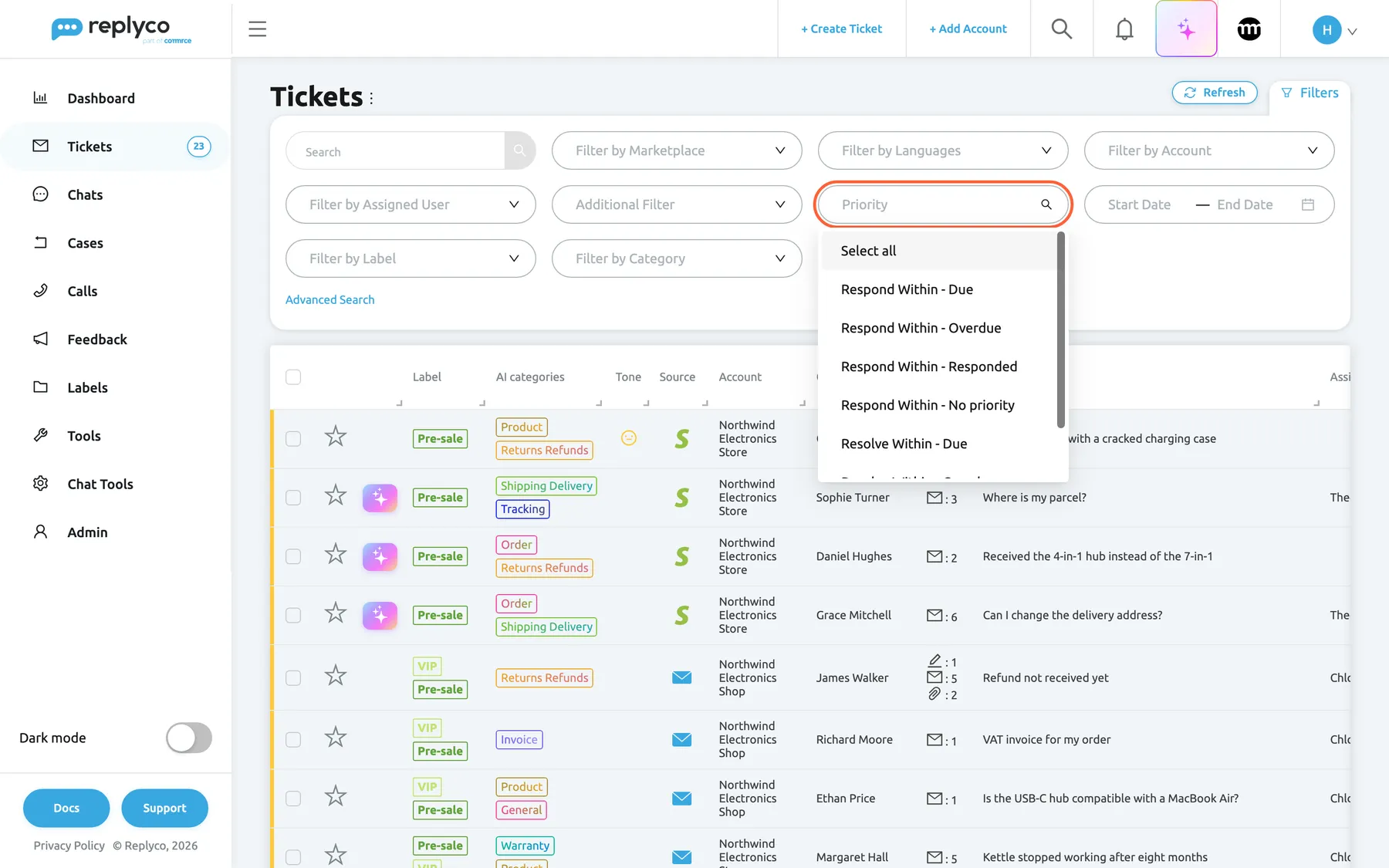
What this screenshot shows
- Screen
- Not Resolved (/tickets/notresolved)
- Highlighted
- combobox “Priority”, filters-panel, expanded. filters the list by respond-by or resolve-by state
- Also visible
- seven SLA filter states from Respond Within - Due to Resolve Within - No priority
- Purpose
- find due and overdue tickets
Inside the ticket, the priority select
Section titled “Inside the ticket, the priority select”The right panel of every ticket has a select with the placeholder Select New Priority, under the label select. It lists your priorities in urgency order and shows the ticket’s current one. Picking a priority saves it at once and sets both deadlines from their starting points; clearing the select removes the priority and both deadlines. Every user who can open the ticket can change it. For everything else on this screen, see The ticket screen.
Why: the agent who reads the message knows best when a routine question is really an escalation.
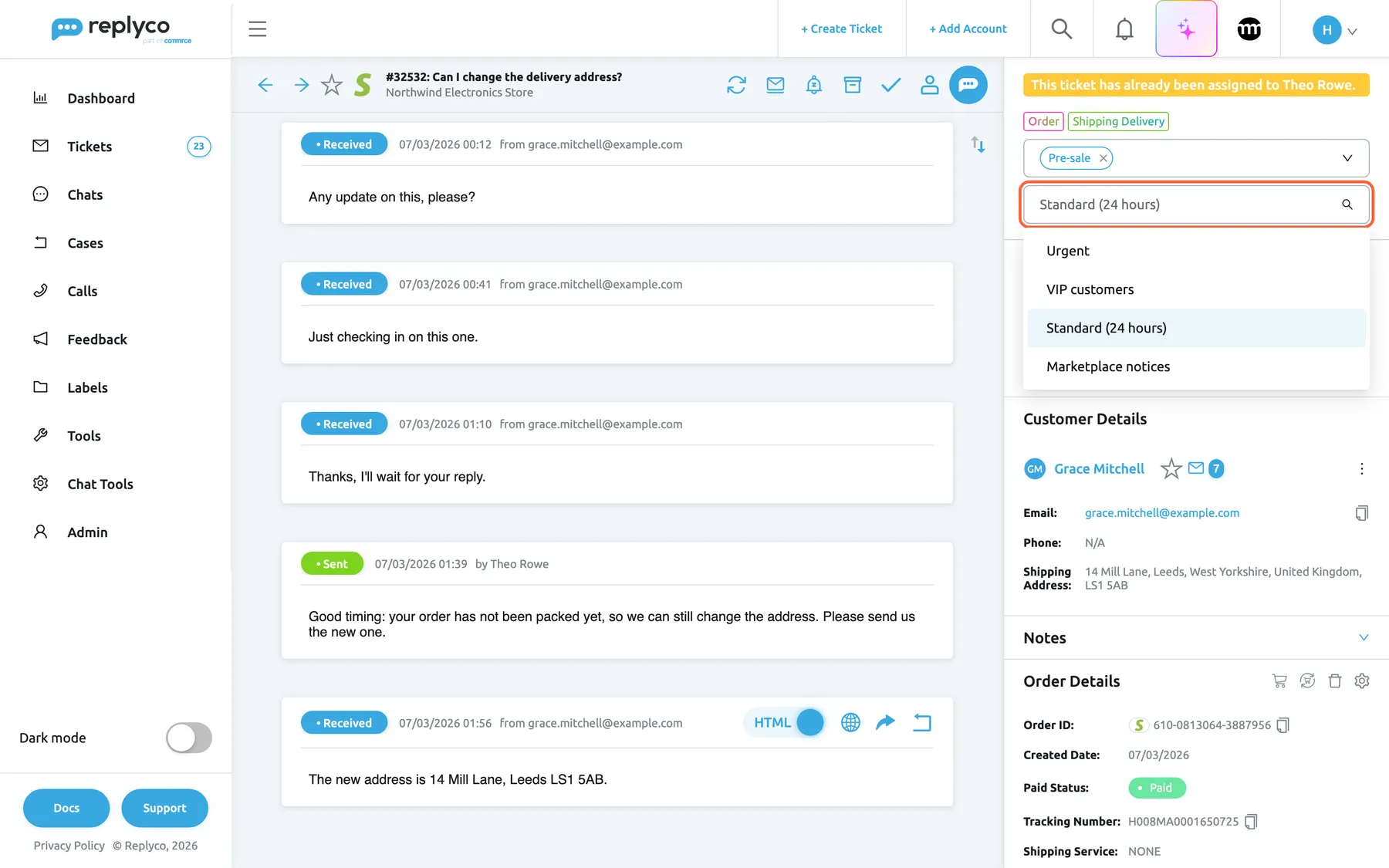
What this screenshot shows
- Screen
- Select New Priority (/ticket/:threadId)
- Highlighted
- combobox “Select New Priority”, right-panel-top, expanded. sets the ticket's priority and recalculates its deadlines
- Also visible
- current priority Standard (24 hours); options Urgent, VIP customers, Standard (24 hours), Marketplace notices
- Purpose
- set a priority by hand
Ticket history
Section titled “Ticket history”Every priority set by hand is written to the ticket’s history, in the grey rows between the messages:
Theo Rowe assigned priority Standard (24 hours)
A rule that ran on a message leaves Rule VIP to priority applied, without naming the priority it set, and tone analysis leaves its own row with the score and the reason; see Message tone analysis. The row shows the priority’s current name, so a renamed priority shows its new name. History rows appear only for users who have Load user logs in the ticket switched on in Account Settings. Changes on the Priorities & SLA tab itself are not written to any ticket’s history.
Why: when a customer complains that nobody answered in time, the history shows who set which priority and when.
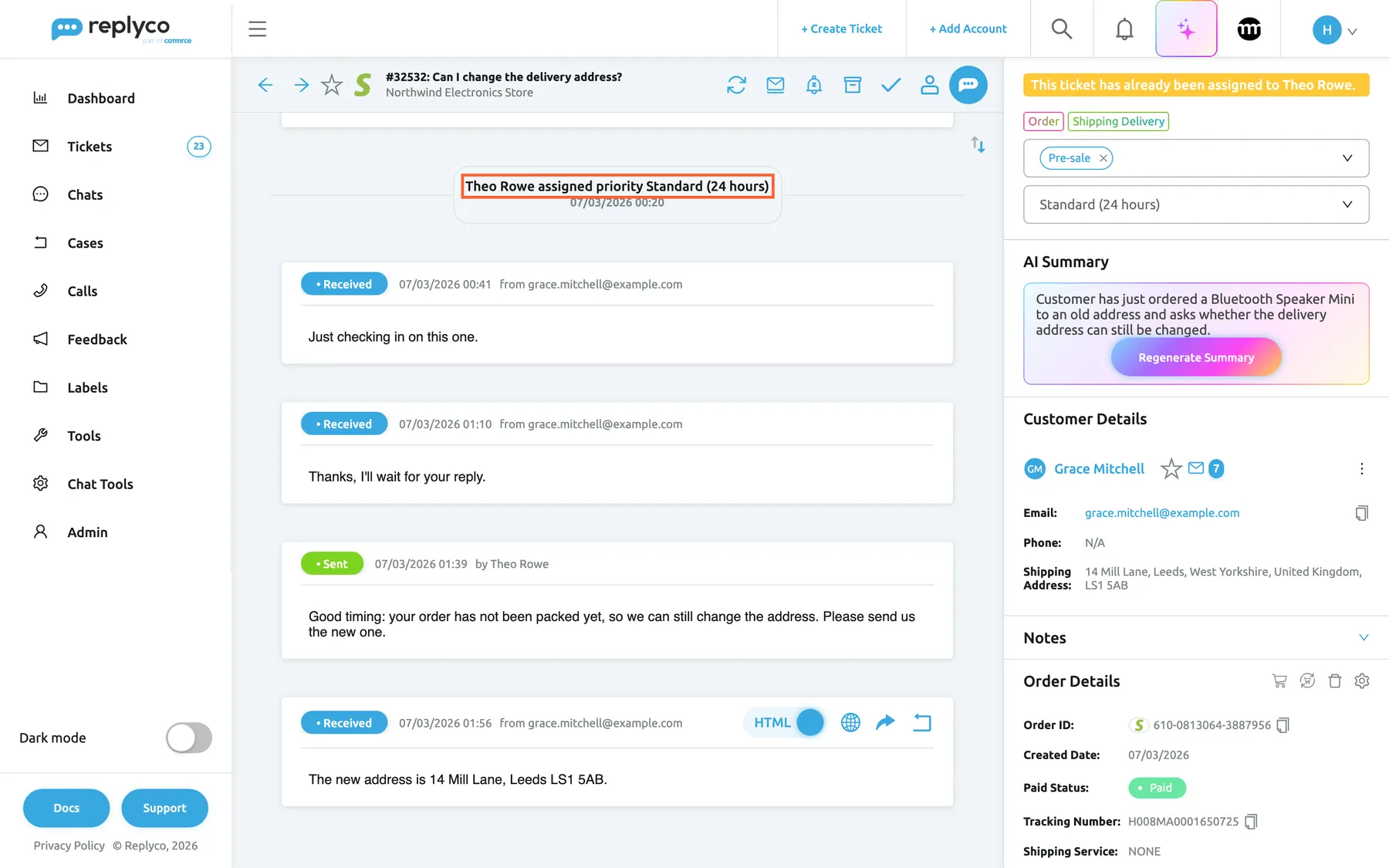
What this screenshot shows
- Screen
- {{name}} assigned priority {{priority}} (/ticket/:threadId)
- Highlighted
- paragraph “{{name}} assigned priority {{priority}}”, conversation, visible. records who set the priority
- Also visible
- history row Theo Rowe assigned priority Standard (24 hours), 07/03/2026 00:20; priority select Standard (24 hours)
- Purpose
- audit a priority change
Priorities set by rules
Section titled “Priorities set by rules”ToolsAutomation › Rules, then Create New or the pencil on a rule. Under Actions, the action Update Ticket Priority with the select Select New Priority. Rules need the Automation permission.
When an incoming message matches the rule’s conditions, the rule sets the chosen priority and both deadlines from their starting points. It does this on every matching message, so a rule puts its priority back even after an agent changed it. Rules run before tone analysis, and tone replaces a priority a rule just set only when Override an SLA set by message rules is ticked. Rules do not run for customers you have blocked. The rule conditions include no priority or deadline, so a rule cannot react to a ticket being overdue. If the priority is deleted, the rule stays but sets nothing, and its summary shows [priority deleted].
Most priorities follow from facts a rule can see: the account, the marketplace, the subject, the customer. A rule applies them the moment the message arrives, so the deadline starts without anyone triaging.
Three rules you could write:
- Marketplace is Kaufland → Update Ticket Priority: Urgent, so marketplace buyers get the 2-hour promise.
- Subject contains “refund” → Update Ticket Priority: VIP customers and Allocate User: your returns specialist.
- Subject contains “Your order has shipped” → Update Ticket Priority: Marketplace notices, so notifications need no reply but still get resolved.
To learn how conditions, groups and actions work, see Rules for incoming tickets.
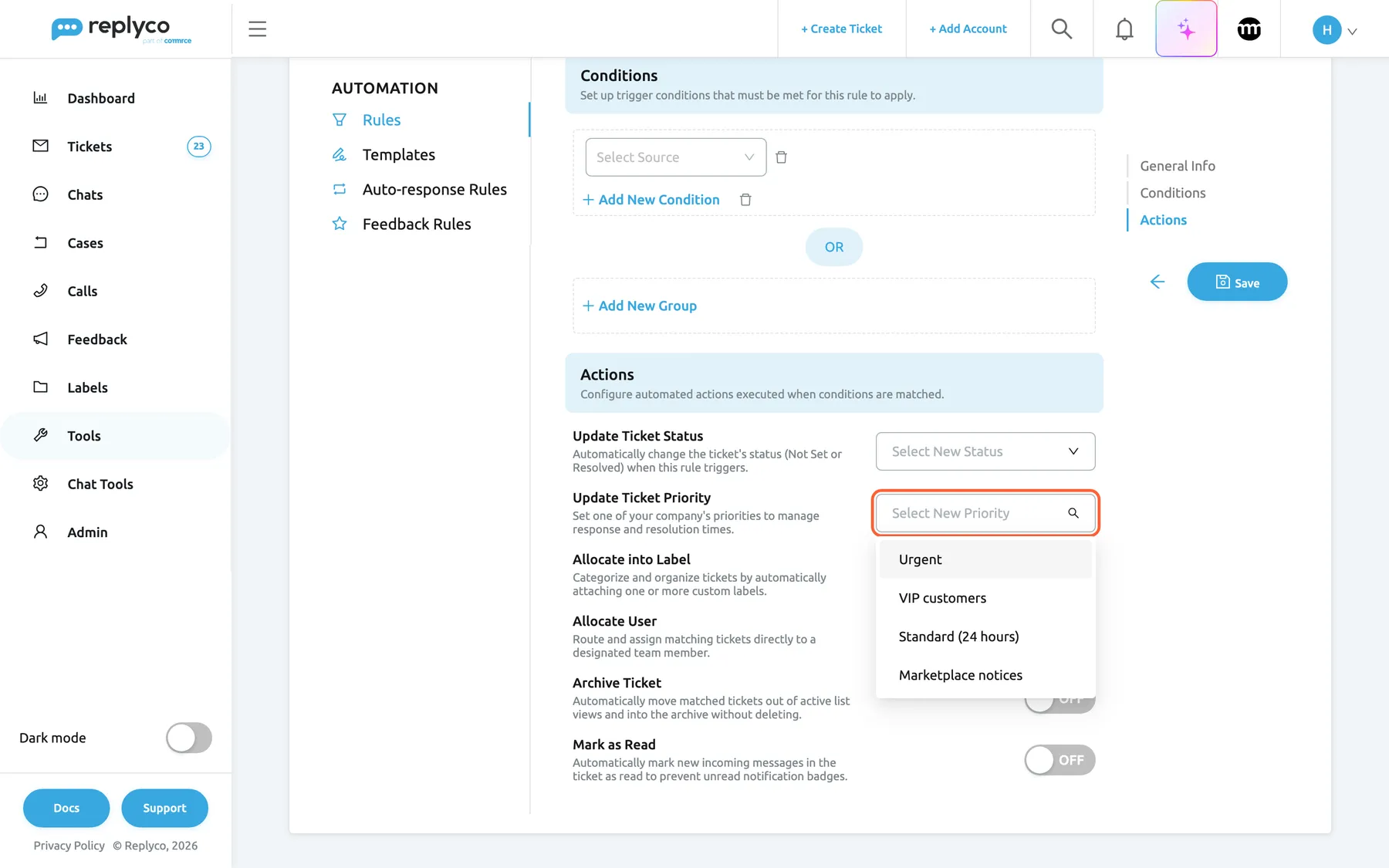
What this screenshot shows
- Screen
- Update Ticket Priority (/tickets-automation?tab=rules)
- Highlighted
- combobox “Select New Priority”, actions-section, expanded. chooses the priority the rule sets
- Also visible
- action Update Ticket Priority; options Urgent, VIP customers, Standard (24 hours), Marketplace notices
- Purpose
- set priorities with rules
Priorities set by tone
Section titled “Priorities set by tone”ToolsAI Settings › Tone, the check box Let tone set the SLA priority and the section SLA escalation (optional). Shown only to companies with Priorities and SLA and Replyco AI, which every plan includes.
Tone rules map a range of tone scores to one of your priorities, such as 0.00–0.30 → Urgent. When a scored customer message falls in a range, Replyco sets that priority exactly as if someone had picked it in the ticket, and the deadlines follow its targets and clock. By default tone only gives a priority to tickets that have none; Override the ticket's current SLA and Override an SLA set by message rules let it replace one, and Only escalate, never de-escalate lets it move a ticket only to a priority higher in your list. Deleting a priority deletes the tone rules that point at it. Create a new SLA in the tone rule form opens the Priorities & SLA tab in a new browser tab.
An angry customer should get your fastest promise even when nobody has read the message yet. Tone rules give it without a person triaging.
Three ways to use it:
- 0.00–0.30 → Urgent with Only escalate, never de-escalate ticked: furious customers climb to your fastest promise and never drop back on their own.
- 0.30–0.60 → Standard (24 hours) with the override boxes clear: tickets nobody prioritised still get a deadline.
- Keep Urgent at the top of the Priorities & SLA list, so escalate-only knows it is the most urgent.
For every switch and the tone rules themselves, see Message tone analysis.
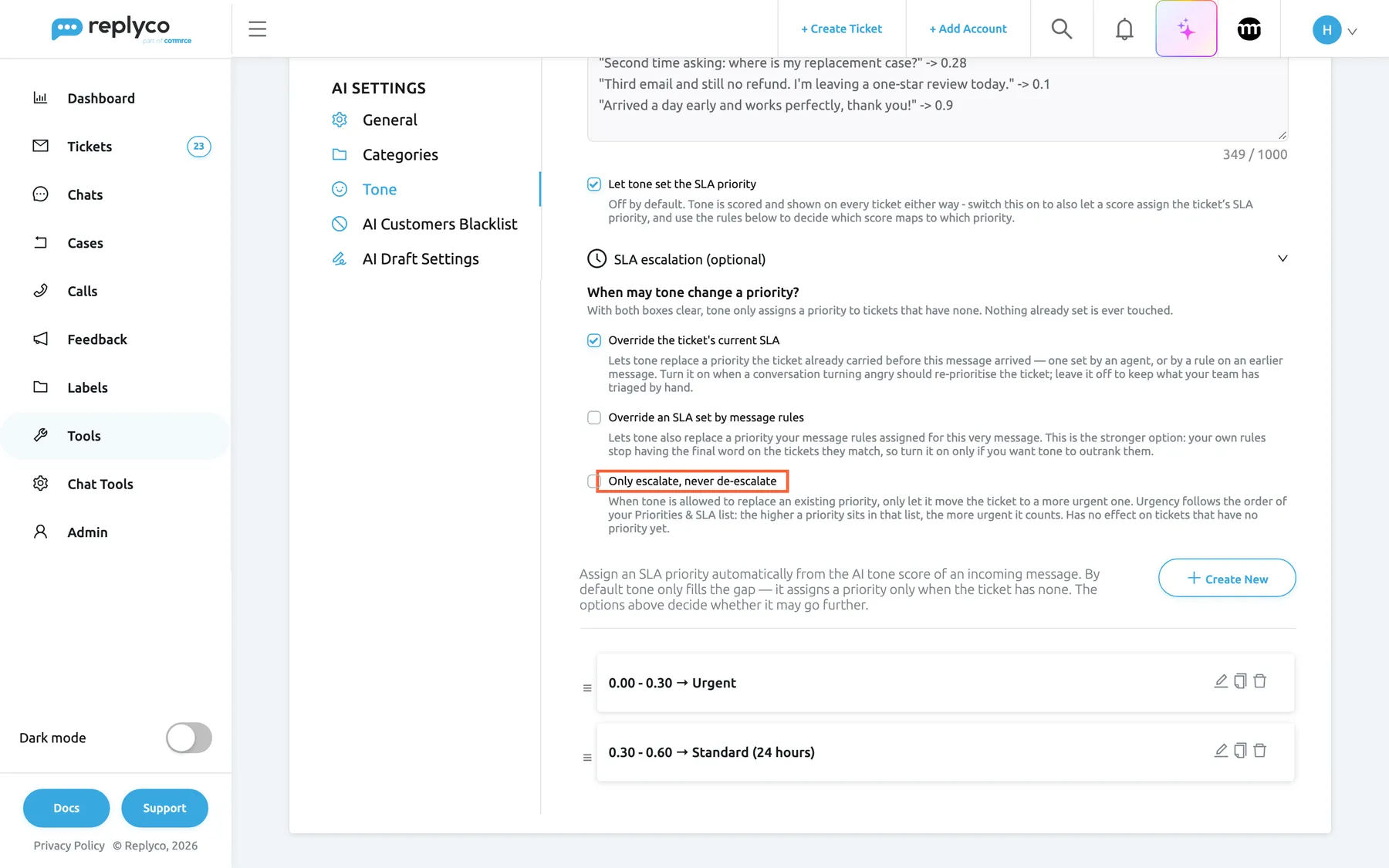
What this screenshot shows
- Screen
- Tone (/aiSettings?tab=toneSla)
- Highlighted
- checkbox “Only escalate, never de-escalate”, sla-section, unchecked. lets tone only move a ticket to a more urgent priority
- Also visible
- Let tone set the SLA priority ticked; Override the ticket's current SLA ticked; tone rules 0.00 - 0.30 Urgent and 0.30 - 0.60 Standard (24 hours)
- Purpose
- priorities set by tone
Working time and holidays
Section titled “Working time and holidays”AdminCompany Settings › General, the card Working Time: working days, one daily span and holidays. Saved with the tab’s save button.
Priorities counted in Working Hours count only inside this working time. Outside it the clock stops: after the end of the day it waits for the next working day’s start, weekends and other non-working days are skipped, and a holiday counts as a non-working day every year on the same day and month. Saving a new start or end time recalculates the deadlines of every ticket with a priority that waits for your reply.
A 4-hour promise made on Friday at 17:00 should not expire over the weekend while nobody is at work.
Three examples with Monday to Friday, 09:00–18:00 and a 4-hour target in working hours:
- Monday 25 December is a holiday. A message on Saturday 23 December at 11:00 is due on Tuesday 26 December at 13:00.
- You extend the day to 08:00–18:00 and save. A ticket waiting since Monday 16:30 is recalculated: 1.5 hours on Monday, 2.5 hours from 08:00 on Tuesday, due at 10:30.
- A message arrives on Friday 22 December at 17:30. Half an hour counts on Friday; Monday 25 December is a holiday, so the remaining 3.5 hours run on Tuesday 26 December, due at 12:30.
For everything working time affects, see Working time; to set it, see Company Settings.
Deadlines in a Smart Filter
Section titled “Deadlines in a Smart Filter”ToolsSmart Filters, then Create New or the pencil on a filter, the section SLA Types. The filter’s tickets are listed under TicketsSmart Filters.
SLA Types offers the same seven states as the Priority filter of the ticket list, from Respond Within - Due to Resolve Within - No priority, and combines with the filter’s other sections, such as marketplaces, accounts, assigned users and labels. Resolved tickets never match. A new Replyco company starts with a Smart Filter named Urgent that uses Respond Within - Overdue.
A Smart Filter keeps the query, so the overdue tickets are one click away in the sidebar every morning, with their count.
Three filters you could keep:
- Respond Within - Overdue alone: every ticket that missed its respond-by.
- Respond Within - Due with the marketplace Amazon: Amazon tickets still inside their deadline, to answer before they turn red.
- Respond Within - No priority with the ticket type not resolved: tickets that nobody has prioritised yet.
To learn every section of a Smart Filter, see Manage Smart Filters.
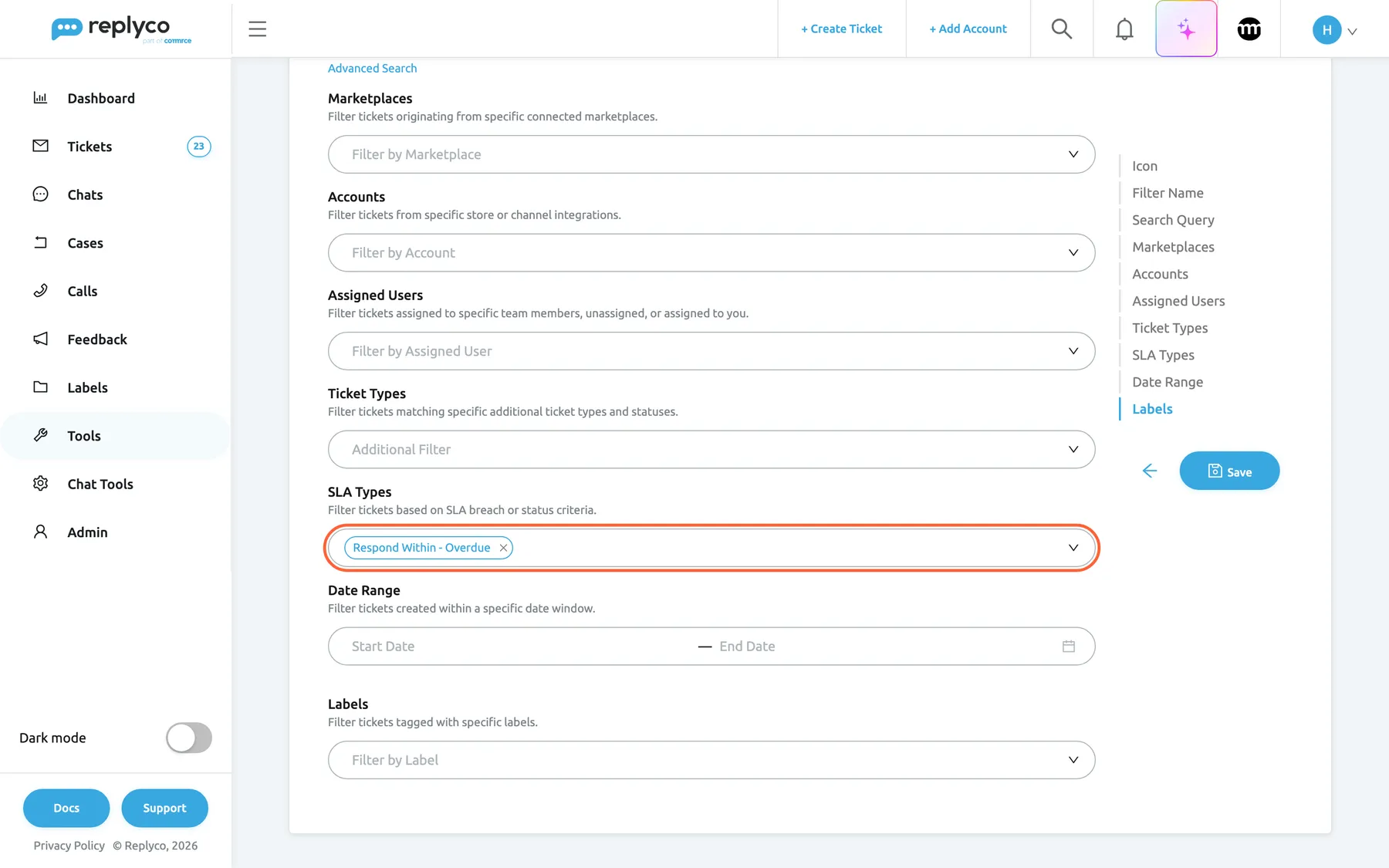
What this screenshot shows
- Screen
- Smart Filters (/smart-filters)
- Highlighted
- combobox “SLA Types”, form-sla-types, Respond Within - Overdue. filters the Smart Filter's tickets by deadline state
- Also visible
- Smart Filter Urgent; SLA Types: Respond Within - Overdue
- Purpose
- a standing list of overdue tickets
Deadlines on the dashboards
Section titled “Deadlines on the dashboards”DashboardOverview, the cards Due/Overdue tickets and Due/Overdue responded/resolved tickets; DashboardUsers, the card Information about resolved time and the cards Within SLA and Overdue SLA for all users. Which dashboards a user sees is set per user; add a removed card back with Manage Widgets.
- Within SLA and Overdue SLA: open tickets with a priority that wait for your reply, with the respond-by ahead or passed, right now.
- Messages Within SLA and Messages Overdue SLA: every customer message on an open ticket with a priority, compared with the first reply after it; a message still waiting counts as within until its target passes. Each message is measured with the ticket’s current priority and your current working time.
- Responded Within SLA and Responded Overdue SLA: the share of answered tickets with a priority whose last reply came before or after the respond-by.
- Resolved Within SLA and Resolved Overdue SLA: the share of resolved tickets with a priority that were resolved before or after the resolve-by.
The Users dashboard shows Within SLA and Overdue SLA per assigned user. Every count follows the dashboard’s date, account and marketplace filters, and the date filter uses the date the ticket was created. Selecting Within SLA or Overdue SLA opens those tickets in the ticket list with the matching Priority filter state; archived and snoozed tickets are counted but not listed.
The list tells an agent what to answer next; the dashboards tell a team lead whether the promises hold over a week.
Three ways to use them:
- Check Overdue SLA each morning and select it to open the late tickets.
- Compare Responded Overdue SLA week by week after changing a priority’s targets.
- On the Users dashboard, look for one person with many overdue tickets before you rebalance assignments.
To learn the rest of these dashboards, see Overview dashboard, Users dashboard and How the dashboards count.
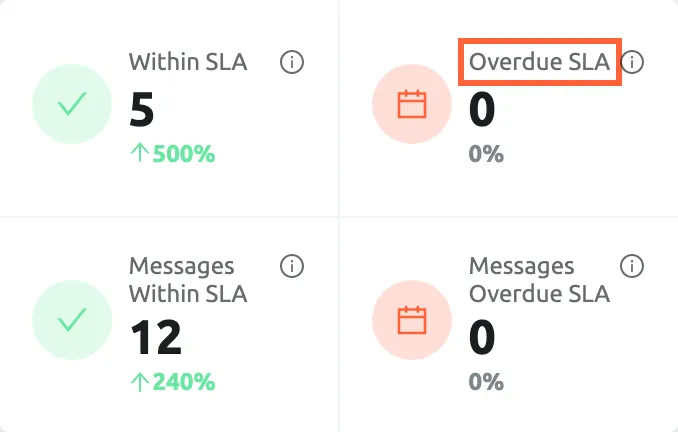
What this screenshot shows
- Screen
- Due/Overdue tickets (/dashboard/overview)
- Highlighted
- link “Overdue SLA”, widget-top-right, 0. opens the overdue tickets in the ticket list
- Also visible
- Within SLA 5; Overdue SLA 0; Messages Within SLA 12; Messages Overdue SLA 0
- Purpose
- measure deadlines on the dashboard
What you need to know
Section titled “What you need to know”| Topic | Fact |
|---|---|
| Two deadlines per ticket | A respond-by from the customer’s first unanswered message, a resolve-by from the ticket’s first message. |
| Where priorities come from | By hand in the ticket, from rules with Update Ticket Priority, or from tone rules. Nothing is set automatically unless a rule or tone rule does it. |
| A new company | Starts with the priority 24 standard hours (23 hours 59 minutes to respond and to resolve, calendar hours), the rule SLA Allocation that sets it on every message, and the Smart Filter Urgent for overdue tickets. |
| Limits | Each target up to 30 days, 23 hours and 59 minutes. Names unique. |
| Working hours | A day is 24 working hours. Holidays repeat every year on the same day and month. |
| Recalculation | On a new customer message (respond-by), when a priority is set again (both), when a priority’s targets change and when the working time’s start or end changes (both, for tickets waiting for your reply). |
| Tickets where you wrote last | The respond-by is counted afresh when the customer writes again. |
| Auto-responses | Are not replies: they do not stop the respond clock. |
| Resolved tickets | Show Resolved; a ticket reopened later keeps the resolve-by counted from its first message, so it is often already overdue. |
| Deleting a priority | Removes it and its deadlines from every ticket, deletes its tone rules and leaves message rules setting nothing. |
| Chats | Conversations under Chats have no priorities. |
| Cost | None. |
Frequently asked questions
Section titled “Frequently asked questions”General
Section titled “General”What does a ticket priority do?
Section titled “What does a ticket priority do?”A priority gives a ticket two deadlines, how soon your team must answer and how soon the ticket must be resolved, counted in calendar or working hours. The deadlines show as countdowns in Respond Till and Resolve Till, as row stripes, in the Priority filter, in a Smart Filter and on the dashboards.
Which plan do I need for priorities and SLA?
Section titled “Which plan do I need for priorities and SLA?”Any plan: every plan includes Priorities and SLA, and every feature is on during a trial. Companies on an older plan may not have it; the Priorities & SLA tab is then missing from AdminCompany Settings. See What each plan includes.
Does Replyco set priorities on its own?
Section titled “Does Replyco set priorities on its own?”Only through rules and tone rules you control. A new company starts with the rule SLA Allocation, which sets the priority 24 standard hours on every incoming message; switch it off under ToolsAutomation › Rules if you do not want that. Tone rules set priorities only after you tick Let tone set the SLA priority.
Can customers see their ticket’s priority or deadline?
Section titled “Can customers see their ticket’s priority or deadline?”No. Priorities, deadlines, countdowns and history rows appear only in Replyco, to your team. Nothing about them is added to your replies or sent to the marketplace or mailbox the customer wrote from.
Where do I create priorities?
Section titled “Where do I create priorities?”Under AdminCompany Settings › Priorities & SLA, with Create New. Each priority needs a name and has a respond target, a resolve target and Operational Hrs; see Priorities & SLA for the tab step by step.
Should I use calendar hours or working hours?
Section titled “Should I use calendar hours or working hours?”Use Calendar Hours when the promise runs around the clock, as marketplace response times usually do. Use Working Hours when the clock should stop outside the working time on the General tab of AdminCompany Settings, for example for your own shop’s customers.
I set 1 day in working hours and the deadline is almost three days away. Why?
Section titled “I set 1 day in working hours and the deadline is almost three days away. Why?”In Working Hours a day is 24 working hours, not one working day. With a working day of 09:00–18:00, a message on Monday at 10:00 is due on Wednesday at 16:00. For one working day, enter the length of your working day, such as 9 hours, on the Priorities & SLA tab.
Why does the order of the priorities matter?
Section titled “Why does the order of the priorities matter?”The order on the Priorities & SLA tab is the order of urgency, most urgent at the top. Every priority dropdown follows it, and tone analysis with Only escalate, never de-escalate moves a ticket only to a priority that sits higher. Drag rows by their handles to change it.
Deadlines
Section titled “Deadlines”When does the respond clock start?
Section titled “When does the respond clock start?”At the customer’s first message after your team’s latest reply, or when the ticket was created if nobody has answered yet. Further messages from the customer before you answer do not move the respond-by, and auto-responses do not count as replies.
Does replying stop the resolve clock too?
Section titled “Does replying stop the resolve clock too?”No. Your reply stops the respond clock and Respond Till shows Responded, but Resolve Till keeps counting from the ticket’s first message until the ticket is resolved.
I set a priority and the ticket is overdue straight away. Why?
Section titled “I set a priority and the ticket is overdue straight away. Why?”The deadlines count from the customer’s first unanswered message and the ticket’s first message, not from the moment you set the priority. A ticket whose customer wrote two days ago, given a 2-hour priority now, has a respond-by that passed long ago and shows Overdue in Respond Till.
Do deadlines change when I edit a priority?
Section titled “Do deadlines change when I edit a priority?”Yes, for tickets that have the priority and are waiting for your reply: Replyco recalculates both deadlines when you save the priority on the Priorities & SLA tab. On a ticket where your team wrote last, the next respond-by uses the new target when the customer writes again.
Do holidays pause deadlines?
Section titled “Do holidays pause deadlines?”For priorities counted in Working Hours, yes: a holiday on the General tab of AdminCompany Settings is skipped like a weekend, every year on the same day and month.
Where deadlines are shown
Section titled “Where deadlines are shown”What do the red and yellow stripes in the ticket list mean?
Section titled “What do the red and yellow stripes in the ticket list mean?”Yellow means the ticket has a priority whose respond-by is still ahead, or your team wrote last. Red means the respond-by has passed without a reply. Green means resolved, and no stripe means no priority or a priority without a respond target.
Why is there no countdown on a ticket that has a priority?
Section titled “Why is there no countdown on a ticket that has a priority?”Not Set in Respond Till or Resolve Till means the ticket’s priority has zero for that target. Open AdminCompany Settings › Priorities & SLA, select the priority and check Respond Within and Resolve Within.
How do I see only the overdue tickets?
Section titled “How do I see only the overdue tickets?”Open the ticket list’s filters and choose Respond Within - Overdue in Priority, then sort by Respond Till. To keep that view, create a Smart Filter with the same state under SLA Types; see Manage Smart Filters.
Where can I see who changed a ticket’s priority?
Section titled “Where can I see who changed a ticket’s priority?”In the ticket’s history, the grey rows between the messages, which appear when Load user logs in the ticket is on in Account Settings. A change by hand reads like Theo Rowe assigned priority Urgent; a rule shows only that it ran.
Rules and tone
Section titled “Rules and tone”A rule keeps changing the priority my agent set. Why?
Section titled “A rule keeps changing the priority my agent set. Why?”A rule with Update Ticket Priority sets its priority on every incoming message that matches its conditions, including after an agent changed it. Narrow the rule’s conditions under ToolsAutomation › Rules, or switch it off; the default SLA Allocation matches every message.
Which wins when a rule and a tone rule both set a priority?
Section titled “Which wins when a rule and a tone rule both set a priority?”Replyco runs your message rules first and tone afterwards. Tone replaces a priority a rule just set only when Override an SLA set by message rules is ticked on the Tone tab; see Message tone analysis.
What happens to rules when I delete a priority?
Section titled “What happens to rules when I delete a priority?”Message rules that set the deleted priority stay but set nothing any more, and their summary under ToolsAutomation › Rules shows [priority deleted]. Tone rules that point at it are deleted with it. Edit the message rules and choose another priority.
Can a rule react to a ticket being overdue?
Section titled “Can a rule react to a ticket being overdue?”No. The conditions of message rules include no priority or deadline, and rules run when a message arrives, not when a deadline passes. To act on overdue tickets, use Respond Within - Overdue in the ticket list’s Priority filter or in a Smart Filter, and the Overdue SLA card on the Overview dashboard.
Filters and dashboards
Section titled “Filters and dashboards”Why does the dashboard’s overdue count differ from my overdue list?
Section titled “Why does the dashboard’s overdue count differ from my overdue list?”Overdue SLA on DashboardOverview counts only tickets created within the dashboard’s date range, and it includes snoozed tickets, which most ticket lists do not show; archived tickets are left out. Widen the date range to compare it with Respond Within - Overdue in the list.
What do the message counts on the SLA card mean?
Section titled “What do the message counts on the SLA card mean?”Messages Within SLA and Messages Overdue SLA count each customer message on an open ticket with a priority, compared with your first reply after it, using the ticket’s current priority and your current working time. A message still waiting for a reply counts as within until its target passes.
Why are the dashboard SLA cards empty?
Section titled “Why are the dashboard SLA cards empty?”The cards on DashboardOverview count only tickets that have a priority and were created in the selected period. If nobody sets priorities yet, or they started today, the counts are zero; set priorities by hand or with a rule, then widen the date range.
Data and privacy
Section titled “Data and privacy”What does Replyco store for a priority?
Section titled “What does Replyco store for a priority?”For each priority, its name, its two targets in minutes, its clock and its place in the order. For each ticket with a priority, the priority and the two deadlines, plus a history row for every change by hand. Deleting a priority removes it and its deadlines from all tickets.
Troubleshooting
Section titled “Troubleshooting”| Symptom | What to check |
|---|---|
| The Priorities & SLA tab is missing, or AdminCompany Settings is not in the menu and its link opens the start screen | Whether your user has the Admin permission with Edit rights, which the whole screen needs; ask an admin for them. If you have them and only the tab is missing, whether the company has Priorities and SLA, which every plan includes; companies on an older plan may not have it |
| Respond Till reads No priority on every ticket | Nobody sets priorities: set them by hand, add a rule with Update Ticket Priority, or let tone set them |
| A ticket shows Not Set | The ticket’s priority has zero for that target on the Priorities & SLA tab |
| A ticket is overdue the moment a priority is set | Deadlines count from the customer’s first unanswered message and the ticket’s first message, not from when the priority was set |
| Deadlines are later than expected | The priority counts Working Hours, where a day is 24 working hours; check the working time on the General tab |
| The priority an agent set changes back after the customer replies | A rule with Update Ticket Priority matches every message, such as SLA Allocation; narrow or switch off the rule |
| Tone never sets a priority, or refuses to escalate | Let tone set the SLA priority is ticked, a tone rule covers the score, the override boxes allow it, and the most urgent priority is at the top of the list |
| A rule’s summary shows [priority deleted] | The priority was deleted; edit the rule and choose another one |
| No history row for a priority change | Load user logs in the ticket is on in your Account Settings; rules record only that they ran |
| The dashboard’s overdue count differs from the list | The dashboard counts tickets created in its date range and includes snoozed tickets |
| A reopened ticket is overdue in Resolve Till | The resolve-by counts from the ticket’s first message and does not restart when the customer writes again |