

Help and support
This section is where you go when something in Replyco does not work as you expect, or when you have a question the other guides do not answer. It explains how to reach the Replyco support team from inside Replyco, what to send so they can help at the first reply, and what support can look up and change for your company. It also holds the pages that belong to no single screen: When Replyco is slow or unavailable for service problems, browsers and networks, and the Replyco FAQ with short answers to the questions customers ask most.
Help is built into every Replyco screen. Docs at the foot of the sidebar opens this documentation inside Replyco, and Support, in the same place and in the user menu under your avatar, opens the support chat in a panel next to the screen you are working on. You do not need to leave Replyco or know an address to contact support. Replyco opens the documentation and the support chat for your company’s region, which is set from the country chosen at sign-up.
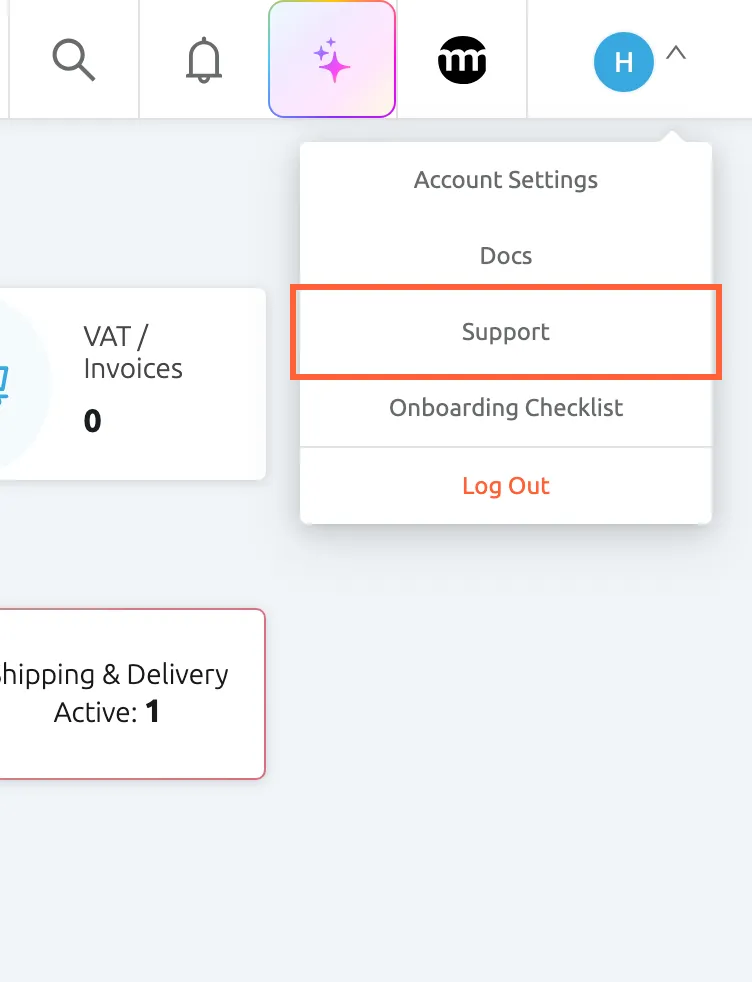
What this screenshot shows
- Screen
- Smart Filters (/)
- Highlighted
- menuitem “Support”, top-bar-right, enabled. opens the support chat in a panel
- Also visible
- Account Settings; Docs; Onboarding Checklist; Log Out in red; avatar with initial H
- Purpose
- the way into the support chat from the top bar
The screens in this area
Section titled “The screens in this area”| Screen | What it is for |
|---|---|
| The Help screen, from Docs at the foot of the sidebar | The Replyco documentation for your region, shown inside Replyco with the menu beside it; see The Replyco screen |
| The support chat, from Support | A panel where you write to the support team and read their answers; see The Replyco screen |
| Need help? in the connection dialogs | The help for connecting that channel, in a new browser tab; see Add Account |
| When Replyco is slow or unavailable | What to check when Replyco is slow, does not load, signs you out or brings in messages late |
| Replyco FAQ | Short answers from every area, each linked to its guide |
What you can do here
Section titled “What you can do here”- Contact support from any screen, through the support chat. Contact support.
- Send the right details the first time, so support can look up your case at once. What to send support.
- Find out whether Replyco has a service problem or whether the cause is your browser, network or an account. When Replyco is slow or unavailable.
- Get a quick answer about signing in, billing, accounts, tickets, AI, chats and users. Replyco FAQ.
- Solve a problem in one area with its own troubleshooting page. Troubleshooting tickets, Fix a blocked or silent account.
Contact support
Section titled “Contact support”-
Select your avatar at the right end of the top bar and choose Support, or select Support at the foot of the sidebar. The sidebar buttons are shown while the sidebar is open; the user menu always has the entry.
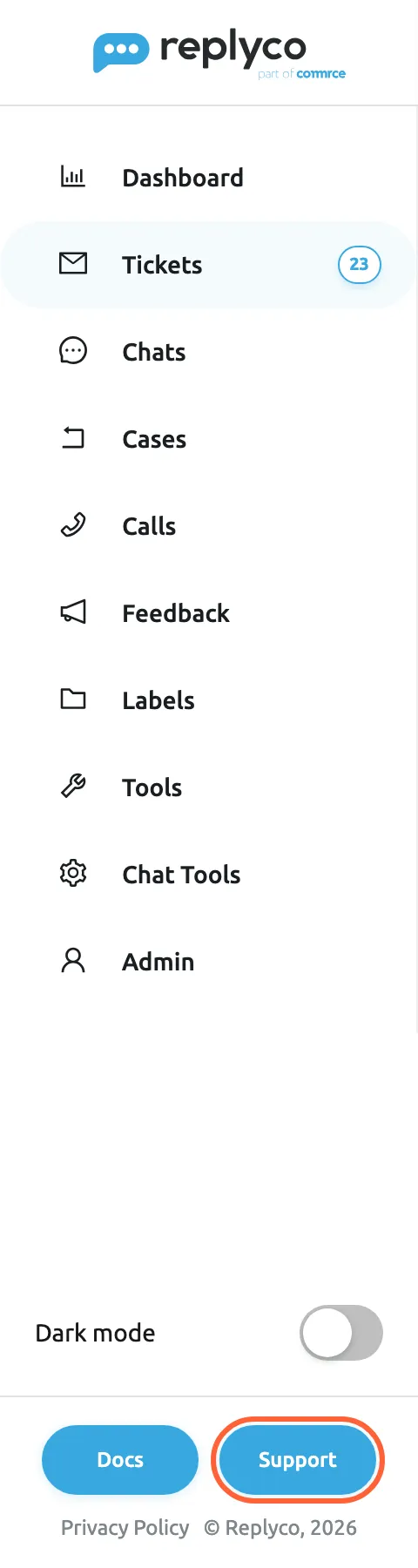
The foot of the sidebar opens the documentation and the support chat. What this screenshot shows
- Screen
- Smart Filters (/)
- Highlighted
- button “Support”, sidebar-bottom, enabled. opens the support chat in a panel
- Also visible
- Docs button; Dark mode switch off; Privacy Policy link; copyright line
- Purpose
- the way into the documentation and the support chat from the sidebar
-
The support chat opens in a panel on the screen you are on. Write your question with the details listed under What to send support.
-
The support team answers in the same chat.
If Support opens nothing, an extension that blocks ads or scripts, or a company network filter, may be stopping the chat; see When Replyco is slow or unavailable. The support chat is part of the signed-in Replyco screens. If you cannot sign in, write to the address Replyco names in its own messages: help@replyco.com in the English interface, support@replyco.io in the German one.
What to send support
Section titled “What to send support”Support can answer at the first reply when your message holds:
- the ticket number from the ticket’s header (
#and digits), or the customer’s email address or order number when you cannot find the ticket; - the account’s name as it appears on AdminAccounts, for anything about a marketplace, mailbox or messenger;
- the time the problem happened, and your time zone;
- the full text of any message, copied rather than described;
- a screenshot of the whole browser window, with any filter tags visible;
- whether colleagues see the same, and whether a private browser window behaves differently.
Each troubleshooting section in these guides ends with the details that problem needs.
What support can look up and change
Section titled “What support can look up and change”Support looks up what Replyco recorded for your company, so a precise question gets a precise answer.
| Support can look up | Where the guides explain it |
|---|---|
| Each account’s sync history and the channel’s last answer | Fix a blocked or silent account |
| A ticket’s messages and their sending status, its history, and whether it was merged, archived, blocked or deleted | Troubleshooting tickets |
| Your company’s plan and features, and your user’s permissions | The Replyco screen |
| Whether a user exists or is blocked, its sign-ins and sign-outs, and an open two-factor reset | Sign in, Two-factor authentication |
| The settings saved for your company or your user | Company Settings, Account Settings |
| The charges and invoices your payment provider holds | Billing: Payment |
Some changes are made by support rather than in the app. Ask support to:
| Change | Where the guides explain it |
|---|---|
| Put an account at the front of the sync queue | Fix a blocked or silent account |
| Change the interface language for your company | The Replyco screen |
| Verify your company during a trial, so it can create tickets | Create Ticket |
| Switch AI auto-drafts on | AI drafts |
| Lift the block on an account over your plan’s number, or connect more accounts | Accounts, Add Account |
| Pre-authorise a Brightpearl connection | Connect Brightpearl |
| Change company details printed on invoices, or arrange another way of paying | Billing: Payment |
| Discuss a smaller plan | Subscribe to a plan |
| Remove a separate sign-up, so a colleague can be invited with that address | Invite users and set what they can do |
Concepts
Section titled “Concepts”- Your company’s region. The country chosen at sign-up sets your company’s region and the language of Replyco’s screens: Germany, Austria, Switzerland and Liechtenstein get German, every other country English. The region decides which documentation the Help screen shows and which support chat opens. See The Replyco screen.
- The service-problem notice. While Replyco deals with a problem on its side, every user sees a yellow band above the top bar reading Replyco is currently experiencing some performance issues. We’re aware of the problem and working to resolve it as soon as possible.. See When Replyco is slow or unavailable.
Availability: every plan includes the Help screen and the support chat, and both are open to every user. The Help screen also stays open after a trial has ended without a plan, when only the subscription and Help screens are available.