

Billing: Payment
The Payment tab of AdminBilling is where you look after how your company pays for Replyco: the cards on file and which one is charged, every charge attempt with its outcome, and every invoice with a PDF to download. Administrators use it when a card expires, when a payment is declined and when the accounts team asks for invoices. The cards, charges and invoices are those your payment provider holds for your company; Replyco reads them each time you open the tab.
Availability: needs the Admin and Billing permissions, like the rest of Billing; see User permissions and roles. Billing is in the menu once your company pays for a plan through Replyco; during the trial and with Shopify billing there is nothing to pay here, see Subscribe to a plan. The plan itself is on the other tabs; see Billing.
What you can do here
Section titled “What you can do here”- Keep a working card on file. Add a card before the old one expires; only the last four digits ever reach Replyco. Add a card.
- Choose which card is charged. The star makes a card the default card for every future invoice. Make a card the default.
- Check every charge. Each attempt is listed with a green tick or a red cross, its date, receipt number and amount. Check your charges.
- Download invoices. Each invoice has its period, amounts and a PDF. Download an invoice.
- Recover from a declined payment. A red banner tells every user when a subscription payment was declined; synchronisation pauses until a payment goes through. When a payment is declined.
The screen at a glance
Section titled “The screen at a glance”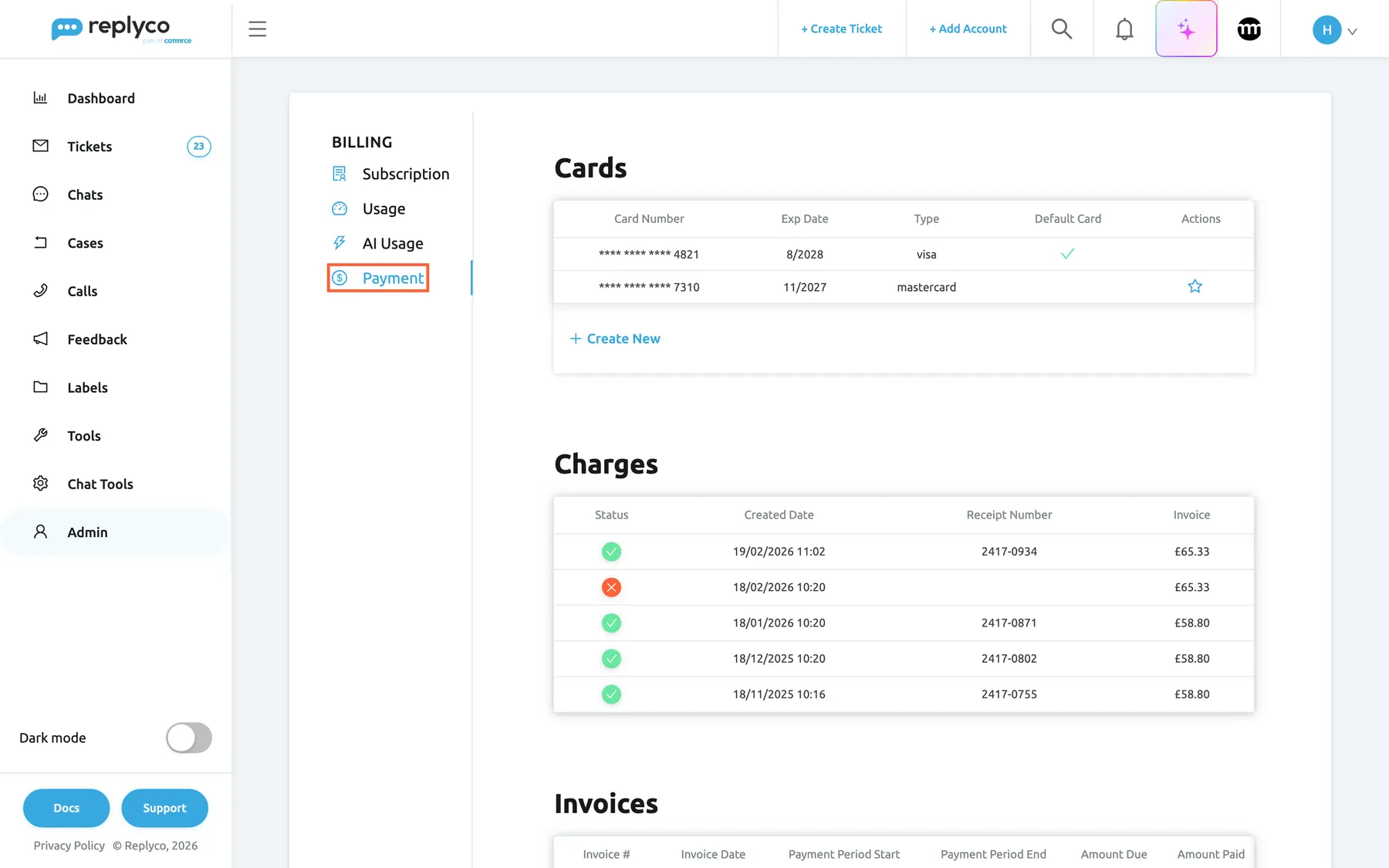
What this screenshot shows
- Screen
- Billing (/billing?tab=payment)
- Highlighted
- tab “Payment”, left-tab-list, selected. shows cards
- Also visible
- cards 4821 (visa, default) and 7310 (mastercard, star); charges: 19/02/2026 succeeded 2417-0934, 18/02/2026 failed, three earlier succeeded; Create New link
- Purpose
- the screen at a glance
| Region | What it shows | What you do there |
|---|---|---|
| Cards, top | One row per card with Card Number, Exp Date, Type, Default Card and Actions, then Create New | Add a card, choose the default card |
| Charges, middle | One row per charge attempt with Status, Created Date, Receipt Number and Invoice | Check that payments went through |
| Invoices, bottom | One row per invoice with its number, dates, amounts and Download | Download invoices |
Add a card
Section titled “Add a card”-
Under Cards, select Create New. The dialog Add New Card opens.
-
Enter the card number, the expiry date and the security code in the card field. The field belongs to your payment provider: what you type goes to the provider, not to Replyco.
-
Select Save. The dialog closes and the card appears in the list.
A new card is added next to the existing ones; it is not charged until you make it the default card, as described in Make a card the default. When the provider rejects the details, for example a mistyped number, the dialog stays open and the provider’s message appears at the top right. Replyco shows only the last four digits, the brand and the expiry date of each card.
Make a card the default
Section titled “Make a card the default”-
Under Cards, find the card and select the star under Actions. Its tooltip reads Make card default.
-
Confirm Are you sure you want to make this card default? with Yes.
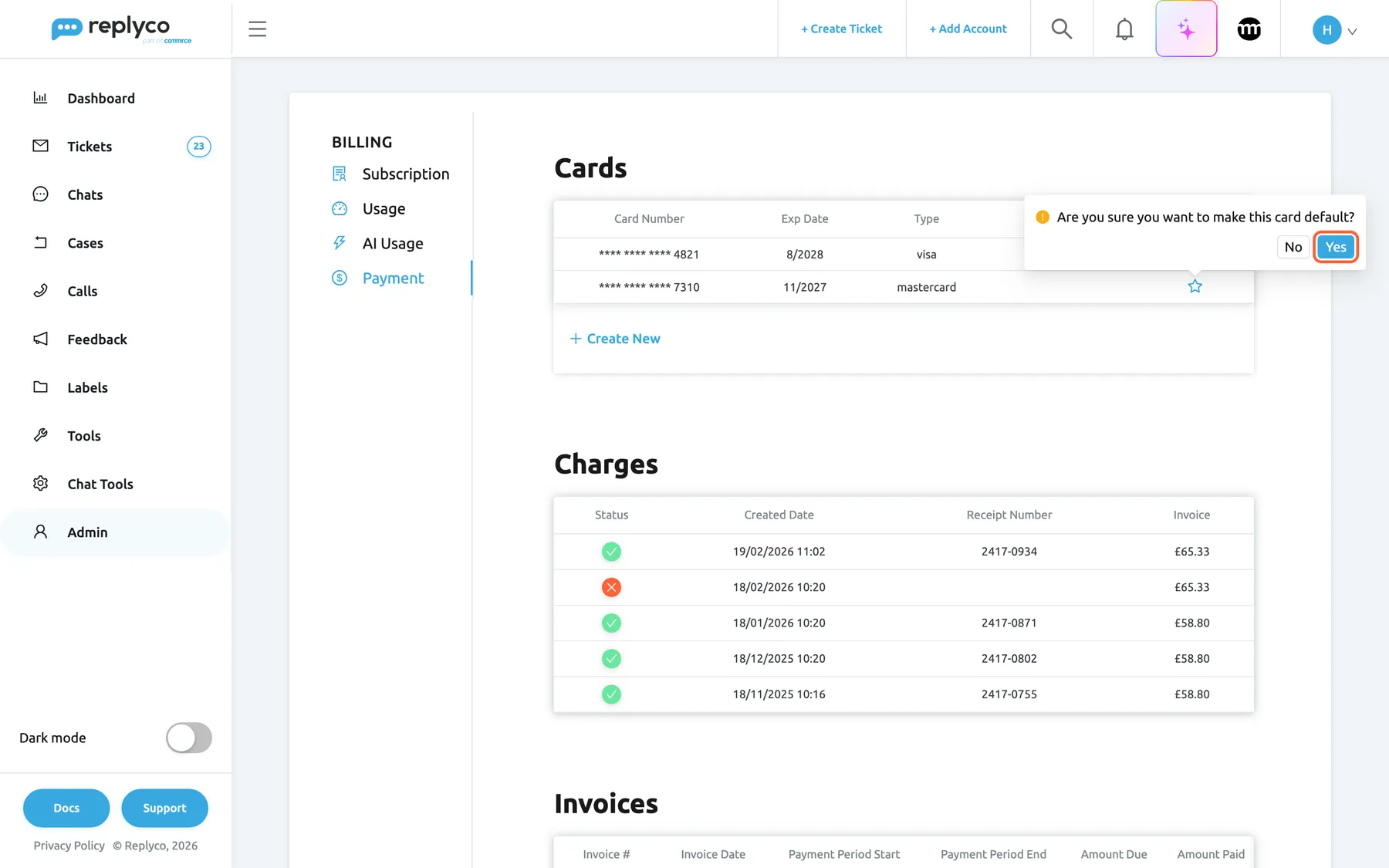
The star makes another card the default; Replyco asks before it changes anything. What this screenshot shows
- Screen
- Billing (/billing?tab=payment)
- Highlighted
- button “Yes”, cards-table-actions, enabled. makes card 7310 the default card
- Also visible
- tooltip Make card default; question Are you sure you want to make this card default?; default card 4821
- Purpose
- change the default card
The green tick under Default Card moves to that card, and your payment provider charges it for every invoice from now on. The default card has no star. For example, when Northwind’s Visa card ending 4821 expires in August 2028, the accounts team adds a new card in July and makes it the default, so the August invoice is paid without a break.
Check your charges
Section titled “Check your charges”Charges lists every attempt your payment provider made to take a payment, newest first. A green tick under Status means the payment went through; a red cross means it was declined, and such a row has no Receipt Number. Invoice shows the amount, tax included.
A declined charge followed by a successful one, as on 18 and 19 February in the screenshot, is the usual trace of a card that failed once and was then replaced or retried. How much was charged and for what is on the matching invoice.
Download an invoice
Section titled “Download an invoice”-
Scroll to Invoices. The newest invoice is at the top.
-
In the invoice’s row, select Download. On a narrow window, scroll the table sideways to reach the last column.
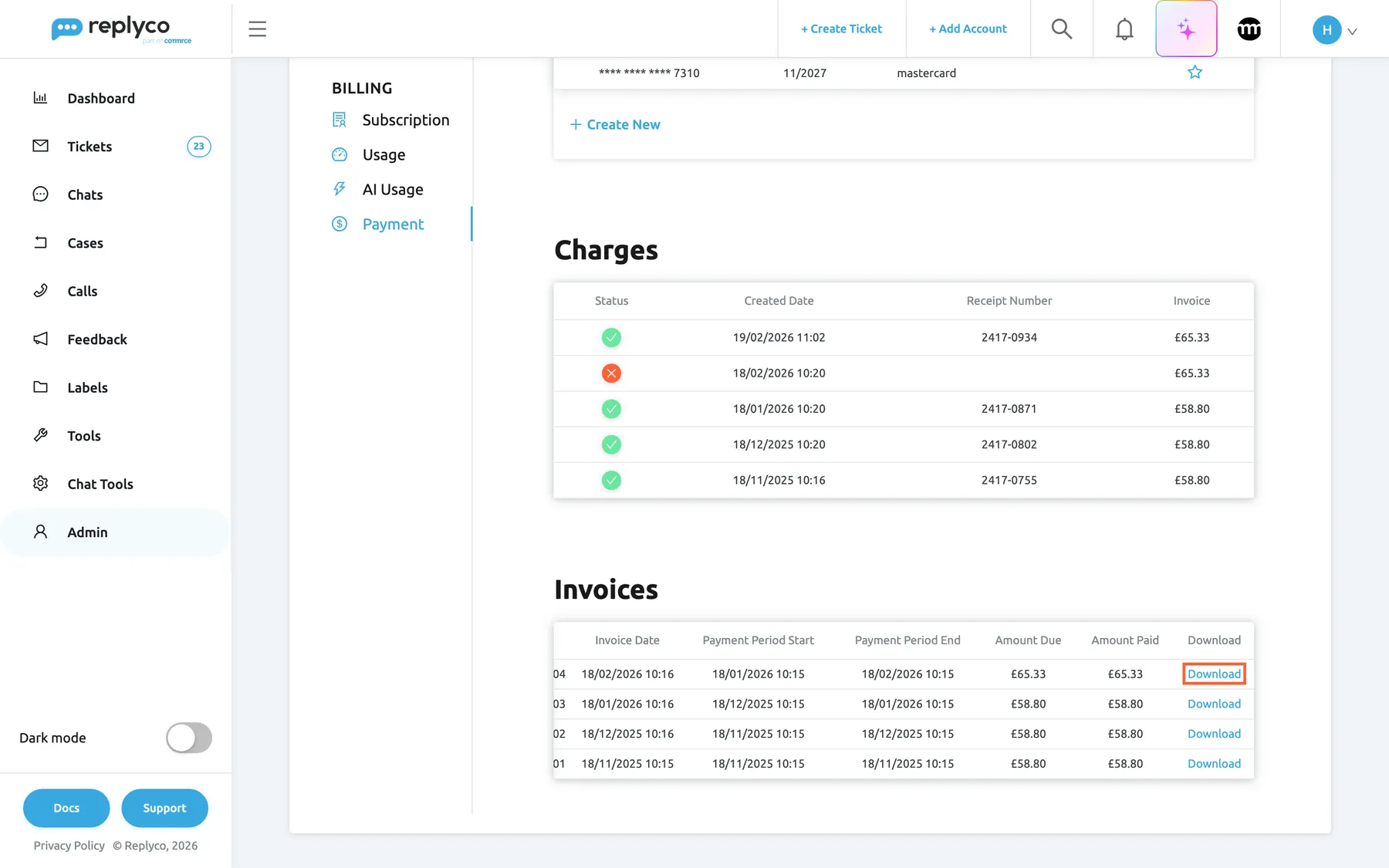
Every invoice has a Download link for its PDF; the newest is at the top. What this screenshot shows
- Screen
- Billing (/billing?tab=payment)
- Highlighted
- link “Download”, invoices-table, enabled. downloads the invoice PDF
- Also visible
- invoice of 18/02/2026, £65.33 due and paid; three earlier invoices
- Purpose
- download invoices
Your browser saves the invoice as a PDF from your payment provider. Each row shows Invoice #, Invoice Date, Payment Period Start and Payment Period End (the period the invoice covers), Amount Due and Amount Paid. The tab shows up to 100 invoices.
The address on your invoices is your billing address from AdminCompany Settings, or your company address when you use it for billing; see Enter your address and billing address. To change other company details printed on the invoices, contact support; see Help and support.
When a payment is declined
Section titled “When a payment is declined”When your payment provider cannot collect a subscription payment, for example because the card has expired, Replyco:
- shows a red banner across the top of every screen for every user, ending in the link Billing tab;
- pauses the synchronisation of your connected accounts, so no new messages arrive;
- sends every user a notification in the bell that the payment was declined.
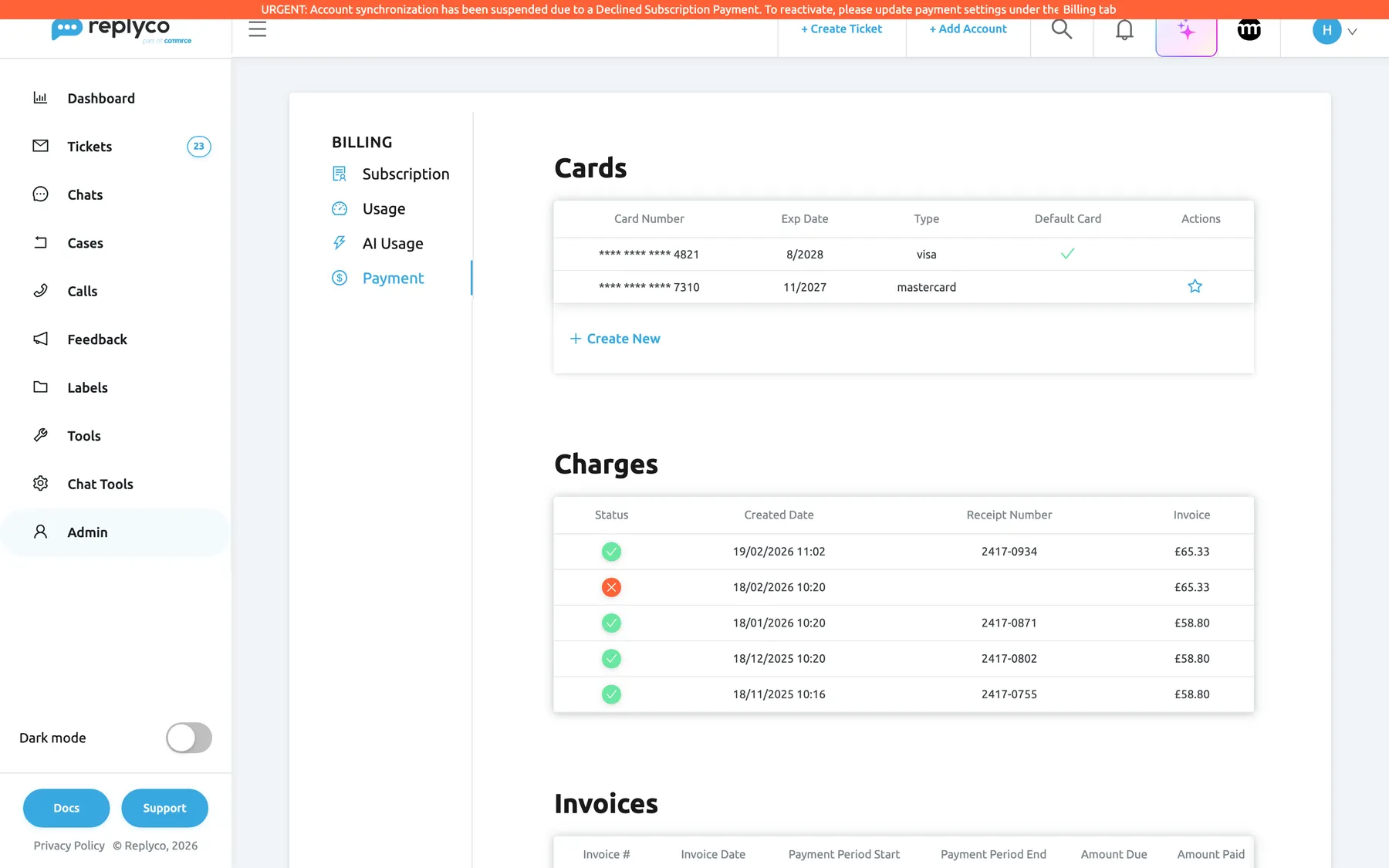
What this screenshot shows
- Screen
- Billing (/billing?tab=payment)
- Highlighted
- link “Billing tab”, top-banner, shown. opens Billing
- Also visible
- red banner about the declined subscription payment; declined charge 18/02/2026
- Purpose
- what a declined payment looks like
To resolve it, open the banner’s link, add a working card and make it the default card, as described in Add a card and Make a card the default. Once a payment goes through, Replyco removes the banner and synchronisation resumes. If the very first payment of a new subscription is declined, the subscription is not set up at all; choose the plan again in Subscribe to a plan.
Every control, explained
Section titled “Every control, explained”The Payment tab of AdminBilling, top to bottom.
Top of the tab.
One row per card your payment provider holds for your company.
| Column | What it shows | Why |
|---|---|---|
| Card Number | Four groups of stars and the last four digits | Tell cards apart without exposing the number |
| Exp Date | Month/year the card expires | Replace a card before it runs out |
| Type | The card brand, for example visa or mastercard | Match the card to your records |
| Default Card | A green tick on the card that is charged | Know which card pays |
| Actions | The star on every other card | Change the default card |
One look tells you whether the card that pays is still valid.
The star (Make card default)
Section titled “The star (Make card default)”Actions column, on each card except the default one.
Asks Are you sure you want to make this card default?; Yes makes the card the default for all future invoices, No changes nothing. While the change is saved, a small spinner replaces the star.
Switching cards takes one confirmation, with no risk of doing it by accident.
Create New
Section titled “Create New”Under the list of cards.
Opens Add New Card with the payment provider’s card field (card number, expiry date, security code) and Save. The cross closes it without adding anything.
The card details go straight to the payment provider; Replyco never sees the full number.
Charges
Section titled “Charges”Middle of the tab. Read-only.
| Column | What it shows | Why |
|---|---|---|
| Status | Green tick: paid; red cross: declined | See failed payments at once |
| Created Date | Date and time of the attempt | Match it to your bank statement |
| Receipt Number | The payment provider’s receipt number; empty when declined | Quote it to your bank or to support |
| Invoice | The amount, tax included | Check what was taken |
Up to 100 charges, newest first.
Every attempt is listed, so a declined payment is visible even after a later one succeeded.
Invoices
Section titled “Invoices”Bottom of the tab. Read-only apart from the download links.
| Column | What it shows | Why |
|---|---|---|
| Invoice # | The invoice number | Your accounting reference |
| Invoice Date | When the invoice was raised | Book it in the right month |
| Payment Period Start, Payment Period End | The period it covers | See which period extra tickets belong to |
| Amount Due, Amount Paid | What was due and what was paid, tax included | Spot an unpaid invoice |
| Download | A link to the PDF | Keep or forward the invoice |
Up to 100 invoices, newest first.
All invoices in one place, ready for your accounts team.
The declined-payment banner
Section titled “The declined-payment banner”Top of every screen, for every user, while a subscription payment is declined.
A red banner that cannot be closed, ending in the link Billing tab, which opens Billing. It disappears once a payment goes through.
Everyone knows why new messages have stopped, and administrators have a direct way to fix it.
Who sees what
Section titled “Who sees what”| Part | Shown when |
|---|---|
| The Payment tab | The Admin and Billing permissions and a plan paid through Replyco; see User permissions and roles |
| The star | On every card except the default one |
| Receipt Number | The charge went through |
| The declined-payment banner | Every user, on every screen, while a subscription payment is declined; not with Shopify billing |
What you need to know
Section titled “What you need to know”| Topic | Fact |
|---|---|
| Card data | Replyco shows the last four digits, the brand and the expiry date; the full card details are entered in the payment provider’s field. |
| Default card | Every invoice is charged to the default card. A new card is not the default until you make it one. |
| Lists | Up to 100 charges and 100 invoices, newest first, read from the payment provider each time you open the tab. |
| Amounts | Charges and invoices show amounts with tax. |
| Invoice address | Comes from the billing address in AdminCompany Settings. |
| Declined payment | Red banner for everyone, synchronisation paused, a notification to every user; everything resumes once a payment goes through. |
| First payment declined | The new subscription is not set up; choose the plan again. |
Frequently asked questions
Section titled “Frequently asked questions”How do I replace an expiring card?
Section titled “How do I replace an expiring card?”Open AdminBilling, select the Payment tab, then Create New. Enter the new card in the payment provider’s field and select Save. Then select the star on the new card and confirm with Yes to make it the default card that pays your invoices.
Why is my new card not charged?
Section titled “Why is my new card not charged?”A card you add under Cards on the Payment tab is not the default card by itself. Only the card with the green tick under Default Card is charged. Select the star on the new card and confirm with Yes.
Does Replyco store our card number?
Section titled “Does Replyco store our card number?”No. You enter the card details in the payment provider’s field in the Add New Card dialog, and they go straight to the provider. The Payment tab of AdminBilling shows only the last four digits, the brand and the expiry date.
Can we pay other than by card?
Section titled “Can we pay other than by card?”The Payment tab of AdminBilling lists and manages cards only. Companies billed through Shopify pay with their Shopify bill and manage the plan in Subscribe to a plan. For any other way of paying, contact support; see Help and support.
Charges and invoices
Section titled “Charges and invoices”Where do I download our invoices?
Section titled “Where do I download our invoices?”On the Payment tab of AdminBilling, scroll to Invoices and select Download in the invoice’s row. The PDF comes from your payment provider. On a narrow window, scroll the table sideways to reach the link.
How do I change the address on our invoices?
Section titled “How do I change the address on our invoices?”The invoices carry your billing address from AdminCompany Settings, or your company address when it is used for billing. Change it on the address tab; see Enter your address and billing address. For other company details on the invoices, contact support through Help and support.
Why is a charge marked with a red cross?
Section titled “Why is a charge marked with a red cross?”The payment provider could not take that payment, for example because the card had expired or the bank declined it. A declined row has no Receipt Number. If a green tick follows it, the payment was taken later; otherwise add a working card and make it the default on the Payment tab.
Why was one invoice higher than the others?
Section titled “Why was one invoice higher than the others?”Usually because of extra tickets: when a payment period goes over your plan’s allowance, the next invoice adds each extra ticket at your plan’s price. Compare the invoice’s period with Billing: Usage, where the monthly cards show the overage per period.
Does the amount include VAT?
Section titled “Does the amount include VAT?”Yes. Invoice under Charges and the amounts under Invoices include tax. The rate depends on your billing country: one rate for the United Kingdom and another for every other country; see Billing.
Declined payments
Section titled “Declined payments”Our payment was declined. What happens now?
Section titled “Our payment was declined. What happens now?”Every user sees a red banner at the top of every screen and gets a notification, and Replyco pauses the synchronisation of your accounts, so no new messages arrive. Open AdminBilling, add a working card on the Payment tab and make it the default. Once a payment goes through, the banner disappears and synchronisation resumes.
We replaced the card but the banner is still there. Why?
Section titled “We replaced the card but the banner is still there. Why?”The banner stays until a payment actually goes through, not when a card is added. Check under Cards that the new card has the green tick under Default Card, then watch Charges for a green tick. If none appears, contact support with your company’s email address; see Help and support.
Troubleshooting
Section titled “Troubleshooting”| Symptom | What to check |
|---|---|
| A new card is not charged | The green tick under Default Card is on the new card; if not, select its star and confirm with Yes |
| The card dialog shows an error from the payment provider | The card number, expiry date and security code as printed on the card; the provider’s message says which part it rejected |
| A red banner says synchronisation is suspended | A subscription payment was declined; add a working card, make it the default and check Charges for a green tick |
| The Download link is not visible | The table is wider than the window; scroll it sideways |
| An invoice is higher than usual | The period went over the plan’s allowance; compare with Billing: Usage |
| The tab shows no cards, charges or invoices | Your company has not paid for a plan through Replyco yet, or it is billed through Shopify; see Subscribe to a plan |