

Search
The search in the top bar finds a conversation when you do not know which list it is in. It looks through every ticket you have access to, whatever its state, archived tickets and tickets of blocked customers included, and on the same page it also searches your orders, your products and, if you work with cases, your cases. Open it with the magnifier in the top bar on any screen; the results open on the Search page. It is the one place where a single search covers all ticket lists at once. For searching inside one list, with filters, use the search of that list, described in Ticket lists.
What you can do here
Section titled “What you can do here”- Search from any screen. Type a customer’s name, an email address, a ticket or order number or a few words from a message, and press Enter. Start a search
- Find every ticket, whatever its list. Results include open, resolved, snoozed, delayed and archived tickets and tickets of blocked customers, 10 per page, as a ticket list you can open, sort and act on. Read the ticket results
- Search one field, or combine conditions. Advanced Search ties each text to the customer, the order, the ticket or the messages and combines up to 10 conditions with AND and OR. Use advanced search
- Find orders, products and cases. Separate boxes below the tickets search orders by order number, customer email, customer name or tracking data, products by title or category, and cases, and can look an order or case up at the marketplace. Find orders, products and cases · Orders · Case list
The screen at a glance
Section titled “The screen at a glance”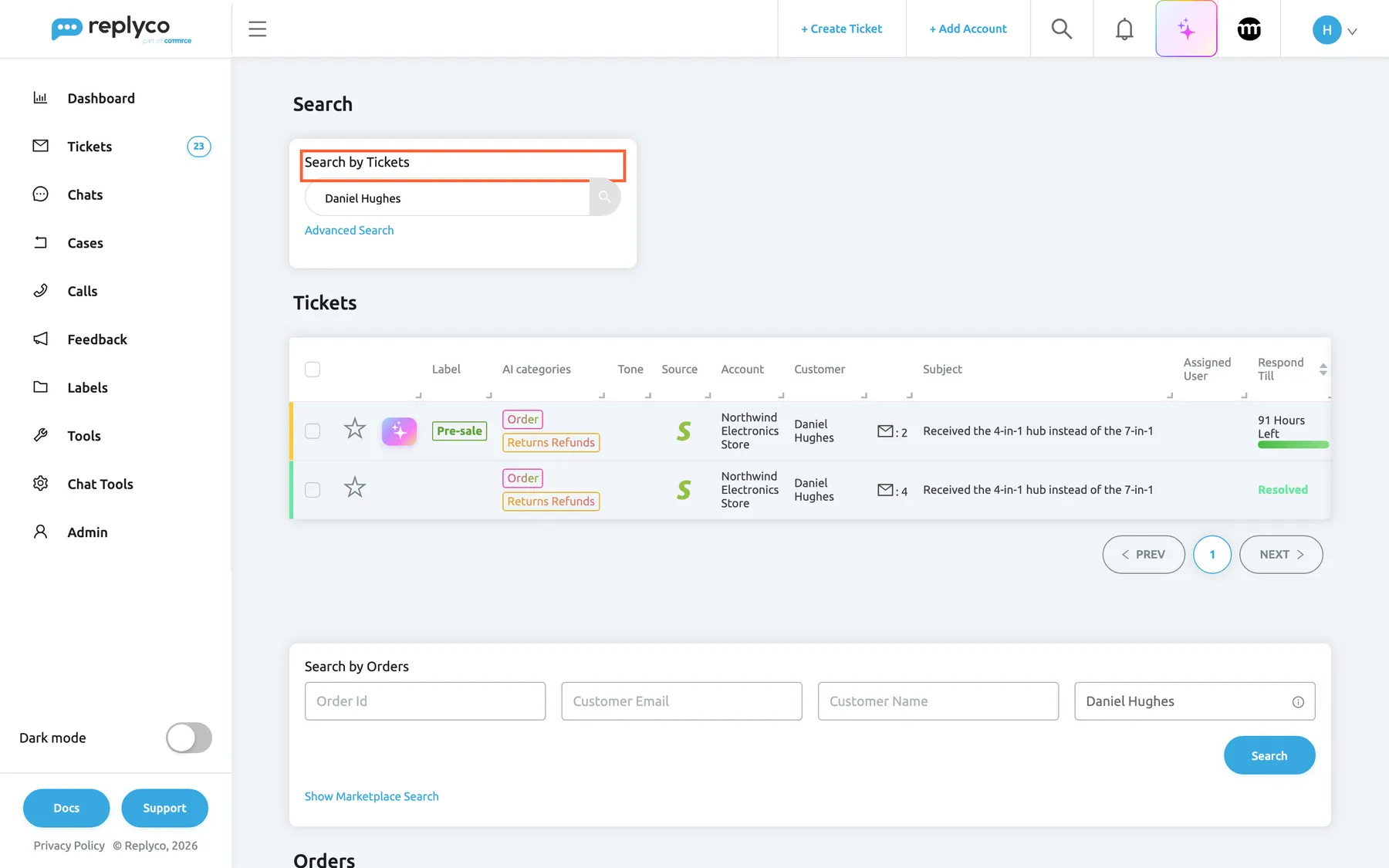
What this screenshot shows
- Screen
- Search (/search/:term)
- Highlighted
- heading “Search by Tickets”, search-box-top, filled. searches tickets again with the text in the box
- Also visible
- search field with the customer's name; Advanced Search link; Tickets table with two tickets of one customer, one open, one resolved and archived; Search by Orders below
- Purpose
- the results of a global search
| Region | What it shows | What you do there |
|---|---|---|
| Search by Tickets, top | The text you searched for, and the link Advanced Search | Change the text and search again, or switch to conditions |
| Tickets | Matching tickets, with the columns of the ticket lists, 10 per page | Open a ticket, sort, tick rows for bulk actions |
| Search by Orders | Four fields and Search, and the link Show Marketplace Search | Search orders by number, email, name or tracking data |
| Orders | Matching orders | Open an order |
| Search by Products | One search field with the text | Search product titles and categories |
| Products | Matching products | See how many tickets a product has |
| Search by Cases and Cases | A search field, Search in and the matching cases; only with the Cases feature and permission | Find a case, in Replyco or at the marketplace |
Scroll down to reach the orders, products and cases; each box searches on its own, so changing one does not change the others.
Start a search
Section titled “Start a search”-
Select the magnifier in the top bar, between the links on the left and the notification bell.
A search box opens in the middle of the screen, labelled Enter Search Text.
-
Type what you are looking for and press Enter, or select the magnifier at the end of the box.
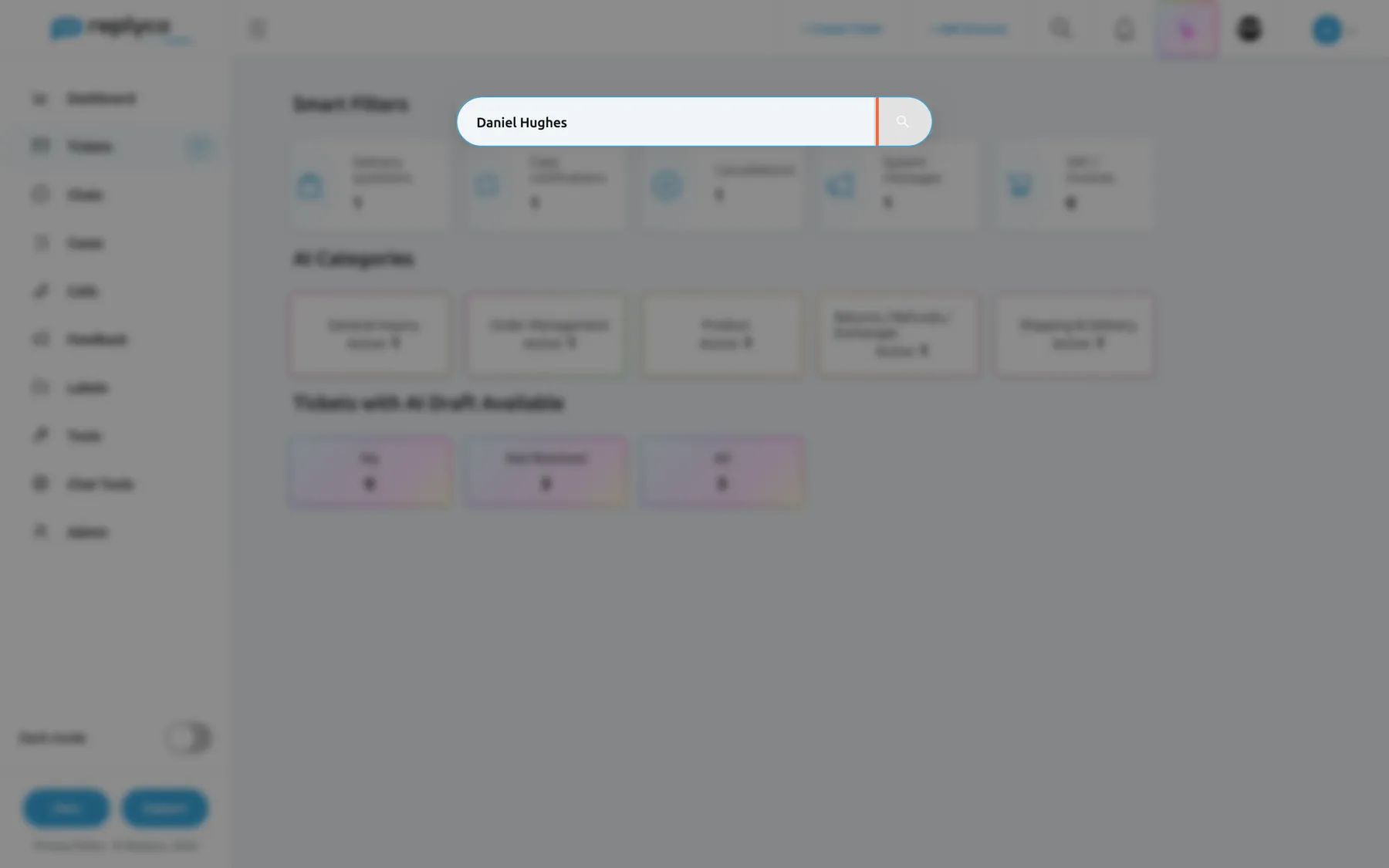
The magnifier in the top bar opens the search box on every screen; Enter shows the results. What this screenshot shows
- Screen
- Search (/)
- Highlighted
- searchbox “Enter Search Text”, centre-overlay, filled. opens the Search page for the text on Enter
- Also visible
- search box over the dimmed start screen; top bar with the magnifier
- Purpose
- start a global search
The Search page opens with the results. Selecting anywhere outside the box closes it without searching.
What to type. A customer’s name or email address, words from the subject or the messages, a ticket number such as 32533, an order number, a tracking number or a postcode. The text goes into every box of the page: Search by Tickets, Search by Products, Search by Cases and, depending on what it looks like, one of the order fields; see Find orders, products and cases.
The address of the page contains the text, for example /search/Daniel%20Hughes, so you can bookmark a search or send the link to a colleague, who sees the results for their own access.
Read the ticket results
Section titled “Read the ticket results”The Tickets table uses the same columns, colours and badges as the ticket lists, shows 10 tickets per page and can be sorted by respond-by time and by the date of the last message. Select a row to open the ticket. Tick rows to act on several tickets at once with the bulk bar of the ticket lists; the columns and actions are explained in Ticket lists.
Which tickets are searched. Every ticket of the accounts and labels your user may see, in every state: open and resolved, snoozed and delayed, archived, and tickets of blocked customers. That is the difference from the lists, where All Tickets leaves out archived, snoozed and blocked tickets. Tickets without a label appear only if your user may see unlabelled tickets. The ticket lists your user may open do not narrow the search: it covers every list, so it also finds archived tickets and tickets of blocked customers when Archive or Blocked is not in your menu. An administrator sets all of this in AdminUsers, see User permissions and roles.
How the text matches:
| What you type | What it finds |
|---|---|
| One or more words | Tickets whose customer name, customer email, subject or message text contain words starting with them, close to each other: hub finds hubs, and hub instead finds the subject Received the 4-in-1 hub instead of the 7-in-1 |
| A ticket number | The ticket with that number, typed without spaces |
| An order number | Tickets linked to that order; marketplace numbers made of two parts joined by a slash are found by either part |
| A marketplace customer ID | Tickets of that customer, typed exactly |
| A tracking number or postcode | Tickets whose order has exactly that tracking number or billing or shipping postcode |
What is not searched: internal notes, labels, AI categories, custom fields and attachment names. A reference kept only in a note cannot be found by search; give the ticket a label instead, which the ticket lists can filter by. For notes and labels, see The ticket screen.
Example. Searching Daniel Hughes lists his open ticket from March and his earlier ticket from February, which was resolved and archived and appears in none of the working lists any more.
Use advanced search
Section titled “Use advanced search”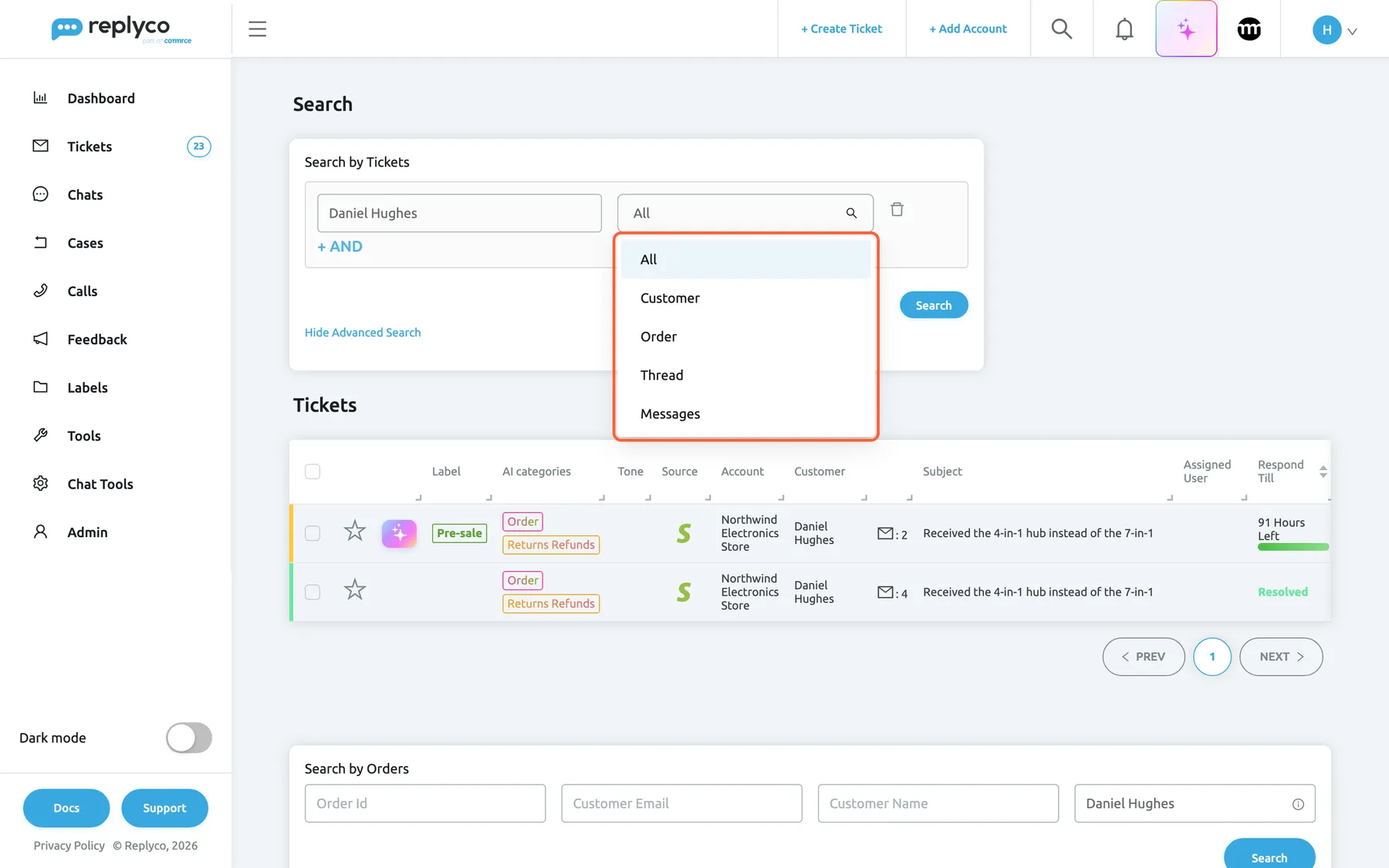
What this screenshot shows
- Screen
- Search (/search/:term)
- Highlighted
- listbox “All”, search-box-top, expanded. chooses the field the condition searches
- Also visible
- condition text; field list: All, Customer, Order, Thread, Messages; + AND, + OR; Search button; Hide Advanced Search link
- Purpose
- search one field or combine conditions
-
Under the search field of Search by Tickets, select Advanced Search.
-
Type a text into the condition and choose the field it searches: All, Customer, Order, Thread or Messages.
-
Add conditions with AND (all must match) or OR (a new box of alternatives), then select Search.
| Field | What it searches |
|---|---|
| All | Everything a plain search covers |
| Customer | Customer name and email address, and the marketplace customer ID |
| Order | Order number, tracking number and postcodes |
| Thread | Subject and ticket number |
| Messages | The text of the messages |
You can add up to 10 conditions; the eleventh gives You cannot add more search fields.. A condition without text gives Please enter values into search fields.. The bin icon removes a condition, and Hide Advanced Search returns to the single field.
Example. Customer is Daniel Hughes AND Messages is refund finds only his tickets that mention a refund, not every ticket of every customer who wrote about refunds.
Find orders, products and cases
Section titled “Find orders, products and cases”Orders. Search by Orders has four fields; every field you fill must match, and each matches when the order’s value contains your text:
| Field | Matches |
|---|---|
| Order Id | The marketplace order number |
| Customer Email | The customer’s email address |
| Customer Name | The customer’s name |
| Additional Search | Tracking number, billing or shipping postcode, buyer user ID, as the info icon in the field says |
Replyco places the text from the top bar into one field for you: an order number into Order Id, an email address into Customer Email, anything else into Additional Search. A name therefore lands in Additional Search and usually finds no order: move it to Customer Name, empty Additional Search and select Search.
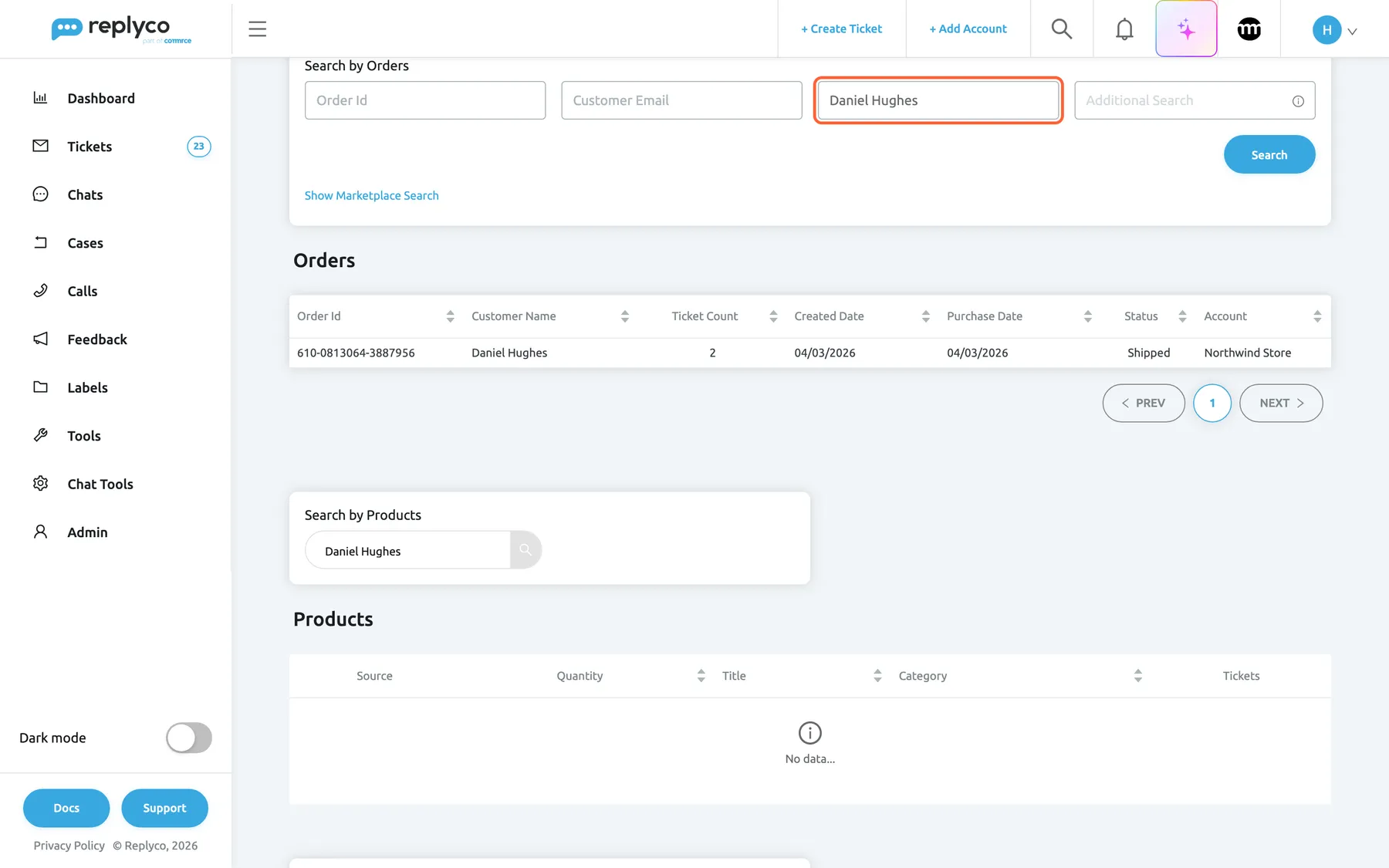
What this screenshot shows
- Screen
- Search by Orders (/search/:term)
- Highlighted
- textbox “Customer Name”, orders-search, filled. finds orders whose customer name contains the text
- Also visible
- Order Id, Customer Email, Customer Name, Additional Search fields; Search button; Show Marketplace Search link; Orders table with one order; Search by Products below
- Purpose
- find a customer's orders
Show Marketplace Search replaces the four fields with one search field and Search in. With Replyco chosen, the text is matched against the orders stored in Replyco in the same way as Additional Search; with one of your accounts chosen, Replyco asks that marketplace for the order with the number you typed, which finds orders that were never synced. Hide Marketplace Search goes back to the four fields. Orders are explained in Orders.
Products. Search by Products finds products whose title or category contains the text; the table shows how many tickets each product has. See Orders for where products come from.
Cases. Search by Cases appears when your company has cases and your user has the Cases permission. It searches cases in every state. With an account chosen under Search in, Replyco looks the case up at the marketplace by its case number. Cases are explained in Case list and eBay cases.
Every control, explained
Section titled “Every control, explained”The magnifier in the top bar
Section titled “The magnifier in the top bar”The top bar of every screen, between the links on the left and the notification bell. It is shown only to users with the Global Search permission.
Opens a search box over the current screen. Enter or the magnifier at the end of the box opens the Search page for the text; selecting outside the box closes it.
You reach any conversation from wherever you are, without first choosing the right list.
Search by Tickets
Section titled “Search by Tickets”The first box of the Search page, filled with the text from the top bar.
Searches all tickets you have access to, in every state, and fills the Tickets table below it. Change the text and press Enter to search again without going back to the top bar.
Refining a search keeps the orders, products and cases boxes as they are.
Advanced Search
Section titled “Advanced Search”The link under the search field of Search by Tickets; Hide Advanced Search closes it.
Replaces the single field with conditions. Each condition has a text and a field: All, Customer, Order, Thread or Messages. AND adds a condition that must also match, OR adds a box of alternatives, up to 10 conditions; Search runs it.
Searching one field avoids false matches, for example an order number quoted in another customer’s message.
The Tickets table
Section titled “The Tickets table”Under Search by Tickets.
The matching tickets, 10 per page, with the columns, colours, paging and bulk actions of the ticket lists. It can be sorted by respond-by time and by the date of the last message; a row opens the ticket. When nothing matches, the table shows No data....
You work with the results as with any list: open, assign, label or archive several tickets at once.
The fields of Search by Orders
Section titled “The fields of Search by Orders”The box under the ticket results: Order Id, Customer Email, Customer Name, Additional Search and the Search button.
Searches the orders of the accounts you may see; every filled field must be contained in the order. The text from the top bar is placed in one field according to its shape. Search runs the order search only.
Orders have their own fields, so a precise field finds a customer’s orders even when the ticket search does not.
Show Marketplace Search and Search in
Section titled “Show Marketplace Search and Search in”The link at the bottom of Search by Orders; the same Search in choice sits in Search by Cases.
Search in offers Replyco, for what Replyco has stored, and your accounts of marketplaces with orders or cases. With an account chosen, Replyco asks the marketplace for the order or case with exactly the number you typed.
An order or case that never reached Replyco can still be found by its number.
Search by Products and Search by Cases
Section titled “Search by Products and Search by Cases”The boxes below the orders; Search by Cases only with the Cases feature and the Cases permission.
Each has its own search field, filled with the text from the top bar, and its own table: Products by title and category, Cases in every state.
A product name or a case number is found in the same place as the tickets about it.
Who sees what
Section titled “Who sees what”| Part of the screen | What decides whether you see it |
|---|---|
| The magnifier in the top bar | The Global Search permission, part of every default role; an administrator can remove it in AdminUsers |
| Tickets in the results | The accounts and labels your user may see, and whether you may see unlabelled tickets |
| Orders in the results | The accounts your user may see |
| Search by Cases | The Cases feature of your company and the Cases permission |
Search itself is part of every plan. See User permissions and roles.
What you need to know
Section titled “What you need to know”| Topic | Fact |
|---|---|
| Scope | Every ticket you have access to, in every state and across every ticket list, whichever lists your user may open, archived and blocked included; plus orders, products and cases |
| Page size | 10 tickets per page |
| Word matching | Words match from their beginning; several words must appear close together |
| Numbers | Ticket, order and customer IDs only as one word without spaces; tracking numbers and postcodes exactly |
| Not searched | Notes, labels, AI categories, custom fields, attachment names |
| Orders | Fields match by “contains”; all filled fields must match |
| Remembered | Nothing; the text is in the page address, so a bookmark repeats the search |
| Ticket list search | Separate: it searches only the list you are in, together with its filters |
Frequently asked questions
Section titled “Frequently asked questions”Searching
Section titled “Searching”Why does search find nothing for a ticket I know exists?
Section titled “Why does search find nothing for a ticket I know exists?”Check the text: ticket and order numbers must be typed as one word without spaces, and notes are not searched. Then check your access: search covers only the accounts and labels your user may see, set by an administrator in AdminUsers.
Does the search in the top bar find archived tickets?
Section titled “Does the search in the top bar find archived tickets?”Yes. It searches every ticket you have access to, in every state: open, resolved, snoozed, delayed, archived, and tickets of blocked customers. The ticket lists, including All Tickets, leave archived, snoozed and blocked tickets out.
Can I search the text of internal notes?
Section titled “Can I search the text of internal notes?”No. Search covers customer names and email addresses, subjects, message text, ticket and order numbers, tracking numbers and postcodes, but not notes, labels, AI categories or custom fields. To find such tickets again, give them a label and filter a ticket list by it.
How do I search for a ticket number or an order number?
Section titled “How do I search for a ticket number or an order number?”Type the number into the search in the top bar without spaces and press Enter. Tickets with that number or linked to that order appear under Tickets. For marketplace numbers with a slash, either part is enough.
Why do words in the middle of a name not match?
Section titled “Why do words in the middle of a name not match?”Search matches words from their beginning: Hugh finds Hughes, but ughes finds nothing. Type the start of a word, or the whole word. Several words must appear close to each other in the same field.
How is this search different from the search in a ticket list?
Section titled “How is this search different from the search in a ticket list?”The search in the top bar covers all your tickets at once, in every state, plus orders, products and cases, without filters. The search in a ticket list stays inside that list, combines with its filters and is remembered per list in your browser; see Ticket lists.
Results
Section titled “Results”Can I act on several search results at once?
Section titled “Can I act on several search results at once?”Yes. Tick the rows in the Tickets table and use the bulk bar that appears, with the same actions as in the ticket lists: assign, label, resolve, snooze, archive and more. The actions are described in Ticket lists.
Why does my search for a customer’s name show no orders?
Section titled “Why does my search for a customer’s name show no orders?”Replyco places a name from the top bar into Additional Search, which looks at tracking numbers, billing postcodes and buyer IDs, not names. Move the name into Customer Name, empty Additional Search and select Search under Search by Orders.
Can I find an order that is not in Replyco yet?
Section titled “Can I find an order that is not in Replyco yet?”Yes, for accounts of marketplaces with orders. Select Show Marketplace Search under Search by Orders, type the order number, choose the account under Search in and search. Replyco asks the marketplace for that order directly.
Why don’t I see the magnifier in the top bar?
Section titled “Why don’t I see the magnifier in the top bar?”The magnifier is shown only to users with the Global Search permission. Every default role includes it, so an administrator must have removed it; ask them to check your user in AdminUsers, see User permissions and roles.
Why is there no cases section on my search page?
Section titled “Why is there no cases section on my search page?”Search by Cases appears only when your company has cases and your user has the Cases permission. Ask an administrator to check your user’s permissions in AdminUsers.
Troubleshooting
Section titled “Troubleshooting”| Symptom | What to check |
|---|---|
| A ticket you know exists is not found | The text: numbers as one word, words from their start, notes are not searched; then your accounts and labels in AdminUsers |
| A colleague finds a ticket that you do not | Your user’s accounts and labels, and whether you may see unlabelled tickets |
| No orders for a customer’s name | Which order field holds the text; move it to Customer Name and empty Additional Search |
| Please enter values into search fields. | A condition of Advanced Search has no text; fill it or remove it with the bin icon |
| You cannot add more search fields. | Advanced search takes up to 10 conditions |
| No magnifier in the top bar | The Global Search permission of your user |
| No cases section | The Cases feature and your Cases permission |