

Chat list and conversations
The Chats screen is where your team answers instant messages: WhatsApp, Facebook Messenger, Instagram, Telegram and TikTok Shop messages and the conversations from your live chat widget, all in one list. Open it from Chats in the sidebar and pick My Chats, Open or Closed. The list sits on the left; selecting a chat opens the conversation in the middle and a side panel on the right with the assignees, the status, the AI summary, the customer, notes, order search and the customer’s tickets. A chat is not a ticket: it has its own lists, templates and auto-responses, and your replies go straight back to the customer on the channel they wrote on.
What you can do here
Section titled “What you can do here”- See the chats that wait for you. My Chats holds the open chats assigned to you, Open every open chat of the accounts and live chat widgets you are responsible for, and Closed the finished ones. A coloured line in each row tells you how long the customer has waited, green, yellow or red. Choose a list and read it
- Find a chat by name, account or colleague. Search by the customer’s name and filter by account, live chat widget or assigned colleague. Search and filter the list
- Read the conversation, with pictures, videos, voice messages, documents, auto-responses and replies that failed to send. Read a conversation · Auto-responses for chats
- Assign the chat and open or close it. A chat can have several assignees; closing it moves it to Closed until the customer writes again. Assign a chat and close it
- Catch up with the AI summary instead of reading a long chat, and generate a new one when the chat has moved on. Read or generate the AI summary · AI summaries
- Work with the customer: see their contact details, link the chat to the right customer, keep internal notes, find their order and open their tickets. Work with the customer, notes, order and tickets
- Reply with text, a chat template, a file or a rewrite by AI Help. Reply in the chat · Answer a chat · Chat templates
- Reply to, edit, delete or download a single message, as far as the channel allows. Act on one message
- Send a live chat customer a transcript of the conversation by email, or turn it into a ticket. Send a transcript of a live chat · Transcripts · Live chat widget
The screen at a glance
Section titled “The screen at a glance”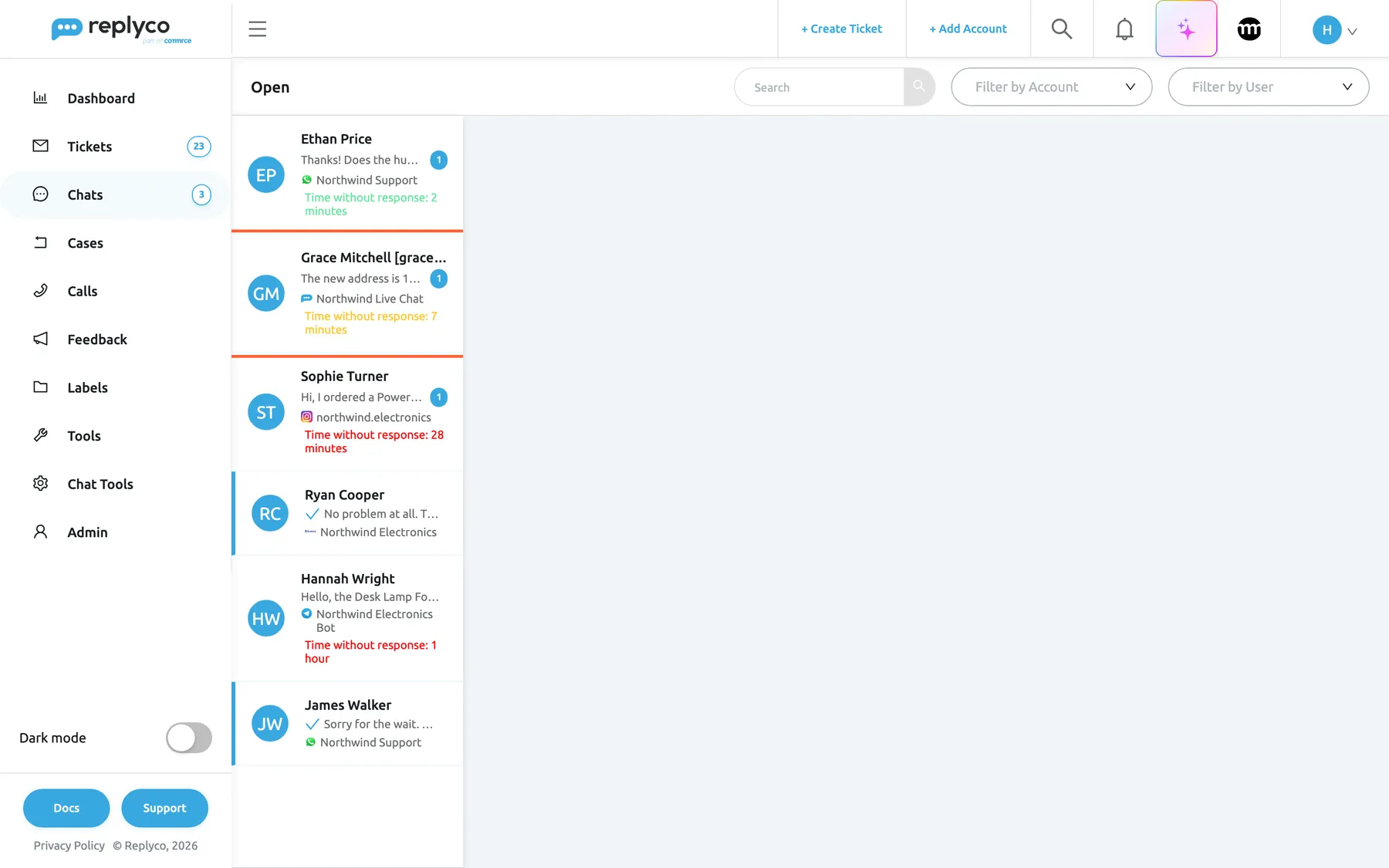
What this screenshot shows
- Screen
- Open (/chats/open)
- Highlighted
- button “”, chat-list, unread. opens the conversation
- Also visible
- heading Open; Search, Filter by Account, Filter by User; 6 chats on WhatsApp, live chat, Instagram, Messenger and Telegram; unread badges, reply ticks, time without response in green, yellow and red
- Purpose
- the chat list as it opens
| Region | What it shows | What you do there |
|---|---|---|
| Header, left | The name of the list: My Chats, Open or Closed | Check which list you are in |
| Header, right | Search, Filter by Account and, except on My Chats, Filter by User | Narrow the list |
| Chat list, left | One row per chat, newest message first, ten at a time; scroll for more | Select a chat to open it |
| Conversation, middle | The messages of the open chat, oldest at the top, with the reply box at the bottom | Read and reply |
| Side panel, right | The chat’s title, Assigned, the status, AI Summary, Customer Details, Notes, Order Details and Tickets | Assign, close, catch up, work with the customer |
The sidebar shows three counters. Next to Open is the number of unread messages in the open chats you are responsible for or assigned to, next to My Chats the unread messages in chats assigned to you, and next to Chats itself the number of open chats with unread messages. You can switch that last counter to unread messages with Chat badge in the menu in Account Settings.
Choose a list and read it
Section titled “Choose a list and read it”Chats has three lists, and a chat is in exactly one of the open or closed ones:
| List | Which chats it holds |
|---|---|
| My Chats | Open chats assigned to you |
| Open | Open chats of the accounts and live chat widgets you are responsible for, plus every open chat assigned to you |
| Closed | Closed chats, by the same rule as Open |
You are responsible for an account’s or widget’s chats when an admin has given you access to that account or widget; see Invite users and set what they can do. The newest message decides the order: the chat with the latest message is at the top. The list loads ten chats and adds more as you scroll down.
Each row shows, from top to bottom:
- the customer’s name; for a live chat, the name followed by the email address in brackets, as the customer typed them into the widget;
- the start of the latest message, or File when it was only a file, with a blue badge counting the unread messages;
- the channel’s icon and the name of the account or live chat widget;
- while the latest message is the customer’s, Time without response: and how long ago it arrived, in green under 5 minutes, yellow under 10 minutes and red from 10 minutes.
When the latest message is yours, the row has a blue tick before the text and a blue line on its left edge, and the waiting time disappears. For example, a customer who wrote 7 minutes ago shows a yellow line reading 7 minutes; once you reply, the line goes and the tick appears.
On Open, opening the list also fetches new conversations from connected Instagram and TikTok Shop accounts; the top of the list shows Sync from marketplaces with a spinner meanwhile. The other channels deliver their messages to Replyco as they arrive. A list with no chats shows No chats were found..
Search and filter the list
Section titled “Search and filter the list”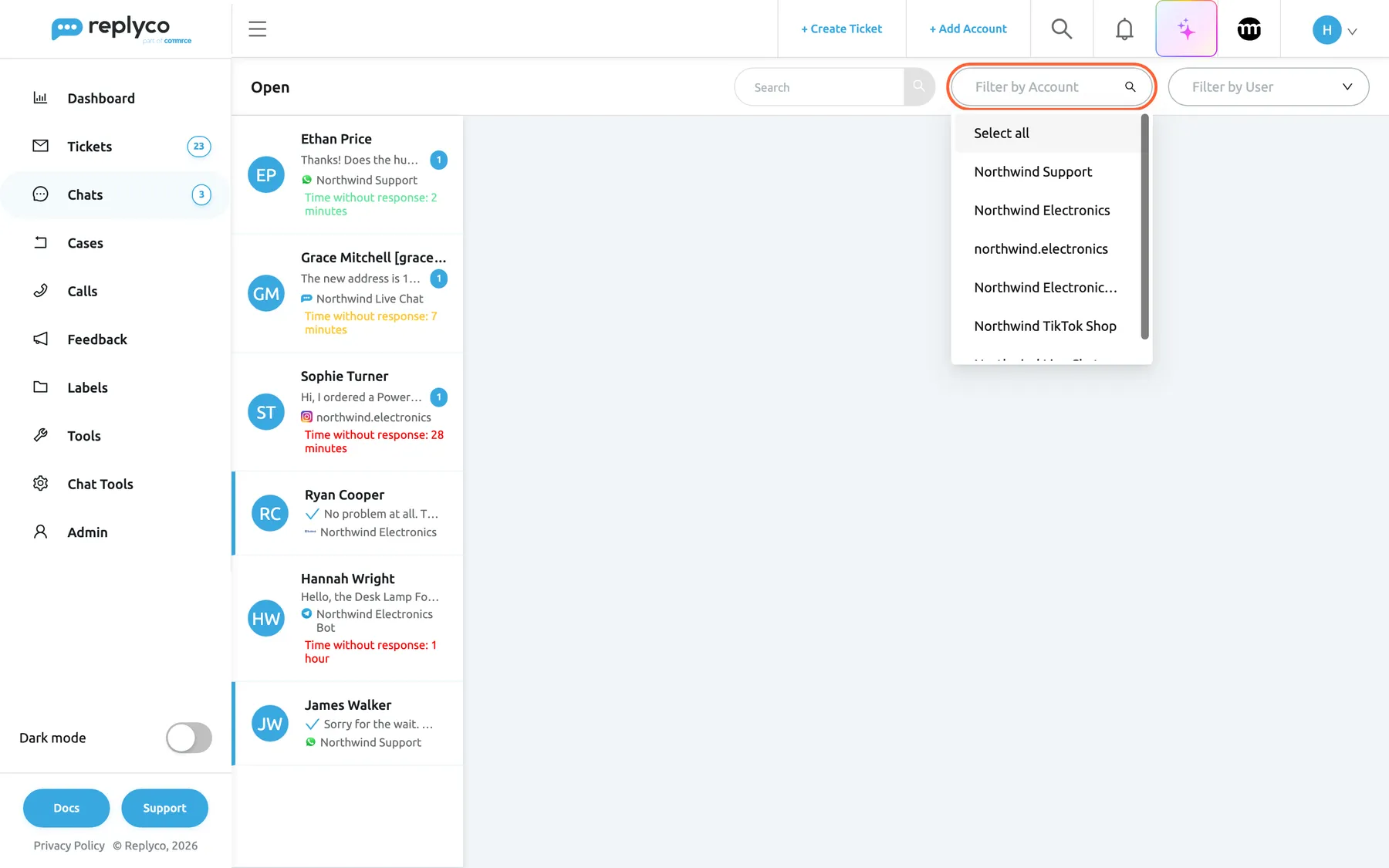
What this screenshot shows
- Screen
- Open (/chats/open)
- Highlighted
- combobox “Filter by Account”, list-toolbar, open. filters the list by account or widget
- Also visible
- Select all; 5 chat accounts and the Northwind Live Chat widget; the open chats behind the drop-down
- Purpose
- filter the chat list
- Type part of the customer’s name into Search and press Enter or select the magnifier. Replyco searches the chat titles, which hold the customer’s name and, for live chats, their email address; it does not search the text of the messages.
- Open Filter by Account and pick one or more chat accounts or live chat widgets, or Select all.
- On Open and Closed, open Filter by User and pick one or more colleagues to see the chats assigned to them.
A second after you change a filter, the list reloads and any open conversation closes, so choose your filters before you open a chat. The filters stay while you switch between the lists and reset when you leave Chats or reload the page.
For example, pick Northwind Support in Filter by Account to work through only the WhatsApp chats, or pick a colleague in Filter by User to take over their chats while they are away.
Read a conversation
Section titled “Read a conversation”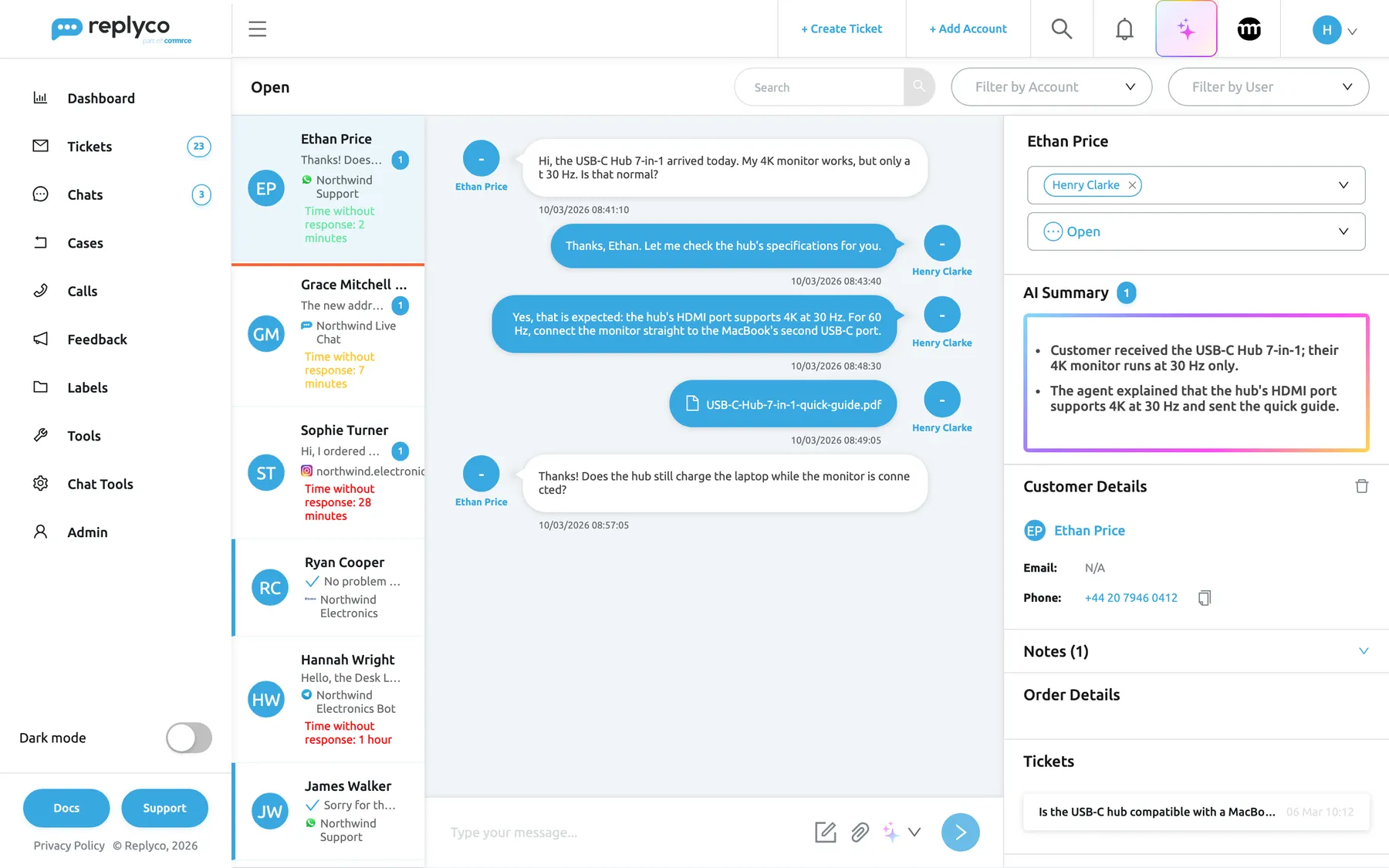
What this screenshot shows
- Screen
- Open (/chats/:type/:chatId)
- Highlighted
- button “”, chat-list, selected. shows the conversation
- Also visible
- 5 messages: 2 replies by Henry Clarke, a PDF, 2 customer messages; Assigned: Henry Clarke; Status: Open; AI Summary with badge 1; Customer Details, Notes (1), Order Details, Tickets; text box and composer icons
- Purpose
- an open conversation
Select a row and the conversation opens in the middle; the address of the page now ends in the chat’s ID, so you can bookmark it or send it to a colleague. The oldest message is at the top and the screen scrolls to the newest; scroll up to load older messages, ten at a time.
The customer’s messages are on the left in white, with their initials and name; your team’s replies are on the right in blue, with the colleague’s name. Every message shows its date and time to the second. A message from a live chat also shows from the page and the address of the page the customer was on, so you know which product they were looking at.
| What you see | What it is |
|---|---|
| A picture, sticker or animation | Shown in the message; right-click for Download |
| A video or a voice message | Played in the message |
| A document with its file name | Select it to open or download the file |
| An Instagram story reply or mention | Labelled You have received reply to the story: or You were mentioned in the story: with the story |
| A quoted message above a message | The message it replies to; Message not found! when that message is no longer in Replyco |
| Unsupported message type on a yellow bubble | A message type Replyco cannot show, such as a location |
| A reply with the Replyco logo and as auto-response “{{autoresponse}}” | An auto-response, with the name of the rule that sent it |
| Sending is scheduled for and a time | An auto-response waiting to be sent; the red x cancels it after Are you sure to cancel this message? |
| Red text Error Sending under a reply | A reply the channel refused, with the reason |
| Someone is typing now... or a name with “is typing” under the last message | A colleague writing in this chat, or the live chat customer typing |
Auto-responses are set up under Chat ToolsAutomation; how their rules decide when to answer is in Auto-responses for chats. They answer Messenger, Instagram, Telegram and TikTok Shop chats and live chats; WhatsApp chats never get an auto-response, so there the first answer is always your team’s. When you or a colleague sends a reply, auto-responses still waiting in that chat are cancelled.
Opening a chat marks its messages as read for your whole team, not only for you: the badges go down for everyone. On WhatsApp and Facebook Messenger, Replyco also marks the messages as read for the customer, so they see that you have read them; on Instagram, Telegram, TikTok Shop and live chat it does not.
Assign a chat and close it
Section titled “Assign a chat and close it”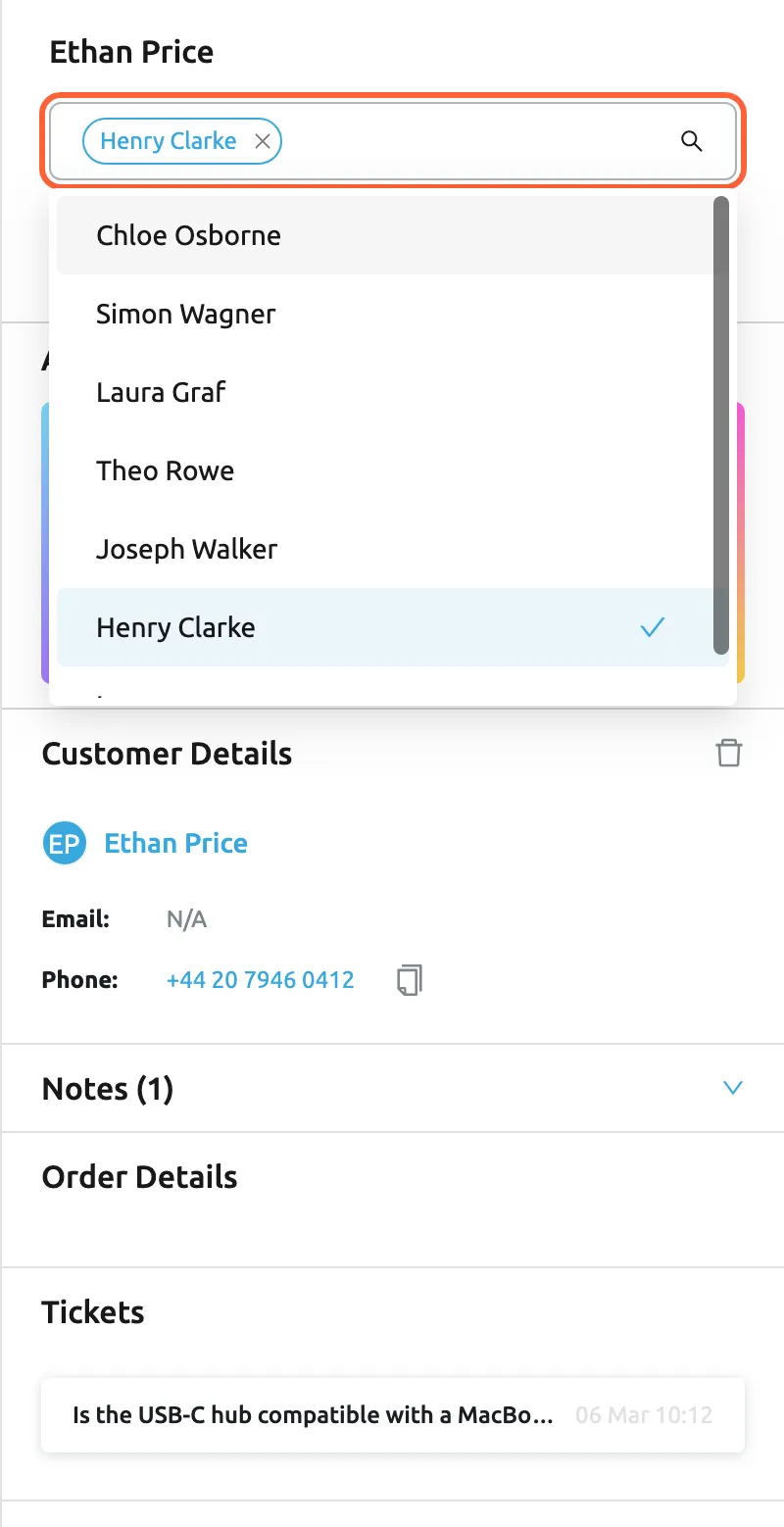
What this screenshot shows
- Screen
- Assigned (/chats/:type/:chatId)
- Highlighted
- combobox “Assigned”, side-panel-top, open. assigns or unassigns users
- Also visible
- Henry Clarke assigned; 6 team members in the list
- Purpose
- assign a chat
The top of the side panel shows the chat’s title and two selects.
- To assign the chat, open Assigned and pick a colleague. The chat is assigned at once and appears in their My Chats. Pick more colleagues to share the chat; select the x on a name to remove them.
- To close the chat, open the status select and pick Closed. The chat leaves Open and My Chats, moves to Closed, and all its messages count as read.
- To reopen a closed chat, pick Open in the same select.
Sending a reply assigns you to the chat if you were not assigned yet, so a chat you answer shows up in your My Chats. Any new message reopens a closed chat: when the customer writes again, the chat is back in Open, with the same assignees. A reply you send from a closed chat reopens it too.
For example, Laura answers a live chat about a delivery address, the customer thanks her, and she closes the chat. Next week the same customer writes “Where is my parcel?” through the widget: the chat reopens, still assigned to Laura, and she gets the notification.
Read or generate the AI summary
Section titled “Read or generate the AI summary”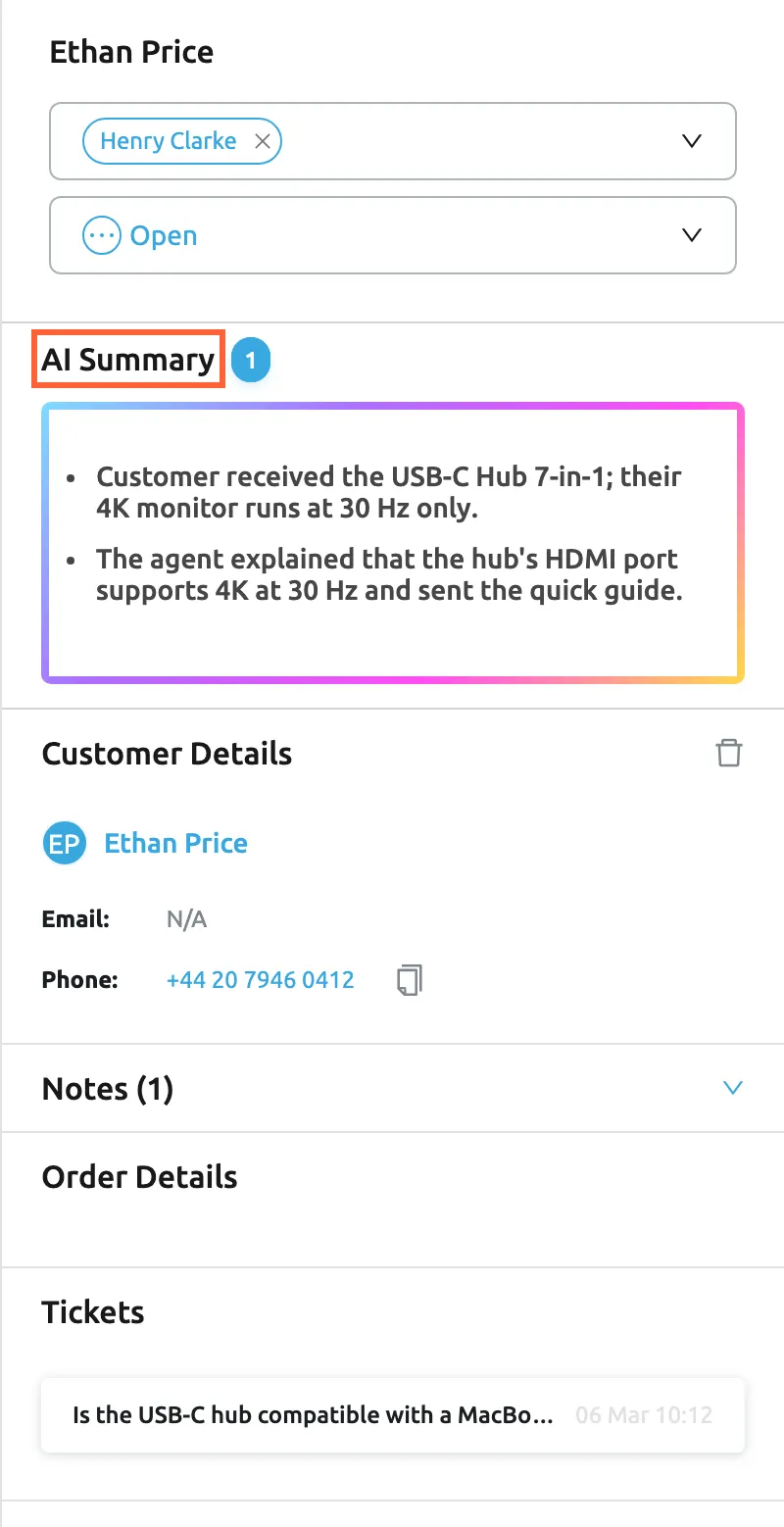
What this screenshot shows
- Screen
- AI Summary (/chats/:type/:chatId)
- Highlighted
- heading “AI Summary”, side-panel, summary shown. none; the badge counts uncovered messages
- Also visible
- Assigned and status selects; AI Summary with 2 points and badge 1; Customer Details: Email N/A, phone; Notes (1); Order Details; Tickets: 1 earlier ticket
- Purpose
- the side panel of a chat
The AI Summary panel sums up the chat in a few bullet points, for example Customer received the USB-C Hub 7-in-1; their 4K monitor runs at 30 Hz only. The blue badge next to the heading counts the messages the summary does not cover yet; its tooltip reads Uncovered Messages.
- A chat that has no summary shows Generate Summary.
- Once five or more messages are newer than the summary, the panel shows Regenerate Summary.
- Chats are never summarised by themselves; a summary is written only when someone selects one of these buttons.
Replyco writes the summary from the chat’s 15 most recent messages and keeps one summary per chat, which your whole team sees. The panel appears when AI summaries are switched on with Thread Summary in AI Settings. Which language the summary is written in, and how it counts towards AI usage, is in AI summaries.
Work with the customer, notes, order and tickets
Section titled “Work with the customer, notes, order and tickets”Below the summary, the side panel holds four parts.
Customer Details shows the customer’s name, email and phone, or N/A for what the channel does not provide; WhatsApp gives a phone number, the live chat an email address. Select the name to open the customer in Customers. Replyco links a chat to its customer by itself. For a live chat, it looks for customers with the same email address: with one match it links the chat, with several it shows Select customer so you choose. To link the chat to another customer, for example the shop customer with this person’s orders, select the bin icon, confirm Are you sure you want to delete this customer? and pick the right one in Select customer, which searches your marketplace and shop customers. Until a customer is linked, you cannot reply: the reply box is disabled and shows Select the recipient to send the message to....
Notes holds internal notes on the chat, collapsed with their number in the heading. The customer never sees them. They work as notes on a ticket; see The ticket screen.
Order Details and Tickets appear once a customer is linked. The order part lists the customer’s orders, or offers fields to find one: Enter Marketplace Order# on a TikTok Shop chat, and one field per connected order-management system. The tickets part lists the customer’s tickets, five at a time; select one to open it.
Reply in the chat
Section titled “Reply in the chat”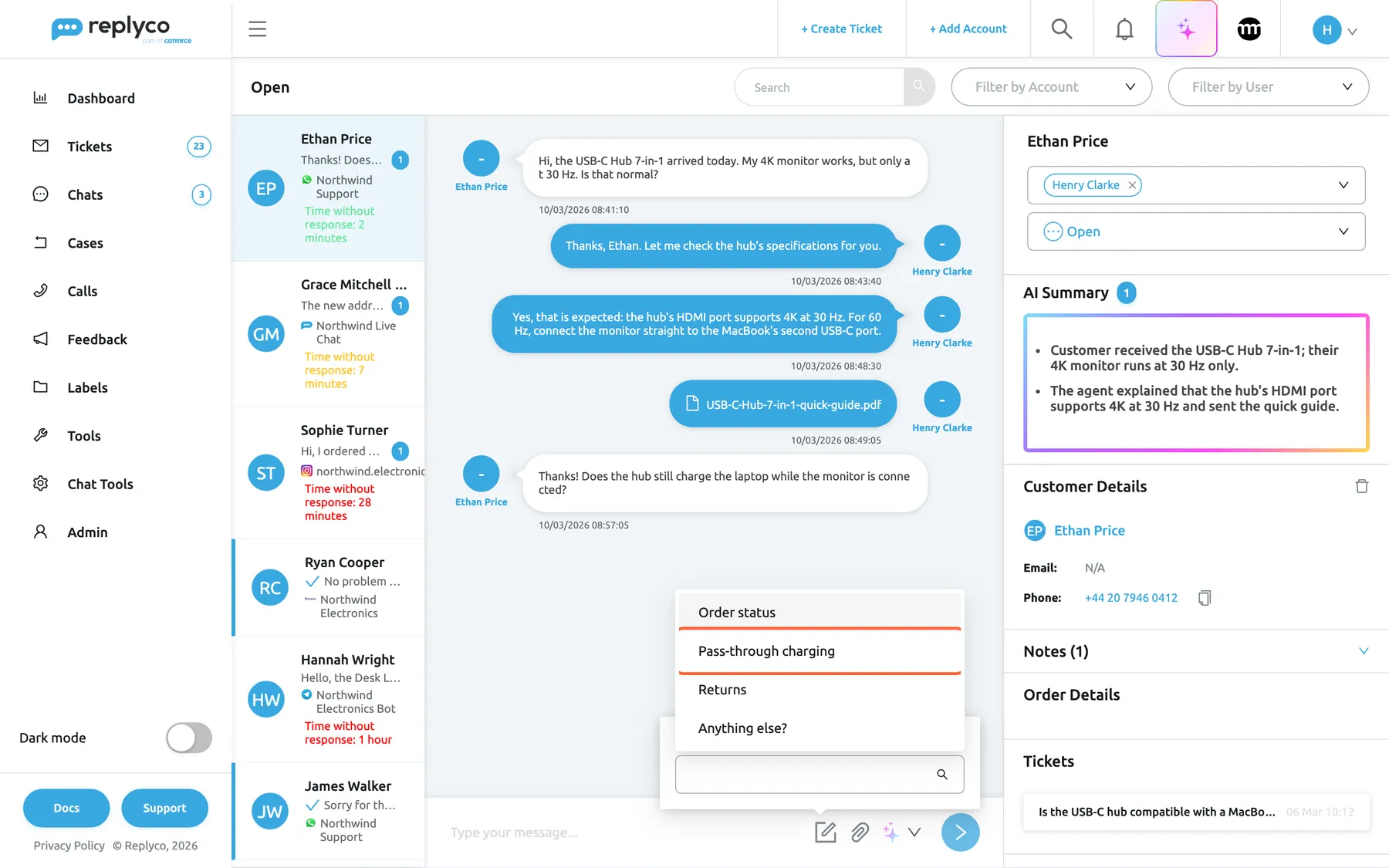
What this screenshot shows
- Screen
- Select Template (/chats/:type/:chatId)
- Highlighted
- option “”, composer, highlighted. puts the template text into the text box
- Also visible
- popover Select Template; 4 chat templates; the conversation behind
- Purpose
- reply with a chat template
The reply box is at the bottom of the conversation. Type your reply and press Enter to send it; Shift+Enter starts a new line. The icons to the right of the box:
| Icon | What it does |
|---|---|
| Form, Select template | Opens Select Template with your chat templates; choosing one replaces the text in the box with the template’s text |
| Paper clip, Add attachment | Picks a file and sends it at once, together with any text in the box |
| Sparkle with an arrow, AI Help | Rewrites the text in the box in one of nine ways, from Make Shorter to Correct Spelling |
| Blue arrow | Sends the reply |
Chat templates are plain text with a name, written under Chat ToolsAutomation; they have no placeholders, so personalise the text before you send it. To write or change them, see Chat templates. The chat reply box has no snippets and no emoji picker; the ticket editor’s snippets do not work here.
Files can be up to 20 MB; a larger one is refused with File size is more than 20MB.. On Instagram you can send only pictures (.bmp, .ico, .jpg, .jpeg, .png). On WhatsApp, Replyco sends .jpg and .png as pictures, .mp4 and .3gp as videos, .webp as stickers, .mp3, .mpeg, .amr and .ogg as audio, and everything else as a document.
While you type, colleagues who have the chat open see that someone is typing. Your reply appears in the conversation at once; if the connection drops, the box shows Connection unstable. Retrying (attempt {{attempt}}/{{max}})... while Replyco tries again up to three times. The channel still decides whether it delivers your reply: WhatsApp, Messenger and Instagram accept an ordinary reply only within 24 hours of the customer’s last message. The whole routine, and what to do when a channel refuses a reply, is in Answer a chat.
Act on one message
Section titled “Act on one message”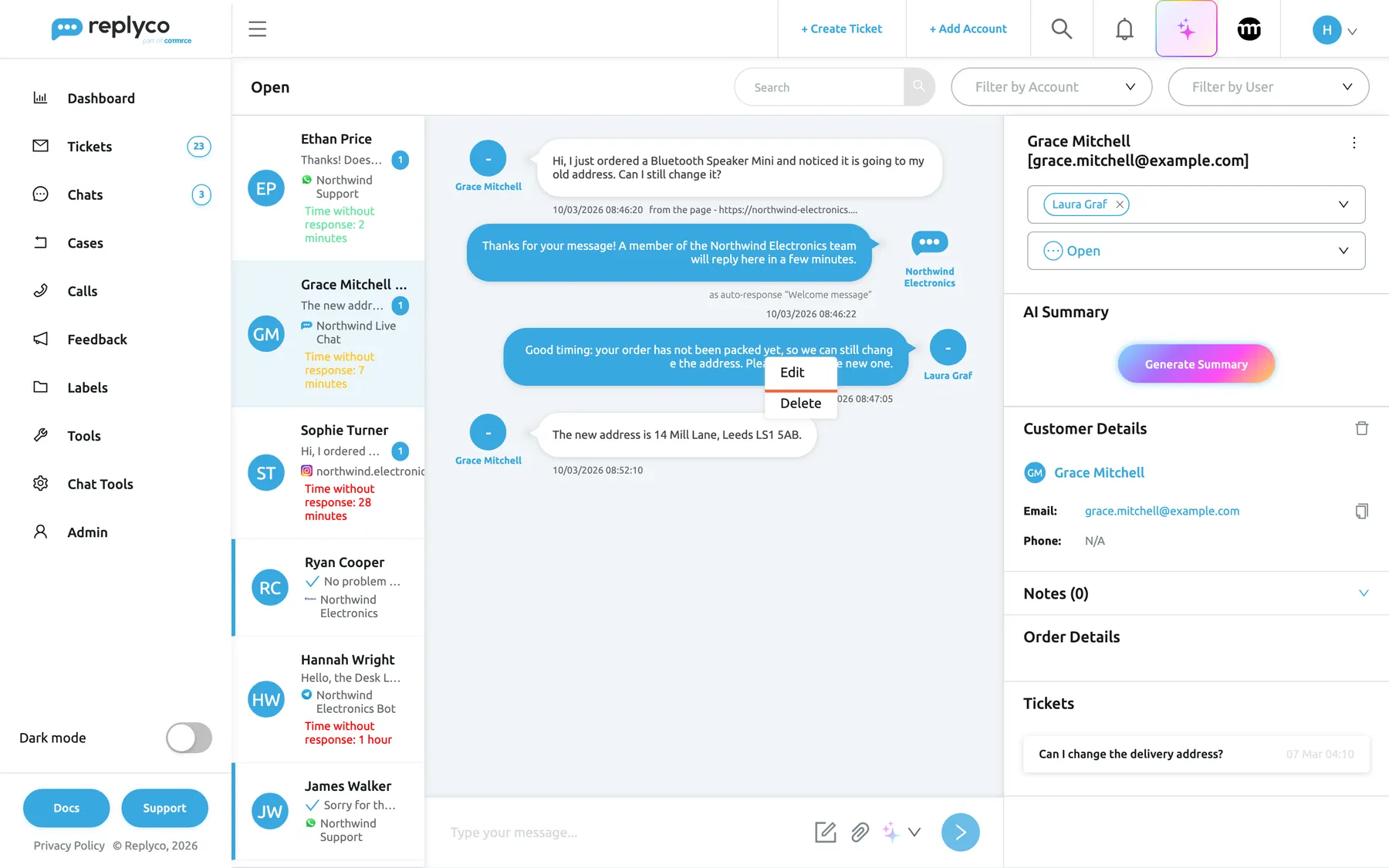
What this screenshot shows
- Screen
- Open (/chats/:type/:chatId)
- Highlighted
- menuitem “Edit”, conversation, menu open. puts the message into the text box for editing
- Also visible
- context menu: Edit, Delete; from the page link under the customer's message; the welcome auto-response; three-dot icon next to the chat title; Generate Summary button
- Purpose
- act on one message
Right-click a message to see what you can do with it. What the menu offers depends on the channel and on who sent the message:
| Action | Where it appears | What it does |
|---|---|---|
| Reply to Message | Telegram chats | Quotes the message above your next reply |
| Edit | Your team’s messages in live chat and Telegram chats | Puts the text back into the reply box with a pencil bar above it; sending saves the change |
| Delete | Your team’s messages in live chat, Telegram and TikTok Shop chats | Deletes the message after Are you sure you want to delete the message? |
| Download | Pictures, stickers, animations and Instagram stories | Saves the file |
A reply or edit in progress shows a grey bar above the box with the message’s text; the x on the bar cancels it. On Telegram, a deleted message is also removed from the customer’s Telegram, and an edit changes it there. On live chat, the customer’s widget shows the change. On TikTok Shop you can delete your team’s messages but not edit them, and a deleted message is removed only in Replyco. WhatsApp, Messenger and Instagram messages cannot be edited or deleted from Replyco.
Send a transcript of a live chat
Section titled “Send a transcript of a live chat”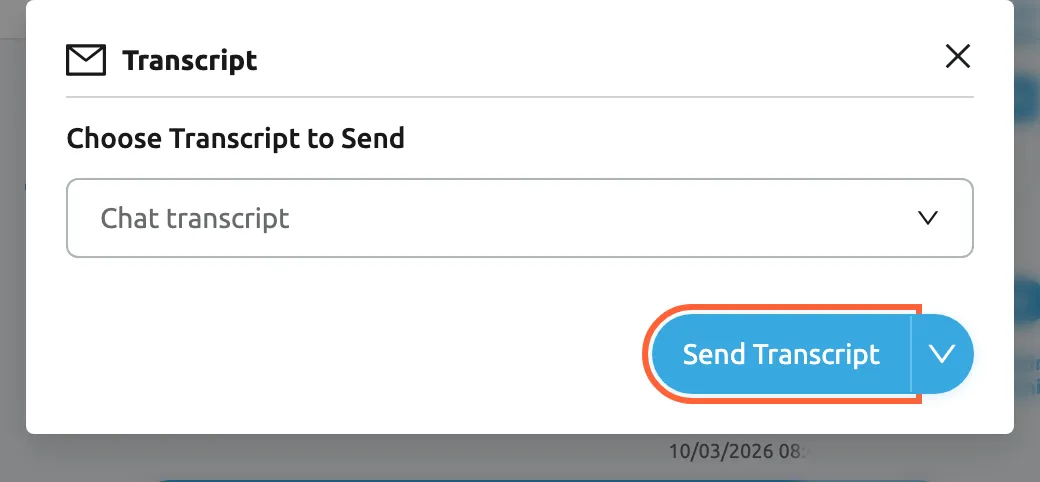
What this screenshot shows
- Screen
- Transcript (/chats/:type/:chatId)
- Highlighted
- button “Send Transcript”, dialog-bottom-right, enabled. sends the transcript as a ticket by email
- Also visible
- heading Transcript; Choose Transcript to Send; select with Chat transcript; arrow for Transform Into a Ticket
- Purpose
- send a chat transcript
On a live chat, a three-dot icon next to the chat’s title opens the Transcript dialog. The icon appears only on live chats, and only when your company has at least one active transcript.
- Select the three-dot icon next to the chat’s title.
- Under Choose Transcript to Send, pick a transcript in Select a Transcript.
- Select Send Transcript, or the arrow next to it and Transform Into a Ticket.
Send Transcript emails the whole conversation to the customer as a new ticket, from the account and with the subject the transcript names, and assigns that ticket to you. The chat gets the note Chat Transcript was successfully sent. Transform Into a Ticket opens Create Ticket with the conversation filled in, so you can change it before sending. Without a transcript picked, Replyco shows Please select a Transcript.. To create transcripts and choose their email account, see Transcripts.
Every control, explained
Section titled “Every control, explained”The controls of the Chats screen, from the header across the list and the conversation to the side panel.
My Chats, Open and Closed
Section titled “My Chats, Open and Closed”Sidebar, under Chats. The header of the screen repeats the list’s name.
The three lists of chats: open chats assigned to you; open chats you are responsible for or assigned to; closed chats by the same rule. Newest message first, ten at a time.
Work your own queue first, then help with the team’s open chats.
Search
Section titled “Search”Header, right. Runs when you press Enter or select the magnifier.
Finds chats whose title contains the text: the customer’s name, and for live chats their email address. Message text is not searched.
Find a customer’s chat when they call or email about it.
Filter by Account and Filter by User
Section titled “Filter by Account and Filter by User”Header, right. Filter by User is not on My Chats.
Filter by Account lists your WhatsApp, Messenger, Instagram, Telegram and TikTok Shop accounts and your live chat widgets, with Select all. Filter by User lists your colleagues and shows chats assigned to any of them. Both reload the list a second after a change and close the open chat.
Split the work by channel or cover a colleague’s chats.
Chat rows
Section titled “Chat rows”| Part | What it shows | Why |
|---|---|---|
| Name | The customer; for live chat, name and email in brackets (hover the avatar for the email) | Know who is waiting |
| Latest message | The start of the newest message, or File | See what the chat is about without opening it |
| Blue badge | Unread messages | Spot new messages |
| Blue tick and left line | The newest message is your team’s | See which chats are answered |
| Channel icon and account | Where the chat came in | Know which channel’s rules apply |
| Time without response: | How long the customer’s newest message has waited: green under 5 minutes, yellow under 10, red from 10 | Answer the longest wait first |
Messages
Section titled “Messages”Middle of the screen. Right-click a message for its menu.
The chat’s messages with sender, date and time, files, auto-responses and delivery errors. The menu offers Reply to Message, Edit, Delete and Download where the channel allows them.
Read the whole conversation and correct a message you sent, where the channel lets you.
Error Sending and Retry
Section titled “Error Sending and Retry”Under a reply, in red.
The reply did not reach the customer; the text after the colon is the reason. Retry appears when your own connection failed while sending; it sends the same reply again. A refusal by the channel, such as WhatsApp’s 24-hour rule, has no Retry.
Know which replies the customer never received.
Reply box
Section titled “Reply box”Bottom of the conversation. Enter sends, Shift+Enter adds a line.
Holds your reply, one to four lines high. It is disabled while a reply is being sent, while the connection to Replyco’s chat service is down, and when the chat has no customer (Select the recipient to send the message to...).
Answer in the channel the customer used, without leaving Replyco.
Template icon
Section titled “Template icon”Right of the reply box, the form icon with the tooltip Select template.
Opens Select Template with a searchable list of your chat templates. The chosen template’s text replaces what is in the box.
Give the same good answer to a common question in seconds; see Chat templates.
Add attachment
Section titled “Add attachment”Right of the reply box, the paper clip.
Opens your computer’s file picker and sends the chosen file at once, with the text in the box. Up to 20 MB; pictures only on Instagram.
Send a manual, a photo or an invoice where the customer is.
AI Help
Section titled “AI Help”Right of the reply box, the sparkle with an arrow. Only with AI switched on for your company.
Nine rewrites of the text in the box: Make Shorter, Make Longer, Improve Writing, Simplify Writing, Make Formal, Make Informal, Make Professional, Make Friendly and Correct Spelling. The result replaces your text. With an empty box it does nothing.
Turn a quick note into a friendly, correct reply.
Send arrow
Section titled “Send arrow”Right end of the reply box, the blue circle.
Sends the text, or saves an edit. Pale while the box is empty.
Send with the mouse instead of Enter.
Assigned
Section titled “Assigned”Side panel, top. Saves on each choice.
The colleagues assigned to the chat, any number of them. Adding someone puts the chat into their My Chats; the x removes them.
Make clear who answers, or hand a chat over.
Status
Section titled “Status”Side panel, under Assigned. Saves on choice.
Open or Closed. Closing moves the chat to Closed and marks its messages read; a new message reopens it.
Keep the open lists to the chats that still need something.
Three-dot icon
Section titled “Three-dot icon”Side panel, next to the chat’s title. Live chats only, when an active transcript exists.
Opens the Transcript dialog with Send Transcript and Transform Into a Ticket.
Give the customer a written record of the chat; see Transcripts.
AI Summary
Section titled “AI Summary”Side panel, under the status. Only when AI summaries are on in AI Settings.
The stored summary as bullet points, a badge with the messages it does not cover, and Generate Summary or Regenerate Summary (from five newer messages). Never written automatically for chats.
Catch up on a long chat before you answer; see AI summaries.
Customer Details
Section titled “Customer Details”Side panel. Bin icon at the panel’s right to remove the customer.
The linked customer’s name, email and phone, with Select customer when no customer or several candidates are found.
Know who you are talking to and connect the chat to their orders and tickets.
Side panel, collapsed; the number of notes is in the heading.
Internal notes on the chat, never shown to the customer.
Leave context for the colleague who takes the chat over.
Order Details and Tickets
Section titled “Order Details and Tickets”Side panel, bottom. Only with a linked customer.
The customer’s orders or the fields to find one, and the customer’s tickets, five at a time.
Answer order questions and see earlier conversations by email or marketplace.
Your chat notifications and counters
Section titled “Your chat notifications and counters”These personal settings change only your own Chats screen and alerts.
| Setting | Where | What it changes |
|---|---|---|
| New Chat Message (All) | Notifications | A pop-up for new messages in all chats you are responsible for or assigned to |
| New Chat Message (Personal) | Notifications | A pop-up only for new chats with nobody assigned and for messages in chats assigned to you |
| Pop-up Chat Sounds | Notifications | A sound with the chat pop-up |
| Chat badge in the menu | Account Settings | The counter next to Chats: Unread Chats or Unread Chat Messages |
Pop-ups never appear for the chat you have open.
Who sees what
Section titled “Who sees what”| Part of the screen | What decides whether you see it |
|---|---|
| Chats in the sidebar | The Chats permission, set per user by an admin, and a plan with chats (every plan); see User permissions and roles |
| Chats in Open and Closed | The accounts and live chat widgets an admin gave you access to, plus chats assigned to you |
| AI Summary | AI (every plan) and AI summaries switched on in AI Settings |
| AI Help | AI (every plan) |
| The three-dot transcript icon | Live chats, when your company has an active transcript |
| Edit | Your team’s messages on live chat and Telegram |
| Delete | Your team’s messages on live chat, Telegram and TikTok Shop |
| Reply to Message | Telegram chats |
| Order Details, Tickets | A customer linked to the chat |
| Filter by User | Open and Closed |
Chats, WhatsApp and the live chat widget are part of every plan. See What each plan includes.
What you need to know
Section titled “What you need to know”| Topic | Fact |
|---|---|
| Order | Newest message first; ten chats per page, more as you scroll |
| Read state | Shared by the team: opening a chat marks it read for everyone; WhatsApp and Messenger customers see a read receipt |
| Assignees | Any number per chat; replying assigns you |
| Reopening | Any new message, from the customer or your team, reopens a closed chat |
| Auto-responses | Messenger, Instagram, Telegram, TikTok Shop and live chat; never WhatsApp |
| Waiting time | Green under 5 minutes, yellow under 10, red from 10; only while the customer’s message is the newest |
| Summary | On request only; renew from five newer messages; one per chat |
| Files | Up to 20 MB; pictures only on Instagram |
| Reply window | WhatsApp, Messenger and Instagram accept ordinary replies within 24 hours of the customer’s last message |
| Filters | Kept while you switch lists, reset when you reload; changing one closes the open chat |
| Live updates | New messages and assignments arrive without reloading while you are connected |
Frequently asked questions
Section titled “Frequently asked questions”Lists and finding chats
Section titled “Lists and finding chats”Why is a chat missing from my Open list?
Section titled “Why is a chat missing from my Open list?”Open under Chats shows the open chats of the accounts and live chat widgets an admin gave you access to, plus open chats assigned to you. If the chat’s account is not yours and nobody assigned it to you, it is not listed; ask an admin to give you the account, or a colleague to assign you. A closed chat is in Closed.
What is the difference between my list and the Open list?
Section titled “What is the difference between my list and the Open list?”My Chats lists only the open chats assigned to you. Open lists every open chat you are responsible for through your accounts and live chat widgets, assigned to you or not. Use My Chats as your queue and Open to pick up unassigned chats.
Can I search the text of the messages?
Section titled “Can I search the text of the messages?”No. Search at the top of the Chats screen matches the chat title, which is the customer’s name and, for live chats, their email address. To find a chat by what was said, search for the customer’s name, or use Filter by Account to narrow the list to one account first.
Why did the conversation I had open disappear when I changed a filter?
Section titled “Why did the conversation I had open disappear when I changed a filter?”Changing Filter by Account or Filter by User reloads the chat list a second later and closes any open conversation, because the chat might not be in the filtered list. Set your filters first, then open the chat you want to answer.
What do the green, yellow and red lines in the list mean?
Section titled “What do the green, yellow and red lines in the list mean?”The line Time without response: shows how long the customer’s newest message has waited: green under 5 minutes, yellow under 10 minutes, red from 10 minutes. It appears only while the newest message is the customer’s; your reply removes it and adds a blue tick instead.
Where do new Instagram and TikTok Shop messages come from?
Section titled “Where do new Instagram and TikTok Shop messages come from?”Opening Open fetches new conversations from your connected Instagram and TikTok Shop accounts, showing Sync from marketplaces meanwhile. Opening a chat on those channels fetches its latest messages too. WhatsApp, Messenger, Telegram and live chat messages reach Replyco as they arrive.
Working in a chat
Section titled “Working in a chat”Does opening a chat mark it as read for my colleagues too?
Section titled “Does opening a chat mark it as read for my colleagues too?”Yes. Read or unread belongs to the message, not to each user, so when anyone opens a chat on the Chats screen, its unread badge and the sidebar counters go down for the whole team. On WhatsApp and Facebook Messenger the customer also sees that the messages were read.
Can more than one person be assigned to a chat?
Section titled “Can more than one person be assigned to a chat?”Yes. In the side panel of the chat, open Assigned and pick as many colleagues as you need; each of them sees the chat in My Chats. Replying to a chat also adds you as an assignee if you were not one already.
What happens when a customer writes to a closed chat?
Section titled “What happens when a customer writes to a closed chat?”The chat reopens by itself: it leaves Closed, returns to Open and to the My Chats list of its assignees, and the new message is unread. A reply sent by your team in a closed chat reopens it in the same way.
Why did a WhatsApp chat get no auto-response?
Section titled “Why did a WhatsApp chat get no auto-response?”Chat auto-responses answer Messenger, Instagram, Telegram and TikTok Shop chats and live chats from your website widget, but never WhatsApp chats; the rules under Chat ToolsAutomation cannot select a WhatsApp account. Answer WhatsApp chats yourself, quickly, because WhatsApp accepts ordinary replies only within 24 hours of the customer’s last message.
Why can I not edit or delete a message I sent on WhatsApp?
Section titled “Why can I not edit or delete a message I sent on WhatsApp?”Replyco offers Edit in the right-click menu only on live chat and Telegram chats, and Delete on those and on TikTok Shop chats, in both cases only on your team’s messages. WhatsApp, Messenger and Instagram messages cannot be changed from Replyco; send a correction as a new message instead.
Why is the reply box greyed out?
Section titled “Why is the reply box greyed out?”The reply box on the Chats screen is disabled while a reply is being sent, while your browser has lost its connection to Replyco’s chat service, and when no customer is linked to the chat. In the last case it shows Select the recipient to send the message to...; pick the customer in Select customer in the side panel. For a lost connection, reload the page.
Can I use snippets, placeholders or emojis in a chat reply?
Section titled “Can I use snippets, placeholders or emojis in a chat reply?”The chat reply box has chat templates, files and AI Help, but no snippets, no placeholders such as a customer’s first name and no emoji picker. Chat templates are plain text, so edit the text in the box before sending when it needs the customer’s name.
Summaries, transcripts and notifications
Section titled “Summaries, transcripts and notifications”Why does a chat have no AI summary?
Section titled “Why does a chat have no AI summary?”Chats are never summarised automatically. Select Generate Summary in the AI Summary panel of the chat’s side panel. If the panel is missing, AI summaries are switched off with Thread Summary in AI Settings.
Why is there no Regenerate button although new messages arrived?
Section titled “Why is there no Regenerate button although new messages arrived?”Regenerate Summary appears in a chat’s side panel once five or more messages are newer than the summary. Until then, the badge next to AI Summary counts the messages the summary does not cover. The summary is always written from the chat’s 15 most recent messages.
Why is there no transcript icon in my chat?
Section titled “Why is there no transcript icon in my chat?”The three-dot icon next to the chat’s title, which opens Transcript, appears only on live chats from your website widget, and only when your company has at least one active transcript. WhatsApp and other messenger chats have no transcripts. Transcripts are created under Transcripts.
How do I get notified of new chats?
Section titled “How do I get notified of new chats?”In your Notifications, switch on New Chat Message (All) for every message in chats you are responsible for or assigned to, or New Chat Message (Personal) for new unassigned chats and your own chats only, and Pop-up Chat Sounds for a sound. The pop-up does not appear for the chat you have open.
Troubleshooting
Section titled “Troubleshooting”| Symptom | What to check |
|---|---|
| Chats is not in the sidebar | Your user needs the Chats permission; an admin sets it in AdminUsers. See Invite users and set what they can do. |
| No chats were found. | Clear Search, Filter by Account and Filter by User; check Closed; check that you have access to the chat accounts and widgets. |
| A colleague sees a chat that you do not | They are responsible for its account or widget, or assigned. Ask to be assigned, or for access to the account. |
| The reply box is greyed out with Select the recipient to send the message to... | No customer is linked: pick one in Select customer under Customer Details. |
| The reply box is greyed out without a tooltip, or Connection unstable. Retrying (attempt {{attempt}}/{{max}})... | Your connection to Replyco’s chat service dropped. Check your internet connection and reload the page. |
| Failed to send message. Please check your connection. and Error Sending with Retry | Your connection failed while sending. Select Retry once the connection is back. |
| Error Sending with “Re-engagement message” on WhatsApp | The customer’s last message is more than 24 hours old; WhatsApp refuses ordinary replies. See Answer a chat. |
| An error pop-up starting “2018278” on Messenger or Instagram | The customer has not written for more than 24 hours; Meta refuses the reply, and it is not saved. |
| File size is more than 20MB. | The file is over 20 MB. Send a smaller file or a link. |
| A WhatsApp chat got no auto-response | Expected: auto-responses never answer WhatsApp chats. Answer them yourself; see Auto-responses for chats. |
| No AI Summary panel | AI summaries are off in AI Settings. |
| We cannot find this Chat. | The link points to a chat Replyco cannot load, for example one that no longer exists. Open the chat from the list instead. |