

Templates
The Templates tab is where your team keeps the replies it sends again and again: a delivery update, an apology for a damaged item, a note that you are away until Monday. Each template has a name, a text with placeholders that Replyco fills in for each customer, and optionally the accounts it belongs to, related AI categories and files. Agents then pick a template in the reply editor instead of typing the answer, and auto-response rules send one on their own. Open it from ToolsAutomation and select the Templates tab.
Availability: the tab is shown to users with the Automation permission; creating, changing, switching and deleting templates needs the edit level of that permission (see User permissions and roles). Every plan includes limiting a template to accounts, though companies on an older plan may not have it; related AI categories need AI categories to be switched on in your AI settings. During a trial every part of the tab is available. See What each plan includes.
What you can do here
Section titled “What you can do here”- Keep one library of answers. Every template of your company is listed on this tab, sorted by name in an Active and an Inactive group, and a click shows its accounts, AI categories, text and files. Find a template and see its details.
- Write a new template. A template needs only a name and a text; accounts, AI categories and attachments are optional. For the whole life of a template, from writing to suggestion in the editor, see the feature guide. Create a template · Reply templates.
- Decide which tickets offer a template. A ticket offers only the templates linked to its account, so the right answers show for eBay, Amazon or your shop. Choose which tickets offer a template.
- Let Replyco suggest the right template. Related AI categories connect a template to the topics Replyco detects in tickets, so the editor can put the best match first or fill it in for you. Link AI categories · AI categories.
- Personalise the text. 33 placeholders such as
#customer_first_name#and#order_id#are filled in when the reply is sent, snippets are one/away, and files you attach go out with the reply. Add placeholders, snippets and attachments · Snippets and placeholders. - Change, copy or retire a template. Edit the text, start a new template from a copy, or switch a template off without losing it. Edit a template · Copy a template · Switch a template off or on.
- Give several templates the same accounts at once. Tick templates and add accounts in one step when you connect a new shop. Add accounts to several templates at once.
- See who changed what. Each template keeps a history of who created, changed, switched and deleted it. See who changed a template.
- Delete what you no longer need, knowing what goes with it. Delete a template.
- Turn a good reply into a template. From the reply editor, Save Reply as a Template saves the reply you wrote as a new template. Save a reply as a template · Answer a ticket.
- Know where templates show up. The reply editor, Create Ticket, eBay case actions, auto-response rules and the Performance dashboard all use them. Where your templates are used · Auto-responses for tickets.
The screen at a glance
Section titled “The screen at a glance”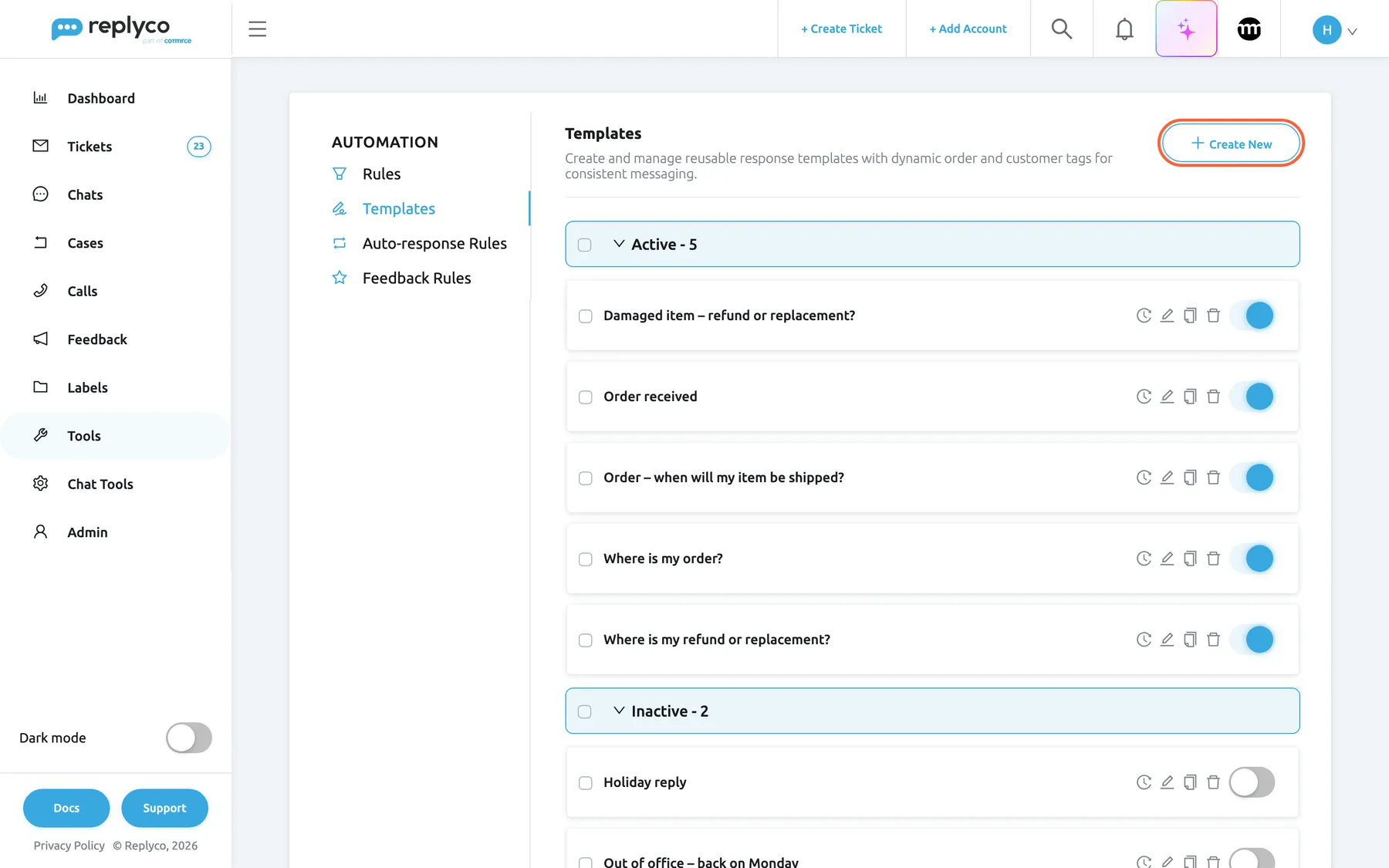
What this screenshot shows
- Screen
- Templates (/tickets-automation?tab=templates)
- Highlighted
- button “Create New”, header-right, enabled. opens the Create Template form
- Also visible
- Automation tabs: Rules, Templates, Auto-response Rules, Feedback Rules; group header Active - 5; five template cards with check box, history, edit, copy and delete icons and a switch that is on
- Purpose
- the Templates tab as it opens
| Region | What it shows | What you do there |
|---|---|---|
| Automation tabs, left | Rules, Templates, Auto-response Rules, Feedback Rules | Switch between the automation lists |
| Header, top | The heading Templates, a short description and Create New | Start a new template |
| Bulk action, above the list | Add Accounts, shown only while templates are ticked | Link accounts to all ticked templates |
| Active group | Every template that is switched on, with the count, sorted by name | Open, tick, edit, copy, delete, switch off |
| Inactive group | Every template that is switched off, with the count | Switch templates back on or clean up |
| Details panel, right (after a click) | Name, Accounts, Related AI Categories, Text, Attachments, and Delete, Copy, Edit | Read a template, then act on it |
A group appears only when it has templates. With no templates at all, the list reads No templates found.
Find a template and see its details
Section titled “Find a template and see its details”The Templates list has no search box and no columns: it shows the template names, sorted alphabetically by Replyco when the tab loads, in the Active group and the Inactive group. Each group header shows its count, for example Active - 5, and a click on the header folds the group away or opens it again.
- Open ToolsAutomation and select the Templates tab.
- Select a template’s name. The card is outlined in blue, the list moves to the left and the details panel opens on the right.
- Read the panel: the accounts the template belongs to, its related AI categories, the text as it is stored (placeholders included) and any attachments. A row is left out when it is empty, so a template without accounts shows no Accounts row.
- Select Edit, Copy or Delete at the bottom of the panel, or the cross in its corner to close it.
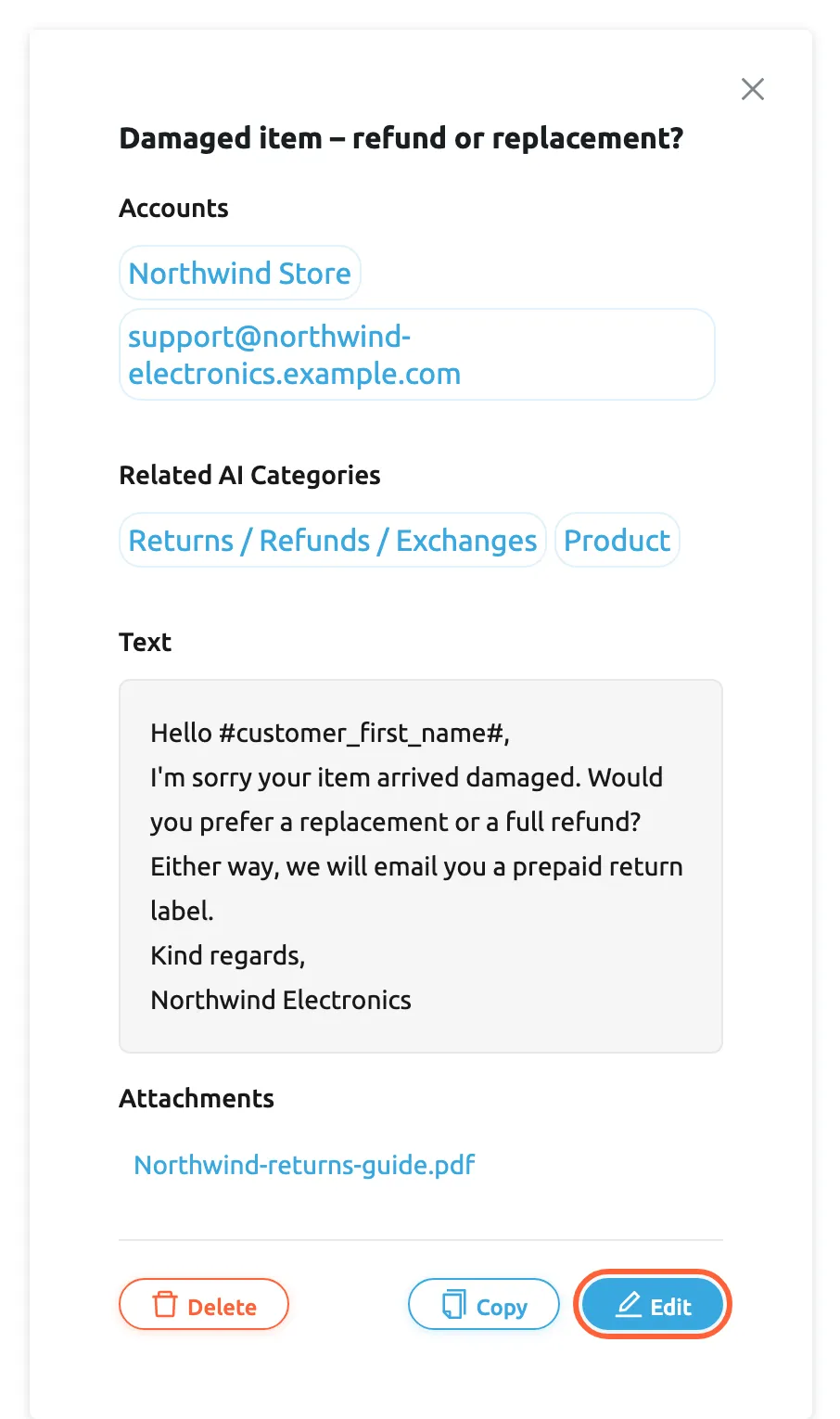
What this screenshot shows
- Screen
- Templates (/tickets-automation?tab=templates)
- Highlighted
- button “Edit”, details-panel-bottom-right, enabled. opens the Edit Template form
- Also visible
- panel title with the template name and a close cross; Accounts: Northwind Store, support@northwind-electronics.example.com; Related AI Categories: Returns / Refunds / Exchanges, Product; Text of the reply; Attachments: Northwind-returns-guide.pdf; Delete, Copy and Edit buttons
- Purpose
- read a template before changing it
Example: Northwind Electronics keeps Damaged item – refund or replacement? for its shop and support mailbox. The panel shows the accounts Northwind Store and support@northwind-electronics.example.com, the AI categories Returns / Refunds / Exchanges and Product, and the PDF Northwind-returns-guide.pdf. Selecting the file name downloads it.
The order only changes when the list is loaded again. A template you rename keeps its place until you open the tab again; a template you create appears in its alphabetical place straight away, because Replyco reloads the list after creating one.
Create a template
Section titled “Create a template”A template needs a name and a text; everything else is optional and can be added later.
- On the Templates tab, select Create New in the top right corner. The form Create Template replaces the list.
- Enter a name under Template Name. Agents choose templates by this name in the reply editor, so name the situation, for example Where is my order?.
- (Optional) Under Accounts, pick the accounts whose tickets should offer the template. See Choose which tickets offer a template before you leave this empty.
- (Optional) Under Related AI Categories, pick the AI categories the template answers. Leave it empty and Replyco asks the AI to pick matching categories from your list when you save.
- Write the reply under Text. Type
#for a placeholder or/for a snippet, or select a placeholder chip under Tags. - (Optional) Under Attachments, select Add Attachment to add a file that goes out with every reply from this template.
- Select Save in the top right corner, or in the column on the right once you have scrolled down.
Replyco returns you to the list at once and sends the template to the server. When the server confirms, a short Success message appears and the new template is in the Active group, in alphabetical order. Creating a template also ticks the matching item of the onboarding checklist.
If the name or the text is empty, nothing is saved and the message All fields must be completed. appears in the top right corner. A name made only of spaces counts as a name, so check the name before you save.
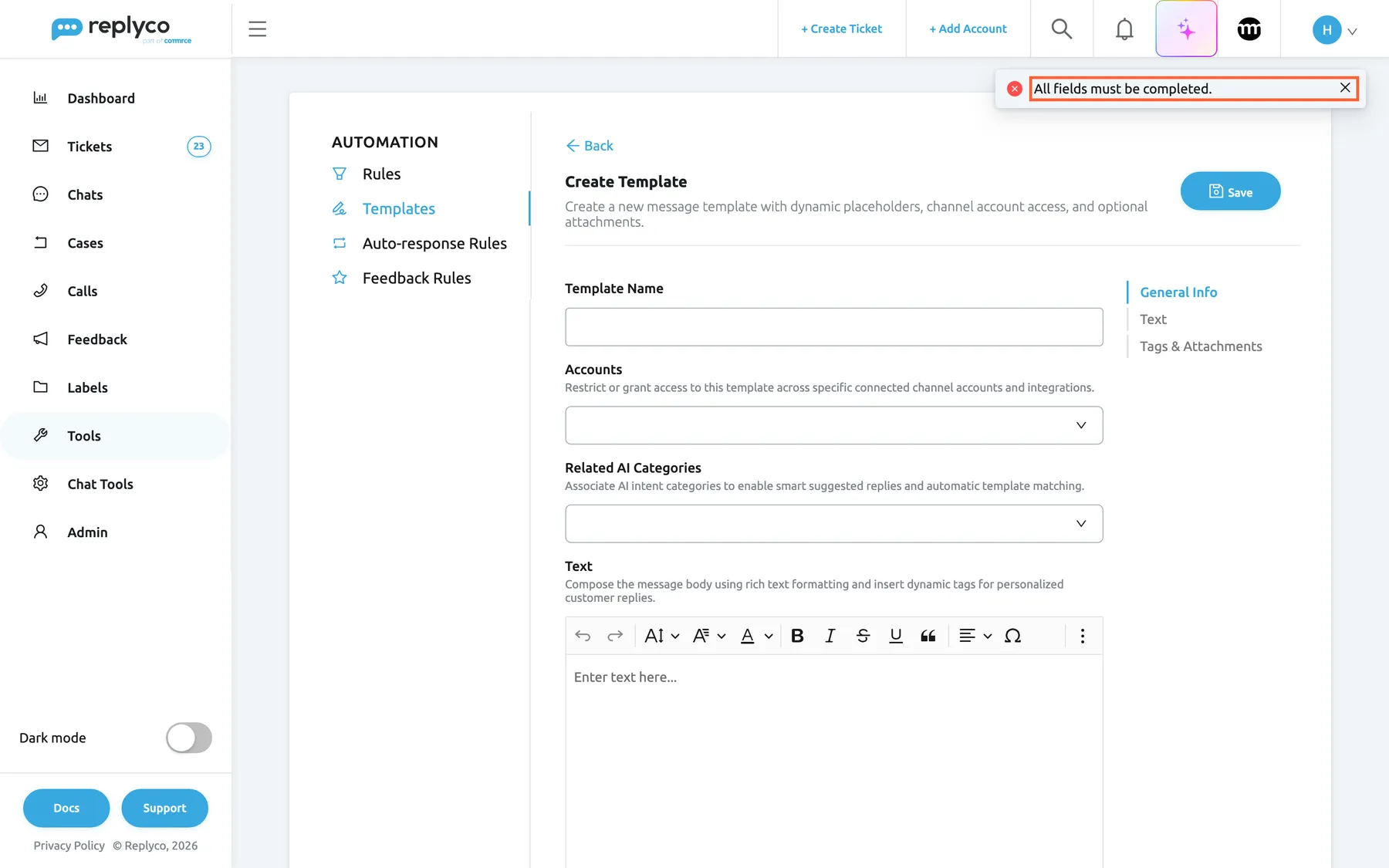
What this screenshot shows
- Screen
- Create Template (/tickets-automation?tab=templates)
- Highlighted
- alert “All fields must be completed.”, top-right, shown. reports the missing name or text
- Also visible
- Create Template form, empty; Template Name, Accounts, Related AI Categories, Text; Save button
- Purpose
- the validation message of the template form
Example: a template named Order received with the text Hello #customer_first_name#, thank you for your message. We are looking into your order #order_id# and will get back to you within one working day. and no AI categories chosen. When Replyco saves it, the AI links it to Order Management, the category that fits the text.
Back at the top of the form leaves without saving: everything you entered is lost.
Choose which tickets offer a template
Section titled “Choose which tickets offer a template”The form has a Accounts field. It lists the accounts whose channels create tickets: marketplaces, webstores, mailboxes and phone. Chat channels such as WhatsApp, Facebook, Instagram and live chat are not in the list; they have their own Chat templates. The first entry of the list, Select all, picks every account; once all are picked it turns into Deselect all.
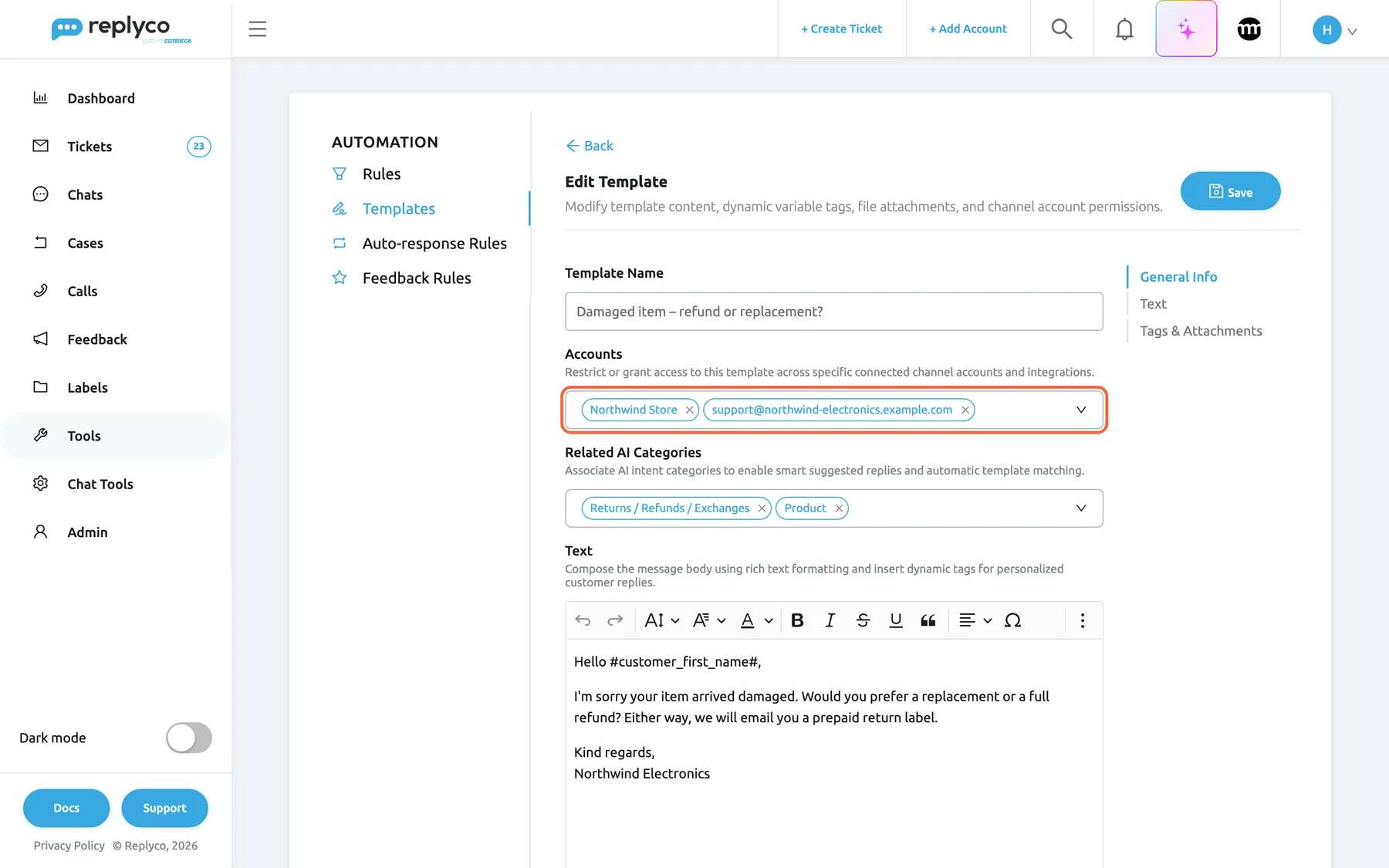
What this screenshot shows
- Screen
- Edit Template (/tickets-automation?tab=templates)
- Highlighted
- combobox “Accounts”, form-general-info, two accounts selected. limits the template to tickets from these accounts
- Also visible
- Template Name field with the name; Related AI Categories: Returns / Refunds / Exchanges, Product; Text editor with toolbar and the reply; contents list: General Info, Text, Tags & Attachments; Back and Save
- Purpose
- change where a template is offered
A ticket offers only the switched-on templates that are linked to the ticket’s account. A template with no accounts is therefore not offered in any ticket reply editor, although it still appears on Create Ticket until you choose the sender, and in auto-response rules.
| Template’s accounts | Offered in a ticket from Northwind Store | Offered in a ticket from northwind-electronics (eBay) |
|---|---|---|
| Northwind Store | Yes | No |
| Northwind Store, northwind-electronics | Yes | Yes |
| None | No | No |
Companies on an older plan may not have the field; their tickets offer every switched-on template. See What each plan includes.
The accounts also decide which files you can attach: when the template belongs to an eBay account, only images (jpg, jpeg, png, gif, bmp, tif) are accepted, plus PDF files when your attachment converter for eBay is on in your account settings. For other channels every file type is accepted except programs and scripts such as .exe, .bat or .js.
Link AI categories
Section titled “Link AI categories”When AI categories are switched on for your company, the form has a Related AI Categories field with the categories from AI Settings: Categories. The categories you link say which customer topics the template answers. The reply editor uses them in two ways, both explained in Where your templates are used: it sorts the Template list so templates that share categories with the ticket come first, in gradient text, with a sparkle on the best matches, and with AI Template Suggestion on it fills in the single best match by itself.
Replyco also links categories for you in two moments:
- When you create a template with the field empty, Replyco asks the AI which of your categories fit the text and links them. A template you create with categories keeps exactly the ones you picked.
- When someone adds a new AI category, Replyco checks every existing template and links the new category where the AI finds it fits.
When you edit a template, Replyco saves exactly the categories in the field and asks the AI nothing. For the full matching rules, see AI categories.
Add placeholders, snippets and attachments
Section titled “Add placeholders, snippets and attachments”A placeholder is a word between two # signs, such as #customer_first_name#. You see it as written in the template and in the reply editor; Replyco replaces it with the ticket’s value when the reply is sent, and Preview in the reply editor shows the result. When a ticket has no value for a placeholder, Replyco uses the text you set for it under Fallbacks, or leaves it out. #username# becomes the name of the agent who sends the reply.
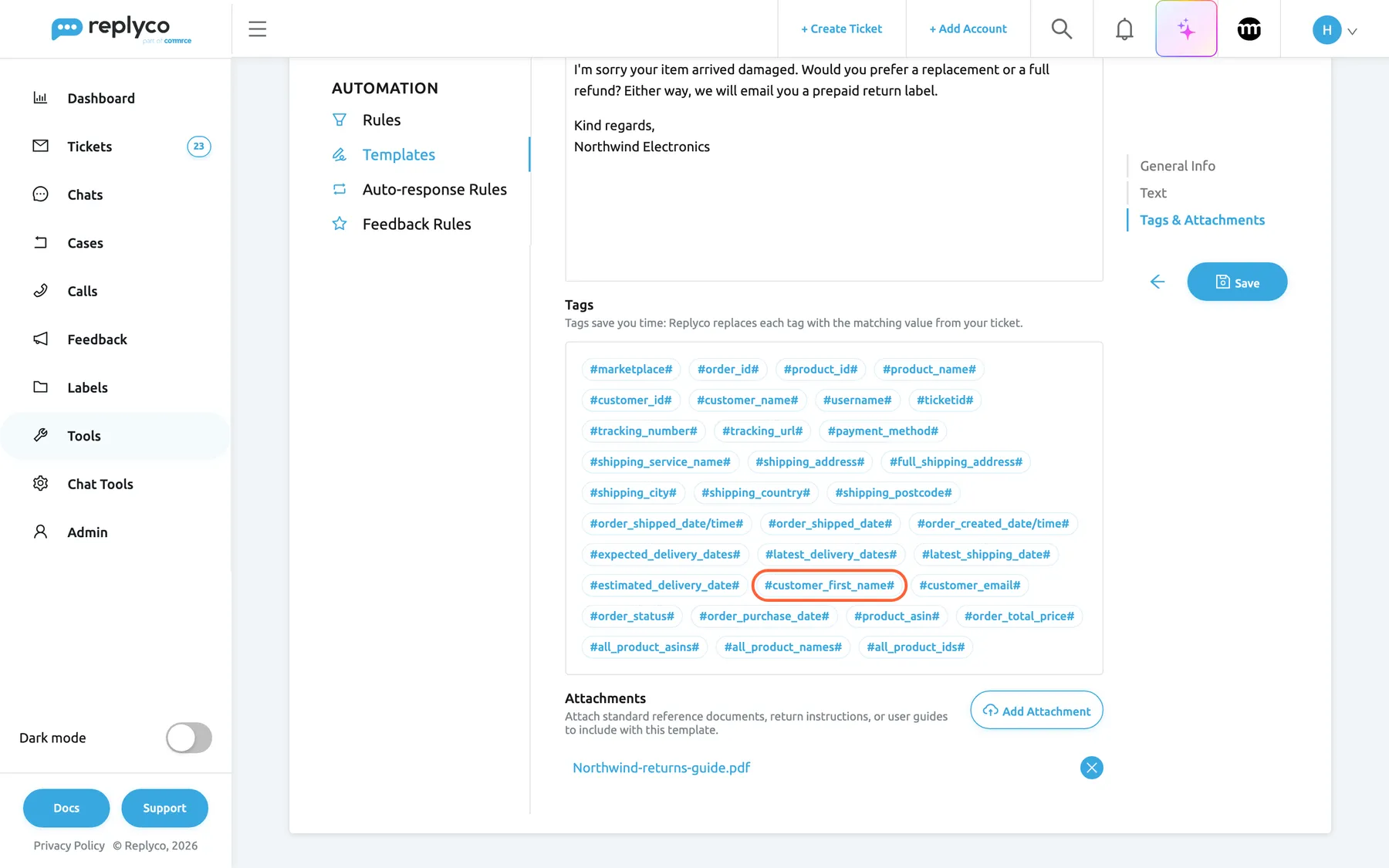
What this screenshot shows
- Screen
- Edit Template (/tickets-automation?tab=templates)
- Highlighted
- button “customer_first_name”, form-tags, enabled. inserts #customer_first_name# at the cursor
- Also visible
- end of the Text editor; Tags box with 33 placeholder chips; Attachments: Northwind-returns-guide.pdf with a remove button; Add Attachment button; Save and back arrow on the right
- Purpose
- add placeholders and files to a template
- Type
#in the text to open a list of placeholders and pick one, or select a chip under Tags: it is inserted where the cursor is. The order-number placeholders of Linnworks, ChannelAdvisor, Veeqo, Katana, Billbee and Brightpearl appear only when that system is connected. Text between two#signs that is not a placeholder is highlighted, because nothing will replace it. - Type
/to open your snippets by name and insert one. Snippets are managed under Snippets. - Select Add Attachment under Attachments to add a file. The file list shows each file with a round button to remove it; selecting the name downloads it. When you save, the file is stored with the template and added to every reply that starts from it.
The toolbar above the text formats it: size, font, colour, bold, italic, strikethrough, underline, quote, alignment and special characters. Text colours are removed when a template is opened, so a template always takes the colour of the editor it is used in.
Example: Hello #customer_first_name#, your order has shipped. You can track it here: #tracking_number#. reaches a customer called Daniel as Hello Daniel, your order has shipped. You can track it here: followed by the ticket’s tracking number. For every placeholder and how fallbacks work, see Snippets and placeholders.
Edit a template
Section titled “Edit a template”- Select the template, then Edit in the details panel; or select the pencil icon on its card.
- Change the name, accounts, AI categories, text, placeholders or attachments. On an existing template the Save button pulses while you have unsaved changes.
- Select Save.
The form Edit Template has a small contents list on the right: General Info, Text and Tags & Attachments jump to that part of the form. A change applies to the next reply that uses the template; replies already sent keep the text they had.
Copy a template
Section titled “Copy a template”Select the copy icon on a card, or Copy in the details panel. The form opens filled with everything the original has: the name followed by (copy), the accounts, the AI categories, the text and the attachments. Save creates a new template and leaves the original unchanged. Rename the copy before you save, so agents can tell the two apart.
A copy is the quickest way to write the same answer for two channels, for example one version with a return label for your shop and one without for eBay.
Switch a template off or on
Section titled “Switch a template off or on”The switch on each card turns a template off or on. It saves at once, shows Success, and moves the card to the other group.
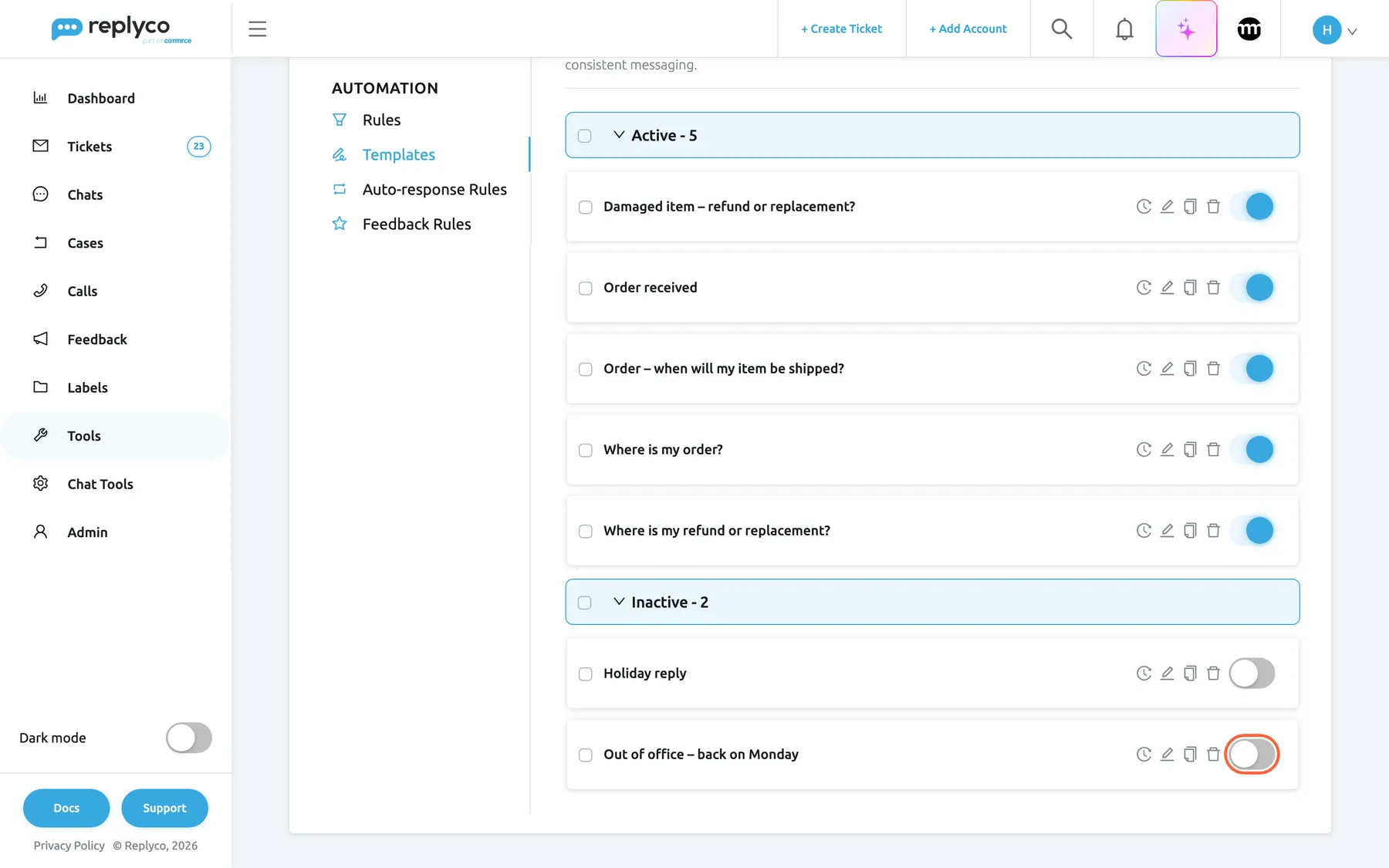
What this screenshot shows
- Screen
- Templates (/tickets-automation?tab=templates)
- Highlighted
- switch “Inactive”, list-inactive-group, off. switches the template on and moves it to Active
- Also visible
- last two Active cards with switches on; group header Inactive - 2; two inactive cards with switches off
- Purpose
- switch a template on or off
A template that is switched off stays on the tab with all its settings, but it is no longer offered in the reply editor, on Create Ticket or in eBay case actions. Switch it on again and it is back.
Add accounts to several templates at once
Section titled “Add accounts to several templates at once”- Tick the check box on each template card, or the check box of a group header to tick the whole group. The button Add Accounts appears above the list.
- Select Add Accounts. A panel opens with the explanation Select channel accounts to assign to all currently selected templates..
- Pick one or more accounts in the field Filter by Account.
- Select Apply. It stays disabled until you pick an account.
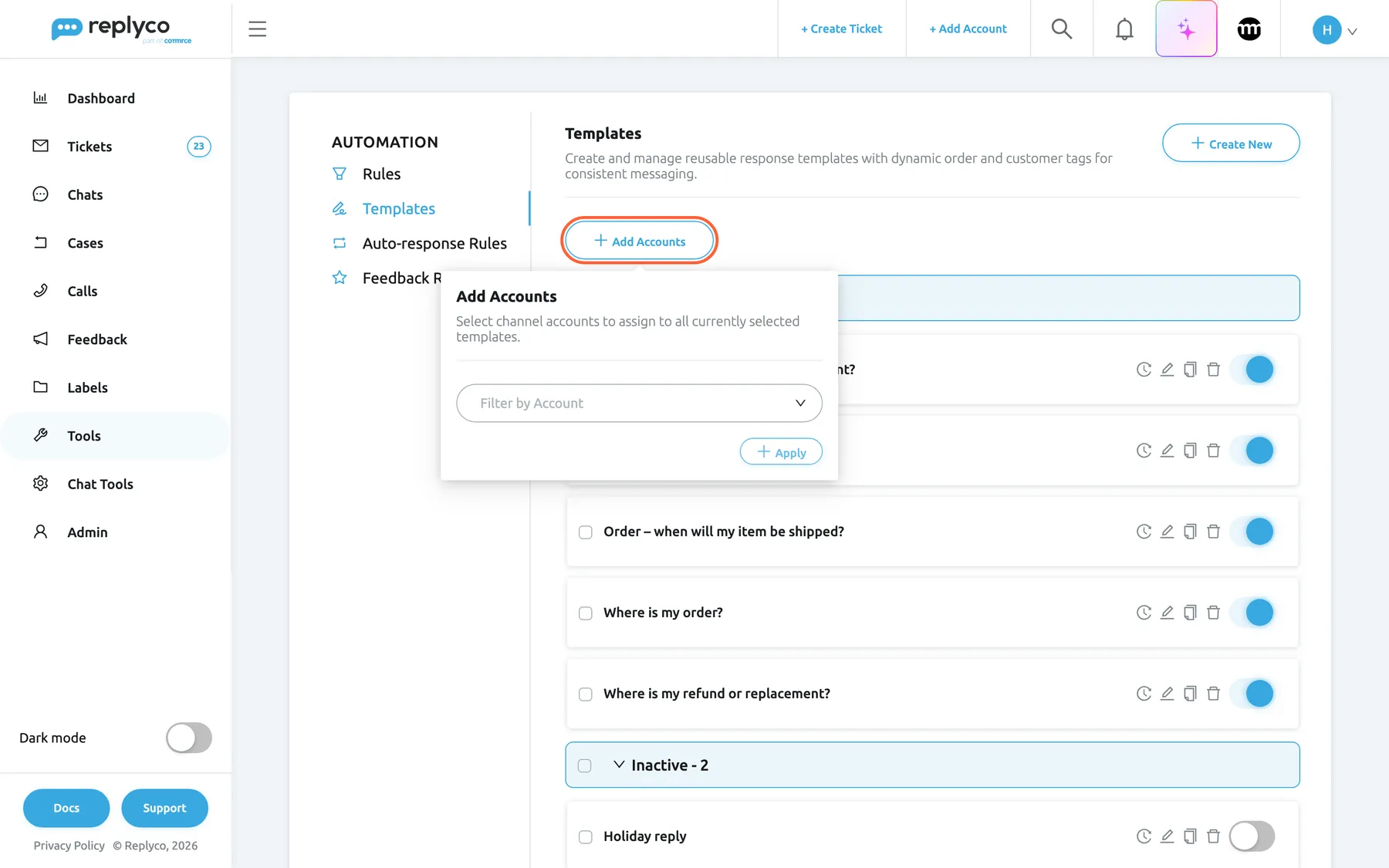
What this screenshot shows
- Screen
- Templates (/tickets-automation?tab=templates)
- Highlighted
- button “Add Accounts”, above-list-left, open. shows the account picker for the ticked templates
- Also visible
- two templates ticked; panel: Add Accounts, description, account filter, Apply (disabled); remaining template cards
- Purpose
- link accounts to several templates at once
Replyco adds the accounts to every ticked template, clears the ticks and shows Success. Accounts a template already has are kept; this action never removes one. To remove an account, edit the template.
Example: Northwind connects a second eBay account. Tick Where is my order? and Order – when will my item be shipped?, add the new account, and both templates show in its tickets.
See who changed a template
Section titled “See who changed a template”Select the clock icon on a card. The details panel shows the template’s history, one line per change with the person and the date:
| Line | When it is written |
|---|---|
| [name] created this template | The template was created, on the tab or from a reply |
| [name] updated this template. Click on this row to see changes | Someone saved changes; select the line to see what changed in the name, text, accounts or AI categories |
| [name] turned off this template or turned on this template | Someone used the switch |
| [name] deleted this template | The template was deleted |
A template with no recorded changes shows No changes were made to this item yet. Close returns to the details.
Delete a template
Section titled “Delete a template”Select the bin icon on a card, or Delete in the details panel, and confirm with Yes. Both ask you to confirm first, and both delete the template. The bin icon’s question reminds you of the consequence: Are you sure you want to delete this template? Auto-response rules that use it will also be deleted.
The template’s links to accounts and AI categories go with it. Replies already sent with the template stay in their tickets unchanged. There is no undo.
Save a reply as a template
Section titled “Save a reply as a template”You do not have to start on this tab. In a ticket’s reply editor, and in the editor on Create Ticket, the arrow next to the send button offers Save Reply as a Template.
- Write the reply in the reply editor. Leave placeholders such as
#customer_first_name#as placeholders if the template should work for other customers. - Select the arrow next to the send button, then Save Reply as a Template.
- In the dialog, enter the name under Template Name and pick the accounts under Accounts.
- Select Save.
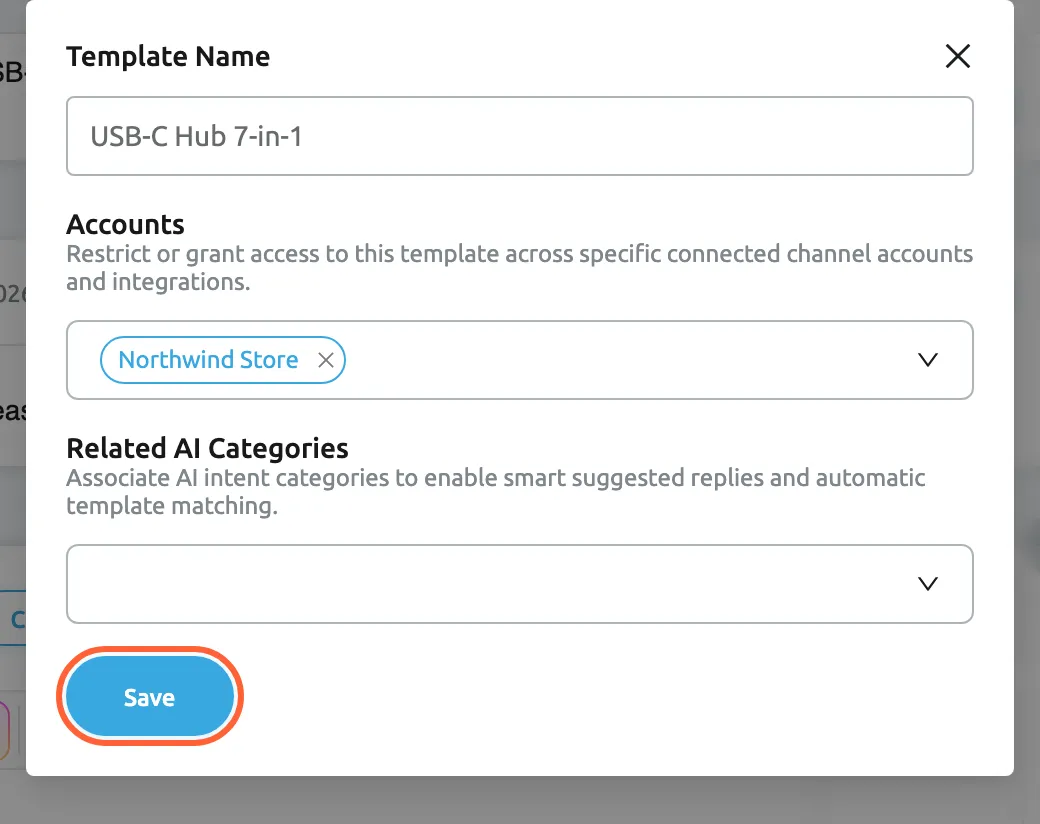
What this screenshot shows
- Screen
- Save Reply as a Template (/ticket/:threadId)
- Highlighted
- button “Save”, dialog-bottom-left, enabled. creates a template from the reply text
- Also visible
- Template Name: USB-C Hub 7-in-1; Accounts: Northwind Store; Related AI Categories: empty; close cross
- Purpose
- create a template from a reply
Replyco creates a new, switched-on template from the text in the editor, with its placeholders and formatting. Your signature for the account is left out, because the reply editor adds it again every time. Files attached to the reply are not copied. The reply itself is not sent; send it as usual.
The dialog also shows Related AI Categories, where you pick the AI categories the new template relates to. An empty name or an empty reply gives All fields must be completed..
Where your templates are used
Section titled “Where your templates are used”| Where | Which templates it offers | What happens |
|---|---|---|
| The Template list in a ticket’s reply editor | Switched-on templates linked to the ticket’s account | The text replaces the editor’s content, your signature is added, the template’s files are attached |
| Create Ticket | Every switched-on template; after you choose the sender, only those linked to that account | As in a ticket |
| eBay case actions with a message or comment | Switched-on templates linked to the case’s account | The text fills the message box as plain text, without formatting |
| Template to Send in an auto-response rule | Every template, switched on or off | The rule sends the template with its placeholders filled in |
| Templates Usage on the Performance dashboard | – | Counts every use of each template, in replies and in auto-responses, whether the message was delivered or not |
In the reply editor, templates that share AI categories with the ticket come first, in gradient text, and the best matches carry a sparkle; the rest follow by name. How a match is counted depends on two switches under ToolsAI Settings, tab General:
| AI Template Suggestion | Suggest Partially Matched Template | A template counts as a match when | The editor fills in a template by itself when |
|---|---|---|---|
| Off | – | Never; the list is sorted by name | Never |
| On | Off | Its AI categories are exactly the ticket’s categories | Exactly one template has the most matches |
| On | On | It shares at least one category with the ticket; more shared categories rank higher | Exactly one template has the most matches |
Worked example: a ticket from northwind-electronics is categorised Shipping & Delivery and Order Management. Where is my order? has both categories, Order received has only Order Management.
| Setting | Where is my order? | Order received | Result |
|---|---|---|---|
| Suggestion on, partial off | Match (2) | No match | Where is my order? is filled in |
| Suggestion on, partial on | Match (2) | Match (1) | Where is my order? is filled in; Order received is listed second |
| Two templates with the same two categories, either setting | Match (2) | – | Both are listed first with a sparkle; nothing is filled in, because there is a tie |
A suggested template shows Cancel Template Suggestion to empty the editor again. The editor fills in nothing when a draft is saved on the ticket or an AI suggested response is waiting. Ranking and suggestions work on the account-linked templates a ticket offers. For the settings, see AI Settings; for using a template while replying, see Answer a ticket.
Every control, explained
Section titled “Every control, explained”The Templates tab has a list with a header and a details panel, and a full-width form for creating and editing.
Templates tab
Section titled “Templates tab”ToolsAutomation, second tab in the left column under Automation. The address ends in ?tab=templates, so you can bookmark it.
Opens the list of reply templates for tickets. The tab is visible to everyone with the Automation permission; without its edit level, saving, switching and deleting are refused with You don't have enough rights.
Templates, rules and auto-responses live side by side, because auto-response rules send templates.
Create New
Section titled “Create New”Top right corner of the tab, next to the heading.
Opens the empty form Create Template. It shows a spinner and is disabled while a new template is being saved.
Start a template from scratch. To start from an existing one, use Copy instead.
Group headers
Section titled “Group headers”Above each group of cards: Active and Inactive, each followed by the number of templates.
Selecting the header text folds the group away or opens it. The check box on the left ticks every template of the group; while some are ticked it shows a dash. The check box is hidden while the group is folded.
Fold away the switched-off templates while you work, and tick a whole group to add the same accounts to all of it.
Template card
Section titled “Template card”Each card holds the template’s name and these controls, from left to right:
| Control | What it does | Why |
|---|---|---|
| Check box | Ticks the template for Add Accounts | Act on several templates at once |
| Name | Opens the details panel | Read before you change |
| Clock icon | Opens the template’s history in the details panel | Find out who changed a reply and when |
| Pencil icon | Opens the form Edit Template | Change the template |
| Copy icon | Opens a filled form that saves as a new template | Write a variant without retyping |
| Bin icon | Asks you to confirm and deletes on Yes | Remove templates nobody uses; it also deletes the auto-response rules that send them |
| Switch | Switches the template on or off; saves at once | Retire a template without losing it |
Add Accounts
Section titled “Add Accounts”Above the list, on the left; shown only while at least one template is ticked.
Opens a panel with Filter by Account and Apply. Apply links the chosen accounts to every ticked template, keeps their existing accounts and clears the ticks.
After connecting a new account, make your existing answers available in its tickets in one step.
Details panel
Section titled “Details panel”Right of the list, after you select a template’s name.
Shows the name, Accounts, Related AI Categories, Text and Attachments; empty rows are left out. At the bottom: Delete (asks Are you sure you want to delete this item?), Copy and Edit. The cross in the corner closes the panel.
Check where a template is used and what it says before you change or delete it.
Template Name
Section titled “Template Name”First field of the form, under General Info.
The name agents see in the Template list and that sorts the list. Required: saving without a name gives All fields must be completed.. Names do not have to be unique.
Agents pick by name under time pressure; a name that states the situation, such as Where is my order?, is found faster than Template 3.
Accounts
Section titled “Accounts”Second field of the form.
A multi-select of your accounts that create tickets, with Select all at the top. A ticket offers the template only if its account is in this field. Empty means the template is offered in no ticket, but still on Create Ticket before a sender is chosen and in auto-response rules. The accounts also limit which attachment types are accepted.
Keep marketplace-specific answers, such as eBay return wording, out of your shop’s tickets.
Related AI Categories
Section titled “Related AI Categories”Third field of the form; shown when AI categories are switched on under ToolsAI Settings.
A multi-select of your AI categories. Used to rank and suggest the template in the reply editor. Left empty on a new template, Replyco has the AI pick matching categories when you save.
Let the editor offer the right answer first; see AI categories.
The editor under the general fields, with its toolbar.
The reply itself, with formatting. Required: saving an empty text gives All fields must be completed.. # opens the placeholder list, / the snippet list. Unknown #…# words are highlighted. Replyco removes unsafe HTML when saving and text colours when opening.
Write the answer once, in your company’s voice, and let placeholders personalise it.
Under Tags & Attachments, a box of chips such as #order_id#.
Selecting a chip inserts the placeholder where the cursor is in the text. The box explains: Tags save you time: Replyco replaces each tag with the matching value from your ticket.
Insert placeholders without remembering their exact spelling.
Attachments and Add Attachment
Section titled “Attachments and Add Attachment”Under Tags & Attachments, the button on the right and the file list below it.
Adds one file at a time; the round button next to a file removes it. The accepted file types follow the template’s accounts (images only for eBay). A file type that does not fit is refused with a warning when you save.
Send the same return instructions or size chart with every reply that needs it, without looking for the file each time.
Save, Back and the contents list
Section titled “Save, Back and the contents list”Back and Save at the top of the form; once you scroll down, a back arrow and Save stay in the right column under the contents list General Info · Text · Tags & Attachments.
Save checks the name, text and attachments, saves and returns to the list. Back returns without saving. The contents list jumps to that part of the form.
Long templates with attachments are easier to work through in parts.
Who sees what
Section titled “Who sees what”| Part of the tab | What shows it |
|---|---|
| The tab itself, under ToolsAutomation | The Automation permission (included in the Admin and Moderator roles) |
| Saving, copying, switching, deleting, Add Accounts | The edit level of Automation; otherwise You don't have enough rights |
| Accounts in the form and the details panel, and Add Accounts | Every plan and every trial; companies on an older plan may not have them |
| Related AI Categories in the form and the details panel | AI categories switched on under ToolsAI Settings |
| Order-number placeholders of Linnworks, ChannelAdvisor, Veeqo, Katana, Billbee, Brightpearl | A connected account of that system |
| Using templates in the reply editor | Every user who can answer tickets; no Automation permission needed |
What you need to know
Section titled “What you need to know”| Topic | Fact |
|---|---|
| Required fields | A name and a text. Everything else is optional. |
| Sorting | By name, when the tab loads. There is no search and no manual order. |
| Scope | Templates belong to the company: everyone sees the same list. |
| Account link | A ticket offers only switched-on templates linked to its account. |
| Placeholders | Replaced when the reply is sent and in Preview; a missing value uses the fallback text or nothing. |
| Switch | Saves at once. Off hides a template from agents, not from auto-response rules. |
| Copy | Copies name, accounts, AI categories, text and attachments; saves as a new template. |
| Bulk accounts | Adds, never removes; writes no history line. |
| Delete | Permanent; also deletes the auto-response rules that send the template. |
| AI categories | Picked by the AI when a new template is saved without any, and when a new category is added. |
| Language | A template is sent in the language it is written in. Agents can translate the reply in the editor before sending. |
Frequently asked questions
Section titled “Frequently asked questions”General
Section titled “General”What is a template in Replyco?
Section titled “What is a template in Replyco?”A template is a saved reply with a name and a text, kept under ToolsAutomation on the Templates tab. Agents pick it in the reply editor instead of typing, auto-response rules send it by themselves, and placeholders such as #customer_first_name# are filled in for each customer when the reply is sent.
Can every agent create templates?
Section titled “Can every agent create templates?”Only users with the edit level of the Automation permission can save, switch or delete templates; the Admin and Moderator roles have it. Anyone else who tries, including with Save Reply as a Template in the reply editor, gets You don't have enough rights. Every agent can use templates in the reply editor.
Is there a limit on how many templates we can have?
Section titled “Is there a limit on how many templates we can have?”Replyco sets no limit on the number of templates. Long lists are sorted by name on the Templates tab, and in the reply editor each ticket only offers the switched-on templates linked to its account, so a large library stays manageable for agents.
Creating and editing
Section titled “Creating and editing”Why won’t Replyco save my template?
Section titled “Why won’t Replyco save my template?”The message All fields must be completed. means the Template Name or the Text is empty; both are required. A warning about file types means an attachment does not fit the channels of the accounts you chose, for example a PDF on an eBay template. Remove the file or change the accounts, then select Save again.
I selected Back and my changes are gone. Can I get them back?
Section titled “I selected Back and my changes are gone. Can I get them back?”No. Back on the template form leaves without saving, so unsaved changes are lost. Replyco only keeps what you saved with Save; the template’s history under the clock icon on its card shows what changed at each save.
What does Copy do with the attachments and accounts?
Section titled “What does Copy do with the attachments and accounts?”Copy opens the form filled with the original’s name plus (copy), its accounts, AI categories, text and attachments. Save creates a new template and leaves the original unchanged. Rename the copy so agents can tell them apart.
Where do the AI categories on my new template come from? I did not choose any.
Section titled “Where do the AI categories on my new template come from? I did not choose any.”When you create a template on the Templates tab and leave Related AI Categories empty, Replyco asks the AI which of your categories fit the text and links them. Replyco also links a newly added AI category to every template it fits. You can remove any of them: edit the template, clear the field and save.
Accounts and where templates show
Section titled “Accounts and where templates show”Why doesn’t my template appear in the Template list of a ticket?
Section titled “Why doesn’t my template appear in the Template list of a ticket?”A ticket offers only switched-on templates whose Accounts include the ticket’s account. Open the template on the Templates tab and check that it is in the Active group and that the ticket’s account is in Accounts; add it and save.
What happens if I leave the Accounts field empty?
Section titled “What happens if I leave the Accounts field empty?”A template without accounts is not offered in any ticket’s reply editor. It is still offered on Create Ticket until you choose a sender, and auto-response rules can still send it. To make it available in tickets, add accounts in the form or tick it and use Add Accounts on the Templates tab.
Can I remove an account from many templates at once?
Section titled “Can I remove an account from many templates at once?”No. Add Accounts on the Templates tab only adds accounts to the ticked templates and keeps the ones they have. To remove an account, open each template with Edit, remove the account under Accounts with its cross and save.
Why can’t I pick our WhatsApp or live chat account?
Section titled “Why can’t I pick our WhatsApp or live chat account?”The Accounts field on the Templates tab lists only accounts whose channels create tickets. Chats from WhatsApp, Facebook, Instagram, Telegram and live chat use chat templates, which you manage under Chat Tools; see Chat templates.
Placeholders, snippets and files
Section titled “Placeholders, snippets and files”Why does the customer see an empty space where a placeholder was?
Section titled “Why does the customer see an empty space where a placeholder was?”Replyco replaces each placeholder with the ticket’s value when the reply is sent. When the ticket has no value, for example no tracking number yet, Replyco uses the fallback text you set for that placeholder under Fallbacks; without a fallback the placeholder is replaced with nothing. Use Preview in the reply editor to check before sending.
Why is some text in my template highlighted?
Section titled “Why is some text in my template highlighted?”In the Text editor Replyco highlights text between two # signs that is not one of its placeholders, for example #order_number# instead of #order_id#. Nothing replaces such text, so the customer would see it as written. Type # and pick from the list, or select a chip under Tags.
Are template attachments sent with every reply?
Section titled “Are template attachments sent with every reply?”Yes. When an agent picks the template in the reply editor, its files are attached to the reply. They are listed separately from the reply’s own files and cannot be removed in the editor; for a reply without them, write it without the template or remove the files from the template here. Channel limits still apply when the reply is sent, for example eBay accepts at most 5 images per message.
AI suggestions
Section titled “AI suggestions”Why did the reply editor fill in a template by itself?
Section titled “Why did the reply editor fill in a template by itself?”AI Template Suggestion is on under ToolsAI Settings, and exactly one template linked to the ticket’s account matched the ticket’s AI categories best. Select Cancel Template Suggestion to empty the editor, or pick another template from the Template list.
Why is nothing suggested although my templates have AI categories?
Section titled “Why is nothing suggested although my templates have AI categories?”The editor suggests a template only when AI Template Suggestion is on, the ticket has AI categories, and exactly one template has the most matches; with a tie it only lists the matches first. With Suggest Partially Matched Template off, a template’s categories must equal the ticket’s exactly.
Switching off and deleting
Section titled “Switching off and deleting”Does switching a template off stop our automatic replies?
Section titled “Does switching a template off stop our automatic replies?”No. An auto-response rule keeps sending its template when the template is switched off on the Templates tab. Switching off only hides the template from agents in the reply editor, on Create Ticket and in eBay case actions. To stop an automatic reply, switch off the rule under Auto-response Rules.
Can I get a deleted template back?
Section titled “Can I get a deleted template back?”No. Deleting a template on the Templates tab is permanent, and it also deletes every auto-response rule that sends that template. Replies already sent keep their text. If you might need the template again, switch it off instead; it waits in the Inactive group.
Data and privacy
Section titled “Data and privacy”Do customers see the template name or its placeholders?
Section titled “Do customers see the template name or its placeholders?”No. Customers receive only the reply text, with every placeholder replaced by the ticket’s value or its fallback. The template name, its accounts and AI categories stay inside Replyco. Files attached to the template are sent as attachments of the reply.
Troubleshooting
Section titled “Troubleshooting”| Symptom | What to check |
|---|---|
| All fields must be completed. when saving | The Template Name and the Text are both filled in. |
| You don't have enough rights when saving, switching or deleting | Under AdminUsers, the user has the edit level of Automation. |
| A warning about file types when saving | The attachments fit the channels in Accounts: images only for eBay, PDF only with the eBay attachment converter on. |
| A template is missing from a ticket’s Template list | 1. The template is in the Active group. 2. The ticket’s account is in its Accounts. 3. The agent reloaded the ticket after the change. |
| A new template is missing from every ticket | Its Accounts field is empty; add accounts or use Add Accounts. |
The customer received #…# text as written | The placeholder is misspelt; it is highlighted in the editor. Replace it with one from the Tags list. |
| A placeholder came out empty | The ticket has no value for it; set a fallback under Fallbacks. |
| An automatic reply still goes out after switching its template off | Auto-response rules ignore the template’s switch; switch off the rule under Auto-response Rules. |
| An auto-response rule disappeared | Its template was deleted; deleting a template deletes the rules that send it. Recreate the template and the rule. |
| A renamed template is out of alphabetical order | The list sorts when it loads; open the tab again. |
| The editor fills in no template although AI categories match | AI Template Suggestion is on, the ticket has no saved draft or waiting AI response, and no two templates tie for the most matches. |
Related
Section titled “Related”- Reply templates: the whole feature, from writing to suggestion
- Snippets and placeholders: every placeholder, snippet and fallback
- AI categories: how categories are detected and matched to templates
- Auto-responses for tickets: templates sent automatically
- Answer a ticket: using templates while replying
- Auto-response Rules · Rules · AI Settings
- Chat templates: templates for chats