

Priorities & SLA
AdminCompany Settings › Priorities & SLA is where administrators define the priorities a ticket can have. Each priority carries two targets, how soon your team must answer and how soon the ticket must be resolved, and the clock they are counted on: every hour of the day or only your working time. When a person, a rule or tone analysis gives a ticket a priority, Replyco turns those targets into deadlines that your team sees in the ticket lists and on the dashboards. This page covers the tab itself; how deadlines are computed and where they show is in Ticket priorities and SLA.
Availability: needs the Admin permission with Edit rights, which shows Company Settings in the Admin menu, and Priorities and SLA, which every plan and every trial includes; see User permissions and roles. Companies on an older plan may not have it; see What each plan includes. The priorities themselves apply to the whole company.
What you can do here
Section titled “What you can do here”- See your priorities in urgency order. The tab lists every priority your company has, most urgent at the top, and shows each one’s targets when you select it. The screen at a glance · Read a priority’s targets
- Create a priority with its deadlines. A priority is a name, a respond target and a resolve target of up to 30 days, 23 hours and 59 minutes each. Create a priority · Ticket priorities and SLA
- Count deadlines in calendar or working hours. Calendar hours count every minute; working hours count only the working days and hours set on the General tab. Choose calendar or working hours · Working time
- Change a priority’s targets. Saving new targets recalculates the deadlines of the tickets that have the priority and are waiting for your reply. Change a priority
- Copy a priority to start a similar one from its values. Copy a priority
- Put the priorities in urgency order. Drag a row to move it; tone analysis uses this order when it may only escalate. Put the priorities in urgency order · Message tone analysis
- Delete a priority you no longer use; Replyco removes it and its deadlines from every ticket. Delete a priority
The screen at a glance
Section titled “The screen at a glance”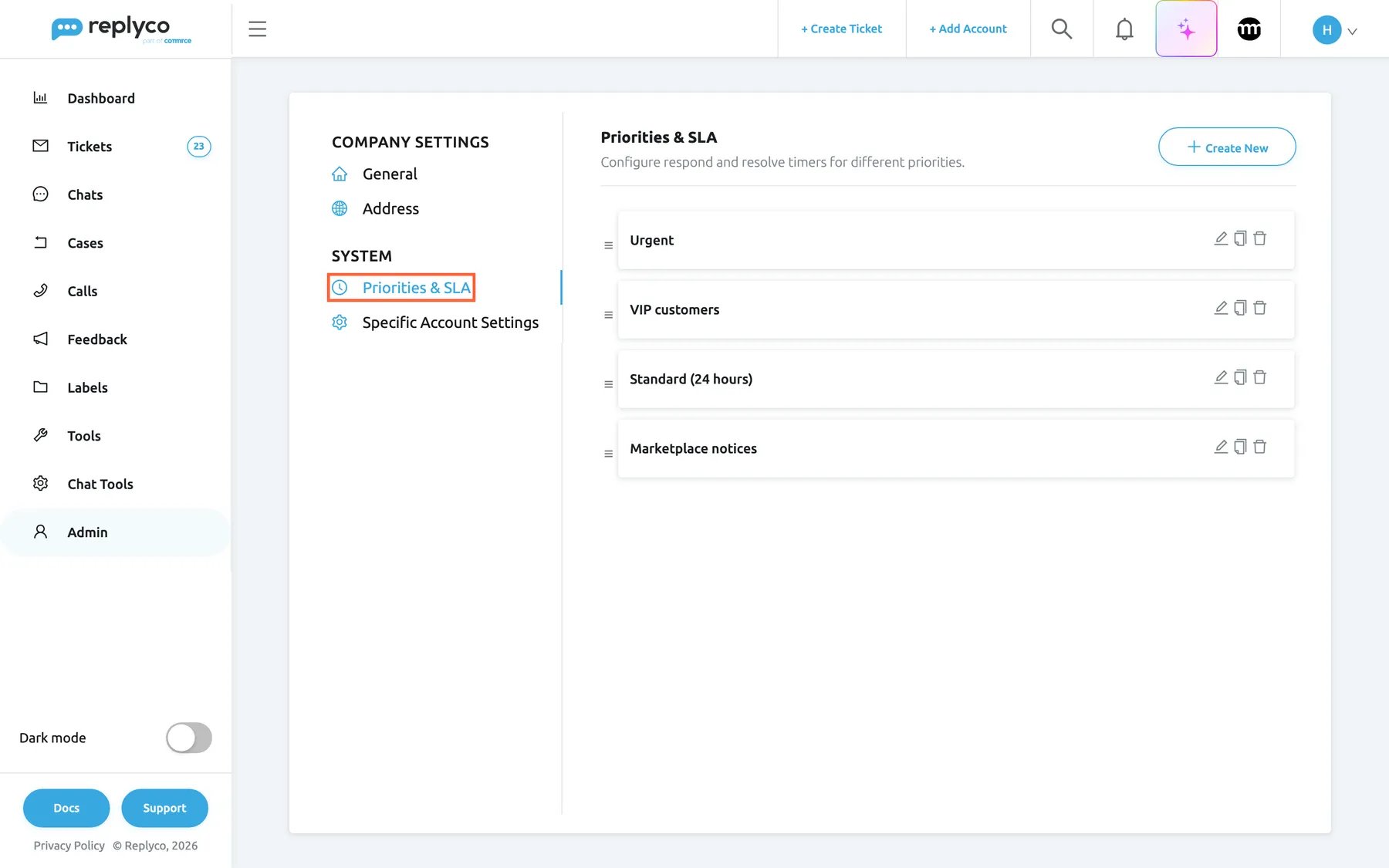
What this screenshot shows
- Screen
- Priorities & SLA (/company?tab=priorities)
- Highlighted
- tab “Priorities & SLA”, left-tab-list, selected. shows the company's ticket priorities
- Also visible
- four priorities in urgency order: Urgent, VIP customers, Standard (24 hours), Marketplace notices; drag handle, edit, copy and delete icons on each row; Create New button top right
- Purpose
- the screen at a glance
| Region | What it shows | What you do there |
|---|---|---|
| Tab list, left | General and Address under the screen title; Priorities & SLA and Specific Account Settings under System | Switch tabs; this tab also opens from its own web address, /company?tab=priorities |
| Header, top | The tab’s title, the line Configure respond and resolve timers for different priorities. and the Create New button | Start a new priority |
| The list | One row per priority, most urgent first, with a drag handle on the left and pencil, copy and bin icons on the right; No data... when there are none | Select a row to read it, drag to reorder, edit, copy or delete |
| Details panel, right | Opens when you select a row: the name, Operational Hrs, Respond Within and Resolve Within, with Delete, Copy and Edit | Check a priority’s targets and act on it |
| Form, full width | Create Priority & SLA or Edit Priority & SLA, with Back and Save | Enter the name, the targets and the clock |
Read a priority’s targets
Section titled “Read a priority’s targets”Select a priority’s row, anywhere except its icons. The row is outlined in blue and a details panel opens beside the list with four values: Priority Name, Operational Hrs, Respond Within and Resolve Within. Targets read as days, hours and minutes, such as 0 days, 4 hrs, 0 mins; a target of zero reads Not Set. The cross at the top right closes the panel.
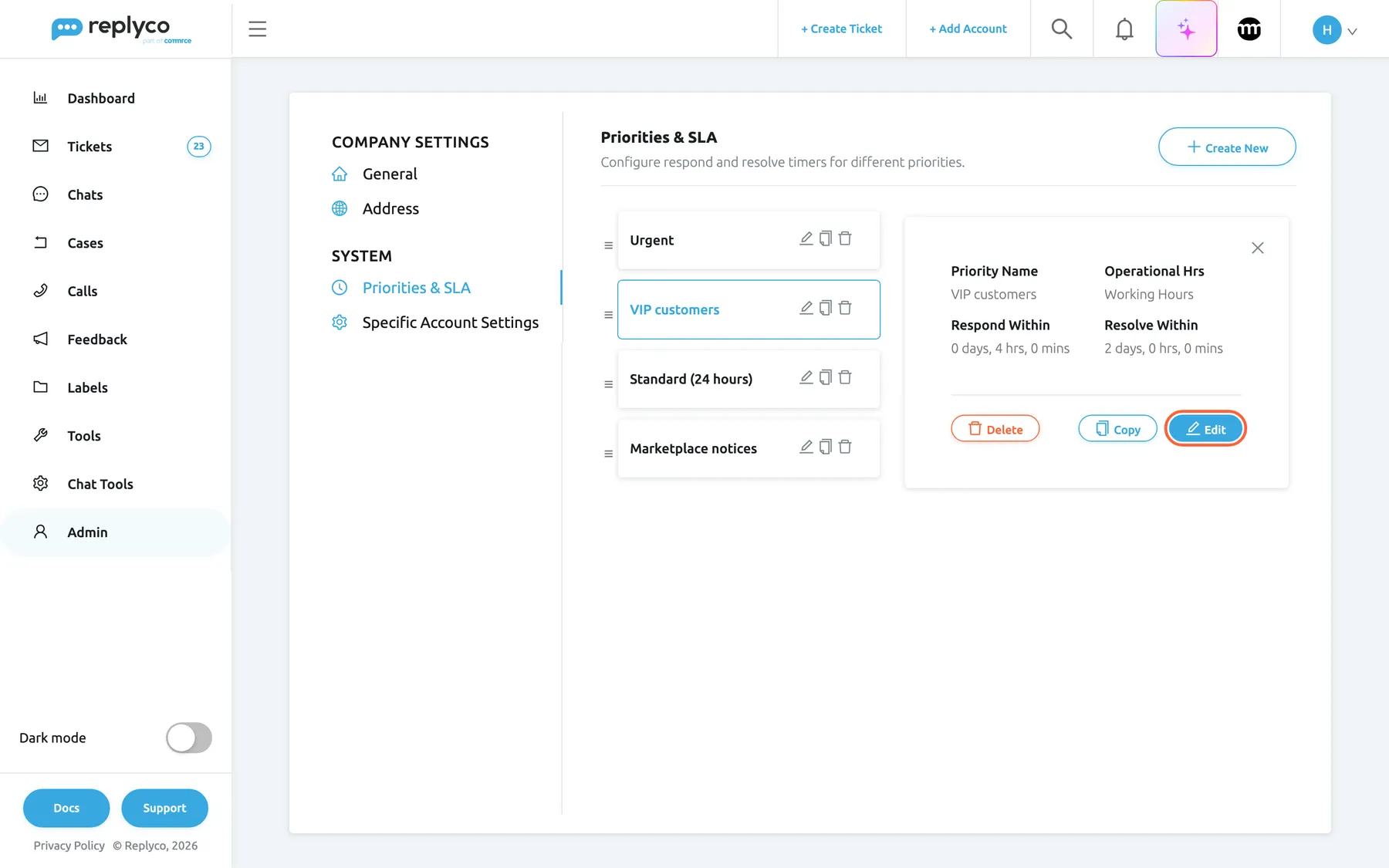
What this screenshot shows
- Screen
- Priorities & SLA (/company?tab=priorities)
- Highlighted
- button “Edit”, details-panel-bottom-right, enabled. opens the edit form of the selected priority
- Also visible
- VIP customers selected; Operational Hrs Working Hours; Respond Within 0 days, 4 hrs, 0 mins; Resolve Within 2 days, 0 hrs, 0 mins; Delete, Copy and Edit buttons
- Purpose
- read a priority's targets
For example, Northwind Electronics answers its VIP customers within four working hours and resolves their tickets within two days of working time: VIP customers reads Working Hours, 0 days, 4 hrs, 0 mins, and 2 days, 0 hrs, 0 mins.
Create a priority
Section titled “Create a priority”-
Open AdminCompany Settings and select the Priorities & SLA tab.
-
Select Create New at the top right.
The form Create Priority & SLA replaces the list. Save stays unavailable until the priority has a name.
-
Type a Priority Name, for example Kaufland.
-
Under Respond Within, enter how soon your team must answer, in the days, hrs and min boxes. Under Resolve Within, enter how soon the ticket must be resolved.
-
Under Operational Hrs, keep Calendar Hours or choose Working Hours.
-
Select Save.
The list comes back with the new priority at the bottom, as the least urgent one. Drag it higher if it is more urgent.
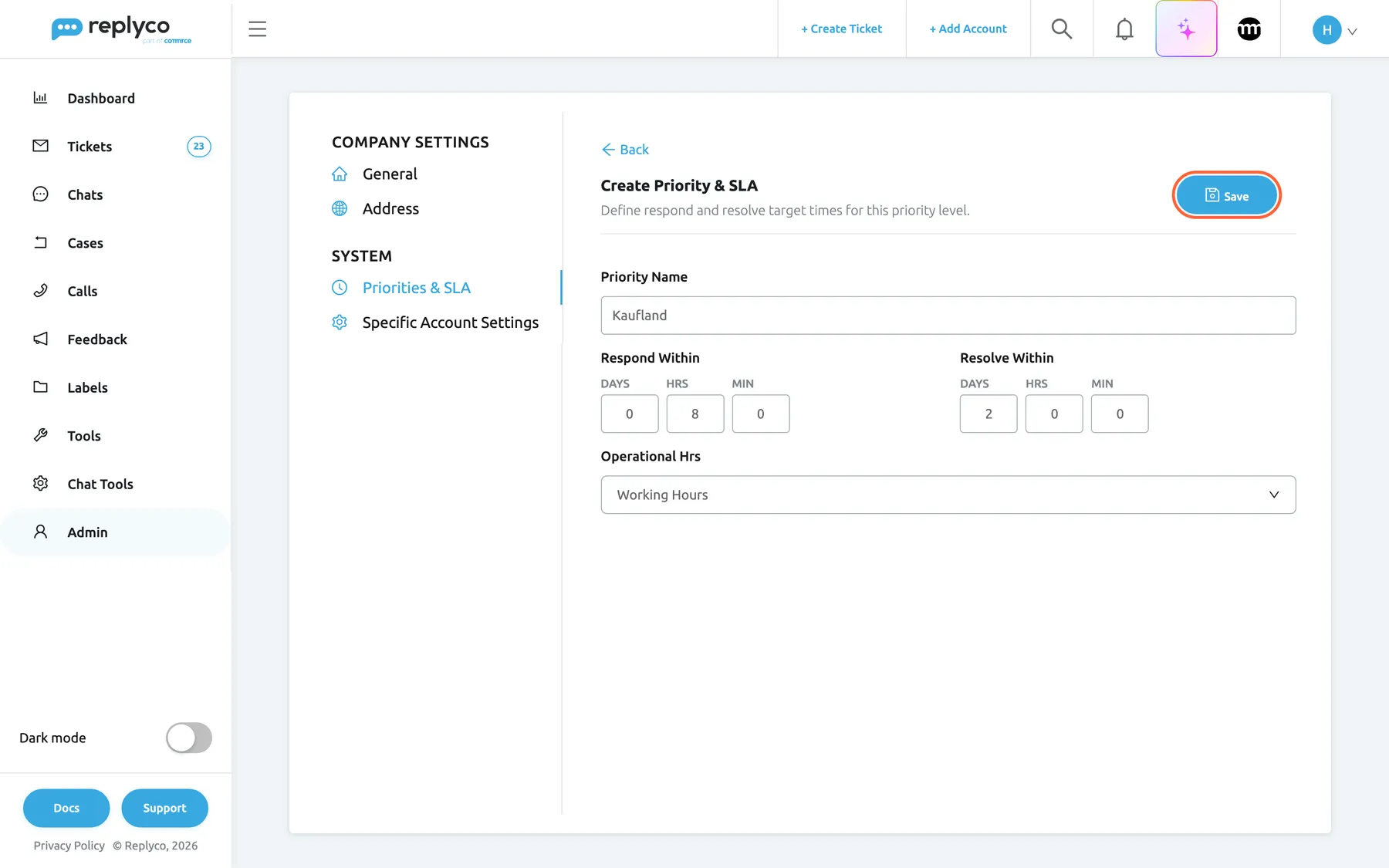
What this screenshot shows
- Screen
- Create Priority & SLA (/company?tab=priorities)
- Highlighted
- button “Save”, form-header-right, enabled. creates the priority and returns to the list
- Also visible
- Priority Name Kaufland; Respond Within 0 days 8 hrs 0 min; Resolve Within 2 days 0 hrs 0 min; Operational Hrs Working Hours
- Purpose
- create a priority
The boxes take whole numbers only: days from 0 to 30, hours from 0 to 23 and minutes from 0 to 59. Replyco removes anything that is not a digit and turns a larger number into the maximum, so 90 minutes becomes 59; enter 1 hour and 30 minutes instead. Zero in all three boxes means the target is not set, and tickets with that priority get no deadline for it.
A new priority does nothing until a ticket gets it. Your team sets it in the ticket’s right panel, a rule sets it as messages arrive, or tone analysis sets it from the customer’s mood; see Ticket priorities and SLA.
Choose calendar or working hours
Section titled “Choose calendar or working hours”Operational Hrs decides how both targets of a priority are counted.
- Calendar Hours, the default, counts every minute of every day. A 2-hour target on a message that arrives on Saturday at 11:00 ends on Saturday at 13:00.
- Working Hours counts only the working time in the Working Time card of the General tab: the working days, the daily time span and the holidays. Outside that time the clock stops.
With Monday to Friday, 09:00–18:00 and a 4-hour target in working hours:
| Message arrives | Respond-by |
|---|---|
| Monday 10:00 | Monday 14:00 |
| Monday 16:30 | Tuesday 11:30: 1.5 hours on Monday, 2.5 hours on Tuesday |
| Friday 17:00 | Monday 12:00: the weekend does not count |
| Saturday 11:00 | Monday 13:00: the clock starts at Monday 09:00 |
A day in working hours is 24 working hours, not one working day. With a 9-hour working day, 1 day in working hours ends almost three working days later; enter 9 hrs for one working day. To set your working days, hours and holidays, see Company Settings; for every rule working time follows, see Working time.
Change a priority
Section titled “Change a priority”-
Select the pencil icon on the priority’s row, or select the row and then Edit in the details panel.
-
Change the name, the targets or the clock in the form Edit Priority & SLA.
-
Select Save and wait for Success in the top right corner.
Replyco recalculates the respond-by and resolve-by of every ticket that has this priority and is waiting for your reply, from the same starting points as before: the customer’s first unanswered message for the respond-by, the ticket’s first message for the resolve-by. When the customer of a ticket where your team wrote last writes again, its new respond-by follows the new targets. A new name shows at once in the ticket’s priority select, in rules and in the ticket history.
Example: Northwind shortens VIP customers from 4 to 2 working hours. A VIP ticket whose first unanswered message arrived at 10:00 on Monday now has a respond-by of 12:00 on Monday instead of 14:00, and if it is already past 12:00, the ticket turns overdue in the list.
Copy a priority
Section titled “Copy a priority”Select the copy icon on a row, or Copy in the details panel. The form Create Priority & SLA opens with the same targets and clock and the name followed by (copy), for example VIP customers (copy). Change what differs and select Save; the copy is a new priority at the bottom of the list, and the original is unchanged. Copying is the quickest way to add a variant, such as a VIP priority counted in calendar hours for the weekend team.
Put the priorities in urgency order
Section titled “Put the priorities in urgency order”The order of the list is the order of urgency: the higher a priority sits, the more urgent it counts. Drag a row by the handle on its left and drop it where it belongs; Replyco saves the new order at once, without a message.
The order matters in two places. Every priority list in Replyco shows your priorities in this order: the ticket’s priority select, the rule action Update Ticket Priority and the tone rules. And when tone analysis may only escalate, Only escalate, never de-escalate moves a ticket only to a priority that sits higher in this list; see Message tone analysis. A new priority always starts at the bottom, so move it up if it is more urgent than the others.
Delete a priority
Section titled “Delete a priority”-
Select the bin icon on the priority’s row, or select the row and then Delete in the details panel.
-
Confirm with Yes. The bin icon asks Are you sure you want to delete this priority?, and Delete in the details panel asks Are you sure you want to delete this item?
Both the bin icon and Delete in the details panel ask you to confirm before they delete the priority.
Message rules that set the deleted priority are kept but set nothing any more; their summary shows [priority deleted]. Edit those rules and choose another priority; see Rules for incoming tickets. History rows that recorded the priority lose its name.
Every control, explained
Section titled “Every control, explained”The Priorities & SLA tab of Company Settings, in the order the screen shows it.
Create New
Section titled “Create New”The header of the tab, top right.
Opens the form Create Priority & SLA with an empty name, both targets at zero and Calendar Hours. The new priority is added at the bottom of the list.
Each kind of ticket with its own response promise gets its own priority, such as VIP customers or a marketplace with strict response times.
The priority rows
Section titled “The priority rows”The list under the header, one row per priority, most urgent at the top.
Selecting a row opens the details panel. The handle on the left moves the row when you drag it; the new order is saved at once. The pencil opens the edit form, the copy icon opens a copy in the create form, and the bin asks for confirmation before it deletes. A company without priorities sees No data....
The order is the urgency your team and tone analysis work with, so it belongs where the priorities are defined.
The details panel
Section titled “The details panel”Right of the list, after you select a row. The cross at the top right closes it.
Shows Priority Name, Operational Hrs, Respond Within and Resolve Within, with Not Set for a target of zero. Below them: Delete, which asks Are you sure you want to delete this item?; Copy; and Edit.
Check a priority’s promise before you change it or pick it in a rule.
Priority Name
Section titled “Priority Name”The first field of the create and edit forms.
Required; Save stays unavailable while it is empty, and spaces at either end are removed. Each name can exist only once: a new priority with a name already in use is refused with “This name is already used.” The name shows in the ticket’s priority select, in rules, in tone rules and in the ticket history, exactly as typed, whatever the language of the screen.
Agents pick priorities by name in a hurry, so a name that says what it is for, such as Urgent or Standard (24 hours), avoids the wrong choice.
Respond Within and Resolve Within
Section titled “Respond Within and Resolve Within”The two groups of boxes under the name, each with days, hrs and min.
The respond target counts from the customer’s first message after your team’s latest reply, or from when the ticket was created if nobody has answered yet; auto-responses do not count as a reply. The resolve target counts from the ticket’s first message and runs until the ticket is resolved. Days 0–30, hours 0–23, minutes 0–59; larger numbers become the maximum and anything but digits is removed. Zero in all three boxes means not set: no deadline for that target.
The respond target is what customers and marketplaces judge you on; the resolve target keeps long conversations from dragging on.
Operational Hrs
Section titled “Operational Hrs”The select under the targets. Calendar Hours is the default.
Calendar Hours counts every minute. Working Hours counts only the working days, the daily time span and the holidays of the Working Time card on the General tab, and applies to both targets of the priority.
Marketplaces usually measure calendar time; a promise to your own customers may count only the hours someone is at work.
Save and Back
Section titled “Save and Back”Save at the top right of the form, Back above the form’s title.
Save creates the priority, or saves your changes and shows Success; saving changes recalculates the deadlines of the priority’s tickets that are waiting for your reply. Back returns to the list without saving.
Nothing on the form reaches your tickets until you save.
Who sees what
Section titled “Who sees what”| Part | Shown when |
|---|---|
| The Admin menu | The user has the Admin permission; see User permissions and roles |
| Company Settings in the Admin menu, and its tabs | The Admin permission with Edit rights |
| The Priorities & SLA tab | The company has Priorities and SLA, which every current plan and every trial includes; see What each plan includes |
| The priorities in a ticket’s priority select | Every user who can open the ticket; see The ticket screen |
What you need to know
Section titled “What you need to know”| Topic | Fact |
|---|---|
| Company-wide | Every priority applies to the whole company, in every account and marketplace. |
| Where tickets get a priority | By hand in the ticket, from a rule with Update Ticket Priority, or from tone rules. The tab itself changes no ticket until you edit or delete a priority. |
| A new company | Starts with one priority, 24 standard hours (23 hours and 59 minutes to respond and to resolve, in calendar hours), and an active rule SLA Allocation that sets it on every incoming message. |
| Limits | Each target up to 30 days, 23 hours and 59 minutes. Names unique. |
| Order | New priorities are added at the bottom. Dragging saves at once. |
| Editing | Recalculates the deadlines of the priority’s tickets that wait for your reply. |
| Working time | Changing the start or end time on the General tab recalculates the deadlines of all tickets with a priority that wait for your reply. |
| Deleting | Removes the priority and its deadlines from every ticket and deletes its tone rules; message rules stay and set nothing. No undo. |
| Messages | Reordering and deleting show no message; saving changes shows Success. |
Frequently asked questions
Section titled “Frequently asked questions”General
Section titled “General”Who can create and change priorities?
Section titled “Who can create and change priorities?”Anyone with the Admin permission with Edit rights can open AdminCompany Settings › Priorities & SLA, provided the company has Priorities and SLA, which every current plan includes. Every user can then set the priorities on tickets in the ticket’s right panel; see User permissions and roles.
Why is the priorities tab missing from my company settings?
Section titled “Why is the priorities tab missing from my company settings?”The Priorities & SLA tab under System in AdminCompany Settings appears for users with the Admin permission with Edit rights in companies with Priorities and SLA. Every current plan and every trial includes it; companies on an older plan may not have it, see What each plan includes.
Where does the 24 standard hours priority come from?
Section titled “Where does the 24 standard hours priority come from?”Replyco creates it for every new company, with 23 hours and 59 minutes to respond and to resolve in calendar hours, together with an active rule named SLA Allocation that sets it on every incoming message. Change or delete both like any other priority and rule, under Priorities & SLA and under Rules.
How many priorities can I have?
Section titled “How many priorities can I have?”Replyco sets no limit on the number of priorities on the Priorities & SLA tab. Keep the list short enough to pick from quickly in a ticket: most teams manage with three to five, each with its own response promise and its place in the urgency order.
Targets and clocks
Section titled “Targets and clocks”What is the difference between calendar hours and working hours?
Section titled “What is the difference between calendar hours and working hours?”Calendar Hours counts every minute of every day. Working Hours counts only the working days, the daily time span and the holidays set in the Working Time card of AdminCompany Settings › General, so a message on Saturday starts counting on Monday morning.
I entered 1 day in working hours, but the deadline is three days later. Why?
Section titled “I entered 1 day in working hours, but the deadline is three days later. Why?”In working hours a day means 24 working hours, not one working day. With a working day of 09:00–18:00, 24 working hours take almost three working days. For one working day, enter the length of your working day, for example 9 hrs, under Respond Within or Resolve Within.
Can I set only a respond target and no resolve target?
Section titled “Can I set only a respond target and no resolve target?”Yes. Leave Resolve Within at zero in all three boxes and the priority reads Not Set for it. Tickets with that priority get a respond-by but no resolve-by, and their resolve-by column in the ticket list reads Not Set.
Why did 90 minutes turn into 59?
Section titled “Why did 90 minutes turn into 59?”The min box on the Priorities & SLA form accepts 0 to 59, hrs 0 to 23 and days 0 to 30, and a larger number becomes the maximum. Enter 1 in the hours box and 30 in the minutes box for 90 minutes.
Changes and deletion
Section titled “Changes and deletion”Do existing tickets change when I edit a priority?
Section titled “Do existing tickets change when I edit a priority?”Yes, the tickets that have this priority and are waiting for your reply. When you select Save on Edit Priority & SLA, Replyco recalculates their respond-by and resolve-by with the new targets and clock. When the customer of a ticket where your team wrote last writes again, its new respond-by follows the new targets.
Can two priorities have the same name?
Section titled “Can two priorities have the same name?”No. When you save a new priority on AdminCompany Settings › Priorities & SLA with a name that another priority already has, Replyco refuses it with “This name is already used.” and the new priority does not appear. Choose a name that tells the two apart, such as VIP customers (weekend).
What happens to tickets when I delete a priority?
Section titled “What happens to tickets when I delete a priority?”Replyco removes the priority and its respond-by and resolve-by from every ticket that has it, including resolved ones, and those tickets show No priority in Respond Till. Tone rules pointing at it are deleted too. Message rules that set it stay and set nothing; edit them under Rules.
How do I change which priority counts as most urgent?
Section titled “How do I change which priority counts as most urgent?”Drag the rows on AdminCompany Settings › Priorities & SLA by their handles, most urgent at the top. Replyco saves the order when you drop the row. Tone analysis with Only escalate, never de-escalate uses this order; see Message tone analysis.
Troubleshooting
Section titled “Troubleshooting”| Symptom | What to check |
|---|---|
| The Priorities & SLA tab is missing, or its link opens your start screen | Your user has Admin with Edit; on an older plan, the company has Priorities and SLA, see What each plan includes |
| The Admin menu is missing | Your user has the Admin permission; see User permissions and roles |
| Save stays pale on the create form | Priority Name is filled in |
| “This name is already used.” after saving | Another priority already has that name; choose a different name and save again |
| A number changed while you typed it | Days go up to 30, hours to 23, minutes to 59; split larger values across the boxes |
| Deadlines are much later than expected | Operational Hrs is Working Hours, where 1 day means 24 working hours; check the working time on the General tab |
| Tone moves tickets to a less urgent priority when it may only escalate | The order of the list: drag the most urgent priority to the top |
| Tickets lost their priority | Someone deleted the priority; give them another one and check rules showing [priority deleted] |