

Connect Wish
Connect your Wish merchant account and every Wish customer-support ticket arrives in Replyco with its replies, files and the order; your answers go back to the customer through Wish. Wish needs no forwarding and no form: you sign in to Wish once, allow Replyco access, and Replyco names the account after your Wish store.
Before you start
Section titled “Before you start”| You need | Where it lives |
|---|---|
| The Admin permission in Replyco | AdminUsers; see Invite users and set what they can do |
| A login for your Wish merchant account | Wish for Merchants |
| A free account on your plan | AdminBilling; see Billing |
Availability: every plan includes Wish, and Replyco checks Wish for new orders. Companies on an older plan may not have order sync; see What each plan includes.
-
Select + Add Account in the top bar.
The Add Account page opens with one tile per marketplace. To connect another channel instead, see Add Account.
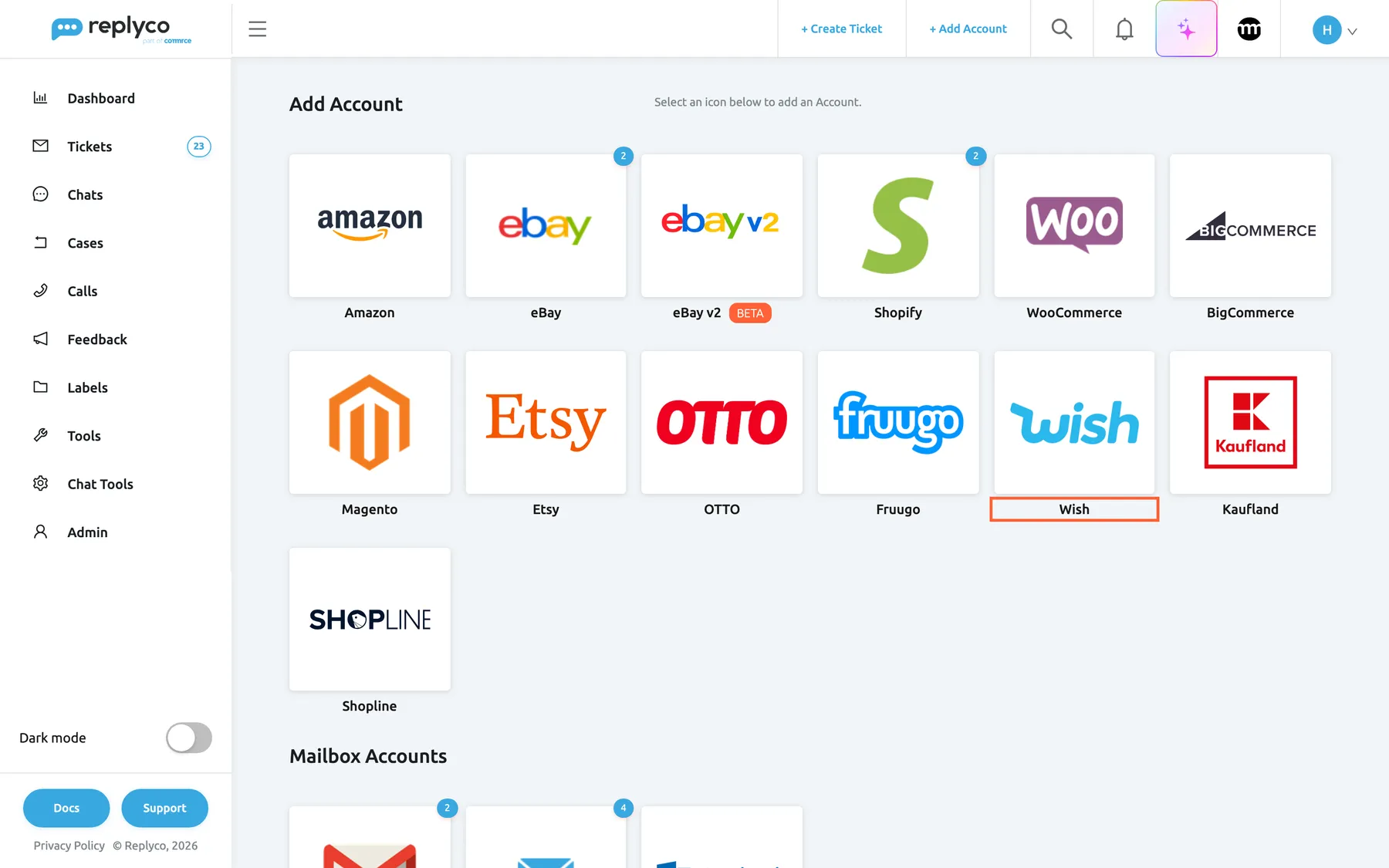
Wish has its own tile among the marketplaces on the Add Account page. What this screenshot shows
- Screen
- Add Account (/integrations/add)
- Highlighted
- button “”, marketplace-tiles, enabled. opens the Wish connect dialog
- Also visible
- marketplace and webstore tiles; Mailbox Accounts heading below
- Purpose
- start connecting Wish
-
Select the Wish tile. The dialog Authorize Replyco to sync with Wish opens at AUTHORIZE. Select Authorize: the Wish merchant sign-in opens in a new browser tab.
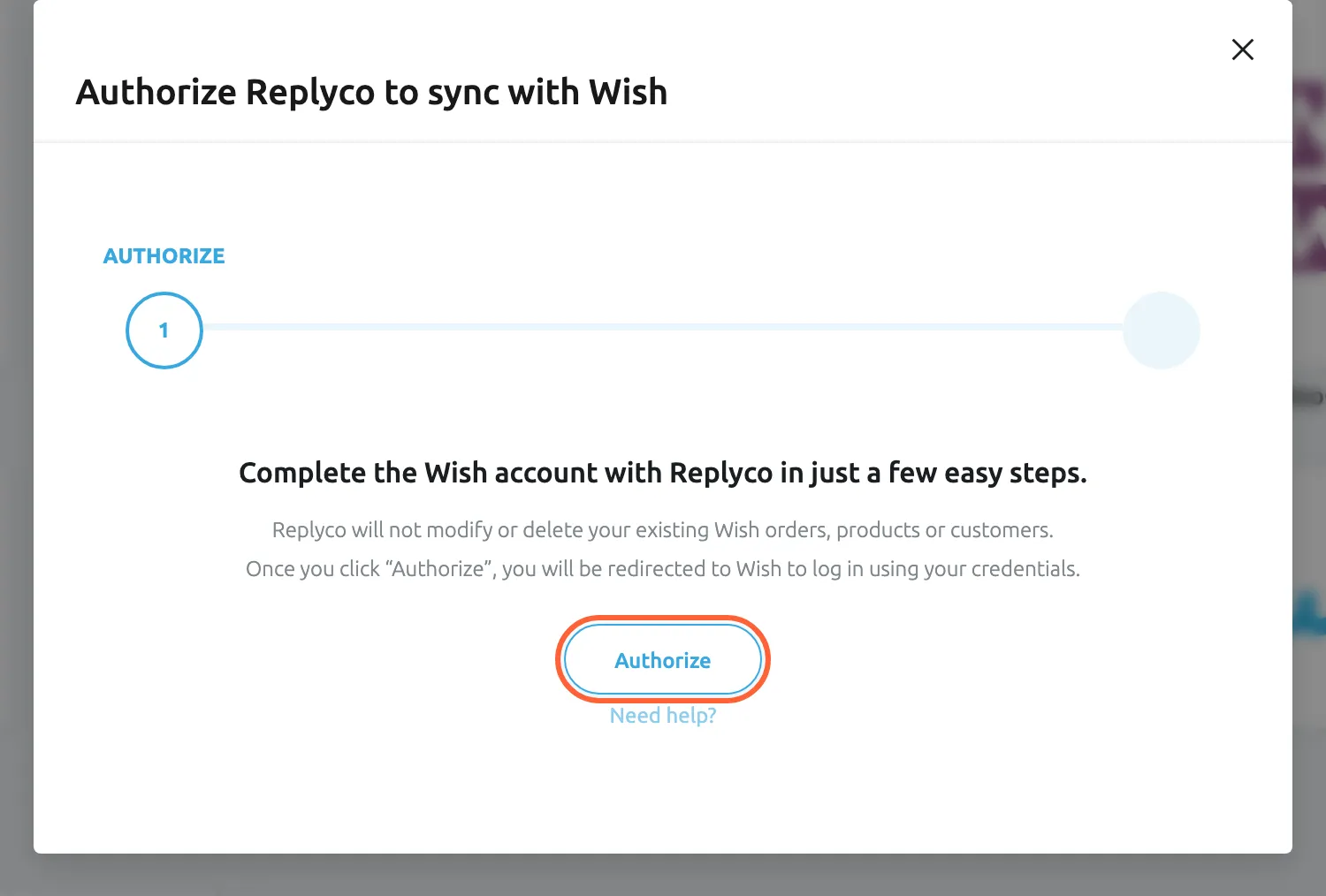
Wish needs no details in Replyco; Authorize opens the Wish merchant sign-in in a new tab. What this screenshot shows
- Screen
- Authorize Replyco to sync with {{name}} (/integrations/add)
- Highlighted
- button “Authorize”, dialog-bottom, enabled. opens the Wish merchant sign-in in a new tab
- Also visible
- step AUTHORIZE; Need help? link
- Purpose
- send the seller to Wish to allow access
-
Sign in to your Wish merchant account and allow Replyco access. Stay in the Wish tab: Wish sends you back to Replyco, which shows Validating Wish account... and Please do not leave the page until the validation and data storage is complete...almost there.
-
Replyco saves the account, confirms with Account successfully saved. and opens its start page. Open AdminAccounts to see the new Wish account, named after your Wish store.
To give it a name your team recognises, open the account and change Account Name:; see Accounts.
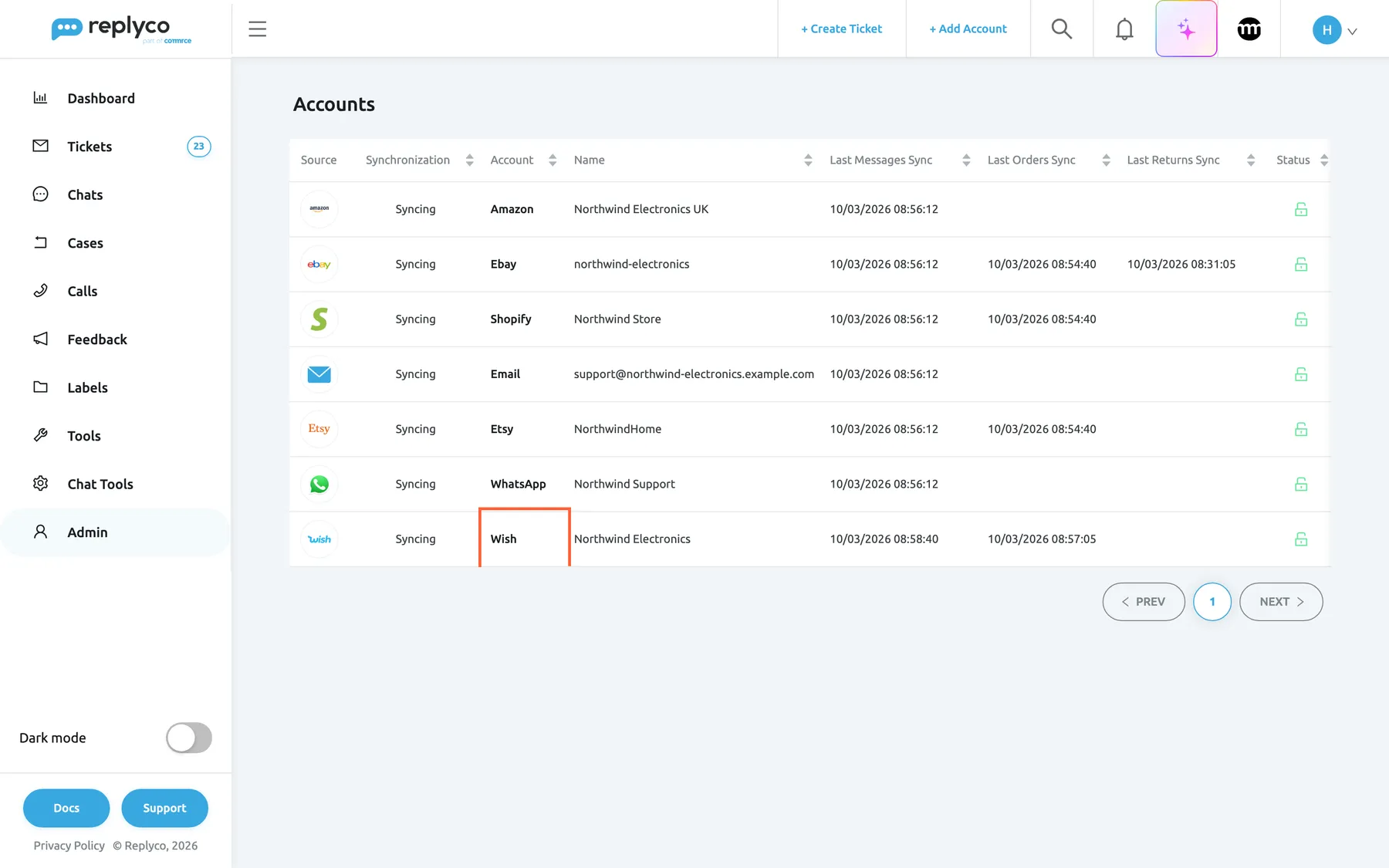
The new Wish account is named after your Wish store and syncs like every other account. What this screenshot shows
- Screen
- Accounts (/integrations)
- Highlighted
- cell “”, table-last-row, syncing. opens the account details
- Also visible
- seven accounts with source, synchronization, account, name, last sync times and status; Wish account named Northwind Electronics
- Purpose
- check that the Wish account was added
What happens next
Section titled “What happens next”The account starts to sync at once. Replyco checks Wish for new tickets and replies every five minutes; it also checks for new orders every few minutes. Each Wish ticket becomes one Replyco ticket with the ticket’s subject, the customer’s name and the ticket’s first order and product; files the customer attached arrive with the message. When the next customer writes, check that a ticket appears in TicketsNot Resolved.
Replying to Wish customers
Section titled “Replying to Wish customers”- Replies go back through Wish as plain text. Under the text box Replyco shows * Your message will be sent as a plain text; formatting such as bold text is not kept.
- Wish replies carry no attachments: the reply editor of a Wish ticket offers no button to attach a file. Send a link to the file instead.
- Conversations start on Wish. Wish accounts are not offered as a sender in + Create Ticket or when you forward a message, so you answer Wish customers in the ticket they opened.
- Everything else in Answer a ticket, such as templates, translation and delayed sending, works on Wish tickets.
If something goes wrong
Section titled “If something goes wrong”| Symptom | Check | Fix |
|---|---|---|
| “Error happened during integration activating” | Wish did not confirm Replyco’s access. | Start again from + Add Account and allow access in Wish. |
| “Integration with this name already exists” | A Wish account in Replyco already has this store’s name, so the store is probably connected already. | Use the existing account on AdminAccounts. |
| “You reached your current plan maximum integrations count. Contact support for more info.” | Your plan has no free account; + Add Account is then also missing from the top bar. | Delete an account you no longer use, or change your plan on AdminBilling. |
| No Wish ticket appears yet | The account’s row on AdminAccounts: the time under Last Messages Sync shows when Replyco last asked Wish. | Wait for the next check, about five minutes; tickets arrive when customers write. |
| The account shows Blocked or Marketplace data sync is Temporarily Blocked. | Wish no longer accepts Replyco’s access, for example because it was revoked in Wish. | Select Re-login in the account’s details and sign in to Wish again; see Fix a blocked or silent account. |