

AI Settings
AI Settings is where you decide which of Replyco’s AI features work for your company. Its General tab, which opens first, holds six switches and one drop-down: AI categories and the two template-suggestion switches that belong to them, AI summaries with their automatic renewal and their language, and message tone analysis. The other tabs hold the lists behind these features: your categories, your tone rules, the customers the AI leaves alone and, when auto-drafts are on, your draft instructions. Open it from ToolsAI Settings.
Availability: every plan includes Replyco AI and with it AI Settings, and every feature is on during a trial; companies on an older plan may not have it. Companies that Replyco has given access to beta features see the screen too. The menu item and the screen need the Admin permission with edit rights, and every setting on it applies to the whole company. See What each plan includes and User permissions and roles.
What you can do here
Section titled “What you can do here”- Move between the AI tabs. One tab strip leads to General, Categories, Tone, AI Customers Blacklist and, when Replyco has switched auto-drafts on for you, AI Draft Settings. Move between the tabs.
- Let the AI sort customer messages by topic. With AI Categories on, every new customer message gets one or more of your categories, which your team sees in the ticket list and the ticket. Switch AI categories on or off · AI categories.
- Have the right reply template offered. Two switches decide whether the reply editor ranks your templates by the ticket’s categories and fills in the best match. Choose how templates are suggested · Reply templates.
- Sum up every conversation. Summaries tell your team in a few sentences what a ticket or chat is about; you decide whether Replyco renews them as tickets grow, and in which language. Switch AI summaries on and choose their language · AI summaries.
- Score how customers feel. Tone analysis gives each new customer message a score from 0 to 1 and shows the mood in your tickets. Switch tone analysis on or off · Message tone analysis.
- Save your changes for the whole company. Nothing on this tab is stored until you select Save. Save your changes.
The screen at a glance
Section titled “The screen at a glance”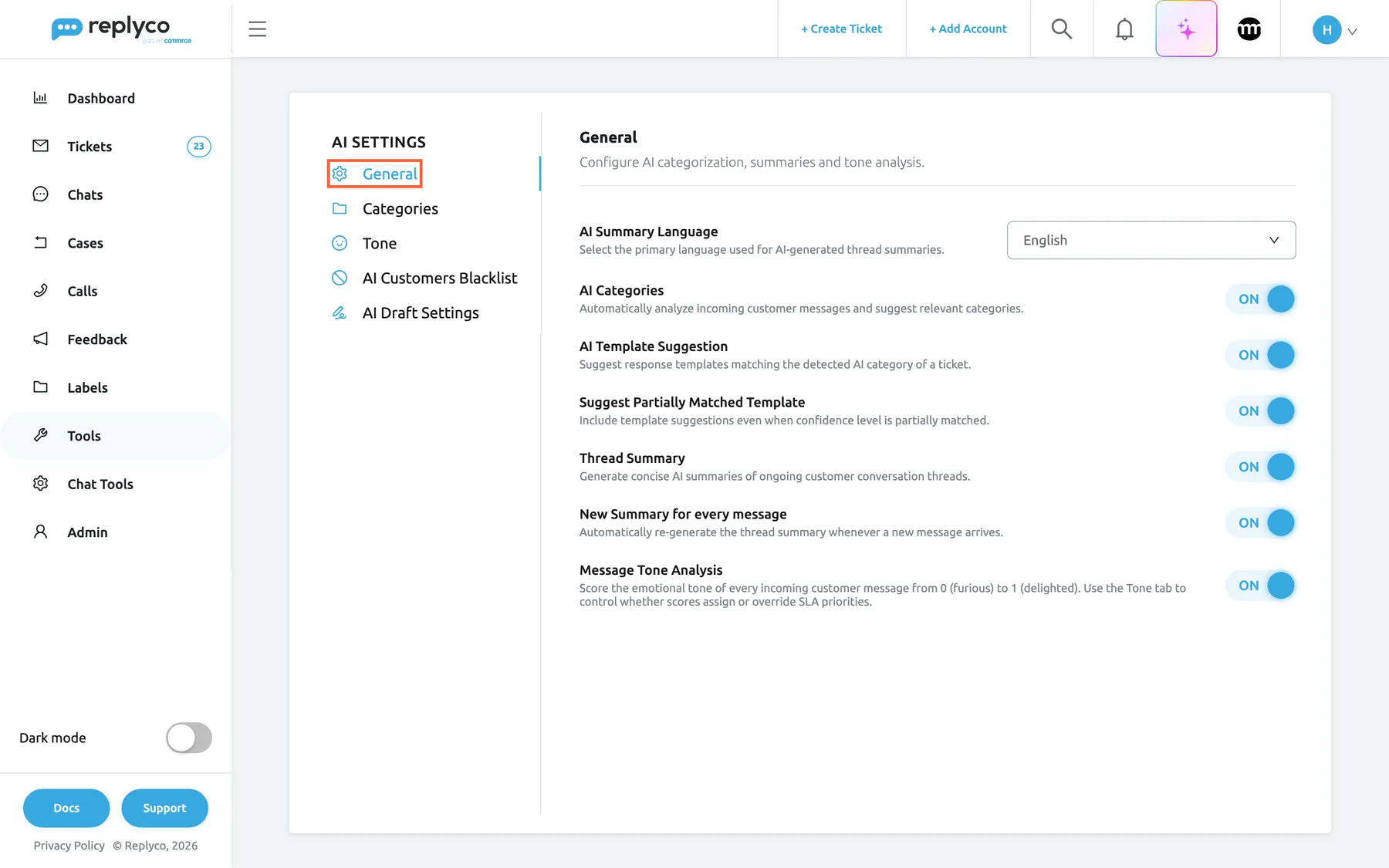
What this screenshot shows
- Screen
- AI Settings (/aiSettings?tab=general)
- Highlighted
- tab “General”, tab-list-left, selected. shows the General tab with the AI switches
- Also visible
- tab list: General, Categories, Tone, AI Customers Blacklist, AI Draft Settings; AI Summary Language drop-down: English; six switches, all on; no Save button
- Purpose
- the AI Settings screen as it opens
| Region | What it shows | What you do there |
|---|---|---|
| Tab strip, left | The heading AI Settings, then General, Categories, Tone, AI Customers Blacklist and AI Draft Settings | Open another tab |
| Header, top right | The heading General and the description Configure AI categorization, summaries and tone analysis. | Read what the tab is for |
| Language, top | AI Summary Language, shown only while summaries are on | Choose the language of new summaries |
| Categories switches | AI Categories, then AI Template Suggestion and Suggest Partially Matched Template while categories are on | Switch categorisation and template suggestions |
| Summary switches | Thread Summary and New Summary for every message | Switch summaries and their automatic renewal |
| Tone switch | Message Tone Analysis | Switch tone scoring |
| Save, under the switches | Appears only after a change | Store every change on the tab |
Each switch has its description under its name and shows ON or OFF.
Move between the tabs
Section titled “Move between the tabs”- Open ToolsAI Settings. The General tab opens, and the address ends in
/aiSettings. - Select another tab in the strip. Its content replaces the right-hand side, and the address changes to
?tab=categories,?tab=toneSla,?tab=customersBlackListor?tab=aiDraftSettings, so you can bookmark a tab or send its link to a colleague. - Select General to come back. A change you made there and did not save is still shown; it is lost only when you leave AI Settings or reload the page.
On a wide screen the tab strip stays on the left while you scroll; in a narrower browser window it moves to a row above the content, without the heading AI Settings.
Example: Northwind Electronics’ team lead bookmarks /aiSettings?tab=categories to add a Warranty category after a busy week of kettle complaints. What each tab does is described on its own page: AI Settings: Categories, AI Settings: Tone, AI Customers Blacklist and AI Draft Settings.
The AI Draft Settings tab is shown only while Replyco has AI auto-drafts switched on for your company; there is no switch for them in the app. How drafts work is in AI drafts.
Switch AI categories on or off
Section titled “Switch AI categories on or off”- On the General tab, select the switch of AI Categories, the first switch on the tab.
- Select Save.
On: every new incoming customer message is sent to the AI with the names of your categories, and the categories it picks are added to the ticket. Off: nothing new is categorised, the category column leaves the ticket list, Related AI Categories leaves the template form, the two template switches below it are hidden, and automatic AI drafts stop, because drafts are written only for categorised messages. Categories already on tickets, your category list and the links between templates and categories are kept. New companies start with the switch on.
Example: with the switch on, The tracking has not changed for four days. Where is my parcel? arrives at Northwind Electronics and gets Shipping & Delivery. The same message after the switch is saved as off gets no category and no automatic draft.
Messages from customers on the AI Customers Blacklist are never categorised, whatever this switch says. For how the AI chooses, what it costs and where categories show, see AI categories; your category list is on the AI Settings: Categories tab.
Choose how templates are suggested
Section titled “Choose how templates are suggested”Both switches are shown only while AI Categories is on, and both act in the Template list of a ticket’s reply editor and of the forward screen.
- Leave AI Template Suggestion on to have templates that share the ticket’s categories listed first, and the single best match filled in for you. Switch it off to keep the list in name order and never fill anything in.
- With suggestions on, leave Suggest Partially Matched Template on to count a template as a match when it shares at least one category with the ticket. Switch it off to count only templates whose categories are exactly the ticket’s.
- Select Save.
Example: ticket #32537 Earbuds arrived with a cracked charging case has Product and Returns / Refunds / Exchanges. The template Damaged item – refund or replacement? is linked to both, so it is filled in with partial matching on or off. When the ticket later also gets Shipping & Delivery, only partial matching still finds it.
Ranking and filling in work on the templates linked to the ticket’s account, and never replace a reply someone saved on the ticket or an AI draft waiting there. Hiding the switches by turning categories off does not change their saved values. The full matching rules, with a worked example for every combination, are in AI categories; to link categories to a template, see Templates.
Switch AI summaries on and choose their language
Section titled “Switch AI summaries on and choose their language”- Switch on Thread Summary. AI Summary Language appears at the top of the tab.
- Open AI Summary Language and choose Default, to write each summary in the language of its conversation, or the one language your team reads. You can type to find a language.
- Leave New Summary for every message on to have Replyco renew a ticket’s summary as the conversation grows, or switch it off to write summaries only when someone asks for one.
- Select Save.
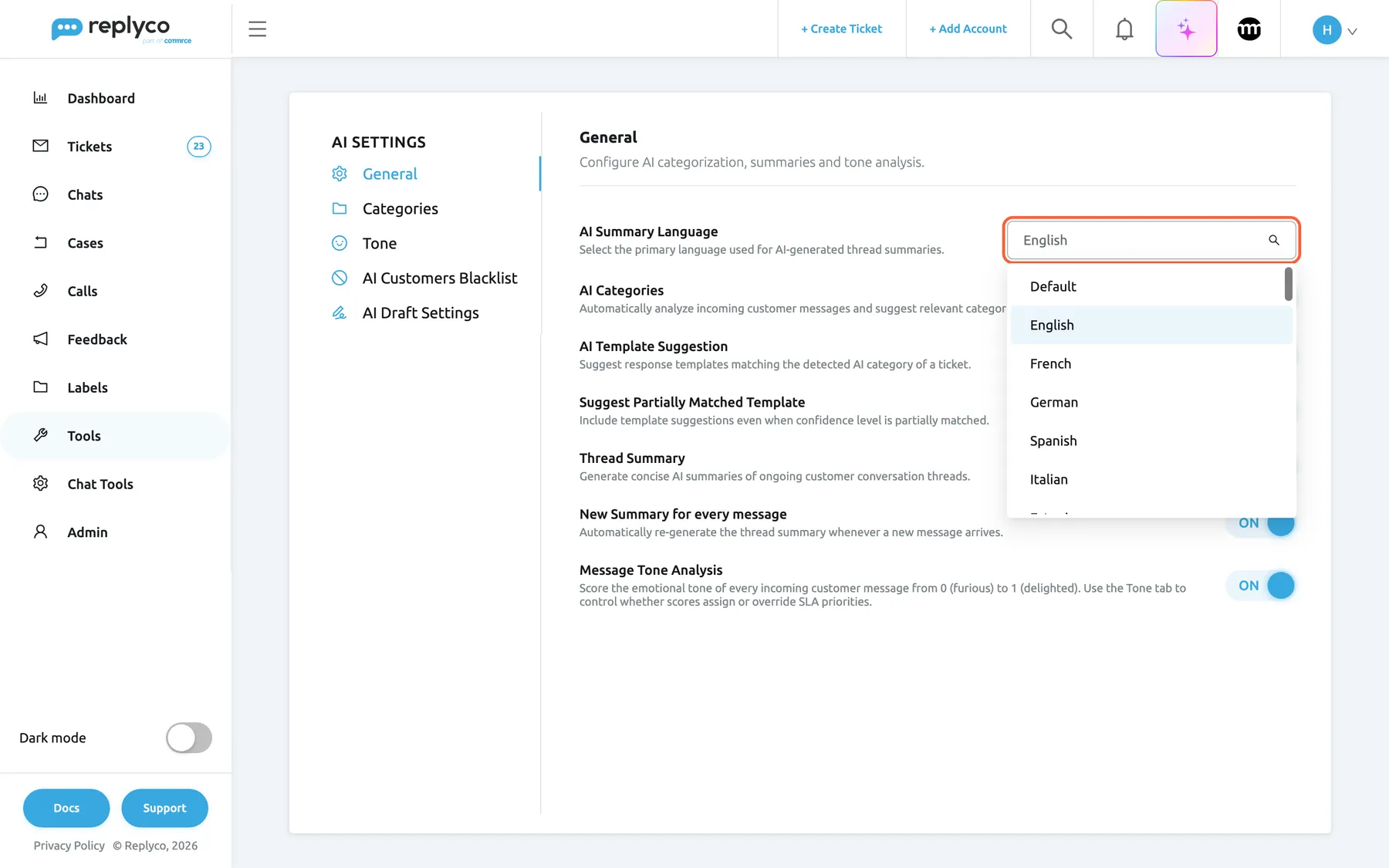
What this screenshot shows
- Screen
- General (/aiSettings?tab=general)
- Highlighted
- combobox “AI Summary Language”, settings-list-top, open, English selected. chooses the language of new AI summaries; saved with the Save button that appears
- Also visible
- options Default, English, French, German, Spanish, Italian and more; language names in the interface language
- Purpose
- the summary language
With summaries on, the AI Summary panel appears in tickets and chats, the ticket list shows the summary when you hover a subject, and the AI draft review shows it next to the draft. Switching summaries off hides them everywhere; stored summaries are kept and come back when you switch them on again.
Automatic renewal writes a new summary whenever a ticket receives a new customer message. Chats are summarised only when someone selects Generate Summary. A new language applies to summaries written after you save it; existing summaries keep their language until they are renewed.
Example: Northwind Electronics sells across Europe but answers in English. It sets the language to English, so a French customer’s complaint about a late parcel is summarised in English for whoever picks up the ticket.
Companies that sign up in Germany, Austria, Switzerland or Liechtenstein start with German and with automatic renewal off; all others start with English and renewal on. Summaries start on for every new company. Everything else about summaries, from what the AI reads to what each one costs, is in AI summaries.
Switch tone analysis on or off
Section titled “Switch tone analysis on or off”- Select the switch of Message Tone Analysis, the last switch on the tab.
- Select Save.
On: every new incoming customer message gets a tone score from 0 (furious) to 1 (delighted) with a one-line reason, shown as a face in the ticket list and on the message. Off: nothing new is scored, and the Tone column, the faces and the Average tone by product widget are hidden. Scores already stored and everything on the Tone tab are kept. New companies start with it off.
This switch only scores. Whether a score may also set a ticket’s SLA priority is decided on the AI Settings: Tone tab, with Let tone set the SLA priority and your tone rules. While this switch is off, the Tone tab shows the box Message Tone Analysis is switched off with a link back here.
Example: with tone analysis on, This is the third email. Where is my refund? scores about 0.20 and shows a red face, so Northwind’s team sees the angry customer before opening the ticket. The scale, the calibration examples and the priority rules are in Message tone analysis.
Save your changes
Section titled “Save your changes”- Change one or more controls on the General tab. The blue Save button appears under the last switch.
- Select Save. The button shows a spinner, then Replyco confirms with Success and the button disappears.
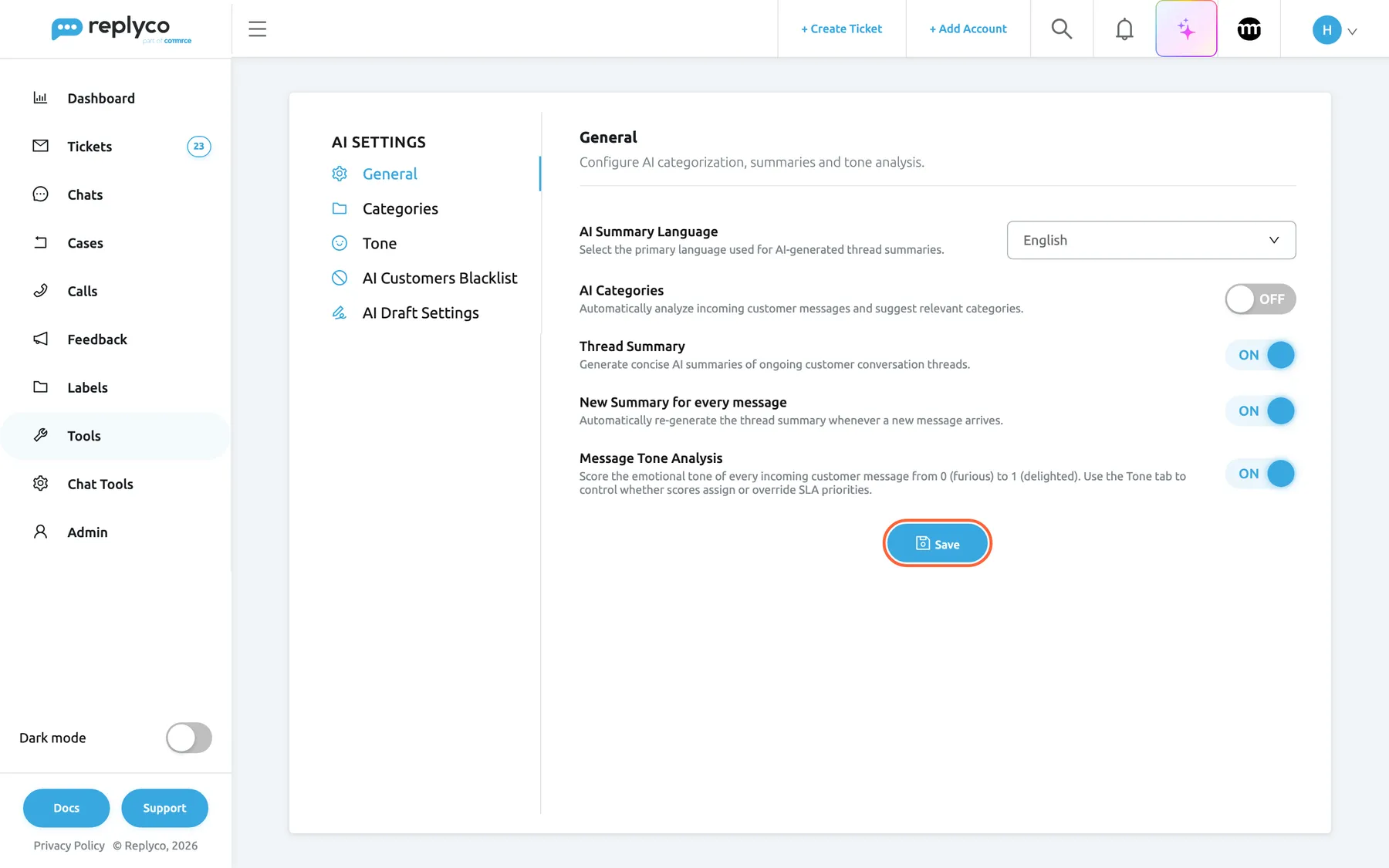
What this screenshot shows
- Screen
- General (/aiSettings?tab=general)
- Highlighted
- button “Save”, settings-list-bottom, enabled. stores every change on the tab for the whole company
- Also visible
- AI Categories switch off; template switches hidden; Thread Summary, New Summary for every message, Message Tone Analysis on
- Purpose
- saving the General tab
One Save stores every change on the tab, for everyone in your company. Settings take effect for customer messages that arrive afterwards; nothing already in your tickets is categorised, scored or summarised again. Colleagues who have Replyco open see the new settings after they reload the page. If saving fails, an error message appears, for example Error, and nothing is changed; select Save again.
The switches save only with this button. The tabs next to it save differently: the category list and the blacklist save each entry with its own Save, the Tone tab saves its check boxes as you tick them, and draft instructions save with Validate & Save. Saving here never resets anything on the Tone tab.
Every control, explained
Section titled “Every control, explained”The General tab has a tab strip, one drop-down, six switches and a save button, in this order on screen. Every control applies to the whole company.
Tab strip
Section titled “Tab strip”Left of the content under the heading AI Settings; on narrower windows, a row above it. General is selected when the screen opens.
Lists General, Categories, Tone, AI Customers Blacklist and AI Draft Settings. The last tab appears only while Replyco has auto-drafts on for your company. Selecting a tab puts its key into the address (?tab=…). Unsaved changes on the General tab survive a switch to another tab and back.
Each AI feature has its switch here and its list on a tab of its own, so you set up a feature without leaving the screen.
AI Summary Language
Section titled “AI Summary Language”Top of the tab, a drop-down on the right. Shown only while Thread Summary is on. Saved with Save.
Default, then the languages Replyco can translate, such as English, French, German, Spanish and Italian, named in the language of your interface. You can type to search. Default writes each summary in its conversation’s language; any other choice writes every summary, of tickets and chats, in that language. It applies to summaries written after you save. Companies that sign up in Germany, Austria, Switzerland or Liechtenstein start with German, all others with English. The description reads Select the primary language used for AI-generated thread summaries.
A team that works in one language can read every summary, even of conversations it cannot read itself.
AI Categories
Section titled “AI Categories”The first switch. Saved with Save. Its description reads Automatically analyze incoming customer messages and suggest relevant categories.
On: every new incoming customer message is categorised from your list on the Categories tab. Off: nothing new is categorised, automatic AI drafts stop, and the category column, the category field of the template form and the two template switches are hidden. Existing categories on tickets and your list are kept. On for new companies. See AI categories.
Each categorised message is one AI action, listed as Category in AI Usage, so each company chooses whether it wants topics on its tickets.
AI Template Suggestion
Section titled “AI Template Suggestion”Under AI Categories, shown only while that switch is on. Saved with Save. Its description reads Suggest response templates matching the detected AI category of a ticket.
On: the reply editor lists templates that share the ticket’s categories first and fills in the single best match, with Cancel Template Suggestion to undo it. Off: the Template list is in name order and nothing is filled in. Works on the templates linked to the ticket’s account. On for new companies. Hidden does not mean off: the saved value stays.
Most tickets on one topic get the same answer; offering it first saves the scroll through a long list.
Suggest Partially Matched Template
Section titled “Suggest Partially Matched Template”Under AI Template Suggestion, shown only while both switches above it are on. Saved with Save. Its description reads Include template suggestions even when confidence level is partially matched.
On: a template matches when it shares at least one category with the ticket, and more shared categories rank higher. Off: a template matches only when its categories are exactly the ticket’s. On for new companies.
Tickets collect categories as a conversation goes on, so exact matches get rarer on long tickets. Leave it on unless agents keep cancelling suggestions that are close but wrong.
Thread Summary
Section titled “Thread Summary”The switch after the category switches. Saved with Save. Its description reads Generate concise AI summaries of ongoing customer conversation threads.
On: the AI Summary panel appears in tickets and chats, the list shows summaries on hover, the AI draft review shows them, and AI Summary Language appears on this tab. Off: all of that is hidden and nothing new is written; stored summaries are kept. On for new companies. See AI summaries.
Summaries save reading time when a ticket changes hands, and each costs an AI action, listed as Summary.
New Summary for every message
Section titled “New Summary for every message”Directly under Thread Summary. Shown even while summaries are off, but it has an effect only while they are on. Saved with Save.
On: Replyco writes a new summary for a ticket at every new customer message. Off: summaries are written only when someone selects Generate Summary or renews one in the ticket. Chats are never renewed automatically. Companies that sign up in Germany, Austria, Switzerland or Liechtenstein start with it off, all others with it on.
Renewing at every customer message keeps each summary up to date as the conversation grows, and each renewal is one AI action. Switch it off to write summaries only for the tickets someone asks about.
Message Tone Analysis
Section titled “Message Tone Analysis”The last switch. Saved with Save.
On: every new incoming customer message gets a tone score from 0 to 1 and a reason. Off: nothing new is scored and the tone column, faces and dashboard widget are hidden; scores and the Tone tab’s settings are kept. Off for new companies. A score sets a priority only when Let tone set the SLA priority is ticked on the Tone tab. See Message tone analysis.
Each scored message is an AI action, listed as Tone Analysis, and scoring works without categories or summaries, so it has its own switch.
Centred under the last switch; it appears only after a control has changed, and stays in view at the bottom of the window while you scroll.
Stores every control of the tab at once for the whole company and confirms with Success. There is no validation. The Tone tab’s settings travel with the save unchanged. If the request fails, an error message appears and nothing is stored.
Switching an AI feature changes what happens to every incoming message, so nothing takes effect until you confirm it.
Who sees what
Section titled “Who sees what”| Part of the screen | What shows it |
|---|---|
| AI Settings in Tools and the whole screen | Replyco AI (every plan and every trial) or access to beta features, and the Admin permission with edit rights. Without them, a link to the screen opens the home page instead |
| AI Template Suggestion | AI Categories on |
| Suggest Partially Matched Template | AI Categories and AI Template Suggestion on |
| AI Summary Language | Thread Summary on |
| The AI Draft Settings tab | AI auto-drafts switched on for your company by Replyco |
| The SLA part of the Tone tab | Priorities & SLA, which every plan includes; companies on an older plan may not have it |
| Template ranking and filling in the reply editor | Templates linked to accounts, which every plan includes |
What you need to know
Section titled “What you need to know”| Topic | Fact |
|---|---|
| Scope | Every setting on the tab applies to the whole company and to every connected account. |
| Who can change it | Users with the Admin permission with edit rights, who see the screen. |
| Saving | Only with Save. Unsaved changes survive a switch to another tab, not a reload. |
| Hidden switches | A switch hidden by another keeps its saved value. |
| Nothing retroactive | Settings act on customer messages that arrive after you save. |
| Switching off | Stops new AI work and hides its results; stored categories, summaries and scores are kept. |
| Blacklist | Messages from customers on the AI Customers Blacklist are never categorised, drafted automatically, scored or answered by auto-responses, whatever the switches say; they are still summarised. |
| Defaults for new companies | Categories, both template switches and summaries on; tone analysis off; renewal and language by sign-up country. |
| Cost | Categories, summaries and tone scores are AI actions, listed under AdminBilling › AI Usage. See Billing. |
| History | Changes to these settings are not recorded anywhere you can see. |
Frequently asked questions
Section titled “Frequently asked questions”General
Section titled “General”Who can change the AI settings?
Section titled “Who can change the AI settings?”Users with the Admin permission with edit rights, in a company with Replyco AI. Only they see ToolsAI Settings and can open it; for everyone else, a bookmark or link to the screen opens the home page. The changes apply to the whole company, so agree in your team who switches AI features on or off. See User permissions and roles.
Do I need a special plan for the AI settings?
Section titled “Do I need a special plan for the AI settings?”No. Every plan includes Replyco AI, template ranking in the reply editor and the SLA part of the Tone tab, and every feature is on during a trial. Companies on an older plan may not have all of them; see What each plan includes.
Can I switch AI features on for some accounts only?
Section titled “Can I switch AI features on for some accounts only?”No. Every switch on the General tab of ToolsAI Settings applies to tickets from every connected account. To keep particular senders away from categorisation, drafts and tone scoring, add them to the AI Customers Blacklist tab instead.
Does changing a setting affect tickets I already have?
Section titled “Does changing a setting affect tickets I already have?”No. The settings act on customer messages that arrive after you select Save. Existing tickets are not categorised, scored or summarised again, and switching a feature off does not delete the categories, summaries or scores already stored on them.
Saving
Section titled “Saving”I changed a switch but nothing happened. Why?
Section titled “I changed a switch but nothing happened. Why?”Changes on the General tab of ToolsAI Settings are stored only when you select the Save button that appears under the last switch. Replyco confirms with Success. Leaving the screen or reloading the page before that discards the change.
When do my colleagues see the new settings?
Section titled “When do my colleagues see the new settings?”The settings apply to incoming messages as soon as you save. Colleagues who already have Replyco open keep the settings their browser loaded, for example a summary panel that is no longer switched on, until they reload the page or sign in again.
The switches
Section titled “The switches”Why did the two template switches disappear?
Section titled “Why did the two template switches disappear?”AI Template Suggestion and Suggest Partially Matched Template are shown only while AI Categories is on, because they match templates by category. Hiding them does not change their saved values; switch categories back on and they reappear as they were.
Why can’t I find the summary language?
Section titled “Why can’t I find the summary language?”AI Summary Language appears at the top of the General tab only while Thread Summary is on. Switch summaries on, and the drop-down appears; choose the language and select Save.
Does the tone switch set ticket priorities?
Section titled “Does the tone switch set ticket priorities?”Not on its own. Message Tone Analysis only scores messages. A score sets a ticket’s SLA priority only when Let tone set the SLA priority is ticked on the Tone tab and a tone rule covers the score.
Does switching off AI categories stop AI drafts?
Section titled “Does switching off AI categories stop AI drafts?”Yes. Automatic AI drafts are written only for messages that were categorised, so with AI Categories off under ToolsAI Settings, no new drafts are written. Drafts already waiting on tickets stay there, and the AI Draft button in the reply editor still works.
Where do I switch AI auto-drafts on?
Section titled “Where do I switch AI auto-drafts on?”Not in the app. Replyco switches auto-drafts on for a company; while they are on, the AI Draft Settings tab appears in ToolsAI Settings. If the tab is missing, ask Replyco support. Drafts also need AI Categories on.
Data and cost
Section titled “Data and cost”What does each switch cost?
Section titled “What does each switch cost?”Each categorised message, each summary and each tone score is one AI action, counted under AdminBilling › AI Usage as Category, Summary and Tone Analysis. Switching a feature off stops new actions of that type.
Is a record kept of who changed the AI settings?
Section titled “Is a record kept of who changed the AI settings?”No. Replyco does not write a history entry when someone saves the General tab of ToolsAI Settings. Agree within your team who changes these settings, and note the date of a change if you want to compare AI usage before and after.
Troubleshooting
Section titled “Troubleshooting”| Symptom | What to check |
|---|---|
| AI Settings is not in the Tools menu | Your user lacks the Admin permission with edit rights; ask an administrator. Companies on an older plan may not have Replyco AI; see What each plan includes. |
| A link or bookmark to AI Settings opens the home page | The screen needs Replyco AI and the Admin permission with edit rights; users without them are sent to the home page. Ask an administrator to check your permissions under AdminUsers. |
| A change is gone after you left the screen | It was not saved. Change it again and select Save; wait for Success. |
| Saving shows an error message such as Error | Nothing was stored. Reload the page and try again. |
| The template switches are missing | AI Categories is off. Switch it on to see them. |
| AI Summary Language is missing | Thread Summary is off. |
| The AI Draft Settings tab is missing | Auto-drafts are not on for your company. Ask Replyco support. |
| New tickets get no categories, scores or summaries | In order: is the switch on and saved? Did the message arrive afterwards? Is it from a customer on the AI Customers Blacklist? Is it a chat? For summaries: is New Summary for every message on, or has someone selected Generate Summary? |
| A colleague still sees a feature you switched off | Their browser has the old settings. Ask them to reload the page. |