

Billbee Configuration
Billbee Configuration holds your company’s custom triggers: the names of Billbee events that agents can send to an order from a ticket, so that a Billbee rule prints a return label, holds a shipment or resends a tracking email. Administrators keep the list here; agents only choose from it. Open it from AdminBillbee Configuration, which appears once Billbee is connected. For everything Billbee does in Replyco, see Billbee.
What you can do here
Section titled “What you can do here”- Add a trigger. One name per Billbee event your rules listen for, typed exactly as in Billbee. It is offered in every order Billbee knows. Add a custom trigger · Billbee.
- Rename a trigger when the event in Billbee got a new name, so agents keep starting the right rule. Rename a trigger.
- Copy a trigger to start a similar one from an existing name. Copy a trigger.
- Delete a trigger that no Billbee rule uses any more, so agents stop choosing it. Delete a trigger.
- Know where agents use the list. The triggers appear under Custom Triggers in the ⋮ menu of an order, in tickets and on the Orders screen. Where the triggers are used.
The screen at a glance
Section titled “The screen at a glance”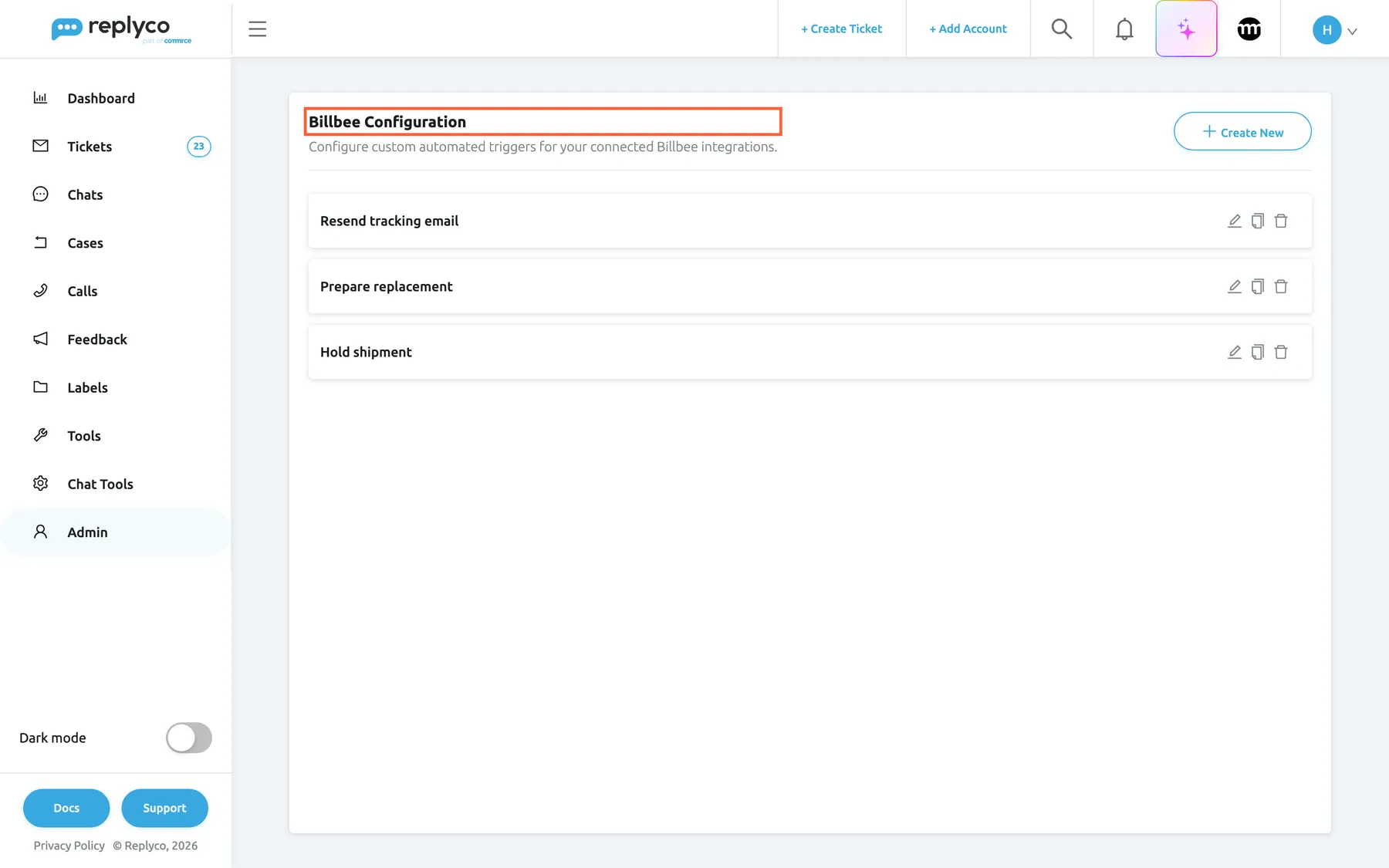
What this screenshot shows
- Screen
- Billbee Configuration (/billbee-configuration)
- Highlighted
- heading “Billbee Configuration”, header-left, shown. none
- Also visible
- Create New button; 3 trigger cards with edit, copy and delete icons
- Purpose
- the screen as it opens with triggers
| Region | What it shows | What you do there |
|---|---|---|
| Header, left | Billbee Configuration and Configure custom automated triggers for your connected Billbee integrations. | Orient yourself |
| Header, right | Create New | Open the form for a new trigger |
| The list | One card per trigger, in the order they were added; No data... when there is none | Select a card to change its name |
| Icons on a card | Edit (pencil), copy, delete (bin) | Rename, copy or delete that trigger |
| Side panel, right | Trigger Name, Cancel and Save; × closes it | Type the name and save |
Add a custom trigger
Section titled “Add a custom trigger”-
In Billbee, find the rule you want agents to start and note the exact name of its custom event.
-
On AdminBillbee Configuration, select Create New. The panel with Trigger Name opens next to the list.
-
Type the event name exactly as Billbee has it, and select Save.
Replyco shows Success, closes the panel and adds the trigger at the end of the list. From now on it is offered in the order panel of every order that Billbee knows.
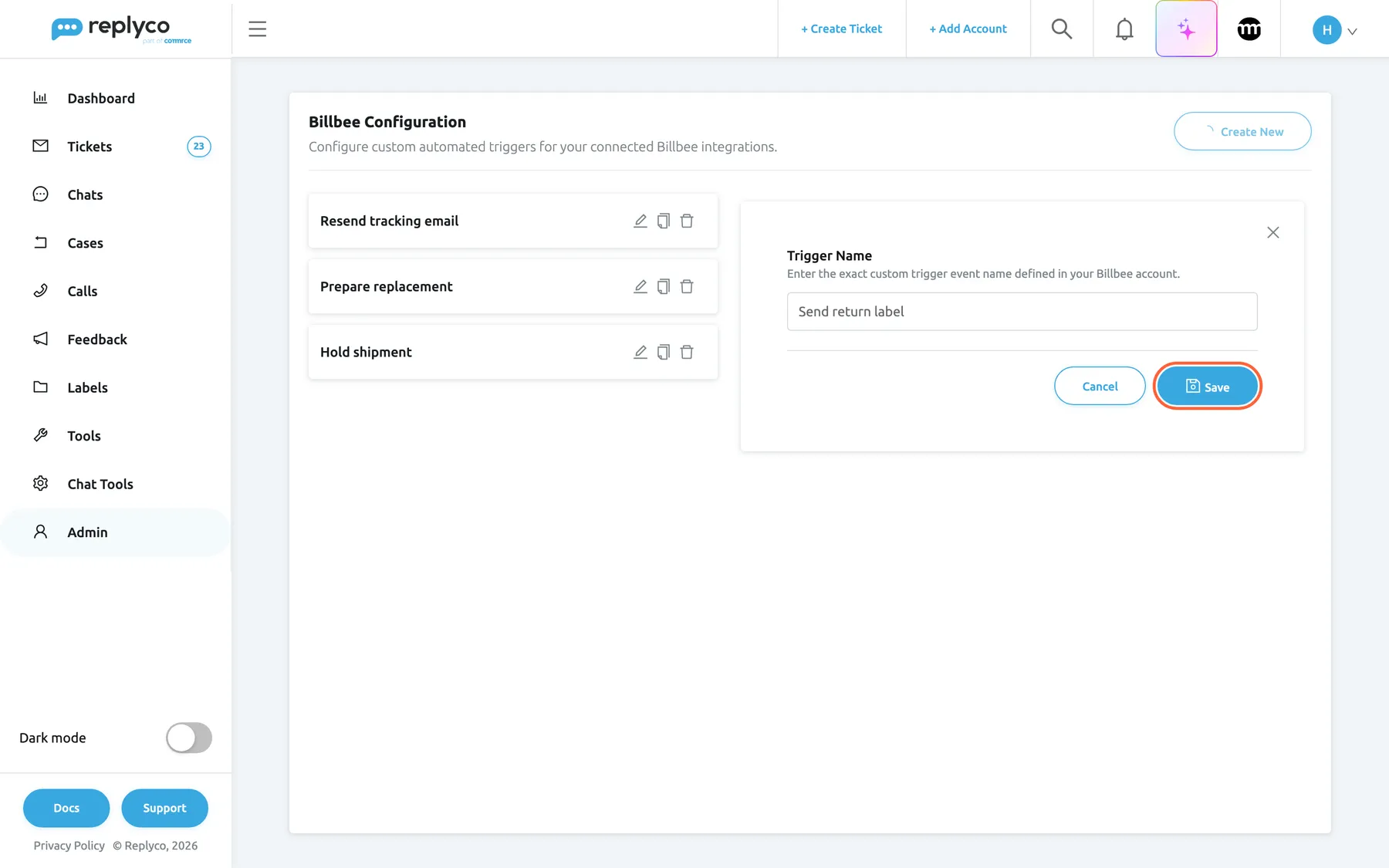
What this screenshot shows
- Screen
- Billbee Configuration (/billbee-configuration)
- Highlighted
- button “Save”, side-panel-bottom, enabled. adds the trigger to the company's list
- Also visible
- Trigger Name: Send return label; Cancel button; 3 existing triggers
- Purpose
- add a custom trigger
For example, Northwind Electronics has a Billbee rule that emails the customer a prepaid return label when the event Send return label arrives. Hannah adds Send return label here; when a customer asks to return a kettle, the agent runs it from the ticket and Billbee sends the label.
The name must match letter for letter. Billbee starts only the rules listening for an event with exactly that name, so Send Return Label does not start a rule for Send return label. Replyco refuses an empty name with All fields must be completed. and a name already in the list with The Custom Trigger exists..
Rename a trigger
Section titled “Rename a trigger”-
Select the trigger’s card, or the pencil on it. The panel opens with its name.
-
Change the name and select Save.
The trigger keeps its place in the list. Rename a trigger when you rename the event in Billbee, and do both at the same time: until the names match again, running the trigger starts no rule. To leave without changing anything, select Cancel or the ×.
Copy a trigger
Section titled “Copy a trigger”Select the copy icon on a card. The panel opens with the name followed by (copy). Change it to the name of the other Billbee event and select Save; the copy is added as a new trigger at the end of the list, and the original stays as it is.
Copying helps when your Billbee events share a pattern, such as Hold shipment and Hold shipment 48h. Always remove the added text: no Billbee rule listens for a name ending in it.
Delete a trigger
Section titled “Delete a trigger”-
Select the bin on the trigger’s card. Replyco asks Are you sure you want to delete this item?
-
Select Yes to delete it, or No to keep it.
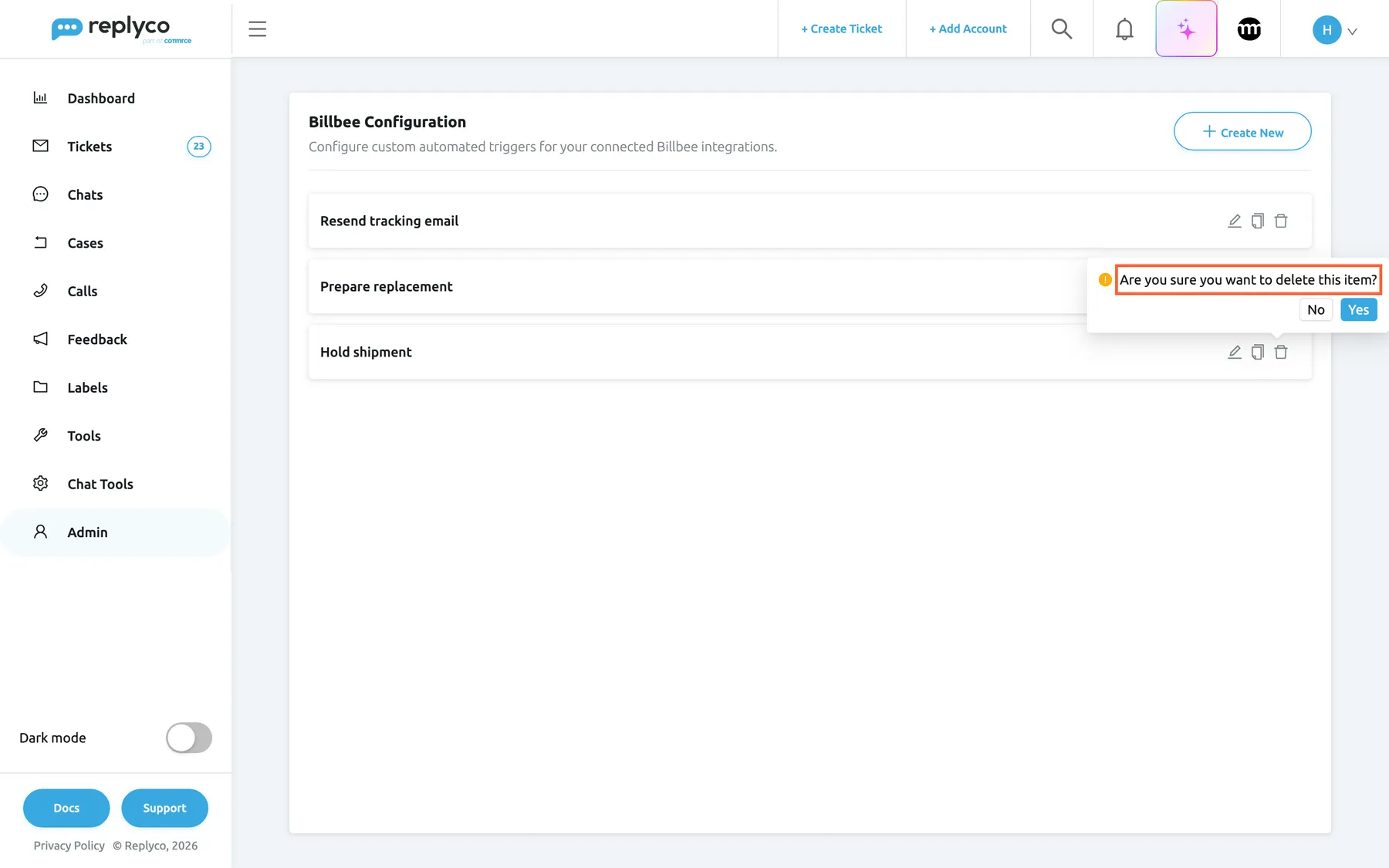
What this screenshot shows
- Screen
- Billbee Configuration (/billbee-configuration)
- Highlighted
- “”, list-right, open. Yes deletes the trigger
- Also visible
- confirmation bubble with No and Yes; 3 trigger cards
- Purpose
- delete a custom trigger
Replyco saves the list without the trigger and shows Success. Agents no longer see it in the order panel. Deleting changes nothing in Billbee: the rule and its event stay there, and events already sent are not undone. When the last trigger is deleted, the list shows No data... and orders no longer offer Custom Triggers.
Where the triggers are used
Section titled “Where the triggers are used”Agents open an order that Billbee knows, in Order Details of a ticket or in the order window on ToolsOrders. In the ⋮ menu they choose Custom Triggers, pick a trigger under Choose Custom Trigger and select Ok. Replyco sends the event to that order in Billbee. The list there is the list on this screen, in the same order. For the order panel and what Billbee does next, see Billbee.
Every control, explained
Section titled “Every control, explained”Billbee Configuration in the menu
Section titled “Billbee Configuration in the menu”AdminBillbee Configuration in the sidebar.
Opens this screen. It is listed for users with the Admin permission once your company has connected Billbee.
Triggers only make sense with Billbee connected, and the list affects everyone, so it sits with the other administrator screens.
Create New
Section titled “Create New”Header, right.
Opens the side panel with an empty Trigger Name. While the panel is open for a new trigger, the button is inactive.
Each Billbee event your team should be able to start needs its own entry.
The trigger list
Section titled “The trigger list”Below the header.
One card per trigger, in the order they were added; new triggers go to the end. Selecting a card opens it in the side panel, and the selected card is outlined in blue. With no triggers, the list shows No data....
Agents see the triggers in the same order in the order panel, so the list is also a preview of what they choose from.
Edit, copy and delete icons
Section titled “Edit, copy and delete icons”| Icon | What it does | Why |
|---|---|---|
| Pencil | Opens the trigger in the side panel to rename it | Keep the name in step with the Billbee event |
| Copy | Opens the panel with the name followed by (copy); saving adds a new trigger | Start from a similar name |
| Bin | Asks Are you sure you want to delete this item? and deletes the trigger after Yes | Remove events no rule uses any more |
Trigger Name
Section titled “Trigger Name”The side panel, under the help text Enter the exact custom trigger event name defined in your Billbee account.
The name sent to Billbee as the custom event. Required; a name already in the list is refused with The Custom Trigger exists.. Names are compared exactly, so Hold shipment and Hold Shipment are two different triggers.
Billbee matches the event by name; any difference means no rule runs.
Save, Cancel and ×
Section titled “Save, Cancel and ×”The side panel, bottom right; the × at its top right.
Save saves the whole list for the company and shows Success. Cancel and × close the panel without saving.
A change here reaches every agent’s order panel, so it takes a deliberate save.
Who sees what
Section titled “Who sees what”| Part | Who sees it |
|---|---|
| Billbee Configuration in the menu | Users with the Admin permission, once Billbee is connected |
| Adding, renaming, copying and deleting triggers | Users with the Admin permission |
| Custom Triggers in the order panel | Every user who can open the ticket or order, when the order has a Billbee number and the list has at least one trigger |
For permissions, see User permissions and roles.
What you need to know
Section titled “What you need to know”| Topic | Fact |
|---|---|
| Company-wide | One list for the whole company; every agent sees the same triggers. |
| Exact names | Names are sent to Billbee as typed and compared letter for letter, capitals included. |
| Order | New triggers are added at the end; the order panel lists them in the same order. |
| No effect in Billbee | Adding, renaming or deleting a trigger changes nothing in Billbee. Only running a trigger on an order does. |
| Kept without Billbee | The list stays with your company if you delete the Billbee account, ready for when you connect it again. |
Frequently asked questions
Section titled “Frequently asked questions”General
Section titled “General”What is a Billbee custom trigger?
Section titled “What is a Billbee custom trigger?”The name of a custom event in Billbee. An agent runs it on an order from the order panel, Replyco sends the event to that order in Billbee, and Billbee starts the rules that listen for it. You keep the names on AdminBillbee Configuration.
Do I have to create the event in Billbee first?
Section titled “Do I have to create the event in Billbee first?”Yes. Billbee acts only on events its rules listen for, so set up the rule in Billbee first, then add its event name here exactly as Billbee has it.
Why can’t I find this screen in the menu?
Section titled “Why can’t I find this screen in the menu?”It is listed under AdminBillbee Configuration for users with the Admin permission once Billbee is connected. Connect Billbee from + Add Account, or ask an administrator; see Billbee.
Managing triggers
Section titled “Managing triggers”Why won’t Replyco save my trigger?
Section titled “Why won’t Replyco save my trigger?”Replyco needs a name, so an empty field shows All fields must be completed.. A name already in the list shows The Custom Trigger exists.; each name can be in the list once, compared letter for letter.
Does renaming a trigger here rename the event in Billbee?
Section titled “Does renaming a trigger here rename the event in Billbee?”No. Replyco only stores the name it sends. Rename the event in Billbee and the trigger here at the same time; until both match, running the trigger starts no rule in Billbee.
What does the copy icon do?
Section titled “What does the copy icon do?”It opens the side panel with the trigger’s name followed by (copy). Edit the name to the other Billbee event and select Save; Replyco adds it as a new trigger and leaves the original unchanged.
Can I change the order of the triggers?
Section titled “Can I change the order of the triggers?”No. Triggers stay in the order they were added, and new ones go to the end. Agents see them in the same order when they choose a trigger in the order panel.
Does deleting a trigger undo what it did in Billbee?
Section titled “Does deleting a trigger undo what it did in Billbee?”No. Deleting removes the name from the list, so agents can no longer choose it. Events already sent to Billbee, and whatever the Billbee rule did then, stay as they are.
Using triggers
Section titled “Using triggers”Where do agents run the triggers?
Section titled “Where do agents run the triggers?”In the ⋮ menu of Order Details in a ticket, or of the order window on ToolsOrders, under Custom Triggers. It appears when the order has a Billbee number and the list has at least one trigger.
A trigger ran, but nothing happened in Billbee. Why?
Section titled “A trigger ran, but nothing happened in Billbee. Why?”Billbee starts only rules that listen for an event with exactly the name you sent. Compare the name here with the event in the Billbee rule letter by letter, including capitals, and check that the rule is active in Billbee.
Can agents add triggers themselves?
Section titled “Can agents add triggers themselves?”No. Adding, renaming, copying and deleting happen on AdminBillbee Configuration, which needs the Admin permission. Agents choose from the list in the order panel.
Troubleshooting
Section titled “Troubleshooting”| Symptom | What to check |
|---|---|
| All fields must be completed. | Type a name into Trigger Name before you select Save. |
| The Custom Trigger exists. | The list already has that exact name; use the existing trigger or change the name. |
| Agents cannot find Custom Triggers in the order panel | Does the list here have at least one trigger? Does the order have a Billbee number in Billbee Order ID? See Billbee. |
| The trigger ran but Billbee did nothing | Does the name match the Billbee event exactly, capitals included? Is the Billbee rule active? |
| Billbee Configuration is not in the menu | Is Billbee connected on AdminAccounts? Do you have the Admin permission? |