

Feedback List
Feedback List shows the feedback buyers leave for your eBay and Amazon accounts, one row per feedback, in bold until someone has read it. It is where you notice a negative rating early enough to contact the buyer and put things right. Open it from FeedbackFeedback List in the sidebar. Replyco fetches the feedback from the marketplaces in the background; you read it here, but you reply to it on eBay or Amazon, and the reply then appears in Replyco. The review requests Replyco sends for Amazon orders are a separate screen: Feedback Requests.
What you can do here
Section titled “What you can do here”- See all marketplace feedback in one list. eBay feedback of every type and Amazon feedback come together, with the buyer, the rating, the comment and the account. Read the list
- Spot negative feedback at once. The comment type is coloured, and the sidebar counts unread feedback of the types you choose, Negative by default. Keep an eye on new negative feedback · Account Settings
- Find one feedback. Search for a buyer, a word in the comment or an item, and filter by account, comment type and marketplace. Search and filter the list
- Open a feedback with its order and ticket. A row opens the feedback with the seller’s reply, the buyer’s follow-up, the customer, the order and the related tickets. Open a feedback · Feedback details
- Share the work of reading feedback. Mark entries read or unread for the whole team, one by one or several at once. Mark feedback read or unread
- See a customer’s feedback from their ticket. Tickets about an order list its feedback under Related Feedback. Keep an eye on new negative feedback · The ticket screen
The screen at a glance
Section titled “The screen at a glance”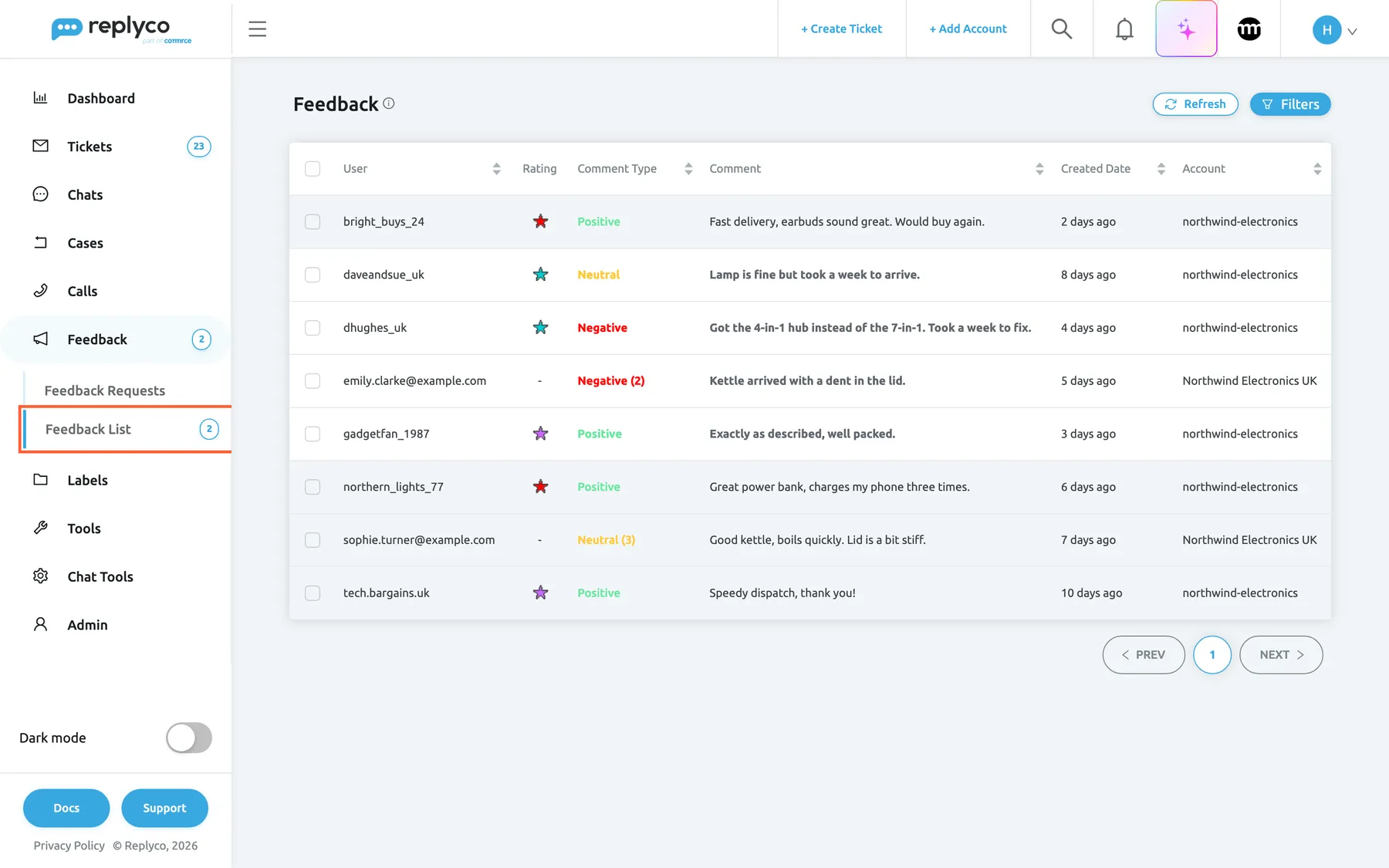
What this screenshot shows
- Screen
- Feedback List (/feedbacks)
- Highlighted
- menuitem “Feedback List”, sidebar-left, selected. opens the list of marketplace feedback
- Also visible
- Feedback menu expanded with Feedback Requests and Feedback List; badge 2 on Feedback List; eight feedback rows, eBay and Amazon; Refresh and Filters buttons
- Purpose
- the Feedback List as it opens
| Region | What it shows | What you do there |
|---|---|---|
| Feedback in the sidebar | The menu with Feedback Requests and Feedback List; both Feedback and Feedback List carry the unread count | Open the list |
| Heading, top left | Feedback and an info icon: The feedback module at Replyco displays all customer reviews from eBay and only neutral and negative reviews from Amazon. | Read what the list includes |
| Buttons, top right | Refresh and Filters | Reload the page; search and filter |
| Bulk bar, top centre | Appears when rows are ticked | Mark the ticked feedback read or unread |
| The table | One row per feedback; unread rows in bold on a shaded background | Open, tick, sort |
| Paging, bottom right | 10 rows per page | Move through pages |
Read the list
Section titled “Read the list”| Column | What it shows |
|---|---|
| User | The buyer’s eBay user ID, or for Amazon the rater’s email address |
| Rating | For eBay, the buyer’s feedback star; for Amazon a dash |
| Comment Type | Positive in green, Negative in red, every other type in yellow. Amazon feedback adds its 1–5 rating in brackets |
| Comment | The buyer’s comment, cut after 100 characters; the full text is in the feedback |
| Created Date | When the feedback was left, as “2 days ago” |
| Account | The account in Replyco the feedback belongs to |
The star is about the buyer, not about you. eBay gives every member a coloured star for the number of ratings they have received. Point at a star to see its meaning, for example Red (1,000 to 4,999 ratings). A buyer with a red star has a long eBay history; the star says nothing about how happy they are with your order. That is what Comment Type tells you.
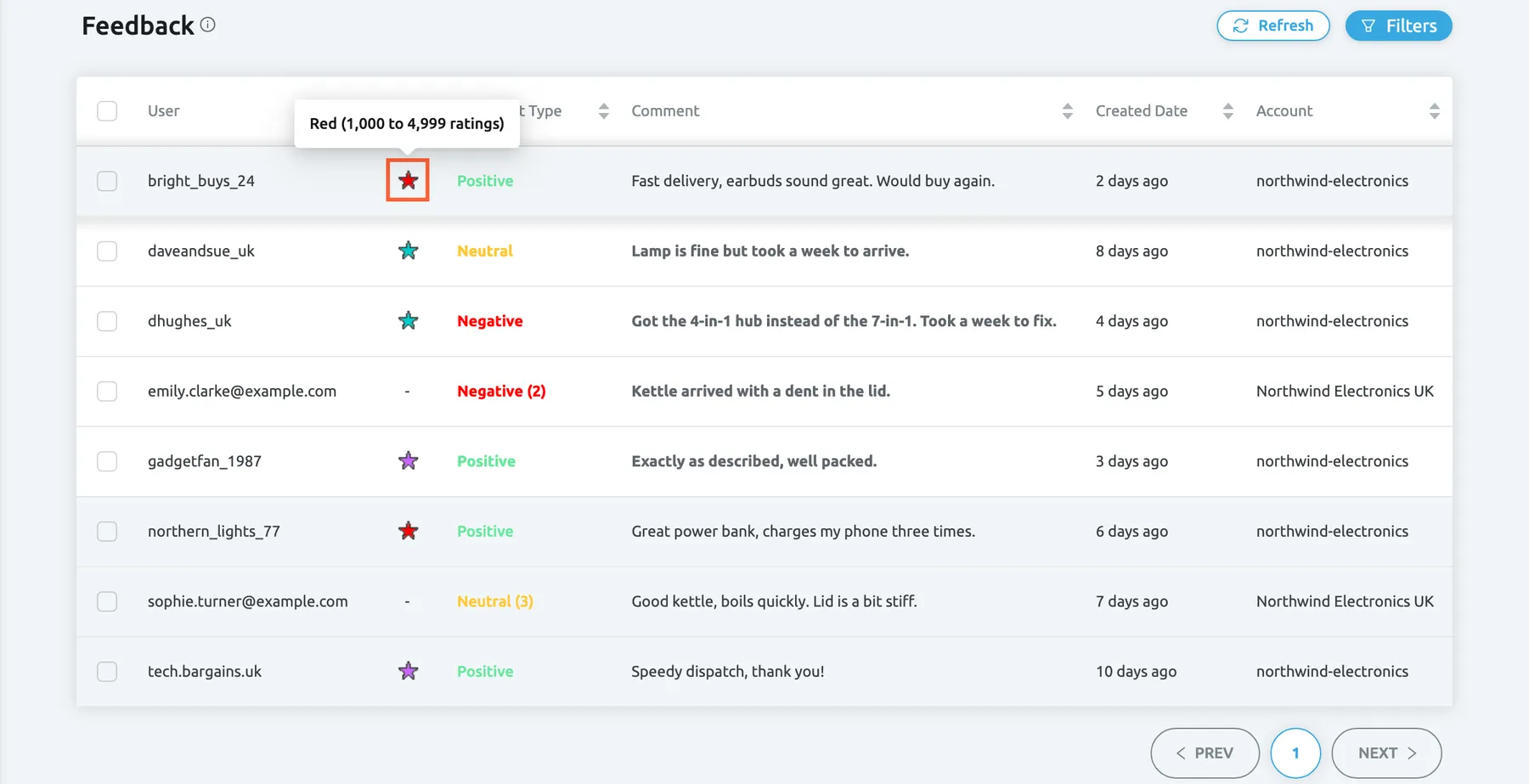
What this screenshot shows
- Screen
- Feedback List (/feedbacks)
- Highlighted
- img “Rating”, table, hovered. shows the star's meaning in a popover
- Also visible
- popover Red (1,000 to 4,999 ratings); stars on eBay rows; dash and Amazon rating in brackets on Amazon rows
- Purpose
- read the Rating column
Amazon feedback shows its rating. Amazon rates from 1 to 5 stars, and the rating follows the comment type in brackets. For eBay, the comment type is the one the buyer chose. Besides Positive, Neutral and Negative, eBay can report Withdrawn by buyer and Withdrawn for feedback that was taken back, and Other for a value Replyco does not know.
Which feedback arrives. For eBay, Replyco imports the feedback buyers leave for your eBay accounts. For Amazon, it reads Amazon’s seller feedback report, which Amazon prepares on request, so Amazon feedback arrives in batches and later than eBay feedback. Replyco keeps feedback for a period it sets per company, three months by default, and then deletes it.
Search and filter the list
Section titled “Search and filter the list”-
Select Filters at the top right.
The panel opens with Search, Filter by Account, Filter by comment type and Filter by Marketplace.
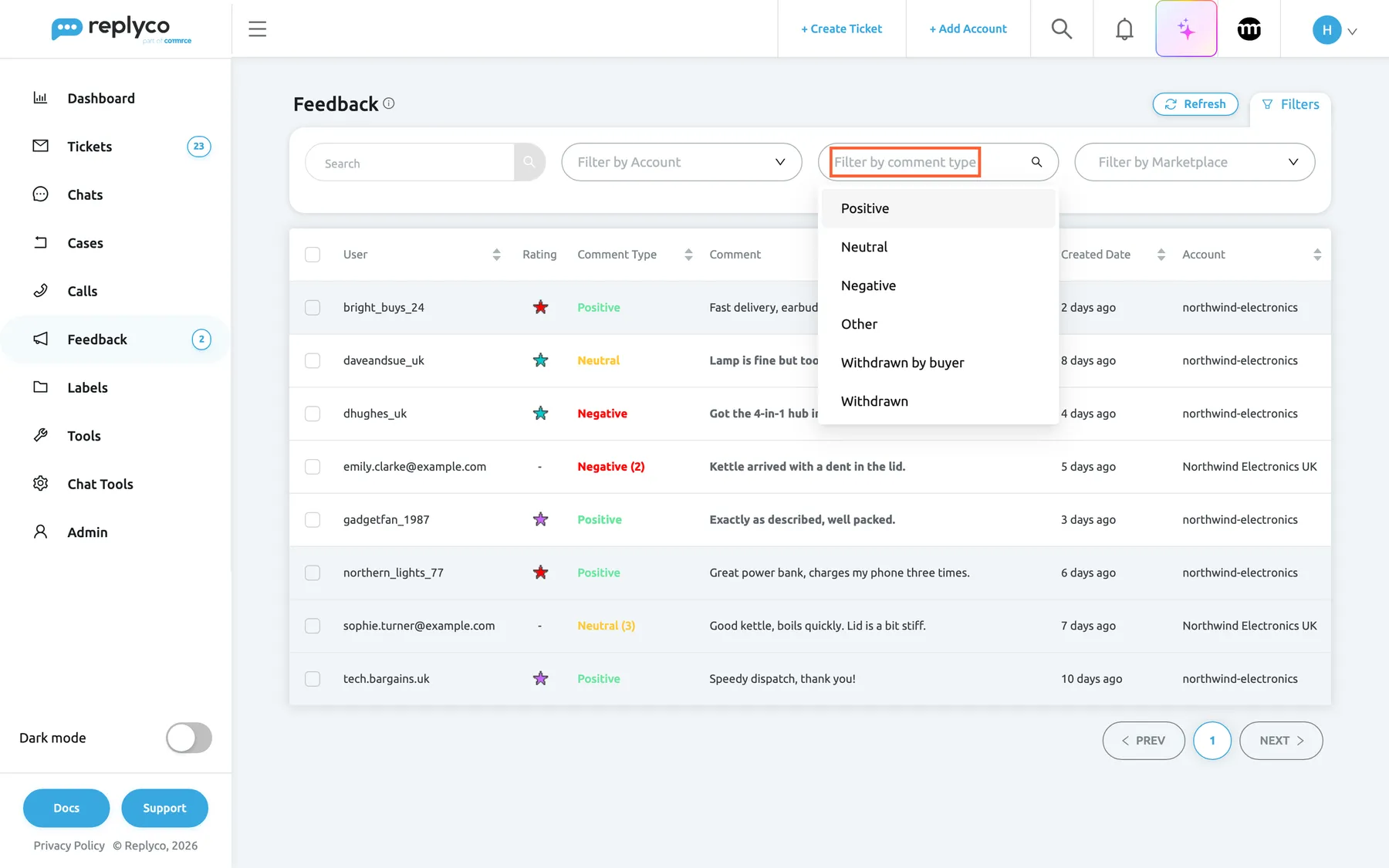
Filters narrows the list by account, comment type and marketplace; Search looks in names, comments and item titles. What this screenshot shows
- Screen
- Feedback List (/feedbacks)
- Highlighted
- combobox “Filter by comment type”, filters-panel, expanded. filters the list by comment type
- Also visible
- Search box; Filter by Account; Filter by comment type list open with six types; Filter by Marketplace
- Purpose
- filter the list
-
Choose an account, a comment type or one or more marketplaces. Each choice reloads the list and appears as a tag under the panel.
-
To search, type a buyer’s user ID, a customer’s name or email address, a word from the comment, an item number or a word from the item title, and press Enter or select the magnifier.
-
Remove a tag with its ×, or select Clear Filters to remove all filters and the sort order.
Example. To see this week’s unhappy eBay buyers, choose Negative under Filter by comment type and Ebay under Filter by Marketplace.
Edges that surprise people. Filter by Account and Filter by comment type take one value each; Filter by Marketplace takes several. Your filters, sort order and page are kept in your browser until you clear them.
Sorting. Select a sortable column heading to sort the whole list by that column; select it again to reverse the order. To see the latest feedback, sort by Created Date.
Open a feedback
Section titled “Open a feedback”Select a row to open the feedback. Hold Ctrl (Cmd on a Mac) while you select it to open it in a new browser tab and keep the list where it is. Opening an unread feedback marks it read for everyone, and the sidebar count follows.
The feedback shows the comment in full, the seller’s reply under Response, the buyer’s follow-up, the eBay item details, and on the right the related tickets, the customer and the order. Everything on that screen is explained in Feedback details.
Mark feedback read or unread
Section titled “Mark feedback read or unread”-
Tick the rows you want to change. The bulk bar appears at the top of the page.
-
Select the envelope icon: Mark Read when all ticked rows are unread, Mark Unread when all are read, and both icons when the selection is mixed.
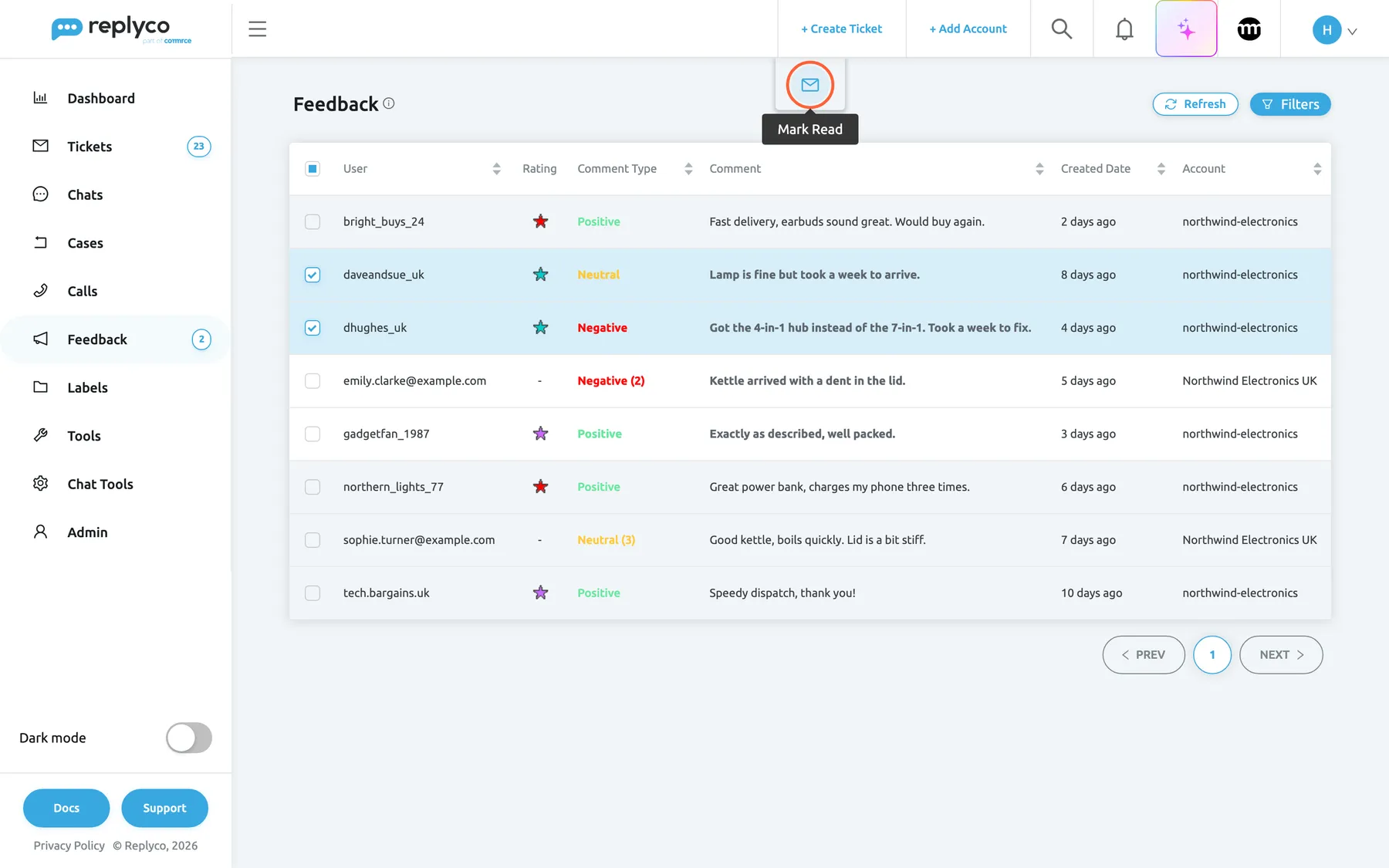
Tick rows to mark them read or unread together; the icon shown depends on whether the ticked rows are read. What this screenshot shows
- Screen
- Feedback List (/feedbacks)
- Highlighted
- button “Mark Read”, top-center, hovered. marks the ticked feedback as read for everyone
- Also visible
- two unread rows ticked; bulk bar with one envelope icon; tooltip Mark Read
- Purpose
- mark feedback as read in bulk
-
The rows change at once, the ticks are cleared, and the sidebar count follows.
Read and unread are shared. Each feedback has one read state for the whole company: when a colleague opens or marks it, it is read for you too. Mark an entry unread to leave it for someone else. Marking needs the Feedback permission with Edit rights; without it Replyco shows You don't have enough rights.
The bar also holds Sync, which fetches the ticked eBay feedback again from eBay so that a reply or follow-up written there appears at once.
Keep an eye on new negative feedback
Section titled “Keep an eye on new negative feedback”The sidebar count. Feedback and Feedback List show how many unread feedback entries of your chosen types exist. By default that is the unread Negative feedback. To count something else, open Account Settings from the user menu, go to Settings and choose up to two types in Feedback badge in the menu: two types show as two numbers, such as 2/1. At least one type is required; saving without one shows Please select "Feedback badge in the menu". See Account Settings.
| Setting of Feedback badge in the menu | The count shows |
|---|---|
| Negative (the default) | Unread negative feedback |
| Negative and Neutral | Two numbers: unread negative / unread neutral |
| Positive | Unread positive feedback |
The count changes when you open or mark feedback.
Notifications. Each new Neutral or Negative feedback triggers New Neutral/Negative Feedback for every active user who switched it on for email, browser or mobile. To switch it on or off for yourself, see Notifications.
In the ticket. When a ticket is linked to an order with feedback, the right panel of the ticket shows Related Feedback with the number of feedback entries; expand it to see the start of each comment and select one to open it. See The ticket screen.
Every control, explained
Section titled “Every control, explained”Feedback List in the sidebar
Section titled “Feedback List in the sidebar”The sidebar, under Feedback, below Feedback Requests.
Opens this list. Shown when your user has the Feedback permission and the company has marketplace feedback, which every current plan includes. The number beside it, and beside Feedback, is the unread count set in Feedback badge in the menu; it is hidden while it is 0.
A new negative rating is visible from every screen, without opening the list.
The info icon
Section titled “The info icon”Beside the heading Feedback.
Shows The feedback module at Replyco displays all customer reviews from eBay and only neutral and negative reviews from Amazon.
Explains which feedback the list includes.
Refresh
Section titled “Refresh”Top right, left of Filters.
Reloads the current page of the list with your filters and sort order. It does not fetch new feedback from the marketplaces.
See read states that colleagues changed while you had the list open.
The filters
Section titled “The filters”| Filter | What it does | Why |
|---|---|---|
| Search | Finds the text in the user ID, comment, item number, item title, customer name, email address or marketplace customer ID; runs on Enter or the magnifier | Find the feedback of a customer who writes in |
| Filter by Account | One account; only the accounts assigned to you are offered | Check one store |
| Filter by comment type | One of Positive, Neutral, Negative, Other, Withdrawn by buyer, Withdrawn | Work through the negative feedback |
| Filter by Marketplace | One or more marketplaces, such as Ebay and Amazon; Select all picks all | Separate eBay and Amazon |
| Clear Filters | Removes all filters and the sort order; shown while a filter is set | Start again |
The columns
Section titled “The columns”| Column | Sortable | Why |
|---|---|---|
| User | Yes | Recognise a returning buyer |
| Rating | No | Tell an experienced eBay buyer from a new one |
| Comment Type | Yes | See at a glance what needs attention |
| Comment | Yes | Read the gist without opening |
| Created Date | Yes | Put the newest first |
| Account | Yes | Tell stores apart |
The row and its check box
Section titled “The row and its check box”Every row of the table.
Selecting a row opens the feedback, in a new tab with Ctrl or Cmd, and marks it read. The check box ticks the row for the bulk bar; the check box in the heading ticks the whole page.
Open one feedback to act on it, or tick several to mark them in one go.
Mark Read and Mark Unread
Section titled “Mark Read and Mark Unread”The envelope icons in the bulk bar at the top of the page, shown while rows are ticked. Point at an icon for its name.
Marks the ticked feedback read or unread for everyone and clears the ticks. Which icon appears depends on the ticked rows: all unread, all read, or both icons for a mixed selection. Needs the Feedback permission with Edit rights.
Mark feedback you have dealt with, or send it back to the team’s attention.
The first icon of the bulk bar.
Fetches the ticked eBay feedback again from eBay and reloads the list; Amazon feedback is left out.
Brings a reply or follow-up written on eBay into Replyco before the next import.
Who sees what
Section titled “Who sees what”| Part of the screen | What decides whether you see it or can use it |
|---|---|
| The Feedback menu | Your user’s Feedback permission; see User permissions and roles |
| Feedback List | Marketplace feedback, which every current plan includes and which is on during a trial; companies on an older plan may not have it, see What each plan includes |
| The rows | Feedback of the accounts assigned to your user; see Invite users and set what they can do |
| Marking read or unread | The Feedback permission with Edit rights |
| The sidebar count | Everyone with the menu |
What you need to know
Section titled “What you need to know”| Topic | Fact |
|---|---|
| Channels | eBay and Amazon; no other channel sends feedback to Replyco |
| Replies | Written on eBay or Amazon; Replyco shows them after the import |
| Read state | One per feedback for the whole company; opening marks read |
| Sidebar count | Unread feedback of the chosen types, default Negative |
| Rows | Only accounts assigned to you; 10 per page |
| Sorting | By the column heading you select; select it again to reverse |
| Filters | Kept in your browser |
| Retention | Set by Replyco per company, three months by default; older feedback is deleted |
| Notifications | New Neutral/Negative Feedback for each neutral or negative feedback, per user |
Frequently asked questions
Section titled “Frequently asked questions”General
Section titled “General”Which feedback does Replyco show?
Section titled “Which feedback does Replyco show?”Replyco shows the feedback buyers leave for your connected eBay and Amazon accounts in FeedbackFeedback List. For eBay that is every comment type; Amazon feedback shows its 1–5 star rating in brackets. Other channels do not send feedback.
What does the coloured star mean?
Section titled “What does the coloured star mean?”The star in Rating is eBay’s feedback star of the buyer, and its colour stands for how many ratings the buyer has on eBay, for example Red (1,000 to 4,999 ratings). Point at it to see its meaning. It is not the buyer’s rating of your order; that is Comment Type.
How quickly does new feedback appear?
Section titled “How quickly does new feedback appear?”Replyco fetches eBay feedback in the background every few minutes. Amazon feedback comes from Amazon’s seller feedback report, which Amazon prepares on request, so it arrives in batches and later. Reload the page to see new entries; Refresh reloads the list you have open.
Can I reply to feedback from Replyco?
Section titled “Can I reply to feedback from Replyco?”No. Replyco has no field for a feedback reply or follow-up. Reply on eBay or in Amazon Seller Central; your reply appears under Response in the feedback after the next import. To write to the buyer instead, open the related ticket from the feedback; see Feedback details.
Finding feedback
Section titled “Finding feedback”How do I see only negative feedback?
Section titled “How do I see only negative feedback?”Select Filters, then choose Negative under Filter by comment type. The list then shows only the negative feedback of the accounts assigned to you. The filter stays until you remove its tag or select Clear Filters.
How do I sort the list?
Section titled “How do I sort the list?”Select a sortable column heading in FeedbackFeedback List, such as Created Date, to sort the whole list by that column; select it again to reverse the order. Clear Filters removes the sort order together with the filters.
Why can’t I see the feedback of one of our accounts?
Section titled “Why can’t I see the feedback of one of our accounts?”The list shows only the feedback of the accounts assigned to your user, and Filter by Account offers only those accounts. An admin assigns accounts to users; see Invite users and set what they can do. Also check the filter tags under the panel.
Read and unread
Section titled “Read and unread”If I open a feedback, is it read for my colleagues too?
Section titled “If I open a feedback, is it read for my colleagues too?”Yes. Each feedback has one read state for the whole company, and opening an unread feedback marks it read for everyone. To leave it for a colleague, open it and select Mark Unread, or tick it in the list and use the same icon.
How do I count neutral feedback too?
Section titled “How do I count neutral feedback too?”Open Account Settings from the user menu, go to Settings and choose Negative and Neutral in Feedback badge in the menu. The sidebar then shows two numbers, unread negative and unread neutral. Up to two types can be chosen; see Account Settings.
Notifications
Section titled “Notifications”How do I get notified about negative feedback?
Section titled “How do I get notified about negative feedback?”Switch on New Neutral/Negative Feedback for email, browser or mobile in your notification settings; see Notifications. Replyco then notifies you of each new neutral or negative feedback.
Data and privacy
Section titled “Data and privacy”How long is feedback kept?
Section titled “How long is feedback kept?”Replyco keeps feedback for three months by default, counted from the day it was left, and then deletes it from FeedbackFeedback List. There is no setting for this period in Replyco; Replyco support can set a different period for your company. The feedback stays on eBay and Amazon, where the marketplace’s own rules apply.
Troubleshooting
Section titled “Troubleshooting”| Symptom | What to check |
|---|---|
| The list shows No data... | Filter tags under the panel, then Clear Filters; the accounts assigned to your user; that an eBay or Amazon account is connected and syncing |
| Amazon feedback is missing | Amazon feedback arrives in batches from Amazon’s report; wait for the next batch; check the Amazon account is not blocked in Accounts |
| A reply written on eBay does not show | Replies arrive with the regular import; to fetch them at once, tick the feedback and select Sync |
| The sidebar count does not change | It counts only the unread feedback of the types chosen in Feedback badge in the menu |
| The sidebar count shows 2/1 | Two types are chosen in Feedback badge in the menu; the numbers are in the order you chose them |
| Feedback List is missing from the sidebar | The Feedback permission of your user; companies on an older plan may not have marketplace feedback, see What each plan includes |