

The ticket screen
The ticket screen shows one conversation with a customer and everything that belongs to it: the messages from both sides, the customer, the order, internal notes, the AI summary and the reply editor. Everyone who answers tickets works here; you open it by selecting a ticket in any list under Tickets, from a label’s list or from search, and its address ends in the ticket’s ID. The header acts on the whole ticket, the middle shows the conversation, and the right panel holds what you need to answer without leaving the screen. Everything you change here, from a label to an assignment, is saved at once and seen by your whole team.
What you can do here
Section titled “What you can do here”- Move between tickets and act on the ticket from its header. The icons in the header refresh, snooze, archive, resolve and assign the ticket; the arrows take you back to the list or on to the next unread ticket. Act on the ticket from its header · Resolve, snooze or archive a ticket
- Read the whole conversation. Received and sent messages carry a status badge, the sender and the time; attachments open in a preview, and with tone analysis on, each customer message shows the customer’s mood. Read the conversation · Message tone analysis · Auto-responses for tickets
- Switch a message to HTML, translate it, forward it or reply to it. Each open message has its own icons, so you can translate one foreign-language message or forward it to a supplier. Switch, translate, forward or reply to one message · Translations · Create Ticket
- Label and prioritise the ticket. Add labels and set a priority in the right panel; the AI categories above them are set by Replyco. Label and prioritise the ticket · Ticket priorities and SLA · AI categories · Labels
- Read the AI summary instead of the whole thread. A few sentences say what the customer wants and what has happened so far. Read the AI summary · AI summaries
- See whether a colleague has the ticket open, before you both answer the same customer. See who else has the ticket open
- Follow a forwarded ticket and merge it back. A ticket created by forwarding a message shows as a child ticket with a Merge button. Follow a parent or child ticket and merge it · Ticket merging
- Work with the customer: see their contact details and ticket count, star them, block them, or correct the customer on store and email tickets. Work with the customer’s details · Customers · Blocked tickets
- Keep internal notes on the ticket, the order and the customer, and mention a colleague with @ to notify them. Keep internal notes
- Check the order and link another one. The order panel shows payment, tracking and delivery, syncs the order from the marketplace or your order-management system, and searches for an order when none is linked. Check the order and link another · Orders · Order management systems · Linnworks · Billbee
- Cancel, refund or return an eBay order from the ticket, and open the eBay cases of the order. Cancel, refund or return an eBay order · eBay · eBay cases
- Fill in custom fields that your company defined, such as a return reason or a serial number. Fill in custom fields · Custom Fields
- Keep files with the ticket, separate from the messages. Keep files with the ticket
- Reply to the customer with templates, snippets, attachments and translation, now or later; with AI drafts on, a reply is already written. Reply to the customer · Answer a ticket · AI drafts · Reply templates · Snippets and placeholders · Delayed sending
- Rewrite your reply with the AI assistant: shorter, friendlier, more formal or with the spelling corrected, in nine ways. Rewrite a reply with the AI assistant
- Pick up a reply where you or a colleague left it. Replyco saves the reply as a draft while you type. Pick up a saved draft
- See what rules and colleagues did to the ticket, in its history between the messages. Read the conversation · Rules for incoming tickets
The screen at a glance
Section titled “The screen at a glance”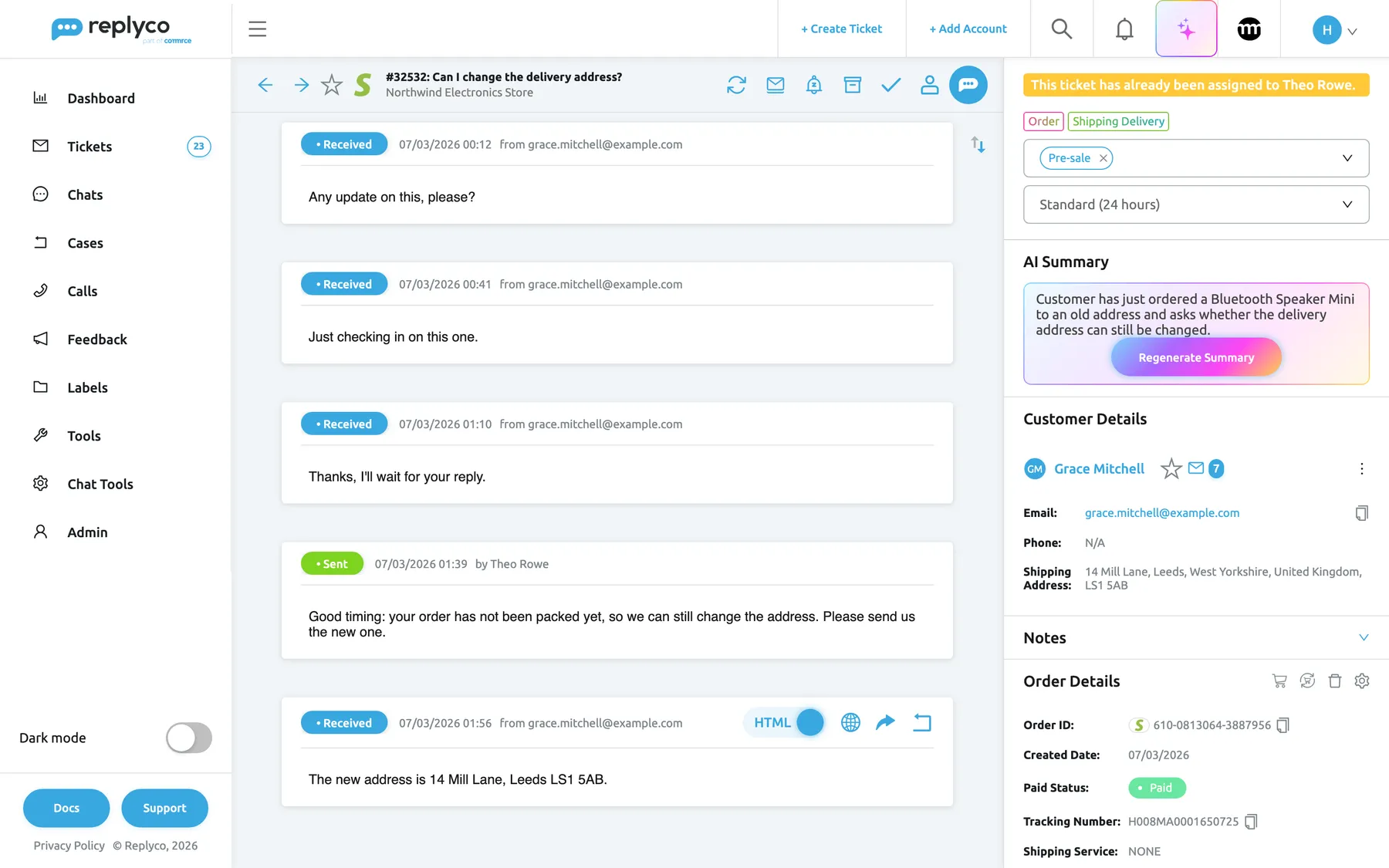
What this screenshot shows
- Screen
- Respond (/ticket/:threadId)
- Highlighted
- “”, whole-screen, loaded. none
- Also visible
- header: Back, Next unread ticket, star, Shopify icon, #32532 subject, account Northwind Electronics Store; header icons: Refresh, Mark Unread, Snooze, Archive, Resolve, Assign User, Respond; conversation: five Received messages and one Sent reply by Theo Rowe; newest message expanded; right panel: assigned-to banner, AI categories, label Pre-sale, priority Standard (24 hours), AI Summary, Customer Details, Notes, Order Details
- Purpose
- the ticket screen at a glance
| Region | What it shows | What you do there |
|---|---|---|
| Header, left | Back and Next unread ticket arrows, the star, the channel’s icon, # ticket number and subject, and the account the ticket came in on | Go back, go to the next unread ticket, star the ticket |
| Header, right | Icons for Refresh, read state, Snooze, Archive, Resolve, Assign User, and the round blue Respond | Act on the whole ticket; hover an icon to see its name |
| Conversation, middle | One card per message with its status badge, time and sender; the newest is open, the others show their first lines | Read, open a message, use a message’s own icons |
| Sort arrows, top right of the conversation | The message order | Switch between oldest first and newest first |
| Reply editor, below the conversation | Appears after Respond, or by itself when a draft exists | Write and send the reply |
| Right panel, top | Status lines (resolved, blocked, assigned, a colleague reading, snoozed), AI category tags, the label and priority selects, and any parent, child or eBay case blocks | Label, prioritise, open related tickets and cases |
| Right panel, below | AI Summary, Customer Details, Notes, Order Details, Product Details, Custom Fields, Attachments and, with the permission, Related Feedback | Read and act on the customer, order, notes and fields |
| Ticket list, left (optional) | The list you opened the ticket from | Switch tickets without going back; switched on in your account settings |
Act on the ticket from its header
Section titled “Act on the ticket from its header”The header’s icons have no text; hover one and its name appears. They act on the ticket you are looking at, save at once and are the same for everyone.
| Icon | What it does | Afterwards |
|---|---|---|
| Arrow left, Back | Goes back to the page you came from | |
| Arrow right, Next unread ticket | Opens the next unread ticket in the list you came from; with no list, in Not Resolved | Shows We didn't find any unread tickets in current tab/folder. when there is none |
| Star | Stars the ticket for everyone; it then appears in Starred | |
| Circular arrows, Refresh | Loads the ticket, its messages and notes again | Spins, with a sound, when a new message for this ticket arrives |
| Envelope, Mark Unread | Marks the ticket unread again | Takes you back to the list |
| Bell, Snooze | Hides the ticket from your lists until a time you pick | The right panel shows the time |
| Box, Archive | Moves the ticket to Archive after Are you sure? | Takes you back to the list |
| Tick, Resolve | Marks the ticket resolved and shows This ticket has been marked as resolved. | Goes back to the list only if your settings say so |
| Person, Assign User | Assigns the ticket to one user, or to nobody | The right panel shows who has it |
| Round blue icon, Respond | Opens the reply editor | Only on tickets the channel lets you answer |
To snooze a ticket:
-
Select the bell icon in the header. The menu Snooze until... opens, with the date and time next to each choice.
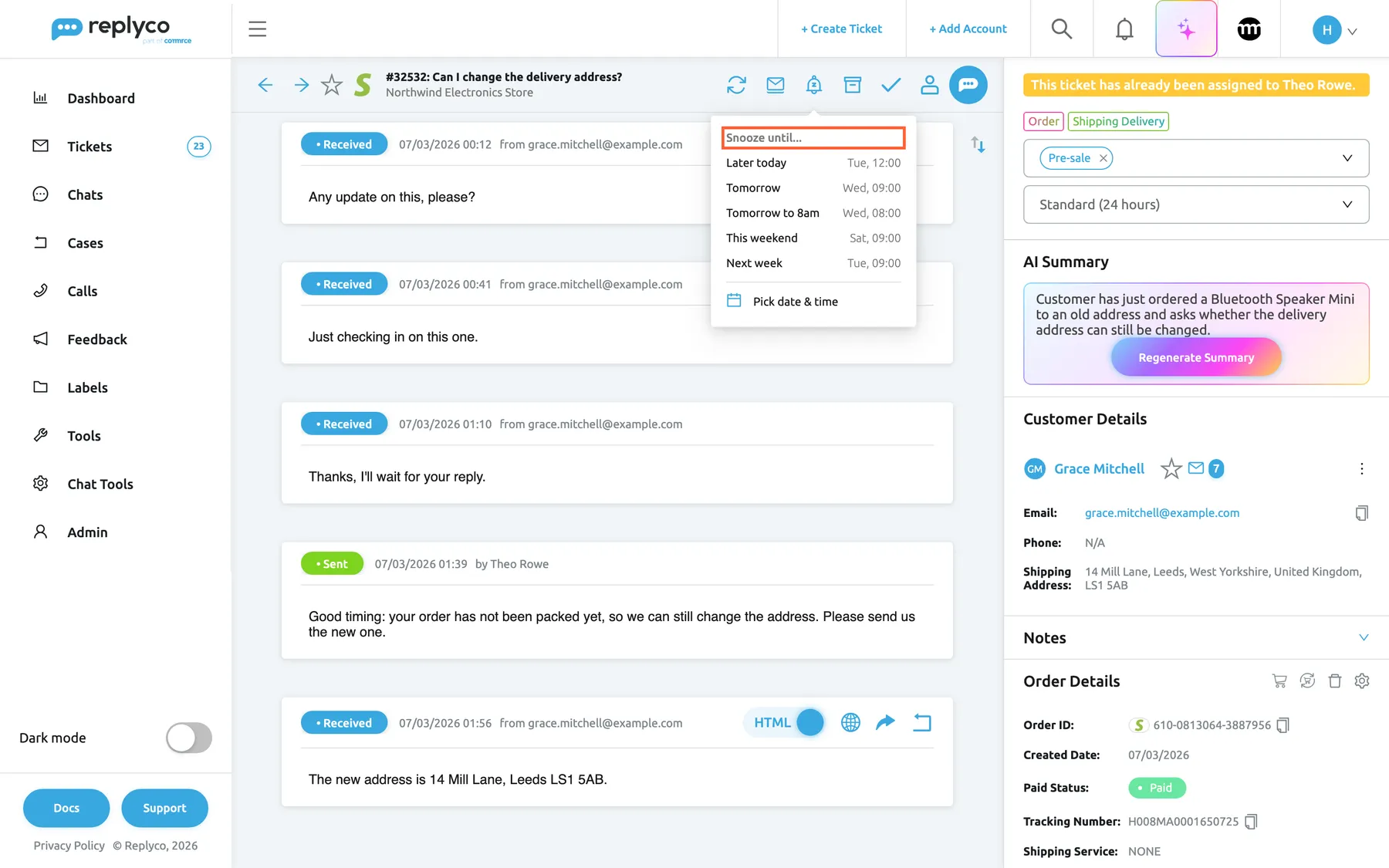
The bell icon snoozes the ticket until a time you pick; the menu shows each choice's exact date and time. What this screenshot shows
- Screen
- Respond (/ticket/:threadId)
- Highlighted
- heading “Snooze until...”, header-right, menu-open. lists the snooze periods
- Also visible
- Later today, Tomorrow, Tomorrow to 8am, This weekend, Next week with dates; Pick date & time
- Purpose
- snooze a ticket from its header
-
Select a choice, for example Tomorrow to 8am, or select Pick date & time, pick a day and time and select Save.
-
The ticket leaves your lists and waits in Snoozed. The right panel shows the snooze time, and the bell becomes Continue snoozing, with a Stop snoozing icon beside it.
When the time passes, the colleague the ticket is assigned to gets a notification saying The snooze time for the ticket has expired, followed by the subject, in your company’s language. A new message from the customer ends the snooze early, and so does sending a reply. The same new message also reopens a resolved ticket and brings an archived one back. For when to use which, see Resolve, snooze or archive a ticket.
If the reply editor holds a draft, Archive and Resolve ask first: You have a draft message. Are you sure you want to continue?. On an archived ticket the box icon is Restore, and a bin icon, Delete forever, deletes the ticket after the warning Are you sure you want to delete forever? Deleted tickets cannot be restored.. On a resolved ticket the tick is Mark as Unresolved. On Amazon tickets whose message contains Amazon’s link to close the case, a Resolve Case icon opens that link in Seller Central.
With Enable Ticket Details Shortcuts switched on in your Account Settings, the header also answers to the keyboard:
| Keys | Action |
|---|---|
| Ctrl + ← | Back |
| Ctrl + → | Next unread ticket |
| Ctrl + Alt + A | Archive or Restore |
| Ctrl + Alt + R | Resolve or Mark as Unresolved |
| Ctrl + Enter | Respond, on a ticket you can answer |
The shortcuts pause while the reply editor is open, so typing never archives a ticket by accident.
Read the conversation
Section titled “Read the conversation”The conversation lists every message of the ticket, the customer’s and your team’s. By default the oldest message is at the top and the screen scrolls to the newest at the bottom, which is the one that is open; the others show their first lines. Select a message to open it in full, and scroll up to load older messages, ten at a time. The arrows at the top right of the conversation, Sort messages by ascending/descending., reverse the order for this visit; your default is Message Order in your Account Settings.
Each message starts with a coloured badge:
| Badge | Meaning |
|---|---|
| Received (blue) | A message from the customer |
| Sent (green) | A reply from your team that the channel accepted |
| Processing (yellow) | A reply Replyco is still sending |
| Delayed (yellow) | A reply scheduled for later; the card shows Sending is scheduled for with the time, Send now and Cancel |
| Error Sending (red) | A reply the channel refused; hover the badge for the reason and Try Again |
| Cancelled (red) | A scheduled reply that was cancelled; hover it for Try Again |
Next to the badge are the date and time, and who sent it: by the colleague for your replies, from the address for customer messages. Replies based on a template or sent by an auto-response say so, with the template’s or auto-response’s name, and copies show a CC and BCC list when you hover the line. With tone analysis on, each customer message also shows a face for the customer’s mood; see Message tone analysis. To see how auto-responses end up in a ticket, see Auto-responses for tickets.
Attachments sit under their message with a preview. Select an image to see it large and step through the message’s images with the arrows; every file has Download.
Three settings in your Account Settings add to the conversation. Load user logs in the ticket shows the ticket’s history between the messages: who assigned, labelled, prioritised, resolved or snoozed it, and which rule acted on it, grouped with a link to show the rest; to write those rules, see Rules for incoming tickets. Show Notes in messages area shows the ticket’s notes between the messages, with icons for Add note and Show only notes under the sort arrows. Show In-Line Auto-responses in Ticket Detail screen shows sent auto-responses as one short line you can open.
Switch, translate, forward or reply to one message
Section titled “Switch, translate, forward or reply to one message”An open message has its own row of controls at the right of its header. They act on that message only.
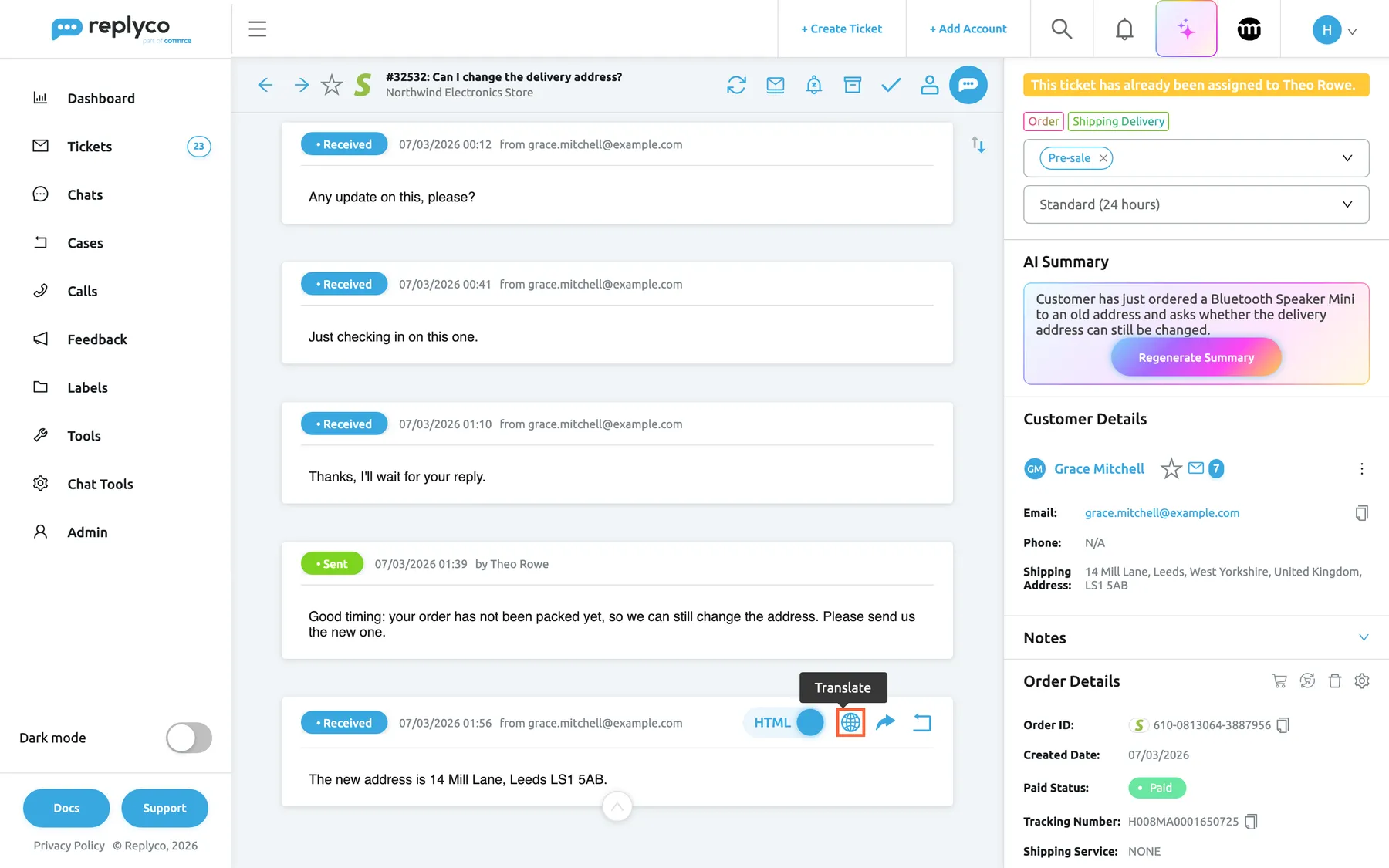
What this screenshot shows
- Screen
- Respond (/ticket/:threadId)
- Highlighted
- button “Translate”, message-header-right, hovered. translates the message into your message language
- Also visible
- HTML switch; globe (Translate), forward arrow, reply icon; Received badge, date and sender
- Purpose
- what you can do with one message
| Control | What it does |
|---|---|
| HTML / Text switch | Shows the message as the customer’s email formatted it, or as plain text. Your default is Default Message View in your account settings. |
| Globe, Translate | Translates the message into your message language and shows a bar above it, also on a message that opened already translated; Show original text in the bar shows the original |
| Arrow, Forward | Opens Create Ticket with the message to forward; the new ticket becomes a child of this one |
| Curved arrow, Reply to all | Opens the reply editor with the message quoted and its CC and BCC filled in |
The translation bar reads This text was translated from:, then the message’s language (or Detect Language when it is not known yet), an arrow and the target language. Pick another target language from the list and the message is translated again. The target starts as Message language in your Account Settings. Replyco keeps each translation, so opening the same message in the same language again shows it at once. If your company translates incoming messages automatically, messages open already translated; see Auto-translation and preferred language and Translations.
For example, a customer writes in Italian and your message language is English: select the globe on that message and read it in English, while the rest of the conversation stays as it was.
Label and prioritise the ticket
Section titled “Label and prioritise the ticket”The top of the right panel sets how the ticket is sorted and found.
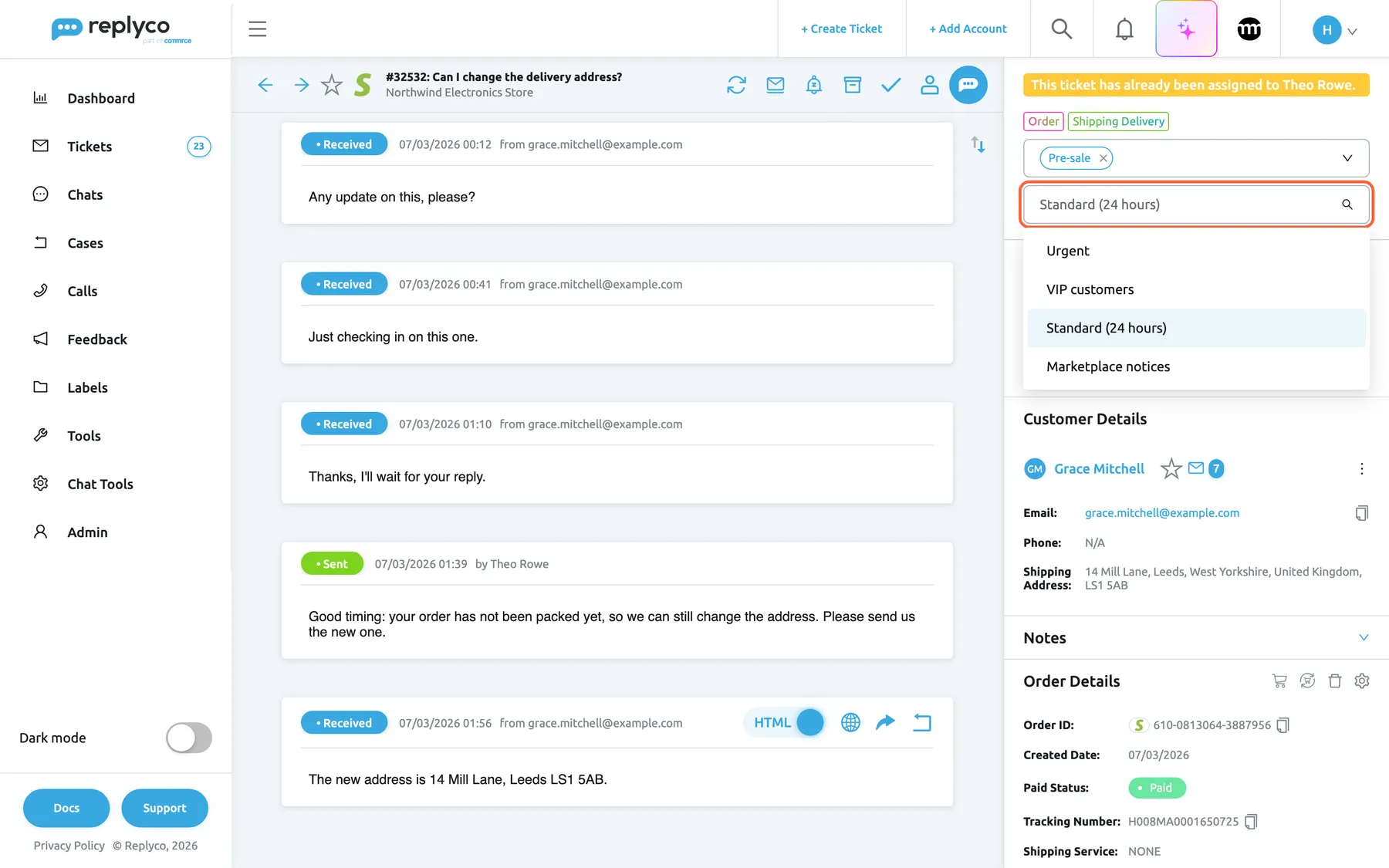
What this screenshot shows
- Screen
- Respond (/ticket/:threadId)
- Highlighted
- combobox “Select New Priority”, right-panel-top, open. sets the ticket's priority
- Also visible
- assigned-to banner; AI categories Order, Shipping Delivery; label Pre-sale; priorities: Urgent, VIP customers, Standard (24 hours), Marketplace notices
- Purpose
- set labels and priority in the ticket
- To add a label, open the first select, Select Label to assign, and pick one or more labels; each is added as you pick it. Select the × on a label to remove it.
- To set the priority, open the second select, Select New Priority, and pick one. The ticket’s response and resolve deadlines follow that priority. Clear the select to remove the priority.
Labels are listed by name. A label that was deleted but is still on the ticket shows as REMOVED with its old name. Which labels you may use is set for your user by an admin, and labels are created under Labels. Priorities are defined on the Priorities & SLA tab of Company Settings; how their deadlines are counted is in Ticket priorities and SLA.
The coloured tags above the selects are the ticket’s AI categories. Replyco sets them from the customer’s messages; you cannot change them here. What they are for, and how to set up your own, is in AI categories.
Read the AI summary
Section titled “Read the AI summary”The AI Summary panel sums up the conversation in a few sentences, for example Customer has just ordered a Bluetooth Speaker Mini to an old address and asks whether the delivery address can still be changed. When no summary exists yet, or a message has arrived since the last one, the panel offers Generate Summary or Regenerate Summary. The panel appears only when AI summaries are switched on in AI Settings; which language and which accounts it uses, and when it updates by itself, is in AI summaries.
See who else has the ticket open
Section titled “See who else has the ticket open”When a colleague has the same ticket open, the right panel shows their name in a yellow line under the status lines: followed by is reading this ticket. while the ticket is open in a browser tab they are looking at, and by is responding to this ticket. while their reply editor is open. With two colleagues, both names are listed. Your own name never appears. The ticket lists show the same colleagues as avatars.
This needs agent collision detection or draft saving, both part of every plan. Replyco forgets colleagues’ statuses two hours after the last status change in your company.
Follow a parent or child ticket and merge it
Section titled “Follow a parent or child ticket and merge it”When you forward a message from a ticket, the new ticket is linked to the one you forwarded from. The original shows a block Child Ticket with a number and the new ticket’s subject; the new ticket shows Parent Ticket: with the original’s subject. Select a subject to open that ticket. A yellow border means the linked ticket is still open, a green one that it is resolved.
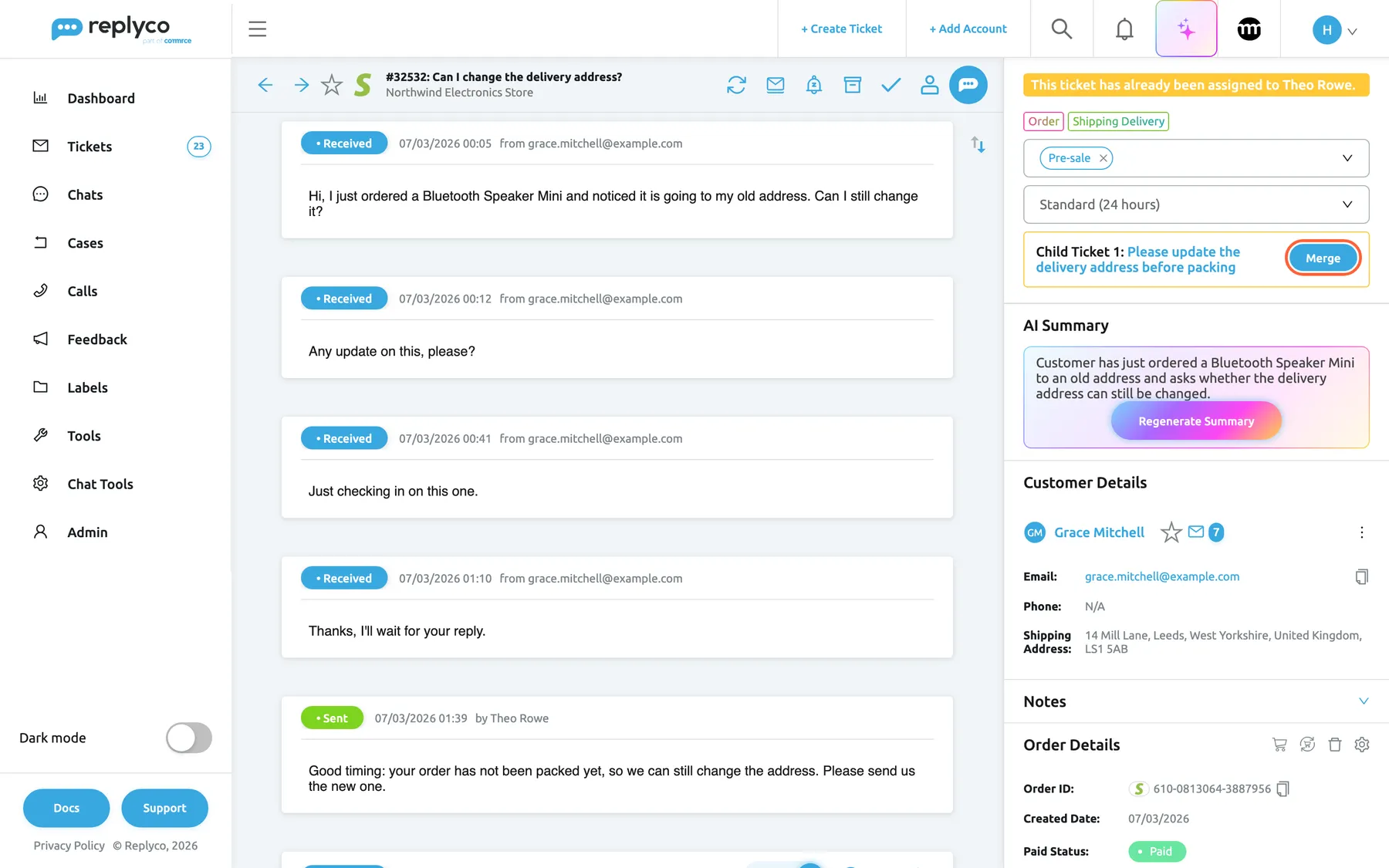
What this screenshot shows
- Screen
- Respond (/ticket/:threadId)
- Highlighted
- button “Merge”, right-panel-top, enabled. asks for confirmation
- Also visible
- Child Ticket 1 block with the child's subject as a link; yellow border: child not resolved
- Purpose
- the child-ticket and merge indicator
To bring a child ticket’s messages into this ticket, select Merge in its block and confirm Are you sure you want to merge tickets? This action CANNOT be undone.. Replyco keeps the older of the two tickets, moves the other one’s messages, notes, history and files into it, deletes the other one and renames the kept ticket to MERGED: followed by both subjects. Merging works only when both tickets have the same customer and came in on the same account; otherwise Replyco shows You cannot merge Tickets from different Customers or Accounts.. A message forwarded to a supplier usually has a different customer, so it cannot be merged back. For merging from the ticket list and automatic merging, see Ticket merging.
On eBay tickets with an order, the same place shows a block for each eBay case of the order, Return Case or INR Case with the case number; with the cases permission it opens the case. See eBay cases.
Work with the customer’s details
Section titled “Work with the customer’s details”Customer Details shows who wrote: the name, a star, and an envelope with the number of the customer’s tickets when there is more than one (a cart shows the number of orders the same way). Below are Email, Phone and Shipping Address. Select the name to open the customer in Customers, the email address to start a new ticket to them, and the copy icon to copy it.
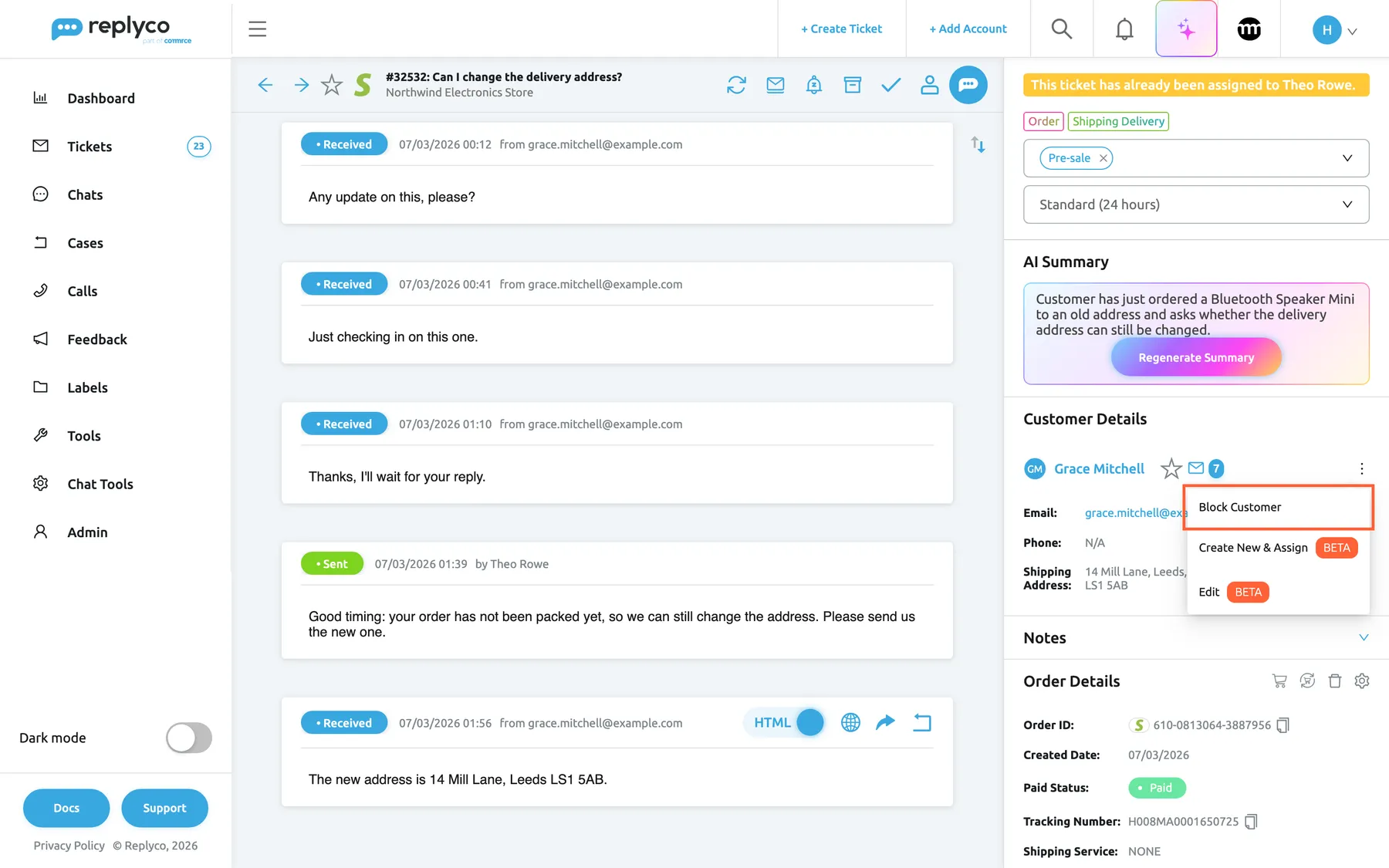
What this screenshot shows
- Screen
- Respond (/ticket/:threadId)
- Highlighted
- menuitem “Block Customer”, right-panel-customer, menu-open. asks for confirmation
- Also visible
- customer name with star and ticket count 7; Email, Phone, Shipping Address; menu: Block Customer, Create New & Assign (BETA), Edit (BETA)
- Purpose
- act on the ticket's customer
The ⋮ menu at the right of the panel has:
| Entry | What it does | When it is there |
|---|---|---|
| Block Customer | Asks Are you sure you want to block this customer? All their tickets will move to the Blocked list., then moves every ticket of this customer to Blocked and takes you back to the list | Always; Unblock Customer on a blocked customer |
| Create New & Assign (beta) | Creates a new customer from a form and makes it this ticket’s customer | Email, Gmail, Outlook, Shopify, WooCommerce, BigCommerce, Magento, Shopline and OTTO tickets, with the permission to edit customers |
| Edit (beta) | Changes this customer’s details | Same as above |
| Unsubscribe | Marks the customer as unsubscribed from your mailings; the panel then says Customer unsubscribed from mailing | Mailbox tickets of a customer who is not unsubscribed |
Blocking is for senders you never want to hear from, such as spam. To see and unblock blocked customers, see Blocked tickets.
Keep internal notes
Section titled “Keep internal notes”Notes are for your team only; the customer never sees them. The Notes panel opens with a count of the notes and has up to three tabs: Thread for this ticket, Order for the linked order and Customer for the customer, which you also see on their other tickets.
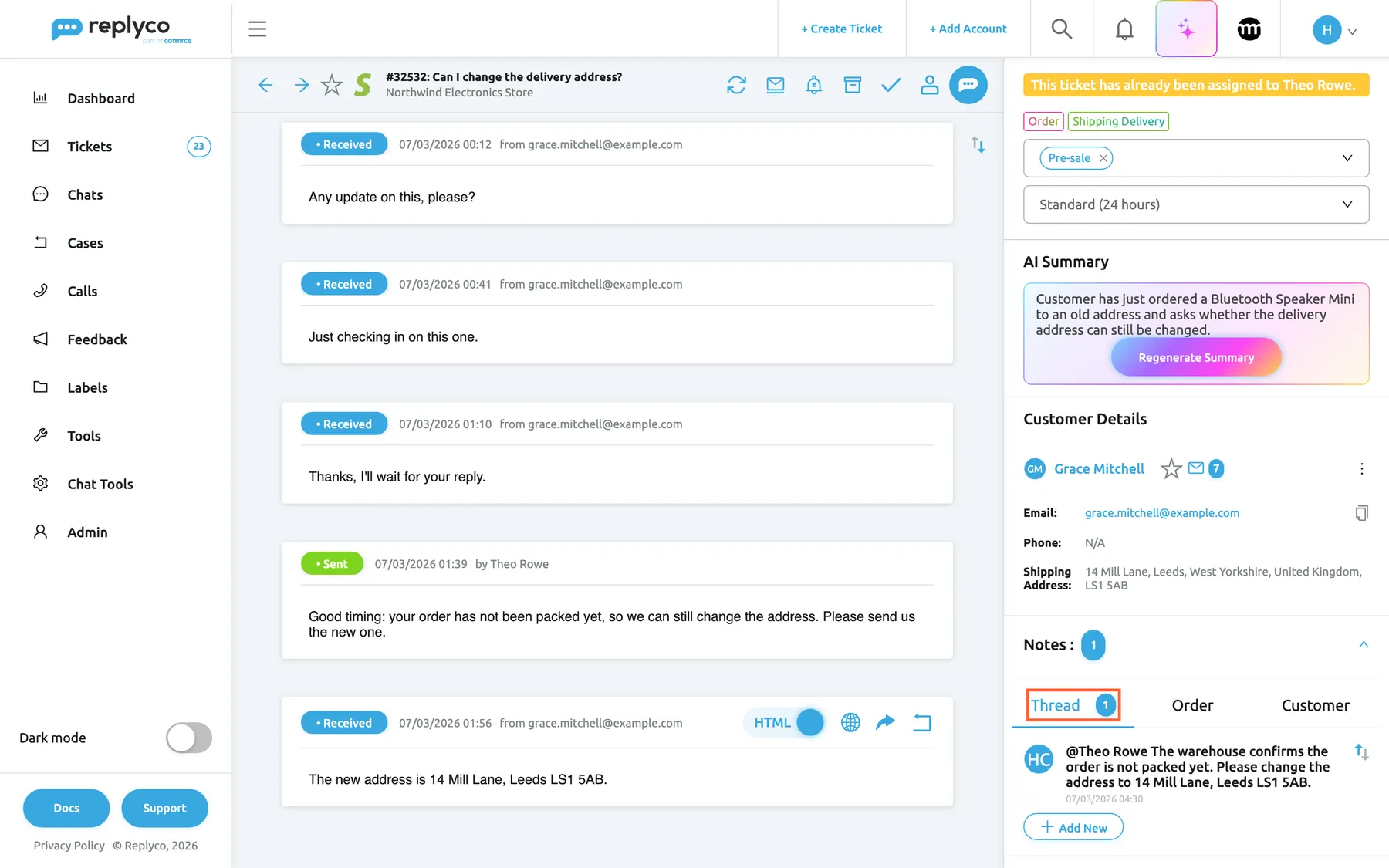
What this screenshot shows
- Screen
- Respond (/ticket/:threadId)
- Highlighted
- tab “Thread”, right-panel-notes, selected. shows this ticket's notes
- Also visible
- tabs Thread (1), Order, Customer; one note with an @mention of Theo Rowe; Add New button
- Purpose
- internal notes on a ticket
- Select Notes in the right panel to open it, then the tab the note belongs to.
- Select Add New, write the note in the box and select Save. Type @ and pick a colleague to mention them.
- The note appears with your initials and the time; after a change it shows edited {{date}} with the time of the change. A colleague you mentioned gets a notification, for example You were mentioned in the Ticket, with the ticket’s subject, written in your company’s language.
Hover a note to edit or delete it. The author can lock a note with the padlock, and a locked note then says This note is locked. It can be edited only by the author when you hover the padlock. Order notes can come from your order-management system: with Auto-sync notes from order management systems on in Company Settings, Replyco fetches them when you open the tab, and buttons such as Sync Notes with Linnworks fetch them by hand. Deleting an order note that came from such a system deletes it there too.
With Show Notes in messages area on in your account settings, ticket notes appear between the messages instead, and the Thread tab is hidden.
Check the order and link another
Section titled “Check the order and link another”Order Details shows the order Replyco linked to the ticket: order ID, dates, Paid Status, Tracking Number, shipping service, delivery date and more. Product Details below it lists the ordered items; its switch changes to Related Products.
How Replyco finds the order. When a message arrives, Replyco looks for the order it is about. What it looks for depends on the channel:
| Channel | What Replyco looks for |
|---|---|
| eBay | An eBay order number in the message; otherwise the buyer’s order of the item the message is about |
| Amazon | An Amazon order number in the subject or the message; otherwise the customer’s latest order, found by their email address |
| Otto | An order number in the message |
| Etsy | An order number in the message or the subject |
| BigCommerce, Magento and Fruugo | An order number in the subject |
| Kaufland and Wish | The order the marketplace sends with the message |
| Shopify and ShopLine | The customer’s orders, found by their email address: the one whose number appears in the message, or the only one |
| Mailboxes, Gmail, Outlook and WooCommerce | An order your order-management system, such as Linnworks, finds from the number in the subject; see Order management systems |
A ticket without an order is searched again with each new message and each time someone opens it. Once an order is linked, Replyco never replaces it by itself; you can link another by hand or remove a wrong one, as described below.
The icons at the top of the panel:
| Icon | What it does |
|---|---|
| Cart, Show full Market Order | Opens the order as the marketplace or store has it, in Full order details |
| Circular arrows, Sync Order from Market | Fetches the order again from the marketplace or store |
| Order-management icons | For an order that Linnworks, ChannelAdvisor, Veeqo, Katana, Billbee or Brightpearl know: show the full order there, sync it from there and, for Linnworks and Billbee, download the invoice |
| Bin, Remove order | Unlinks the order from the ticket after Are you sure you want to remove an order? |
| Gear, Edit fields visibility | Chooses and orders the fields the panel shows, for you or for all users |
| ⋮ | More actions: the eBay order actions, Billbee’s custom triggers, and the order-management actions when you have more than one such system |
When no order is linked, the panel helps you find one. The magnifier, Automatically search order, searches again; a field Enter Marketplace Order# takes an order number from the marketplace or store, and one field per order-management system takes its order ID. Select the save icon in the field to link the order. When the customer has orders, Customer Orders lists them with number, date and items, so you can pick one. Every linked order is written to the ticket’s history. If the account or the order-management system needs a new login, the fields are disabled with the hint Perform a relogin of the integration before searching for orders; see Fix a blocked or silent account.
For example, a customer writes from a new email address and Replyco finds no order: type the order number from their message into Enter Marketplace Order#, select the save icon, and the order, its tracking number and its notes appear. To browse all orders, see Orders; what each order-management system adds is under Order management systems.
Cancel, refund or return an eBay order
Section titled “Cancel, refund or return an eBay order”On a ticket whose order belongs to an eBay account, the ⋮ menu of Order Details has Cancel Order, Refund Order and Return Order. Replyco sends each one to eBay, so you do not have to open Seller Hub.
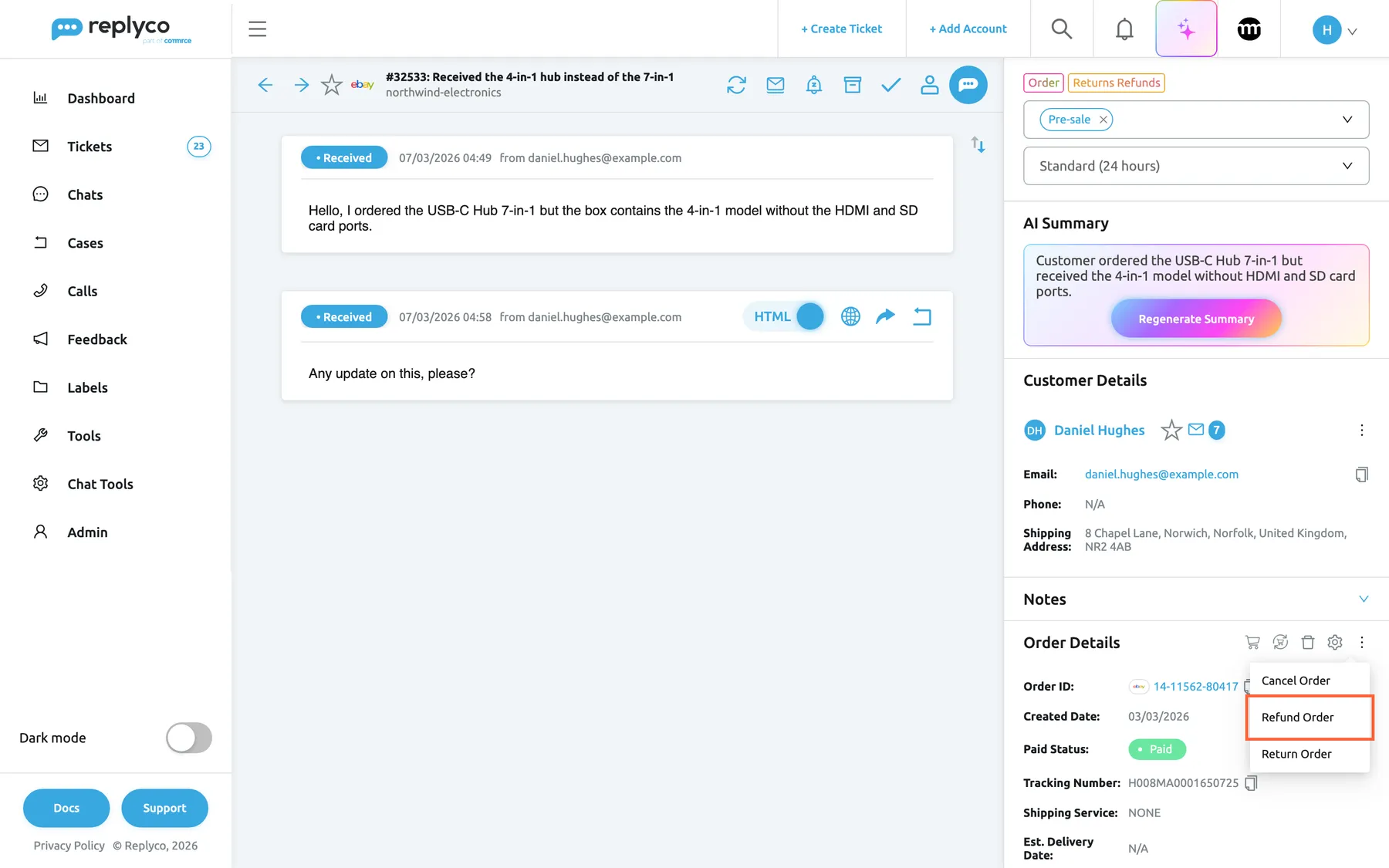
What this screenshot shows
- Screen
- Respond (/ticket/:threadId)
- Highlighted
- menuitem “Refund Order”, right-panel-order, menu-open. opens the eBay refund form
- Also visible
- eBay order 14-11562-80417, Paid, tracking number; menu: Cancel Order, Refund Order, Return Order
- Purpose
- eBay order actions in the ticket
-
In Order Details, select ⋮ and then the action, for example Refund Order.
-
Fill in the form. Fields with an asterisk are required.
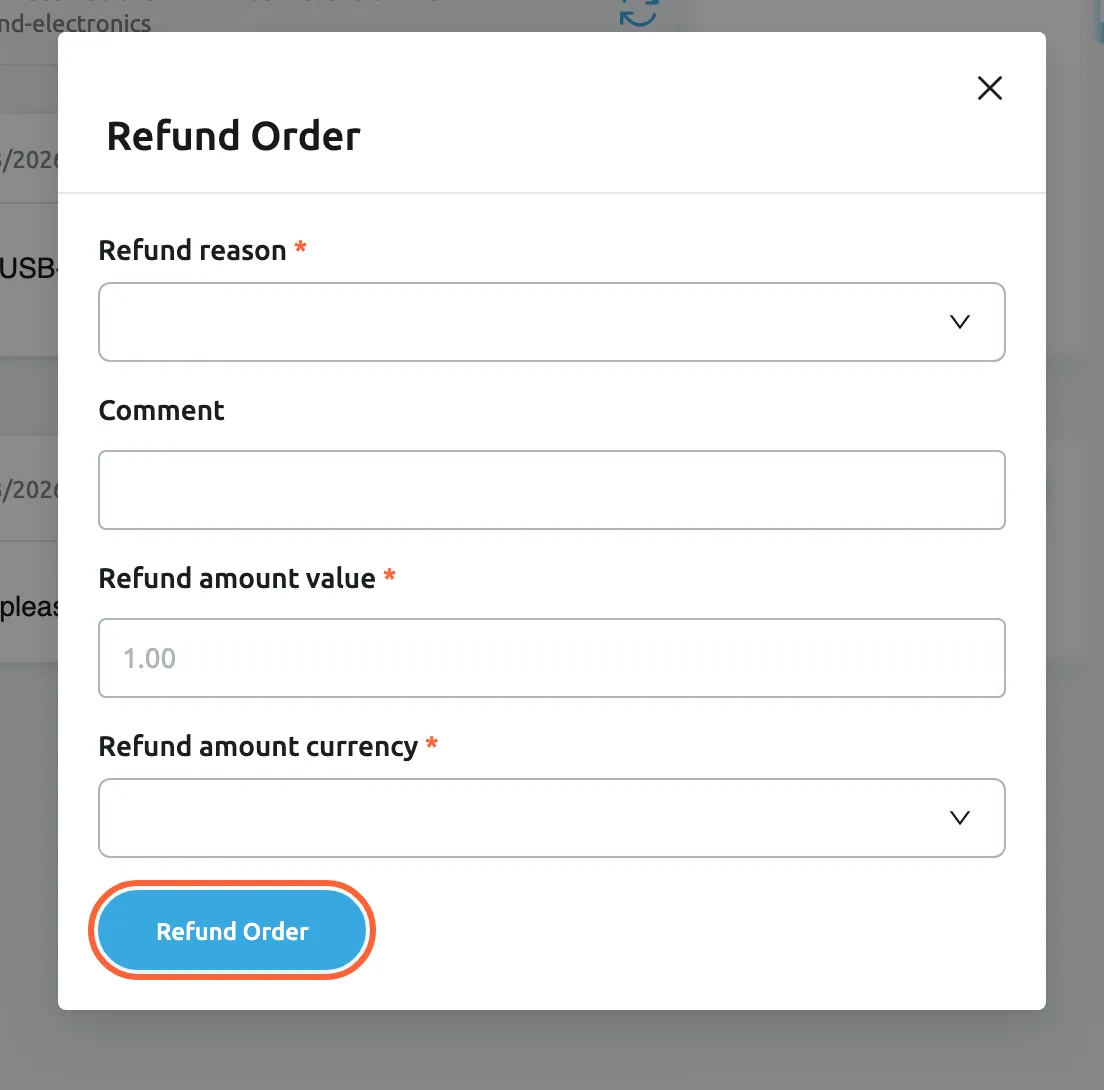
The refund form sends a reason, an amount and a currency to eBay; the comment is optional. What this screenshot shows
- Screen
- Refund Order (/ticket/:threadId)
- Highlighted
- button “Refund Order”, dialog-bottom, enabled. sends the refund to eBay
- Also visible
- Refund reason (required); Comment; Refund amount value (required); Refund amount currency (required)
- Purpose
- refund an eBay order from the ticket
-
Select the button at the bottom. Replyco confirms with Success, marks the ticket as read and updates Order Details with the order as eBay returns it; if a required field is empty, it shows All fields must be completed. instead.
| Action | Required fields | Optional |
|---|---|---|
| Cancel Order | Cancel reason | |
| Refund Order | Refund reason, Refund amount value, Refund amount currency | Comment, up to 100 characters |
| Return Order | Shipping Carrier, Return Reason, Return Quantity (at least 1), Type | Comment, up to 100 characters |
Cancel Order is not offered once the order has a cancellation; the panel then shows Order has an open cancellation process in red, which opens its details. How eBay handles them afterwards is in eBay, and eBay’s own cases in eBay cases.
Fill in custom fields
Section titled “Fill in custom fields”Custom Fields holds extra information your company tracks on tickets, such as a return reason, a serial number or a warranty date. The panel lists the fields that have a value on this ticket. It appears when your company has the custom fields feature, which every current plan includes; companies on an older plan may not have it, see What each plan includes.
- Select the plus icon in the Custom Fields panel, or the gear icon when fields already have values.
- Fill in the fields: text, number, yes or no, date, date and time, or a choice from a list. A number field with text in it is refused with {{name}} must be a number., where the name is the field’s.
- Select Save. The values appear in the panel, and a field can be cleared again after Are you sure?.
The fields themselves are created under ToolsCustom Fields; when none exist, the panel links there. See Custom Fields.
Keep files with the ticket
Section titled “Keep files with the ticket”Attachments in the right panel holds files kept with the ticket itself, such as an invoice Replyco downloaded from your order-management system. They are not sent to the customer. Select Upload New to add a file; open the panel to see the list, and download or delete each file there. To send a file to the customer, attach it to your reply instead; see Answer a ticket.
Reply to the customer
Section titled “Reply to the customer”Select Respond, the round blue icon at the right end of the header, and the reply editor opens under the conversation, addressed to the customer. There you pick a template, write or edit the text, add attachments, translate, preview, choose whether the ticket is resolved or archived after sending, and send now or later. With AI drafts on, the editor opens with a reply already written under AI Suggested Response, which you accept with Accept & Send or turn down with Reject. The whole job is described step by step in Answer a ticket; for templates, drafts and later sending see Reply templates, AI drafts and Delayed sending.
Some channels decide per message whether you may answer, and then the round blue icon is missing. Fruugo tickets open the editor with Fruugo’s reference line already at the top, because Fruugo needs it to link your reply to the customer’s message; leave it in. To start a new line without a new paragraph, press Shift + Enter.
Rewrite a reply with the AI assistant
Section titled “Rewrite a reply with the AI assistant”The editor’s toolbar starts with two AI buttons: Assistant rewrites the text you have, and AI Draft writes a reply from a short description of what it should say.
-
Write or accept a reply in the editor.
-
Select Assistant and choose how to change it: Make Shorter, Make Longer, Improve Writing, Simplify Writing, Make Formal, Make Informal, Make Professional, Make Friendly or Correct Spelling.
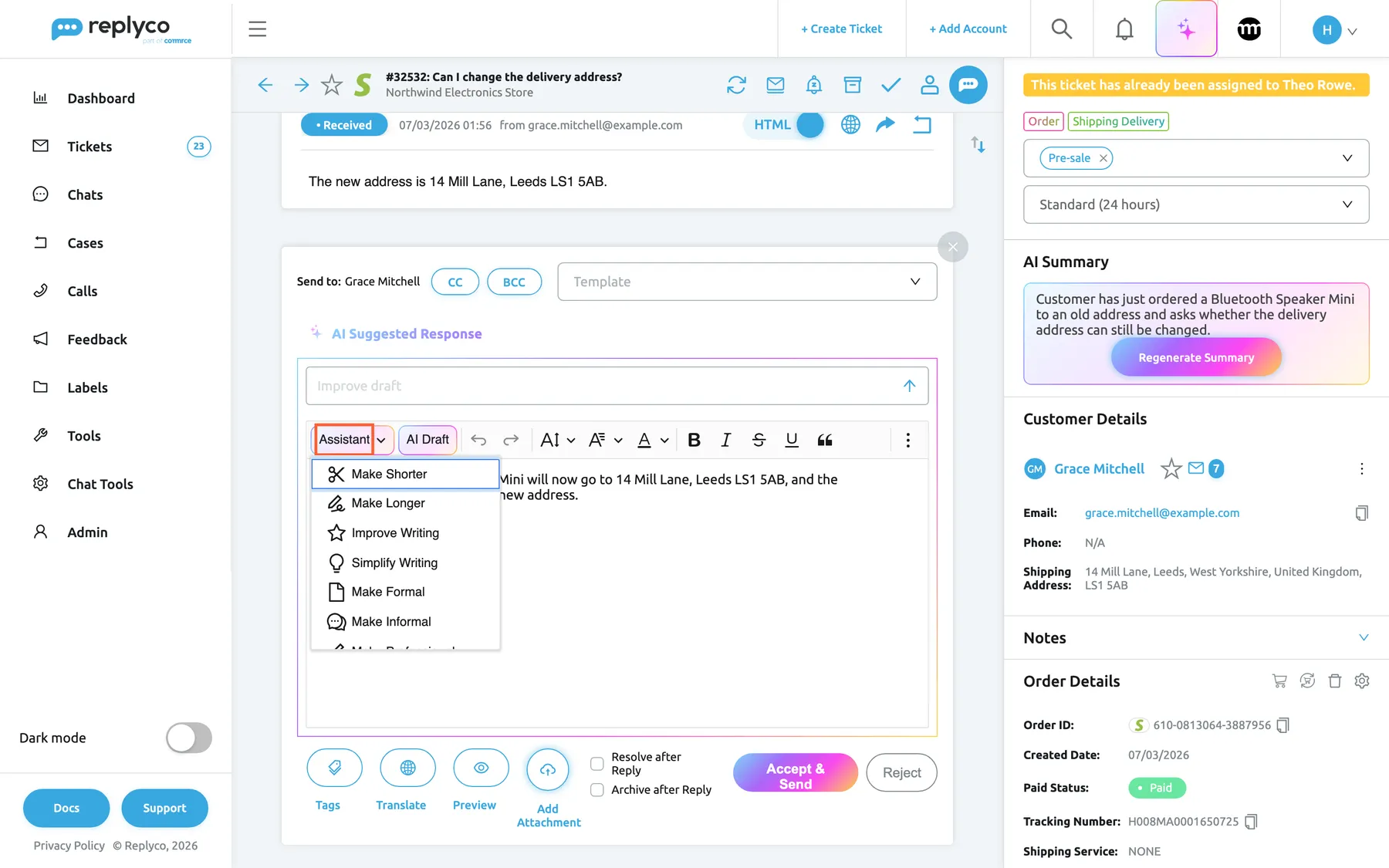
The Assistant menu rewrites your reply, or only the part you selected, shorter, friendlier or corrected. What this screenshot shows
- Screen
- Respond (/ticket/:threadId)
- Highlighted
- button “Assistant”, editor-toolbar-left, menu-open. rewrites the editor text
- Also visible
- AI Suggested Response in the editor; Assistant menu with nine rewrite options; AI Draft button
- Purpose
- the AI assistant in the reply editor
-
The text in the editor is replaced by the rewritten version. Read it before you send it.
To change one sentence only, select it in the editor: a small AI Assistant menu appears with the same nine choices, and only the selected text is rewritten. AI Draft first asks Describe what the reply should say…; type at least three characters, for example confirm the new address and the dispatch date, and press Enter. The draft is written from the last ten messages and the ticket’s summary, without the real order or customer values. Both buttons need the AI feature, which every plan has. How company-wide draft instructions shape the result is in AI drafts.
Pick up a saved draft
Section titled “Pick up a saved draft”With draft saving, Replyco saves the text of the reply editor every ten seconds and whenever you click outside it. There is one draft per ticket, shared by your team: when you, or a colleague, open the ticket again, the editor opens by itself with the draft in it. A draft is kept for 24 hours after its last change and is removed when the reply is sent. Archive and Resolve warn you when a draft is waiting.
Every control, explained
Section titled “Every control, explained”Each control of the ticket screen, from the header to the last panel on the right, in the order you meet it.
Back and Next unread ticket
Section titled “Back and Next unread ticket”The two arrows at the left end of the header. Keyboard: Ctrl + ← and Ctrl + → with shortcuts on.
The left arrow returns to the page you came from. The right arrow opens the next unread ticket of the list or label you opened this ticket from, or of Not Resolved (or My Tickets when you may not see that list) when you came from elsewhere. With none left it shows We didn't find any unread tickets in current tab/folder.. Both are disabled while a reply is being sent.
Working through unread tickets one by one without going back to the list saves a click per ticket.
The star
Section titled “The star”Header, after the arrows.
Stars or unstars the ticket. The star is shared by the whole company; starred tickets are listed in Starred.
Marks tickets anyone on the team should find again quickly, whatever their status.
Channel icon, subject and account
Section titled “Channel icon, subject and account”Header, left, after the star.
The icon of the channel the ticket came from, # and the ticket number with the subject (hover for the full subject), and below it the name of the connected account.
The account tells you which shop or mailbox the customer wrote to, and so which policy and signature apply.
Refresh
Section titled “Refresh”First icon on the right of the header.
Reloads the ticket, its messages, notes and history. When a new message for this ticket arrives while you are on it, the icon spins, turns blue and plays a sound until you select it. That signal needs agent collision detection or draft saving, both part of every plan.
The conversation does not add new messages by itself; the spinning icon tells you one is waiting.
Mark Unread and Mark Read
Section titled “Mark Unread and Mark Read”Header, the envelope icon.
Opening a ticket marks it read, unless Leave Tickets Unread is on in your account settings. Mark Unread makes it unread again and takes you back to the list; on an unread ticket the icon is Mark Read.
Leave a ticket bold in the list for a colleague, or for yourself later.
Snooze
Section titled “Snooze”Header, the bell icon. Continue snoozing and Stop snoozing appear while a ticket is snoozed.
Snooze until... offers Later today (in three hours), Tomorrow (same time tomorrow), Tomorrow to 8am, This weekend (Saturday), Next week (in seven days) and Pick date & time, which does not accept past days. The ticket waits in Snoozed until then, or until the customer writes or you reply. Stop snoozing ends the snooze at once.
Put away a ticket that waits for something, such as the courier’s answer, without resolving it.
Archive and Restore
Section titled “Archive and Restore”Header, the box icon. Keyboard: Ctrl + Alt + A.
Asks Are you sure? (or You have a draft message. Are you sure you want to continue? when a draft exists), then moves the ticket to Archive and takes you back. On an archived ticket it is Restore, which brings it back to the lists.
Takes tickets that need no answer, such as marketplace notifications, out of every list.
Resolve and Mark as Unresolved
Section titled “Resolve and Mark as Unresolved”Header, the tick icon. Keyboard: Ctrl + Alt + R.
Marks the ticket resolved, shows This ticket has been marked as resolved. and a green Resolved at the top of the right panel. With a draft waiting it asks first. With Automatically Return to Ticket List After Resolving on, you go back to the list. On a resolved ticket the icon is Mark as Unresolved.
A resolved ticket leaves Not Resolved; a new customer message reopens it by itself.
Assign User
Section titled “Assign User”Header, the person icon.
Opens Select User to Assign with your team and an unassigned option; pick one and select Save. Without a choice it shows Please select a User to assign.. The right panel then shows the assignee: yellow for a colleague, green for you.
Makes clear who answers. With Auto-assign on Reply on, an unassigned ticket is assigned to whoever replies first; see Auto-assign on reply.
Resolve Case
Section titled “Resolve Case”Header, only on Amazon tickets whose message contains Amazon’s link to close the case.
Opens that link in a new browser tab, where Amazon lets you mark the message as needing no response.
Amazon counts unanswered buyer messages against you; closing the case there stops that when no reply is needed.
Delete forever
Section titled “Delete forever”Header, the bin icon, only on archived tickets.
Deletes the ticket after Are you sure you want to delete forever? Deleted tickets cannot be restored., confirms with Ticket deleted. and takes you back.
Removes a ticket that must not be kept, such as spam. There is no way back.
Respond
Section titled “Respond”Header, the round blue icon at the right end. Keyboard: Ctrl + Enter with shortcuts on.
Opens the reply editor under the conversation. Missing on messages the channel does not let you answer, such as Amazon or eBay notifications.
The start of every reply; see Answer a ticket.
Sort arrows, notes icons and the message controls
Section titled “Sort arrows, notes icons and the message controls”| Control | What it does | Why |
|---|---|---|
| Sort arrows, Sort messages by ascending/descending. | Reverses the message order for this visit | Read from the start or from the latest message |
| Plus, Add note | Opens a note box under the conversation; only with Show Notes in messages area | Write a note in context |
| Book, Show only notes | Hides the messages and shows only the notes; only with Show Notes in messages area | Read the team’s notes on a long ticket |
| Status badge | The message’s status; failed and cancelled replies show the reason and Try Again on hover | Spot a reply that did not reach the customer |
| Arrow under a card | Opens or closes the message; a closed one says Click to expand Full Message | Read long threads |
| HTML / Text | Switches the open message between formatted and plain text | Read newsletters and plain text alike |
| Globe, Translate | Translates the message; Show original text returns to the original | Understand a customer in another language |
| Forward arrow, Forward | Forwards the message as a new, linked ticket | Pass a question to a supplier or warehouse |
| Curved arrow, Reply to all | Replies with the message quoted and its CC and BCC | Answer everyone on an email thread |
Status lines and AI category tags
Section titled “Status lines and AI category tags”| Line | Meaning | Why |
|---|---|---|
| Resolved (green) | The ticket is resolved | Know at once that nothing is open |
| This customer is blocked (red) | The customer is blocked | Their tickets go to Blocked |
| This ticket has been assigned to you (green) or a colleague’s name (yellow) | Who the ticket is assigned to | Avoid answering someone else’s ticket |
| A name and is reading this ticket. or is responding to this ticket. | A colleague has the ticket open, or is writing a reply | Agree who replies |
| Snoozed until a time, or snoozed some time ago in red | The snooze time, or that it has run out | See when the ticket comes back |
| Coloured tags | The ticket’s AI categories | See at a glance what the customer wants |
Select Label to assign
Section titled “Select Label to assign”Right panel, the first select. Saves as you pick.
Adds and removes labels on the ticket, several at a time, listed by name; a deleted label still on the ticket shows as REMOVED.
Labels group tickets for your team and give each label its own list; see Labels.
Select New Priority
Section titled “Select New Priority”Right panel, the second select. Saves as you pick; clear it to remove the priority.
Sets one of your company’s priorities. The priority sets the ticket’s response and resolve deadlines, shown in the ticket lists.
Puts urgent customers first; see Ticket priorities and SLA.
Parent, child and case blocks
Section titled “Parent, child and case blocks”Right panel, under the priority, only when the ticket has them.
Parent Ticket: links to the ticket this one was forwarded from; Child Ticket and a number link to tickets forwarded from this one, each with Merge. On eBay orders, Return Case and INR Case blocks link to the order’s cases.
Keep track of a question you passed on, and bring the answer back into one ticket.
AI Summary
Section titled “AI Summary”Right panel, first panel. Only with AI summaries on.
The AI summary of the conversation, with Generate Summary or Regenerate Summary when there is none yet or a newer message exists.
Understand a long ticket in seconds; see AI summaries.
Customer Details
Section titled “Customer Details”Right panel. The ⋮ menu is at the panel’s right.
Name (links to the customer), star, ticket and order counts, Email with a copy icon, Phone, Shipping Address. The menu offers Block Customer, and on some channels Create New & Assign, Edit and Unsubscribe.
Know who you are talking to, and keep spam out of your lists.
Right panel, collapsed until you select it. Tabs Thread, Order, Customer.
Internal notes on the ticket, the order and the customer, with Add New, @mentions, edit, delete and lock. Order notes sync with order-management systems.
Pass on what the customer must not read, such as a warehouse check.
Order Details
Section titled “Order Details”Right panel. Icons at the panel’s top right.
The linked order’s fields, the order actions, and the search fields when no order is linked.
Answer questions about delivery, payment and returns without opening the marketplace.
Product Details
Section titled “Product Details”Right panel, under the order.
The ordered items with price and total; the switch shows Ordered Items or Related Products.
See which variant the customer bought before you answer a product question.
Custom Fields
Section titled “Custom Fields”Right panel. Plus or gear icon at the panel’s right. Only with the custom fields feature.
Your company’s custom fields with a value on this ticket; the icon opens the form to fill them in.
Record information your team reports on, such as return reasons; see Custom Fields.
Attachments
Section titled “Attachments”Right panel. Upload New in the panel’s heading.
Files kept with the ticket: upload, download, delete.
Keep a document with the case without sending it.
Related Feedback
Section titled “Related Feedback”Right panel, last panel. Only with the Feedback permission.
Marketplace feedback left for the ticket’s order.
See whether the customer already left feedback before you answer; see Feedback List.
Your ticket view settings
Section titled “Your ticket view settings”These personal settings live on the Settings tab of Account Settings and change only your own ticket screen.
| Setting | What it changes | Why |
|---|---|---|
| Message Order | Oldest or newest message first | Read in the order you prefer |
| Default Message View | Messages open as text or as HTML | Plain text loads faster; HTML shows the layout |
| Expand all messages in a thread | Every message opens in full | Read short threads without clicking |
| Show Notes in messages area | Ticket notes appear between the messages | Read notes in context |
| Show Tickets List in Ticket Detail screen | The list you came from stays on the left | Switch tickets without going back |
| Load user logs in the ticket | The ticket’s history appears between the messages | See who changed what |
| Show In-Line Auto-responses in Ticket Detail screen | Sent auto-responses show as one line | Keep long threads short |
| Message language | The language messages are translated into | Read every customer in your language |
| Enable Ticket Details Shortcuts | Keyboard shortcuts in the ticket | Work without the mouse |
| Leave Tickets Unread | Opening a ticket does not mark it read | Keep tickets bold for a colleague |
| Automatically Return to Ticket List After Resolving | Resolving takes you back to the list | Move on after each ticket |
Who sees what
Section titled “Who sees what”| Part of the screen | What decides whether you see it |
|---|---|
| The ticket itself | Your user’s ticket lists, accounts and labels, set by an admin; see User permissions and roles |
| Respond and Reply to all | The channel: Amazon, eBay, Etsy, Fruugo and Kaufland decide per message whether a reply is possible |
| Resolve Case | Amazon messages with Amazon’s link to close the case |
| AI Summary | AI (every plan) and AI summaries switched on in AI Settings |
| AI category tags, Assistant, AI Draft | AI (every plan); the tags also need categorisation switched on |
| The tone face on customer messages | AI and message tone analysis switched on |
| Globe, Translate, on messages | Translations |
| The line is reading this ticket. | Agent collision detection or draft saving |
| The spinning Refresh icon for a new message | Agent collision detection or draft saving |
| Saved drafts | Draft saving |
| The Custom Fields panel | The custom fields feature |
| Priorities to choose from | The Priorities & SLA tab of Company Settings, where a user with the Admin permission with Edit rights defines them |
| Cancel Order, Refund Order, Return Order | eBay in-ticket cancellations, returns and refunds, on an eBay order |
| Links in eBay case blocks | The cases permission |
| Related Feedback | The Feedback permission |
| Create New & Assign and Edit | The permission to edit customers, on email and store tickets |
| Forward arrow on messages | Your company may create tickets: every paid company, and a trial company once Replyco has verified it or when it signed up in the German region; see Create Ticket |
| Delete forever | Archived tickets only |
| The ticket list on the left | Show Tickets List in Ticket Detail screen in your account settings, when you opened the ticket from a list |
Every plan includes every feature in this table, and during a trial every feature is on except ticket creation, which waits for Replyco’s verification as the forward arrow row says. Companies on an older plan may not have some of them; see What each plan includes.
What you need to know
Section titled “What you need to know”| Topic | Fact |
|---|---|
| Saving | Labels, priority, assignment, star, snooze and status save as you choose them; there is no Save button for the ticket |
| Shared or personal | Star, labels, priority, assignment, notes and drafts are shared by the team; message order, default view, message language and shortcuts are yours |
| New customer message | Reopens a resolved ticket, brings an archived one back and ends a snooze |
| Your reply | Ends a snooze, and cancels auto-responses still waiting to be sent in this ticket |
| Messages per load | Ten; older ones load as you scroll |
| Translations | Kept per message and language, so the second view is instant |
| Drafts | One per ticket, saved every ten seconds, kept 24 hours after the last change |
| Who is reading | Only colleagues, never you; forgotten two hours after the last status change in your company |
| Merge | Only same customer and same account; the older ticket stays; cannot be undone |
| Blocking | Moves all of the customer’s tickets to Blocked |
| Notes | Internal only; @mentions notify the colleague |
| eBay actions | Sent to eBay at once; comments up to 100 characters |
Frequently asked questions
Section titled “Frequently asked questions”Header and status
Section titled “Header and status”Why is there no Respond icon on this ticket?
Section titled “Why is there no Respond icon on this ticket?”Amazon, eBay, Etsy, Fruugo and Kaufland decide for each message whether a reply is possible, and Replyco hides the round blue Respond icon when the channel does not allow one, for example on marketplace notifications. Answer the customer in the marketplace itself, or wait for a message you can reply to.
Why did the ticket jump back to the list after I archived it?
Section titled “Why did the ticket jump back to the list after I archived it?”Archive, Restore and Mark Unread always take you back to the page you came from. Resolve does the same only when Automatically Return to Ticket List After Resolving is on in your Account Settings, on the Settings tab.
Why does the next-ticket arrow say there are no unread tickets?
Section titled “Why does the next-ticket arrow say there are no unread tickets?”The right arrow in the header looks for unread tickets in the list or label you opened the ticket from, or in Not Resolved when you came from elsewhere. When every ticket there is read, Replyco shows We didn't find any unread tickets in current tab/folder.. Open another list and try again.
Why did a snoozed ticket come back early?
Section titled “Why did a snoozed ticket come back early?”A snooze ends when its time passes, when the customer sends a new message, or when someone sends a reply in the ticket. You can also end it yourself with Stop snoozing in the header. The colleague the ticket is assigned to gets a notification when the snooze time runs out.
Does a star only show for me?
Section titled “Does a star only show for me?”No. The star in the ticket header is saved on the ticket for the whole company, and every colleague sees the ticket in Starred. Use a label if you need a personal marker that others can filter out.
Conversation
Section titled “Conversation”Why can’t I see older messages?
Section titled “Why can’t I see older messages?”The ticket screen loads the newest ten messages first and loads older ones when you scroll up in the conversation. With the order reversed by the sort arrows, older messages load as you scroll down instead. Wait a moment after scrolling while the next ten load.
How do I see a message’s original formatting?
Section titled “How do I see a message’s original formatting?”Open the message and turn the HTML switch on at the right of its header; turn it off for plain text. To open every message as HTML by default, choose it in Default Message View on the Settings tab of your Account Settings.
Which language does Translate use?
Section titled “Which language does Translate use?”The globe icon on a message translates it into your Message language, set on the Settings tab of your Account Settings, English if you never set one. The bar above the translated message lets you pick another language for that message; see Translations. On a message that opened already translated, the globe also translates into your Message language. Every plan includes the Translations feature.
Why does a reply show a red error badge?
Section titled “Why does a reply show a red error badge?”The red Error Sending badge means the channel refused the reply. Hover the badge to read the channel’s reason, fix what it names, for example an attachment that is too large, and select Try Again in the same hover box to send it again.
Right panel
Section titled “Right panel”Why can’t I change the AI categories on a ticket?
Section titled “Why can’t I change the AI categories on a ticket?”The coloured tags at the top of the right panel are set by Replyco’s AI from the customer’s messages; the ticket screen shows them but has no control to change them. To choose which categories exist and when they are assigned, go to ToolsAI Settings, which needs the Admin permission with Edit rights; see AI categories.
Why is the AI summary missing from the ticket?
Section titled “Why is the AI summary missing from the ticket?”The panel appears only when your company has the AI feature and AI summaries are switched on in ToolsAI Settings, where a user with the Admin permission with Edit rights switches them on. When the panel is there but empty, no summary has been made yet: select Generate Summary to create one for this ticket.
Why can’t I merge a child ticket?
Section titled “Why can’t I merge a child ticket?”Merge works only when both tickets belong to the same customer and came in on the same account; otherwise Replyco shows You cannot merge Tickets from different Customers or Accounts.. A message you forwarded to a supplier or warehouse has that supplier as its customer, so it stays a separate, linked ticket.
Who sees my notes?
Section titled “Who sees my notes?”Notes in the Notes panel are internal: every colleague who can open the ticket sees them, the customer never does. A note on the order or the customer also shows on other tickets with the same order or customer. Lock a note with the padlock so that only you can edit it.
How do I tell a colleague about a ticket?
Section titled “How do I tell a colleague about a ticket?”Open Notes in the right panel, select Add New, type @ and pick the colleague, write your note and select Save. The colleague gets a notification in Replyco saying they were mentioned in the ticket, with the ticket’s subject; see Notifications.
Why is no order shown, or the wrong one?
Section titled “Why is no order shown, or the wrong one?”Replyco links an order when it finds one by the rules of the ticket’s channel, for example an order number in the message; see Check the order and link another. When none is linked, type the order number into Enter Marketplace Order# or into the field of your order-management system in Order Details, or pick one from Customer Orders. Replyco never replaces a linked order by itself: to replace a wrong one, remove it with the bin icon first.
Why are the order search fields greyed out?
Section titled “Why are the order search fields greyed out?”The account the ticket came from, or your order-management system, needs a new login, and Replyco shows Perform a relogin of the integration before searching for orders when you hover the field. Log in again from the account’s details under Accounts; afterwards the fields work again.
eBay, fields and files
Section titled “eBay, fields and files”Why don’t I see Cancel, Refund and Return on an eBay order?
Section titled “Why don’t I see Cancel, Refund and Return on an eBay order?”The three eBay actions in the ⋮ menu of Order Details need an order that belongs to an eBay account. Cancel Order is left out once the order already has a cancellation, which the panel shows in red.
Why does the refund form say all fields must be completed?
Section titled “Why does the refund form say all fields must be completed?”Refund reason, Refund amount value and Refund amount currency are required in the eBay refund form, marked with an asterisk. Fill them in and select the button again; the comment is optional but may not be longer than 100 characters.
Are files in the Attachments panel sent to the customer?
Section titled “Are files in the Attachments panel sent to the customer?”No. The Attachments panel keeps files with the ticket for your team, such as an invoice from your order-management system. To send a file, attach it in the reply editor with Add Attachment before you send the reply.
Replies and drafts
Section titled “Replies and drafts”Can I save a reply as a draft?
Section titled “Can I save a reply as a draft?”Yes. With draft saving, which every plan includes, Replyco saves the reply editor’s text every ten seconds and when you click outside it. The draft belongs to the ticket, so a colleague who opens it sees it too; it is kept for 24 hours after the last change and removed when the reply is sent.
How do I start a new line without a new paragraph?
Section titled “How do I start a new line without a new paragraph?”In the reply editor, press Shift + Enter for a line break inside the paragraph; Enter starts a new paragraph. Some marketplaces show paragraphs with extra space, so a line break keeps an address or a list compact.
Does the AI assistant send anything to the customer?
Section titled “Does the AI assistant send anything to the customer?”No. Assistant and AI Draft only change the text in the reply editor. Nothing is sent until you select the send button, so read the rewritten text first and change what does not fit your policy.
Can two of us answer the same ticket at once?
Section titled “Can two of us answer the same ticket at once?”Replyco does not stop it, but it warns you: with agent collision detection on, the right panel names every colleague who has the ticket open, followed by is reading this ticket., or by is responding to this ticket. while they write a reply. Agree who answers before you both send a reply.
Troubleshooting
Section titled “Troubleshooting”| Symptom | What to check |
|---|---|
| The ticket shows a loading skeleton, then a not-found page | The ticket was merged into another or deleted, or your user may not open it; search for the customer or order number to find the kept ticket |
| No round blue Respond icon | The channel does not allow a reply to this message (Amazon, eBay, Etsy, Fruugo, Kaufland); answer in the marketplace |
| We didn't find any unread tickets in current tab/folder. | Every ticket in the list you came from is read; open another list |
| A new message does not appear | Select Refresh; the conversation does not add messages by itself |
| A reply shows Error Sending | Hover the badge for the channel’s reason; fix it and select Try Again |
| The globe icon is missing on messages | The icon appears only on an open message; select the message. Companies on an older plan may not have translations |
| AI Summary is missing | AI summaries in ToolsAI Settings, switched on by a user with the Admin permission with Edit rights; then Generate Summary |
| You cannot merge Tickets from different Customers or Accounts. | The two tickets have different customers or accounts; they cannot be merged |
| No order in Order Details | The magnifier Automatically search order; then the order number field; then Customer Orders |
| Order fields greyed out with Perform a relogin of the integration before searching for orders | Log in to the account or order-management system again; see Fix a blocked or silent account |
| No eBay actions in the order’s ⋮ menu | The order must belong to an eBay account. Companies on an older plan may not have the eBay actions |
| All fields must be completed. in an eBay form | Fill every field with an asterisk |
| {{name}} must be a number. | A number custom field contains text; enter digits only |
| A colleague’s draft appears in your editor | Drafts are shared per ticket; agree who answers, or clear the text |
Related
Section titled “Related”- Answer a ticket
- Resolve, snooze or archive a ticket · Assign, label and merge tickets
- Ticket lists · Blocked tickets · Archived tickets · Create Ticket
- AI summaries · AI drafts · AI categories · Message tone analysis
- Translations · Ticket priorities and SLA · Ticket merging · Delayed sending
- Reply templates · Snippets and placeholders · Auto-responses for tickets · Rules for incoming tickets
- Customers · Orders · Labels · Custom Fields
- eBay · eBay cases · Order management systems · Linnworks · Billbee
- Account Settings · AI Settings
- Troubleshooting tickets