

Specific Account Settings
AdminCompany Settings › Specific Account Settings holds the settings that differ from one connected account to the next. For each marketplace, webstore or mailbox you decide whether a customer’s new message joins their latest ticket instead of opening another one, and, for accounts that bring in orders, which web address opens an order in your own system from the ticket. Administrators set it up once per account and come back when a channel’s customers behave differently. The company-wide settings on the other tabs are explained in Company Settings.
Availability: needs the Admin permission with Edit rights, which shows Company Settings in the Admin menu; see User permissions and roles. The tab and its settings are part of every plan.
What you can do here
Section titled “What you can do here”- Choose the account to set up. The tab lists every account that brings in tickets or orders, and each keeps its own settings. Choose an account · Accounts
- Keep a customer’s follow-ups in one ticket. With Merge Tickets from the Same Customer, a new message joins the customer’s latest ticket on that account if its last message is no more than a set number of days old, 15 by default. Merge a customer’s new messages into their latest ticket · Ticket merging
- Keep eBay’s own notices about one item together. An eBay account adds Merge eBay Notifications. Group eBay’s notices per item · eBay
- Know what the Amazon box does. Amazon accounts show Merge Amazon Notifications, which does not change how Amazon messages are sorted. The Amazon box · Connect Amazon
- Open each order in your own system. Custom Order Link builds a link from an address you enter and the order’s ID, shown in the order details of a ticket. Link each order to your own system
- Save per account. Save Changes appears only while something differs from what is saved. Save your changes
The screen at a glance
Section titled “The screen at a glance”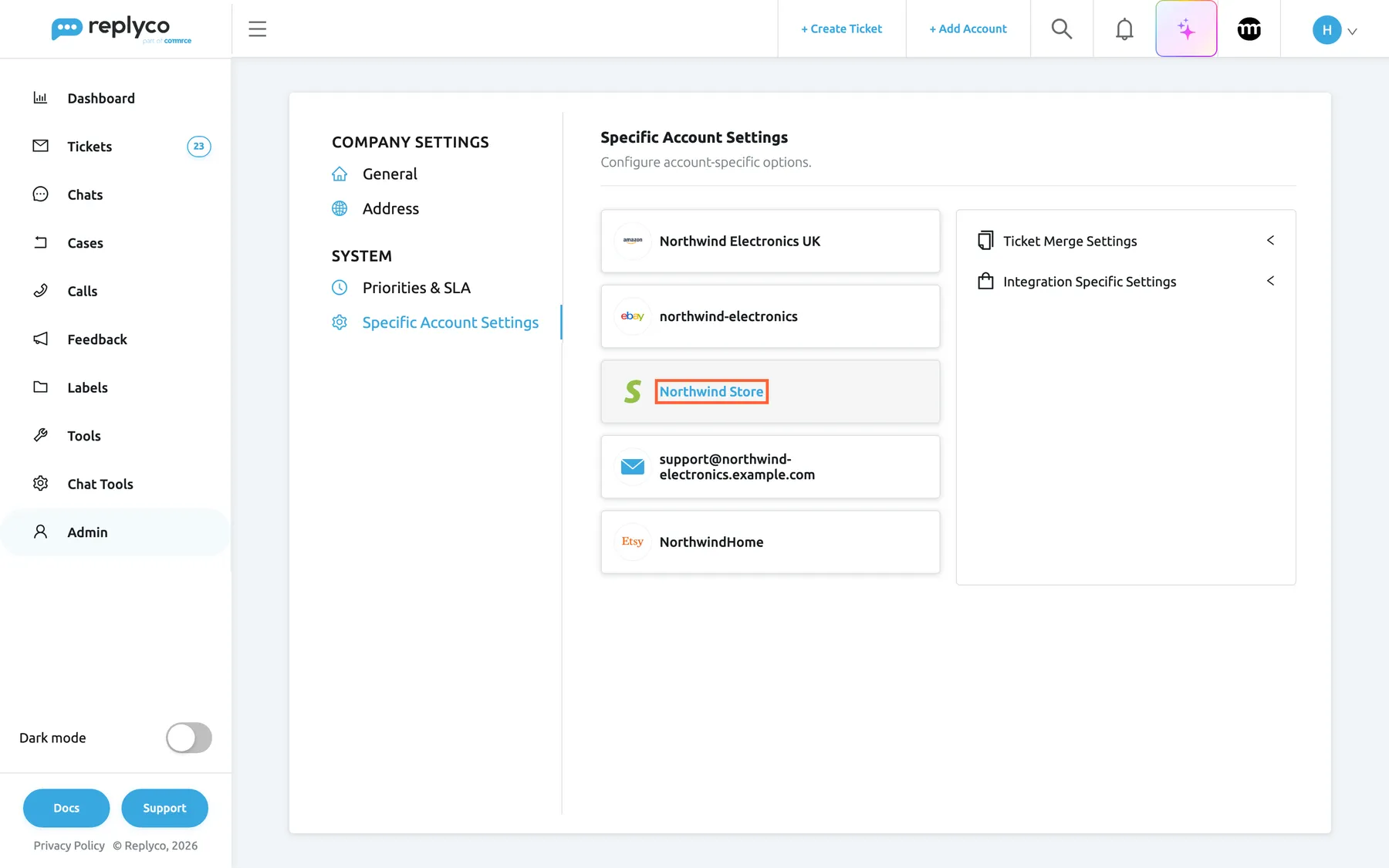
What this screenshot shows
- Screen
- Specific Account Settings (/company?tab=accountSpecificConfiguration)
- Highlighted
- “”, account-list, selected. shows the settings of this account on the right
- Also visible
- five accounts: Amazon, eBay, Shopify, mailbox, Etsy; Ticket Merge Settings and Integration Specific Settings collapsed
- Purpose
- the screen at a glance
| Region | What it shows | What you do there |
|---|---|---|
| Tab list, left | General and Address under Company Settings; Priorities & SLA and Specific Account Settings under System | Switch tabs |
| Header | Specific Account Settings and Configure account-specific options. | Nothing; it names the tab |
| Account list, middle | One card per account with its channel logo; the selected card is highlighted | Select the account to set up |
| Settings, right | Empty until you select an account; then Ticket Merge Settings and, for accounts with orders, Integration Specific Settings, both collapsed, and Save Changes once something changed | Open a section, change it, save |
Choose an account
Section titled “Choose an account”Open AdminCompany Settings and select Specific Account Settings under System. The middle column lists your connected accounts that receive tickets or orders: marketplaces such as Amazon and eBay, webstores such as Shopify, and mailboxes. Chat accounts, such as WhatsApp, and order management systems are not listed, because nothing here applies to them.
Select an account’s card. Its sections appear on the right:
| Section | Shown for | Holds |
|---|---|---|
| Ticket Merge Settings | Accounts that bring in tickets | The automatic merge switches |
| Integration Specific Settings | Accounts that bring in orders | Custom Order Link |
A mailbox therefore shows only Ticket Merge Settings, and a Shopify store shows both. Select a section’s title to open it.
Merge a customer’s new messages into their latest ticket
Section titled “Merge a customer’s new messages into their latest ticket”Many customers do not reply to your answer; they write a new e-mail. Merge Tickets from the Same Customer puts that new message into the ticket where your answer already is.
-
Select the account, for example your mailbox, and open Ticket Merge Settings.
-
Tick Merge Tickets from the Same Customer. The line Merge Tickets Within appears with 15 days.
-
Type the number of days, for example 3, or 0 for no limit.
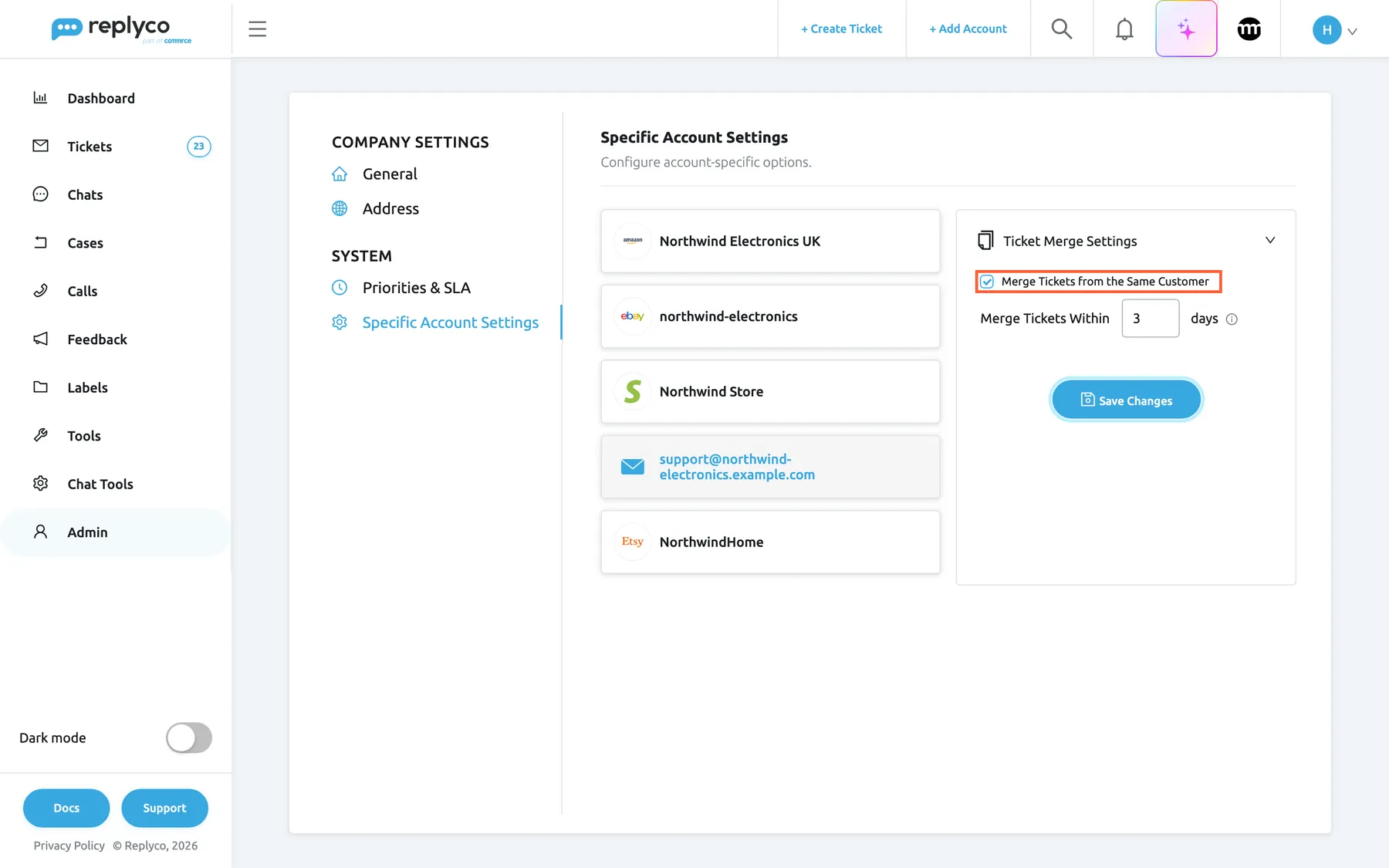
For a mailbox, tick the same-customer switch and set the days; Save Changes appears as soon as something changed. What this screenshot shows
- Screen
- Specific Account Settings (/company?tab=accountSpecificConfiguration)
- Highlighted
- checkbox “Merge Tickets from the Same Customer”, right-panel, checked. adds a customer's new messages on this account to their latest ticket within the day limit
- Also visible
- mailbox selected; Merge Tickets Within 3 days; no Integration Specific Settings; Save Changes
- Purpose
- automatic merging for one account
-
Select Save Changes.
From then on, a new message on that account that belongs to no ticket joins the ticket of the same customer e-mail address with the most recent last message, if that last message is no more than the set number of days old. Otherwise it opens a new ticket, as before. Only messages that arrive after you save are placed this way; tickets you already have stay as they are, and tickets on different accounts are never combined.
Example: with 3 days on support@northwind-electronics.example.com, Sophie Turner’s new e-mail Parcel still not here, two days after your answer to Where is my parcel?, joins that ticket. The same e-mail five days later opens a new ticket.
The information icon after days explains the limit in the product’s words. For how the days are counted, what counts as the same customer and every exception, see Ticket merging.
Group eBay’s notices per item
Section titled “Group eBay’s notices per item”On an eBay account, Ticket Merge Settings starts with Merge eBay Notifications. It concerns messages from eBay itself, not from buyers: ticked, eBay’s messages about the same item share one ticket; clear, each opens a ticket of its own. Buyers’ messages are not affected. For everything else eBay does in Replyco, see eBay.
The Amazon box
Section titled “The Amazon box”On an Amazon account, Ticket Merge Settings starts with Merge Amazon Notifications. You can tick and save it, but it does not change how Amazon messages are sorted into tickets: buyer messages join the ticket with the same order and buyer, and Amazon’s own notifications each open a ticket. To group Amazon’s notifications, tick Merge Tickets from the Same Customer on that account: it treats Amazon’s sending address like a customer address, so notifications from one Amazon address within the day limit share a ticket. See Ticket merging.
Link each order to your own system
Section titled “Link each order to your own system”When your team looks up orders somewhere other than the marketplace, for example in your shop’s back office, Custom Order Link puts a link to that page next to every order of the account.
-
Select the account, for example your Shopify store Northwind Store, and open Integration Specific Settings.
-
In Custom Order Link, type the address of an order page without
https://and without the order’s ID, for examplenorthwind-store.example.com/admin/orders/.The box shows
https://before your text and [Order Id] after it. Hover [Order Id] and it explains: Instead of this text, the order id from the order details will be automatically inserted in the custom link![The Specific Account Settings tab with the Shopify account Northwind Store selected and Integration Specific Settings expanded. The Custom Order Link box starts with a fixed https:// and holds the typed address northwind-store.example.com/admin/orders/, of which the end is visible. After the address, the blue [Order Id] text is highlighted, and its tooltip reads "Instead of this text, the order id from the order details will be automatically inserted in the custom link". A red bin icon beside the box clears the link. Save Changes is below.](/_astro/03-custom-order-link.en.DBgShdID_2qcSpN.webp)
Type the address without https://; Replyco adds each order's ID at the end to build the link shown in the ticket. What this screenshot shows
- Screen
- Specific Account Settings (/company?tab=accountSpecificConfiguration)
- Highlighted
- “”, right-panel, hovered. explains that the order ID replaces this placeholder
- Also visible
- Northwind Store (Shopify) selected; https:// prefix and the typed address; tooltip about the order ID; bin icon; Save Changes
- Purpose
- set the custom order link of an account
-
Select Save Changes.
Replyco builds the link from https://, your text and the ID of the order. For an order with the ID 1184, the example above opens https://northwind-store.example.com/admin/orders/1184 in a new tab. The link appears in the Order Details of a ticket, and of a call, as the field Order URL (Custom), for every order of that account.
The field is hidden until someone adds it to the order panel. In a ticket, select the gear icon, Edit fields visibility, in Order Details and move Order URL (Custom) to the visible fields. An administrator can tick Apply for all users there to show it to everyone. See The ticket screen.
To remove the link, select the red bin icon beside the box and then Save Changes.
| Do | Don’t |
|---|---|
Type the address without https://; the box already shows it | Paste an address from your browser’s address bar without removing its https:// first |
End the address where the order’s ID belongs, often after a / or = | Put the order’s ID or a placeholder into the address; Replyco appends the ID itself |
| Use the address of one order’s page in the system your team works in | Expect the link on a mailbox; only accounts that bring in orders have the setting |
Save your changes
Section titled “Save your changes”Nothing on this tab takes effect until you save. Save Changes appears below the sections as soon as a setting of the selected account differs from what is saved. Select it: Replyco saves the merge settings and the order link of that account together and confirms with Success, and the button disappears.
![The Specific Account Settings tab right after saving the Northwind Store account. In the top right corner of the screen a message with a green tick reads Success, and it is highlighted. On the right, Integration Specific Settings is still open with the Custom Order Link box showing https:// and the start of the saved address, followed by [Order Id]. The Save Changes button has gone, because nothing differs from what is saved any more.](/_astro/04-saved.en.BHNXYbDV_Z2iultV.webp)
What this screenshot shows
- Screen
- Specific Account Settings (/company?tab=accountSpecificConfiguration)
- Highlighted
- “”, top-right, shown. confirms the save
- Also visible
- Success message; Custom Order Link saved; no Save Changes button
- Purpose
- the result of saving
If Replyco cannot save, it shows an error message and keeps your changes on screen.
Every control, explained
Section titled “Every control, explained”The controls of the Specific Account Settings tab, in the order the screen shows them.
The account list
Section titled “The account list”Middle column of the tab, one card per account with the channel’s logo and the account’s name.
Every connected account that brings in tickets or orders. Nothing is selected when the tab opens. Selecting a card highlights it and shows its settings on the right.
Merging and order links depend on the channel, so each account has its own settings.
Ticket Merge Settings
Section titled “Ticket Merge Settings”Right side, first section, shown for accounts that bring in tickets. Collapsed until you select its title.
The automatic merge settings of the account: Merge eBay Notifications on eBay accounts, Merge Amazon Notifications on Amazon accounts, and Merge Tickets from the Same Customer with Merge Tickets Within on every account. Every box starts clear.
Duplicates come from how customers write; this is where you tell Replyco to keep them together. See Ticket merging.
Merge eBay Notifications
Section titled “Merge eBay Notifications”Ticket Merge Settings of an eBay account, first check box. Saved with Save Changes.
Off by default. On: eBay’s own messages about the same item join the ticket that already holds eBay’s messages about that item. Off: each opens its own ticket. Buyers’ messages are not affected.
eBay can send several notices about one listing; one ticket per item keeps your queue for buyers.
Merge Amazon Notifications
Section titled “Merge Amazon Notifications”Ticket Merge Settings of an Amazon account, first check box. Saved with Save Changes.
Can be ticked and saved; Replyco sorts Amazon messages the same way either way. Amazon’s own notifications are grouped by Merge Tickets from the Same Customer instead.
If Amazon’s notifications crowd your queue, the same-customer switch on the account is the setting that groups them.
Merge Tickets from the Same Customer
Section titled “Merge Tickets from the Same Customer”Ticket Merge Settings, the last check box, on every account that brings in tickets. Saved with Save Changes.
Off by default. On: a new message on this account that belongs to no ticket joins the ticket of the same customer e-mail address with the most recent last message, within Merge Tickets Within. Off: such a message opens a new ticket. Applies to messages that arrive after you save.
A customer’s second e-mail lands where your first answer is, in front of the agent who handled it.
Merge Tickets Within
Section titled “Merge Tickets Within”Under Merge Tickets from the Same Customer, shown while that box is ticked: a number box, days and an information icon. Saved with Save Changes.
Whole days from 0 upwards, 15 by default, counted from the last message in the customer’s latest ticket. The set number is included. 0 means no limit. The icon’s tooltip reads New tickets from the same customer are merged into their latest ticket if its last message is no more than this number of days old. If set to 0, all new tickets from the customer are merged, regardless of time.
A short limit keeps follow-ups together and treats a new question weeks later as a new ticket. For worked examples, see Ticket merging.
Integration Specific Settings and Custom Order Link
Section titled “Integration Specific Settings and Custom Order Link”Right side, second section, shown for accounts that bring in orders. One box with a fixed https:// before it, [Order Id] after it and a bin icon beside it. Saved with Save Changes.
Empty by default. The text you enter, with https:// before it and the order’s ID after it, becomes the link Order URL (Custom) in the Order Details of tickets and calls for every order of this account; it opens in a new tab. The field is hidden in the order panel until a user, or an administrator for everyone, adds it with Edit fields visibility. The bin clears the box; saving an empty box removes the link.
Your team reaches the order in your own system in one click, with the right order already open.
Save Changes
Section titled “Save Changes”Below the sections on the right, shown only while a setting of the selected account differs from what is saved.
Saves the merge settings and the order link of the selected account together and shows Success. On failure Replyco shows an error message and keeps your changes on screen.
You can change several settings of an account and check them before anything applies.
Who sees what
Section titled “Who sees what”| Part | Shown when |
|---|---|
| Company Settings in the Admin menu, and this tab | The Admin permission with Edit rights |
| An account in the list | The account brings in tickets or orders; chat accounts and order management systems are not listed |
| Ticket Merge Settings | The account brings in tickets |
| Merge eBay Notifications | An eBay account |
| Merge Amazon Notifications | An Amazon account |
| Merge Tickets Within | Merge Tickets from the Same Customer is ticked |
| Integration Specific Settings | The account brings in orders |
| Save Changes | A setting of the selected account differs from what is saved |
What you need to know
Section titled “What you need to know”| Topic | Fact |
|---|---|
| Per account | Every setting on this tab belongs to one account; other accounts keep theirs. |
| Defaults | Every merge box clear; Merge Tickets Within 15 days; no order link. |
| Not retroactive | Merge settings place messages that arrive after you save; existing tickets are never combined. |
| Across accounts | Tickets on different accounts are never merged automatically. |
| Amazon box | Merge Amazon Notifications does not change how Amazon messages are sorted. |
| Order link | https:// + your text + the order’s ID; opens in a new tab; applies at once to every order of the account. |
| Order field | Order URL (Custom) is hidden in the order panel until someone adds it. |
| Saving | One Save Changes per account; selecting another account drops unsaved changes. |
| Plan | Part of every plan. |
Frequently asked questions
Section titled “Frequently asked questions”General
Section titled “General”What is the Specific Account Settings tab for?
Section titled “What is the Specific Account Settings tab for?”They hold what differs between your connected accounts: whether a customer’s new messages join their latest ticket on that account, how eBay notices are grouped, and a link from each order to your own system. Open AdminCompany Settings › Specific Account Settings, select an account and change its sections. Company-wide settings are on the other tabs; see Company Settings.
Who can change these settings?
Section titled “Who can change these settings?”Users with the Admin permission and Edit rights, who see Company Settings in the Admin menu. The settings are part of every plan. To give a colleague that permission, see User permissions and roles.
Why is one of my accounts missing from the list?
Section titled “Why is one of my accounts missing from the list?”Specific Account Settings in AdminCompany Settings lists only accounts that bring in tickets or orders: marketplaces, webstores and mailboxes. Chat accounts such as WhatsApp and order management systems are not listed, because no setting on this tab applies to them. To see all your connections, open Accounts.
I changed a setting, but it went back. Why?
Section titled “I changed a setting, but it went back. Why?”The change was not saved. Each account has its own Save Changes button, and selecting another account before saving drops the change. Select the account again, change the setting, select Save Changes and wait for Success.
Merging
Section titled “Merging”How do I stop a customer’s follow-up e-mails from opening new tickets?
Section titled “How do I stop a customer’s follow-up e-mails from opening new tickets?”Open AdminCompany Settings › Specific Account Settings, select the account, open Ticket Merge Settings, tick Merge Tickets from the Same Customer, set the days and select Save Changes. New messages from the same e-mail address then join the customer’s latest ticket on that account while its last message is within the limit. See Ticket merging.
What does 0 days mean?
Section titled “What does 0 days mean?”No limit. With Merge Tickets Within at 0, every new message from a customer’s address joins their latest ticket on that account, however old it is. Use it only on accounts where each customer has one ongoing conversation; on a busy marketplace account, unrelated questions end up in one long ticket.
Does switching on merging combine the tickets I already have?
Section titled “Does switching on merging combine the tickets I already have?”No. Merge Tickets from the Same Customer only places messages that arrive after you select Save Changes. To merge existing duplicates, tick them in a ticket list and merge them by hand; see Ticket merging and Assign, label and merge tickets.
Why doesn’t Merge Amazon Notifications group Amazon’s messages?
Section titled “Why doesn’t Merge Amazon Notifications group Amazon’s messages?”Merge Amazon Notifications does not change how Amazon messages are sorted into tickets. To group Amazon’s own notifications, tick Merge Tickets from the Same Customer on the Amazon account in AdminCompany Settings › Specific Account Settings: notifications from one Amazon address within the day limit then share a ticket.
Does Merge eBay Notifications merge buyers’ messages?
Section titled “Does Merge eBay Notifications merge buyers’ messages?”No. Merge eBay Notifications concerns messages from eBay itself: ticked, eBay’s messages about the same item share a ticket. Buyers’ messages on an eBay account join the buyer’s ticket for the same order or item anyway. See eBay.
Can tickets from two accounts be merged automatically?
Section titled “Can tickets from two accounts be merged automatically?”No. Every merge setting on Specific Account Settings works inside one account, so a customer’s ticket on eBay never receives an e-mail that arrived in your mailbox. Such tickets stay separate; add a note that points to the other ticket.
Order links
Section titled “Order links”What does the Custom Order Link do?
Section titled “What does the Custom Order Link do?”Custom Order Link, on accounts that bring in orders, turns the address you enter into a link for each order: https://, your text, then the order’s ID. The link appears as Order URL (Custom) in the Order Details of a ticket and opens the order in your own system in a new tab.
I saved an order link, but I don’t see it in the ticket. Why?
Section titled “I saved an order link, but I don’t see it in the ticket. Why?”The field Order URL (Custom) is hidden in the order panel until it is added. In a ticket, select the gear icon, Edit fields visibility, in Order Details and move the field to the visible ones; an administrator can tick Apply for all users. The link also needs an order linked to the ticket, from the account where you saved it.
The order link opens the wrong page. What should I check?
Section titled “The order link opens the wrong page. What should I check?”The text in Custom Order Link of that account in AdminCompany Settings › Specific Account Settings. It must be the address of one order’s page in your system, cut off exactly where the order’s ID belongs, because Replyco appends the ID with nothing in between. Open one order in your system and compare its address with the saved text.
Can I use a different link for each account?
Section titled “Can I use a different link for each account?”Yes. Each account that brings in orders has its own Custom Order Link, so your Shopify store and your eBay account can each open their own back office. Select the account, set its link and select Save Changes.
Troubleshooting
Section titled “Troubleshooting”| Symptom | What to check |
|---|---|
| Company Settings is missing from the Admin menu | Your user has the Admin permission with Edit rights |
| An account is not in the list | It brings in tickets or orders; chat accounts and order management systems are not listed |
| A setting went back to its old value | You selected Save Changes and saw Success before selecting another account |
| A customer’s new e-mail still opens a new ticket | Merge Tickets from the Same Customer is ticked and saved on that account; the customer wrote from the same address; the last message of their latest ticket is within Merge Tickets Within; the message arrived after you saved |
| Amazon’s notifications each open a ticket | Merge Tickets from the Same Customer is ticked on the Amazon account; Merge Amazon Notifications alone does not group them |
| Integration Specific Settings is missing | The account brings in orders; mailboxes do not |
| The order link does not show in the ticket | The field Order URL (Custom) is added with Edit fields visibility; an order of that account is linked to the ticket |
| The order link opens the wrong page | The saved text is the address of an order page in your system and ends where the order’s ID belongs |