

Reply templates
Most customer messages ask the same dozen things: where is my order, can I return this, my item arrived broken. Reply templates let your team write each answer once, in your company’s voice, and reuse it everywhere Replyco sends a message: in the reply editor of a ticket, on Create Ticket and when forwarding, in eBay case actions and in auto-responses. Placeholders make every copy personal, accounts keep each answer to the channels it belongs to, and AI categories put the right template first or fill it in for you.
What it does
Section titled “What it does”Typing the same answer twenty times a day costs time and drifts: one agent promises a refund in three days, another in five, and nobody remembers to mention the return label. When the answer lives only in someone’s head, a new colleague has to learn it from old tickets, and a marketplace-specific phrase ends up in your shop’s emails.
A reply template is a saved reply with a name and a text, kept under ToolsAutomation on the Templates tab. From there:
- Agents start a reply from a template instead of typing it. Placeholders such as
#customer_first_name#and#order_id#stay as written in the editor and are filled in from the ticket when the reply is sent; Preview shows the result first. See templates in the reply editor. - Each template can be limited to the accounts whose tickets should offer it, so an eBay answer never shows in a Shopify ticket. See understanding which templates are offered.
- Templates linked to AI categories are ranked by how many categories they share with the ticket, and the single best match is filled in by itself. See how the settings combine.
- The same library serves Create Ticket and forwarding, eBay case messages, and auto-response rules that answer on their own. See templates on Create Ticket, templates in auto-response rules and templates in eBay case actions.
- A widget on the Performance dashboard counts how often each template was sent. See the usage widget.
Every template keeps a history of who created, changed, switched and deleted it, and every message sent from a template counts for it on the Performance dashboard, so you can always see what a template said and how much it is used.
Before you start
Section titled “Before you start”| Requirement | Details |
|---|---|
| Plan | Every plan includes templates, placeholders, files, Save Reply as a Template, snippets, limiting a template to accounts, and ranking and filling in templates by AI category, and during a trial every part is available. Companies on an older plan may not have account limits, ranking or snippets. See What each plan includes. |
| Who can write templates | Creating, changing, switching and deleting templates needs the edit level of the Automation permission, which the Admin and Moderator roles have. Without it Replyco answers You don't have enough rights. See User permissions and roles. |
| Who can use templates | Every user who can answer tickets. Picking a template in the reply editor, on Create Ticket or in a case needs no permission. |
| AI categories, only for ranking and suggestions | The Related AI Categories field on a template and the two suggestion switches appear while AI Categories is on under ToolsAI Settings. Replyco AI is part of every plan. See AI categories. |
| Connected accounts | The account list on a template shows accounts whose channels create tickets: marketplaces, webstores, mailboxes and phone. Chats use Chat templates. |
| Cost | Using templates costs nothing. Creating a template with no AI categories chosen takes one AI action to pick its categories, and adding a new AI category takes one per template. Ranking and filling in need no AI call. |
Availability: every plan includes templates, limiting them to accounts, and ranking and filling them in by AI category; companies on an older plan may not have the last two, see What each plan includes. Creating and changing templates needs the edit level of the Automation permission.
Understanding which templates are offered
Section titled “Understanding which templates are offered”Two independent things decide what an agent sees in the Template list: which templates are offered (the screen, the template’s switch and its accounts) and in what order (the AI categories the template shares with the ticket). The list marks each template by how well it matches:
| What the list shows | What it means | Example with a ticket about Order Management and Shipping & Delivery |
|---|---|---|
| Sparkle and gradient text | The template shares the most categories with the ticket | Where is my order?, which has both categories |
| Gradient text, no sparkle | The template shares some categories, fewer than the best | Order received, which has only Order Management |
| Plain text | The template shares no category; it follows in name order | Damaged item – refund or replacement? |
| Filled into the editor, with Cancel Template Suggestion under it | Exactly one template has the most shared categories | Where is my order?, when no other template ties with it |
How Replyco decides
Section titled “How Replyco decides”- Only switched-on templates are offered to agents. A template you switch off stays on the Templates tab but leaves the reply editor, Create Ticket, forwarding and case forms. Auto-response rules are the exception: they can still send it.
- A ticket offers only the templates linked to its account. Replyco asks for the templates of the ticket’s account and returns those that are switched on and list that account under Accounts. There is no fallback to unlinked templates, so a template without accounts is offered in no ticket.
- The count is the number of the ticket’s categories a template shares. With Suggest Partially Matched Template on, every shared category counts. With it off, a template counts only when its categories are exactly the ticket’s, no more and no fewer; it then counts as all of the ticket’s categories, and otherwise as zero.
- The list is sorted by that count, highest first, then by name. Templates with the same count keep name order. A ticket with no categories gives every template a count of zero, so the list is in name order.
- Exactly one best match is filled in. When one template has the highest count and it is above zero, the editor puts it in by itself. When two or more share the highest count, nothing is filled in and all of them carry the sparkle.
- The match happens when the editor loads the templates, usually when you open the reply editor. The ticket’s categories at that moment count; categories only ever get added to a ticket.
- No AI call is involved. Ranking compares the category links you made with the categories on the ticket. The AI only put those categories there earlier.
A ticket with the categories Order Management and Shipping & Delivery, compared with templates that have these categories:
| The template’s categories | With Suggest Partially Matched Template on | With it off |
|---|---|---|
| None | 0, plain text | 0, plain text |
| Returns / Refunds / Exchanges | 0, no shared category | 0 |
| Order Management | 1, gradient text | 0, one category fewer than the ticket |
| Order Management, Shipping & Delivery | 2, the best possible | 2, exactly the ticket’s |
| Order Management, Shipping & Delivery, Product | 2, the extra category does not lower the count | 0, one category more than the ticket |
Worked example. Ticket #32532 Can I change the delivery address? comes from Northwind Store and has the categories Order Management and Shipping & Delivery. Northwind Store offers four templates: Where is my order? (Shipping & Delivery, Order Management), Order – when will my item be shipped? (Order Management, Shipping & Delivery), Order received (Order Management) and Damaged item – refund or replacement? (Returns / Refunds / Exchanges, Product).
| Situation | Order – when will my item be shipped? | Where is my order? | Order received | Result |
|---|---|---|---|---|
| Partial matching on | 2 | 2 | 1 | Both 2s come first with a sparkle; nothing is filled in, because they tie |
| Partial matching off | 2 | 2 | 0 | The same tie; Order received drops to plain text |
| Shipping & Delivery removed from Order – when…, partial on | 1 | 2 | 1 | Where is my order? is filled in; the two 1s follow in gradient text |
| Shipping & Delivery removed from Order – when…, partial off | 0 | 2 | 0 | Where is my order? is filled in; the rest are plain |
| AI Template Suggestion off | – | – | – | Name order; nothing is filled in |
The tie is the lesson: two templates with the same categories cancel each other out. Give each template the categories only it answers.
What does not get offered or filled in
Section titled “What does not get offered or filled in”- Templates that are switched off, except in auto-response rules.
- Templates not linked to the ticket’s account, including every template without accounts.
- Chat conversations: they use Chat templates, which have their own list.
- Nothing is filled in when AI Template Suggestion is off, when the ticket has no categories, when two templates tie, or when no template shares a category.
- Nothing is filled in when a draft of yours is saved on the ticket, or when an AI suggested response is waiting under AI Suggested Response. If you reject that response, the editor starts with your signature only; pick a template from the list.
- Create Ticket and eBay case forms never rank or fill in: they have no ticket whose categories could be compared.
- On an older plan without account-linked templates, the list is never ranked, because ranking works on the account-limited list.
Setting it up in five steps
Section titled “Setting it up in five steps”-
Write your most frequent answers. Open ToolsAutomation, select the Templates tab and then Create New. Give the template a name agents recognise, such as Where is my order?, write the text with placeholders such as
#customer_first_name#and#tracking_number#, and select Save. The template appears in the Active group.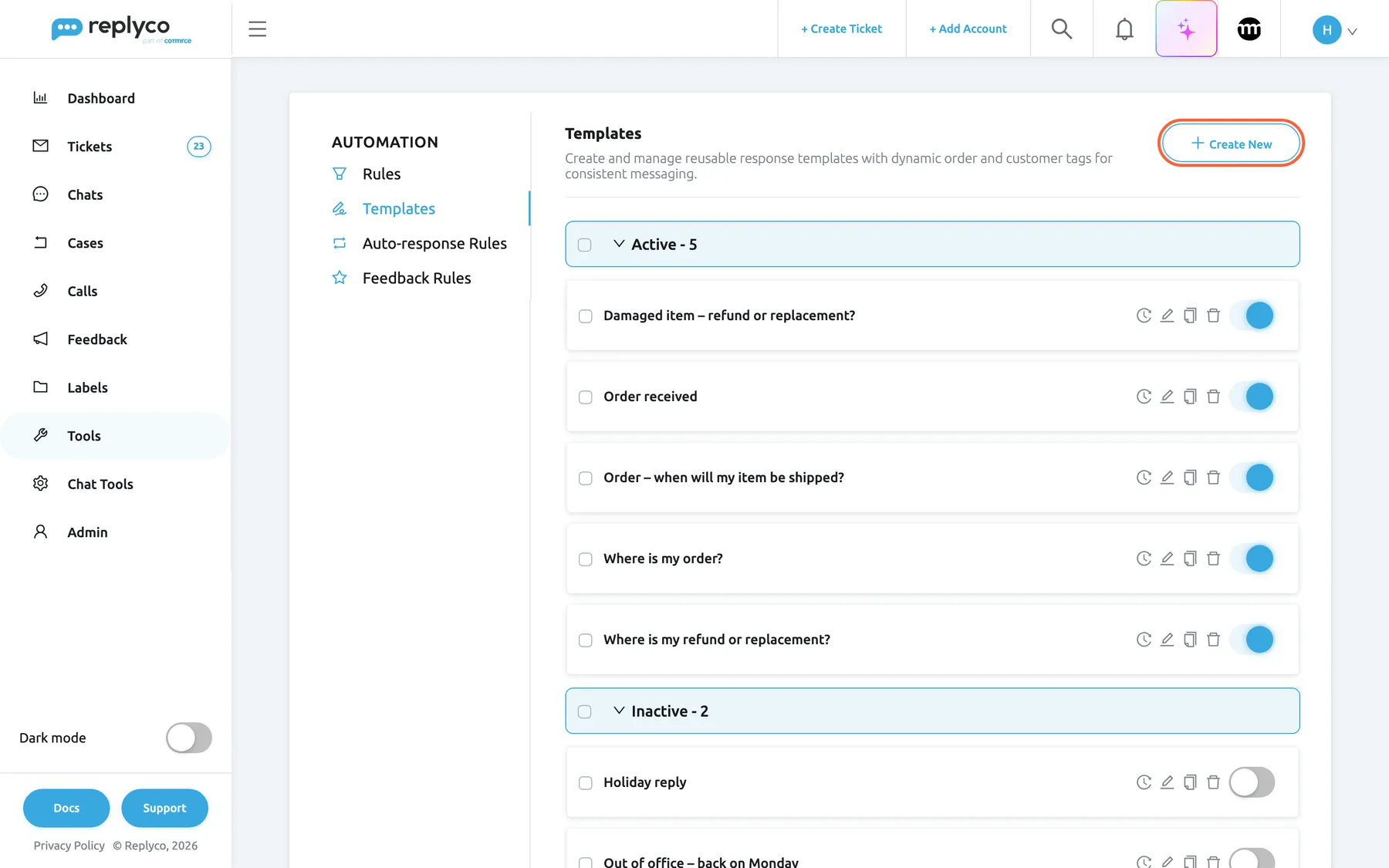
Every reply template of your company lives on the Templates tab; Create New starts a new one. What this screenshot shows
- Screen
- Templates (/tickets-automation?tab=templates)
- Highlighted
- button “Create New”, header-right, enabled. opens the Create Template form
- Also visible
- Automation tabs with Templates selected; group Active - 5 with five template cards and their switches on; group Inactive - 2
- Purpose
- entry point of the reply templates feature
-
Limit each template to its accounts. Open a template with the pencil icon and pick the accounts whose tickets should offer it under Accounts. For several templates at once, tick them and use Add Accounts. A template without accounts is offered in no ticket.
-
Link AI categories (optional). In the same form, choose the topics the template answers under Related AI Categories. A new template saved with that field empty gets categories picked by the AI; check them afterwards.
-
Decide how templates are suggested (optional). Under ToolsAI Settings, tab General, leave AI Template Suggestion and Suggest Partially Matched Template on, the setting new companies start with, or switch them off and select Save.
-
Try it in a ticket. Open a ticket from one of the template’s accounts, select Respond, pick the template from Template and select Preview: the placeholders show the ticket’s values. Set fallback texts for placeholders that can be empty under Fallbacks.
Every setting, explained
Section titled “Every setting, explained”A template has five fields and a switch on the Templates tab; two more switches under ToolsAI Settings decide how templates are suggested. They are described in the order the screens show them.
Template Name, what agents choose by
Section titled “Template Name, what agents choose by”ToolsAutomation › Templates, the first field of the form that Create New or the pencil icon opens. Saved with Save.
The name agents see in every Template list and the order the lists fall back to. It is required: an empty name gives All fields must be completed. and nothing is saved. Names do not have to be unique and have no length limit. Customers never see the name.
Agents pick under time pressure, often by typing into the list. A name that states the situation, Where is my order?, is found faster than Template 3.
Accounts, where a template is offered
Section titled “Accounts, where a template is offered”The second field of the template form; also in the Save Reply as a Template dialog. Add Accounts above the list adds accounts to several ticked templates at once.
A list of your accounts that create tickets. A ticket offers the template only when the ticket’s account is in this field; Create Ticket and forwarding offer it once you pick that account as sender; eBay case forms offer it for the case’s eBay account. Empty means the template is offered in no ticket, although it still appears on Create Ticket before a sender is chosen and in auto-response rules. The accounts also decide which files you can attach: images only when an eBay account is chosen, plus PDF files when your eBay attachment converter is on in Account Settings. Add Accounts only adds; to remove an account, edit the template. Companies on an older plan may not have the field; then every switched-on template is offered everywhere.
Marketplaces have their own rules and wording. Keeping an eBay return answer out of your shop’s tickets, and your shop’s return label out of eBay, stops the wrong promise going to the wrong customer.
| The template’s accounts | Ticket from Northwind Store | Ticket from northwind-electronics (eBay) | Ticket from the support mailbox |
|---|---|---|---|
| Northwind Store, northwind-electronics | Offered | Offered | Not offered |
| Northwind Store, the support mailbox | Offered | Not offered | Offered |
| None | Not offered | Not offered | Not offered |
| All three, but the template is switched off | Not offered | Not offered | Not offered |
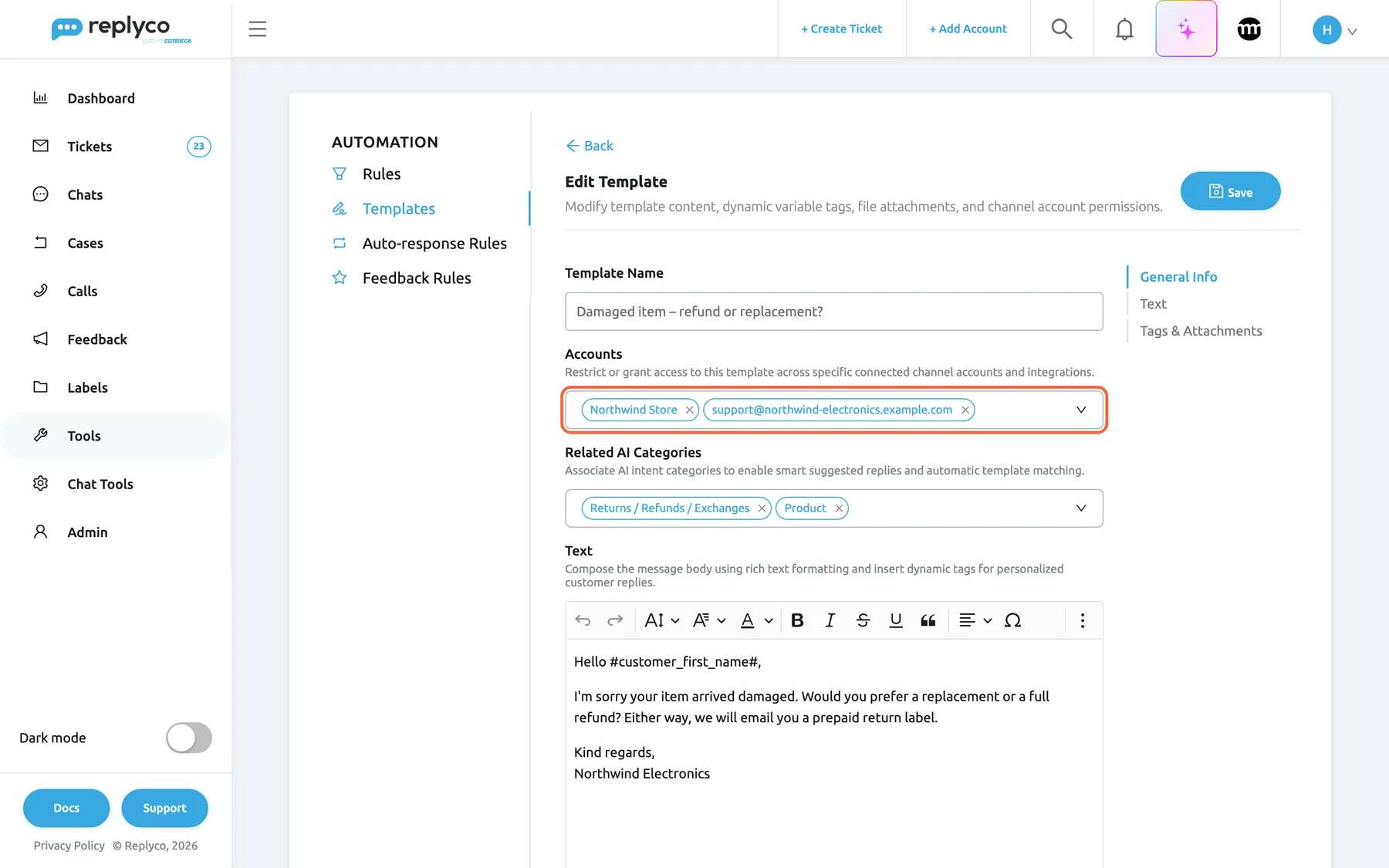
What this screenshot shows
- Screen
- Edit Template (/tickets-automation?tab=templates)
- Highlighted
- combobox “Accounts”, form-general-info, two accounts selected. limits the template to tickets from these accounts
- Also visible
- Template Name: Damaged item – refund or replacement?; Related AI Categories: Returns / Refunds / Exchanges, Product; Text editor with #customer_first_name#; Save
- Purpose
- the two settings on a template that decide where it is offered
Related AI Categories, how high a template ranks
Section titled “Related AI Categories, how high a template ranks”The third field of the template form, shown while AI Categories is on under ToolsAI Settings. Your category list is kept on AI Settings: Categories.
The topics the template answers. The reply editor compares them with the ticket’s categories to rank the template and, with AI Template Suggestion on, to fill it in. When you create a template on the tab with this field empty, Replyco sends the text and your category names to the AI and links the categories it picks; a template created with categories keeps exactly yours. When someone adds a new category, Replyco checks every template, switched-off ones included, and links it where the AI finds it fits. Editing saves exactly what is in the field and asks the AI nothing. While the field is hidden, editing a template keeps the categories it had. Categories picked in the Save Reply as a Template dialog are not saved.
The same topic usually gets the same answer. Linking the answer to the topic turns the category on the ticket into the right template at the top of the list.
Text, the reply itself
Section titled “Text, the reply itself”The editor under the general fields, with a formatting toolbar. Type # for a placeholder or / for a snippet, or select a chip under Tags.
The reply with its formatting. It is required: an empty text gives All fields must be completed.. Placeholders stay as written in every editor and are filled in when the message is sent: from the ticket in replies, from the new ticket on Create Ticket and when forwarding, from the case in eBay case actions. A placeholder with no value uses the text set for it under Fallbacks, or disappears. #username# becomes the name of the agent who sends the reply. Text between two # signs that is not a placeholder is highlighted, because nothing replaces it. Replyco removes unsafe HTML when saving and text colours when a template is used, so the template takes the colour of the editor. There is no length limit, but eBay accepts at most 4,000 characters per reply. Snippets are copied into the text when you insert them. For every placeholder and snippet, see Snippets and placeholders.
Write the answer once, check it once, and let placeholders make each copy personal.
| Do | Don’t |
|---|---|
Pick placeholders from the list: #customer_first_name# | Type your own: #first_name# is highlighted and reaches the customer as written |
Set a fallback for placeholders that can be empty, such as #tracking_number# | Assume every ticket has an order and a tracking number |
| Leave the agent’s sign-off to the signature, which the editor adds after the template | Put one agent’s name in a template everyone uses; use #username# instead |
| End templates for auto-responses with a company sign-off, such as Kind regards, Northwind Electronics | Rely on a signature in auto-responses: they send the template without one |
| Keep eBay templates short and plain: eBay receives plain text, at most 4,000 characters | Build eBay answers on bold text, colours or tables |
| Write in the language your customers read | Expect Replyco to translate a template; agents translate a reply with Translate |
| Give each template the categories only it answers | Link one catch-all template to every category: it ranks first everywhere |
Attachments, files that go with every reply
Section titled “Attachments, files that go with every reply”Under Tags & Attachments at the bottom of the form: Add Attachment adds a file, the round button next to a file removes it.
Files stored with the template and added to every reply that starts from it, and to every auto-response that sends it. In the reply editor they are listed under Template attachments. Before sending, Replyco checks them against the ticket’s channel: a file the channel does not take, such as a PDF in an eBay reply without the attachment converter, stops the reply with a warning. Files are not copied by Save Reply as a Template, and eBay case forms do not use them.
Return instructions, size charts and warranty terms belong with the answer that promises them, without anyone looking for the file.
The switch on a template card, taking a template out of use
Section titled “The switch on a template card, taking a template out of use”The switch at the right end of each card on the Templates tab. It saves at once and shows a short Success message.
Off moves the template to the Inactive group with everything it has. It is no longer offered in the reply editor, on Create Ticket, when forwarding or in eBay case forms. Auto-response rules still offer it under Template to Send and still send it. On moves it back.
Seasonal answers, such as a holiday notice, come back every year. Switching off keeps them ready without cluttering the list.
AI Template Suggestion, ranking and filling in
Section titled “AI Template Suggestion, ranking and filling in”ToolsAI Settings › General, the switch under AI Categories, described as Suggest response templates matching the detected AI category of a ticket. It is shown only while AI Categories is on. Saved with Save.
On: in a ticket’s reply editor the Template list puts templates that share the ticket’s categories first, and when exactly one template matches best the editor fills it in by itself, framed in the AI colours, with Cancel Template Suggestion to undo it. Off: the list is in name order and nothing is filled in. New companies start with it on. It works in the reply editor. Hiding it by switching AI Categories off does not change its saved value, so tickets that already have categories are still ranked.
Offering the answer first saves the scroll through a long list; filling it in saves the click as well.
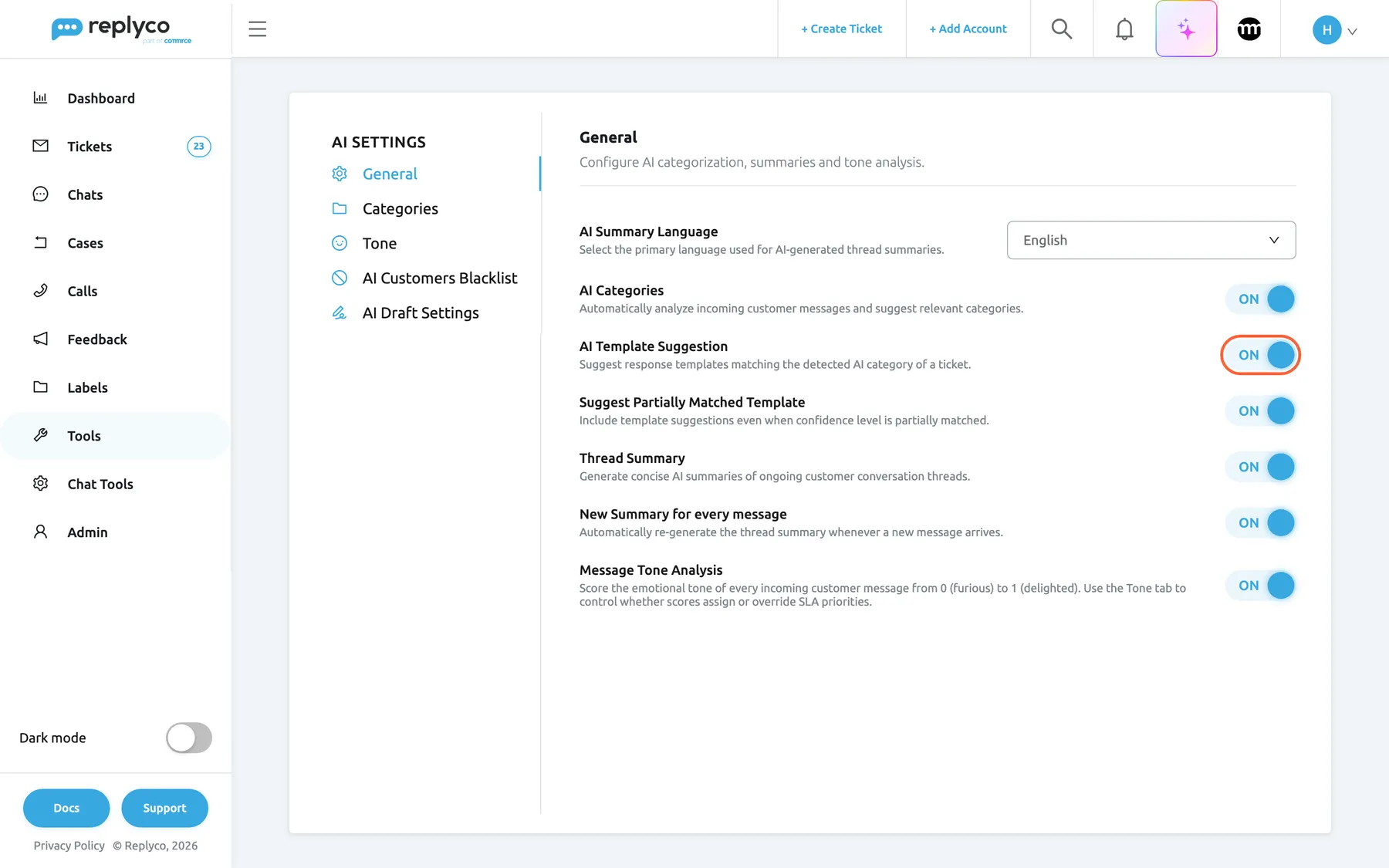
What this screenshot shows
- Screen
- AI Settings (/aiSettings?tab=general)
- Highlighted
- switch “AI Template Suggestion”, general-tab, on. ranks templates by the ticket's AI categories and fills in the best match
- Also visible
- AI Categories on; Suggest Partially Matched Template on; switch descriptions under each switch
- Purpose
- the two switches that decide how templates are suggested
Suggest Partially Matched Template, what counts as a match
Section titled “Suggest Partially Matched Template, what counts as a match”The switch under AI Template Suggestion, described as Include template suggestions even when confidence level is partially matched. It is shown only while both switches above it are on. Saved with Save.
On: a template counts every category it shares with the ticket, so one shared category is enough to rank it. Off: a template counts only when its categories are exactly the ticket’s. New companies start with it on. The worked examples in understanding which templates are offered show both.
Tickets collect categories as a conversation goes on, and a ticket with three categories rarely has a template with exactly those three. Partial matching keeps suggestions coming; exact matching is for teams that link templates to precise combinations and want nothing offered otherwise.
How the settings combine
Section titled “How the settings combine”| AI Template Suggestion | Suggest Partially Matched Template | A ticket’s Template list shows | Filled in by itself |
|---|---|---|---|
| Off | any | Switched-on templates linked to the ticket’s account, in name order | Never |
| On | Off | The same templates; exact category matches first | When exactly one template matches exactly |
| On | On | The same templates; most shared categories first | When exactly one template shares the most categories |
In every row nothing is filled in while a saved draft or an AI suggested response is in the editor, and the list is ranked only for tickets that have categories. Create Ticket and eBay case forms are never ranked.
Templates in the reply editor
Section titled “Templates in the reply editor”Once templates exist, agents meet them in the reply editor of every ticket. The editor shows the template it used and how well each template matches:
| What you see | Where | What it means |
|---|---|---|
| A sparkle and gradient text | In the Template list | The template shares the most categories with the ticket |
| Gradient text only | In the list | It shares fewer categories than the best |
| An editor framed in the AI colours | Around the text box | The editor filled a template in by itself |
| Cancel Template Suggestion | Under the text box | Removes the suggested template |
| Template attachments | Under the buttons | The template’s files, sent with the reply |
The Template list
Section titled “The Template list”Template sits above the text box, next to the recipient. It lists the switched-on templates of the ticket’s account, ranked as described in how Replyco decides; you can type to search it. Picking a template replaces everything in the text box with the template’s text and your signature for the account, and adds the template’s files; text you typed before is lost. The cross in the field clears the choice and leaves only your signature. To learn every part of this editor, see Answer a ticket and The ticket screen.
Why: the list shows the answers for this channel only, the likeliest first, so agents stop scrolling through templates meant for other marketplaces.
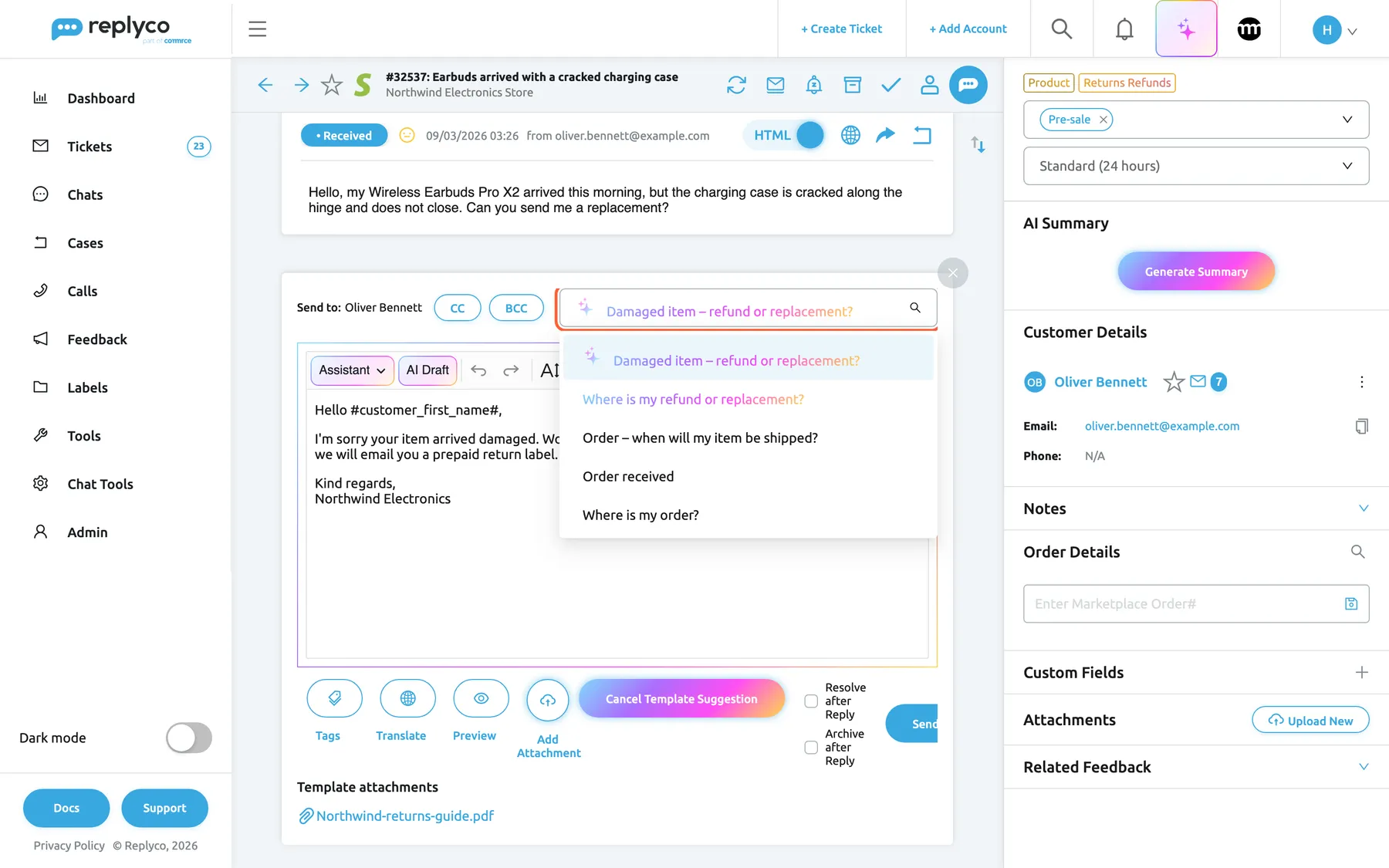
What this screenshot shows
- Screen
- Respond (/ticket/:threadId)
- Highlighted
- combobox “Template”, editor-header, expanded; Damaged item – refund or replacement? selected. lists the ticket account's templates, best category matches first
- Also visible
- ticket categories: Product, Returns Refunds; sparkle and gradient text on the best match; gradient text on a partial match; Cancel Template Suggestion button; Template attachments: Northwind-returns-guide.pdf; editor framed in AI colours
- Purpose
- how the reply editor ranks and fills in templates
Automatic filling and Cancel Template Suggestion
Section titled “Automatic filling and Cancel Template Suggestion”When AI Template Suggestion is on and exactly one template matches best, the editor opens with that template already in it, framed in the AI colours, and Cancel Template Suggestion appears under it. Nothing is sent: the agent reads, edits and sends as usual, or cancels. A suggested template that is sent counts for that template on the Performance dashboard, like one picked by hand. The editor fills in nothing when a draft is saved on the ticket or an AI suggested response is waiting; see AI drafts.
Why: on a busy topic, most tickets get the same answer; the suggestion turns a pick into a check.
Placeholders, snippets and Preview
Section titled “Placeholders, snippets and Preview”In the editor, placeholders stay as written, such as #customer_first_name#, so the agent sees what will be filled in. Preview under the text box opens Message Preview with the message as the customer will receive it: every placeholder replaced by the ticket’s value, or by its fallback, and #username# by your name. For eBay tickets the preview also counts the characters after the placeholders are filled. Type / to insert a snippet, # to insert a placeholder, or use Tags. On Create Ticket the preview keeps placeholders as written, except #username#, because the ticket does not exist yet.
Why: a missing tracking number or a misspelt placeholder shows up in the preview, not in the customer’s inbox.
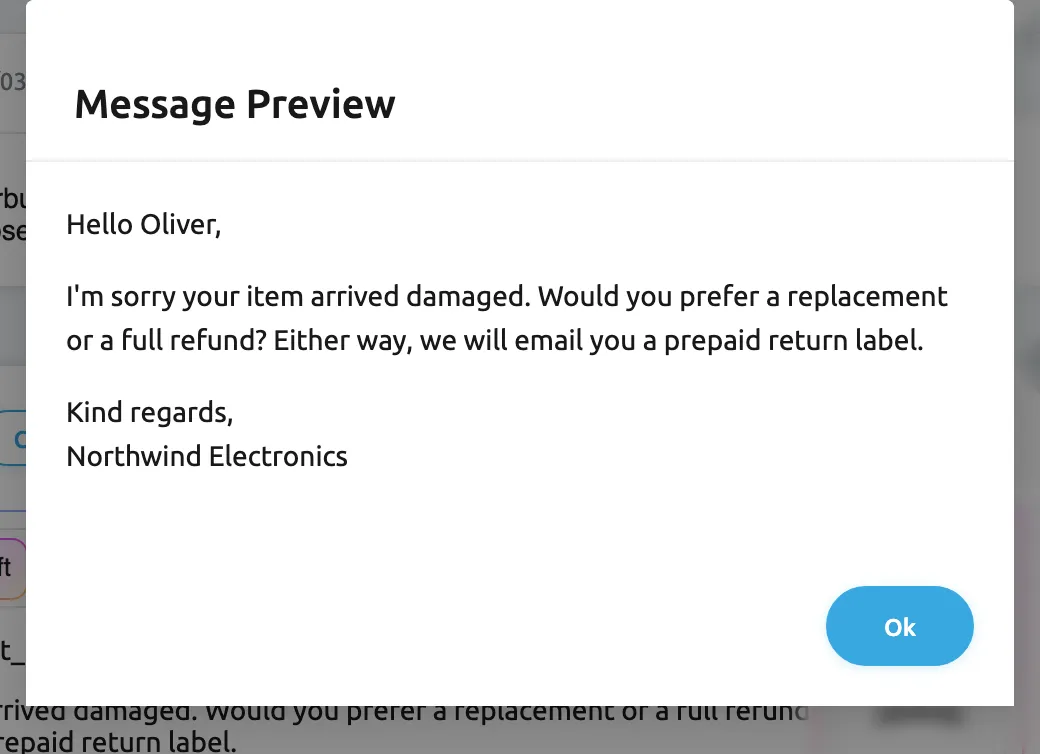
What this screenshot shows
- Screen
- Message Preview (/ticket/:threadId)
- Highlighted
- dialog “Message Preview”, dialog, open. shows the reply with placeholders filled in
- Also visible
- Hello Oliver (de: Hallo Lukas) in place of #customer_first_name#; the template text and sign-off; Ok button
- Purpose
- check placeholders before sending
Save Reply as a Template, a template from a reply
Section titled “Save Reply as a Template, a template from a reply”In the reply editor of a ticket and on Create Ticket: the arrow next to the send button opens a menu with Choose Delaying Time and Save Reply as a Template.
The dialog asks for Template Name and Accounts. Save creates a new, switched-on template from the text in the editor, with its placeholders and formatting, cut off at your signature for the account; anything after the signature, such as a forwarded message, is left out too. Files attached to the reply are not copied. The Related AI Categories field links the template to AI categories. The reply itself is not sent. An empty name or an empty editor gives All fields must be completed., and without the edit level of the Automation permission Replyco answers You don't have enough rights.
The best answers are often written in a ticket. Saving one keeps it for the next customer with the same question.
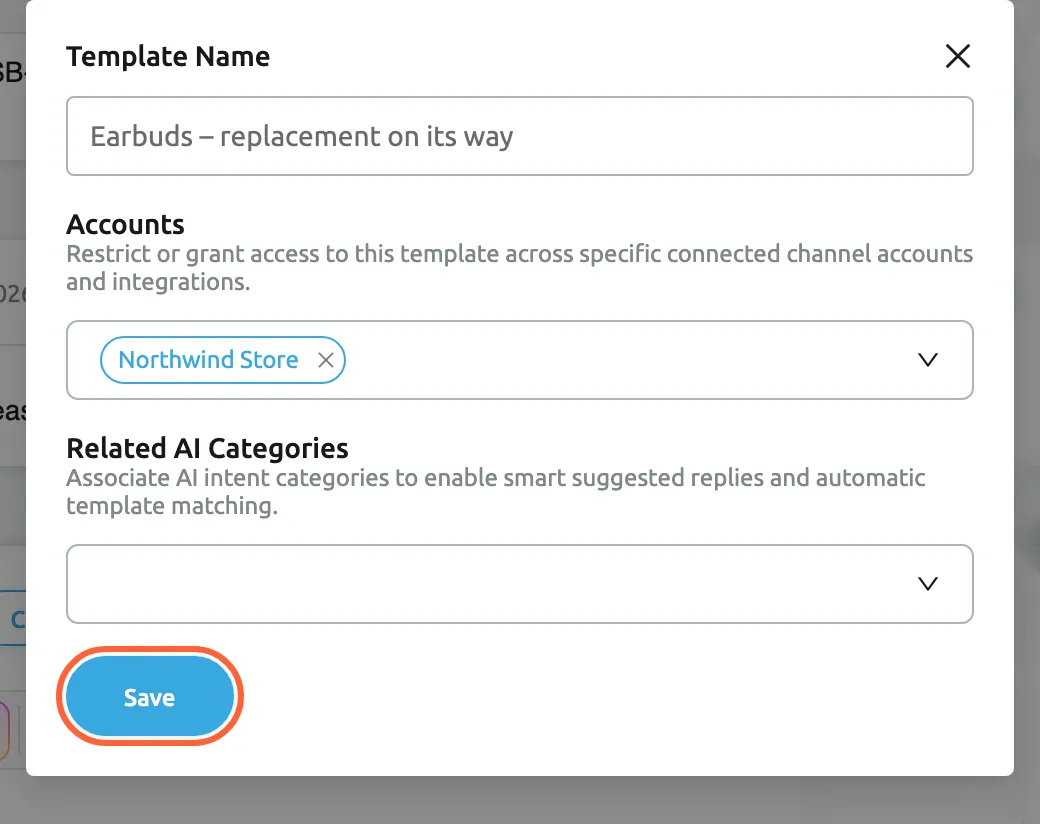
What this screenshot shows
- Screen
- Save Reply as a Template (/ticket/:threadId)
- Highlighted
- button “Save”, dialog-bottom-left, enabled. creates a template from the reply text
- Also visible
- Template Name filled; Accounts: Northwind Store; Related AI Categories field
- Purpose
- create a template from a reply
Templates on Create Ticket
Section titled “Templates on Create Ticket”Create Ticket, opened with + Create Ticket in the top bar: the Template list above the text box.
Before you choose a sender, the list offers every switched-on template. Once you pick the sender in the right column, it offers only the switched-on templates linked to that account. Choosing a recipient fills in the sender but does not load that account’s templates or your signature; pick the sender from the list yourself. The list is in name order and nothing is filled in by itself. Picking a template replaces the text box with the template’s text and your signature and adds its files. Placeholders are filled in from the new ticket when it is created. See Create Ticket.
A message you start yourself, such as a dispatch notice, should read exactly like your replies.
Three ways to use it:
- Send a proactive delay notice to a Shopify customer from Northwind Store with Order – when will my item be shipped?.
- Ask an eBay buyer for photos of damage with a template linked only to northwind-electronics.
- Write to someone who never contacted you, from the support mailbox, with a template whose placeholders have fallbacks.
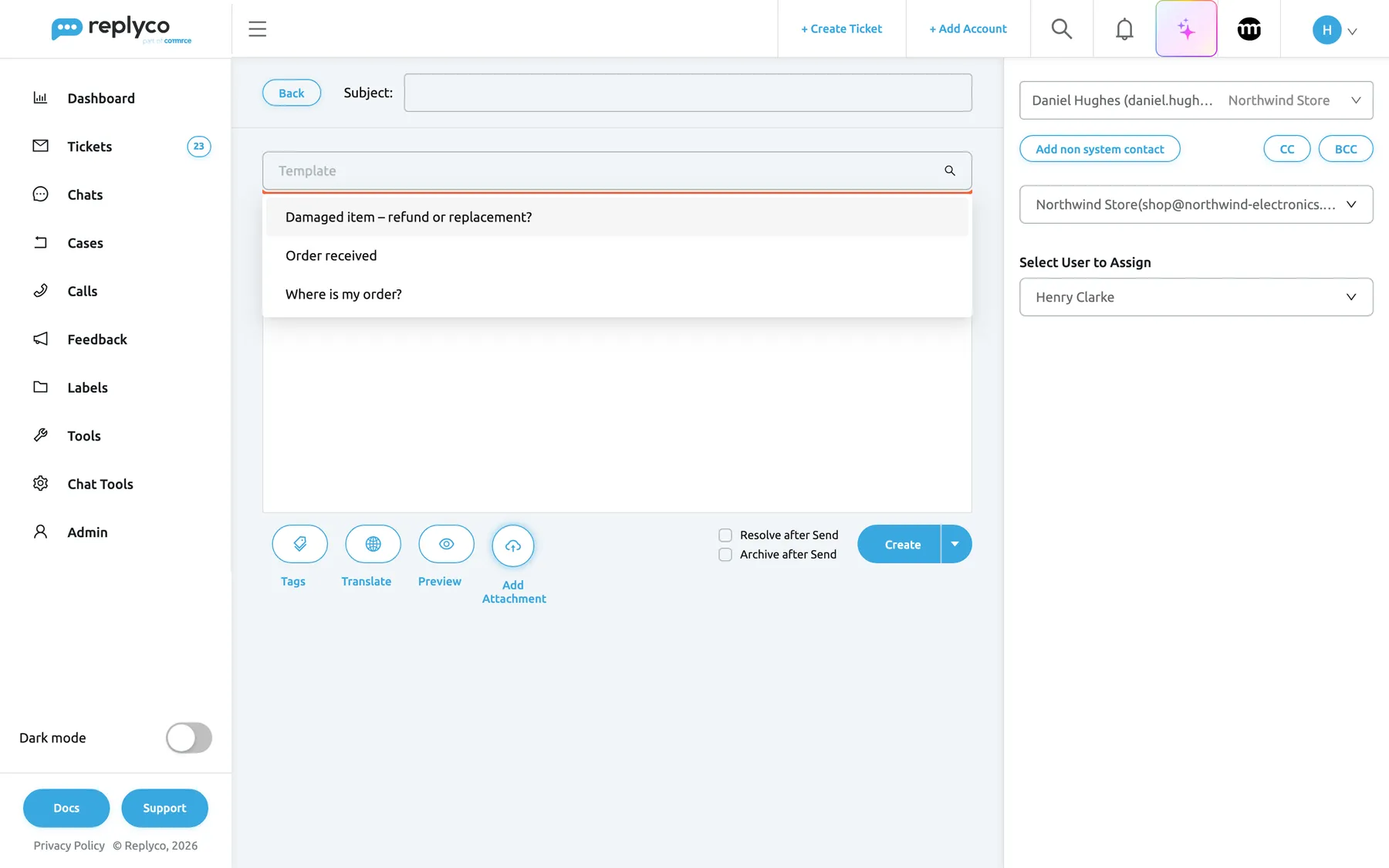
What this screenshot shows
- Screen
- + Create Ticket (/createTicket)
- Highlighted
- combobox “Template”, editor-header, expanded. fills the text box with a template
- Also visible
- sender: Northwind Store; three templates linked to Northwind Store; signature in the text box
- Purpose
- templates on Create Ticket follow the sender
Templates when forwarding a message
Section titled “Templates when forwarding a message”The forward arrow on a message in a ticket opens the same form, with the message in a block in the text box. The Template list sits above it, and the sender is chosen under From.
Before you choose a sender, the list offers every switched-on template. Once you pick the sender, it offers that account’s templates. The sent message fills placeholders from the new ticket, whose customer is the person you forward to.
Forwarding usually goes to a warehouse, a supplier or a colleague, not to the customer, so it needs templates written for them.
Three ways to use it:
- Forward a new delivery address to your warehouse and write one line above the forwarded block.
- Keep a short template such as Please process this return linked to the mailbox you forward from, and pick it by hand.
- Forward a customer’s complaint to a supplier with a template that asks for a replacement part.
Templates in auto-response rules
Section titled “Templates in auto-response rules”ToolsAutomation › Auto-response Rules: Template to Send in the rule form.
The list offers every template of your company, switched on or off, regardless of the template’s accounts; the rule’s own accounts decide which tickets it answers. When the rule fires, Replyco sends the template’s text and files as they are, with placeholders filled in from the ticket, and without a signature. #username# becomes the name of the agent the ticket is assigned to, or the fallback text when nobody is. Changing the template changes every later auto-response. See Auto-responses for tickets.
An auto-response is a template sent at a moment you choose: outside working hours, on the first message, on a holiday.
Three ways to use it:
- A rule for weekend messages sends Out of office – back on Monday, which stays switched off on the Templates tab so agents never pick it.
- A rule for the first message of an eBay buyer sends Order received with
#order_id#filled in. - A holiday rule sends Holiday reply with a date range, and the template’s PDF with your returns guide.
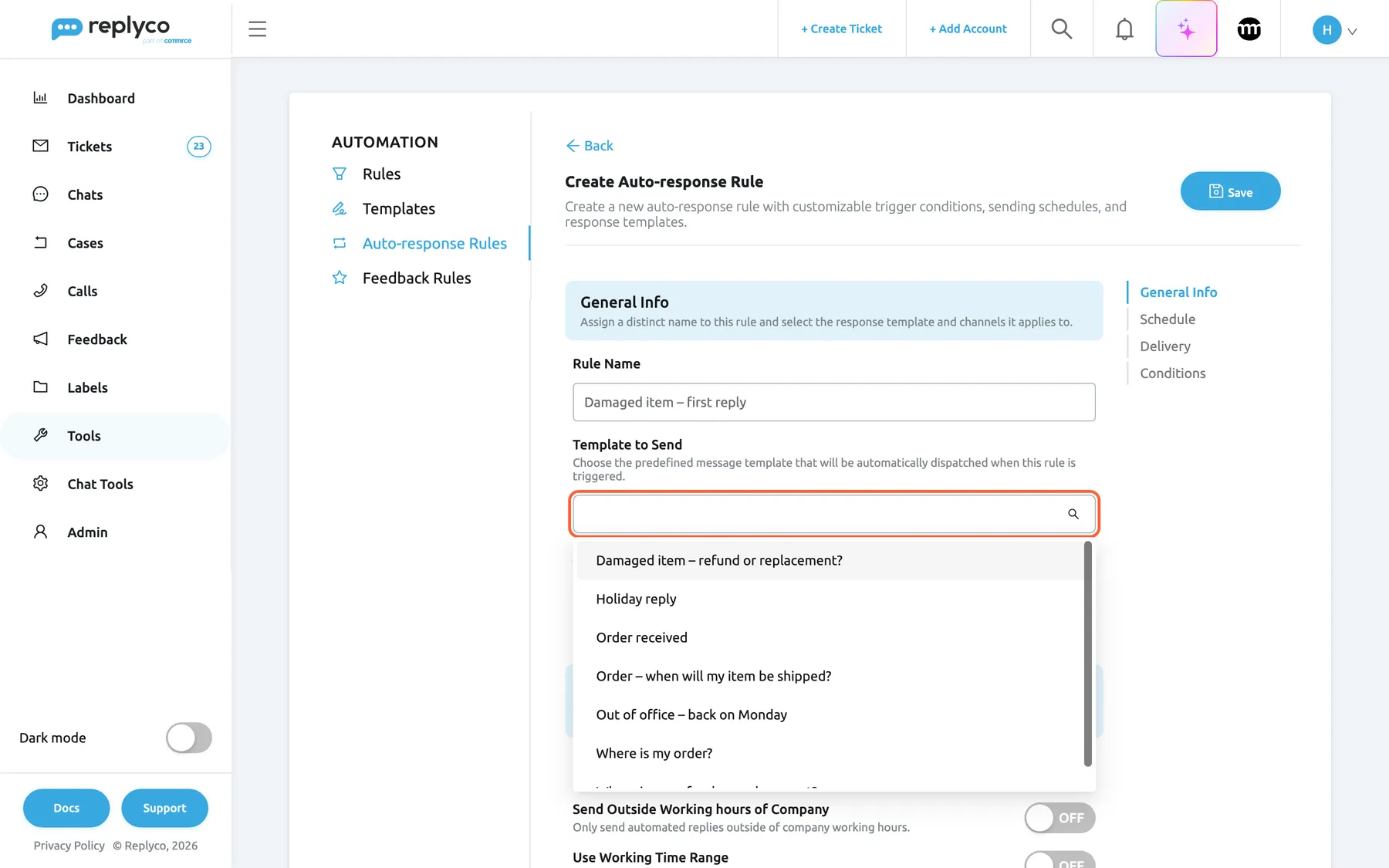
What this screenshot shows
- Screen
- Create Auto-response Rule (/tickets-automation?tab=autoresponseRules)
- Highlighted
- combobox “Template to Send”, form-general-info, expanded. chooses the template the rule sends
- Also visible
- Rule Name filled; seven templates, switched-off ones included; Accounts field of the rule below
- Purpose
- templates sent by auto-response rules
Templates in eBay case actions
Section titled “Templates in eBay case actions”A case under Cases: every action with a Message or Comment box, such as Send Message, has a Template list and a Tags button.
The list offers the switched-on templates linked to the case’s eBay account, without ranking. Picking one puts the template’s text into the box as plain text, without formatting and without its files, and you can edit it before sending. Placeholders are filled in from the case and your name before eBay receives the text; there is no preview. See eBay cases and The case screen.
Case messages go through eBay’s resolution system, where the same careful wording matters as in a ticket.
Three ways to use it:
- Offer a replacement in a return with Damaged item – refund or replacement?.
- Answer an item-not-received inquiry with Where is my order? and the tracking placeholder.
- Keep a plain-text version of long templates for eBay, since formatting is removed.
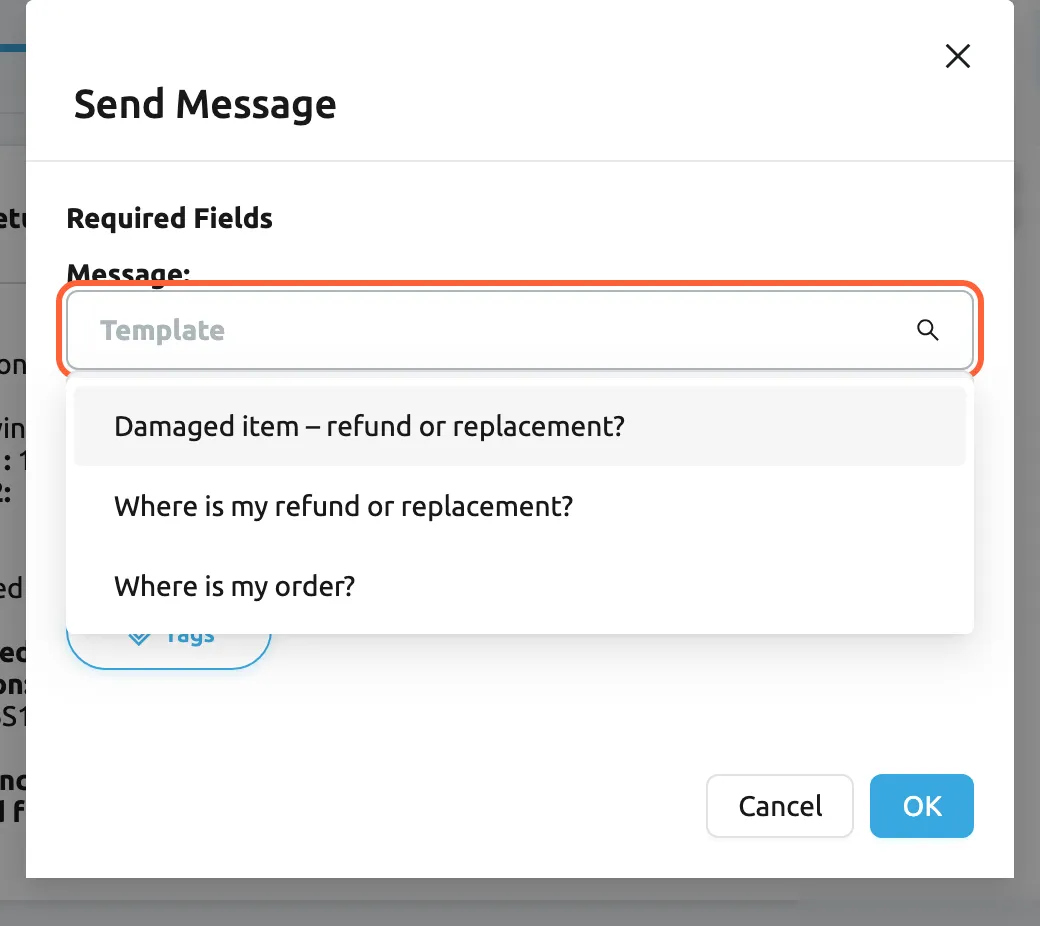
What this screenshot shows
- Screen
- Send Message (/case/:caseId)
- Highlighted
- combobox “Template”, dialog, expanded. fills the message with a template's plain text
- Also visible
- three templates linked to the eBay account; Tags button; Cancel and OK
- Purpose
- templates in eBay case actions
Templates Usage on the Performance dashboard
Section titled “Templates Usage on the Performance dashboard”DashboardPerformance, the widget Templates Usage. See Performance dashboard.
The table lists every template with the number of messages sent from it in the chosen period, the most used first, five per page, including templates nobody used. The pie chart shows the share of each used template, the eight largest separately. A message counts for the template it was started from, whatever was edited afterwards and whether or not the channel delivered it, including templates the editor filled in by itself and auto-responses that send the template. Deleted templates drop out of the table.
The most used templates deserve the most care; the unused ones may need a clearer name, better categories or retirement.
Three ways to use it:
- A template that answers a third of all template replies, such as Where is my order?, is the first one to improve, for example with a tracking placeholder.
- A template at zero for a month is a candidate to switch off, or to rename so agents find it.
- A template that jumps after you linked categories shows that the suggestion is doing the picking.
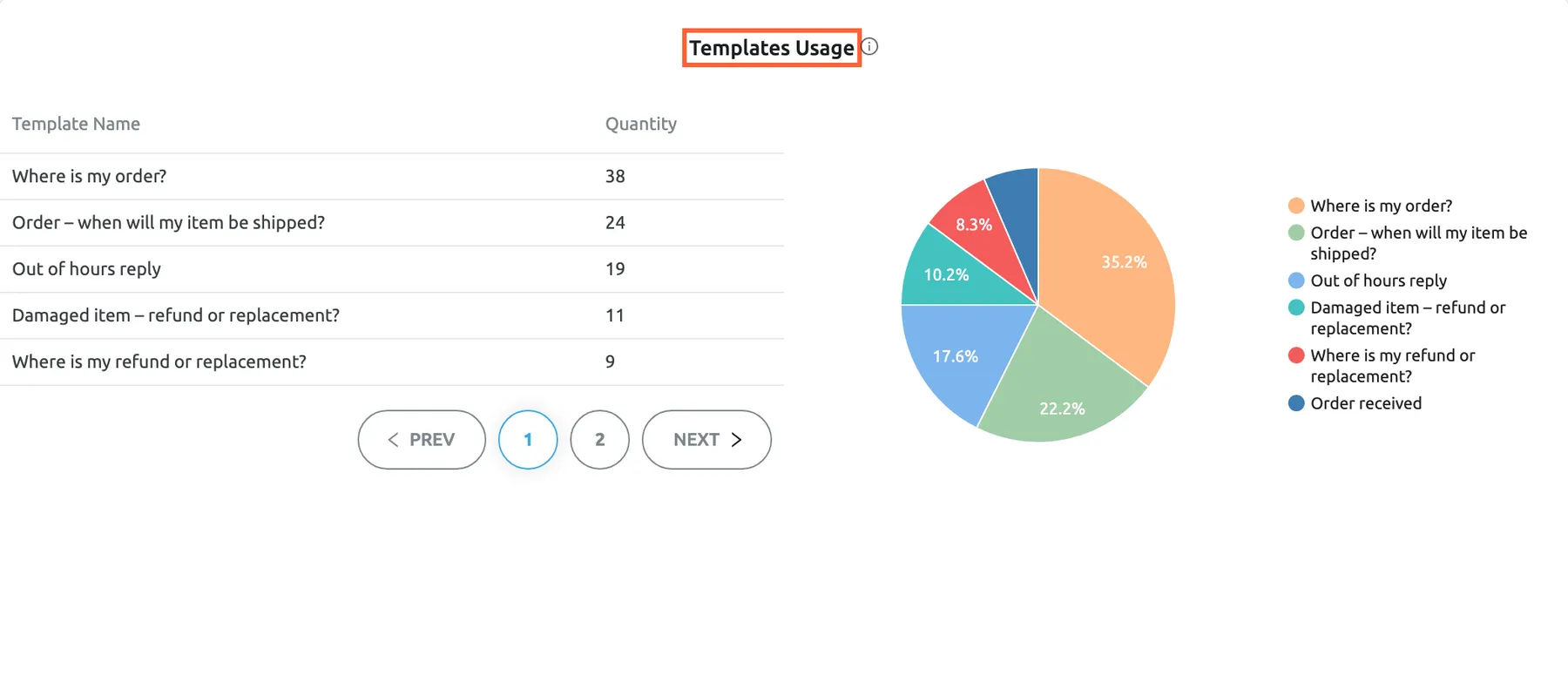
What this screenshot shows
- Screen
- Performance (/dashboard/performance)
- Highlighted
- heading “Templates Usage”, widget, shown. counts messages sent per template
- Also visible
- table of Template Name and Quantity; pie chart of used templates
- Purpose
- see which templates are used
What you need to know
Section titled “What you need to know”| Topic | Fact |
|---|---|
| Scope | Templates belong to the company; everyone sees the same list. Chats have their own chat templates. |
| Required fields | A name and a text. Accounts, AI categories and files are optional. |
| Limits | No limit on the number of templates or on their length. eBay accepts at most 4,000 characters per reply. |
| Account link | A ticket offers only switched-on templates linked to its account; no fallback to unlinked templates. |
| Order | Most shared categories first, then name. Name order when suggestions are off and on Create Ticket. |
| Automatic filling | Only when exactly one template matches best; never over a saved draft or a waiting AI suggested response. |
| Placeholders | Stay as written in editors; filled when sending, and in Preview in replies. A missing value uses its fallback text or disappears. |
| Signature | Added after the template in editors; not added to auto-responses; cut off by Save Reply as a Template. |
| Files | Sent with every reply and auto-response from the template; cannot be removed in the reply editor; not used in eBay cases. |
| Changes over time | An edit applies to the next use; messages already sent keep their text. |
| Switching off | Hides the template from agents, not from auto-response rules. Everything is kept. |
| Deleting | Permanent; deletes the auto-response rules that send the template and removes it from the usage widget. Sent messages stay. |
| Language | Sent in the language it is written in. Dates in placeholders use German formats for companies in the German region. |
| Failures | A file the ticket’s channel does not accept stops the reply with a file-type warning. If the template list cannot load, the editor shows an error message and the list stays empty or as before. |
| Cost | No cost to use. One AI action per new template saved without categories, one per template when a category is added. |
Frequently asked questions
Section titled “Frequently asked questions”General
Section titled “General”What is a reply template in Replyco?
Section titled “What is a reply template in Replyco?”A reply template is a saved answer with a name and a text, kept under ToolsAutomation on the Templates tab. Agents pick it in the reply editor, on Create Ticket or in eBay case forms, auto-response rules send it by themselves, and placeholders such as #customer_first_name# are filled in for each customer when the message is sent.
Do reply templates need Replyco AI?
Section titled “Do reply templates need Replyco AI?”No. Templates, placeholders and account limits work without any AI. Replyco AI, which every plan includes, adds two things: it picks AI categories for a new template saved without any, and with AI categories on, the reply editor ranks templates by the ticket’s categories and can fill in the best match.
Which plan do I need to limit templates to accounts?
Section titled “Which plan do I need to limit templates to accounts?”None beyond your current plan: every plan includes limiting a template to accounts under Accounts, and ranking and filling in templates by AI category, and during a trial every part is available. Companies on an older plan may not have them; their tickets offer every switched-on template, in name order. See What each plan includes.
Who can create and change templates?
Section titled “Who can create and change templates?”Users with the edit level of the Automation permission, which the Admin and Moderator roles have, can create, edit, switch and delete templates, also with Save Reply as a Template. Anyone else gets You don't have enough rights. Every agent can use templates when replying.
Is there a limit on the number or length of templates?
Section titled “Is there a limit on the number or length of templates?”Replyco sets no limit on the number of templates or on the length of their name and text. The channel’s own limits still apply when a reply is sent: eBay accepts at most 4,000 characters per reply, and the send button stays greyed out above that.
Why doesn’t my new template appear in tickets?
Section titled “Why doesn’t my new template appear in tickets?”A ticket offers only switched-on templates whose Accounts include the ticket’s account. Open the template on the Templates tab under ToolsAutomation, check that it is in the Active group and add the ticket’s account, then reopen the reply editor.
Can one template serve several channels?
Section titled “Can one template serve several channels?”Yes. Pick every account that should offer it under Accounts on the Templates tab. When a channel needs different wording or files, for example images only for eBay, copy the template and give each copy its own accounts, so each channel gets the version that fits it.
Can I turn a reply I wrote into a template?
Section titled “Can I turn a reply I wrote into a template?”Yes. In the reply editor or on Create Ticket, select the arrow next to the send button, then Save Reply as a Template, enter a name and the accounts and select Save. The template is created without your signature and without the reply’s files, the reply is not sent, and AI categories must be added afterwards on the Templates tab.
Where do the AI categories on my new template come from?
Section titled “Where do the AI categories on my new template come from?”When you create a template on the Templates tab and leave Related AI Categories empty, Replyco sends its text and your category names to the AI and links the categories it picks. Adding a new AI category also links it to templates it fits. Edit the template and change the field to correct them.
Matching and suggestions
Section titled “Matching and suggestions”Why was a template filled in when I opened the reply editor?
Section titled “Why was a template filled in when I opened the reply editor?”AI Template Suggestion is on under ToolsAI Settings, and exactly one template linked to the ticket’s account shared the most AI categories with the ticket. Select Cancel Template Suggestion to remove it, or pick another template from the Template list.
Why is no template filled in although my templates have categories?
Section titled “Why is no template filled in although my templates have categories?”The editor fills in a template only when AI Template Suggestion is on, the ticket has AI categories, and exactly one template matches best. Two templates with the same categories tie, and a tie fills in nothing. A saved draft or a waiting AI suggested response also blocks it.
What do the sparkle and the gradient text in the Template list mean?
Section titled “What do the sparkle and the gradient text in the Template list mean?”In a ticket’s Template list, gradient text marks templates that share at least one AI category with the ticket; they are listed first. The sparkle marks those that share the most. Plain templates share none and follow in name order. The ranking depends on Suggest Partially Matched Template under ToolsAI Settings.
What is the difference between partial and exact matching?
Section titled “What is the difference between partial and exact matching?”With Suggest Partially Matched Template on, a template counts every AI category it shares with the ticket, so one shared category ranks it. With it off, a template counts only when its categories are exactly the ticket’s, no more and no fewer. Tickets collect categories over time, so exact matching suggests less on long conversations.
Does the template suggestion cost AI usage?
Section titled “Does the template suggestion cost AI usage?”No. Ranking and filling in compare the categories on the ticket with the categories linked to each template; there is no AI call. AI actions are counted when messages are categorised, when a template is created without categories, and once per template when you add a new AI category.
In the reply editor
Section titled “In the reply editor”Why do placeholders still show as #…# in the editor?
Section titled “Why do placeholders still show as #…# in the editor?”Placeholders stay as written in the reply editor so you can see what will be filled in. Replyco replaces them with the ticket’s values when the reply is sent. Select Preview under the text box to open Message Preview and see the message exactly as the customer will receive it.
Why did the customer see an empty space where a placeholder was?
Section titled “Why did the customer see an empty space where a placeholder was?”The ticket had no value for that placeholder, for example no tracking number yet, and no fallback text was set for it. Set one under Fallbacks under Tools, and use Preview in the reply editor to check a reply before sending it.
Why did picking a template delete what I had typed?
Section titled “Why did picking a template delete what I had typed?”Picking a template in the Template list replaces everything in the text box with the template’s text and your signature, whether you pick it or the editor fills it in. Pick the template first and edit afterwards. Copy anything you want to keep before choosing a different template.
Where does my signature go when I use a template?
Section titled “Where does my signature go when I use a template?”The editor adds your signature for the ticket’s account after the template’s text, so a template should not contain a personal sign-off. Auto-responses send the template without a signature, and Save Reply as a Template cuts the text off at your signature, so the new template never contains it.
Other screens
Section titled “Other screens”Can I use templates on Create Ticket?
Section titled “Can I use templates on Create Ticket?”Yes. The Template list on Create Ticket offers every switched-on template until you pick a sender, and only that account’s templates afterwards. Pick the sender from the list yourself: choosing only the recipient does not load the account’s templates or signature.
Can I use templates in eBay cases?
Section titled “Can I use templates in eBay cases?”Yes. Every case action with a Message or Comment box has a Template list with the switched-on templates linked to the case’s eBay account. The text arrives as plain text without files, and placeholders are filled in from the case before eBay receives it.
Which templates can an auto-response rule send?
Section titled “Which templates can an auto-response rule send?”Any template of your company, switched on or off, whatever accounts it is linked to. Choose it under Template to Send in the rule under Auto-response Rules. The rule’s own accounts decide which tickets it answers, and the template is sent with its files and without a signature.
Dashboard
Section titled “Dashboard”How do I see which templates are used?
Section titled “How do I see which templates are used?”Open DashboardPerformance and find Templates Usage. Its table lists every template with the number of messages written from it in the chosen period, delivered or not, the most used first, and a pie chart shows each used template’s share. Auto-responses that send a template count too.
Does a template the editor filled in by itself count as used?
Section titled “Does a template the editor filled in by itself count as used?”Yes. A message counts for the template it was started from in Templates Usage on DashboardPerformance, whether the agent picked it or the editor filled it in, and however much the text was edited before sending. A suggestion the agent cancelled does not count.
Switching off and deleting
Section titled “Switching off and deleting”Does switching a template off stop our automatic replies?
Section titled “Does switching a template off stop our automatic replies?”No. Auto-response rules keep sending a template that is switched off on the Templates tab; switching off only hides it from agents in the reply editor, on Create Ticket, when forwarding and in eBay case forms. To stop an automatic reply, switch off the rule under Auto-response Rules.
What happens when I delete a template?
Section titled “What happens when I delete a template?”Deleting a template on the Templates tab is permanent. Its links to accounts and AI categories go with it, every auto-response rule that sends it is deleted too, and it drops out of Templates Usage. Replies already sent keep their text. Switch it off instead if you might need it again.
Can I get a deleted template back?
Section titled “Can I get a deleted template back?”No. There is no undo for deleting a template on the Templates tab, and the auto-response rules that sent it are gone as well. Recreate the template, then recreate its rules under Auto-response Rules. Next time, switch a template off to keep it in the Inactive group.
Data and privacy
Section titled “Data and privacy”Do customers see the template name, its accounts or its categories?
Section titled “Do customers see the template name, its accounts or its categories?”No. Customers receive only the text, with every placeholder replaced by the ticket’s value or its fallback, and the template’s files as attachments. The name, the accounts and the AI categories of a template stay inside Replyco, on the Templates tab and in the reply editor.
Is my template text sent to an AI?
Section titled “Is my template text sent to an AI?”Only when categories are picked for you: when you create a template on the Templates tab with Related AI Categories empty, and when someone adds a new AI category. Then the template text and your category names are sent to the AI. Ranking in the reply editor sends nothing to the AI.
Troubleshooting
Section titled “Troubleshooting”| Symptom | What to check |
|---|---|
| A template is missing from a ticket’s Template list | 1. The template is in the Active group. 2. The ticket’s account is in its Accounts. 3. The reply editor was reopened after the change. |
| A new template is missing from every ticket | Its Accounts field is empty; add accounts or use Add Accounts on the Templates tab. |
| Create Ticket shows the wrong templates | The list follows the sender. Pick the sender in the right column yourself; choosing only the recipient does not load that account’s templates. |
| The editor fills in a template nobody wants | The template shares the most AI categories with the ticket. Narrow its Related AI Categories, switch Suggest Partially Matched Template off, or switch AI Template Suggestion off. |
| No template is filled in although categories match | In order: AI Template Suggestion is on; the ticket has categories; no two templates tie; no draft is saved and no AI suggested response is waiting. |
| Text I typed disappeared | Picking or suggesting a template replaces the text box. Pick the template first, then write. |
The customer received #…# text as written | The placeholder is misspelt; it is highlighted in the template editor. Replace it with one from Tags. |
| A placeholder came out empty | The ticket has no value for it; set a fallback under Fallbacks. |
| A file-type warning appears when sending | A template file does not fit the ticket’s channel, for example a PDF in an eBay reply. Remove the file from the template or turn on the eBay attachment converter in Account Settings. |
| The send button is greyed out in an eBay ticket | The text is over 4,000 characters; the counter under the editor shows it. Shorten the template. |
| An automatic reply still goes out after switching its template off | Auto-response rules ignore the template’s switch; switch off the rule under Auto-response Rules. |
| An auto-response rule disappeared | Its template was deleted, which deletes the rules that send it. Recreate the template and the rule. |
| A template saved from a reply has no AI categories or files | Save Reply as a Template saves neither; add them on the Templates tab. |
| You don't have enough rights when saving | The user needs the edit level of Automation under AdminUsers. |
Related
Section titled “Related”- Templates: the Templates tab, every control on it
- AI categories: how categories are detected and matched to templates
- AI Settings: the two suggestion switches
- Answer a ticket · The ticket screen
- Create Ticket: new messages and forwarding
- Snippets and placeholders · Fallbacks
- Auto-responses for tickets · Auto-response Rules
- eBay cases
- Performance dashboard
- AI drafts
- Chat templates
- What each plan includes