

Replyco Copilot
A support day is full of small lookups and repeated clicks: which tickets are waiting, who has too many, what the customer ordered, how fast the team answered last month. Replyco Copilot is an AI assistant in a panel beside your work. You ask in plain words, and it looks things up in your Replyco account, drafts replies, changes tickets after you approve, and explains how Replyco works.
What it does
Section titled “What it does”Much of a helpdesk job is finding the right record and then doing something routine with it. Each lookup takes a few clicks and a filter, and the answer to “how are we doing this month” is spread over several reports.
Copilot does that work from a chat. It opens from the sparkle button in the top bar, on every screen, and knows which screen you are on, so “this ticket” or “the tickets on this page” mean what you see. It reads and acts through your own Replyco sign-in, so it sees exactly what you can see and nothing more. From the chat you can:
- Find, count and summarise tickets, and change them: assign, prioritise, resolve, reopen, snooze, star, file into folders and reply. See Copilot and your tickets.
- Have a reply drafted from the conversation, the order and your templates, and send it only after you approve it. See replying to customers with Copilot.
- Read and answer live chats, assign and close them. See Copilot and your chats.
- Review and create templates, signatures, rules and autoresponders. See Copilot for setup and automation.
- Pull numbers from your reports as text, tables or charts, and have them emailed as a spreadsheet. See Copilot for reports.
- Ask how anything in Replyco works. See questions about Replyco.
Nothing changes in your account without you seeing it first: every change is shown on an approval card that names the tickets, people and text involved, and runs only when you approve it. Each answer also shows the steps Copilot took, so you can check where a number came from.
Before you start
Section titled “Before you start”| Requirement | Details |
|---|---|
| Copilot for your company | Copilot is a separate feature in a pilot phase; it is not part of a plan. Replyco switches it on per company, and during a trial that has not ended it is available to companies outside the German region. If you do not see the sparkle button in the top bar, Copilot may not be available to your company yet. To use it, ask Replyco’s support team to switch it on with Support at the foot of the sidebar. See What each plan includes. |
| Your own access | Copilot works with your Replyco sign-in, so it can see and change only what your permissions allow. A user who cannot open a folder, a chat list or a report cannot reach it through Copilot either. See User permissions and roles. |
| A signed-in session | The panel loads a few seconds after a Replyco screen opens. |
| Provider | Copilot is provided by StrikeUp, an AI assistant service. The panel is StrikeUp’s, and Replyco hands it what it needs to act for you. No data is shared until you ask Copilot something; see data and privacy. |
Understanding what Copilot reads and changes
Section titled “Understanding what Copilot reads and changes”Copilot separates looking from changing, and it always works from what it has looked up in the current conversation.
| What you ask for | What Copilot does | Example |
|---|---|---|
| Something to look up: search, list, open, count, report | Runs straight away, no confirmation | Show my unresolved tickets sorted by oldest first. |
| Something to change: assign, resolve, snooze, star, file, send, create | Shows an approval card and waits | Assign ticket 48213 to Maria. |
| A question about Replyco | Answers from Replyco’s documentation | How do I connect an Outlook mailbox? |
| Something outside your account and Replyco | Says it does not know and points you to support | A question about a marketplace’s own policy |
How Copilot decides
Section titled “How Copilot decides”- What you are looking at. Each time you move to another screen, Replyco tells Copilot who you are, the screen’s name and address, and a short description of what it shows: the ticket you have open, the folder, filters and search on a list, or the case, chat, order, contact, call, feedback or dashboard you selected. That is why “summarise this ticket” works without a number. Customer names and email addresses in the description are masked. The description has a length limit, so on a very long list Copilot sees the first part and looks up the rest.
- One approval card per change. Before anything changes, the card names exactly what will change: the ticket numbers, the user, the folder or the message text. Approve runs it; Reject cancels it and nothing happens. When you asked for the action outright, the card is the confirmation; Copilot does not ask “are you sure?” a second time.
- Only records it found. Copilot acts only on tickets, chats and other records it looked up in this conversation. If a card names the wrong ticket, reject it and say which one you meant.
- One question when unsure. When “this” could mean several tickets, or you are not on a ticket screen, Copilot asks once which one you mean. Answer with the ticket number.
- Periods it works out. “Last month”, “since Monday” or “Q3” are turned into dates for you. When a range is genuinely ambiguous, Copilot asks one question and then runs the report.
- Checks its own changes. After a change, Copilot reads the record again and reports its new state.
What Copilot does not do
Section titled “What Copilot does not do”- It does not press buttons, open pages or fill in forms on your screen.
- It does not list, edit or act on cases, feedback, customer records or product listings. It can explain how those areas work, and it reads the order linked to a ticket.
- It does not delete anything: no tickets, templates, rules, accounts or users. It can take a ticket out of a folder or unassign a chat.
- It does not change company settings, billing or users; those stay in Replyco’s admin screens.
- It does not know what it has not looked up in the current conversation. When it says it needs to check something, let it.
Setting it up in three steps
Section titled “Setting it up in three steps”-
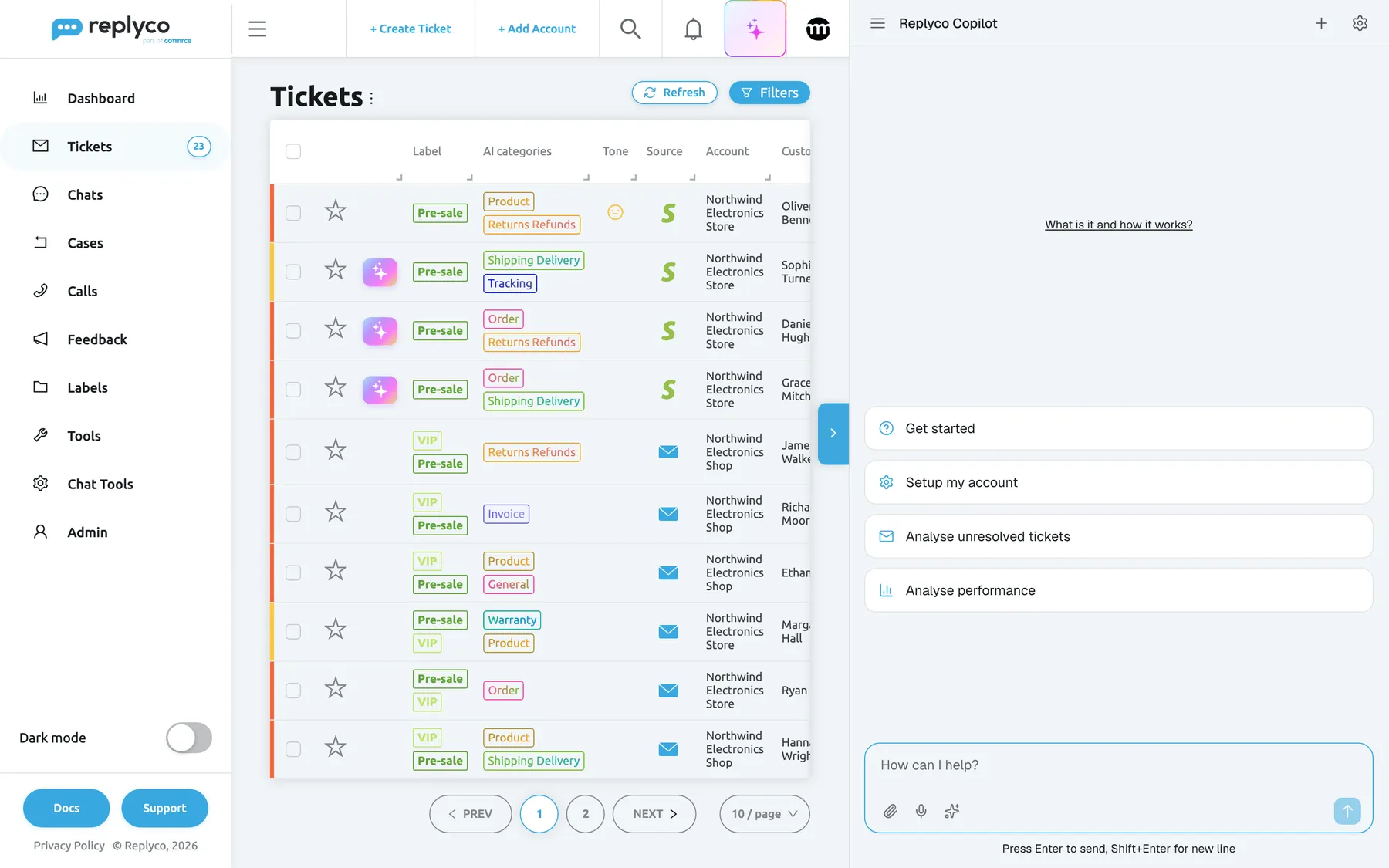
Open Copilot. A few seconds after a Replyco screen has loaded, select the sparkle button in the top bar, between the notifications bell and the comrce icon. The panel opens at the right of the screen, and the Replyco screen moves aside to make room.

The sparkle button in the top bar opens and closes Copilot on every screen. -
Start with a starter card or your own question. A new conversation shows four cards: Get started, Setup my account, Analyse unresolved tickets and Analyse performance. Select one, or type in the How can I help? box and press Enter. Copilot answers in the panel and shows the steps it took.
-
Approve what it proposes. When your request changes something, Copilot shows an approval card. Check the tickets, people and text it names, then select Approve. Copilot reports the result.
Every setting, explained
Section titled “Every setting, explained”Copilot has no settings screen in Replyco. What you control is the panel: where it is, how wide it is, and which conversation it shows. The controls are described in the order you meet them.
The sparkle button, opening and closing
Section titled “The sparkle button, opening and closing”The top bar of every Replyco screen, a square button with a coloured sparkle between the notifications bell and the comrce icon. It appears a few seconds after the screen has loaded, once the Copilot panel is ready.
Selecting it opens the Copilot panel at the right of the screen; selecting it again closes the panel. The panel stays open while you move between Replyco screens, and the conversation stays where you left it. The button is shown only when Copilot is available to your company: switched on by Replyco, or during a trial that has not ended for a company outside the German region.
Copilot is one click away wherever you are, so you can ask about the ticket, list or report in front of you without leaving it.
The chevron tab, closing the panel
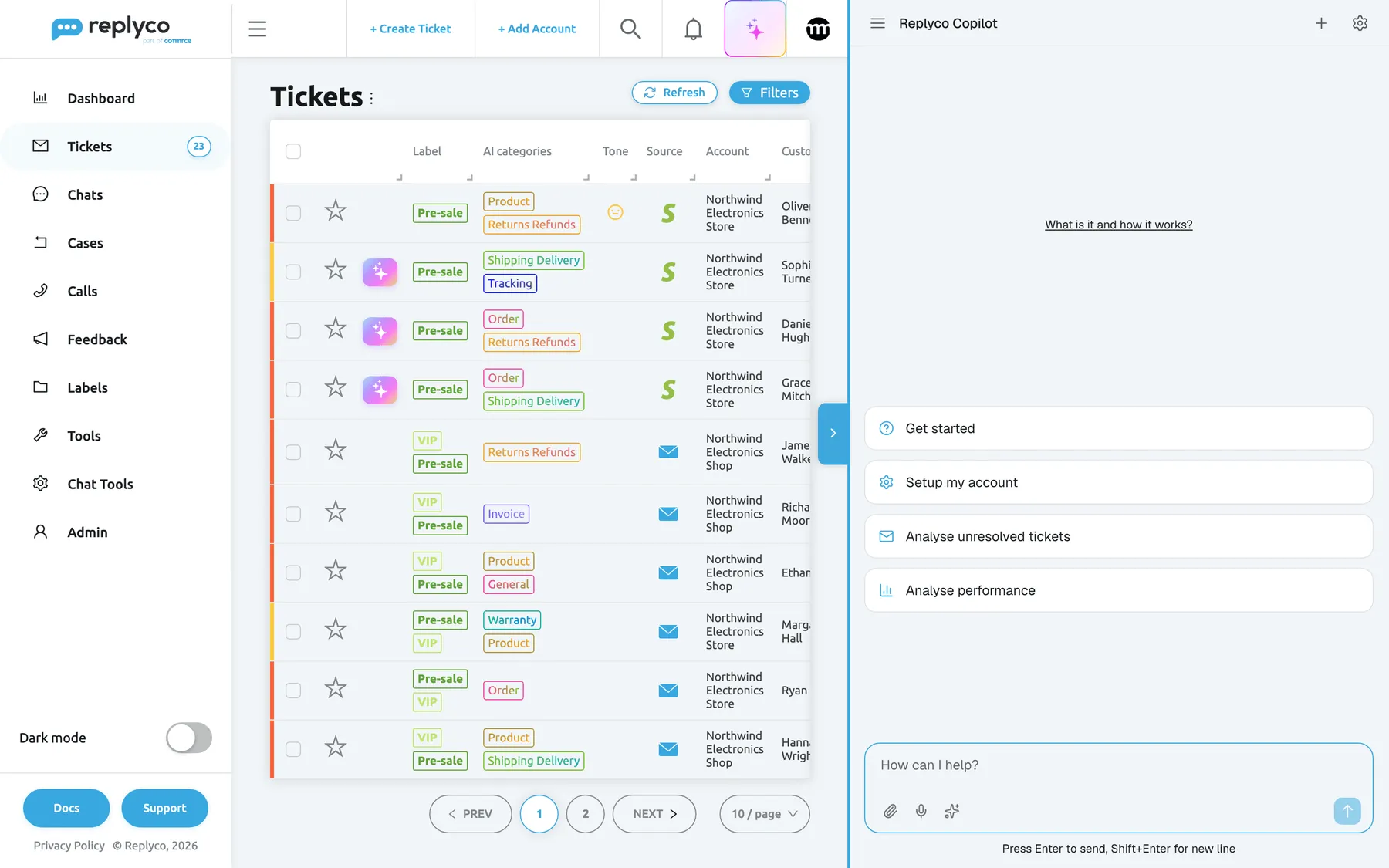
Section titled “The chevron tab, closing the panel”A blue tab with a right-pointing chevron on the left edge of the open panel, halfway down.
Closes the panel, like selecting the sparkle button again. The conversation is kept and is there when you open Copilot again.
When the panel is open, the chevron is closer to your work than the top bar.
The panel border, the panel’s width
Section titled “The panel border, the panel’s width”The left border of the open panel. Hovering over it turns the border blue and the pointer into a double arrow.
Drag the border to the left to widen the panel, or to the right to narrow it. The Replyco screen shrinks or grows beside it; nothing is covered. The width you choose is remembered in this browser and used the next time the panel opens.
Tables and reports read better in a wide panel; a narrow one leaves more room for the ticket you are working on.
The history button, your conversations
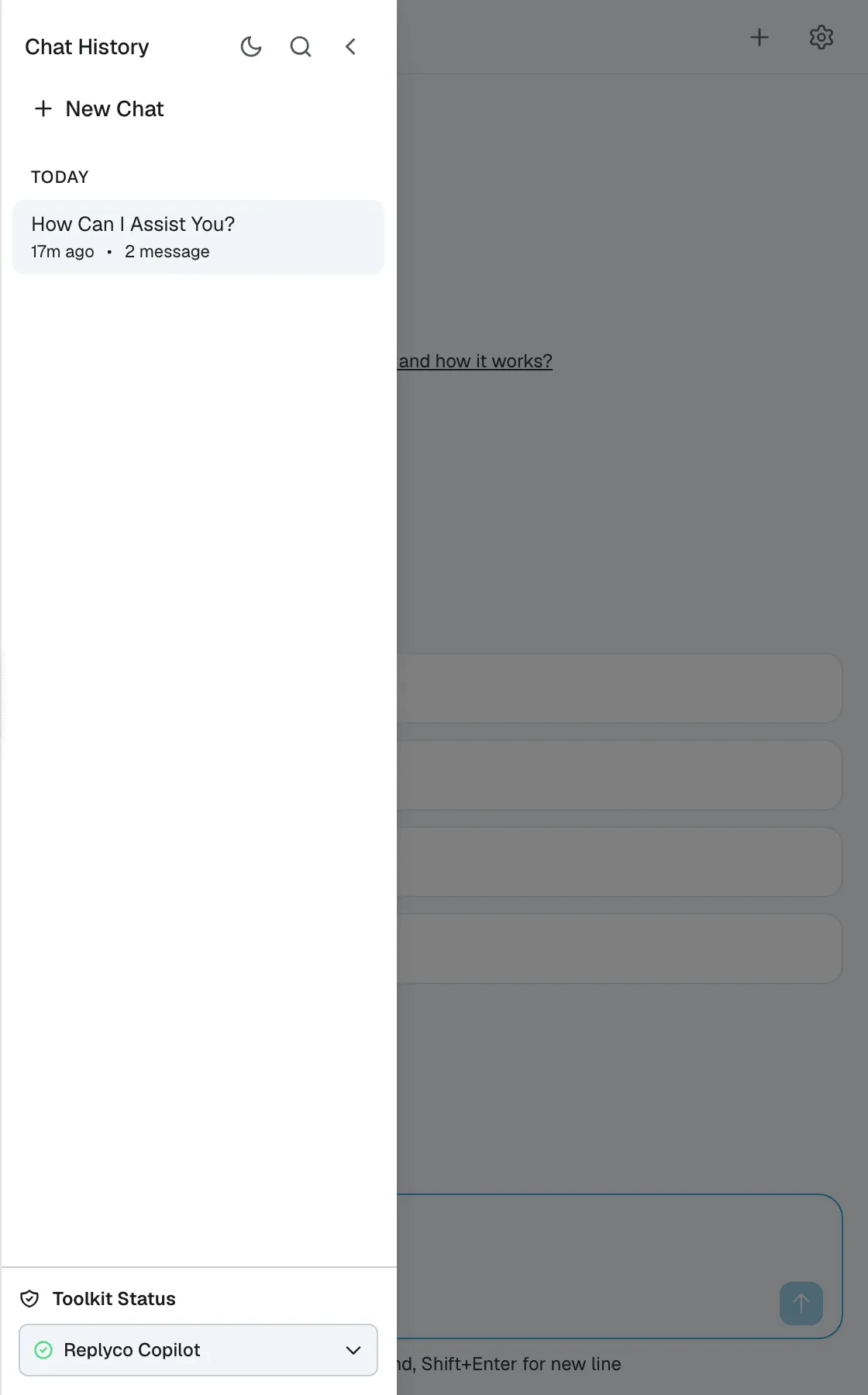
Section titled “The history button, your conversations”The button with three lines at the top left of the panel.
Opens the Chat History list over the panel. Conversations are grouped by day, such as TODAY, each with its title, how long ago it was active and its number of messages. Select one to open it. New Chat starts an empty one, the magnifier searches your conversations, the moon switches the panel between light and dark, and each conversation’s options let you rename it. The chevron at the top closes the list. Toolkit Status at the bottom shows the state of the Replyco Copilot connection.
Your conversations are kept, so you can go back to a report or a draft from yesterday instead of asking again.
New chat, a fresh conversation
Section titled “New chat, a fresh conversation”The plus button at the top right of the panel, and New Chat at the top of the history list.
Starts an empty conversation with the starter cards. The previous one is kept in the history. Copilot remembers everything said in a conversation, including the tickets it looked at, and starts a new conversation with none of it.
One topic per conversation keeps answers focused. Start a new chat when you move to an unrelated task, and Copilot will not have to ask which ticket you mean.
The gear button, your Copilot profile
Section titled “The gear button, your Copilot profile”The gear at the top right of the panel.
Opens your Copilot profile in a large window: your name, email and role as the AI sees them when it works for you, with the role set by your company administrator. The same window lists Agent runs, Memory and Prompt Shortcuts. The cross at the top right closes it.
Check here which user Copilot acts as, and find the shortcuts available to you.
The starter cards
Section titled “The starter cards”The middle of a new conversation, under the link What is it and how it works?.
| Card | What Copilot does |
|---|---|
| Get started | Explains what it can help you with |
| Setup my account | Walks you through templates, signatures, automation rules and autoresponders, and creates anything that is missing after you approve it |
| Analyse unresolved tickets | Reads your last 10 unresolved tickets, sums up what customers are asking for and suggests quick replies |
| Analyse performance | Compares your team’s key figures for the last 30 days |
Each card is a complete request written for you, so the first result comes from your own account in one click.
The message box
Section titled “The message box”The How can I help? box at the bottom of the panel.
Type your request and press Enter to send it; Shift+Enter starts a new line. The arrow button at the right of the box sends it too. Refer to what is on your screen (“this ticket”, “these tickets”) or give numbers and names (“ticket 48213”, “Maria”).
You ask the way you would ask a colleague; Copilot works out the searches and steps itself.
Attachments, voice and shortcuts
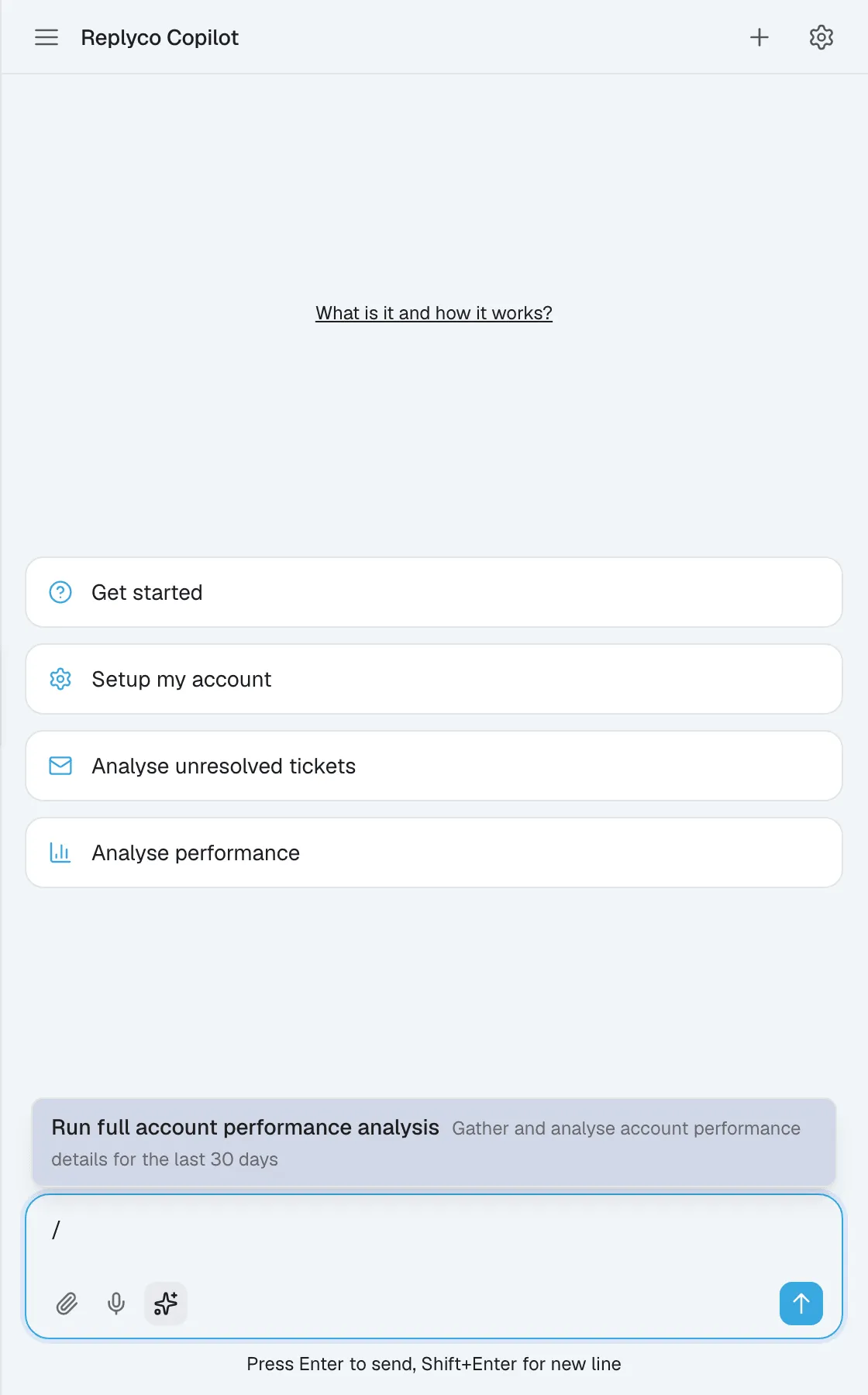
Section titled “Attachments, voice and shortcuts”The three buttons at the bottom left of the message box: a paperclip, a microphone and a sparkle for shortcuts.
The paperclip adds a file, as does dragging one into the chat: images, PDFs, CSV and XML files up to 10 MB. The microphone records your voice until you select it again, then puts your words in the box for you to check and send. The shortcuts button, or typing / in the box, lists saved prompts such as Run full account performance analysis; a shortcut with blanks asks you to fill them in before it is sent.
A file lets you ask about something outside Replyco, such as an invoice or a list of order numbers. Shortcuts save typing a long request you run often.
Answer tools: steps, copy and feedback
Section titled “Answer tools: steps, copy and feedback”In every answer: the steps line above the answer, and the copy, thumbs-up and thumbs-down buttons under it.
The steps line, such as 4 steps, expands to show what Copilot looked up to write the answer. Copy puts the answer on your clipboard, for example a drafted message you want to paste into Replyco yourself. Thumbs up and thumbs down rate the answer. Many answers end with quick-action buttons, such as “Show the next 10”, “Draft a reply” or “Email me this”, that send the next request for you.
The steps show where a number or a claim came from. Rating answers, especially wrong ones, helps improve Copilot.
Copilot in your conversations
Section titled “Copilot in your conversations”A conversation shows your messages on the right in blue and Copilot’s answers on the left, each with its time.
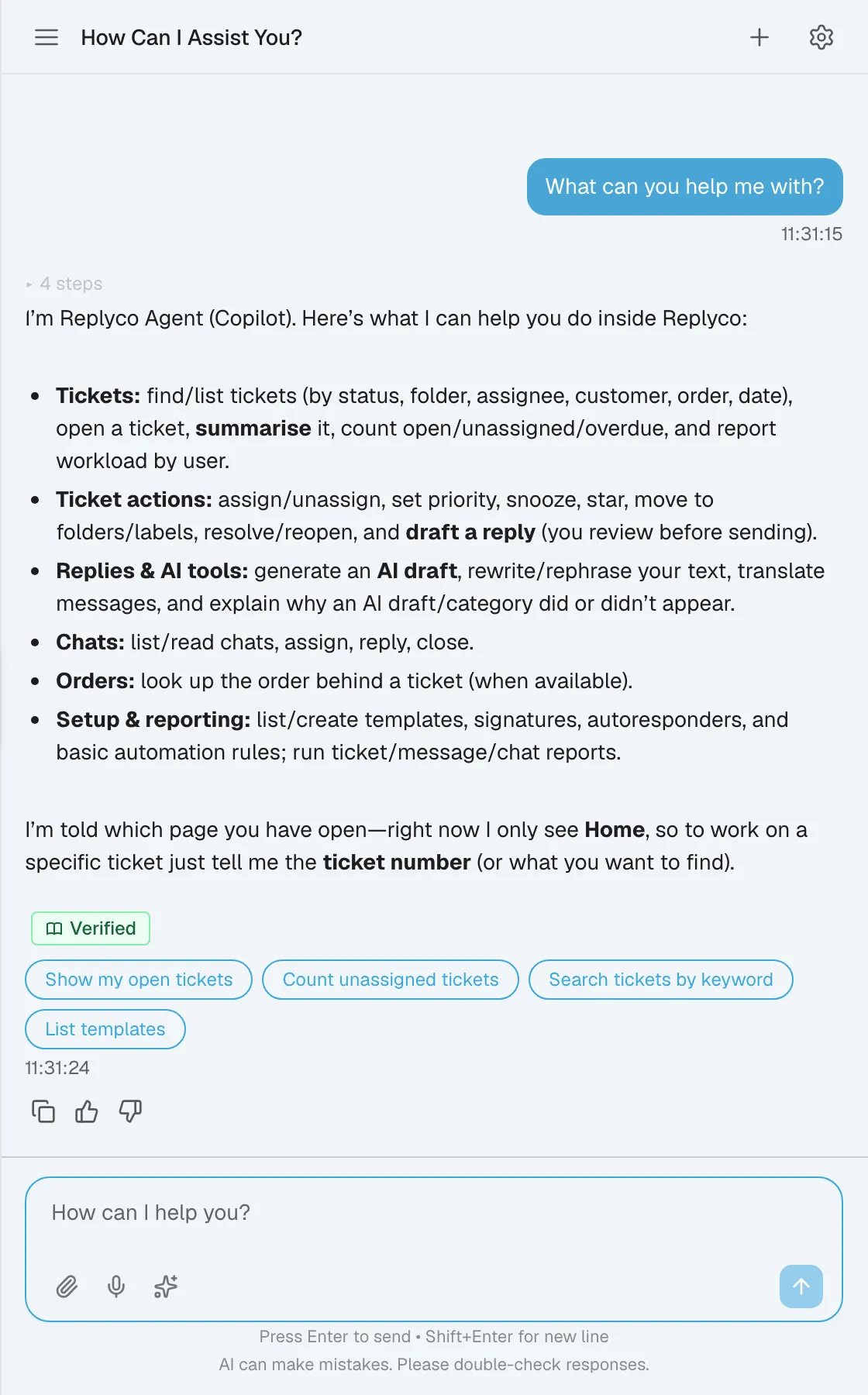
Lists, tables and charts
Section titled “Lists, tables and charts”What is shown: lists and reports come back as tables you can sort and download, and as charts you can expand when you ask for one. Every ticket Copilot mentions comes with its ticket number and a direct link that opens it in Replyco.
Why: you can check each result in Replyco with one click, and take a table into a spreadsheet without retyping it.
The approval card
Section titled “The approval card”What is shown: a card in the conversation that names what will change and to what: the ticket numbers, the user, the folder or the message text, with Approve and Reject. Nothing changes until you approve.
Why: it is the one moment to catch a wrong ticket or a wrong word before it reaches your account or a customer.
Copilot and your tickets
Section titled “Copilot and your tickets”Any Replyco screen. On a ticket, “this ticket” is the one you have open; on a ticket list, “these tickets” are the ones the list shows with its folder, filters and search.
Copilot searches tickets by topic, subject, customer, order or keyword; lists your tickets, unassigned, unresolved or resolved tickets, or a folder’s tickets; opens a ticket’s whole conversation and sums it up; counts open, unassigned, overdue and waiting tickets; and shows which users have unresolved tickets and how many. After you approve, it assigns and unassigns tickets, sets their priority level, resolves and reopens them, snoozes them until a date, stars and unstars them, adds them to a folder or takes them out, and sends a reply.
Triage and routine changes take one sentence instead of a search, a selection and a menu for each ticket.
Three examples:
Show unassigned tickets from the last 24 hours and suggest who should take each.Summarise ticket 48213 and tell me what the customer wants.Set ticket 48213 to high priority and snooze it until Monday.
To learn how priority levels and response times work in Replyco itself, see Priorities and SLA.
Replying to customers with Copilot
Section titled “Replying to customers with Copilot”A ticket, or a request that names one (“reply to ticket 48213”).
Copilot writes a reply from the ticket’s conversation, the linked order and, when you ask, one of your templates. It shows the draft first and sends nothing until you approve it. Ask for changes as often as you like (“shorter”, “more formal”, “in Spanish”); each version builds on the previous one. It also sends text you give it word for word.
A first draft that already knows the order and the conversation is quicker to check than a reply written from scratch.
Three examples:
Draft a polite reply to this ticket explaining the parcel is delayed and offering a 10% voucher.Reply to ticket 48213 in German, apologising for the wrong item and asking for a photo.Use my "Order shipped – UK" template to reply to this ticket, and personalise the greeting.
Copilot’s draft is separate from the AI draft Replyco writes into the ticket’s editor on its own; see AI drafts. For the summary in a ticket’s side panel, see AI summaries.
Copilot and your chats
Section titled “Copilot and your chats”Any screen; on a chat, “this chat” is the one you have open.
Copilot lists open, closed or assigned chats and searches them by keyword, opens a chat and reads its messages, and after you approve, sends a message, assigns or unassigns the chat, and closes or reopens it.
You can catch up on a chat and answer it without switching screens.
Three examples:
Show open chats from the last hour.What did the customer in this chat ask for?Assign this chat to Tom and close it.
For the chat screens themselves, see Answer a chat.
Copilot for setup and automation
Section titled “Copilot for setup and automation”Any screen; the Setup my account card starts a guided review.
Copilot lists, searches, opens and creates reply templates; lists, opens, creates and updates signatures; lists rules and creates new ones, with conditions on the message, ticket, customer, order or product and actions such as assign, label, set priority or resolve; lists and creates autoresponders that send a template when a message matches a condition, optionally after a delay; and lists your priority levels. It creates or changes anything only after you approve. Rules run when a new message arrives on a ticket.
A new account gets its templates, signatures and first rules from one conversation, and an existing one finds out what is missing.
Three examples:
Create a template called "Return approved" with this text: …Create a rule: if the subject contains "cancel", set priority to Urgent and assign to Maria.Show my signatures and update the one for the eBay account to include our phone number.
To change them later on their own screens, see Templates, Rules, Auto-response rules and Signatures.
Copilot for reports
Section titled “Copilot for reports”Any screen; the Analyse performance card and the Run full account performance analysis shortcut are ready-made reports.
Copilot pulls live figures from your account and explains them: today’s and all-time overview; ticket volume over time, by marketplace, account, channel and label; due and overdue counts; response, resolution and handling times; per-user tickets, actions, messages, resolution times and activity by hour and day; template and autoresponse usage; and the instant-messaging overview with undelivered messages. Results come as text, a table or a chart, and can be emailed to you with a CSV spreadsheet attached.
A question such as “how did we do last month compared with the month before” is answered in one step instead of several reports.
Three examples:
How many tickets did we get this week compared to last week?Show ticket volume per marketplace for September as a chart.Email me a CSV of ticket volume per marketplace for September.
The same figures are on the Replyco dashboards; see Reports.
Questions about Replyco
Section titled “Questions about Replyco”Any screen.
Copilot answers “how do I” questions about Replyco: connecting marketplaces, mailboxes, live chat and phone systems; tickets, cases, feedback and instant messages; user roles and permissions; dashboards, exports, billing and settings. When a question is outside what it knows, it says so and points you to Replyco’s support team, which you reach with Support at the foot of the sidebar.
You get the answer without leaving the screen you are working on.
Three examples:
How do I connect an Outlook mailbox?What's the difference between a folder and a label?What can moderators do that users can't?
Data and privacy
Section titled “Data and privacy”Copilot works only when you use it. Nothing from your Replyco account is shared with StrikeUp until you ask Copilot something in the panel, and a company that does not have Copilot switched on shares nothing at all.
- Only on your request. Copilot has a fixed set of actions, such as reading tickets or sending a message, and runs them only in answer to a message you send in the panel. If you never ask about tickets, it never retrieves tickets.
- Only what you can see. When you ask, for example, “read my tickets for the last 30 days”, Copilot fetches them through Replyco with your own sign-in. It sees what you see and cannot get past your permissions.
- What it can read. Depending on your question: ticket messages and conversations, summaries, orders and the customer details on a ticket. It never receives attachments.
- Customer details are masked. Customer names, email addresses and full addresses reach the AI only masked, both in the records Copilot looks up and in the description of your screen that Replyco passes on. In that description every character of a name except the first and last three is replaced by an asterisk, and of an email address every character except the first three and last six, such as
Gra********ellfor Grace Mitchell, so Copilot can match the record you mean without receiving the real value. - What is stored. StrikeUp keeps the messages of your Copilot conversations, your questions and its answers, plus the traces of the steps and decisions it took, so every answer can be traced. It does not keep the data it fetched from Replyco once your request is answered.
- No training. Neither Replyco nor its data processors use your customer data or your Copilot conversations to train AI models.
- Under agreement. StrikeUp processes data on Replyco’s instructions and in answer to your request, under a signed agreement with comrce, Replyco’s parent company.
What you need to know
Section titled “What you need to know”| Topic | Fact |
|---|---|
| Where it works | On every Replyco screen after sign-in, from the sparkle button in the top bar |
| Whose access | Yours. Copilot works with your sign-in and sees and changes only what your permissions allow |
| Changes | Only after you approve the approval card; reading needs no approval |
| Deleting | Never. Copilot does not delete tickets, templates, rules, accounts or users |
| What it is told | Your name and user id, the screen you are on and a short description of what that screen shows, with customer names and email addresses masked, updated each time the screen changes |
| Data and privacy | Copilot is provided by StrikeUp. Replyco gives the panel your own user id, name and email, your company’s id and email address, your light or dark theme and your sign-in, so it can act for you. Account data is fetched only when you ask; customer details come back masked; conversations and decision traces are kept, fetched data is not; nothing is used to train AI models. See Data and privacy |
| Memory | Everything said in the current conversation; a new chat starts empty |
| Panel width | Remembered in the browser you set it in |
| Theme | The panel opens in the same light or dark theme as Replyco; the moon in the history list switches it |
| Language | The panel shows its own labels in your browser’s language |
| Accuracy | Copilot can make mistakes. Check figures and drafts before you rely on them; the steps line shows what each answer is based on |
| Attachments | Images, PDFs, CSV and XML files, up to 10 MB each |
| Availability | A separate feature in a pilot phase: switched on per company by Replyco on request, or during a trial that has not ended for companies outside the German region |
Frequently asked questions
Section titled “Frequently asked questions”General
Section titled “General”What is Replyco Copilot?
Section titled “What is Replyco Copilot?”Replyco Copilot is an AI assistant in a panel beside your Replyco screen. You open it with the sparkle button in the top bar and ask in plain words: it finds and sums up tickets, drafts and sends replies after you approve, changes tickets, runs reports, sets up templates and rules, and explains how Replyco works.
Who provides Copilot?
Section titled “Who provides Copilot?”Copilot is provided by StrikeUp, an AI assistant service. The panel you see beside Replyco is StrikeUp’s, and Replyco connects it to your account with your own sign-in so it can look things up and make approved changes for you.
Is Copilot the same as the AI drafts in a ticket?
Section titled “Is Copilot the same as the AI drafts in a ticket?”No. AI drafts are written by Replyco into a ticket’s editor on their own, based on your AI Settings. Copilot writes a draft only when you ask for one in the Copilot chat, and sends it only after you approve its approval card.
Is Copilot part of my plan?
Section titled “Is Copilot part of my plan?”No. Copilot is a separate feature in a pilot phase and not part of a Replyco plan. Replyco switches it on per company, and during a trial that has not ended it is available to companies outside the German region. To use it, ask Replyco’s support team through Support at the foot of the sidebar to switch it on.
Getting started
Section titled “Getting started”Why don’t I see the sparkle button in the top bar?
Section titled “Why don’t I see the sparkle button in the top bar?”Copilot may not be available to your company yet. It is a separate feature in a pilot phase, and the sparkle button appears only when Replyco has switched it on for your company, or during a trial that has not ended outside the German region. To use it, ask Replyco’s support team through Support at the foot of the sidebar. The button also appears a few seconds after a screen has loaded.
How do I open and close Copilot?
Section titled “How do I open and close Copilot?”Select the sparkle button in the top bar, between the notifications bell and the comrce icon, to open the Copilot panel at the right of the screen. Select the same button again, or the blue chevron tab on the panel’s left edge, to close it.
Can I make the Copilot panel wider?
Section titled “Can I make the Copilot panel wider?”Yes. Hover over the panel’s left border until it turns blue, then drag it to the left to widen the panel or to the right to narrow it. The Replyco screen resizes beside it, and your chosen width is remembered in that browser.
What do the four starter cards do?
Section titled “What do the four starter cards do?”Get started explains what Copilot can do. Setup my account walks you through templates, signatures, rules and autoresponders. Analyse unresolved tickets reads your last 10 unresolved tickets and suggests quick replies. Analyse performance compares your team’s key figures for the last 30 days.
Working with tickets and chats
Section titled “Working with tickets and chats”Does Copilot know which ticket I have open?
Section titled “Does Copilot know which ticket I have open?”Yes. Each time you move to another screen, Replyco tells Copilot the screen’s name and a short description of what it shows, such as the open ticket or a list’s folder and filters. So “summarise this ticket” works without a ticket number while the ticket is open. Customer names and email addresses in that description are masked.
Will Copilot change anything without asking me?
Section titled “Will Copilot change anything without asking me?”No. Anything that changes your account, such as assigning, resolving, snoozing, sending a message or creating a template, is shown on an approval card first. The change runs only when you select Approve; Reject cancels it and nothing changes.
Can Copilot send a reply to a customer?
Section titled “Can Copilot send a reply to a customer?”Yes. Copilot drafts a reply from the ticket’s conversation, the linked order and, if you ask, one of your templates, or sends text you give it. It shows the message on an approval card and sends it only after you approve.
Can Copilot change several tickets at once?
Section titled “Can Copilot change several tickets at once?”Yes. A request such as “snooze tickets 48210, 48211 and 48214 until 30 September” becomes one approval card that lists every ticket. Check the ticket numbers on the card before approving, because approving changes all of them.
Can Copilot work with cases, feedback, customers or products?
Section titled “Can Copilot work with cases, feedback, customers or products?”Copilot explains how the cases, feedback, customers and products areas work, and it reads the order linked to a ticket. It does not list, edit or act on cases, feedback, customer records or product listings itself.
Can Copilot delete tickets or templates?
Section titled “Can Copilot delete tickets or templates?”No. Copilot does not delete tickets, templates, rules, accounts or users. It can take a ticket out of a folder or unassign a chat, and you delete things on Replyco’s own screens.
Why does Copilot ask which ticket I mean?
Section titled “Why does Copilot ask which ticket I mean?”When several tickets have come up in the conversation, or you are not on a ticket screen, “this ticket” is ambiguous. Copilot asks once; answer with the ticket number and it carries on with that ticket.
Setup and reports
Section titled “Setup and reports”Can Copilot create rules and autoresponders for me?
Section titled “Can Copilot create rules and autoresponders for me?”Yes. Describe the rule, for example “if the subject contains cancel, set priority to Urgent and assign to Maria”, and Copilot creates it after you approve the approval card. Autoresponders can send a template when a message matches a condition, optionally after a delay.
Can Copilot email me a report?
Section titled “Can Copilot email me a report?”Yes. Ask for the report and then “email me this as a CSV”, or include it in the request. Copilot sends the report to you by email with a CSV spreadsheet attached, which opens in any spreadsheet program.
How do I get a report for the right period?
Section titled “How do I get a report for the right period?”Name the period in your request, such as “last 30 days”, “1–15 September” or “Q3”, and for team reports say whether you want all accounts or one marketplace. Copilot turns phrases like “last month” into dates; exact dates remove any doubt.
The chat panel
Section titled “The chat panel”Where are my earlier Copilot conversations?
Section titled “Where are my earlier Copilot conversations?”Select the button with three lines at the top left of the Copilot panel to open the Chat History list. Conversations are grouped by day with their age and number of messages; select one to reopen it, or search them with the magnifier.
When should I start a new chat?
Section titled “When should I start a new chat?”Start a new chat with the plus button in the Copilot panel’s header when you move to an unrelated task. Copilot remembers everything said in a conversation, including the tickets it looked at, and a fresh one keeps answers focused on the new task.
Can I attach a file or talk to Copilot?
Section titled “Can I attach a file or talk to Copilot?”Yes. Use the paperclip in the message box, or drag a file into the Copilot chat, to attach images, PDFs, CSV or XML files up to 10 MB. Select the microphone to dictate, select it again to stop, then check the text and send it.
What are prompt shortcuts?
Section titled “What are prompt shortcuts?”Prompt shortcuts are saved requests, such as Run full account performance analysis. Type a slash in the Copilot message box or select the sparkle button at the bottom left of the box to list them; a shortcut with blanks asks you to fill them in first.
Data and privacy
Section titled “Data and privacy”What can Copilot see in my account?
Section titled “What can Copilot see in my account?”Copilot works with your own Replyco sign-in, so it sees exactly what your user permissions let you see and nothing more. A folder, chat list or report you cannot open in Replyco is also out of Copilot’s reach.
What does Replyco share with Copilot?
Section titled “What does Replyco share with Copilot?”No account data is shared until you ask Copilot something. To set up the panel, Replyco gives it your own user id, name and email, your company’s id and email address, your theme and your sign-in, and tells it which screen you are on, with customer names and email addresses in that description masked. When you ask, Copilot fetches only what your question needs, such as ticket messages, summaries or orders, with customer names, email addresses and full addresses masked, and never attachments.
Is my data used to train AI models?
Section titled “Is my data used to train AI models?”No. Neither Replyco nor its data processors use your customer data, your tickets or your Copilot conversations to train AI models. StrikeUp processes data only on Replyco’s instructions and in answer to the requests you make in the Copilot panel.
What does StrikeUp store from my Copilot conversations?
Section titled “What does StrikeUp store from my Copilot conversations?”StrikeUp stores the messages of your Copilot conversations, what you asked and what Copilot answered, plus the traces of the steps and decisions it took, so each answer can be traced. It does not keep the ticket, order or customer data it fetched once your request is answered.
Does StrikeUp see my data if nobody uses Copilot?
Section titled “Does StrikeUp see my data if nobody uses Copilot?”No. StrikeUp has no access to your Replyco data when Copilot is not switched on for your company, or when nobody asks it anything. Data is fetched only when a user sends a request in the Copilot panel, and only what that user can see.
Can customers see my Copilot conversations?
Section titled “Can customers see my Copilot conversations?”No. Copilot conversations are between you and Copilot in your Replyco session, listed in your own Chat History. A customer sees only a message Copilot sends on a ticket or chat after you approved it.
Troubleshooting
Section titled “Troubleshooting”| Symptom | What to check |
|---|---|
| The sparkle button is not in the top bar | Wait a few seconds after the screen loads. If it still does not appear, Copilot may not be available to your company yet: it is a separate feature in a pilot phase. Ask support with Support at the foot of the sidebar to switch it on. |
| Selecting the sparkle button does nothing | The panel is still loading after sign-in. Wait a few seconds and select the button again. |
| Copilot cannot find a ticket I can see on screen | Give it the ticket number. For a phrase, use the wording from the subject line; search matches the subject, the customer and the message text. |
| Copilot asks which ticket I meant | Reply with the ticket number. It asks when several tickets have come up in the conversation or when you are not on a ticket screen. |
| The approval card names the wrong ticket or person | Select Reject and tell Copilot the correct ticket number or name. Nothing changes until you approve. |
| A report covers a different period than I asked for | Give exact dates, for example “from 2026-09-01 to 2026-09-15”. |
| An approved change does not show in Replyco | Refresh the screen. Copilot reads the record again after each change and reports its new state; when it reports success, the change is in your account. |
| Copilot says it does not know | It answers from your account’s data and Replyco’s documentation. For anything else, and for account, billing or technical problems, contact support with Support at the foot of the sidebar. |
| Copilot cannot open a folder, chat list or report | Copilot has your own permissions. Ask an administrator for access; see User permissions and roles. |
| The panel is too narrow for a table | Drag the panel’s left border to the left; the width is remembered in this browser. |
Related
Section titled “Related”- The Replyco screen: the top bar where the sparkle button sits
- AI drafts and AI summaries: Replyco’s automatic AI in every ticket
- Templates, Rules and Signatures: what Copilot sets up for you
- Reports: the dashboards behind Copilot’s figures
- User permissions and roles: what Copilot can reach with your access
- Help and support