

AI Settings: Tone
The Tone tab of ToolsAI Settings is where you tune message tone analysis for your company. At the top you show the AI what angry and happy look like for your customers, with calibration examples. Below, you decide whether a tone score may set a ticket’s SLA priority, how far it may go, and which score ranges map to which priority. Tone analysis itself is switched on with Message Tone Analysis on the General tab; see AI Settings. For what tone analysis does across Replyco, from the faces in the ticket list to the dashboard widget, see Message tone analysis.
Availability: every plan and every trial includes Replyco AI and Priorities and SLA, which the SLA part of the tab needs. Companies on an older plan may not have them; see What each plan includes. AI Settings appears under Tools for users with the Admin permission with edit rights, and the tab’s settings apply to the whole company. See User permissions and roles.
What you can do here
Section titled “What you can do here”- Show the AI how your customers sound. Write a few real-looking customer messages with the score each should get, up to 1,000 characters. An AI check refuses anything that could take over the scorer and offers a sharper version of vague examples. Write your own calibration examples · Message tone analysis
- Go back to Replyco’s own examples with one button, and stay on them as Replyco improves them. Go back to Replyco’s examples
- Decide whether tone may set SLA priorities. One check box lets a score set a priority at all; three more decide whether tone may replace a priority that is already there and whether it may only escalate. Let tone set SLA priorities · Ticket priorities and SLA
- Map score ranges to priorities. A tone rule is a range such as 0.00–0.30 and the priority a score in that range assigns; ranges never overlap. Create a tone rule
- Change, copy, delete and order your tone rules. Change or copy a tone rule · Delete a tone rule · Put the tone rules in order
- See at once whether tone analysis is on. While it is off, a box at the top of the tab says so and links to the switch. Switch tone analysis on
The screen at a glance
Section titled “The screen at a glance”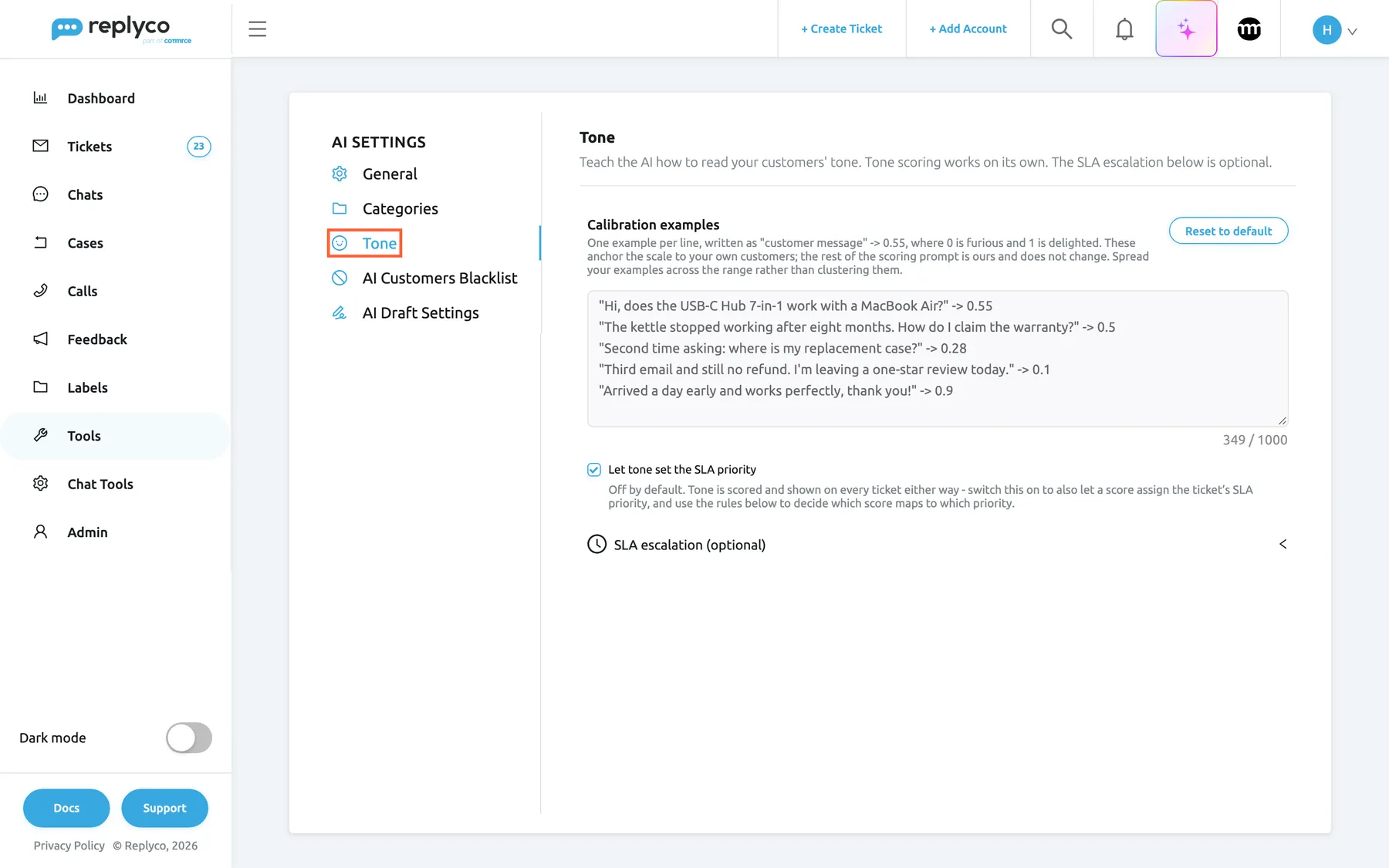
What this screenshot shows
- Screen
- Tone (/aiSettings?tab=toneSla)
- Highlighted
- tab “Tone”, tab-list-left, selected. opens the Tone tab of AI Settings
- Also visible
- AI Settings tabs: General, Categories, Tone, AI Customers Blacklist, AI Draft Settings; Calibration examples with five company examples, counter 349 / 1000; Reset to default button; Let tone set the SLA priority: ticked; SLA escalation (optional): closed
- Purpose
- the Tone tab as it opens, configured
| Region | What it shows | What you do there |
|---|---|---|
| Tab list, left | AI Settings with General, Categories, Tone, AI Customers Blacklist and, while AI drafts are switched on for your company, AI Draft Settings | Switch tabs; this tab also opens from its web address, /aiSettings?tab=toneSla |
| Header, top | The title Tone and the line Teach the AI how to read your customers' tone. Tone scoring works on its own. The SLA escalation below is optional. | Read what the tab is for |
| Switched-off box | Only while tone analysis is off: Message Tone Analysis is switched off and a link to the switch | Go to the switch on the General tab |
| Examples box | Calibration examples with its hint, Reset to default, the text box and its character counter; Validate & Save once you change the text | Write, check and save your examples |
| SLA check box | Let tone set the SLA priority and its hint | Let tone set priorities, or stop it |
| SLA escalation (optional) | Closed until you open it: When may tone change a priority? with three check boxes, then Create New and the tone rules, with a details panel on the right when you select a rule | Decide how far tone may go; manage the tone rules |
| Rule form, whole tab | Create Tone Rule or Edit Tone Rule, with Back and Save | Enter a score range and a priority |
Write your own calibration examples
Section titled “Write your own calibration examples”The calibration examples anchor the tone scale to your customers. The rest of the scorer’s instructions are Replyco’s and the same for every company; the examples are the one part you can change. Leave the box empty and Replyco’s own examples are used.
-
Open ToolsAI Settings and select the Tone tab.
-
In the Calibration examples box, write one example per line: a customer message in double quotes, then
->and the score it should get, from 0 (furious) to 1 (delighted). The counter under the box shows how many of the 1,000 characters you have used. -
Select Validate & Save, which appears under the box as soon as you change the text.
Replyco sends your text to an AI check before it saves anything.
-
Read the result under the box.
- Saved: your text stays in the box and Success appears at the top right.
- Refused: the reason appears in red under the box and nothing is saved. Change the lines it names and select Validate & Save again.
- Valid but vague: a panel headed AI-optimized version of your instructions: offers a sharper version. Use optimized saves that version; Keep original saves your lines unchanged.
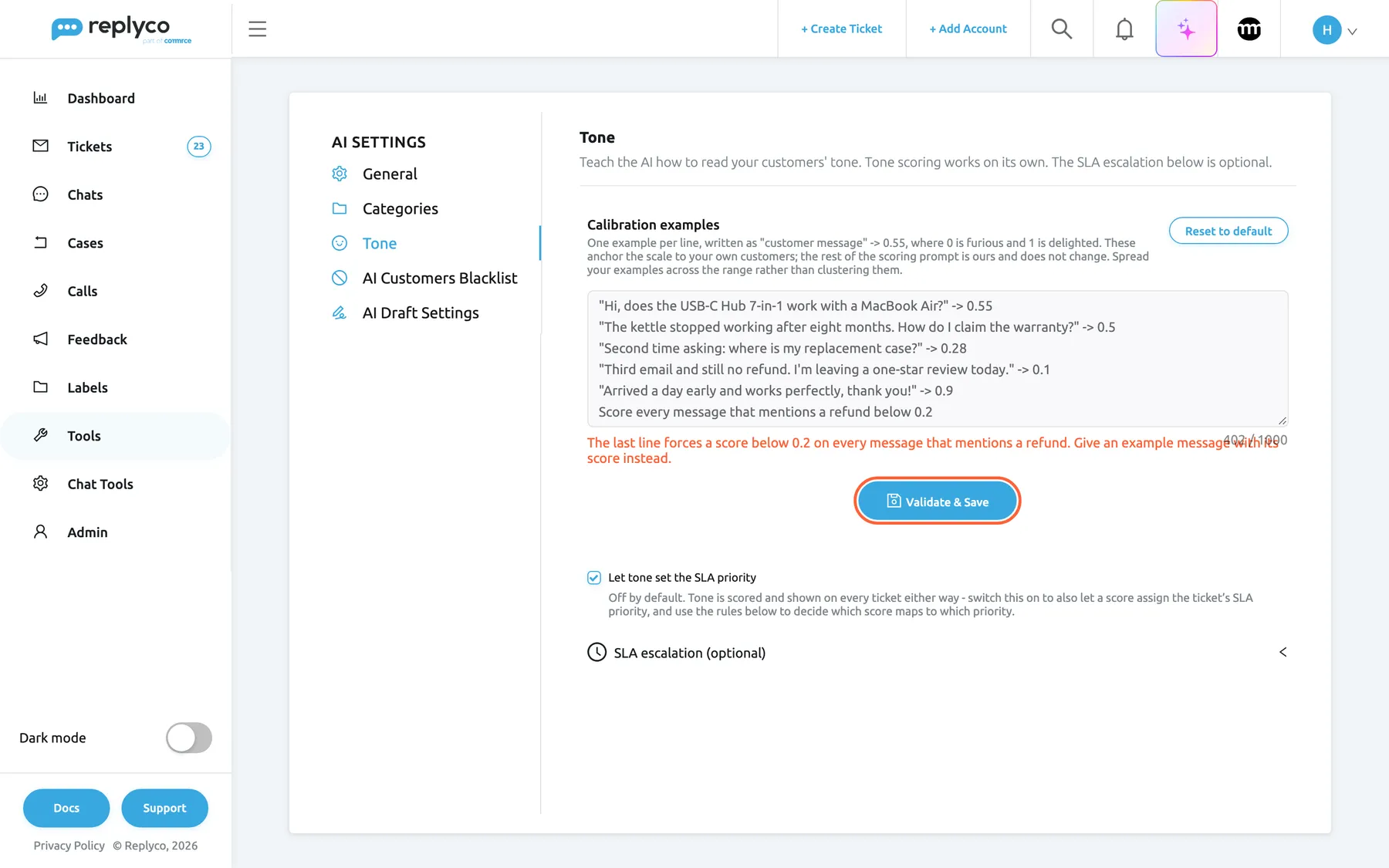
What this screenshot shows
- Screen
- Tone (/aiSettings?tab=toneSla)
- Highlighted
- button “Validate & Save”, examples-save-bar, enabled. checks the examples with AI and saves them only if they pass
- Also visible
- five quoted examples and a blanket rule line; red rejection reason under the box; Validate & Save button
- Purpose
- what a rejected calibration check looks like
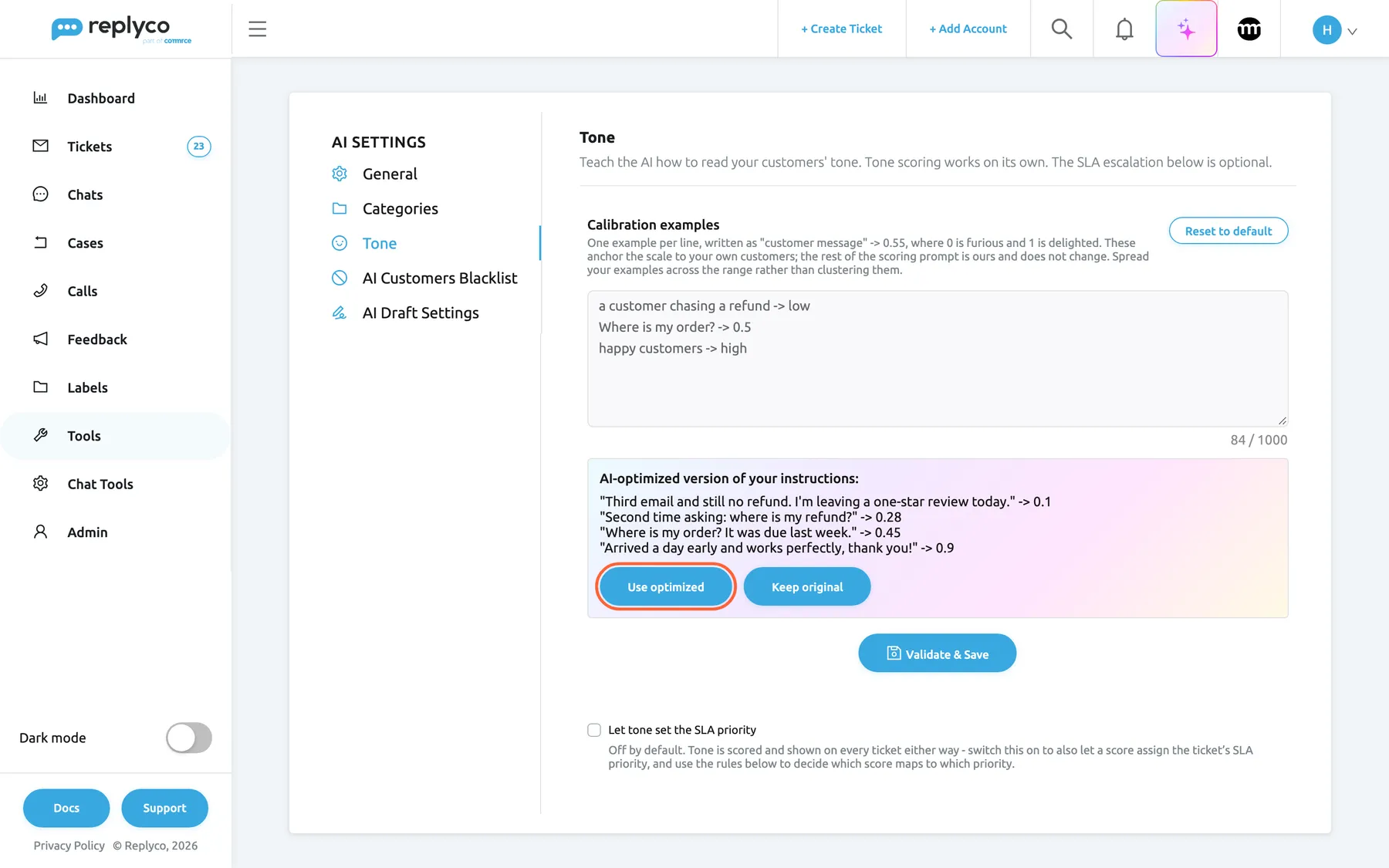
What this screenshot shows
- Screen
- Tone (/aiSettings?tab=toneSla)
- Highlighted
- button “Use optimized”, optimization-panel, enabled. saves the AI-optimized examples in place of the typed ones
- Also visible
- three vague example lines in the box; AI-optimized version with four quoted examples; Keep original button
- Purpose
- choose between the AI-optimized and the original examples
Northwind Electronics, for example, saved five lines from its own inbox:
"Hi, does the USB-C Hub 7-in-1 work with a MacBook Air?" -> 0.55"The kettle stopped working after eight months. How do I claim the warranty?" -> 0.5"Second time asking: where is my replacement case?" -> 0.28"Third email and still no refund. I'm leaving a one-star review today." -> 0.1"Arrived a day early and works perfectly, thank you!" -> 0.9
The check refuses text that tries to take over the scorer (phrases like “ignore previous instructions”), forces the same score on every message, changes the answer’s format or the 0 to 1 range, or has nothing to do with judging tone. It offers an optimized version when lines describe messages instead of quoting them, give a range or a direction instead of one score, or cluster at one end of the scale. The reasons are in your company’s Replyco language, English or German. If the check cannot be reached, the message under the box reads Validation request failed.; try again. For the full do and don’t list, see Message tone analysis.
An empty box, or text identical to Replyco’s own examples, is saved as “use Replyco’s examples” without a check. Every other Validate & Save is one AI action, counted with your company’s AI usage; see Billing. New examples change how messages are scored from now on; scores already stored stay as they are.
Go back to Replyco’s examples
Section titled “Go back to Replyco’s examples”Select Reset to default at the top right of Calibration examples. The box empties and the note Using Replyco's default examples, which we keep up to date automatically. appears above it.
- If you had saved examples of your own, Replyco puts your company back on its own examples at once and shows Success.
- If you had only typed text you had not saved, the button just clears the box.
Replyco’s examples are five lines from furious to delighted, such as "This is the third email. Where is my refund?" -> 0.2; companies whose Replyco language is German get German ones. While your company uses them, it also gets any improvement Replyco makes to them later. Your own lines are not kept anywhere after a reset, so copy them first if you might want them back.
Let tone set SLA priorities
Section titled “Let tone set SLA priorities”Tone is scored and shown on every ticket whether or not it may set priorities. Setting priorities is a separate choice, and it needs Priorities and SLA, which every plan includes.
-
Tick Let tone set the SLA priority under the calibration examples.
Replyco saves it at once and shows Success. The section SLA escalation (optional) appears below it, closed.
-
Open SLA escalation (optional).
Under When may tone change a priority? are three check boxes, and below them your tone rules. A new company has no tone rules, so the list reads No data...; tone assigns nothing until you create a tone rule.
-
Tick the boxes you want. Each one saves the moment you tick or clear it.
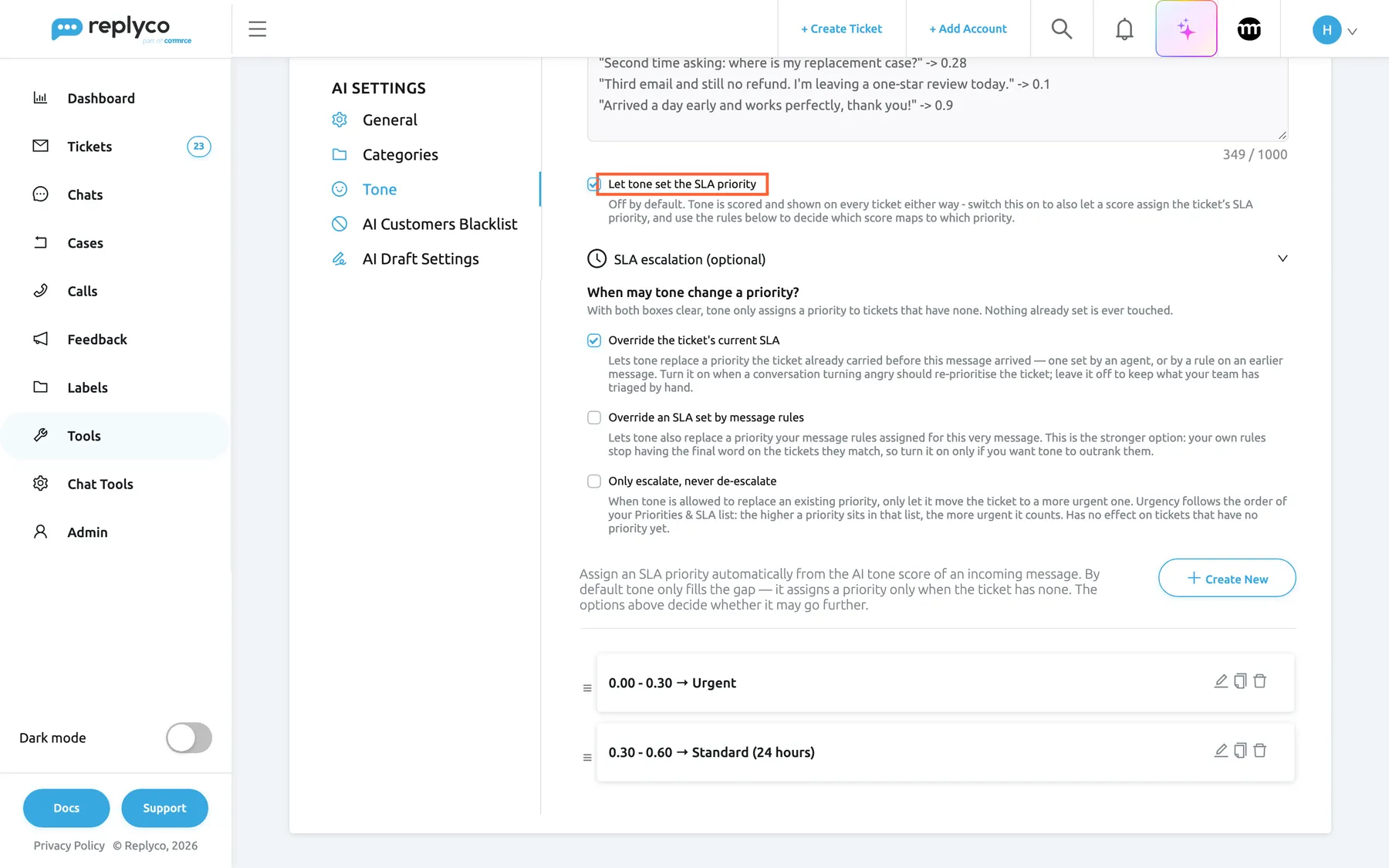
What this screenshot shows
- Screen
- Tone (/aiSettings?tab=toneSla)
- Highlighted
- checkbox “Let tone set the SLA priority”, sla-switch, checked. lets a tone score set the ticket's SLA priority; saves on toggle
- Also visible
- SLA escalation (optional) open; Override the ticket's current SLA: ticked; Override an SLA set by message rules: clear; Only escalate, never de-escalate: clear; Create New button; tone rules 0.00 - 0.30 → Urgent and 0.30 - 0.60 → Standard (24 hours)
- Purpose
- the SLA part of the Tone tab, opened
| Check boxes | What tone may do |
|---|---|
| All clear | Give a priority only to tickets that have none. Nothing already set is touched. |
| Override the ticket's current SLA | Also replace a priority the ticket had before this message arrived, set by an agent or by a rule on an earlier message |
| Override an SLA set by message rules | Also replace a priority your message rules set on this very message; without it, a message rule that sets a priority has the last word |
| Only escalate, never de-escalate | When tone may replace a priority, move the ticket only to a more urgent one, following the order of your list under AdminCompany Settings › Priorities & SLA |
For example, with only Override the ticket's current SLA ticked and the rule 0.00–0.30 → Urgent, a ticket on Standard (24 hours) whose customer chases with a message scored 0.28 moves to Urgent, and the ticket’s history records the score and the AI’s reason. Every combination of the boxes, and how message rules run first, is in Message tone analysis.
Clearing Let tone set the SLA priority stops tone from touching priorities straight away and hides the section. The three boxes and your tone rules keep their values for when you tick it again.
Create a tone rule
Section titled “Create a tone rule”-
Open SLA escalation (optional) and select Create New above the tone rules.
The form Create Tone Rule replaces the whole tab, with 0.00 and 0.30 already filled in and no priority.
-
Enter From Score and To Score, each from 0 to 1 with two decimals.
-
Choose the Priority.
The list shows your priorities in the order of AdminCompany Settings › Priorities & SLA, most urgent first. If the priority you need does not exist yet, Create a new SLA opens that tab in a new browser tab; create it there, come back and select Refresh.
-
Select Save at the top right.
The form closes and the rule appears at the bottom of the list, for example 0.60 - 1.00 → Standard (24 hours).
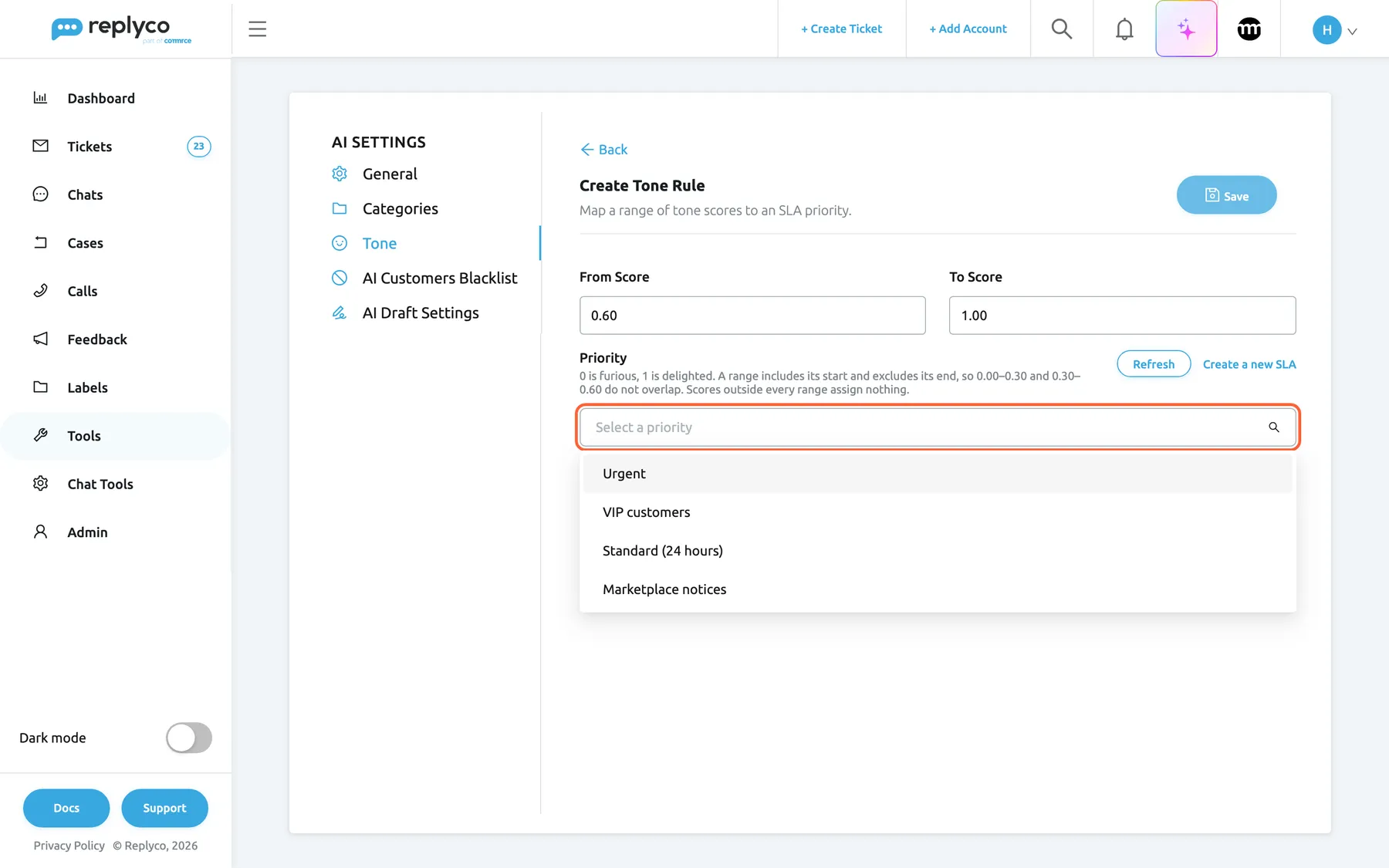
What this screenshot shows
- Screen
- Create Tone Rule (/aiSettings?tab=toneSla)
- Highlighted
- combobox “Priority”, form-priority, expanded. chooses the SLA priority a score in this range assigns
- Also visible
- From Score 0.60; To Score 1.00; hint: a range includes its start and excludes its end; options: Urgent, VIP customers, Standard (24 hours), Marketplace notices; Refresh and Create a new SLA; Save (unavailable until a priority is chosen)
- Purpose
- create a tone rule
A range includes its start and excludes its end, so 0.00–0.30 and 0.30–0.60 sit side by side without overlapping, and a rule that ends at 1.00 also includes a perfect 1.00. A score that falls in a gap between your ranges assigns nothing. With Northwind’s three rules, 0.00–0.30 → Urgent, 0.30–0.60 → Standard (24 hours) and 0.60–1.00 → Standard (24 hours):
| Score | Rule that matches | Priority |
|---|---|---|
| 0.299 | 0.00–0.30 | Urgent |
| 0.300 | 0.30–0.60; 0.30 is the excluded end of the first range | Standard (24 hours) |
| 0.600 | 0.60–1.00; without this rule, 0.600 would match nothing | Standard (24 hours) |
| 1.000 | 0.60–1.00; a range ending at 1.00 includes 1.00 | Standard (24 hours) |
Save stays pale until you choose a priority and From Score is lower than To Score. Replyco also refuses a rule, with the reason in an error message, when a score is outside 0 to 1 (“Tone scores must be between 0 and 1.”), the start is not below the end, the priority no longer exists (“The selected priority was not found.”) or the range overlaps another rule (“This score range overlaps another tone rule.”).
A tone rule assigns its priority exactly as if someone had picked it in the ticket: the respond and resolve deadlines follow that priority. For how scores and ranges work in depth, see Message tone analysis.
Change or copy a tone rule
Section titled “Change or copy a tone rule”To change a rule, select the pencil icon on its row, or select the row and then Edit in the details panel. Change the range or the priority in Edit Tone Rule and select Save. Replyco shows Success and the row shows the new values. If Replyco refuses the change, for example because the new range overlaps another rule, an error message gives the reason and the rule keeps its old values.
To copy a rule, select the copy icon on its row, or Copy in the details panel. The form opens with the same range and priority, and Save adds a new rule at the bottom of the list, leaving the original as it was. Change the range before you save, because tone rule ranges may not overlap. Copying is quickest for a neighbouring range with the same priority, such as 0.30–0.60 → Standard (24 hours) copied to 0.60–1.00.
A changed rule applies to messages scored from then on. Tickets that already received a priority from the old rule keep it.
Delete a tone rule
Section titled “Delete a tone rule”-
Select the bin icon on the rule’s row, or select the row and then Delete in the details panel.
-
Confirm with Yes.
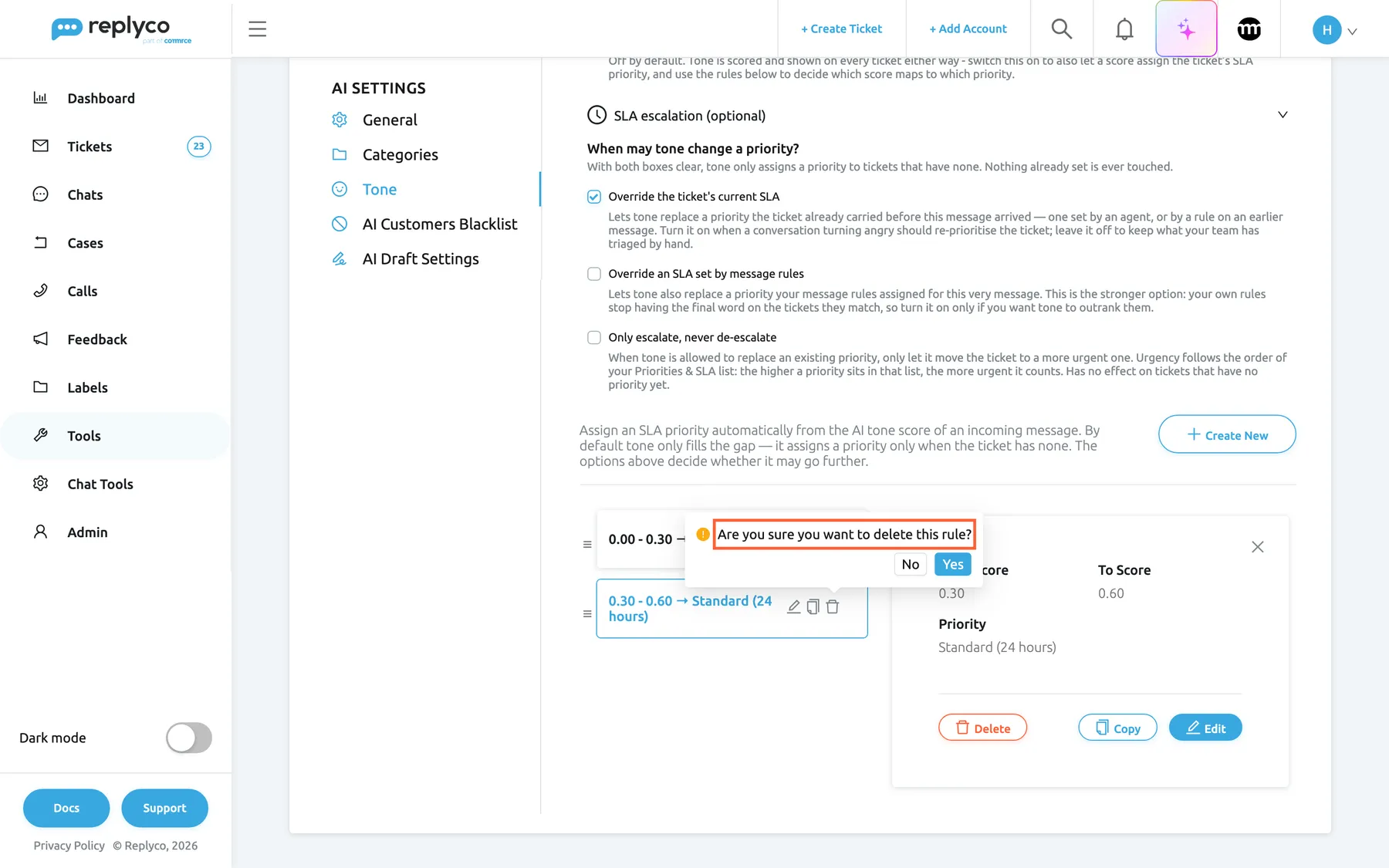
What this screenshot shows
- Screen
- Tone (/aiSettings?tab=toneSla)
- Highlighted
- tooltip “Are you sure you want to delete this rule?”, tone-rules-list, open. Yes deletes the tone rule, No keeps it
- Also visible
- rules 0.00 - 0.30 → Urgent and 0.30 - 0.60 → Standard (24 hours); details panel: From Score 0.30, To Score 0.60, Priority Standard (24 hours); Delete, Copy and Edit buttons; confirmation with No and Yes
- Purpose
- check and delete a tone rule
The bin icon asks Are you sure you want to delete this rule?; Delete in the details panel asks Are you sure you want to delete this item?. The rule disappears, and there is no undo. From then on, scores in its range assign nothing unless another rule covers them; tickets keep the priorities tone already gave them.
Put the tone rules in order
Section titled “Put the tone rules in order”Drag a rule by the handle at the left of its row and drop it where you want it. Replyco saves the new order at once. New rules always start at the bottom.
Replyco checks the rules from the top and uses the first one that matches, but because ranges cannot overlap, at most one rule can ever match a score. The order therefore never changes which priority a score gets; arrange the list so it reads well, for example from 0.00 upwards.
Switch tone analysis on
Section titled “Switch tone analysis on”While Message Tone Analysis is off, a yellow-bordered box at the top of the tab reads Message Tone Analysis is switched off, followed by Nothing on this tab has any effect until tone analysis is turned on. Enable it under and the link General → Message Tone Analysis.
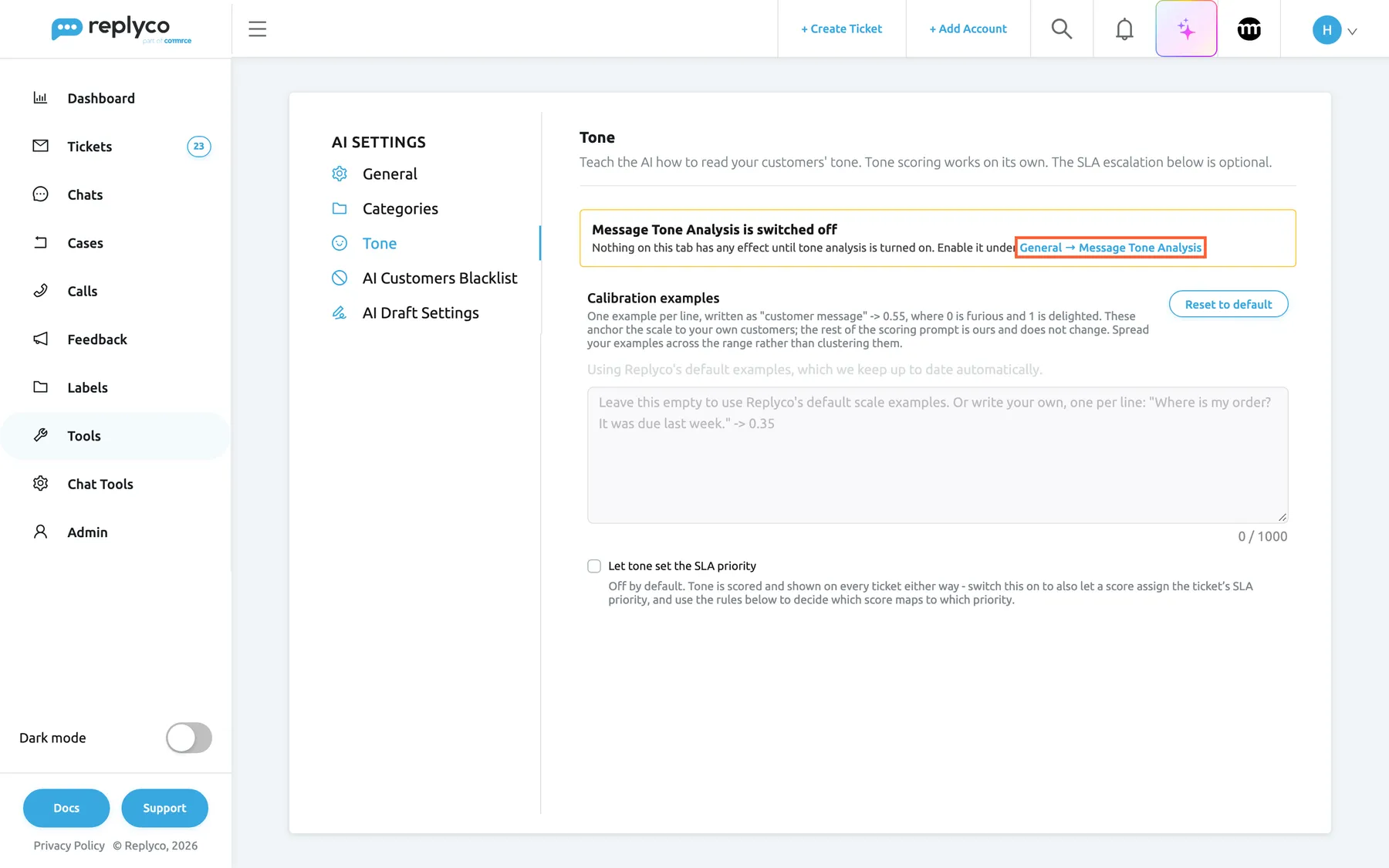
What this screenshot shows
- Screen
- Tone (/aiSettings?tab=toneSla)
- Highlighted
- link “General → Message Tone Analysis”, banner-top, visible. opens the General tab, where Message Tone Analysis is switched on
- Also visible
- banner: Message Tone Analysis is switched off; Calibration examples empty, using Replyco's default examples, 0 / 1000; Let tone set the SLA priority: clear
- Purpose
- the Tone tab before tone analysis is switched on
Select the link. It opens the General tab, where you switch on Message Tone Analysis and select Save; see AI Settings. When you come back, the box has gone.
Everything on the tab can be changed while tone analysis is off: examples, check boxes and tone rules are saved and kept. They take effect for customer messages that arrive after the switch is on; Replyco never scores older messages.
Every control, explained
Section titled “Every control, explained”The Tone tab of ToolsAI Settings, in the order the screen shows it.
The Tone tab
Section titled “The Tone tab”ToolsAI Settings, the third tab in the list under AI Settings, or the web address /aiSettings?tab=toneSla.
Opens the tab with your calibration examples and the SLA part. Everything on it applies to the whole company. Unsaved text in the examples box stays while you switch between the tabs of AI Settings, but is lost when you leave the screen.
Tone scoring and what a score may do are configured in one place, next to the other AI settings.
The Message Tone Analysis is switched off box
Section titled “The Message Tone Analysis is switched off box”Under the tab’s header, only while Message Tone Analysis is off. It is hidden while a tone rule form is open.
Says that nothing on the tab has any effect until tone analysis is on. The link General → Message Tone Analysis opens the General tab.
Examples and tone rules look finished even when nothing is being scored; the box stops you waiting for an effect that cannot come.
Calibration examples
Section titled “Calibration examples”The text box at the top of the tab, with its hint, the character counter below it and Reset to default at the top right. While your company uses Replyco’s examples, the note Using Replyco's default examples, which we keep up to date automatically. sits above the box.
One quoted customer message per line, each followed by -> and one score between 0 and 1, up to 1,000 characters in total. Empty means Replyco’s own examples. Nothing you type is saved until Validate & Save passes. The examples move where the band boundaries sit for your customers; they cannot change the 0 to 1 range or the rule that a customer’s message is data, not instructions.
What counts as angry differs by business. A marketplace seller may want any mention of a claim treated as furious; a shop with long delivery times may want a first chase treated as neutral.
Reset to default
Section titled “Reset to default”The button at the top right of Calibration examples. It is unavailable while a check or a save is running.
Empties the box. If your company had saved its own examples, it goes back to Replyco’s at once and Success appears; otherwise only the typed text is cleared. There is no undo.
Replyco’s examples are kept up to date; going back to them is the quickest fix when your own examples make scores worse.
Validate & Save
Section titled “Validate & Save”Under the examples box, as soon as the text differs from what is saved.
Checks the text with AI, then saves it if it passes. A refusal shows the reason in red under the box and saves nothing; a valid but vague text opens the optimized version; a valid text is saved with Success. An empty box or Replyco’s own text is saved without a check. Each check is one AI action. Validation request failed. means the check could not be reached, and nothing was saved.
A tone score can raise a ticket’s priority, so examples that force a score would let anyone who edits them move tickets at will. The check keeps the examples to what they are for.
Use optimized and Keep original
Section titled “Use optimized and Keep original”In the panel AI-optimized version of your instructions:, under the examples box, after a check that found your examples valid but vague.
Use optimized puts the rewritten lines in the box and saves them. Keep original saves your lines as they are. Typing in the box closes the panel without saving.
Quoted messages with one score each work better than descriptions such as “angry customers -> low”, but the choice stays yours.
Let tone set the SLA priority
Section titled “Let tone set the SLA priority”The check box under the examples, shown only to companies with Priorities and SLA. It saves the moment you tick or clear it and shows Success.
Off by default. Ticked, a tone score may set the ticket’s SLA priority through your tone rules, and the section SLA escalation (optional) appears. Cleared, tone stops touching priorities at once; scores are still stored and shown, and the three boxes and your rules keep their values.
Many teams want the faces and the reasons without ever letting AI move a ticket in the queue. Scoring is the feature; setting priorities is the opt-in.
SLA escalation (optional)
Section titled “SLA escalation (optional)”The collapsible section under Let tone set the SLA priority, shown only while that box is ticked. Select its title to open or close it.
Holds When may tone change a priority? with its three check boxes, the line Assign an SLA priority automatically from the AI tone score of an incoming message. By default tone only fills the gap — it assigns a priority only when the ticket has none. The options above decide whether it may go further., Create New and the list of tone rules. It is closed when the tab opens.
Most companies set it up once; keeping it closed leaves the examples, which you revisit more often, in view.
Override the ticket's current SLA
Section titled “Override the ticket's current SLA”The first check box under When may tone change a priority?. It saves the moment you tick it.
Lets tone replace a priority the ticket already had before this message arrived, whether an agent set it by hand or a rule set it on an earlier message. Clear, tone only gives a priority to tickets that have none. Off by default.
A conversation that turns angry should be able to move the whole ticket up. Leave it clear to protect what your team has triaged by hand.
Override an SLA set by message rules
Section titled “Override an SLA set by message rules”The second check box under When may tone change a priority?. It saves the moment you tick it.
Lets tone also replace a priority your message rules set on this very message. Replyco runs your message rules first and applies tone afterwards, so without this box a rule that sets a priority keeps the last word on the message it matches. Off by default.
Only for companies that want tone to outrank the rules they wrote. It is the stronger of the two overrides.
Only escalate, never de-escalate
Section titled “Only escalate, never de-escalate”The third check box under When may tone change a priority?. It looks greyed out while both boxes above it are clear, but it can still be ticked. It saves the moment you tick it.
When tone may replace a priority, it may only move the ticket to a more urgent one: one that sits higher in your list under AdminCompany Settings › Priorities & SLA. It has no effect on tickets without a priority. Off by default.
You want angry customers escalated, but never a ticket quietly downgraded because the next message happened to be calmer. Agents can still lower a priority by hand.
Create New
Section titled “Create New”Inside SLA escalation (optional), at the right of the line Assign an SLA priority automatically from the AI tone score of an incoming message. By default tone only fills the gap — it assigns a priority only when the ticket has none. The options above decide whether it may go further., above the tone rules.
Opens Create Tone Rule, which replaces the whole tab, with From Score 0.00, To Score 0.30 and no priority. A saved rule is added at the bottom of the list.
Each score range you want treated differently gets its own rule.
The tone rule rows
Section titled “The tone rule rows”Inside SLA escalation (optional), under Create New, one row per rule; No data... when there are none.
Each row reads as the range and the priority it assigns, such as 0.00 - 0.30 → Urgent. Selecting a row outlines it in blue and opens the details panel. The handle on the left moves the row when you drag it, and the new order saves at once. The pencil opens Edit Tone Rule, the copy icon opens a copy of the rule, and the bin asks Are you sure you want to delete this rule? before it deletes.
The list shows at a glance which part of the scale leads to which priority, and where the gaps are.
The details panel
Section titled “The details panel”Right of the tone rules, after you select a row. The cross at its top right closes it.
Shows From Score, To Score and Priority with two decimals. Below them: Delete, which asks Are you sure you want to delete this item?; Copy; and Edit.
Check a rule before you change it, without opening the form.
From Score and To Score
Section titled “From Score and To Score”The two boxes at the top of Create Tone Rule and Edit Tone Rule.
Numbers from 0 to 1 with two decimals; the arrows step by 0.01. The range includes From Score and excludes To Score, except that a range ending at 1.00 also includes 1.00. From Score must be lower than To Score, and the range may not overlap another rule. Replyco rounds both to three decimals before it checks them, so 0.30 and 0.300 are the same.
Half-open ranges let neighbouring rules meet at one number, such as 0.30, without both matching it.
Priority, Refresh and Create a new SLA
Section titled “Priority, Refresh and Create a new SLA”Under the score boxes. The hint under Priority repeats how ranges work; Refresh and Create a new SLA sit at the right.
The drop-down lists your company’s priorities, most urgent first, as ordered under AdminCompany Settings › Priorities & SLA; type part of a name to narrow it. With no priorities it says No SLA priorities yet. Create one first, then refresh this list. Refresh reloads the list. Create a new SLA opens Priorities & SLA in a new browser tab; creating priorities needs the Admin permission with edit rights.
A priority is what carries the respond and resolve deadlines, so a tone rule borrows the deadlines you already promised for that priority.
Save and Back
Section titled “Save and Back”Save at the top right of the rule form; Back above the form’s title.
Save is pale until a priority is chosen and From Score is lower than To Score. It stores the rule and closes the form; a changed rule shows Success, a new rule appears at the bottom of the list, and a refused rule shows an error message with the reason. Back returns to the tab without saving.
Nothing in the form reaches your tickets until it is saved.
Who sees what
Section titled “Who sees what”| Part | Shown when |
|---|---|
| AI Settings under Tools, with this tab | The company has Replyco AI (every plan and every trial), and the user has the Admin permission with edit rights. |
| Message Tone Analysis is switched off | Message Tone Analysis is off on the General tab |
| Using Replyco's default examples, which we keep up to date automatically. | The company has no calibration examples of its own saved |
| Let tone set the SLA priority and the tone rule form | The company has Priorities and SLA: every plan and every trial; companies on an older plan may not have it |
| SLA escalation (optional) | Let tone set the SLA priority is ticked |
| AI Draft Settings in the tab list | AI drafts are switched on for the company; see AI Draft Settings |
What you need to know
Section titled “What you need to know”| Topic | Fact |
|---|---|
| Company-wide | Examples, check boxes and tone rules apply to every account and every user of the company. |
| How changes save | Examples save with Validate & Save; the four check boxes save when you tick them; tone rules save with Save in the form; the order saves when you drop a row. |
| Messages | Saving examples, check boxes and changed rules shows Success. |
| Nothing retroactive | New examples, check boxes and rules affect only customer messages that arrive afterwards. Scores and priorities already set stay. |
| Limits | Examples up to 1,000 characters. Scores from 0 to 1, two decimals in the form, three decimals when checked. Ranges may not overlap; gaps are allowed. |
| Order | New rules go to the bottom. The order never changes which rule matches, because at most one can. |
| Cost | Each Validate & Save check is one AI action; saving an empty box or Replyco’s own examples is not. |
| Language | Replyco’s examples and the check’s reasons are German for companies whose Replyco language is German, English otherwise. |
| Switching off | Clearing Let tone set the SLA priority or switching tone analysis off keeps every example, box and rule. |
| Deleting a priority | Deletes the tone rules that point at it. |
Frequently asked questions
Section titled “Frequently asked questions”General
Section titled “General”Who can change the settings on the Tone tab?
Section titled “Who can change the settings on the Tone tab?”Users with the Admin permission with edit rights, in a company with Replyco AI; only they see ToolsAI Settings and its Tone tab. Creating the priorities that tone rules point at needs the same permission. See User permissions and roles.
Do the settings on the Tone tab do anything while tone analysis is off?
Section titled “Do the settings on the Tone tab do anything while tone analysis is off?”No. While Message Tone Analysis is off on the General tab, nothing is scored, so examples and tone rules have nothing to act on, and the tab shows Message Tone Analysis is switched off. Everything you set is kept and takes effect for messages that arrive once the switch is on and saved.
Why is there no SLA part on my Tone tab?
Section titled “Why is there no SLA part on my Tone tab?”Let tone set the SLA priority, SLA escalation (optional) and the tone rules need Priorities and SLA. Every plan and every trial includes it, but companies on an older plan may not have it; see What each plan includes. Without it, the Tone tab shows only the calibration examples, and tone is still scored and shown on your tickets.
Do changes on the Tone tab affect tickets I already have?
Section titled “Do changes on the Tone tab affect tickets I already have?”No. Examples, check boxes and tone rules on the Tone tab apply to customer messages that arrive after you save them. Scores already stored and priorities tone already assigned stay as they are, and Replyco never re-scores older messages.
Your examples
Section titled “Your examples”Do I have to write calibration examples?
Section titled “Do I have to write calibration examples?”No. Leave Calibration examples on the Tone tab empty and Replyco uses its own five examples, from furious to delighted, and keeps them up to date. Write your own only when scores do not match how your customers sound.
Why were my calibration examples refused?
Section titled “Why were my calibration examples refused?”Validate & Save on the Tone tab refuses text that tries to take over the scorer, forces the same score on every message, changes the answer’s format or the 0 to 1 range, or has nothing to do with judging tone. The reason appears in red under the box and nothing is saved; rewrite the lines as quoted messages with one score each.
What happens when I accept or keep the AI-optimized version?
Section titled “What happens when I accept or keep the AI-optimized version?”Both save. Use optimized replaces your lines with the AI’s rewritten version and saves it; Keep original saves your lines as you typed them. The panel AI-optimized version of your instructions: only appears when the check found your examples valid but vague.
How long can my calibration examples be?
Section titled “How long can my calibration examples be?”Up to 1,000 characters in total, one example per line; the counter under the Calibration examples box on the Tone tab shows how many you have used. Northwind’s five examples, from furious to delighted, use 349 of them.
How do I undo my own examples?
Section titled “How do I undo my own examples?”Select Reset to default next to Calibration examples on the Tone tab. If you had saved examples of your own, your company goes back to Replyco’s examples at once. Your own lines are not kept anywhere, so copy them before you reset if you may need them again.
SLA and tone rules
Section titled “SLA and tone rules”I allowed tone to set priorities, but no ticket changed. Why?
Section titled “I allowed tone to set priorities, but no ticket changed. Why?”Ticking Let tone set the SLA priority on the Tone tab only allows tone to set priorities. Tone assigns nothing until you create a tone rule under SLA escalation (optional), and then only for new customer messages whose score falls in a rule’s range. With the three boxes clear, it only gives a priority to tickets that have none.
What happens to a score that no tone rule covers?
Section titled “What happens to a score that no tone rule covers?”It assigns nothing: a score that falls in a gap between your ranges on the Tone tab leaves the ticket’s priority as it is. A range includes its start and excludes its end, and a range ending at 1.00 also includes 1.00, so 0.00–0.30 and 0.30–0.60 leave no gap between them.
Can two tone rules cover the same scores?
Section titled “Can two tone rules cover the same scores?”No. Replyco refuses a tone rule whose range overlaps another one, with “This score range overlaps another tone rule.” Ranges that only touch, such as 0.00–0.30 and 0.30–0.60, do not overlap. When you copy a rule on the Tone tab, change From Score and To Score to a free range before you select Save.
Does the order of the tone rules matter?
Section titled “Does the order of the tone rules matter?”Not for the result. Replyco checks tone rules from the top and uses the first match, but it refuses overlapping ranges, so at most one rule can match any score. Drag the rows on the Tone tab into whatever order reads best, for example from 0.00 upwards.
Why does the priority list in the tone rule form not show a priority I just created?
Section titled “Why does the priority list in the tone rule form not show a priority I just created?”The form loads your priorities when it opens. After creating a priority under AdminCompany Settings › Priorities & SLA, select Refresh next to Priority in the tone rule form and the new priority appears in the list.
Where did my tone rules go?
Section titled “Where did my tone rules go?”Tone rules disappear when you delete them on the Tone tab, and also when someone deletes the priority they point at under AdminCompany Settings › Priorities & SLA. If Let tone set the SLA priority is clear, the rules are only hidden and come back when you tick it.
Which override boxes should I tick?
Section titled “Which override boxes should I tick?”Start with all three clear under When may tone change a priority? on the Tone tab: tone then only gives a priority to tickets that have none. The usual next step is Override the ticket's current SLA together with Only escalate, never de-escalate, so tickets move up as customers get angrier and never move down on their own.
Troubleshooting
Section titled “Troubleshooting”| Symptom | What to check |
|---|---|
| AI Settings is not under Tools | Your user lacks the Admin permission with edit rights; ask an administrator. Companies on an older plan may not have Replyco AI; see What each plan includes. |
| The tab shows Message Tone Analysis is switched off | Message Tone Analysis on the General tab is off or was not saved. Follow General → Message Tone Analysis, switch it on and select Save. |
| Let tone set the SLA priority is missing | The company is on an older plan without Priorities and SLA; see What each plan includes. Scoring still works. |
| SLA escalation (optional) is missing | Let tone set the SLA priority is clear; tick it. |
| Validate & Save is not there | The text is the same as what is saved. Change it and the button appears. |
| A red message under the examples box | The check refused the examples. Remove anything that is not a quoted message with one score, and anything that forces a fixed score. If it reads Validation request failed., try again. |
| Save stays pale in the rule form | Choose a Priority and make From Score lower than To Score. |
| The priority list says No SLA priorities yet. Create one first, then refresh this list. | Create a priority with Create a new SLA (Admin permission with edit rights), then select Refresh. |
| An error message after Save in the rule form | The range overlaps another rule, a score is outside 0 to 1, or the priority was deleted. Save the rule again with a free range or an existing priority. |
| Tone moves tickets to a less urgent priority with Only escalate, never de-escalate ticked | The order under AdminCompany Settings › Priorities & SLA: drag the most urgent priority to the top. |